> ## Documentation Index
> Fetch the complete documentation index at: https://devdocs.xbox.com/llms.txt
> Use this file to discover all available pages before exploring further.
# XBOX Gaming Project Control
> XBOX Gaming Project Control
The GDK installs a tool window into the Visual Studio shell called the **XBOX Gaming Project Control**. This tool window provides a central location in which to manage all XBOX-specific project settings. In addition to centralizing the management of XBOX project settings, the **XBOX Gaming Project Control** also helps ensure the settings are correct and will result in a successful deployment and debugging session. Individual settings are validated for correctness as they are entered. Instances in which the value of a setting is different across configurations are also called out. Identifying these mismatches is intended to help find cases up front in which settings were inadvertently set to different values in different configurations. For example, the **XBOX Gaming Project Control** will highlight cases in which the deployment method is different between your *Debug*, *Release*, and *Profile* configurations.
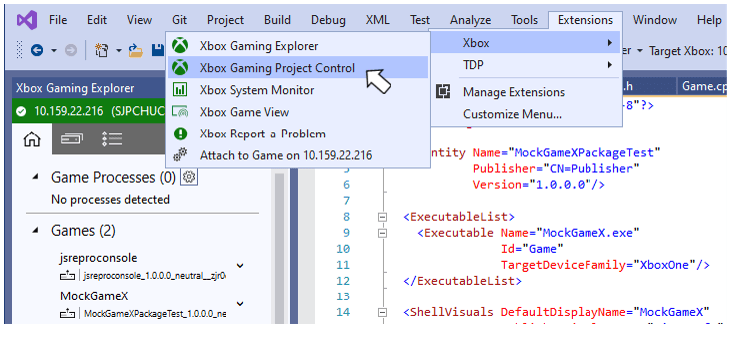
Use the XBOX menu to access the **XBOX Gaming Project Control**. The XBOX menu can be found under the Visual Studio Extensions menu as shown in the following figure.
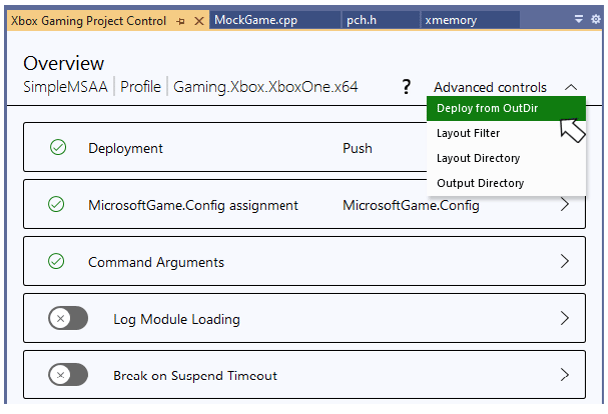
 The overview page identifies the currently selected configuration and platform, and provides a set of buttons used to access details pages used to configure the following settings.
* Deployment
* MicrosoftGameConfig.mgc assignment
* Command Arguments
* Logging of Module Loads
* Break on Suspend Timeout
An *Advanced Controls* dropdown provides access to the editing pages for the *Deploy from OutDir*, *OutDir*, *LayoutDir* and *LayoutExtensionFilter* properties.
The overview page identifies the currently selected configuration and platform, and provides a set of buttons used to access details pages used to configure the following settings.
* Deployment
* MicrosoftGameConfig.mgc assignment
* Command Arguments
* Logging of Module Loads
* Break on Suspend Timeout
An *Advanced Controls* dropdown provides access to the editing pages for the *Deploy from OutDir*, *OutDir*, *LayoutDir* and *LayoutExtensionFilter* properties.
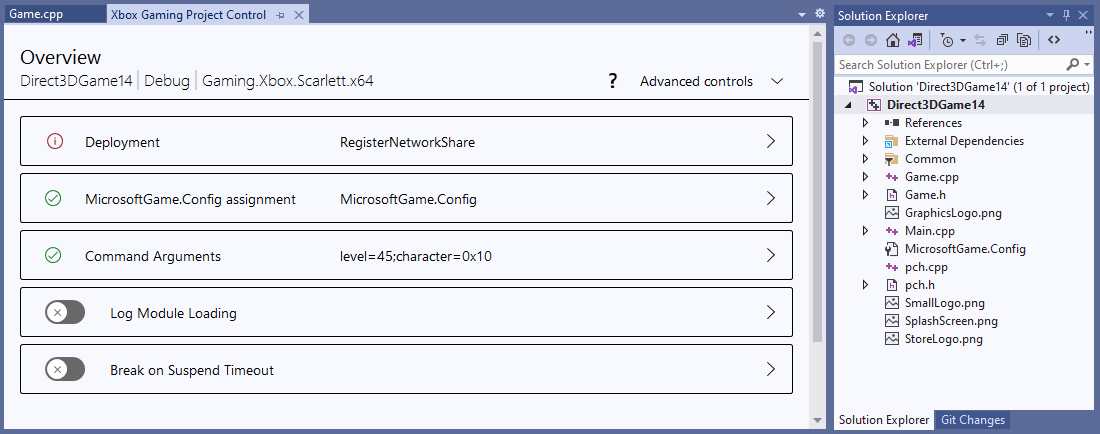 A green check mark on a settings button indicates that the values of the settings for that category have been validated and are the same across all configurations. A red exclamation point indicates that either there is an error in the value of a setting or that the values for a setting are not the same across all configurations. In the following figure, the settings for *Command Arguments* are valid and consistent, but the *Deployment* settings are not.
 Note that a setting whose value varies by configuration does not always mean that the setting is configured incorrectly. For example, it's quite common to have different command line arguments for different configurations. In contrast, using different deployment methods per configuration is uncommon and therefore may be an indication that the deployment settings were inadvertently mismatched. The presence of a red exclamation point is an indication that you might want to review your settings, rather than an absolute indication that the settings are incorrect.
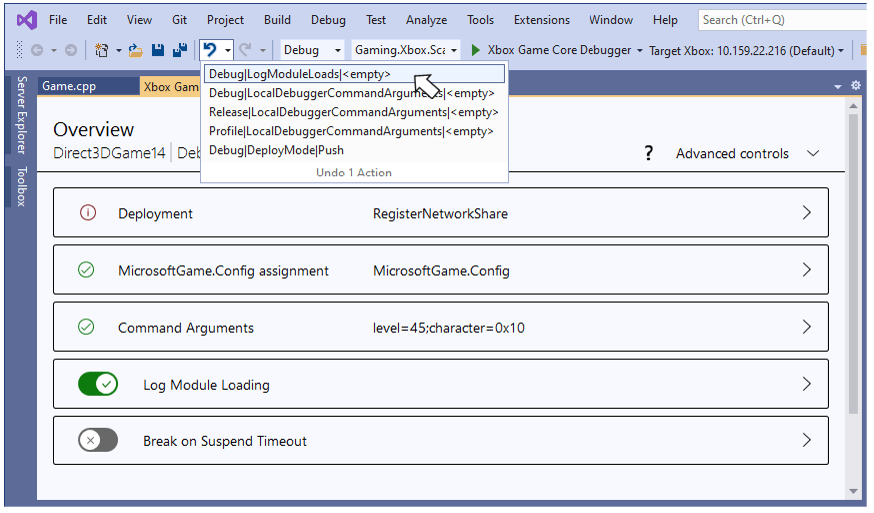
Changes made to properties using the **XBOX Gaming Project Control** are written to the project file immediately. No additional action in the form of an *Ok* or *Apply* button is needed. All edits are fully integrated with Visual Studio's undo/redo stack. Access the undo/redo stack using either the Visual Studio toolbar or the standard Ctrl-Z and Ctrl-Y key sequences. The following figure shows an undo stack that contains several properties edited the **XBOX Gaming Project Control**.
Note that a setting whose value varies by configuration does not always mean that the setting is configured incorrectly. For example, it's quite common to have different command line arguments for different configurations. In contrast, using different deployment methods per configuration is uncommon and therefore may be an indication that the deployment settings were inadvertently mismatched. The presence of a red exclamation point is an indication that you might want to review your settings, rather than an absolute indication that the settings are incorrect.
Changes made to properties using the **XBOX Gaming Project Control** are written to the project file immediately. No additional action in the form of an *Ok* or *Apply* button is needed. All edits are fully integrated with Visual Studio's undo/redo stack. Access the undo/redo stack using either the Visual Studio toolbar or the standard Ctrl-Z and Ctrl-Y key sequences. The following figure shows an undo stack that contains several properties edited the **XBOX Gaming Project Control**.
 The properties that can be edited using the **XBOX Gaming Project Control** can also be edited using the Visual Studio [C++ project property page](/tools/tools-console/visualstudio/durango-property-pages). The values of all properties are kept in sync across the two windows as edits are made.
## Deployment Settings
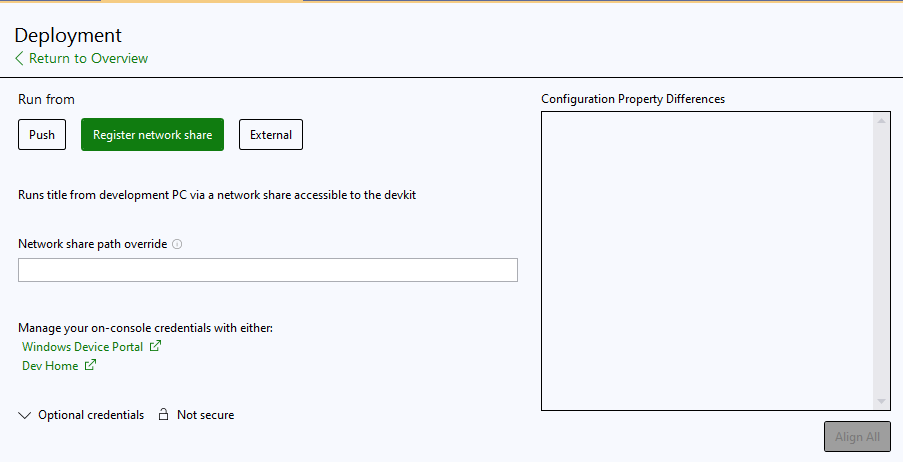
Use the *Deployment* page to specify the deployment method and method-specific settings for the active configuration and platform. Choose a deployment method by selecting one of the *Push*, *RfPC*, or *External* buttons. The currently selected deployment method is indicated by a green highlight around the corresponding deployment method button.
Settings specific to a deployment method are displayed based on the method selected. In the following figure, the *RfPC* deployment method is selected. Edit boxes are available to change the launch string and to enter optional credentials.
The properties that can be edited using the **XBOX Gaming Project Control** can also be edited using the Visual Studio [C++ project property page](/tools/tools-console/visualstudio/durango-property-pages). The values of all properties are kept in sync across the two windows as edits are made.
## Deployment Settings
Use the *Deployment* page to specify the deployment method and method-specific settings for the active configuration and platform. Choose a deployment method by selecting one of the *Push*, *RfPC*, or *External* buttons. The currently selected deployment method is indicated by a green highlight around the corresponding deployment method button.
Settings specific to a deployment method are displayed based on the method selected. In the following figure, the *RfPC* deployment method is selected. Edit boxes are available to change the launch string and to enter optional credentials.
 If the deployment method is not the same across all configurations, the reason for the differences are shown in a control located to the right of the deployment method buttons. In the following figure, the deployment page is currently editing the deployment settings for the *Profile* configuration whose deployment method is set to *RfPC*. However, the deployment method for the *Release* configuration is set to *Push* as noted in the deployment differences control.
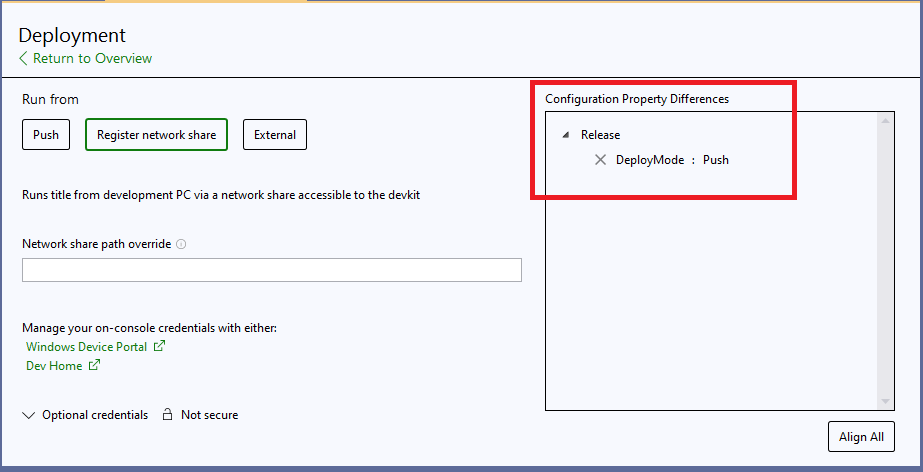 The *Align* button can be used to synchronize the deployment settings across configurations, if desired. Clicking the *Align* button in this case will change the deployment method for the *Release* configuration from *Push* to the method used in the current configuration and platform, *RfPC* in this case.
## MicrosoftGameConfig.mgc Settings
The Visual Studio project system and msbuild files include support for specifying different [MicrosoftGameConfig.mgc](/build/core-features/common/game-config/MicrosoftGameConfig-toc) files for each build configuration. MicrosoftGameConfig.mgc files are renamed to MicrosoftGame.config when they are copied to the output directory when a project is built.
Clicking the *MicrosoftGame.config assigment* button opens a page that lets you specify the MicrosoftGameConfig.mgc file to use for each build configuration. A default MicrosftGameConfig.mgc file can also be specified. This default file will be used for all configurations unless explicitly overridden.
Use the *Project Default* dropdown to specify a default MicrosoftGameConfig.mgc file as shown in the following figure. Note that when a project is first created using one of the Microsoft Game Development Kit (GDK) templates, a default MicrosoftGameConfig.mgc is implicitly set for you.
The *Align* button can be used to synchronize the deployment settings across configurations, if desired. Clicking the *Align* button in this case will change the deployment method for the *Release* configuration from *Push* to the method used in the current configuration and platform, *RfPC* in this case.
## MicrosoftGameConfig.mgc Settings
The Visual Studio project system and msbuild files include support for specifying different [MicrosoftGameConfig.mgc](/build/core-features/common/game-config/MicrosoftGameConfig-toc) files for each build configuration. MicrosoftGameConfig.mgc files are renamed to MicrosoftGame.config when they are copied to the output directory when a project is built.
Clicking the *MicrosoftGame.config assigment* button opens a page that lets you specify the MicrosoftGameConfig.mgc file to use for each build configuration. A default MicrosftGameConfig.mgc file can also be specified. This default file will be used for all configurations unless explicitly overridden.
Use the *Project Default* dropdown to specify a default MicrosoftGameConfig.mgc file as shown in the following figure. Note that when a project is first created using one of the Microsoft Game Development Kit (GDK) templates, a default MicrosoftGameConfig.mgc is implicitly set for you.
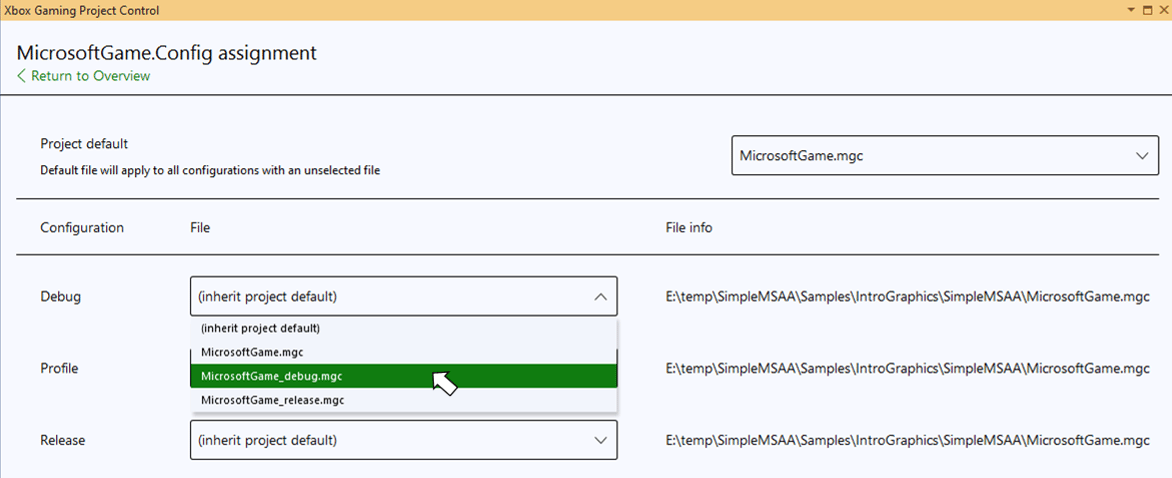
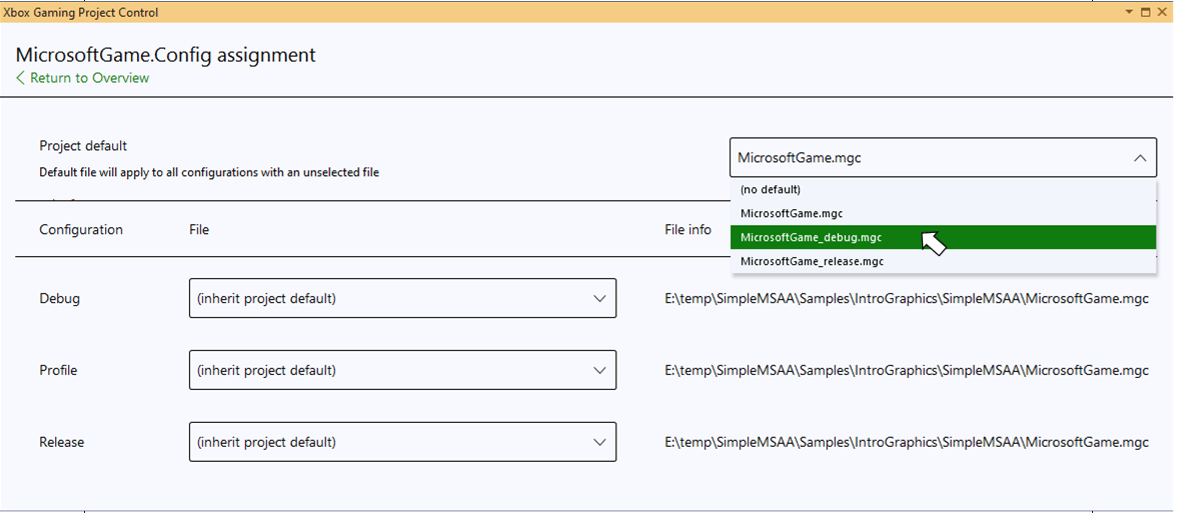 Configurations whose dropdown value is *Unselected* will use the default MicrosoftGameConfig.mgc file. Select a file from the dropdown to override the default file for a given configuration as shown in the following figure.
 ## Command Arguments
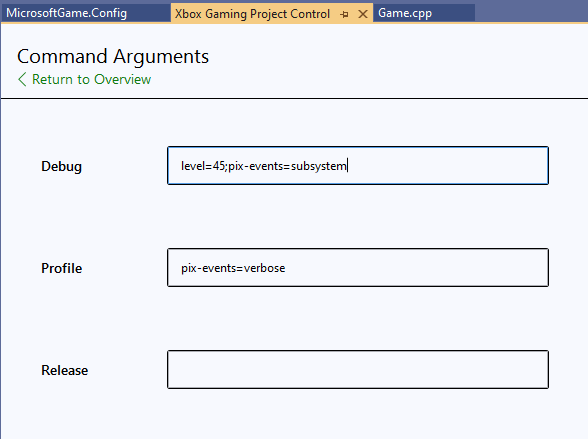
Use the *Command Arguments* page to edit the arguments for each build configuration. Separate edit boxes are provided for each configuration.
## Command Arguments
Use the *Command Arguments* page to edit the arguments for each build configuration. Separate edit boxes are provided for each configuration.
 ## Logging of Module Loads
Use the *Logging of Module Loads* button to enable verbose debug output, which includes module loading information. The slider on the button itself toggles the property for the active build configuration.
## Logging of Module Loads
Use the *Logging of Module Loads* button to enable verbose debug output, which includes module loading information. The slider on the button itself toggles the property for the active build configuration.
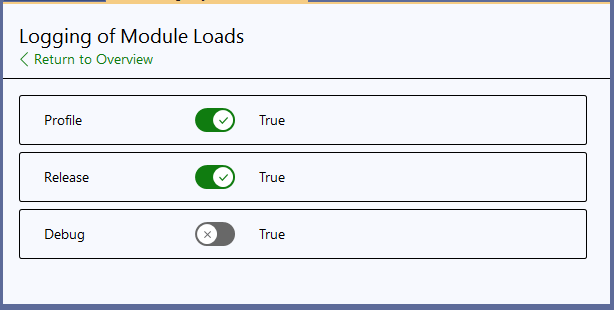
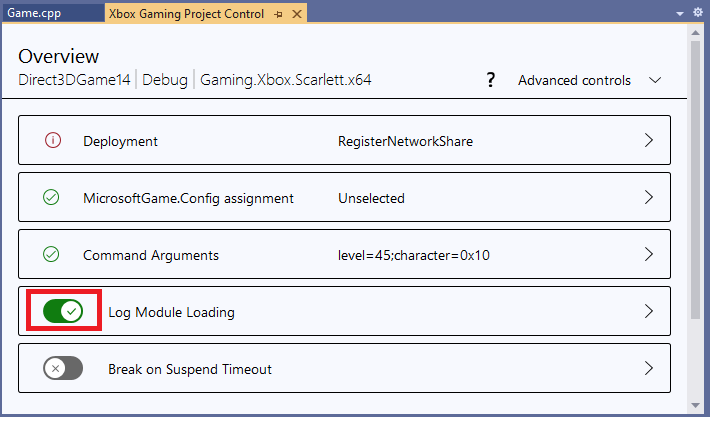 Click the button to open a page that lets you specify values for all build configurations.
 ## Break on Suspend Timeout
Use the *Break execution on suspend timeout* button to [re-enable the 1 second suspend timeout](/tools/tools-console/visualstudio/debugging-with-visualstudio#vsdebug_gamelifecycle) when a debugger is attached.
The slider on the button itself toggles the property for the active build configuration.
## Break on Suspend Timeout
Use the *Break execution on suspend timeout* button to [re-enable the 1 second suspend timeout](/tools/tools-console/visualstudio/debugging-with-visualstudio#vsdebug_gamelifecycle) when a debugger is attached.
The slider on the button itself toggles the property for the active build configuration.
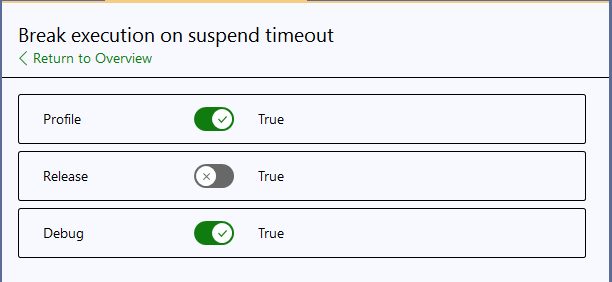
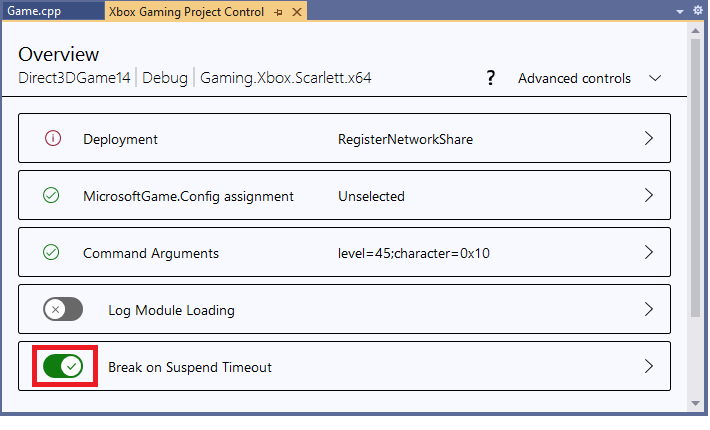 Click the button to open a page that lets you specify values for all build configurations.
 ## Advanced Controls
Use the *Advanced controls* dropdown to access the editing pages for the *Deploy from Outdir*, *LayoutDir*, *LayoutExtensionFilter*, and *OutDir* properties.
## Advanced Controls
Use the *Advanced controls* dropdown to access the editing pages for the *Deploy from Outdir*, *LayoutDir*, *LayoutExtensionFilter*, and *OutDir* properties.
 Individual edit boxes or slider controls are provided to edit the property values for each configuration.
## See also
[Visual Studio](/tools/tools-console/visualstudio/visualstudio)
[Visual Studio properties for XBOX development](/tools/tools-console/visualstudio/durango-property-pages)
## Related topics
- [Visual Studio for console development](/tools/tools-console/visualstudio/visualstudio.md)
- [Visualstudio](/tools/tools-console/visualstudio/index.md)
- [MicrosoftGame.config overview](/build/core-features/common/game-config/MicrosoftGameConfig-Overview.md)
- [Debugging XBOX projects by using Visual Studio](/tools/tools-console/visualstudio/debugging-with-visualstudio.md)
- [XBOX Gaming Explorer](/tools/tools-console/visualstudio/xbox-gaming-explorer.md)
Individual edit boxes or slider controls are provided to edit the property values for each configuration.
## See also
[Visual Studio](/tools/tools-console/visualstudio/visualstudio)
[Visual Studio properties for XBOX development](/tools/tools-console/visualstudio/durango-property-pages)
## Related topics
- [Visual Studio for console development](/tools/tools-console/visualstudio/visualstudio.md)
- [Visualstudio](/tools/tools-console/visualstudio/index.md)
- [MicrosoftGame.config overview](/build/core-features/common/game-config/MicrosoftGameConfig-Overview.md)
- [Debugging XBOX projects by using Visual Studio](/tools/tools-console/visualstudio/debugging-with-visualstudio.md)
- [XBOX Gaming Explorer](/tools/tools-console/visualstudio/xbox-gaming-explorer.md)