> ## Documentation Index
> Fetch the complete documentation index at: https://devdocs.xbox.com/llms.txt
> Use this file to discover all available pages before exploring further.
# How to: deploying game resource files by using Visual Studio
> How to: deploying game resource files by using Visual Studio
When you use Visual Studio to deploy or launch an XBOX One Software Development Kit project, the contents of the `Gaming.Xbox.XboxOne.x64\Layout\Image\Loose` project subdirectory are deployed to the console. When you build a Microsoft Game Development Kit project for XBOX, compiled application files are automatically copied to this directory and deployed. To deploy additional game resources, such as textures and shaders, their files also need to be copied to the `Loose` subdirectory of the XBOX One XDK project.
The `Loose` directory is relative to the project directory. For example, if the project is stored in the c:\MyProjects\D3D12Game1\D3D12Game1 directory, the `Loose` directory is a subdirectory of the project, which is here: c:\MyProjects\D3D12Game1\D3D12Game1\Gaming.Xbox.XboxOne.x64\Layout\Image\Loose.
Any files placed in the `Loose` directory, either manually or as part of the build process, are deployed with your app.
Files in the `Loose` directory are deployed with the same relative path that they have in the `Loose` directory. For example, files in Loose\Models are deployed in a Models subdirectory on the console.
Files in the `Loose` directory aren't deleted when building or cleaning the project unless they exist as content in the project (see Adding files to the project as follows).
There are three primary ways to add files to Gaming.Xbox.XboxOne.x64\Layout\Image\Loose.
* [Manually copying files](#ID4ESC)
* [Copying with a post-build event](#ID4EXD)
* [Adding files to the project](#ID4E6F)
## Manually copying files
Manually copying files into the `Loose` directory causes them to be deployed with the project as long as they remain in the directory.
#### To add files manually
* Use **xcopy** to copy files from the project directory to the \Layout\Image\Loose directory.
This method is quick and easy, but it might cause problems if you work with a build lab or with developers who don't copy all the required files.
Files that are manually copied to the `Loose` directory continue to be deployed as long as they're in the directory. Files manually copied to the `Loose` directory aren't deleted when the project is built or cleaned. To stop the files from being deployed, they must be deleted from the `Loose` directory.
## Copying with a post-build event
Creating a post-build event in Visual Studio to copy files causes files to be copied to the `Loose` directory every time that you build your project. In addition, a post-build event can make use of `$(ProjectDir)` and `$(LayoutDir)`, Visual Studio properties that identify the project directory and the layout directory, respectively.
For example, the following command line causes a file, MyPicture.bmp, to be copied from the project directory to \Image\Loose in the Layout directory, where deployment copies it to the console.
```text theme={null}
xcopy $(ProjectDir)MyPicture.bmp $(LayoutDir)Image\Loose
```
#### To add files by using a post-build event
1. Open your project's **Property Pages** dialog box. Under **Build Events**, select the **Post-Build Event** page.
**Figure 1. Specify a command line for the post-build event.**
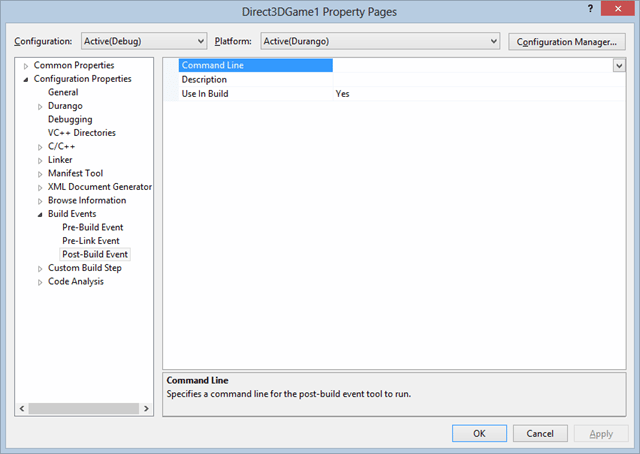 1. In **Command Line**, enter a command line that uses **xcopy** to copy files from the project directory to the Layout\Image\Loose directory.
For example, **xcopy**\*\*$(ProjectDir)***file-name***$(LayoutDir)Image\Loose\*\*, where *file-name* matches the name of the file or files that you want to have copied.
Files that are copied to the `Loose` directory with a post-build event continue to be deployed as long as they're in the directory - even if the post-build event is removed from the project. Files copied to the `Loose` directory with a post-build event aren't deleted when the project is built or cleaned. To stop the files from being deployed, they must also be deleted from the `Loose` directory.
## Adding files to the project
Files can also be added to the project as resources. Project resources are automatically copied to the `Loose` directory and deployed with the project.
#### To add files as a project resource
1. Right-click the project, and then select **Add, Existing Item**.
2. Select the item to add to the project.
3. Open the properties window for the resource, and then ensure that the **Content** property is set to **Yes**.
This method treats the files exactly like other project files, such as the executable. Files are deleted when building or cleaning the project and are automatically copied to the `Loose` directory and deployed with the project. Removing the file from the project also removes it from the `Loose` directory.
## See also
[XBOX One deployment](/home/setup-install/concepts/deployment)
## Related topics
- [Visual Studio properties for XBOX development](/tools/tools-console/visualstudio/durango-property-pages.md)
- [Visual Studio for console development](/tools/tools-console/visualstudio/visualstudio.md)
- [Profile-guided optimization in Visual Studio](/tools/tools-console/pgo/pgo_full.md)
- [Visualstudio](/tools/tools-console/visualstudio/index.md)
- [Visual Studio (contents)](/tools/tools-pc/visualstudio/gr-visualstudio-toc.md)
1. In **Command Line**, enter a command line that uses **xcopy** to copy files from the project directory to the Layout\Image\Loose directory.
For example, **xcopy**\*\*$(ProjectDir)***file-name***$(LayoutDir)Image\Loose\*\*, where *file-name* matches the name of the file or files that you want to have copied.
Files that are copied to the `Loose` directory with a post-build event continue to be deployed as long as they're in the directory - even if the post-build event is removed from the project. Files copied to the `Loose` directory with a post-build event aren't deleted when the project is built or cleaned. To stop the files from being deployed, they must also be deleted from the `Loose` directory.
## Adding files to the project
Files can also be added to the project as resources. Project resources are automatically copied to the `Loose` directory and deployed with the project.
#### To add files as a project resource
1. Right-click the project, and then select **Add, Existing Item**.
2. Select the item to add to the project.
3. Open the properties window for the resource, and then ensure that the **Content** property is set to **Yes**.
This method treats the files exactly like other project files, such as the executable. Files are deleted when building or cleaning the project and are automatically copied to the `Loose` directory and deployed with the project. Removing the file from the project also removes it from the `Loose` directory.
## See also
[XBOX One deployment](/home/setup-install/concepts/deployment)
## Related topics
- [Visual Studio properties for XBOX development](/tools/tools-console/visualstudio/durango-property-pages.md)
- [Visual Studio for console development](/tools/tools-console/visualstudio/visualstudio.md)
- [Profile-guided optimization in Visual Studio](/tools/tools-console/pgo/pgo_full.md)
- [Visualstudio](/tools/tools-console/visualstudio/index.md)
- [Visual Studio (contents)](/tools/tools-pc/visualstudio/gr-visualstudio-toc.md)