> ## Documentation Index
> Fetch the complete documentation index at: https://devdocs.xbox.com/llms.txt
> Use this file to discover all available pages before exploring further.
# Manage overlay folders
> Manage overlay folders
Generally, the Tools SKU enables you to upgrade the tools from the Microsoft Game Development Kit (GDK) without having to upgrade other Microsoft Game Development Kit (GDK) components (for example, headers, libraries, and Game OS). The Overlay Folders feature is an exception in that it depends on support from the Game OS, which is released as part of the Microsoft Game Development Kit (GDK) but not the Tools SKU.
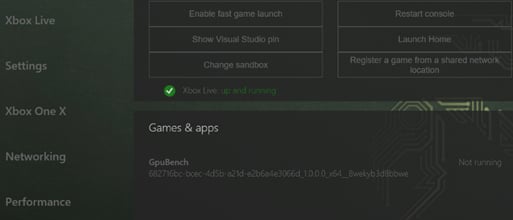
The **Games & Apps** section of the Developer Home (Dev Home) Home page, shown in the following screenshot, lists the games and apps that are installed on your console. From here, you can configure an overlay folder for your game. For more information about overlay folders, see [Debugging with overlay folders](/build/console-features/debugging-diagnostics/debugging-with-overlay-folders).
 To configure an overlay folder for your game
1. In the **Games & Apps** section, select the name of your game.
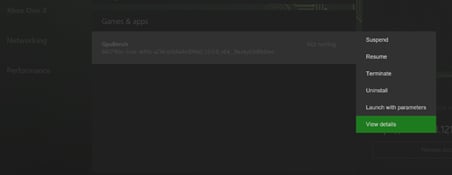
2. Press the **View** button on your controller. The **View** context menu appears.
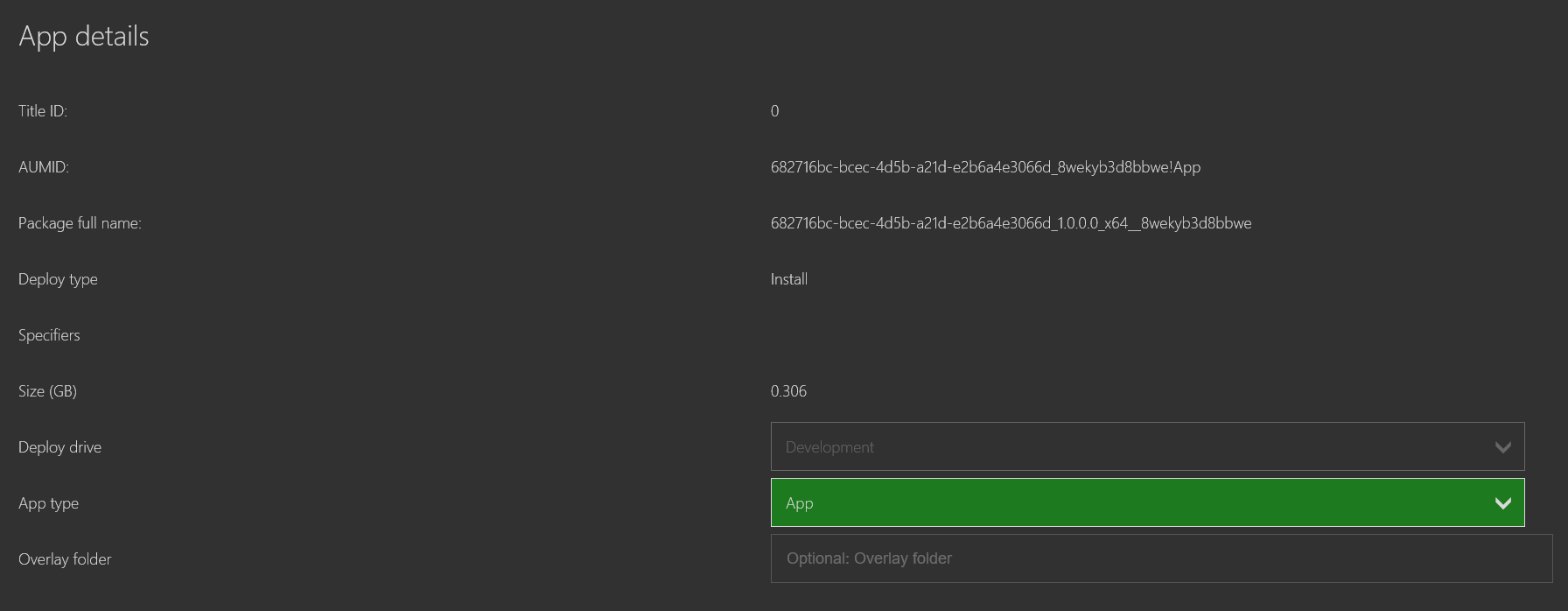
3. Select the **View Details** menu item. The **View Details** page for your game appears.
4. In the **Overlay Folder** text box, enter the overlay folder path that you want to use for your game.
5. Select the **Close** button.
The following screenshot shows the **View** context menu.
To configure an overlay folder for your game
1. In the **Games & Apps** section, select the name of your game.
2. Press the **View** button on your controller. The **View** context menu appears.
3. Select the **View Details** menu item. The **View Details** page for your game appears.
4. In the **Overlay Folder** text box, enter the overlay folder path that you want to use for your game.
5. Select the **Close** button.
The following screenshot shows the **View** context menu.
 The following screenshot shows the **View Details** page.
 ## Related topics
- [Developer Home (DevHome) on XBOX dev kits](/tools/tools-console/devhome/index.md)
- [Managing overlay folders](/tools/tools-console/wdp/windows-device-portal-on-xbox-overlay-folders.md)
- [XtfSetOverlayFolder](/reference/tools/xtf/xtfapi/functions/xtfsetoverlayfolder-xtfapi-xbox-windows-m.md)
- [XtfGetOverlayFolder](/reference/tools/xtf/xtfapi/functions/xtfgetoverlayfolder-xtfapi-xbox-windows-m.md)
- [XtfClearAllOverlayFolders](/reference/tools/xtf/xtfapi/functions/xtfclearalloverlayfolders-xtfapi-xbox-windows-m.md)
## Related topics
- [Developer Home (DevHome) on XBOX dev kits](/tools/tools-console/devhome/index.md)
- [Managing overlay folders](/tools/tools-console/wdp/windows-device-portal-on-xbox-overlay-folders.md)
- [XtfSetOverlayFolder](/reference/tools/xtf/xtfapi/functions/xtfsetoverlayfolder-xtfapi-xbox-windows-m.md)
- [XtfGetOverlayFolder](/reference/tools/xtf/xtfapi/functions/xtfgetoverlayfolder-xtfapi-xbox-windows-m.md)
- [XtfClearAllOverlayFolders](/reference/tools/xtf/xtfapi/functions/xtfclearalloverlayfolders-xtfapi-xbox-windows-m.md)