> ## Documentation Index
> Fetch the complete documentation index at: https://devdocs.xbox.com/llms.txt
> Use this file to discover all available pages before exploring further.
# Configuring Title Storage in Partner Center
> Step-by-step guide to configuring XBOX services Title Storage in Partner Center, including storage types, visibility settings, and Global Storage uploads.
This topic describes the Title Storage service, and how by using XBOX services, you can save data that's associated with your game to the cloud. Use the **Title Storage** configuration page to determine which types of cloud storage services that your game allows and upload files to Global Storage.
To find the XBOX services Title Storage configuration page
1. Go to [Partner Center](https://partner.microsoft.com/dashboard).
2. Select your app in either **Overview** or **Products**.
3. From **Services**, select **XBOX services**.
To see the Title Storage configuration options, developers in the Creators Program need to select **Show options** in the **Cloud saves and storage** section of the **Title Storage configuration** page.
To go to the **Title Storage configuration** page if you have the full set of XBOX services features available, find the **Title Storage** link.
Title Storage configuration has two main sections: Title Storage settings (figure 1) and Global
Storage file management (figure 2).
## Title Storage settings
**Figure 1. Title Storage section.**
 In Title Storage, you can enable any of the four storage types by selecting **Active**.
After you choose your title's storage types, you can then choose whether reading the data will be restricted to the player who owns it by selecting **Owner Only**. Or you can make this user's data available publicly by selecting **Everyone**.
If you select **Owner Only** for a specified **Storage Type**, the Title Storage data of that type is readable only by the player who generated that data. If you select **Everyone** for a specified **Storage Type**, the Title Storage data of that type is readable by all players.
Writing or modifying saved data is available only to the player who generated it.
## Storage types
There are four storage types that can be activated on the Title Storage configuration page.
You can find a description of each storage type by hovering over the Info icon next to each storage type's name or by referring to the following table.
| Storage type | Description | Example usage |
| ----------------- | ------------------------------------------------------------------------------------------------------------------------------------------------------------------------------------------------------------------------------------------------- | ----------------------------------------------------------------------------- |
| Global | Data uploaded to Partner Center that can be read by any device and is accessible to every player. Can only be written to by the developer. Uploads to Partner Center. | Advertise updates to all players via an in-game news feed. |
| Connected Storage | Allows background syncing of game data on XBOX One family and Windows 10 games. Is a robust fault-tolerant game-save service. Can be read by any device, and can be written to by XBOX One family consoles (or later), and by Windows 10 devices. | Saves files for an individual player to allow play on another device. |
| Universal | Network-accessible blob storage that gives read/write access to any device that isn't an XBOX 360 or a Windows Phone. Can be read by Android and iOS devices. | Save play time or other stats to be accessible from multiple Windows devices. |
| Trusted | Network-accessible blob storage that can only be written by XBOX One (or later), XBOX 360, or Windows Phone. Can be read by any device. Can be read by Android and iOS. | Store a player's ranking in multiplayer. |
## Global Storage file management
**Figure 2. Global storage file management section.**
In Title Storage, you can enable any of the four storage types by selecting **Active**.
After you choose your title's storage types, you can then choose whether reading the data will be restricted to the player who owns it by selecting **Owner Only**. Or you can make this user's data available publicly by selecting **Everyone**.
If you select **Owner Only** for a specified **Storage Type**, the Title Storage data of that type is readable only by the player who generated that data. If you select **Everyone** for a specified **Storage Type**, the Title Storage data of that type is readable by all players.
Writing or modifying saved data is available only to the player who generated it.
## Storage types
There are four storage types that can be activated on the Title Storage configuration page.
You can find a description of each storage type by hovering over the Info icon next to each storage type's name or by referring to the following table.
| Storage type | Description | Example usage |
| ----------------- | ------------------------------------------------------------------------------------------------------------------------------------------------------------------------------------------------------------------------------------------------- | ----------------------------------------------------------------------------- |
| Global | Data uploaded to Partner Center that can be read by any device and is accessible to every player. Can only be written to by the developer. Uploads to Partner Center. | Advertise updates to all players via an in-game news feed. |
| Connected Storage | Allows background syncing of game data on XBOX One family and Windows 10 games. Is a robust fault-tolerant game-save service. Can be read by any device, and can be written to by XBOX One family consoles (or later), and by Windows 10 devices. | Saves files for an individual player to allow play on another device. |
| Universal | Network-accessible blob storage that gives read/write access to any device that isn't an XBOX 360 or a Windows Phone. Can be read by Android and iOS devices. | Save play time or other stats to be accessible from multiple Windows devices. |
| Trusted | Network-accessible blob storage that can only be written by XBOX One (or later), XBOX 360, or Windows Phone. Can be read by any device. Can be read by Android and iOS. | Store a player's ranking in multiplayer. |
## Global Storage file management
**Figure 2. Global storage file management section.**
 To see all of the Global storage file management options, select **Show options**. In this section, you can add files and folders that are accessible if the **Global** storage type is set to active in the **Title Storage Settings**. To add files in this section, your game must be published for testing.
You might see a warning at the top of the Title Storage configuration page if your game is not properly published for testing.
## Manage Global Storage files
Use **Global storage file management** to upload and download files to and from global storage. These files can potentially be accessed by anyone who owns your title and are meant to be shared by everyone who plays your game.
* To see the global storage file options, select **Show options** (next to the section's title).
* To add your first file, select **+ New**. You will then see the option to add a new file or folder to your global storage files.
### New folders
When adding a new folder to your global storage files, you must name the folder, and then select **Create** (figure 3). Your new folder appears in the file explorer table.
**Figure 3. The New folder dialog box.**
To see all of the Global storage file management options, select **Show options**. In this section, you can add files and folders that are accessible if the **Global** storage type is set to active in the **Title Storage Settings**. To add files in this section, your game must be published for testing.
You might see a warning at the top of the Title Storage configuration page if your game is not properly published for testing.
## Manage Global Storage files
Use **Global storage file management** to upload and download files to and from global storage. These files can potentially be accessed by anyone who owns your title and are meant to be shared by everyone who plays your game.
* To see the global storage file options, select **Show options** (next to the section's title).
* To add your first file, select **+ New**. You will then see the option to add a new file or folder to your global storage files.
### New folders
When adding a new folder to your global storage files, you must name the folder, and then select **Create** (figure 3). Your new folder appears in the file explorer table.
**Figure 3. The New folder dialog box.**
 To add files to your folder, you must upload them to the folder directly by selecting **Actions**, and then selecting **Upload files**. Note that you can't drag files into folders within the file explorer table.
To create a subfolder, select **Create folder** in the **Actions** menu of a folder.
To delete the folder and all of its contents, select **Delete** in the **Actions** menu of a folder.
### New files
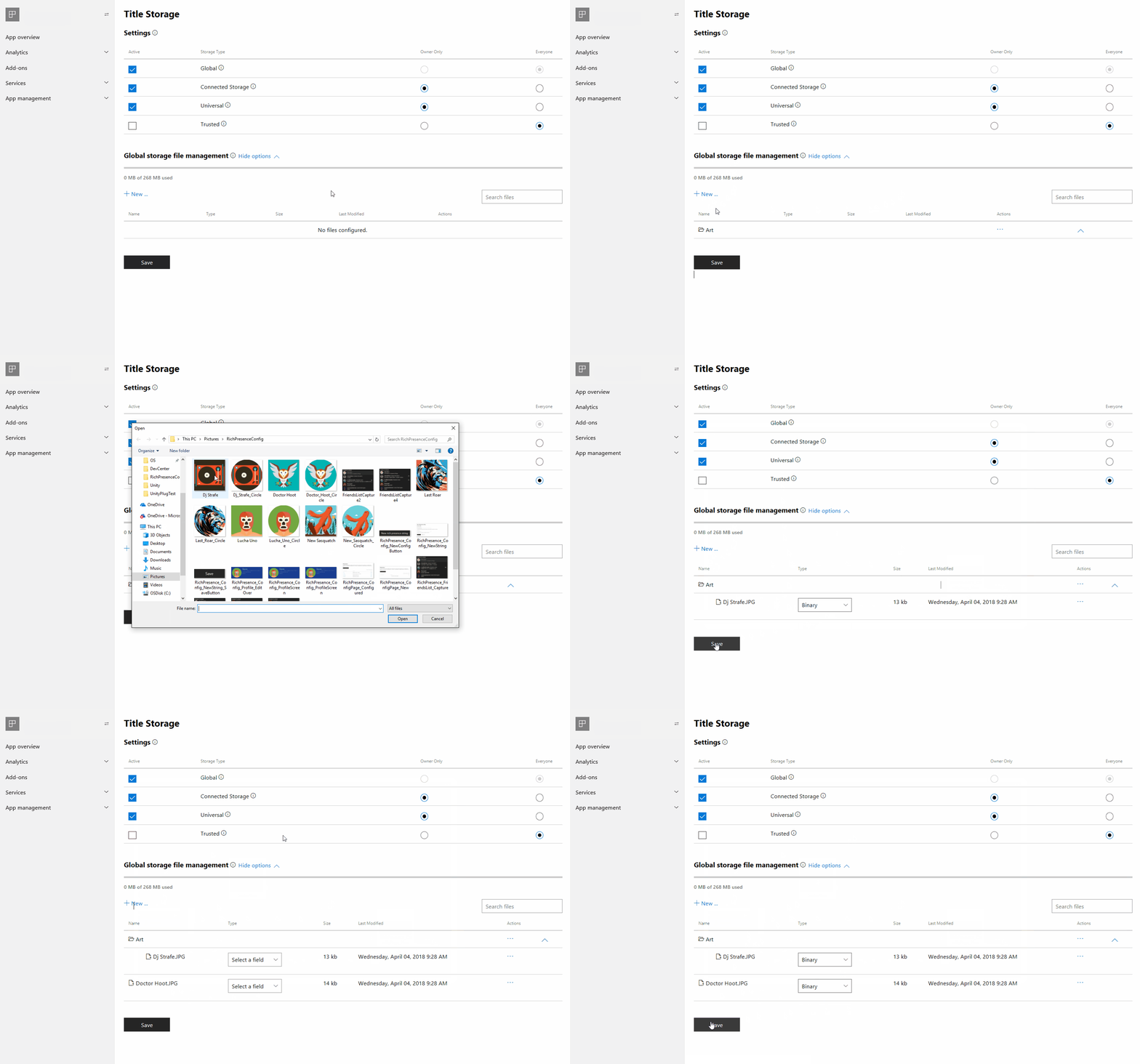
When adding a new file to global storage, you'll be prompted to upload a file from your development PC's File Explorer, and then you'll be asked to choose from one of the three file types: Binary, Config, and JSON. In addition to being able to upload a file by selecting **+ New**, you can also drag files from your development PC to the file explorer table.
You can't drag folders into the file explorer table. If you try, the folder will be treated as a file, and you won't get the result that you expect.
### File management actions
For file management actions, see figure 4.
**Figure 4. The Global storage file management dialog box.**
To add files to your folder, you must upload them to the folder directly by selecting **Actions**, and then selecting **Upload files**. Note that you can't drag files into folders within the file explorer table.
To create a subfolder, select **Create folder** in the **Actions** menu of a folder.
To delete the folder and all of its contents, select **Delete** in the **Actions** menu of a folder.
### New files
When adding a new file to global storage, you'll be prompted to upload a file from your development PC's File Explorer, and then you'll be asked to choose from one of the three file types: Binary, Config, and JSON. In addition to being able to upload a file by selecting **+ New**, you can also drag files from your development PC to the file explorer table.
You can't drag folders into the file explorer table. If you try, the folder will be treated as a file, and you won't get the result that you expect.
### File management actions
For file management actions, see figure 4.
**Figure 4. The Global storage file management dialog box.**
 #### File types
The following table lists the types of files that you can manage.
| File type | Description |
| --------- | -------------------------------------------------------------------------------------------------------------------------------- |
| Binary | Used for images, sounds, and custom data. |
| Config | Configuration files hold information about your game. They can dynamically return query values based on specified input. |
| JSON | Text files that hold key-value pairs of information about an aspect of your game. JSON files are similar to configuration files. |
## See also
[Title Storage](/services/xbox-services/storage/title-storage/live-title-storage-nav)
[Connected Storage](/services/xbox-services/storage/connected-storage/live-connected-storage-nav)
#### File types
The following table lists the types of files that you can manage.
| File type | Description |
| --------- | -------------------------------------------------------------------------------------------------------------------------------- |
| Binary | Used for images, sounds, and custom data. |
| Config | Configuration files hold information about your game. They can dynamically return query values based on specified input. |
| JSON | Text files that hold key-value pairs of information about an aspect of your game. JSON files are similar to configuration files. |
## See also
[Title Storage](/services/xbox-services/storage/title-storage/live-title-storage-nav)
[Connected Storage](/services/xbox-services/storage/connected-storage/live-connected-storage-nav)