> ## Documentation Index
> Fetch the complete documentation index at: https://devdocs.xbox.com/llms.txt
> Use this file to discover all available pages before exploring further.
# Configure title-managed Stats and Leaderboards
> Use Partner Center to configure title-managed XBOX Live Featured Stats and social leaderboards that appear on your title's GameHub page.
This topic describes how to configure title-managed Featured Stats & Leaderboards in Partner Center.
For a game to interact with the User Stats service, a stat must be defined in [Partner Center](https://partner.microsoft.com/dashboard).
All Featured Stats show up on the GameHub, which makes it automatically act as a leaderboard.
The raw value of a stat gets saved, but the title owns the logic for determining whether a new value should be provided.
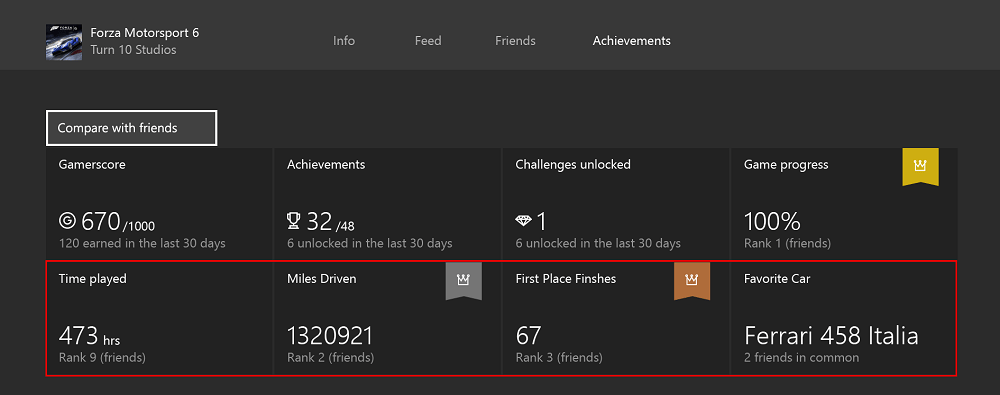 The screenshot above shows how featured stats appear in your title's GameHub.
The featured stats are shown in the red box.
With title-managed Featured Stats and Leaderboards, you only need to configure a stat so that a social leaderboard is featured on a player's GameHub page.
You can use Partner Center to configure a featured stat and leaderboard that is associated with your game.
You are limited to a maximum 20 featured stats for a title, but there is no requirement to include Featured Stats.
## Adding a configuration
1. Navigate to the **Featured Stats and Leaderboards** section for your title, located under **XBOX services** > **Gameplay settings** > **Stats Leaderboards**.
2. Click **New Leaderboards** to open the **New featured stat/leaderboard** form. When you have defined your stat then click **Save**.
The screenshot above shows how featured stats appear in your title's GameHub.
The featured stats are shown in the red box.
With title-managed Featured Stats and Leaderboards, you only need to configure a stat so that a social leaderboard is featured on a player's GameHub page.
You can use Partner Center to configure a featured stat and leaderboard that is associated with your game.
You are limited to a maximum 20 featured stats for a title, but there is no requirement to include Featured Stats.
## Adding a configuration
1. Navigate to the **Featured Stats and Leaderboards** section for your title, located under **XBOX services** > **Gameplay settings** > **Stats Leaderboards**.
2. Click **New Leaderboards** to open the **New featured stat/leaderboard** form. When you have defined your stat then click **Save**.
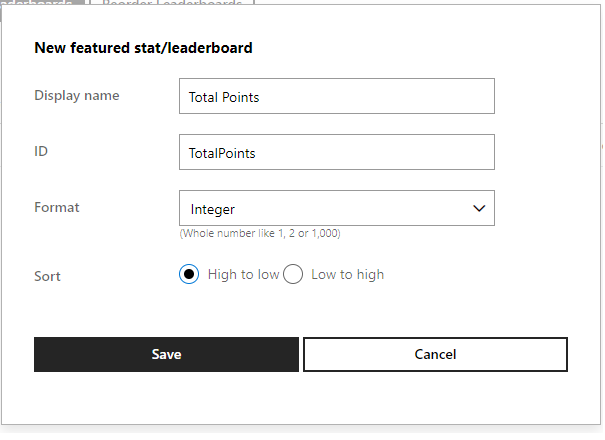 The **Display name** field is what users will see in the GameHub.
This string can be localized in the **Localize strings** section of the XBOX services configuration.
The **ID** field is the stat name, which you use to refer to the stat in code.
## Data format
The **Format** specifies the data format of the stat.
Data format options are Integer, Decimal, Percentage, Short time span, Long time span and Sort.
When you select a format, then information on acceptable values or formatting is shown on the form.
| Format Option | Description |
| --------------------- | ----------------------------------------------------------------------------------------------------------------------------------------------------------- |
| Integer stats | Whole numbers like 1, 2, or 100. |
| Decimal stats | Fractional numbers with two decimal places like 1.05 or 12.00 |
| Percentage stats | Whole numbers between 0 and 100. '%' will be appended to the end of the whole number. Examples: 0%, 100%. |
| Short time span stats | Use the HH:MM:SS format like 02:10:30. You specify a time unit for the stat. The available time units are milliseconds, seconds, minutes, hours, and days. |
| Long time span stats | Use the Xd Xh Xm format like 1d 2h 10m. You specify a time unit for the stat. The available time units are milliseconds, seconds, minutes, hours, and days. |
| Sort | Sets the sort order of the leaderboard to be either ascending or descending. |
## Next steps
Next, update the stats from your code. For more information, see [Writing title-managed stats](/services/xbox-services/player-data/stats-leaderboards/title-managed/how-to/live-writing-tm-stats).
## Related topics
- [Title-managed Stats & Leaderboards](/services/xbox-services/player-data/stats-leaderboards/title-managed/live-statslb-tm-nav.md)
- [Title-managed Stats and Leaderboards portal config](/services/xbox-services/player-data/stats-leaderboards/title-managed/config/live-statslb-tm-config-nav.md)
- [Config](/services/xbox-services/player-data/stats-leaderboards/title-managed/config/index.md)
- [Event-based Stats VS. title-managed Stats](/services/xbox-services/player-data/stats-leaderboards/live-stats-eb-vs-tm.md)
- [Getting a title-managed leaderboard](/services/xbox-services/player-data/stats-leaderboards/title-managed/how-to/live-getting-tm-leaderboard.md)
The **Display name** field is what users will see in the GameHub.
This string can be localized in the **Localize strings** section of the XBOX services configuration.
The **ID** field is the stat name, which you use to refer to the stat in code.
## Data format
The **Format** specifies the data format of the stat.
Data format options are Integer, Decimal, Percentage, Short time span, Long time span and Sort.
When you select a format, then information on acceptable values or formatting is shown on the form.
| Format Option | Description |
| --------------------- | ----------------------------------------------------------------------------------------------------------------------------------------------------------- |
| Integer stats | Whole numbers like 1, 2, or 100. |
| Decimal stats | Fractional numbers with two decimal places like 1.05 or 12.00 |
| Percentage stats | Whole numbers between 0 and 100. '%' will be appended to the end of the whole number. Examples: 0%, 100%. |
| Short time span stats | Use the HH:MM:SS format like 02:10:30. You specify a time unit for the stat. The available time units are milliseconds, seconds, minutes, hours, and days. |
| Long time span stats | Use the Xd Xh Xm format like 1d 2h 10m. You specify a time unit for the stat. The available time units are milliseconds, seconds, minutes, hours, and days. |
| Sort | Sets the sort order of the leaderboard to be either ascending or descending. |
## Next steps
Next, update the stats from your code. For more information, see [Writing title-managed stats](/services/xbox-services/player-data/stats-leaderboards/title-managed/how-to/live-writing-tm-stats).
## Related topics
- [Title-managed Stats & Leaderboards](/services/xbox-services/player-data/stats-leaderboards/title-managed/live-statslb-tm-nav.md)
- [Title-managed Stats and Leaderboards portal config](/services/xbox-services/player-data/stats-leaderboards/title-managed/config/live-statslb-tm-config-nav.md)
- [Config](/services/xbox-services/player-data/stats-leaderboards/title-managed/config/index.md)
- [Event-based Stats VS. title-managed Stats](/services/xbox-services/player-data/stats-leaderboards/live-stats-eb-vs-tm.md)
- [Getting a title-managed leaderboard](/services/xbox-services/player-data/stats-leaderboards/title-managed/how-to/live-getting-tm-leaderboard.md)