> ## Documentation Index
> Fetch the complete documentation index at: https://devdocs.xbox.com/llms.txt
> Use this file to discover all available pages before exploring further.
# Configuring data sharing in Partner Center
> Grant companion apps, web services, and other games access to your XBOX services data by configuring feature area sharing policies in Partner Center.
You can use [Partner Center](https://developer.microsoft.com/dashboard/windows/overview) to allow other services, games, and apps to access your title's XBOX services settings and data.
For example, you may want a web service to display leaderboards on your website, or you may have a companion app that can access the game's title storage to view or modify saved game data.
This topic doesn't apply to titles in the XBOX Creators Program.
By default, only the title itself can access the settings and data stored on XBOX services.
You can change this by configuring data sharing on Partner Center.
## To add configuration:
1. Go to [Partner Center](https://developer.microsoft.com/dashboard/windows/overview) and then select your title.
2. Select **XBOX services** > **Gameplay settings** in the left navigation pane. The **Gameplay Setting** page appears.
3. Select the **Access Policies** link. The **Feature area sharing** section appears within the **Gameplay Setting** page.
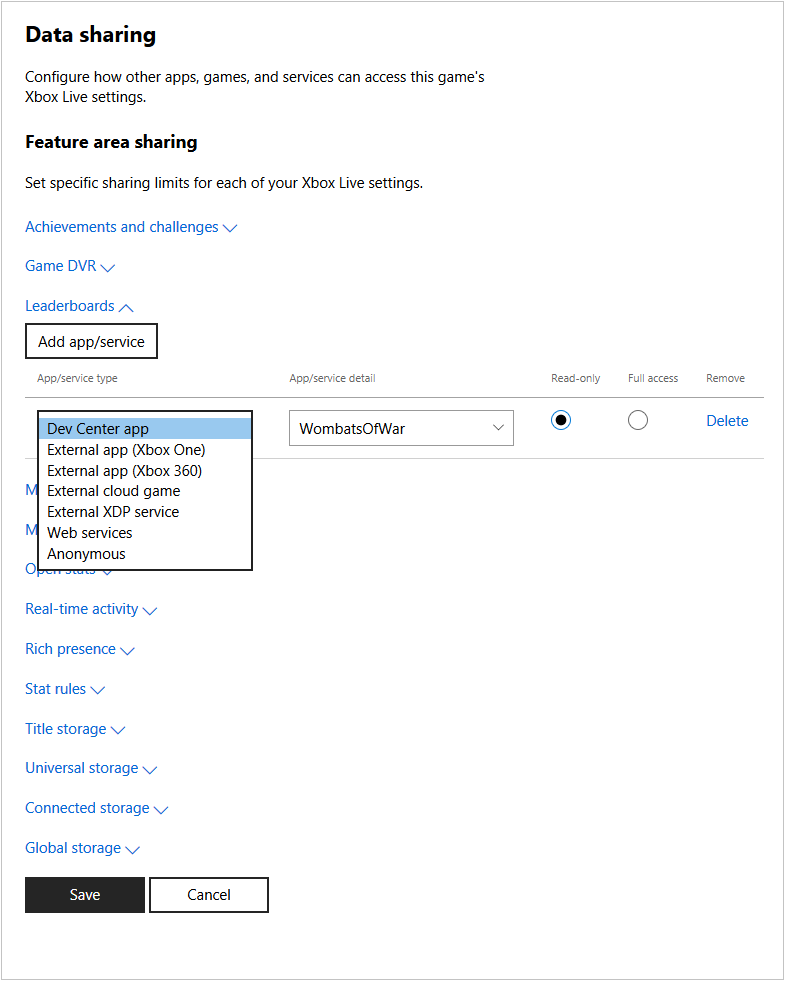 4. Select the setting you want to grant access to, such as **Game DVR** or **Leaderboards**, and then select **Add app/service**.
A new row is added to the bottom of the list of apps/services configured to access that setting.
In Game DVR, by default, a row exists for "Anonymous".
The Anonymous app/service type allows XBOX services to share game clips within XBOX experiences; for example, this type causes Game DVR clips to appear in the game hubs for titles.
New titles are configured as Anonymous by default, for Game DVR.
Do not delete the Anonymous type from the Game DVR section.
5. Select the type of app or service in the drop-down box (such as **Dev Center app** or **Anonymous**), and fill-in the detail box to indicate the app, title ID, or service ID of the app or service that will access the data.
6. Select whether the app or service can only read the data, or if it has full access to the data.
7. Repeat for each setting, and for each app or service that needs access to those settings. To remove an entry, select **Delete**.
8. When you're finished, select the **Save** button.
## Related topics
- [Portal configuration overview](/services/xbox-services/fundamentals/portal-config/live-portal-config-overview.md)
- [Configuring Game DVR in Partner Center](/services/xbox-services/fundamentals/portal-config/live-game-dvr.md)
- [Configuring XBOX services setup in Partner Center](/services/xbox-services/fundamentals/portal-config/live-config-xbl-setup.md)
- [Configuring matchmaking in Partner Center](/services/xbox-services/multiplayer/matchmaking/config/live-matchmaking-config.md)
- [Configuring access policies in Partner Center](/services/xbox-services/fundamentals/s2s-auth-calls/custom-service-config/access-policies/config/live-access-policies-udc.md)
4. Select the setting you want to grant access to, such as **Game DVR** or **Leaderboards**, and then select **Add app/service**.
A new row is added to the bottom of the list of apps/services configured to access that setting.
In Game DVR, by default, a row exists for "Anonymous".
The Anonymous app/service type allows XBOX services to share game clips within XBOX experiences; for example, this type causes Game DVR clips to appear in the game hubs for titles.
New titles are configured as Anonymous by default, for Game DVR.
Do not delete the Anonymous type from the Game DVR section.
5. Select the type of app or service in the drop-down box (such as **Dev Center app** or **Anonymous**), and fill-in the detail box to indicate the app, title ID, or service ID of the app or service that will access the data.
6. Select whether the app or service can only read the data, or if it has full access to the data.
7. Repeat for each setting, and for each app or service that needs access to those settings. To remove an entry, select **Delete**.
8. When you're finished, select the **Save** button.
## Related topics
- [Portal configuration overview](/services/xbox-services/fundamentals/portal-config/live-portal-config-overview.md)
- [Configuring Game DVR in Partner Center](/services/xbox-services/fundamentals/portal-config/live-game-dvr.md)
- [Configuring XBOX services setup in Partner Center](/services/xbox-services/fundamentals/portal-config/live-config-xbl-setup.md)
- [Configuring matchmaking in Partner Center](/services/xbox-services/multiplayer/matchmaking/config/live-matchmaking-config.md)
- [Configuring access policies in Partner Center](/services/xbox-services/fundamentals/s2s-auth-calls/custom-service-config/access-policies/config/live-access-policies-udc.md)