> ## Documentation Index
> Fetch the complete documentation index at: https://devdocs.xbox.com/llms.txt
> Use this file to discover all available pages before exploring further.
# Lua quickstart for Corona
> Set up a Corona project on Windows or Mac and make your first PlayFab API call in Lua using the PlayFab Corona SDK client library.
This quickstart assists you in making your first PlayFab API call in the Corona engine.
Before you can call any PlayFab API, you must have a [PlayFab developer account](https://developer.playfab.com).
## Corona Project Setup
OS: This quickstart is written for Windows. However, it should also work well with a Mac.
1. Download and install Corona: [https://coronalabs.com/](https://coronalabs.com/).
2. Run Corona, and create a new project. The following link has information that can assist you with your first-time steps if you haven't done them: [https://docs.coronalabs.com/guide/start/installWin/index.html](https://docs.coronalabs.com/guide/start/installWin/index.html)
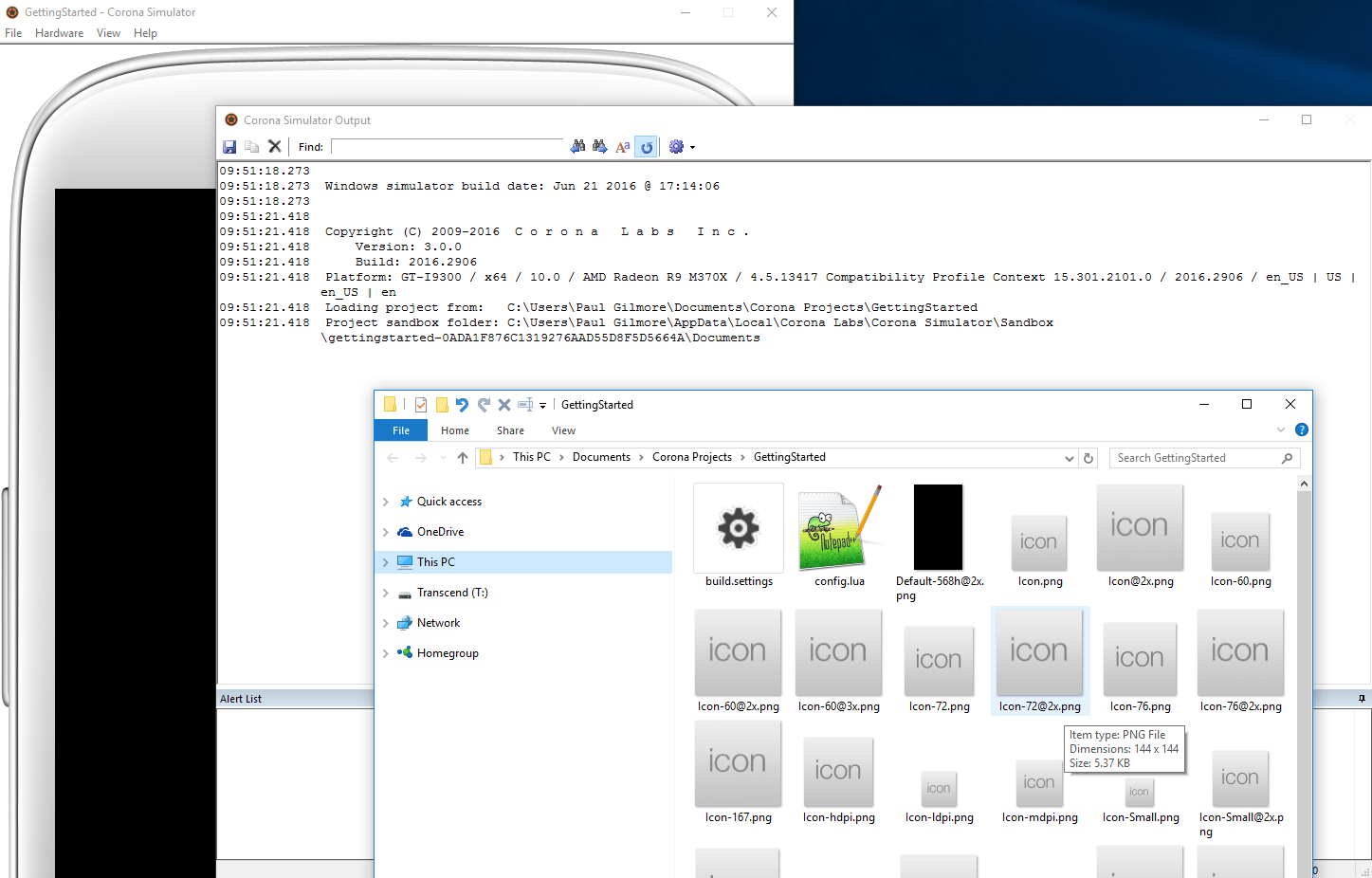
3. Once you have installed, logged in, and created a new project, you should see several windows that look something like the example shown below.
 4. Activate the PlayFab Client plugin on the Corona Marketplace:
[https://marketplace.coronalabs.com/plugin/playfab-client](https://marketplace.coronalabs.com/plugin/playfab-client)
5. The PlayFab installation is complete!
## Setting up your first API call
This guide provides the minimum steps required to make your first PlayFab API call. Confirmation is visible in the Corona Engine output log.
In your favorite text-editor, *add* the following lines to `build.settings`.
```lua theme={null}
settings =
{
-- ADD THESE THREE LINES at the top, leave everything else as-is
plugins = {
["plugin.playfab.client"] = { publisherId = "com.playfab" }
},
-- Other existing lines...
}
```
To look up the correct format for the loginRequest object in this example, see the API reference for [LoginWithCustomID](xref:titleid.playfabapi.com.client.authentication.loginwithcustomid).
In your favorite text-editor, *replace* the contents of the **main.lua** file with the contents shown below.
```lua theme={null}
local pfClient = require("plugin.playfab.client")
local PlayFabClientApi = pfClient.PlayFabClientApi
PlayFabClientApi.settings.titleId = "144"
local loginRequest = {
-- See the API reference for LoginWithCustomID.
CustomId = "GettingStartedGuide",
CreateAccount = true
}
PlayFabClientApi.LoginWithCustomID(loginRequest,
function(result) print("Congratulations, you made your first successful API call!") end,
function(error) print("Something went wrong with your first API call.\nHere's some debug information:\n" .. error.errorMessage) end
)
```
## Finish and execute
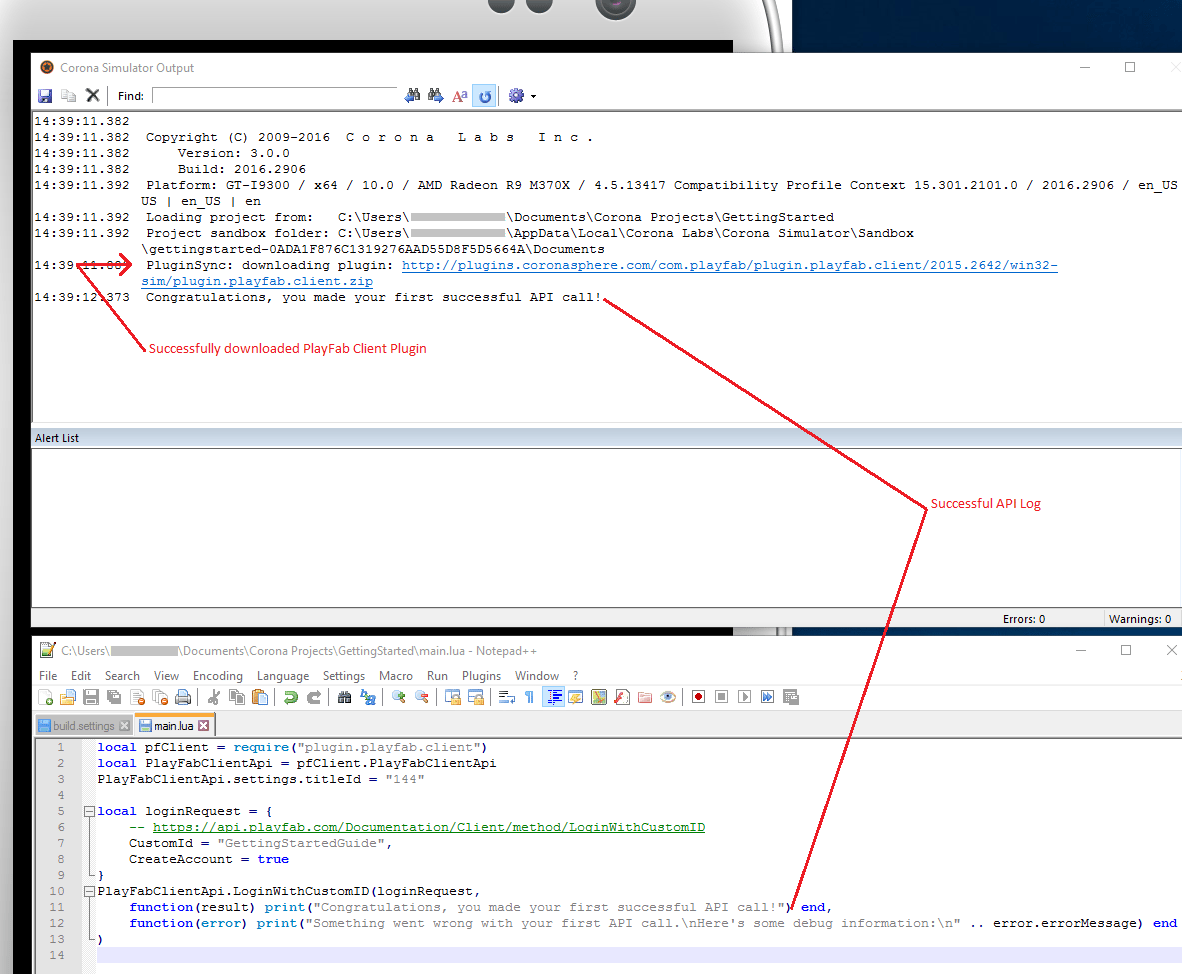
Corona automatically executes the project source immediately when you save. So as soon as you update and save these two files, you should see this:
4. Activate the PlayFab Client plugin on the Corona Marketplace:
[https://marketplace.coronalabs.com/plugin/playfab-client](https://marketplace.coronalabs.com/plugin/playfab-client)
5. The PlayFab installation is complete!
## Setting up your first API call
This guide provides the minimum steps required to make your first PlayFab API call. Confirmation is visible in the Corona Engine output log.
In your favorite text-editor, *add* the following lines to `build.settings`.
```lua theme={null}
settings =
{
-- ADD THESE THREE LINES at the top, leave everything else as-is
plugins = {
["plugin.playfab.client"] = { publisherId = "com.playfab" }
},
-- Other existing lines...
}
```
To look up the correct format for the loginRequest object in this example, see the API reference for [LoginWithCustomID](xref:titleid.playfabapi.com.client.authentication.loginwithcustomid).
In your favorite text-editor, *replace* the contents of the **main.lua** file with the contents shown below.
```lua theme={null}
local pfClient = require("plugin.playfab.client")
local PlayFabClientApi = pfClient.PlayFabClientApi
PlayFabClientApi.settings.titleId = "144"
local loginRequest = {
-- See the API reference for LoginWithCustomID.
CustomId = "GettingStartedGuide",
CreateAccount = true
}
PlayFabClientApi.LoginWithCustomID(loginRequest,
function(result) print("Congratulations, you made your first successful API call!") end,
function(error) print("Something went wrong with your first API call.\nHere's some debug information:\n" .. error.errorMessage) end
)
```
## Finish and execute
Corona automatically executes the project source immediately when you save. So as soon as you update and save these two files, you should see this:
 At this point, you can start making other API calls, and building your game. For a list of all available client API calls, see our [PlayFab API References](/services/playfab/api-references) documentation.
Happy coding!
## Deconstruct the code
This optional last section describes each part of our example above, line-by-line.
* build.settings
* `plugins = {`
* This invokes the Corona plugin system, and tells it to download and install Corona Marketplace plugins in your project
* `["plugin.playfab.client"] = { publisherId = "com.playfab" }`
* This tells it to download the PlayFab Client plugin specifically.
* main.lua
* require() lines:
* This is the minimal imports you need to make PlayFab API calls.
* `PlayFabClientApi.settings.titleId = "xxxx"`
* Every PlayFab developer creates a title in Game Manager. When you publish your game, you must code that titleId into your game. This lets the client know how to access the correct data within PlayFab. For most users, just consider it a mandatory step that makes PlayFab work.
* `local loginRequest = { CustomId = "GettingStartedGuide", CreateAccount = true }`
* Most PlayFab API methods require input parameters, and those input parameters are packed into a request object
* Every API method requires a unique request object, with a mix of optional and mandatory parameters
* For `LoginWithCustomIDRequest`, there's a mandatory parameter of `CustomId`, which uniquely identifies a player and `CreateAccount`, which allows the creation of a new account with this call.
* `PlayFabClientApi.LoginWithCustomID(loginRequest, {OnLoginSuccess-function}, {OnLoginError-function})`
* This begins the async request to `LoginWithCustomID`, which will call the first (`OnLoginSuccess`) callback if successful, or the second (`OnLoginError`) function for failures.
* For login, most developers will want to use a more appropriate login method.
* See the [PlayFab Login documentation](xref:titleid.playfabapi.com.client.authentication) for a list of all login methods, and input parameters. Common choices are:
* [LoginWithAndroidDeviceID](xref:titleid.playfabapi.com.client.authentication.loginwithandroiddeviceid)
* [LoginWithIOSDeviceID](xref:titleid.playfabapi.com.client.authentication.loginwithiosdeviceid)
* [LoginWithEmailAddress](xref:titleid.playfabapi.com.client.authentication.loginwithemailaddress)
* `OnLoginSuccess` is any function which accepts a single parameter (result).
* The result object will contain the requested information, according to the API called.
* `LoginResult` contains some basic information about the player, but for most users, login is simply a mandatory step before calling other APIs.
* `OnLoginError` is any function which accepts a single parameter (error).
* API calls can fail for many reasons, and you should always attempt to handle failure.
* Why API calls fail (In order of likelihood):
* `PlayFabSettings.TitleId` isn't set. If you forget to set `titleId` to your title, then nothing will work.
* Request parameters. If you haven't provided the correct or required information for a particular API call, then it will fail. See `error.errorMessage`, `error.errorDetails`, or `error.GenerateErrorReport()` for more info.
* Device connectivity issue. Cell-phones lose/regain connectivity constantly, and so any API call at any time can fail randomly, and then work immediately after. Going into a tunnel can disconnect you completely.
* PlayFab server issue. As with all software, there can be issues. See our [release notes](/services/playfab/release-notes) for updates.
* The internet isn't 100% reliable. Sometimes the message is corrupted or fails to reach the PlayFab server.
* If you're having difficulty debugging an issue, and the information within the error information isn't sufficient, visit us on our [forums](https://community.playfab.com/index.html).
## Related topics
- [PlayFab supported languages](/services/playfab/sdks/languages/index.md)
- [Lua quickstart for Defold](/services/playfab/sdks/lua/quickstart-defold.md)
- [Lua SDK](/services/playfab/sdks/lua/index.md)
- [PlayFab Release Notes 2018](/services/playfab/release-notes/2018.md)
- [PlayFab SDKs](/services/playfab/sdks/playfab-sdk-intro.md)
At this point, you can start making other API calls, and building your game. For a list of all available client API calls, see our [PlayFab API References](/services/playfab/api-references) documentation.
Happy coding!
## Deconstruct the code
This optional last section describes each part of our example above, line-by-line.
* build.settings
* `plugins = {`
* This invokes the Corona plugin system, and tells it to download and install Corona Marketplace plugins in your project
* `["plugin.playfab.client"] = { publisherId = "com.playfab" }`
* This tells it to download the PlayFab Client plugin specifically.
* main.lua
* require() lines:
* This is the minimal imports you need to make PlayFab API calls.
* `PlayFabClientApi.settings.titleId = "xxxx"`
* Every PlayFab developer creates a title in Game Manager. When you publish your game, you must code that titleId into your game. This lets the client know how to access the correct data within PlayFab. For most users, just consider it a mandatory step that makes PlayFab work.
* `local loginRequest = { CustomId = "GettingStartedGuide", CreateAccount = true }`
* Most PlayFab API methods require input parameters, and those input parameters are packed into a request object
* Every API method requires a unique request object, with a mix of optional and mandatory parameters
* For `LoginWithCustomIDRequest`, there's a mandatory parameter of `CustomId`, which uniquely identifies a player and `CreateAccount`, which allows the creation of a new account with this call.
* `PlayFabClientApi.LoginWithCustomID(loginRequest, {OnLoginSuccess-function}, {OnLoginError-function})`
* This begins the async request to `LoginWithCustomID`, which will call the first (`OnLoginSuccess`) callback if successful, or the second (`OnLoginError`) function for failures.
* For login, most developers will want to use a more appropriate login method.
* See the [PlayFab Login documentation](xref:titleid.playfabapi.com.client.authentication) for a list of all login methods, and input parameters. Common choices are:
* [LoginWithAndroidDeviceID](xref:titleid.playfabapi.com.client.authentication.loginwithandroiddeviceid)
* [LoginWithIOSDeviceID](xref:titleid.playfabapi.com.client.authentication.loginwithiosdeviceid)
* [LoginWithEmailAddress](xref:titleid.playfabapi.com.client.authentication.loginwithemailaddress)
* `OnLoginSuccess` is any function which accepts a single parameter (result).
* The result object will contain the requested information, according to the API called.
* `LoginResult` contains some basic information about the player, but for most users, login is simply a mandatory step before calling other APIs.
* `OnLoginError` is any function which accepts a single parameter (error).
* API calls can fail for many reasons, and you should always attempt to handle failure.
* Why API calls fail (In order of likelihood):
* `PlayFabSettings.TitleId` isn't set. If you forget to set `titleId` to your title, then nothing will work.
* Request parameters. If you haven't provided the correct or required information for a particular API call, then it will fail. See `error.errorMessage`, `error.errorDetails`, or `error.GenerateErrorReport()` for more info.
* Device connectivity issue. Cell-phones lose/regain connectivity constantly, and so any API call at any time can fail randomly, and then work immediately after. Going into a tunnel can disconnect you completely.
* PlayFab server issue. As with all software, there can be issues. See our [release notes](/services/playfab/release-notes) for updates.
* The internet isn't 100% reliable. Sometimes the message is corrupted or fails to reach the PlayFab server.
* If you're having difficulty debugging an issue, and the information within the error information isn't sufficient, visit us on our [forums](https://community.playfab.com/index.html).
## Related topics
- [PlayFab supported languages](/services/playfab/sdks/languages/index.md)
- [Lua quickstart for Defold](/services/playfab/sdks/lua/quickstart-defold.md)
- [Lua SDK](/services/playfab/sdks/lua/index.md)
- [PlayFab Release Notes 2018](/services/playfab/release-notes/2018.md)
- [PlayFab SDKs](/services/playfab/sdks/playfab-sdk-intro.md)