> ## Documentation Index
> Fetch the complete documentation index at: https://devdocs.xbox.com/llms.txt
> Use this file to discover all available pages before exploring further.
# Java quickstart for Native and Android Studio
> Download the PlayFab Java client SDK JAR files, set up the classpath, and make your first LoginWithCustomID API call in native Java or Android.
This quickstart lets you get up and running with the PlayFab JavaSDK and simple Java program.
Before you can call any PlayFab API, you must have a [PlayFab developer account](https://developer.playfab.com).
The goals for this tutorial are:
* Acquire necessary JAR files.
* Add JAR files to the classpath.
* Create minimal Java console application that executes [Custom ID Login API Call](xref:titleid.playfabapi.com.client.authentication.loginwithcustomid).
## Acquire necessary JAR files
In order to utilize the PlayFab JavaSDK, we need the PlayFab Client JavaSDK and its dependency, the Google GSON.
Download the PlayFab Client JavaSDK JAR library [here](https://github.com/PlayFab/JavaSDK/tree/versioned/builds). Look for **client-sdk-\*.jar**, and the corresponding Java Doc \[Optional but useful].
You may download latest Google GSON [here](https://repo1.maven.org/maven2/com/google/code/gson/gson/2.8.0/). Look for **gson-\*.jar**.
## Project Setup with Intellij Idea
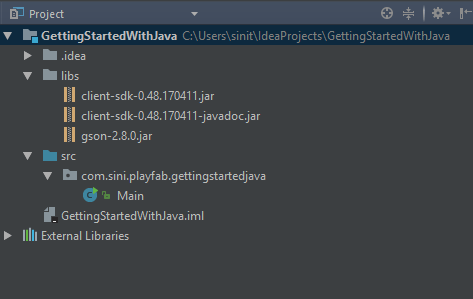
Once you have initialized a simple Intellij Idea Java Project, make sure to place the necessary JAR files as shown in the following example.
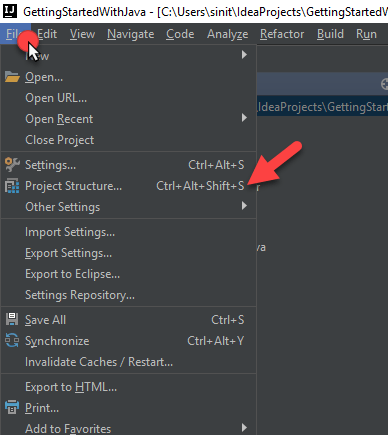
 The next step is adding JAR files to the classpath. Navigate to **File** -> **,** as shown in the example below.
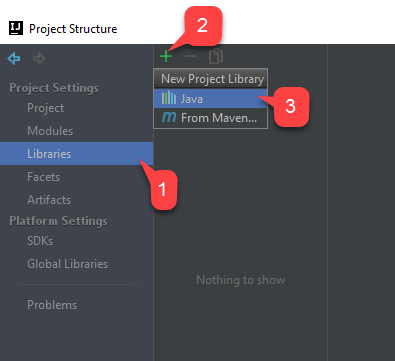
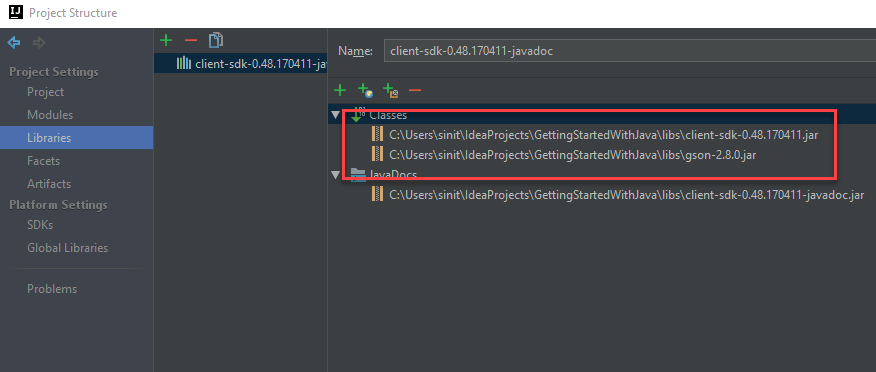
 Navigate to **Libraries**, and add a new Java library as illustrated in the image provided below.
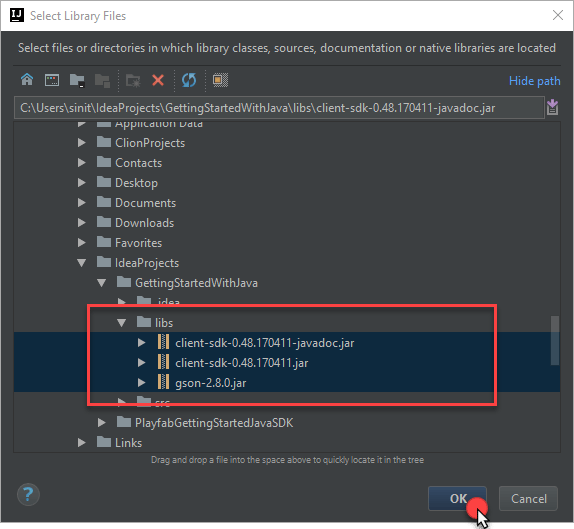
 Select the JAR files you added to the libs folder, then select **OK** as shown below.
 If asked for the **Module**, select the first one in the list. Ensure that all the JAR files were added to the libraries list.
 ## Project Setup with any IDE
The main requirement is to have JAR files added to the classpath. Consult the guide for your IDE on how to add JAR files to classpath.
## Set up your first API call
Use the code shown below as your main class code.
```java theme={null}
import java.util.concurrent.*;
import java.util.*;
import com.playfab.PlayFabErrors.*;
import com.playfab.PlayFabSettings;
import com.playfab.PlayFabClientModels;
import com.playfab.PlayFabClientAPI;
public class Main
{
private static boolean _running = true;
public static void main(String[] args) {
PlayFabSettings.TitleId = "144";
PlayFabClientModels.LoginWithCustomIDRequest request = new PlayFabClientModels.LoginWithCustomIDRequest();
request.CustomId = "GettingStartedGuide";
request.CreateAccount = true;
FutureTask> loginTask = PlayFabClientAPI.LoginWithCustomIDAsync(request);
loginTask.run();
while (_running) {
if (loginTask.isDone()) { // You would probably want a more sophisticated way of tracking pending async API calls in a real game
OnLoginComplete(loginTask);
}
// Presumably this would be your main game loop, doing other things
try {
Thread.sleep(1);
} catch(Exception e) {
System.out.println("Critical error in the example main loop: " + e);
}
}
}
private static void OnLoginComplete(FutureTask> loginTask) {
PlayFabResult result = null;
try {
result = loginTask.get(); // Wait for the result from the async call
} catch(Exception e) {
System.out.println("Exception in PlayFab api call: " + e); // Did you assign your PlayFabSettings.TitleId correctly?
}
if (result != null && result.Result != null) {
System.out.println("Congratulations, you made your first successful API call!");
} else if (result != null && result.Error != null) {
System.out.println("Something went wrong with your first API call.");
System.out.println("Here's some debug information:");
System.out.println(CompileErrorsFromResult(result));
}
_running = false; // Because this is just an example, successful login triggers the end of the program
}
// This is a utility function we haven't put into the core SDK yet. Feel free to use it.
private static
## Project Setup with any IDE
The main requirement is to have JAR files added to the classpath. Consult the guide for your IDE on how to add JAR files to classpath.
## Set up your first API call
Use the code shown below as your main class code.
```java theme={null}
import java.util.concurrent.*;
import java.util.*;
import com.playfab.PlayFabErrors.*;
import com.playfab.PlayFabSettings;
import com.playfab.PlayFabClientModels;
import com.playfab.PlayFabClientAPI;
public class Main
{
private static boolean _running = true;
public static void main(String[] args) {
PlayFabSettings.TitleId = "144";
PlayFabClientModels.LoginWithCustomIDRequest request = new PlayFabClientModels.LoginWithCustomIDRequest();
request.CustomId = "GettingStartedGuide";
request.CreateAccount = true;
FutureTask> loginTask = PlayFabClientAPI.LoginWithCustomIDAsync(request);
loginTask.run();
while (_running) {
if (loginTask.isDone()) { // You would probably want a more sophisticated way of tracking pending async API calls in a real game
OnLoginComplete(loginTask);
}
// Presumably this would be your main game loop, doing other things
try {
Thread.sleep(1);
} catch(Exception e) {
System.out.println("Critical error in the example main loop: " + e);
}
}
}
private static void OnLoginComplete(FutureTask> loginTask) {
PlayFabResult result = null;
try {
result = loginTask.get(); // Wait for the result from the async call
} catch(Exception e) {
System.out.println("Exception in PlayFab api call: " + e); // Did you assign your PlayFabSettings.TitleId correctly?
}
if (result != null && result.Result != null) {
System.out.println("Congratulations, you made your first successful API call!");
} else if (result != null && result.Error != null) {
System.out.println("Something went wrong with your first API call.");
System.out.println("Here's some debug information:");
System.out.println(CompileErrorsFromResult(result));
}
_running = false; // Because this is just an example, successful login triggers the end of the program
}
// This is a utility function we haven't put into the core SDK yet. Feel free to use it.
private static