> ## Documentation Index
> Fetch the complete documentation index at: https://devdocs.xbox.com/llms.txt
> Use this file to discover all available pages before exploring further.
# Accessing increased core limits and additional Azure regions
> View current core quotas and request increased core limits or additional Azure regions and VM series for PlayFab Multiplayer Servers game titles.
This topic frequently references available Azure compute series and regions. To review PlayFab's current selection and pricing see [Multiplayer Servers - detailed price sheet](https://playfab.com/mps-detailed-pricing/).
Usage of PlayFab multiplayer servers has limits that are applied on a per-title basis. A key limit is the aggregate number of Azure compute cores.
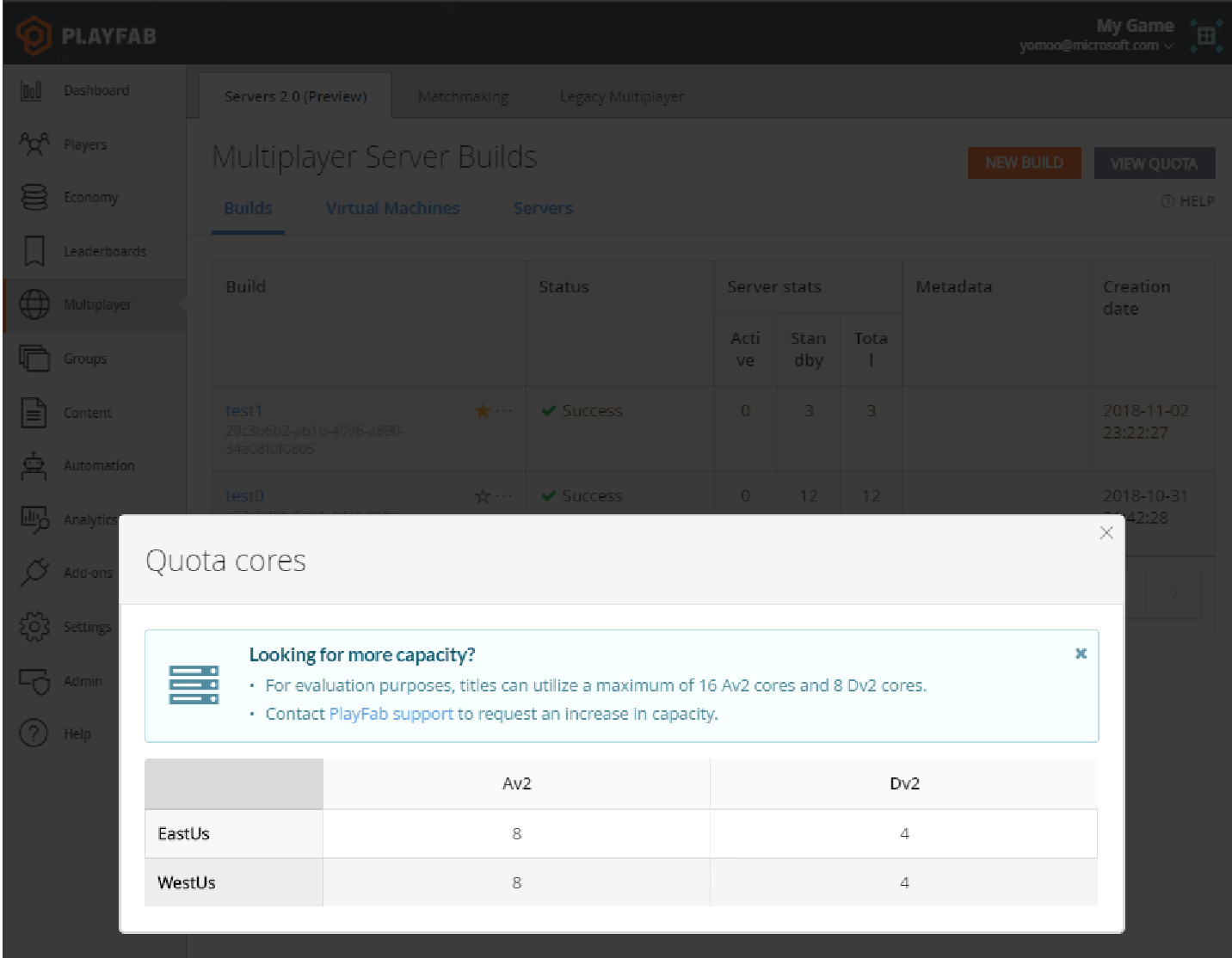
By default, independent, pro, and enterprise customers have limits set to **16 Av2 cores** and **8 Dv2 cores** split in East US and West US.
Contact [PlayFab Support](mailto:support@playfab.com) to gain access to additional compute series, regions, or limit increases.
It's important to review title limits well in advance of any major game event, so you can be assured that PlayFab supports peak player demand.
For requests of *1,000 cores or more*, it can take several days for PlayFab to secure the desired limit increases for you.
## How to view and interpret multiplayer server limits
PlayFab measures your quota in **cores**:
* **6 F2\_v2 virtual machine** consumes **12 Fv2 cores**.
* **3 F4\_v2 virtual machines** also consumes **12 cores**.
The number of virtual machines doesn't matter, *only the number of cores*. Quota is specifically allocated for each available compute series (A v2, D v2, D v3, F v1...) and region.
You can view the quota for a title on the **Builds** page by selecting **View Quota** in the top right.
In the future, this view will be integrated with the PlayFab limits page.
 When you attempt to edit a build's regional configuration, PlayFab enforces that the maximum server configuration you specify *doesn't* cause your title to exceed configured limits in aggregate.
The following screenshot of the **Edit Build** page shows these safeguards in action.
When you attempt to edit a build's regional configuration, PlayFab enforces that the maximum server configuration you specify *doesn't* cause your title to exceed configured limits in aggregate.
The following screenshot of the **Edit Build** page shows these safeguards in action.
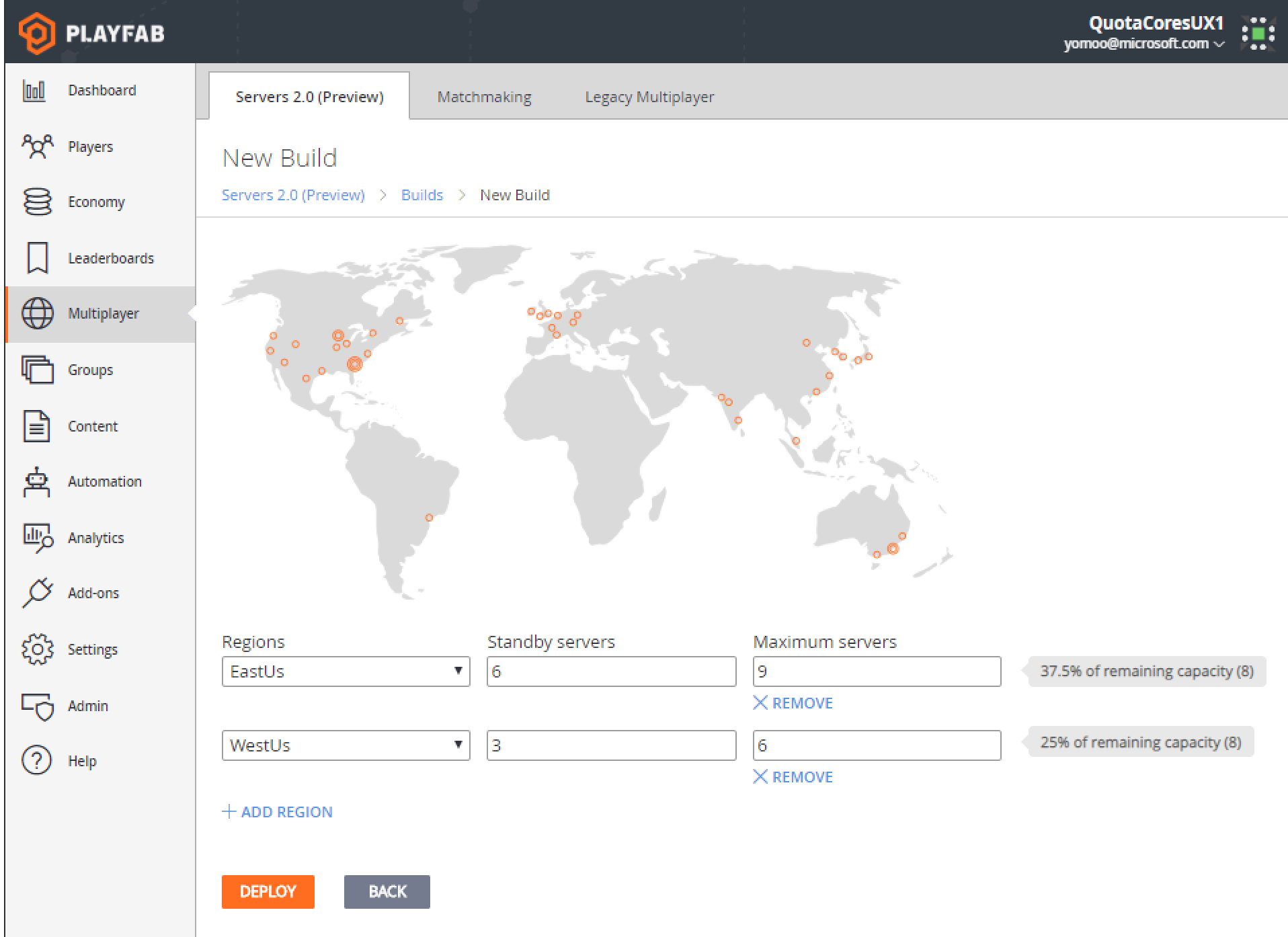 You can use this page to specify the maximum number of multiplayer servers that a build can support in each region. Depending on your virtual machine and density selections, a single server might require one-quarter of an Av2 core, or four Av2 cores.
In the previous example, there are eight Av2 cores allocated to this title in West US. This build is configured to pack three servers on a single-core A1v2 virtual machine, so the configured "six servers" maximum consumes 25% (two cores) of the available eight Av2 core quota in West US.
## Related topics
- [Integrating with PlayFab Multiplayer Servers](/services/playfab/multiplayer/matchmaking/multiplayer-servers.md)
- [Managing quota changes](/services/playfab/multiplayer/servers/quota-changes.md)
- [Managing Summary](/services/playfab/multiplayer/servers/quota-summary.md)
- [Billing for PlayFab Multiplayer Servers 2.0](/services/playfab/multiplayer/servers/billing-for-thunderhead.md)
- [Use QoS beacons to measure player latency to Azure](/services/playfab/multiplayer/servers/using-qos-beacons-to-measure-player-latency-to-azure.md)
You can use this page to specify the maximum number of multiplayer servers that a build can support in each region. Depending on your virtual machine and density selections, a single server might require one-quarter of an Av2 core, or four Av2 cores.
In the previous example, there are eight Av2 cores allocated to this title in West US. This build is configured to pack three servers on a single-core A1v2 virtual machine, so the configured "six servers" maximum consumes 25% (two cores) of the available eight Av2 core quota in West US.
## Related topics
- [Integrating with PlayFab Multiplayer Servers](/services/playfab/multiplayer/matchmaking/multiplayer-servers.md)
- [Managing quota changes](/services/playfab/multiplayer/servers/quota-changes.md)
- [Managing Summary](/services/playfab/multiplayer/servers/quota-summary.md)
- [Billing for PlayFab Multiplayer Servers 2.0](/services/playfab/multiplayer/servers/billing-for-thunderhead.md)
- [Use QoS beacons to measure player latency to Azure](/services/playfab/multiplayer/servers/using-qos-beacons-to-measure-player-latency-to-azure.md)