> ## Documentation Index
> Fetch the complete documentation index at: https://devdocs.xbox.com/llms.txt
> Use this file to discover all available pages before exploring further.
# Allocate game servers and connect Visual Studio debugger
> Learn how to allocate PlayFab multiplayer game servers with RequestMultiplayerServer and attach Visual Studio debugging tools to a running session.
## Allocating multiplayer sessions
With PlayFab multiplayer servers 2.0, you can allocate instances of your multiplayer server application using the [RequestMultiplayerServer](xref:titleid.playfabapi.com.multiplayer.multiplayerserver.requestmultiplayerserver) API.
Typically this API is called from your own services (perhaps a matchmaking service or lobby service), using a PlayFab Developer Secret Key configured for the specific title. For more information about secret keys, see [Secret key management](/services/playfab/live-service-management/gamemanager/secret-key-management).
A typical pattern for bringing players together and allocating servers:
1. Clients collect network QoS information.
2. Clients interact with a custom matchmaking service, or assemble via social invitations.
3. A custom matchmaking service allocates a session for the group, using a prioritized list of regions.
**RequestMultiplayerServer** has several key parameters:
* **BuildID** - The specific server build to be allocated.
* **SessionID**- An identifier for the session. *This is a GUID string generated by the caller*. Retries to this API for the same logical session should re-use the same identifier. This mitigates the possibility of caller retry behavior creating unnecessary servers.
* **SessionCookie** - Arbitrary data that will be communicated via the game server SDK to the allocated session at activation. A typical usage of this field is communicating a shared key that game servers use to authenticate clients. *Data must be smaller than 4 kilobytes*.
* **PreferredRegions** - An ordered list of regions used to allocate servers. We recommend using network QoS measurements collected from the client devices as the primary factor for ranking regions.
A successful allocation will return the following information:
* The **IPv4** address of the server.
* The **TCP/UDP** port mappings (see [Connecting Clients to game servers](/services/playfab/multiplayer/servers/connecting-clients-to-game-servers)).
* The **Region** of the server.
You can use the MpsAllocatorSample (found [here](https://github.com/PlayFab/MpsSamples/tree/master/MpsAllocatorSample)) for an easy way to allocate game servers during development of your game
## Client allocation
Multiplayer servers are expensive and powerful. By default, you can only request a multiplayer server from your *own* trusted service using a PlayFab developer secret key.
However, allocating servers *directly* from player devices can save you the cost of implementing service-to-service calls and be useful in some circumstances.
To enable client allocation:
* Select **Settings** from the menu on the left.
* Select the **API Features** tab.
* Then activate the **Allow Client to start games** option.
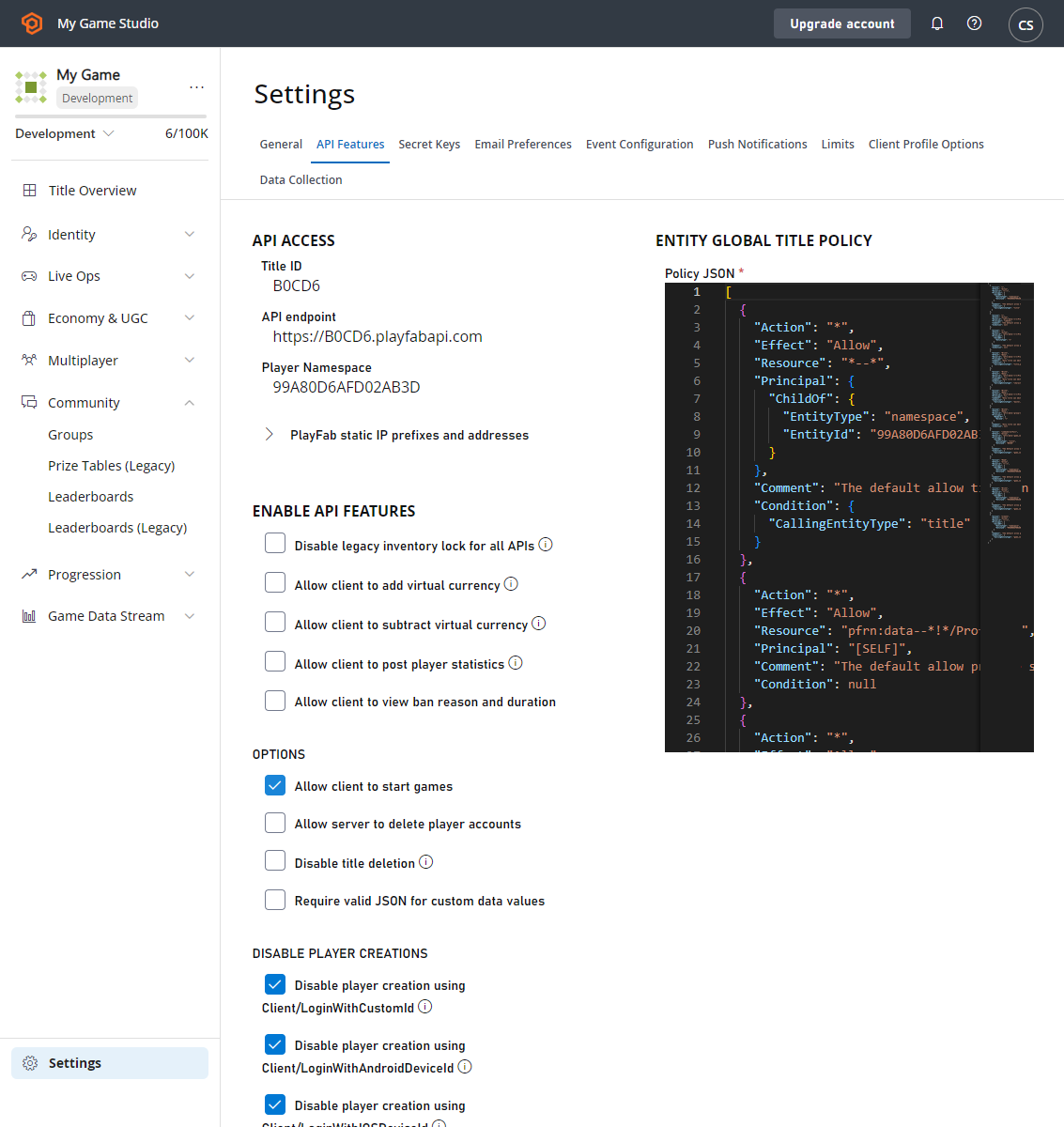 When this setting is activated, you can call [RequestMultiplayerServer](xref:titleid.playfabapi.com.multiplayer.multiplayerserver.requestmultiplayerserver) using the entity token for any player associated with the title.
## Debugging a deployed multiplayer server
You may want to remotely debug a game server while it is deployed in Azure. With Visual Studio, this currently requires you to install and configure the Visual Studio Remote Debugging tools in the container.
The procedure that follows will enable insecure, unauthenticated debugging.
The following procedure should *only* be applied to server builds that are for development and testing, and *generally avoided* in a player-facing environment.
1. Get the VS2017 Remote Debugging tools:
```cmd theme={null}
Invoke-WebRequest -OutFile rtools_setup_x64.exe -Uri
https://aka.ms/vs/15/release/RemoteTools.amd64ret.enu.exe
```
2. Include these tools in your game server asset package.
3. As part of creating your server build in Game Manager or with the Entity API, configure port 4022 TCP as a debug port.
4. You will need to run `msvsmon` within the container, to enable remote debugging. A common pattern is to specify a CMD script as the Game Start command, and to use a command-line argument to launch `msvsmon` in addition to your game server executable.
5. Execute `msvsmon` once with:
```cmd theme={null}
/prepcomputer /quiet
```
6. Execute `msvsmon` with flags (shown below).
```cmd theme={null}
/nostatus /noauth /nosecuritywarn /anyuser /nofirewallwarn /nodiscovery /port 4022
```
We recommend *specifically listing* the port so your program can handle the process exit code if the port is already in use, rather than binding to a random port which isn't open.
7. Allocate your game server.
8. Attempt to debug via VS, using the external debug port returned from the allocate call.
## Related topics
- [Debug PC projects on remote Windows devices in Visual Studio](/tools/tools-pc/visualstudio/gr-vs-debugging-with-visualstudio-remote-windows.md)
- [Debugging XBOX projects by using Visual Studio](/tools/tools-console/visualstudio/debugging-with-visualstudio.md)
- [Debugging PC projects using Visual Studio](/tools/tools-pc/visualstudio/gr-vs-debugging-with-visualstudio.md)
- [Visual Studio properties for XBOX development](/tools/tools-console/visualstudio/durango-property-pages.md)
- [Connect directly to debug game servers](/services/playfab/multiplayer/servers/directly-debugging-game-servers.md)
When this setting is activated, you can call [RequestMultiplayerServer](xref:titleid.playfabapi.com.multiplayer.multiplayerserver.requestmultiplayerserver) using the entity token for any player associated with the title.
## Debugging a deployed multiplayer server
You may want to remotely debug a game server while it is deployed in Azure. With Visual Studio, this currently requires you to install and configure the Visual Studio Remote Debugging tools in the container.
The procedure that follows will enable insecure, unauthenticated debugging.
The following procedure should *only* be applied to server builds that are for development and testing, and *generally avoided* in a player-facing environment.
1. Get the VS2017 Remote Debugging tools:
```cmd theme={null}
Invoke-WebRequest -OutFile rtools_setup_x64.exe -Uri
https://aka.ms/vs/15/release/RemoteTools.amd64ret.enu.exe
```
2. Include these tools in your game server asset package.
3. As part of creating your server build in Game Manager or with the Entity API, configure port 4022 TCP as a debug port.
4. You will need to run `msvsmon` within the container, to enable remote debugging. A common pattern is to specify a CMD script as the Game Start command, and to use a command-line argument to launch `msvsmon` in addition to your game server executable.
5. Execute `msvsmon` once with:
```cmd theme={null}
/prepcomputer /quiet
```
6. Execute `msvsmon` with flags (shown below).
```cmd theme={null}
/nostatus /noauth /nosecuritywarn /anyuser /nofirewallwarn /nodiscovery /port 4022
```
We recommend *specifically listing* the port so your program can handle the process exit code if the port is already in use, rather than binding to a random port which isn't open.
7. Allocate your game server.
8. Attempt to debug via VS, using the external debug port returned from the allocate call.
## Related topics
- [Debug PC projects on remote Windows devices in Visual Studio](/tools/tools-pc/visualstudio/gr-vs-debugging-with-visualstudio-remote-windows.md)
- [Debugging XBOX projects by using Visual Studio](/tools/tools-console/visualstudio/debugging-with-visualstudio.md)
- [Debugging PC projects using Visual Studio](/tools/tools-pc/visualstudio/gr-vs-debugging-with-visualstudio.md)
- [Visual Studio properties for XBOX development](/tools/tools-console/visualstudio/durango-property-pages.md)
- [Connect directly to debug game servers](/services/playfab/multiplayer/servers/directly-debugging-game-servers.md)