> ## Documentation Index
> Fetch the complete documentation index at: https://devdocs.xbox.com/llms.txt
> Use this file to discover all available pages before exploring further.
# Setting up PlayFab authentication using Steam and Unity
> Step-by-step tutorial for adding Steam sign-in to a Unity game with the PlayFab SDK and Steamworks, covering AppID setup and player authentication code.
This tutorial guides you through the steps for logging into PlayFab using Steam through **SteamWorks** and Unity.
## Prerequisites
Before beginning, you should have:
* A Unity project with an imported PlayFab SDK, and a configured title ID.
* A Steam Application with:
* The AppID already set up. The AppID can be acquired through the [Steam Direct (Formerly Greenlight)](https://partner.steamgames.com/steamdirect) process.
* A Steam Publisher Web API Key. To generate a publisher key, follow [Creating a Publisher Web API Key](https://partner.steamgames.com/doc/webapi_overview/auth#create_publisher_key) in the **Steamworks** documentation.
* Familiarity with [Login basics and Best Practices](/services/playfab/identity/player-identity/login/login-basics-best-practices).
## Setting up a PlayFab title with Steam integration
To enable support for Steam authorization, PlayFab requires you to enable the Steam add-on.
Go to your **Game Manager** page:
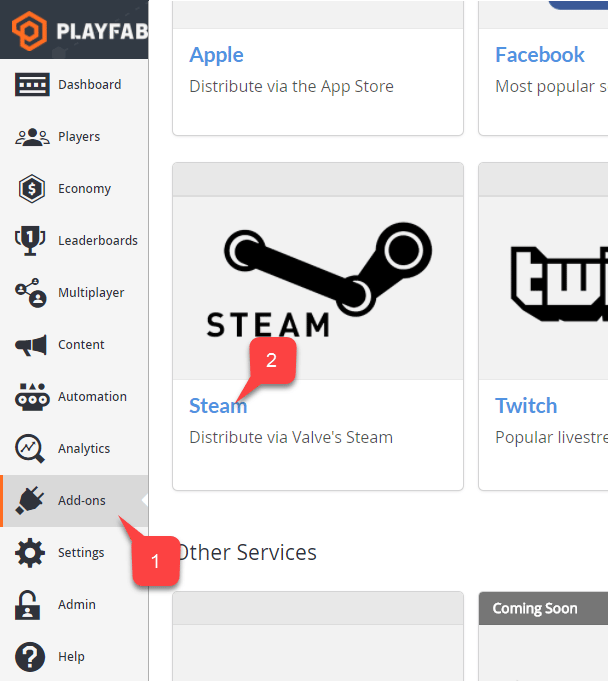
1. Select the **Add-ons** menu item.
2. In the list of available **Add-ons**, locate **Steam** and select the title link:
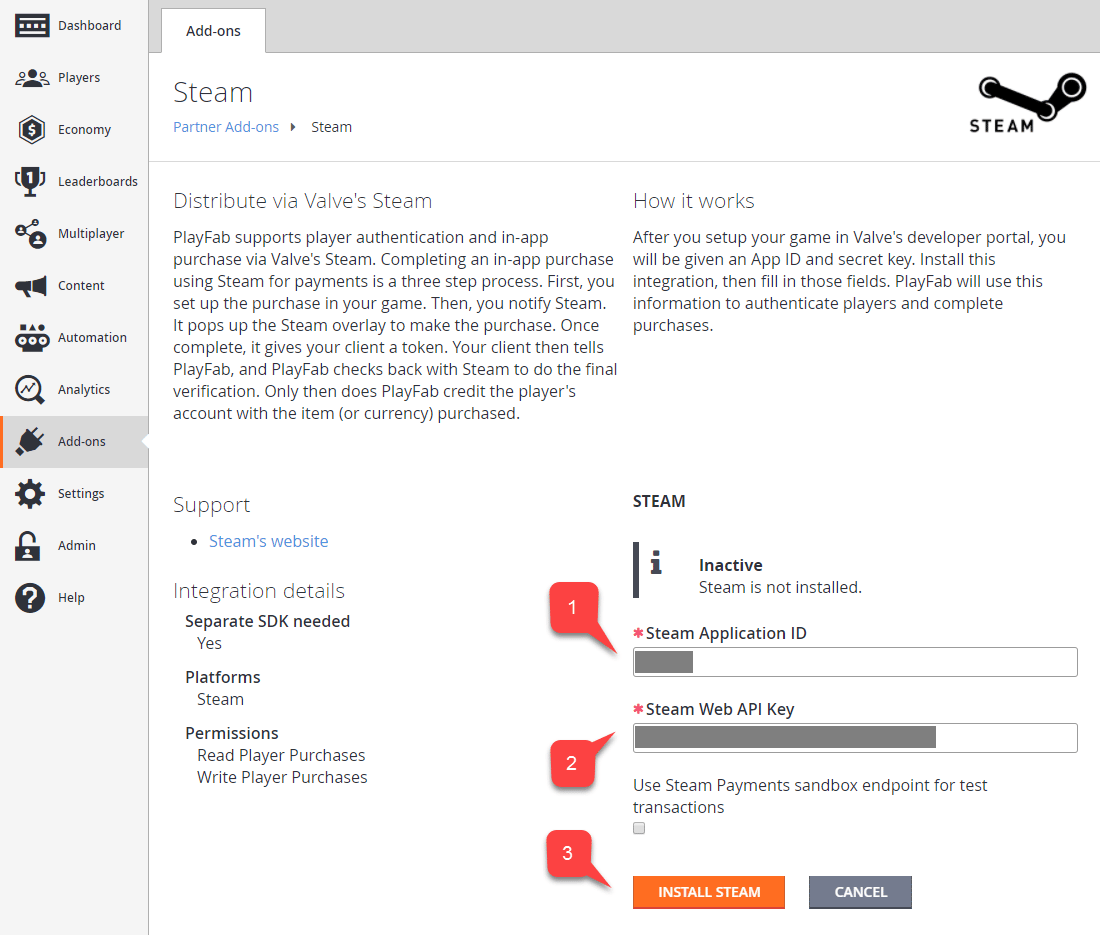
 1. Enter your **App ID**.
2. Enter the **Web API Key**.
3. Then select **Install Steam**.
1. Enter your **App ID**.
2. Enter the **Web API Key**.
3. Then select **Install Steam**.
 ## Setting up a Unity project
Start by downloading the latest release of Steamworks.NET from the [Releases page](https://github.com/rlabrecque/Steamworks.NET/releases).
* Get the Unity Package version of the release, and import it into the project.
* Once you import the package, close Unity.
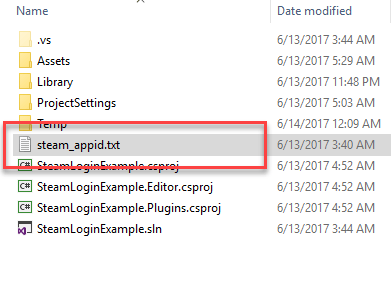
* Navigate to the **Project** root folder.
* Locate the **steam\_appid.txt** file.
* Open the file and replace the **App ID** value with your own.
## Setting up a Unity project
Start by downloading the latest release of Steamworks.NET from the [Releases page](https://github.com/rlabrecque/Steamworks.NET/releases).
* Get the Unity Package version of the release, and import it into the project.
* Once you import the package, close Unity.
* Navigate to the **Project** root folder.
* Locate the **steam\_appid.txt** file.
* Open the file and replace the **App ID** value with your own.
 Re-open Unity and create a new scene.
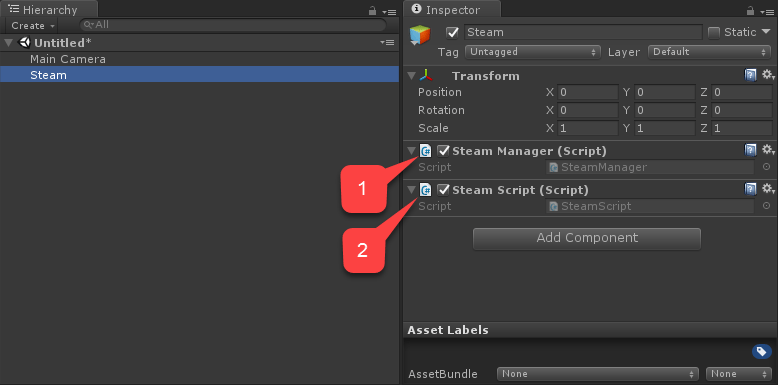
Inside that scene, create a new **GameObject** called **Steam**:
1. Add a **SteamManager** component to the **GameObject**. This component is part of Steamworks.Net.
2. Create and add a **SteamScript** component to the **GameObject**.
Re-open Unity and create a new scene.
Inside that scene, create a new **GameObject** called **Steam**:
1. Add a **SteamManager** component to the **GameObject**. This component is part of Steamworks.Net.
2. Create and add a **SteamScript** component to the **GameObject**.
 The following example shows the code for the `SteamScript` component.
```csharp theme={null}
using System.Text;
using PlayFab;
using PlayFab.ClientModels;
using Steamworks;
using UnityEngine;
public class SteamScript : MonoBehaviour
{
protected Callback m_OnGetSteamAuthTicket;
// Alternatively, you can use this callback if you choose to call SteamUser.GetAuthSessionTicket(...) instead
// TicketIsServiceSpecific in the PlayFabLoginRequest should be false in this case
// protected Callback m_OnGetSteamAuthTicketAlternate;
private HAuthTicket m_hTicket;
public void Awake()
{
m_OnGetSteamAuthTicket = Callback.Create(OnGetSteamAuthTicket);
}
public void OnGUI()
{
if (GUILayout.Button("Log In") && SteamManager.Initialized)
{
GetSteamAuthTicket();
}
}
private void GetSteamAuthTicket()
{
m_hTicket = SteamUser.GetAuthTicketForWebApi("AzurePlayFab");
if (m_hTicket == HAuthTicket.Invalid)
{
Debug.Log("Failed to request steam auth ticket");
}
else
{
Debug.Log("Steam auth ticket requested");
}
}
private void OnGetSteamAuthTicket(GetTicketForWebApiResponse_t pCallback)
{
Debug.Log("Steam auth ticket callback invoked");
if (pCallback.m_eResult != EResult.k_EResultOK)
{
Debug.Log("Failed to get steam auth ticket: " + pCallback.m_eResult);
}
StringBuilder sb = new();
for (int i = 0; i < pCallback.m_cubTicket; ++i)
{
sb.AppendFormat("{0:x2}", pCallback.m_rgubTicket[i]);
}
PlayFabClientAPI.LoginWithSteam(new LoginWithSteamRequest
{
CreateAccount = true,
SteamTicket = sb.ToString(),
TicketIsServiceSpecific = true
}, OnComplete, OnFailed);
}
private void OnComplete(LoginResult obj)
{
SteamUser.CancelAuthTicket(m_hTicket);
Debug.Log("Success!");
}
private void OnFailed(PlayFabError error)
{
SteamUser.CancelAuthTicket(m_hTicket);
Debug.Log("Failed PlayFab login: " + error.GenerateErrorReport());
}
}
```
## Testing
You may test right inside the editor:
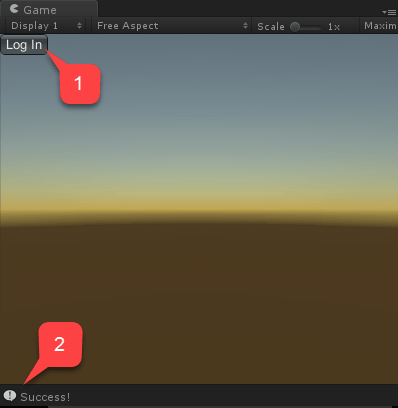
1. Run the scene and select the **Log In** button.
2. The console message should appear after a moment, indicating the authentication result **Success!**.
The following example shows the code for the `SteamScript` component.
```csharp theme={null}
using System.Text;
using PlayFab;
using PlayFab.ClientModels;
using Steamworks;
using UnityEngine;
public class SteamScript : MonoBehaviour
{
protected Callback m_OnGetSteamAuthTicket;
// Alternatively, you can use this callback if you choose to call SteamUser.GetAuthSessionTicket(...) instead
// TicketIsServiceSpecific in the PlayFabLoginRequest should be false in this case
// protected Callback m_OnGetSteamAuthTicketAlternate;
private HAuthTicket m_hTicket;
public void Awake()
{
m_OnGetSteamAuthTicket = Callback.Create(OnGetSteamAuthTicket);
}
public void OnGUI()
{
if (GUILayout.Button("Log In") && SteamManager.Initialized)
{
GetSteamAuthTicket();
}
}
private void GetSteamAuthTicket()
{
m_hTicket = SteamUser.GetAuthTicketForWebApi("AzurePlayFab");
if (m_hTicket == HAuthTicket.Invalid)
{
Debug.Log("Failed to request steam auth ticket");
}
else
{
Debug.Log("Steam auth ticket requested");
}
}
private void OnGetSteamAuthTicket(GetTicketForWebApiResponse_t pCallback)
{
Debug.Log("Steam auth ticket callback invoked");
if (pCallback.m_eResult != EResult.k_EResultOK)
{
Debug.Log("Failed to get steam auth ticket: " + pCallback.m_eResult);
}
StringBuilder sb = new();
for (int i = 0; i < pCallback.m_cubTicket; ++i)
{
sb.AppendFormat("{0:x2}", pCallback.m_rgubTicket[i]);
}
PlayFabClientAPI.LoginWithSteam(new LoginWithSteamRequest
{
CreateAccount = true,
SteamTicket = sb.ToString(),
TicketIsServiceSpecific = true
}, OnComplete, OnFailed);
}
private void OnComplete(LoginResult obj)
{
SteamUser.CancelAuthTicket(m_hTicket);
Debug.Log("Success!");
}
private void OnFailed(PlayFabError error)
{
SteamUser.CancelAuthTicket(m_hTicket);
Debug.Log("Failed PlayFab login: " + error.GenerateErrorReport());
}
}
```
## Testing
You may test right inside the editor:
1. Run the scene and select the **Log In** button.
2. The console message should appear after a moment, indicating the authentication result **Success!**.
 ## Related topics
- [Platform-Specific Authentication](/services/playfab/identity/player-identity/platform-specific-authentication/index.md)
- [Setting up PlayFab authentication using Facebook and Unity](/services/playfab/identity/player-identity/platform-specific-authentication/facebook-unity.md)
- [Setting up PlayFab authentication using Kongregate and Unity](/services/playfab/identity/player-identity/platform-specific-authentication/kongregate-unity.md)
- [Setting up PlayFab authentication using Google and HTML5](/services/playfab/identity/player-identity/platform-specific-authentication/google-html5.md)
- [Setting up PlayFab authentication using Kongregate and HTML5](/services/playfab/identity/player-identity/platform-specific-authentication/kongregate-html5.md)
## Related topics
- [Platform-Specific Authentication](/services/playfab/identity/player-identity/platform-specific-authentication/index.md)
- [Setting up PlayFab authentication using Facebook and Unity](/services/playfab/identity/player-identity/platform-specific-authentication/facebook-unity.md)
- [Setting up PlayFab authentication using Kongregate and Unity](/services/playfab/identity/player-identity/platform-specific-authentication/kongregate-unity.md)
- [Setting up PlayFab authentication using Google and HTML5](/services/playfab/identity/player-identity/platform-specific-authentication/google-html5.md)
- [Setting up PlayFab authentication using Kongregate and HTML5](/services/playfab/identity/player-identity/platform-specific-authentication/kongregate-html5.md)