> ## Documentation Index
> Fetch the complete documentation index at: https://devdocs.xbox.com/llms.txt
> Use this file to discover all available pages before exploring further.

# Setting up PlayFab authentication using Kongregate and HTML5

> Step-by-step tutorial for adding Kongregate authentication to a PlayFab title with HTML5 and JavaScript, covering Kongregate app upload and player login.

This tutorial shows you the minimal setup required to authenticate your players in PlayFab using Kongregate and HTML5/JavaScript.

## Requirements

* A registered [Kongregate](https://www.kongregate.com/) account.
* Familiarity with the [Kongregate Developers Guide](https://www.kongregate.com/developer_center/docs/en/kongregate-api).
* A registered PlayFab title.
* Familiarity with [Login basics and Best Practices](/services/playfab/identity/player-identity/login/login-basics-best-practices).

## Setting up a Kongregate app

Kongregate requires you to upload a preview version of the app, before you gain access to the necessary API information.

To do this, we need to prepare an `index.html` file with the following content.

```html theme={null}
<!doctype html>
<html lang="en-us">
<head></head>
<body>
 <h1>Placeholder</h1>
</body>
</html>
```

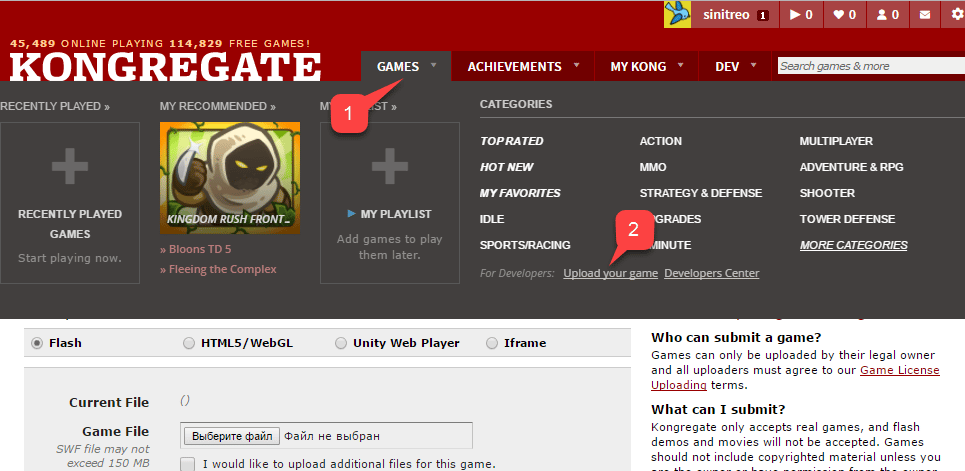
Navigate to the [Kongregate website](https://www.kongregate.com/):

1. Select the **Games** tab.
2. Select the **Upload your game** button.

<img src="https://mintcdn.com/microsoft-4404708b/mLCHf0iQv3VidfBe/images/playfab/identity/player-identity/platform-specific-authentication/tutorials/kongregate-games-tab.png?fit=max&auto=format&n=mLCHf0iQv3VidfBe&q=85&s=3af3bc93c645a3f8948701caf1f08d03" alt="Kongregate Games tab" width="965" height="471" data-path="images/playfab/identity/player-identity/platform-specific-authentication/tutorials/kongregate-games-tab.png" />

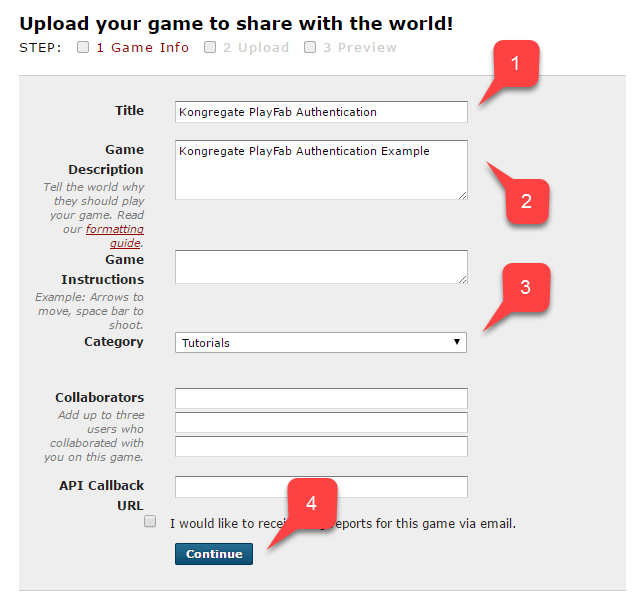
A page to set up for a new application opens.

1. Enter the **Application Name** in the **Title** field.
2. Then enter a **Game Description** in the field provided.
3. Select a **Category**.
4. Submit the new app by selecting the **Continue** button, as indicated in the example provided below.
<img src="https://mintcdn.com/microsoft-4404708b/mLCHf0iQv3VidfBe/images/playfab/identity/player-identity/platform-specific-authentication/tutorials/kongregate-upload-your-game.png?fit=max&auto=format&n=mLCHf0iQv3VidfBe&q=85&s=0e66a21c81da6861bd59d2dddb82c22f" alt="Kongregate upload your game" width="636" height="603" data-path="images/playfab/identity/player-identity/platform-specific-authentication/tutorials/kongregate-upload-your-game.png" />

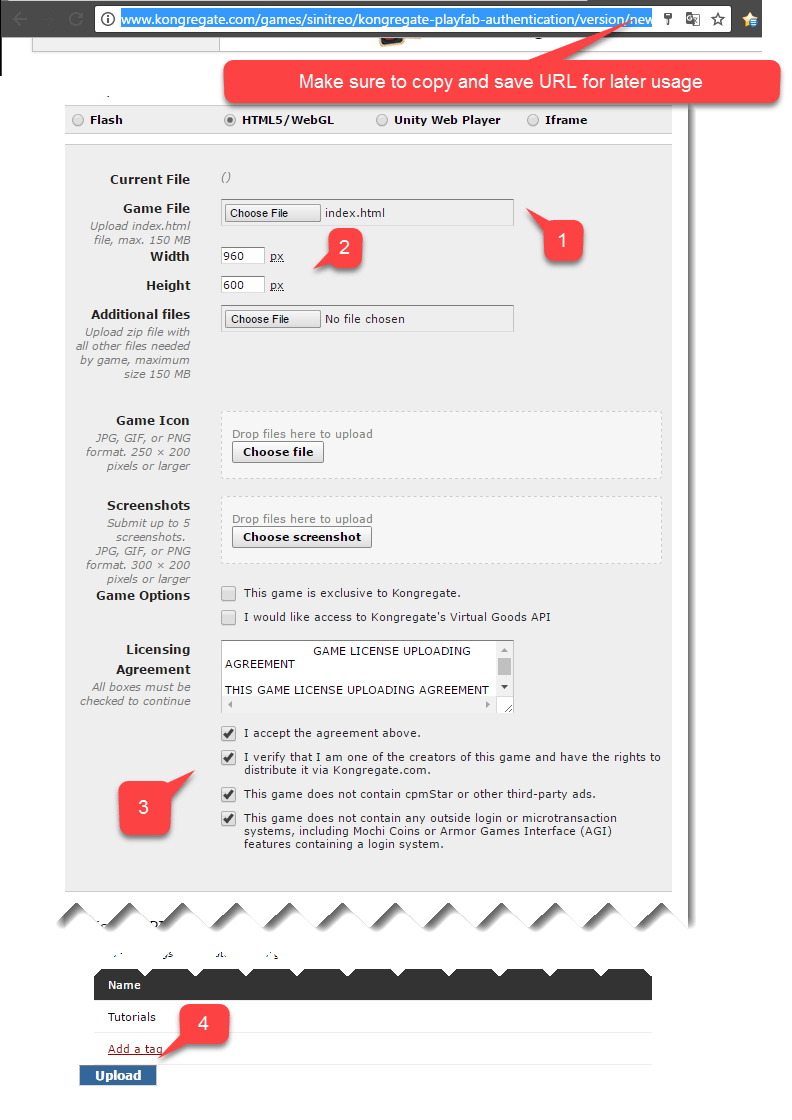
You'll be moved to the **Application Upload** page.

As an important first step, make sure to save the **URL** from your **Web Address Bar**. This saves you a lot of time trying to restore access to the application once you close the page.

1. Once this is done, select the prepared **index.html** file as your **Game File**.
2. Then set up the screen size.
3. Make sure to accept all the required licenses.
4. Upload your application by selecting the **Upload** button, as shown in the example provided below.
<img src="https://mintcdn.com/microsoft-4404708b/mLCHf0iQv3VidfBe/images/playfab/identity/player-identity/platform-specific-authentication/tutorials/kongregate-app-upload-page.png?fit=max&auto=format&n=mLCHf0iQv3VidfBe&q=85&s=893af9198a1deef8b7cdb6bcd4534cc9" alt="Kongregate application upload page" width="792" height="1120" data-path="images/playfab/identity/player-identity/platform-specific-authentication/tutorials/kongregate-app-upload-page.png" />

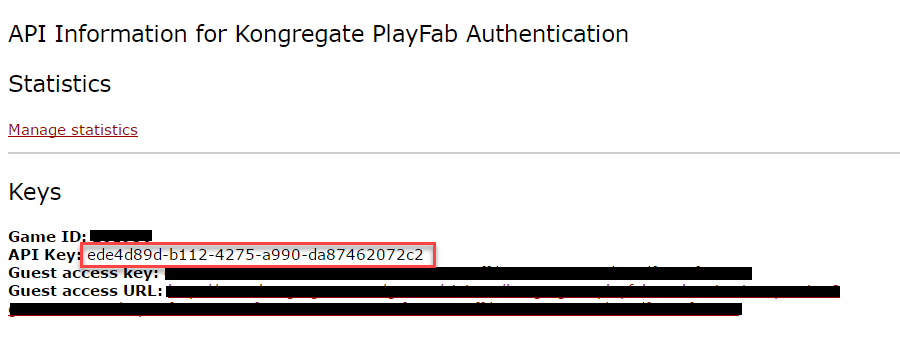
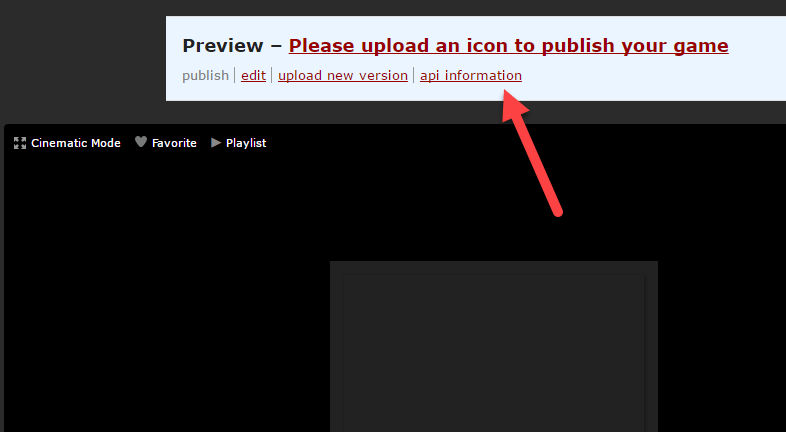
* Once the preview opens, ignore the content and open the **api information** link.
<img src="https://mintcdn.com/microsoft-4404708b/mLCHf0iQv3VidfBe/images/playfab/identity/player-identity/platform-specific-authentication/tutorials/kongregate-preview-api-info.png?fit=max&auto=format&n=mLCHf0iQv3VidfBe&q=85&s=b136fa2e3dd827e4b6344921b500a8be" alt="Kongregate preview API information" width="786" height="432" data-path="images/playfab/identity/player-identity/platform-specific-authentication/tutorials/kongregate-preview-api-info.png" />

<Note>
  When the **API Information** page opens, locate the **API Key** and save it in a safe and easily accessible place for later use.
</Note>

<img src="https://mintcdn.com/microsoft-4404708b/mLCHf0iQv3VidfBe/images/playfab/identity/player-identity/platform-specific-authentication/tutorials/kongregate-api-key.png?fit=max&auto=format&n=mLCHf0iQv3VidfBe&q=85&s=a99770329d85ce86613cd0a32cdf28a4" alt="Kongregate API Key" width="900" height="344" data-path="images/playfab/identity/player-identity/platform-specific-authentication/tutorials/kongregate-api-key.png" />

## Configuring PlayFab title

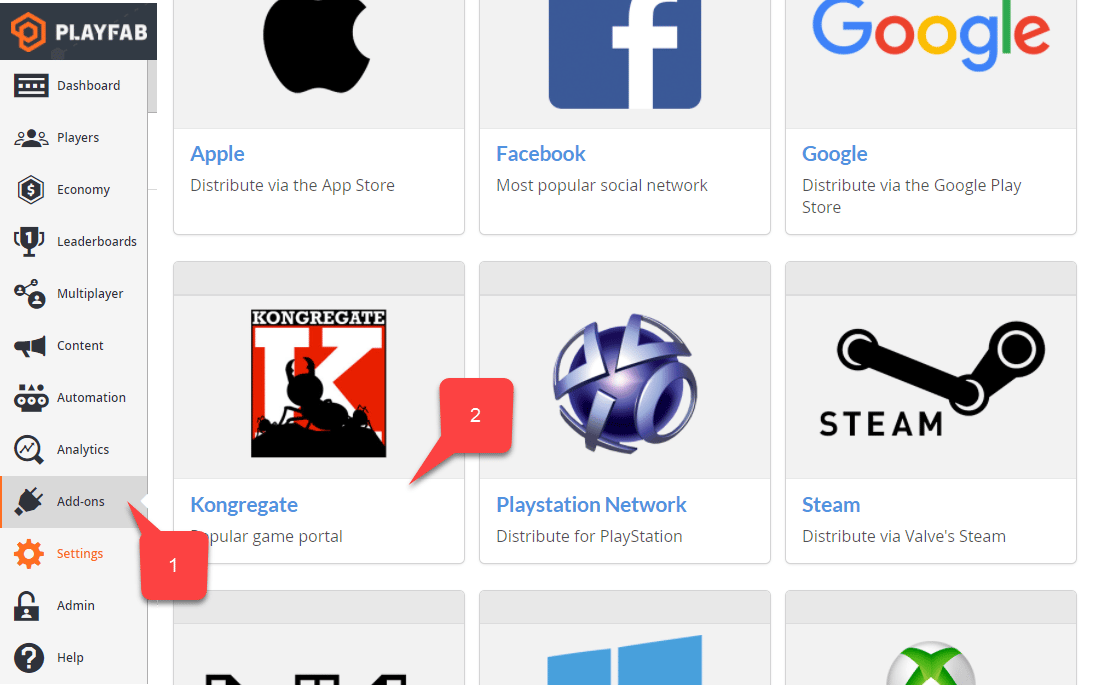
In your PlayFab title Game Manager:

1. Navigate to **Add-ons**.
2. Find and select **Kongregate**.
<img src="https://mintcdn.com/microsoft-4404708b/mLCHf0iQv3VidfBe/images/playfab/identity/player-identity/platform-specific-authentication/tutorials/playfab-select-kongregate-add-on.png?fit=max&auto=format&n=mLCHf0iQv3VidfBe&q=85&s=e25c251fc51474717d5b5a693ad1bf0c" alt="PlayFab select Kongregate Add-on" width="1100" height="685" data-path="images/playfab/identity/player-identity/platform-specific-authentication/tutorials/playfab-select-kongregate-add-on.png" />

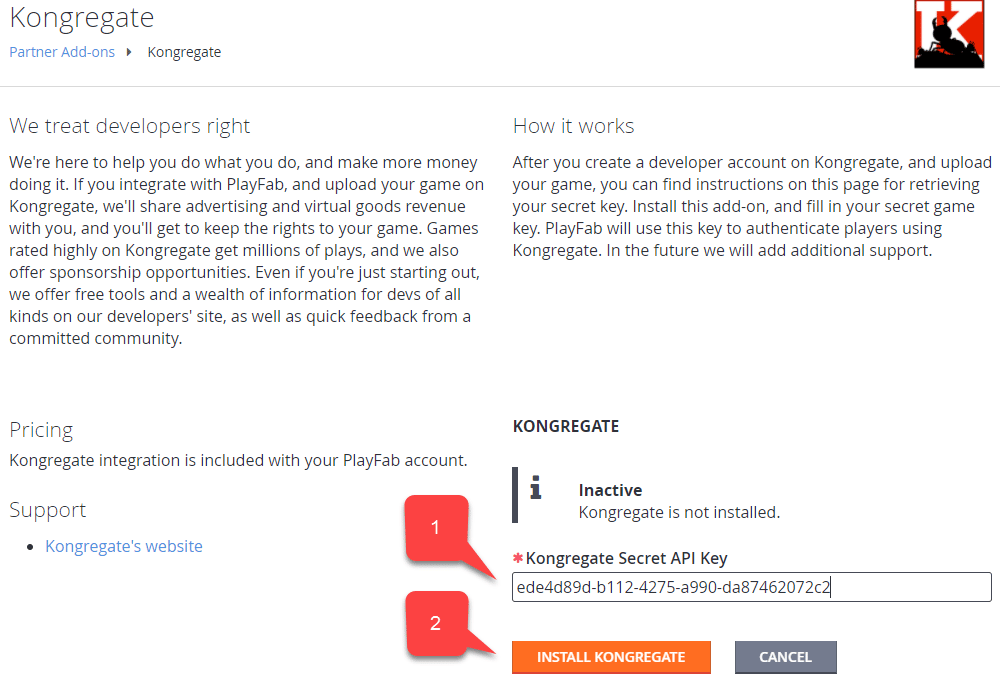
A new page opens, allowing you to set up **Kongregate** integration.

1. Enter the **API Key** you acquired in the previous section.
2. Select **Install Kongregate**.
<img src="https://mintcdn.com/microsoft-4404708b/mLCHf0iQv3VidfBe/images/playfab/identity/player-identity/platform-specific-authentication/tutorials/playfab-set-up-kongregate-integration.png?fit=max&auto=format&n=mLCHf0iQv3VidfBe&q=85&s=fa6dd5111bfe1bb60c6cf118622272c1" alt="PlayFab set up Kongregate integration" width="1000" height="693" data-path="images/playfab/identity/player-identity/platform-specific-authentication/tutorials/playfab-set-up-kongregate-integration.png" />

If you receive no error message, then you have configured PlayFab title integration with your Kongregate application.

## Preparing some code

Use the example code shown below to populate the `index.html` for your game.

```html theme={null}
<!DOCTYPE html PUBLIC "-//W3C//DTD XHTML 1.0 Transitional//EN"
  "http://www.w3.org/TR/xhtml1/DTD/xhtml1-transitional.dtd">
<html xmlns='http://www.w3.org/1999/xhtml'>
<head>
  <title>Kongregate Javascript API example</title>
  <!-- Import PlayFab API -->
  <script src='https://download.playfab.com/PlayFabClientApi.js'></script>
  <!-- Import JQuery, required specifically by this example, does not effect either API -->
  <script src='https://ajax.googleapis.com/ajax/libs/jquery/2.2.0/jquery.min.js'></script>
  <!-- Import Kongregate API -->
  <script src='https://cdn1.kongregate.com/javascripts/kongregate_api.js'></script>
</head>

<!-- Define elements with IDs to show current state of things and a couple of buttons -->
<body style='background-color:white'>
  <span id='init'>Initializing...</span>
  <div id='content' style='display:none'>
    <div>Kongregate API Loaded!</div>
    <div id='username'></div>
    <div id='user_id'></div>
    <!-- This button will invoke Kongregate Auth Box -->
    <button id='login' style='display:none'
      onclick='kongregate.services.showRegistrationBox()'>Sign in/register</button>
    <!-- This button will invoke PlayFab authentication process -->
    <button id='login'
       onclick='loginInUsingPlayFab()'>PlayFab Login With Kongregate</button>
  </div>

  <script type='text/javascript'>

    // This function just updates UI, nothing else
    function updateFields() {
      $('#init').hide();
      $('#content').show();

      // Visualize Kongregate Auth Data
      $('#username').text('Username: ' + kongregate.services.getUsername());
      $('#user_id').text('User ID: ' + kongregate.services.getUserId());

      // If not authenticated in Kongregate, allow to use Login button
      if(kongregate.services.isGuest()) {
        $('#login').show();
      } else {
        $('#login').hide();
      }
    }

    // The function prepares and triggers PlayFab LoginWithKongregate API call
    function loginInUsingPlayFab() {
      // Setting up PlayFab title ID
      PlayFab.settings.titleId = "159F";

      // forming request
      var request = {
        TitleId: PlayFab.settings.titleId,
        AuthTicket: kongregate.services.getGameAuthToken(),
        KongregateId : kongregate.services.getUserId(),
        CreateAccount: true
      };

      console.log('logging in');
      // Invoke LoginWithKongregate API call and visualize both results (success or failure)
      PlayFabClientSDK.LoginWithKongregate(request,
      function(result){
        $('<div></div>').html('Authenticated via playfab').appendTo('#content')
        console.log("success");
      },
      function(err){
        $('<div></div>').html('Problem occurred: ' + PlayFab.GenerateErrorReport(err)).appendTo('#content')
        console.log("failure");
      });
    }

    // The entry point for Kongregate initialization
    kongregateAPI.loadAPI(function(){
      window.kongregate = kongregateAPI.getAPI();
      updateFields();
      kongregate.services.addEventListener('login', function(){
        updateFields();
      });
    });
  </script>
</body>
</html>
```

## Testing

Remember that URL we asked you to save in a safe and accessible place a little earlier? Use it now to access your **Application Upload** page.

1. Select **index.html** as your **Game File**.
2. Set up the screen size.
3. Make sure to accept all the required licenses.
4. Upload your application by selecting the **Upload** button.

<img src="https://mintcdn.com/microsoft-4404708b/mLCHf0iQv3VidfBe/images/playfab/identity/player-identity/platform-specific-authentication/tutorials/kongregate-app-upload-page.png?fit=max&auto=format&n=mLCHf0iQv3VidfBe&q=85&s=893af9198a1deef8b7cdb6bcd4534cc9" alt="Kongregate application upload page" width="792" height="1120" data-path="images/playfab/identity/player-identity/platform-specific-authentication/tutorials/kongregate-app-upload-page.png" />

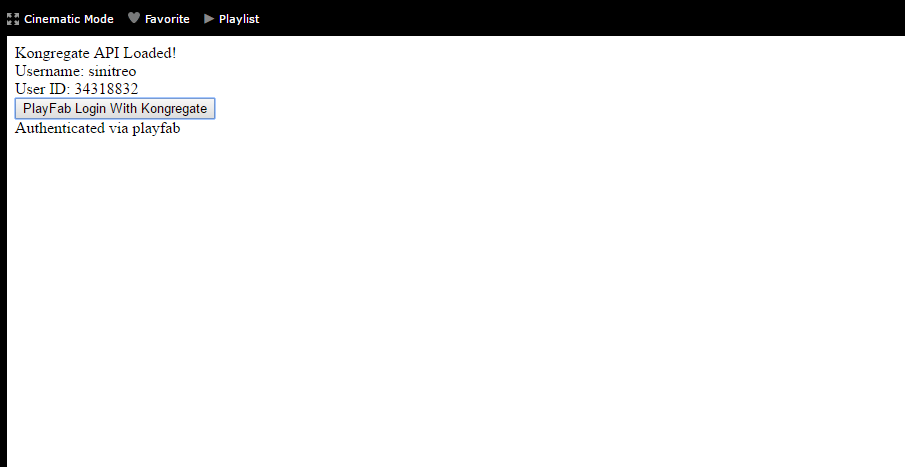
Once the preview loads, wait for the Application to obtain the **Kongregate User ID** and **Username**.

* When that has happened, select the **PlayFab Login With Kongregate** button.
* After a brief pause, you should receive an **Authenticated via PlayFab** message.
* At this point, you have successfully logged in using PlayFab and Kongregate!
<img src="https://mintcdn.com/microsoft-4404708b/mLCHf0iQv3VidfBe/images/playfab/identity/player-identity/platform-specific-authentication/tutorials/kongregate-html5/testing-playfab-login-with-kongregate.png?fit=max&auto=format&n=mLCHf0iQv3VidfBe&q=85&s=f0588d425c650246a5a9f8a041b3a078" alt="Testing PlayFab Login with Kongregate" width="905" height="467" data-path="images/playfab/identity/player-identity/platform-specific-authentication/tutorials/kongregate-html5/testing-playfab-login-with-kongregate.png" />


## Related topics

- [Platform-Specific Authentication](/services/playfab/identity/player-identity/platform-specific-authentication/index.md)
- [Setting up PlayFab authentication using Google and HTML5](/services/playfab/identity/player-identity/platform-specific-authentication/google-html5.md)
- [Setting up PlayFab authentication using Facebook and HTML5](/services/playfab/identity/player-identity/platform-specific-authentication/facebook-html5.md)
- [Setting up PlayFab authentication using Twitch and HTML5](/services/playfab/identity/player-identity/platform-specific-authentication/twitch-html5.md)
- [Server Anonymous Login Authentication](/services/playfab/identity/player-identity/platform-specific-authentication/anonymous-login.md)