> ## Documentation Index
> Fetch the complete documentation index at: https://devdocs.xbox.com/llms.txt
> Use this file to discover all available pages before exploring further.
# Setting up PlayFab authentication using Facebook and Unity
> Step-by-step tutorial for integrating Facebook login into a Unity project with the PlayFab SDK, covering Facebook app setup and player authentication code.
This tutorial guides you through an example of PlayFab authentication using Facebook and Unity.
## Requirements
* [Unity 5+](https://unity3d.com/) and a created project.
* [Facebook account](https://www.facebook.com/) for testing.
* [Facebook SDK](https://developers.facebook.com/docs/unity/) imported into the project.
* Registered [PlayFab](https://developer.playfab.com/) title.
* [PlayFab SDK](https://aka.ms/playfabunitysdkdownload) imported into the project with a configured title reference.
* Familiarity with [Login basics and Best Practices](/services/playfab/identity/player-identity/login/login-basics-best-practices).
## Implementation
### Registering a Facebook application
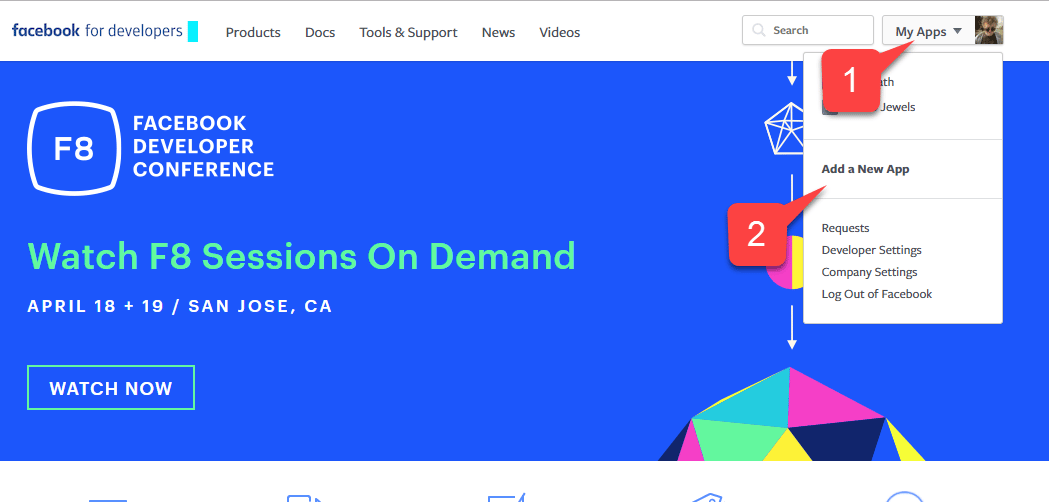
Start by navigating to the [Facebook Developer Portal](https://developers.facebook.com/):
1. Move your mouse over the **My Apps** button.
2. Select **Add a New App**, as shown on the picture below.
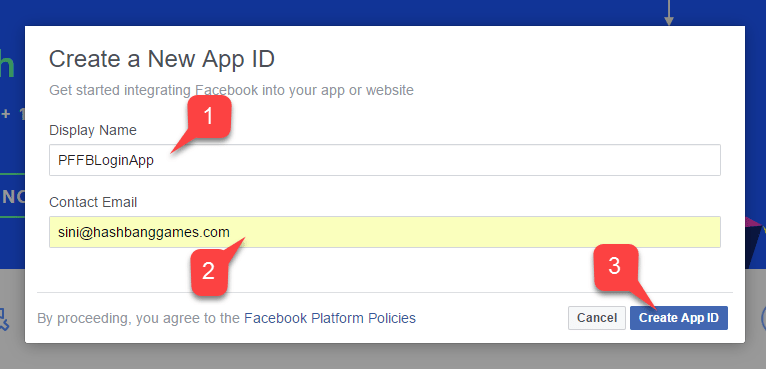
 A new **Application** pop-up will open.
1. Enter a name for your **Application**.
2. Enter a **Contact Email**.
Make sure to come up with your own *unique* **Application Name** and **Email**, as shown on the picture below.
A new **Application** pop-up will open.
1. Enter a name for your **Application**.
2. Enter a **Contact Email**.
Make sure to come up with your own *unique* **Application Name** and **Email**, as shown on the picture below.
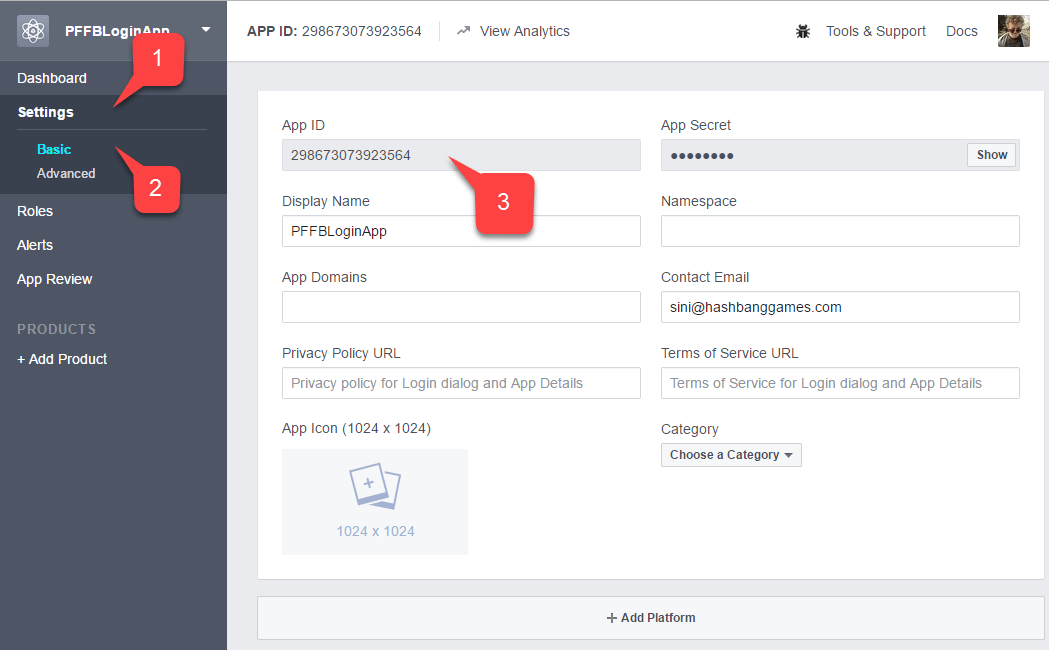
 1. Navigate to the **Settings** tab.
2. Then move to the **Basic** subtab.
3. Locate your **Application ID**.
* Copy it somewhere to a safe place that is easily accessed.
We'll use it later to set up the Facebook SDK.
1. Navigate to the **Settings** tab.
2. Then move to the **Basic** subtab.
3. Locate your **Application ID**.
* Copy it somewhere to a safe place that is easily accessed.
We'll use it later to set up the Facebook SDK.
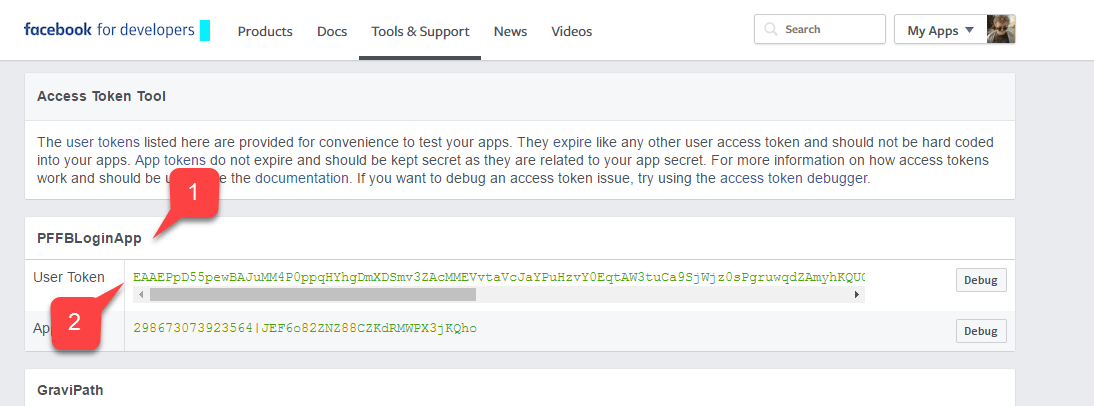
 Navigate to the [Facebook Access Token Tool](https://developers.facebook.com/tools/accesstoken/).
1. Locate your **App** in the list.
2. Verify that it has an assigned **User Token**.
If you *don't* have an assigned user token, request one using the button to the right of your screen. Refer to this page whenever you need a fresh user token. If authorization fails during testing on a PC, token expiration might be the most likely reason. Refresh the page to get a new user token and test again.
Navigate to the [Facebook Access Token Tool](https://developers.facebook.com/tools/accesstoken/).
1. Locate your **App** in the list.
2. Verify that it has an assigned **User Token**.
If you *don't* have an assigned user token, request one using the button to the right of your screen. Refer to this page whenever you need a fresh user token. If authorization fails during testing on a PC, token expiration might be the most likely reason. Refresh the page to get a new user token and test again.
 1. On your **Application Manager** page, navigate to **+ Add Products**.
2. Locate the **Facebook Login** entry and select **Get Started**.
1. On your **Application Manager** page, navigate to **+ Add Products**.
2. Locate the **Facebook Login** entry and select **Get Started**.
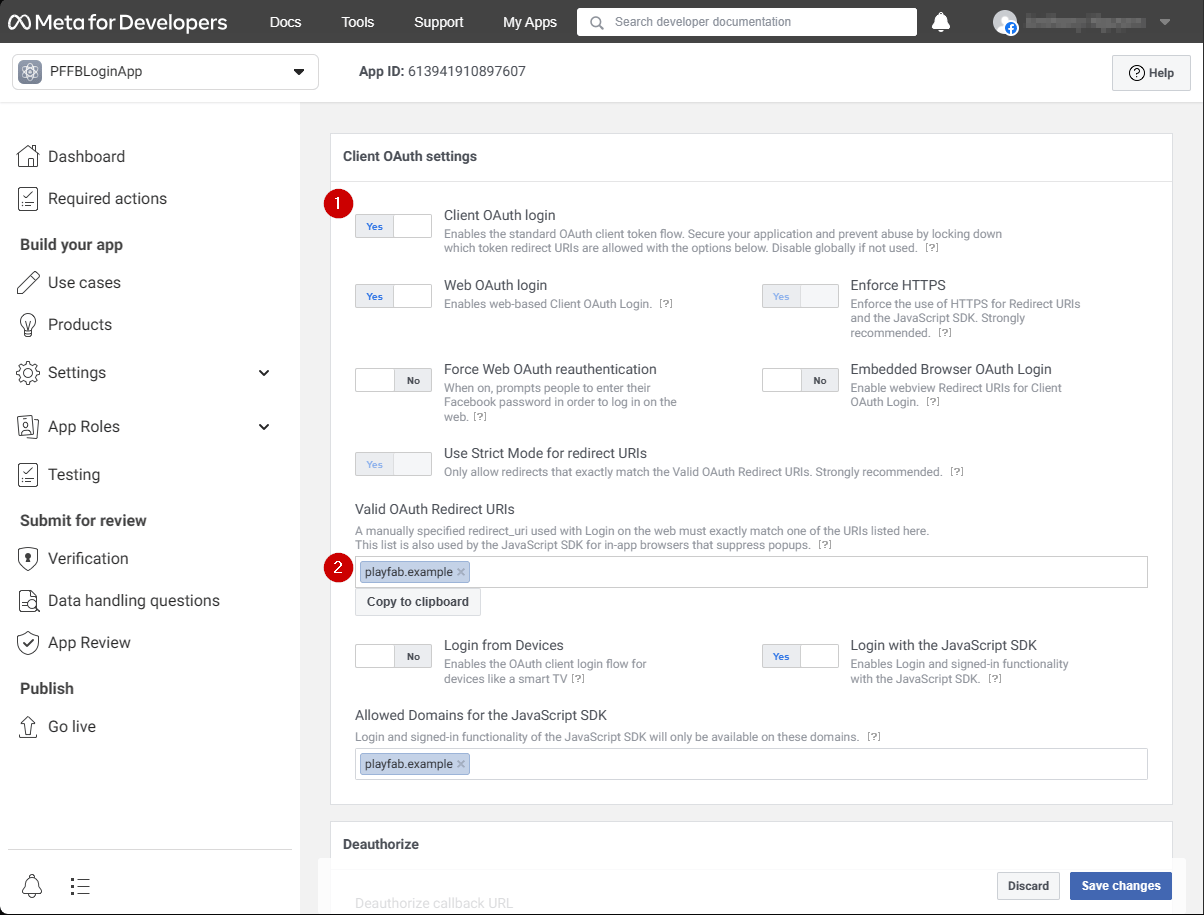
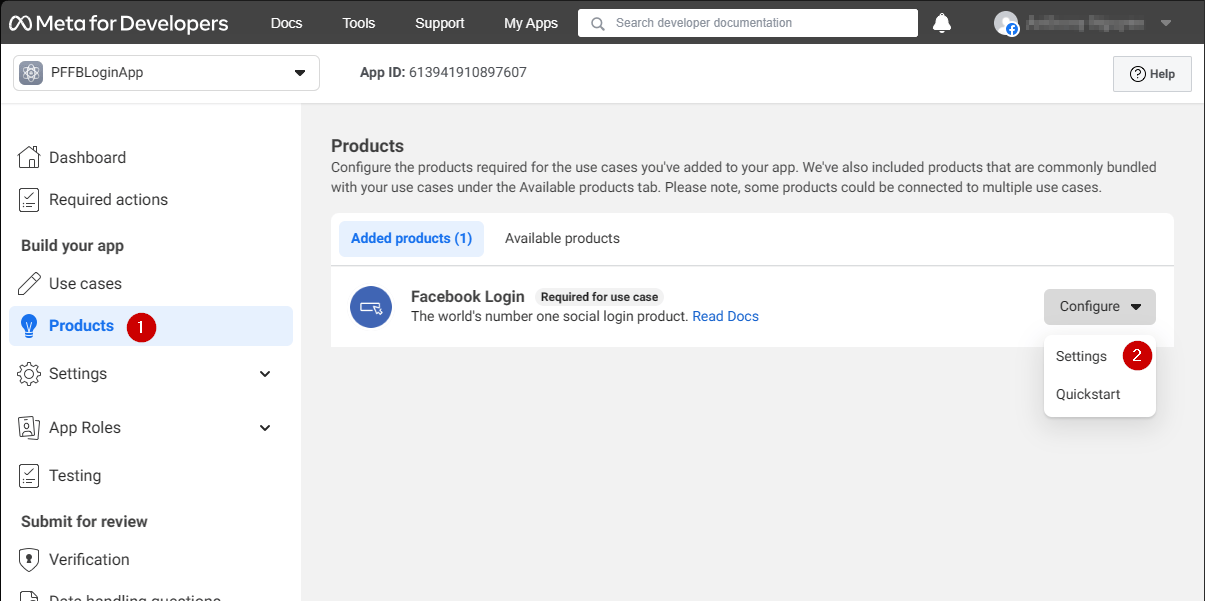 A page with **Login** product settings should open.
1. Make sure that you have the **Login** product **Settings** page opened.
2. Verify that both **Client OAuth** and **Web OAuth** are on.
A page with **Login** product settings should open.
1. Make sure that you have the **Login** product **Settings** page opened.
2. Verify that both **Client OAuth** and **Web OAuth** are on.
 ### Setting up Facebook SDK
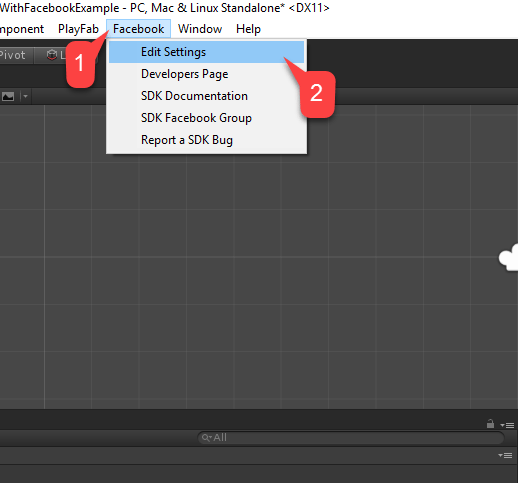
Open your **Unity Project**:
1. Select **Facebook** in the file menu.
2. Then select **Edit Settings**.
### Setting up Facebook SDK
Open your **Unity Project**:
1. Select **Facebook** in the file menu.
2. Then select **Edit Settings**.
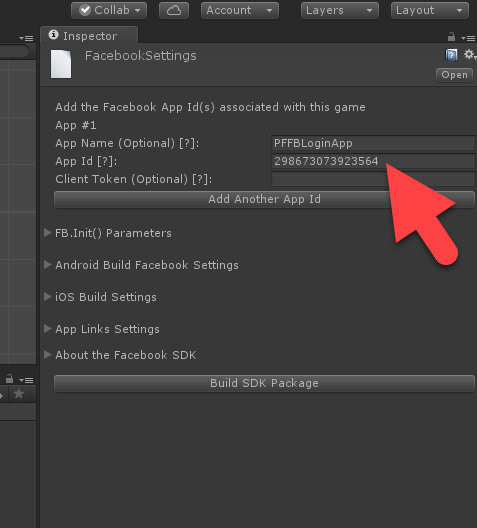
 The **Inspector** window will display the current **Facebook SDK** configuration.
* Enter your **Application ID** in the corresponding field, as shown in the following picture.
The **Inspector** window will display the current **Facebook SDK** configuration.
* Enter your **Application ID** in the corresponding field, as shown in the following picture.
 ### Simple authentication script
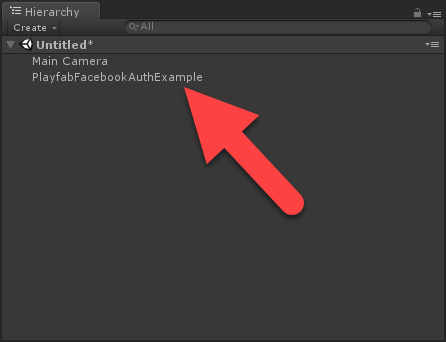
Create a new **Game Object**, and rename it to **PlayfabFacebookAuthExample**, as shown in the following picture.
### Simple authentication script
Create a new **Game Object**, and rename it to **PlayfabFacebookAuthExample**, as shown in the following picture.
 1. Create a script called **PlayfabFacebookAuthExample.cs**.
2. Add it to the **Game Object** as shown on the picture below.
1. Create a script called **PlayfabFacebookAuthExample.cs**.
2. Add it to the **Game Object** as shown on the picture below.
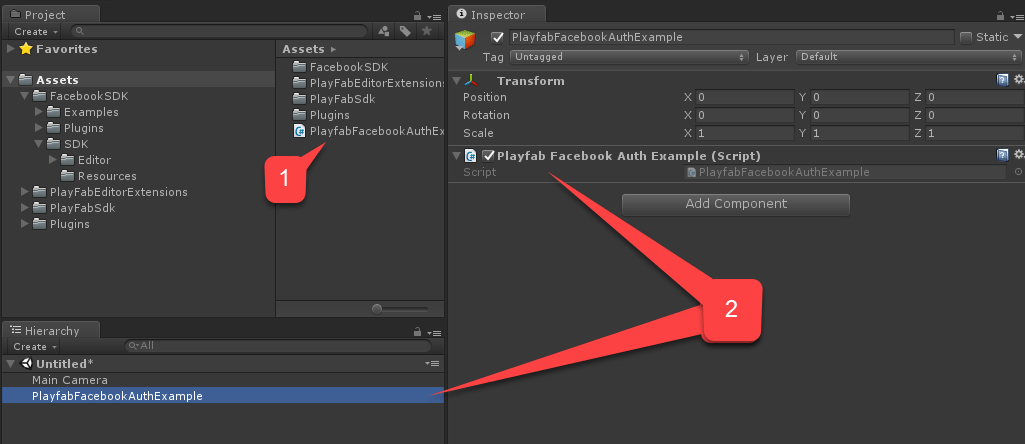 Inside `PlayfabFacebookAuthExample.cs` place the following code.
```csharp theme={null}
// Import statements introduce all the necessary classes for this example.
using Facebook.Unity;
using PlayFab;
using PlayFab.ClientModels;
using UnityEngine;
using LoginResult = PlayFab.ClientModels.LoginResult;
public class PlayfabFacebookAuthExample : MonoBehaviour
{
// holds the latest message to be displayed on the screen
private string _message;
public void Start()
{
SetMessage("Initializing Facebook..."); // logs the given message and displays it on the screen using OnGUI method
// This call is required before any other calls to the Facebook API. We pass in the callback to be invoked once initialization is finished
FB.Init(OnFacebookInitialized);
}
private void OnFacebookInitialized()
{
SetMessage("Logging into Facebook...");
// Once Facebook SDK is initialized, if we are logged in, we log out to demonstrate the entire authentication cycle.
if (FB.IsLoggedIn)
FB.LogOut();
// We invoke basic login procedure and pass in the callback to process the result
FB.LogInWithReadPermissions(null, OnFacebookLoggedIn);
}
private void OnFacebookLoggedIn(ILoginResult result)
{
// If result has no errors, it means we have authenticated in Facebook successfully
if (result == null || string.IsNullOrEmpty(result.Error))
{
SetMessage("Facebook Auth Complete! Access Token: " + AccessToken.CurrentAccessToken.TokenString + "\nLogging into PlayFab...");
/*
* We proceed with making a call to PlayFab API. We pass in current Facebook AccessToken and let it create
* and account using CreateAccount flag set to true. We also pass the callback for Success and Failure results
*/
PlayFabClientAPI.LoginWithFacebook(new LoginWithFacebookRequest { CreateAccount = true, AccessToken = AccessToken.CurrentAccessToken.TokenString},
OnPlayfabFacebookAuthComplete, OnPlayfabFacebookAuthFailed);
}
else
{
// If Facebook authentication failed, we stop the cycle with the message
SetMessage("Facebook Auth Failed: " + result.Error + "\n" + result.RawResult, true);
}
}
// When processing both results, we just set the message, explaining what's going on.
private void OnPlayfabFacebookAuthComplete(LoginResult result)
{
SetMessage("PlayFab Facebook Auth Complete. Session ticket: " + result.SessionTicket);
}
private void OnPlayfabFacebookAuthFailed(PlayFabError error)
{
SetMessage("PlayFab Facebook Auth Failed: " + error.GenerateErrorReport(), true);
}
public void SetMessage(string message, bool error = false)
{
_message = message;
if (error)
Debug.LogError(_message);
else
Debug.Log(_message);
}
public void OnGUI()
{
var style = new GUIStyle { fontSize = 40, normal = new GUIStyleState { textColor = Color.white }, alignment = TextAnchor.MiddleCenter, wordWrap = true };
var area = new Rect(0,0,Screen.width,Screen.height);
GUI.Label(area, _message,style);
}
}
```
## Testing
### Running the application in the editor
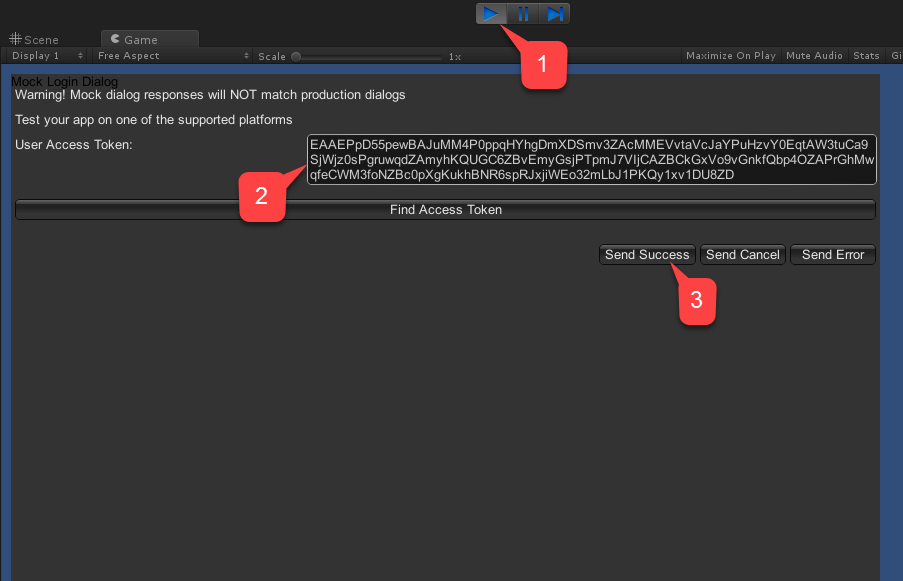
1. Select the **Play** button. Once **Facebook** is initialized (and an authentication call is made), a **Facebook** authentication dialog will appear in your game view.
2. Enter the **User Token**.
3. Select the **Send Success** button, as shown in the following picture.
Inside `PlayfabFacebookAuthExample.cs` place the following code.
```csharp theme={null}
// Import statements introduce all the necessary classes for this example.
using Facebook.Unity;
using PlayFab;
using PlayFab.ClientModels;
using UnityEngine;
using LoginResult = PlayFab.ClientModels.LoginResult;
public class PlayfabFacebookAuthExample : MonoBehaviour
{
// holds the latest message to be displayed on the screen
private string _message;
public void Start()
{
SetMessage("Initializing Facebook..."); // logs the given message and displays it on the screen using OnGUI method
// This call is required before any other calls to the Facebook API. We pass in the callback to be invoked once initialization is finished
FB.Init(OnFacebookInitialized);
}
private void OnFacebookInitialized()
{
SetMessage("Logging into Facebook...");
// Once Facebook SDK is initialized, if we are logged in, we log out to demonstrate the entire authentication cycle.
if (FB.IsLoggedIn)
FB.LogOut();
// We invoke basic login procedure and pass in the callback to process the result
FB.LogInWithReadPermissions(null, OnFacebookLoggedIn);
}
private void OnFacebookLoggedIn(ILoginResult result)
{
// If result has no errors, it means we have authenticated in Facebook successfully
if (result == null || string.IsNullOrEmpty(result.Error))
{
SetMessage("Facebook Auth Complete! Access Token: " + AccessToken.CurrentAccessToken.TokenString + "\nLogging into PlayFab...");
/*
* We proceed with making a call to PlayFab API. We pass in current Facebook AccessToken and let it create
* and account using CreateAccount flag set to true. We also pass the callback for Success and Failure results
*/
PlayFabClientAPI.LoginWithFacebook(new LoginWithFacebookRequest { CreateAccount = true, AccessToken = AccessToken.CurrentAccessToken.TokenString},
OnPlayfabFacebookAuthComplete, OnPlayfabFacebookAuthFailed);
}
else
{
// If Facebook authentication failed, we stop the cycle with the message
SetMessage("Facebook Auth Failed: " + result.Error + "\n" + result.RawResult, true);
}
}
// When processing both results, we just set the message, explaining what's going on.
private void OnPlayfabFacebookAuthComplete(LoginResult result)
{
SetMessage("PlayFab Facebook Auth Complete. Session ticket: " + result.SessionTicket);
}
private void OnPlayfabFacebookAuthFailed(PlayFabError error)
{
SetMessage("PlayFab Facebook Auth Failed: " + error.GenerateErrorReport(), true);
}
public void SetMessage(string message, bool error = false)
{
_message = message;
if (error)
Debug.LogError(_message);
else
Debug.Log(_message);
}
public void OnGUI()
{
var style = new GUIStyle { fontSize = 40, normal = new GUIStyleState { textColor = Color.white }, alignment = TextAnchor.MiddleCenter, wordWrap = true };
var area = new Rect(0,0,Screen.width,Screen.height);
GUI.Label(area, _message,style);
}
}
```
## Testing
### Running the application in the editor
1. Select the **Play** button. Once **Facebook** is initialized (and an authentication call is made), a **Facebook** authentication dialog will appear in your game view.
2. Enter the **User Token**.
3. Select the **Send Success** button, as shown in the following picture.
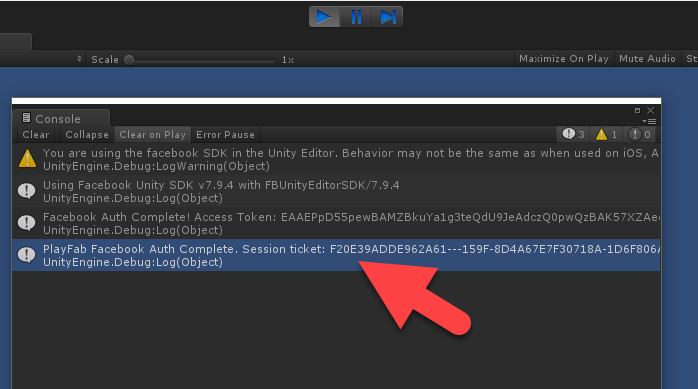
 * Check the console output. It should render our debug statements, as shown on the picture below.
* If you see no errors, this means that authentication was successful.
* Check the console output. It should render our debug statements, as shown on the picture below.
* If you see no errors, this means that authentication was successful.
 ### Running the application on Android
Before launching the application on Android, you're required to perform additional configuration steps:
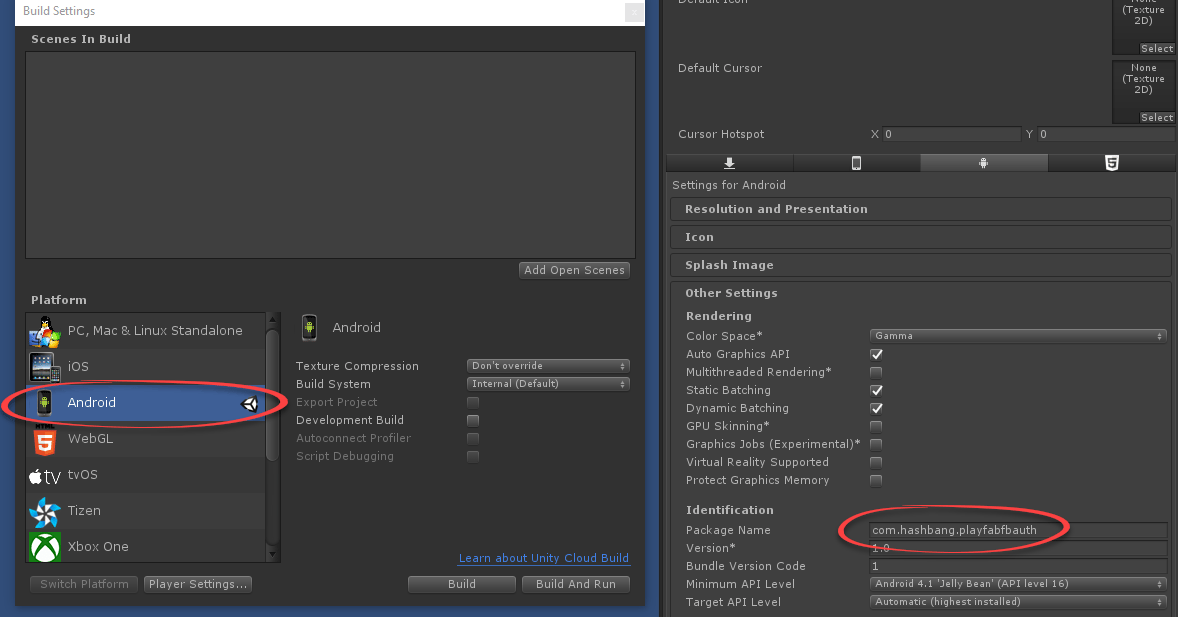
* First, you need to ensure you have the Android platform selected, and the unique **Package ID** set (as indicated in the example below.
Make sure to create your own *unique* **Package ID**.
### Running the application on Android
Before launching the application on Android, you're required to perform additional configuration steps:
* First, you need to ensure you have the Android platform selected, and the unique **Package ID** set (as indicated in the example below.
Make sure to create your own *unique* **Package ID**.
 **Optional step**: Install [Open SSL](https://wiki.openssl.org/index.php/Binaries) and add it to the **PATH** environment variable. If it's missing, Unity will produce a harmless error during the build. This error doesn't\* stop the build, or effect the execution.
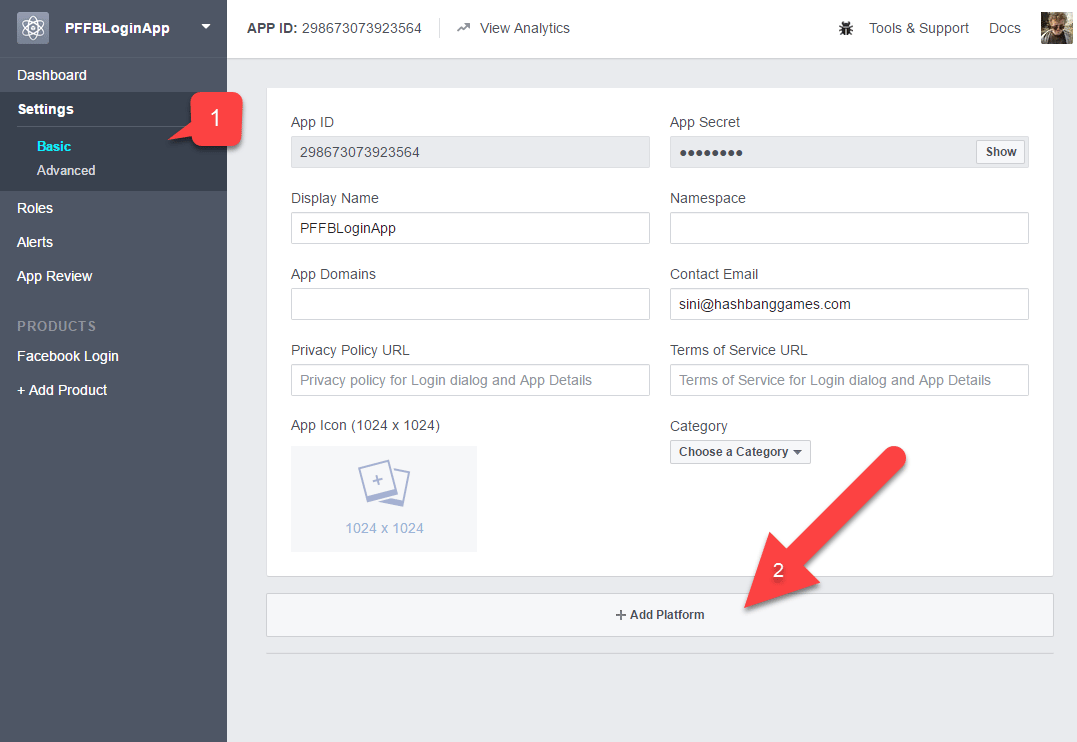
Next, in your **Facebook Application** console:
1. Navigate to **Basic** settings.
2. Select **+ Add Platform**, as indicated in the example provided below.
**Optional step**: Install [Open SSL](https://wiki.openssl.org/index.php/Binaries) and add it to the **PATH** environment variable. If it's missing, Unity will produce a harmless error during the build. This error doesn't\* stop the build, or effect the execution.
Next, in your **Facebook Application** console:
1. Navigate to **Basic** settings.
2. Select **+ Add Platform**, as indicated in the example provided below.
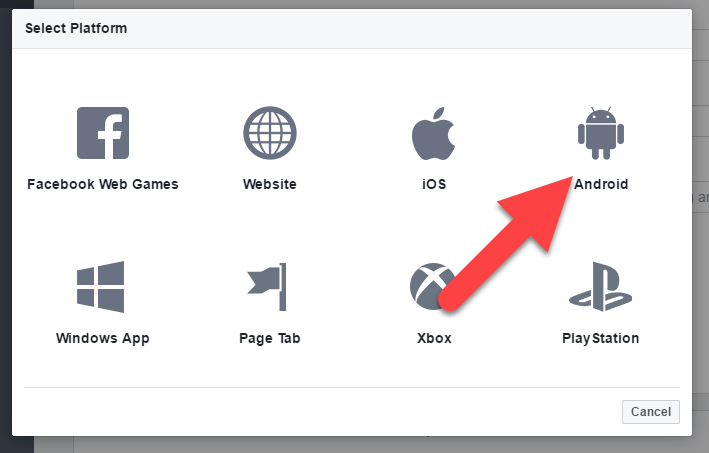
 * Then select **Android** from the list of available platforms.
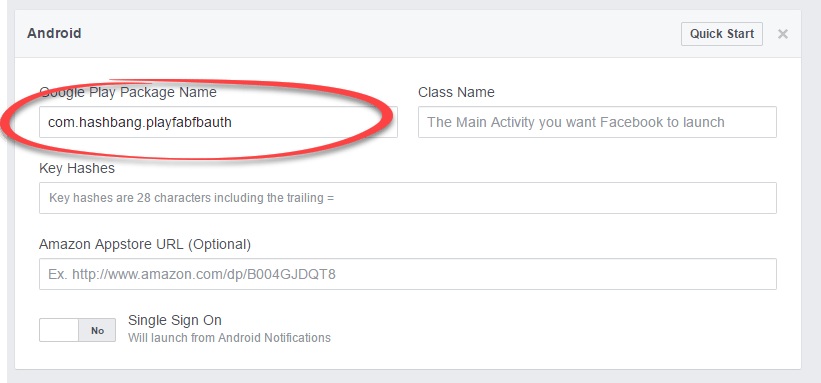
 A panel with platform-specific settings will appear.
* Fill in your **Package ID**.
* Select **Save** (the **Save** button is hidden in the bottom right corner of the page).
A panel with platform-specific settings will appear.
* Fill in your **Package ID**.
* Select **Save** (the **Save** button is hidden in the bottom right corner of the page).
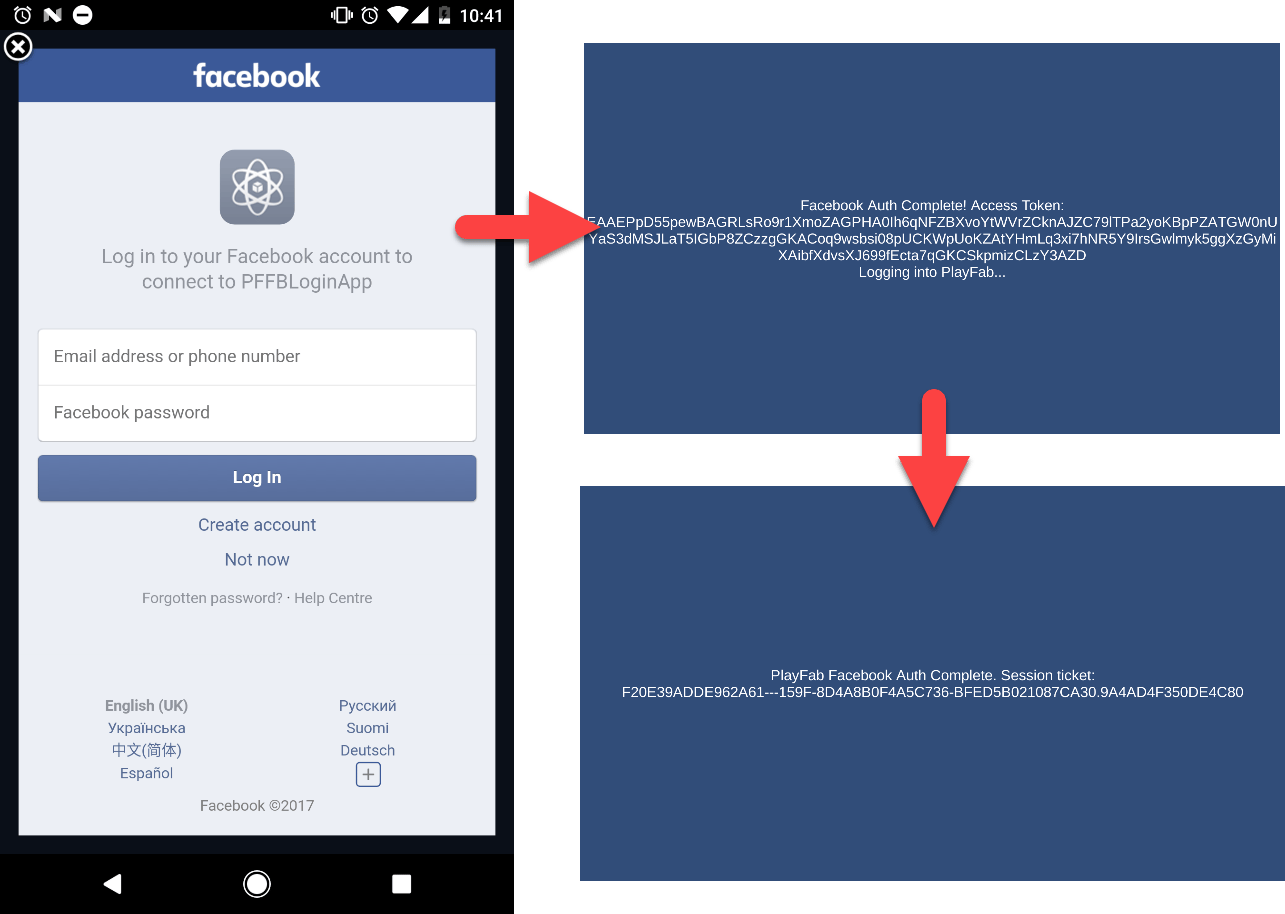
 Build and run the application normally on your Android Device.
* The application should welcome you with a Facebook sign-in page.
* Once you sign in, watch the message on the screen as it changes.
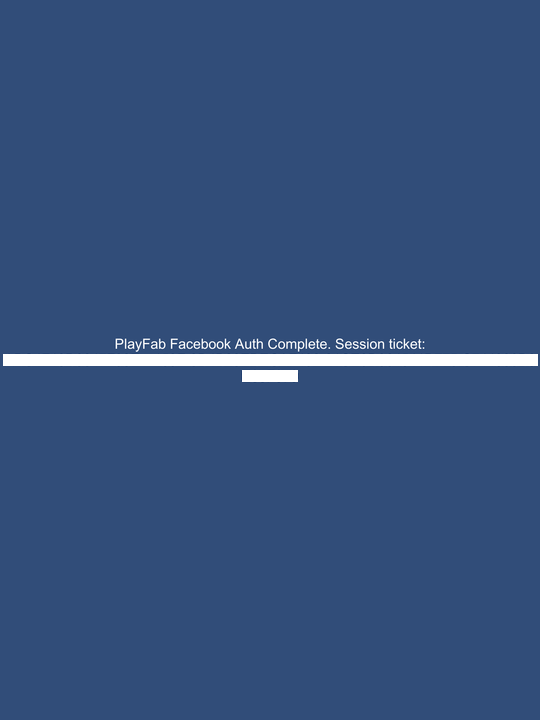
* Finally, you should be presented with a message indicating successful authentication in PlayFab. The entire procedure is illustrated in the example provided below.
Build and run the application normally on your Android Device.
* The application should welcome you with a Facebook sign-in page.
* Once you sign in, watch the message on the screen as it changes.
* Finally, you should be presented with a message indicating successful authentication in PlayFab. The entire procedure is illustrated in the example provided below.
 ### Running the application on iOS
Before launching the Application on iOS, you have to perform additional configuration steps.
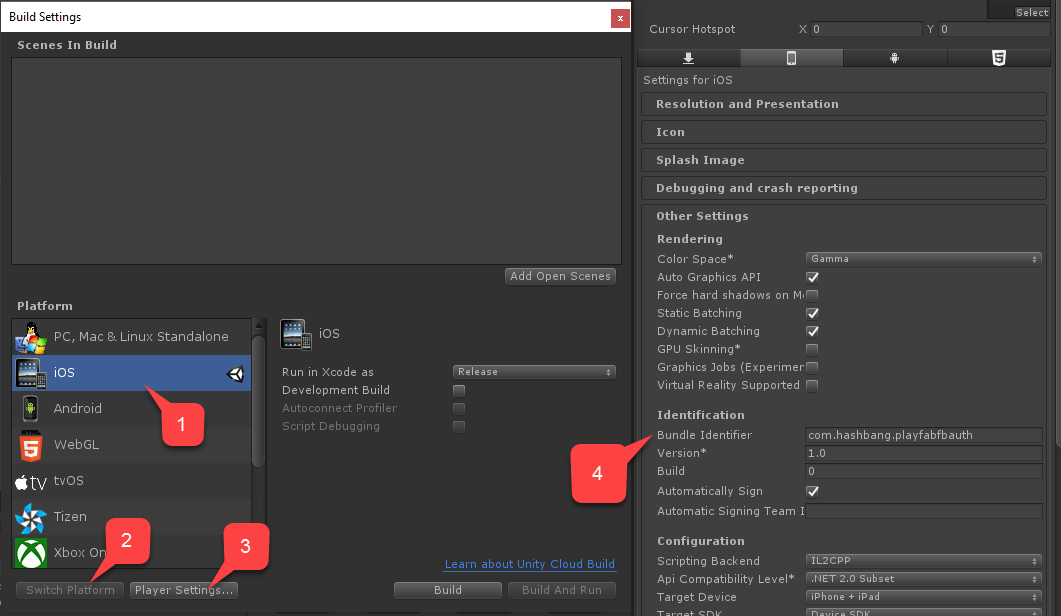
* First, ensure that you have the **iOS** platform selected.
* Then, set a unique **Bundle ID** as indicated in the example provided below.
* Make sure to create your own *unique* **Package ID**.
### Running the application on iOS
Before launching the Application on iOS, you have to perform additional configuration steps.
* First, ensure that you have the **iOS** platform selected.
* Then, set a unique **Bundle ID** as indicated in the example provided below.
* Make sure to create your own *unique* **Package ID**.
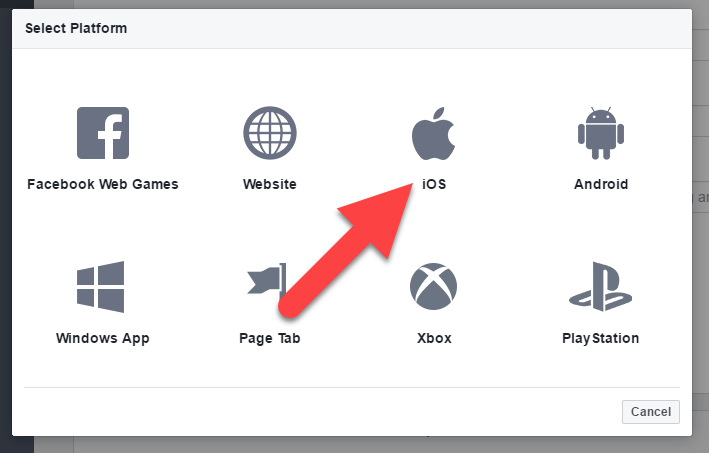
 Next, in your **Facebook Application Console**:
1. Navigate to **Basic** settings.
2. Select **+ Add Platform**, as indicated in the example provided below.
* Select **iOS** from the list of available platforms.
Next, in your **Facebook Application Console**:
1. Navigate to **Basic** settings.
2. Select **+ Add Platform**, as indicated in the example provided below.
* Select **iOS** from the list of available platforms.
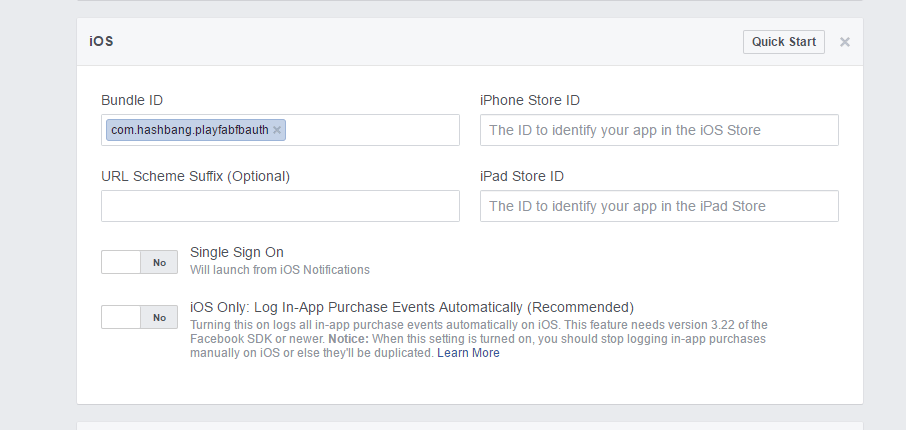
 A panel with platform-specific settings will appear.
* Fill in your **Package ID**.
* Select the **Save** button (the **Save** button is hidden in the bottom right corner of the page).
A panel with platform-specific settings will appear.
* Fill in your **Package ID**.
* Select the **Save** button (the **Save** button is hidden in the bottom right corner of the page).
 * Next, build the application as usual.
* Once this is done, open the **Project** using **XCode**.
* Next, build the application as usual.
* Once this is done, open the **Project** using **XCode**.
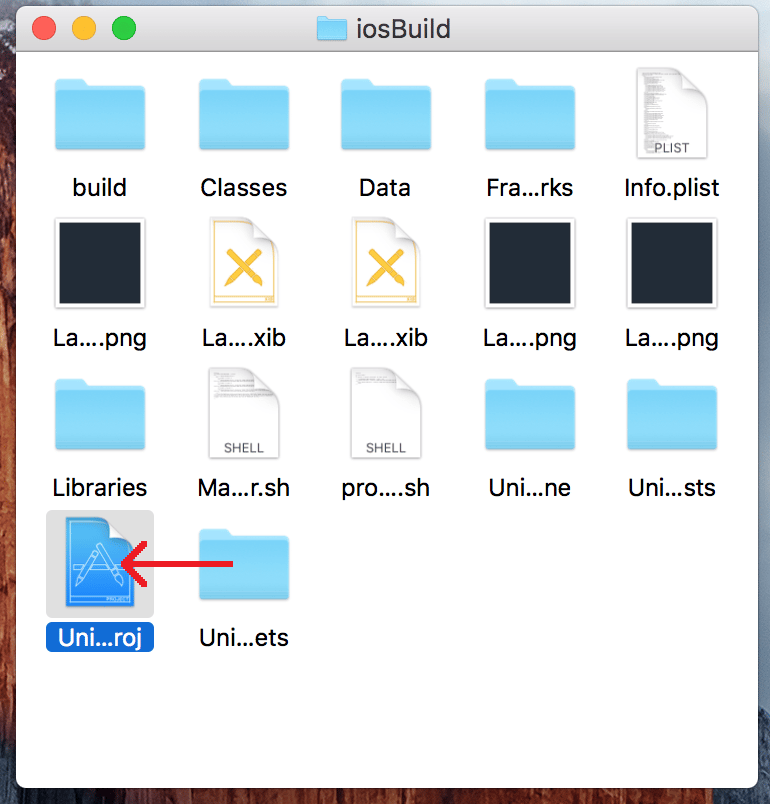 * Select the **Project** to open **Project Settings**.
* Verify that the **Bundle ID** matches your unique **Package ID**.
* Select the **Project** to open **Project Settings**.
* Verify that the **Bundle ID** matches your unique **Package ID**.
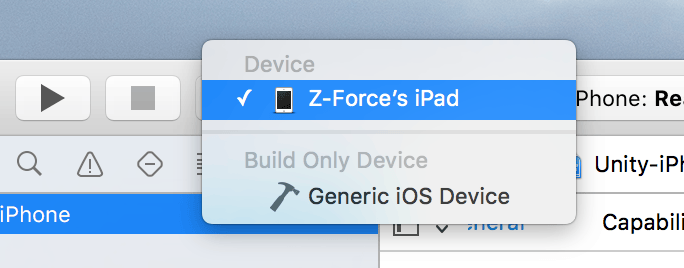
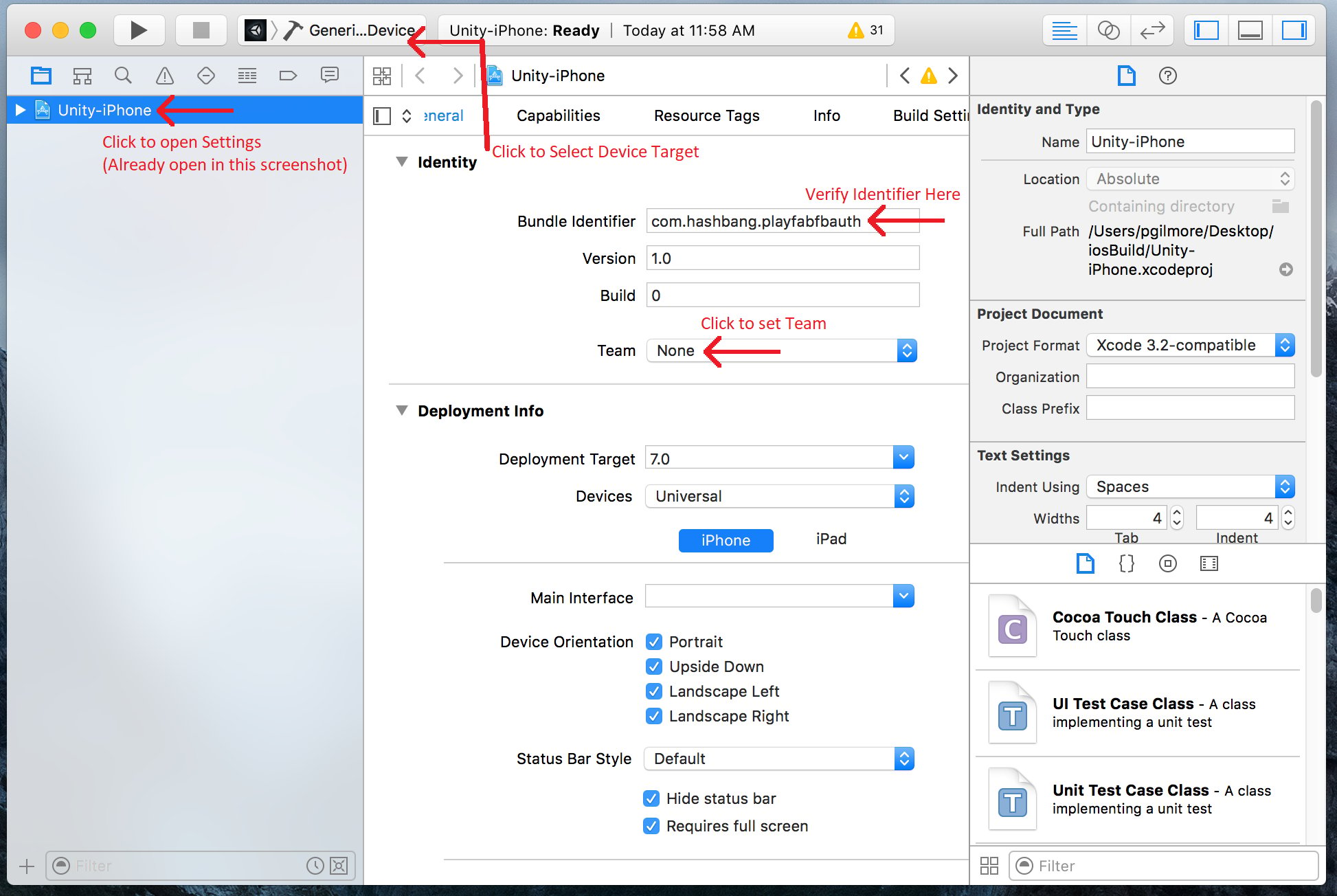 * Make sure to select the correct device.
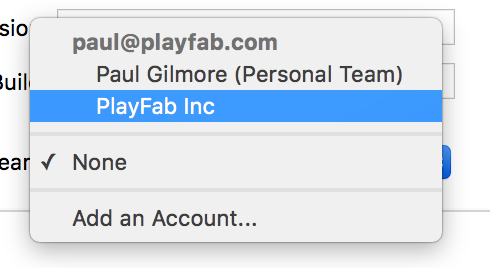
 * And select the correct **Identity Team**.
 Finally, run the application as normal.
* Once started, the application will allow you to log in to Facebook using the web browser.
* Once done, PlayFab authentication will be invoked, and a message will indicate the result.
Finally, run the application as normal.
* Once started, the application will allow you to log in to Facebook using the web browser.
* Once done, PlayFab authentication will be invoked, and a message will indicate the result.
 ### Checking through PlayFab Game Manager
Open your PlayFab title in Game Manager.
* Navigate to the dashboard.
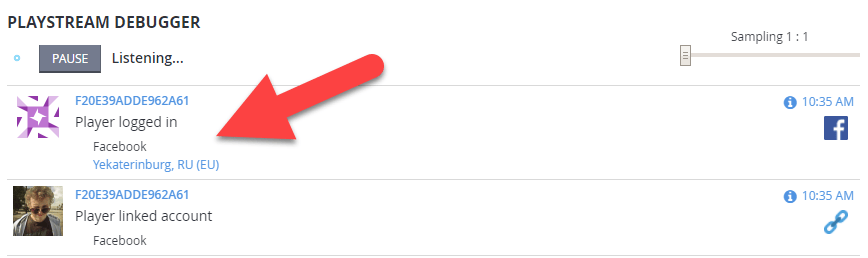
* Refer to the **PlayStream Debugger** panel to check for the latest events. You should see the Facebook authentication event as displayed in the following example.
### Checking through PlayFab Game Manager
Open your PlayFab title in Game Manager.
* Navigate to the dashboard.
* Refer to the **PlayStream Debugger** panel to check for the latest events. You should see the Facebook authentication event as displayed in the following example.
 At this point, you have successfully integrated Facebook Authentication for PlayFab.
## Related topics
- [Platform-Specific Authentication](/services/playfab/identity/player-identity/platform-specific-authentication/index.md)
- [Setting up PlayFab authentication using Facebook and HTML5](/services/playfab/identity/player-identity/platform-specific-authentication/facebook-html5.md)
- [Setting up PlayFab authentication using Kongregate and Unity](/services/playfab/identity/player-identity/platform-specific-authentication/kongregate-unity.md)
- [Setting up PlayFab authentication using Steam and Unity](/services/playfab/identity/player-identity/platform-specific-authentication/steam-unity.md)
- [Setting up PlayFab authentication using Google and HTML5](/services/playfab/identity/player-identity/platform-specific-authentication/google-html5.md)
At this point, you have successfully integrated Facebook Authentication for PlayFab.
## Related topics
- [Platform-Specific Authentication](/services/playfab/identity/player-identity/platform-specific-authentication/index.md)
- [Setting up PlayFab authentication using Facebook and HTML5](/services/playfab/identity/player-identity/platform-specific-authentication/facebook-html5.md)
- [Setting up PlayFab authentication using Kongregate and Unity](/services/playfab/identity/player-identity/platform-specific-authentication/kongregate-unity.md)
- [Setting up PlayFab authentication using Steam and Unity](/services/playfab/identity/player-identity/platform-specific-authentication/steam-unity.md)
- [Setting up PlayFab authentication using Google and HTML5](/services/playfab/identity/player-identity/platform-specific-authentication/google-html5.md)