> ## Documentation Index
> Fetch the complete documentation index at: https://devdocs.xbox.com/llms.txt
> Use this file to discover all available pages before exploring further.

# Setting up PlayFab authentication using Facebook and HTML5

> Step-by-step tutorial for adding Facebook login to a PlayFab title with HTML5 and JavaScript, covering Facebook app registration and player authentication.

This tutorial is designed to guide you through PlayFab authentication using Facebook and HTML5/JavaScript.

## Requirements

* A [Facebook account](https://www.facebook.com/) for testing.
* A registered [PlayFab](https://developer.playfab.com/) title.
* A familiarity with [sign-in basics and best practices](/services/playfab/identity/player-identity/login/login-basics-best-practices).
* A minimal server, with a valid domain name to serve static HTML file.

<Note>
  If you are unsure if you have the proper requirements for this activity, please consult the [Running an HTTP server for testing](/services/playfab/identity/player-identity/platform-specific-authentication/running-an-http-server-for-testing) tutorial.
</Note>

## Server and domain

As part of the requirements to set up your PlayFab authentication,  you must have a server with a valid domain to follow. If you don't have a registered domain and remote web server yet, please follow our [Running an HTTP server for testing](/services/playfab/identity/player-identity/platform-specific-authentication/running-an-http-server-for-testing) tutorial to run a local web server with a valid domain name.

Throughout this guide, we'll assume your domain is `['http://playfab.example'](http://playfab.example)`.

## Registering a Facebook application

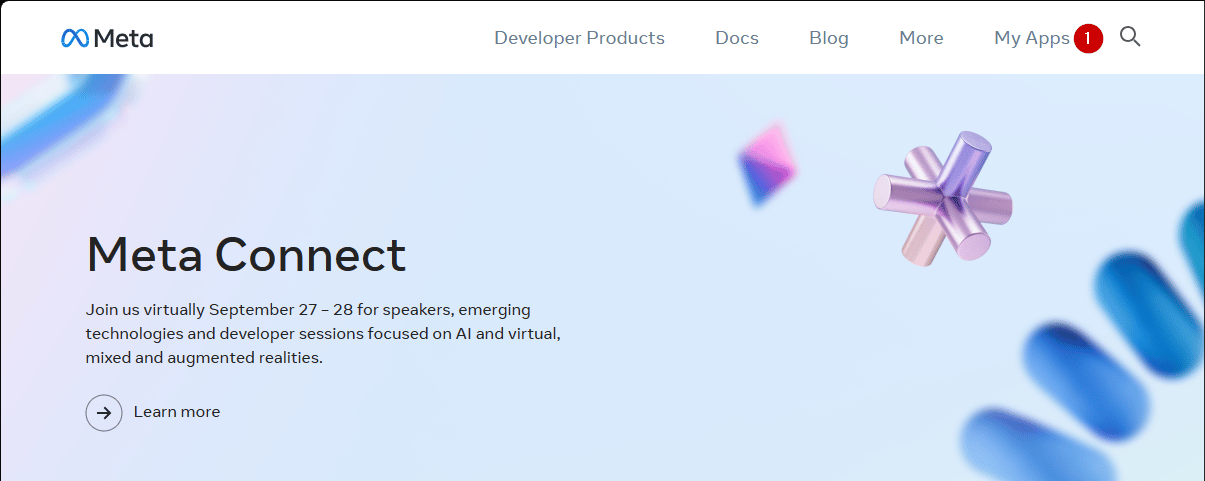
Start by navigating to the [Facebook Developer Portal](https://developers.facebook.com/).

1. Select the **My Apps** button.

<img src="https://mintcdn.com/microsoft-4404708b/mLCHf0iQv3VidfBe/images/playfab/identity/player-identity/platform-specific-authentication/tutorials/facebook-html5/my-apps.png?fit=max&auto=format&n=mLCHf0iQv3VidfBe&q=85&s=c533fd072cd7b47233fd2c7eb8c431a6" alt="Facebook add a new app" width="1205" height="481" data-path="images/playfab/identity/player-identity/platform-specific-authentication/tutorials/facebook-html5/my-apps.png" />

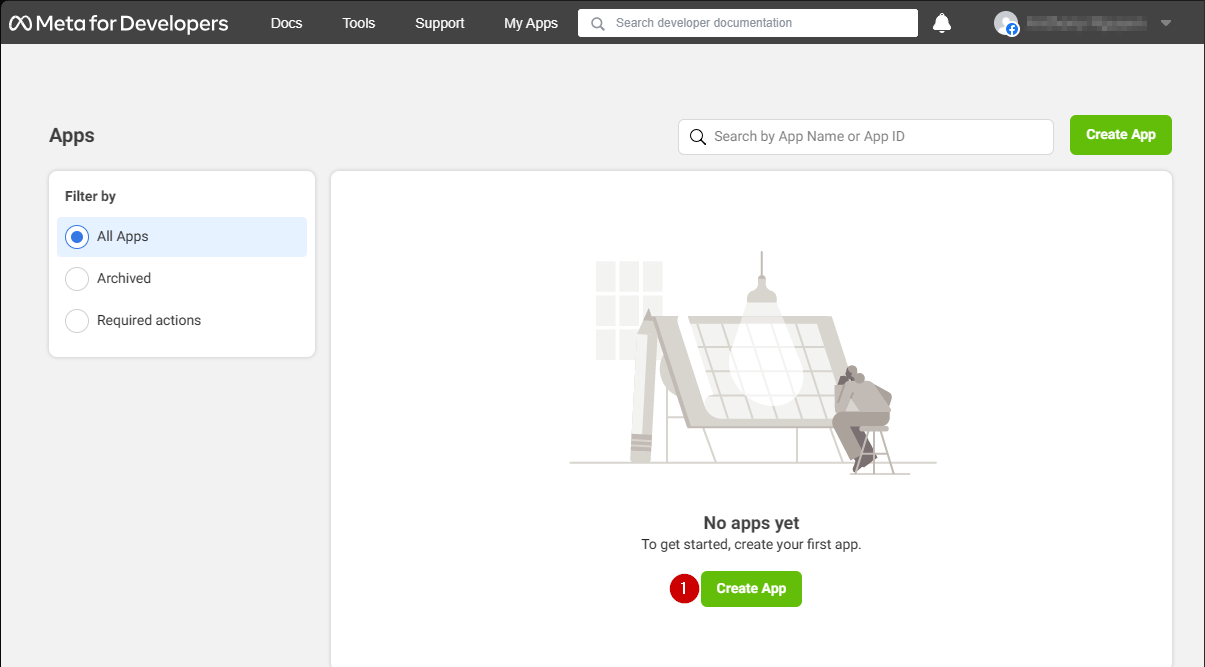
1. Select **Create App** to create a new app.
<img src="https://mintcdn.com/microsoft-4404708b/mLCHf0iQv3VidfBe/images/playfab/identity/player-identity/platform-specific-authentication/tutorials/facebook-html5/facebook-add-a-new-app.png?fit=max&auto=format&n=mLCHf0iQv3VidfBe&q=85&s=ab8793987c97a532fa9e970436afe2a3" alt="Facebook create a new app" width="1205" height="667" data-path="images/playfab/identity/player-identity/platform-specific-authentication/tutorials/facebook-html5/facebook-add-a-new-app.png" />

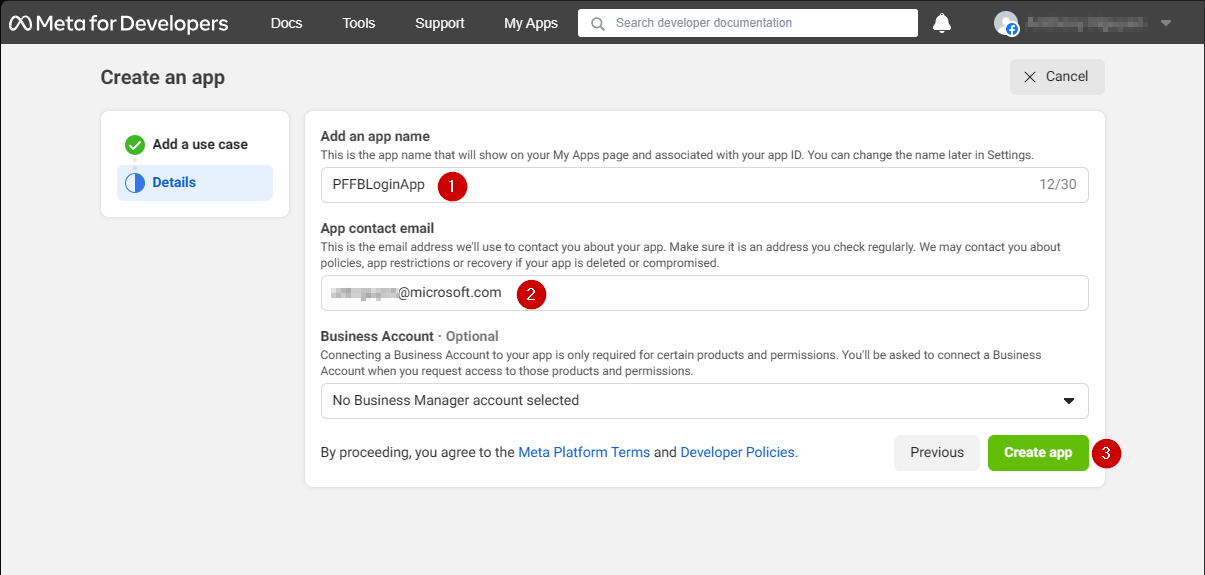
A new **Application** pop-up opens.

1. Enter a name for your **Application** in the field under **Add an app name**.
2. Enter a contact email address in the field under **App contact email**.
3. Select the **Create app** button to save.
<Note>
  Make sure to come up with your own unique application name and email, as shown in the example provided below.
</Note>

<img src="https://mintcdn.com/microsoft-4404708b/mLCHf0iQv3VidfBe/images/playfab/identity/player-identity/platform-specific-authentication/tutorials/facebook-html5/facebook-new-app-id.png?fit=max&auto=format&n=mLCHf0iQv3VidfBe&q=85&s=43a15fe0906efcfb030b98c375ef610f" alt="Facebook new app ID" width="1205" height="575" data-path="images/playfab/identity/player-identity/platform-specific-authentication/tutorials/facebook-html5/facebook-new-app-id.png" />

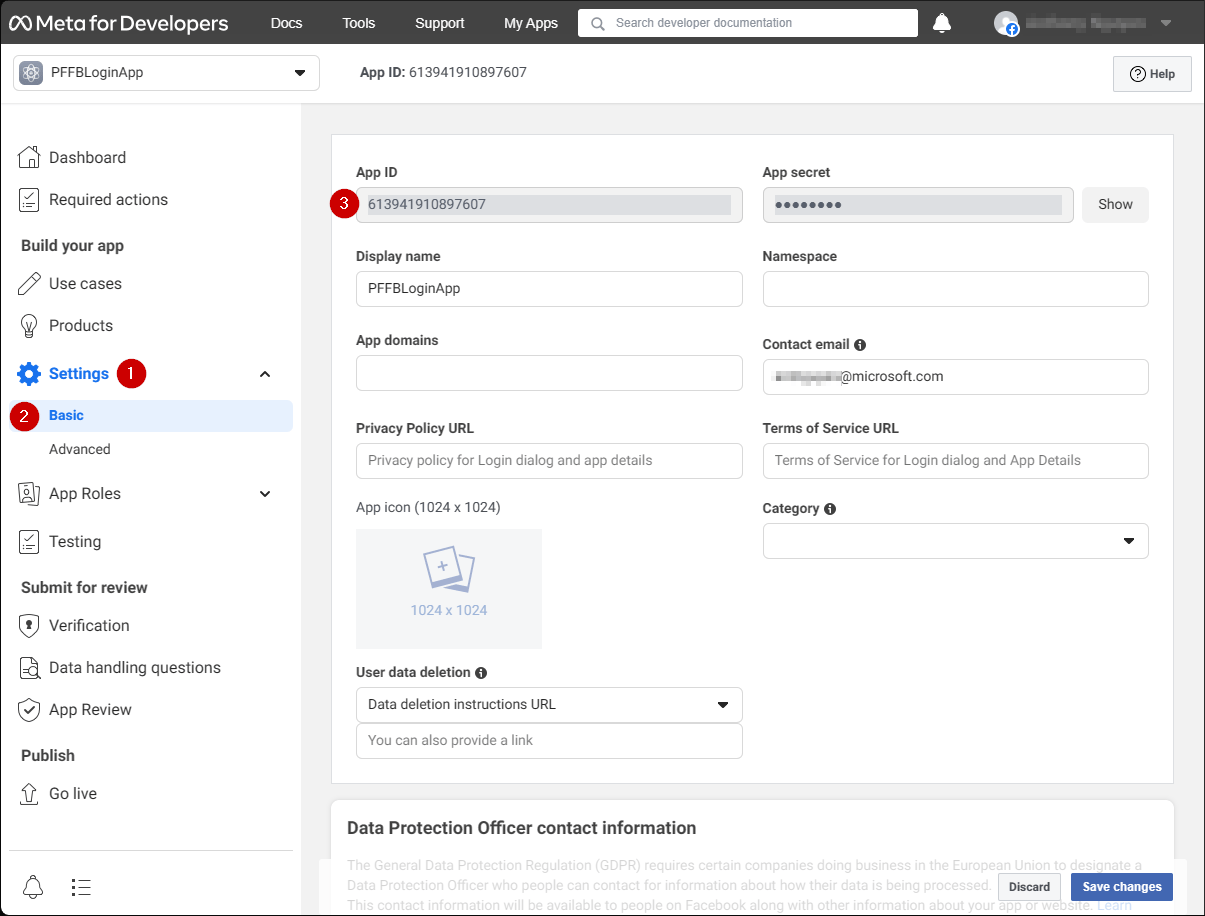
1. Navigate to the **Settings** tab.
2. Select the **Basic** sub-tab.
3. Locate your **App ID**.
<Note>
  Copy your **App ID** to a safe place, we will use it later to set up the **Facebook SDK**.
</Note>

<img src="https://mintcdn.com/microsoft-4404708b/mLCHf0iQv3VidfBe/images/playfab/identity/player-identity/platform-specific-authentication/tutorials/facebook-html5/facebook-save-app-id.png?fit=max&auto=format&n=mLCHf0iQv3VidfBe&q=85&s=724d5c403c24e3077b1fe09f59791f46" alt="Facebook save app ID" width="1205" height="916" data-path="images/playfab/identity/player-identity/platform-specific-authentication/tutorials/facebook-html5/facebook-save-app-id.png" />

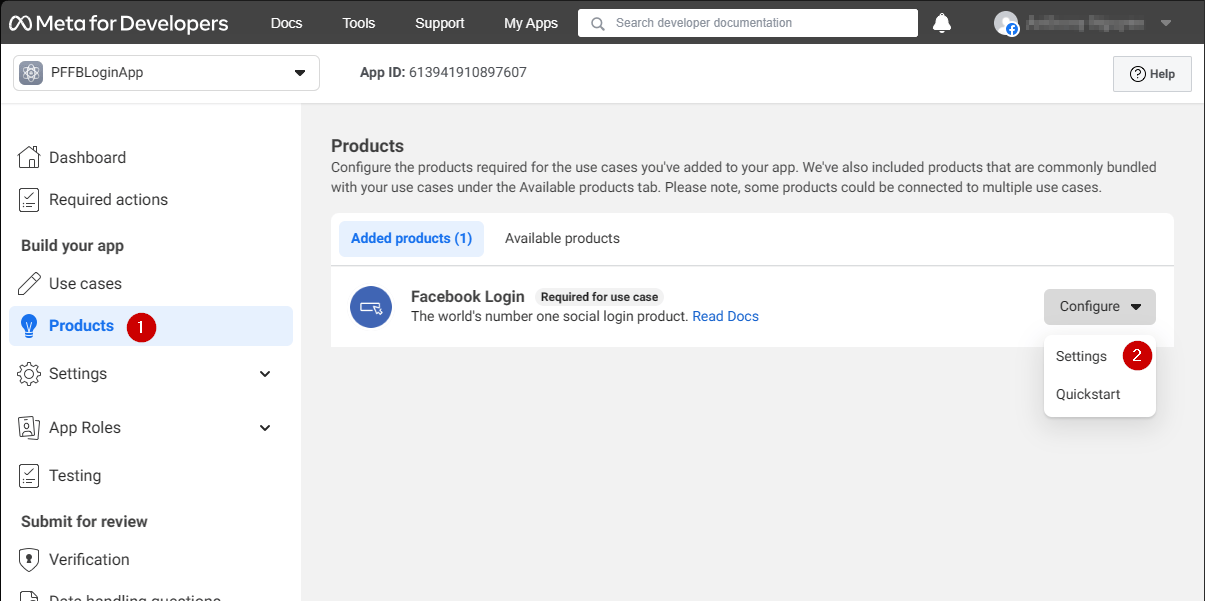
1. Go to the menu on the left of your screen and select the **Products** item.
2. Locate **Configure** in the **Facebook Login** area and select **Settings** from the dropdown menu.
<img src="https://mintcdn.com/microsoft-4404708b/mLCHf0iQv3VidfBe/images/playfab/identity/player-identity/platform-specific-authentication/tutorials/facebook-html5/login-get-started.png?fit=max&auto=format&n=mLCHf0iQv3VidfBe&q=85&s=bd346c82af2a1914bd8dfca79653f5c6" alt="Facebook login get started" width="1205" height="601" data-path="images/playfab/identity/player-identity/platform-specific-authentication/tutorials/facebook-html5/login-get-started.png" />

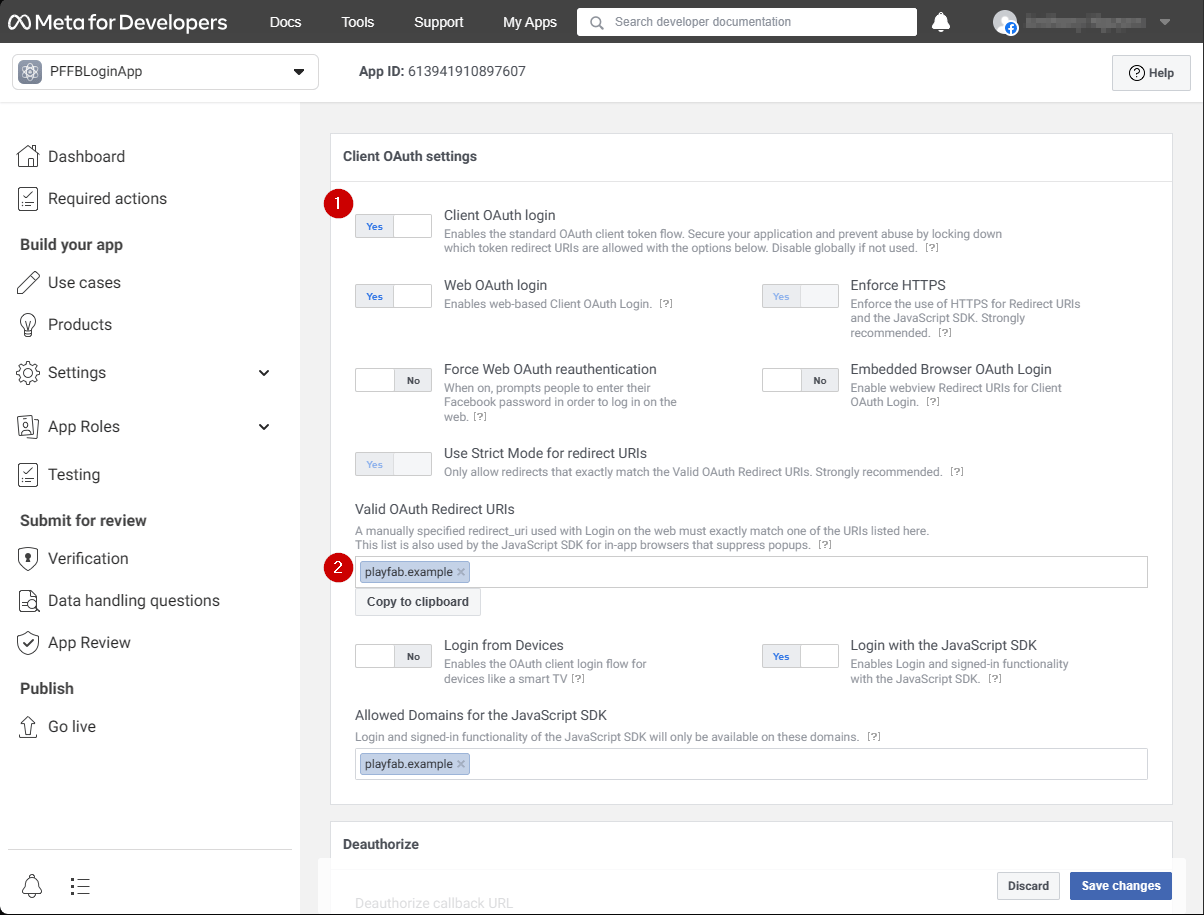
The page should open to display the example shown below.

1. Verify that both the **Client OAuth** and **Web OAuth** are on (marked **Yes**).
2. Set the **Valid OAuth redirect URIs** to your own auth page **URI**.
<Note>
  This will be `playfab.example` in your case.
</Note>

<img src="https://mintcdn.com/microsoft-4404708b/mLCHf0iQv3VidfBe/images/playfab/identity/player-identity/platform-specific-authentication/tutorials/facebook-html5/login-product-settings.png?fit=max&auto=format&n=mLCHf0iQv3VidfBe&q=85&s=493c1ca8600489493ca47ced5c579204" alt="Facebook login product settings" width="1204" height="915" data-path="images/playfab/identity/player-identity/platform-specific-authentication/tutorials/facebook-html5/login-product-settings.png" />

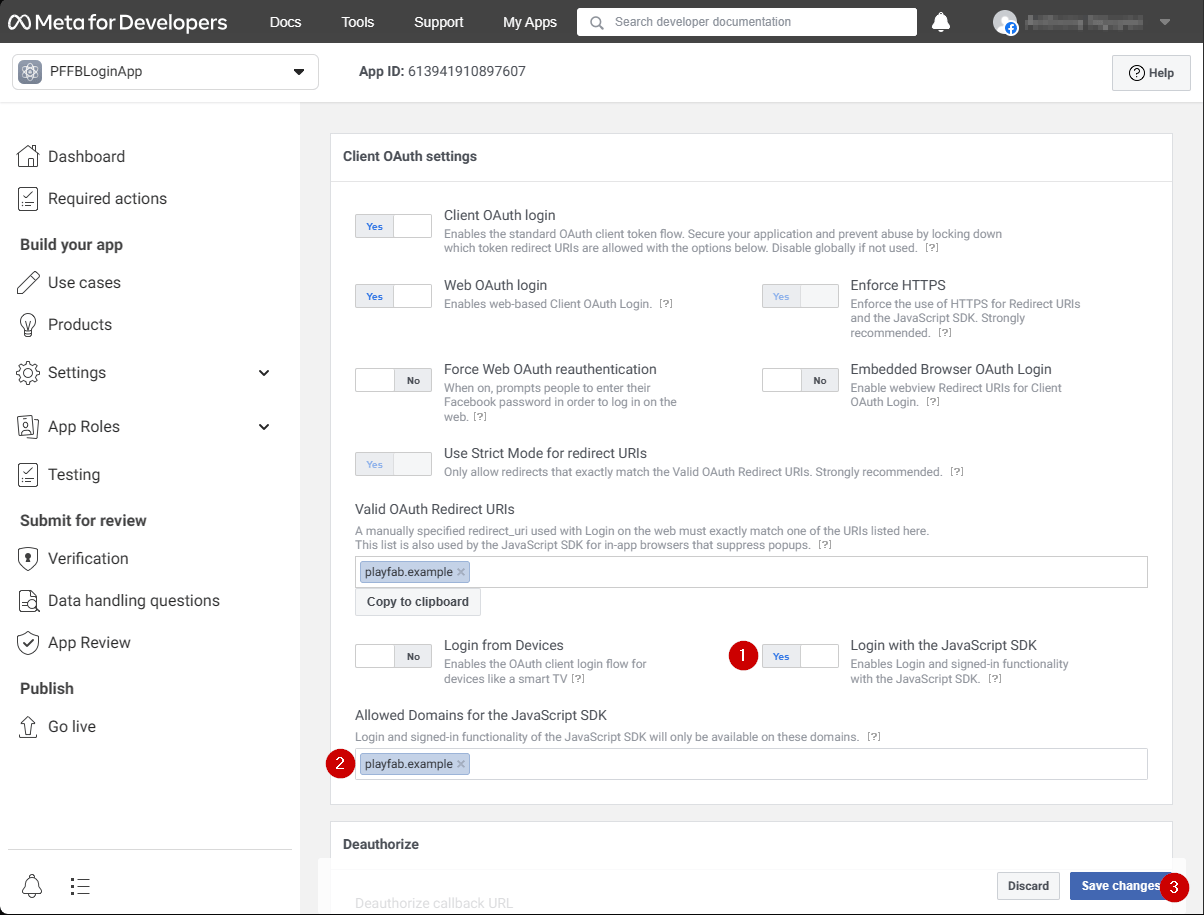
In the **Client OAuth Settings** screen:

1. Verify that **Login with the JavaScript SDK** is on (marked **Yes**)
2. Set the **Valid OAuth redirect URIs** to your own auth page **URI**.
<Note>
  This will be `playfab.example` in your case.
</Note>

3. Select **Save Changes** to commit.

<img src="https://mintcdn.com/microsoft-4404708b/mLCHf0iQv3VidfBe/images/playfab/identity/player-identity/platform-specific-authentication/tutorials/facebook-html5/set-oauth-redirect.png?fit=max&auto=format&n=mLCHf0iQv3VidfBe&q=85&s=1d900349086b3efc854d19e7e394bbfa" alt="Facebook set OAuth redirect URI" width="1204" height="915" data-path="images/playfab/identity/player-identity/platform-specific-authentication/tutorials/facebook-html5/set-oauth-redirect.png" />

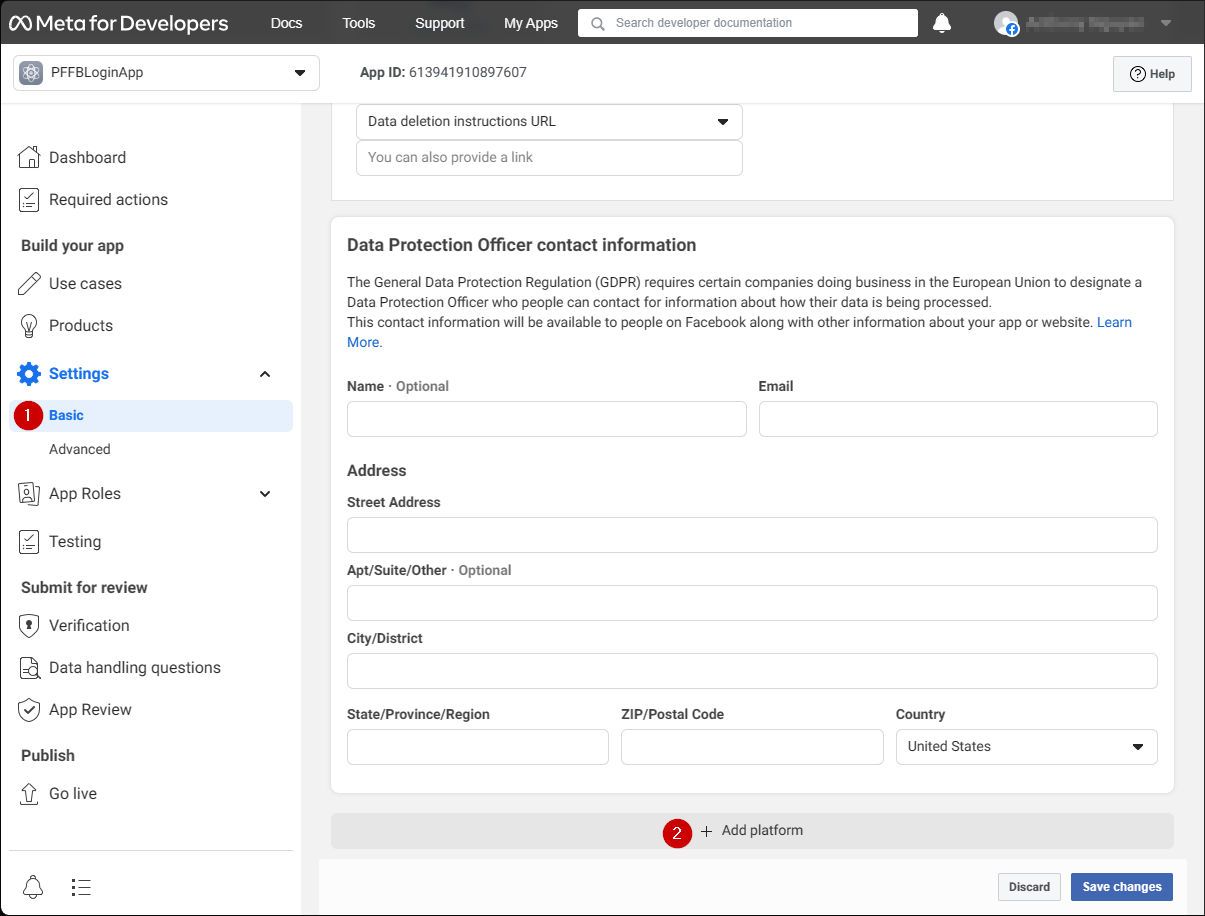
On the **Application Manager** page:

* Open **Settings/Basic (1)** in your menu.
* Select the **Add Platform (2)** button.
<img src="https://mintcdn.com/microsoft-4404708b/mLCHf0iQv3VidfBe/images/playfab/identity/player-identity/platform-specific-authentication/tutorials/facebook-html5/add-platform.png?fit=max&auto=format&n=mLCHf0iQv3VidfBe&q=85&s=d715322d7bdb36fdb0cca082e6394fd7" alt="Facebook Application Manager Add Platform" width="1205" height="916" data-path="images/playfab/identity/player-identity/platform-specific-authentication/tutorials/facebook-html5/add-platform.png" />

A pop-up appears on your screen:

1. Select the **Website icon**.
2. Then select **Next**.
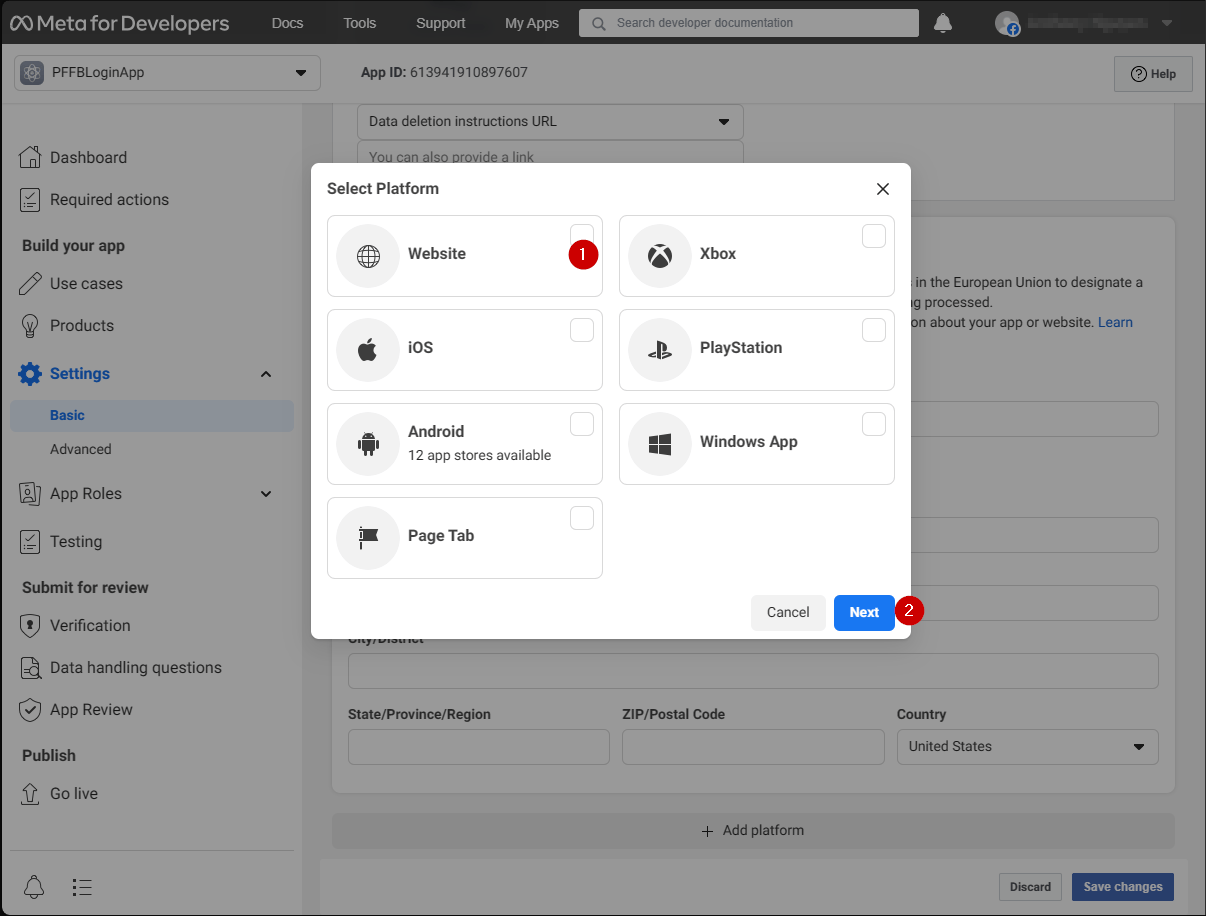
<img src="https://mintcdn.com/microsoft-4404708b/mLCHf0iQv3VidfBe/images/playfab/identity/player-identity/platform-specific-authentication/tutorials/facebook-html5/website-options.png?fit=max&auto=format&n=mLCHf0iQv3VidfBe&q=85&s=96645e531316bffa3730f606c1b799ce" alt="Facebook Select Platform Website options" width="1206" height="916" data-path="images/playfab/identity/player-identity/platform-specific-authentication/tutorials/facebook-html5/website-options.png" />

The **Website** configuration panel should now appear.

1. In the **Site URL** field, enter your auth page **URL** (this is `playfab.example` in your case).
2. Select **Save changes** to commit.
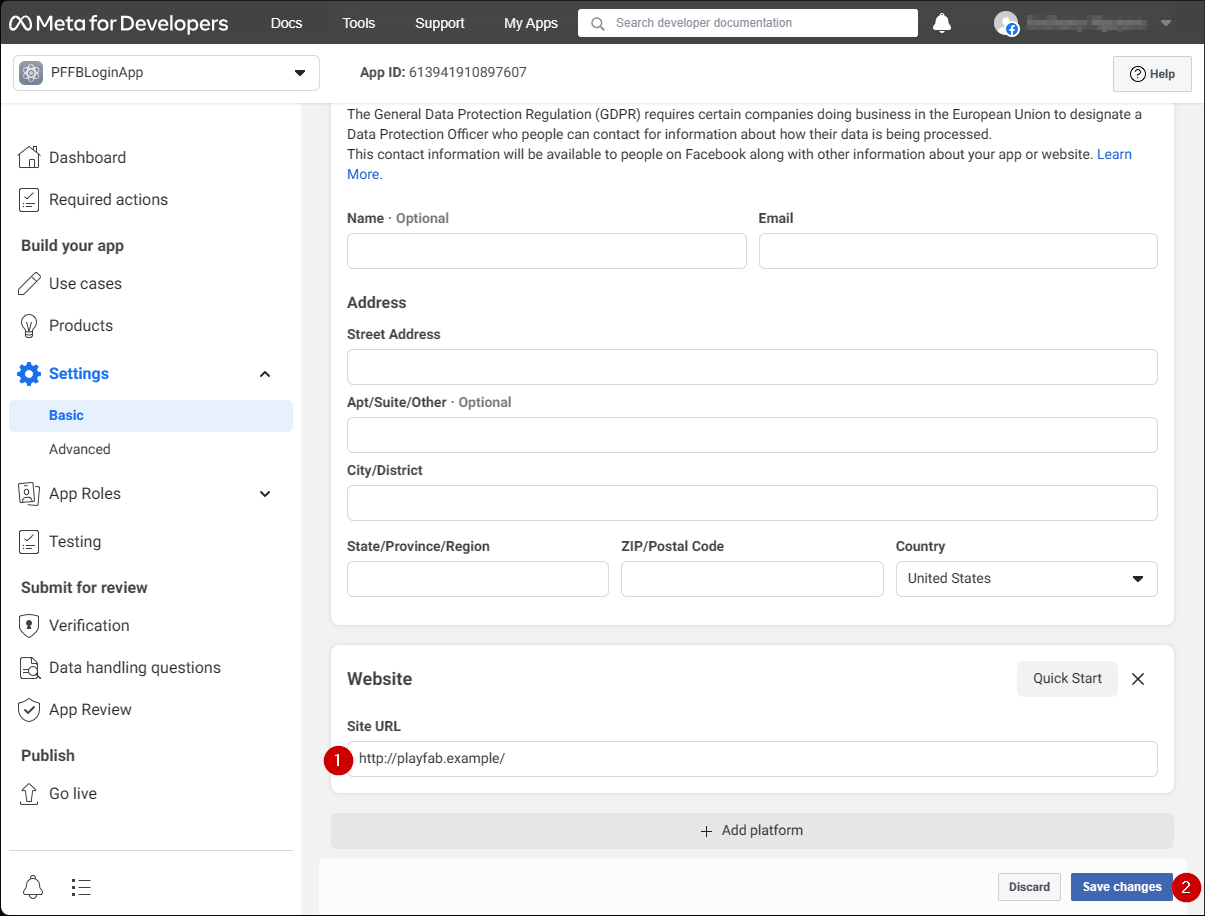
<img src="https://mintcdn.com/microsoft-4404708b/mLCHf0iQv3VidfBe/images/playfab/identity/player-identity/platform-specific-authentication/tutorials/facebook-html5/website-configuration.png?fit=max&auto=format&n=mLCHf0iQv3VidfBe&q=85&s=ef19a6ad2bf003e8e58802abeea329c5" alt="Facebook website configuration panel" width="1205" height="916" data-path="images/playfab/identity/player-identity/platform-specific-authentication/tutorials/facebook-html5/website-configuration.png" />

## Testing

Use the following HTML file to test your PlayFab authentication using Facebook.

<Note>
  Make sure to replace **YOUR-APPLICATION-ID** and **YOUR-PLAYFAB-TITLE** with your own.
</Note>

```html theme={null}
<!DOCTYPE html>
<html>
<head>
   <script>
        // This function will be called when Facebook SDK is loaded
        window.fbAsyncInit = function() {

            // Make sure to use your own App ID for the configuration
            FB.init({
                appId      : 'YOUR-APPLICATION-ID',
                xfbml      : true,
                version    : 'v2.9'
            });

            // Record PageView event for analytics
            FB.AppEvents.logPageView();
        };

        // Facebook SDK loader. Creates a script entry to load the SDK
        (function(d, s, id){
            var js, fjs = d.getElementsByTagName(s)[0];
            if (d.getElementById(id)) {return;}
            js = d.createElement(s); js.id = id;
            js.src = "//connect.facebook.net/en_US/sdk.js";
            fjs.parentNode.insertBefore(js, fjs);
        }(document, 'script', 'facebook-jssdk'));
    </script>
    <script src="https://download.playfab.com/PlayFabClientApi.js"></script>
</head>
<body>
    <p>Facebook Auth Example</p>
    <button onclick="loginWithFacebook()">Log In with Facebook</button>
    <script>
        // This method is invoked when you press the button
        function loginWithFacebook() {
            logLine("Logging in via Facebook...");

            // Standard practice: make call to FB.login.
            // This will show Facebook popup window. To prevent browsers from locking it,
            // always make sure to call it from Button click event
            FB.login(function(response){
                if(!response.authResponse){
                    logLine("Problem authenticating via Facebook!");
                } else {
                    loginWithPlayfab(response.authResponse.accessToken);
                }
            });
        }

        function loginWithPlayfab(accessToken){

            logLine("Logging in via PlayFab...");

            // When given accessToken, make call to LoginWithFacebook API Call
            // Make sure to use your own PlayFab Title ID
            PlayFabClientSDK.LoginWithFacebook({
                AccessToken: accessToken,
                TitleId: "YOUR-PLAYFAB-TITLE",
                CreateAccount: true
            }, onPlayFabResponse);
        }

        // Handles response from playfab.
        function onPlayFabResponse(response, error) {
            if (response)
                logLine("Response: " + JSON.stringify(response));
            if (error)
                logLine("Error: " + JSON.stringify(error));
        }

        function logLine(message) {
            var textnode = document.createTextNode(message);
            document.body.appendChild(textnode);
            var br = document.createElement("br");
            document.body.appendChild(br);
        }
    </script>
</body>
</html>
```

Request the following file from your server using the domain you set up during **Facebook Application** configuration (`playfab.example` in our case).

1. Once the **Facebook Auth Example** page opens, select **Log In with Facebook** button.
2. Follow any Facebook instructions in the pop-up window.

Watch the output.
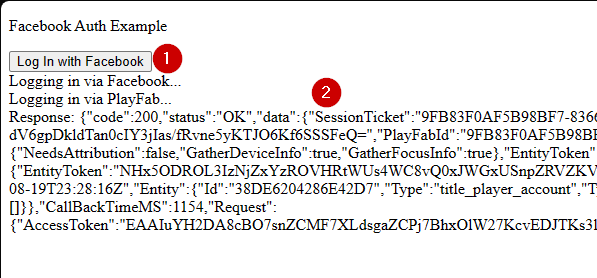
<img src="https://mintcdn.com/microsoft-4404708b/mLCHf0iQv3VidfBe/images/playfab/identity/player-identity/platform-specific-authentication/tutorials/facebook-html5/facebook-auth-example.png?fit=max&auto=format&n=mLCHf0iQv3VidfBe&q=85&s=e6f77a4ce2fae3bfd5dfcc97acd2e88b" alt="Facebook Auth Example" width="597" height="278" data-path="images/playfab/identity/player-identity/platform-specific-authentication/tutorials/facebook-html5/facebook-auth-example.png" />

You'll obtain a PlayFab session ticket. At this point you have successfully configured PlayFab and Facebook authentication using HTML5 and JavaScript.


## Related topics

- [Platform-Specific Authentication](/services/playfab/identity/player-identity/platform-specific-authentication/index.md)
- [Running an HTTP server for testing](/services/playfab/identity/player-identity/platform-specific-authentication/running-an-http-server-for-testing.md)
- [Setting up PlayFab authentication using Google and HTML5](/services/playfab/identity/player-identity/platform-specific-authentication/google-html5.md)
- [Setting up PlayFab authentication using Kongregate and HTML5](/services/playfab/identity/player-identity/platform-specific-authentication/kongregate-html5.md)
- [Setting up PlayFab authentication using Twitch and HTML5](/services/playfab/identity/player-identity/platform-specific-authentication/twitch-html5.md)
