> ## Documentation Index
> Fetch the complete documentation index at: https://devdocs.xbox.com/llms.txt
> Use this file to discover all available pages before exploring further.
# Creating a PlayFab Account
> Step-by-step guide to creating a PlayFab developer account so you can access Game Manager, register a title, and begin calling PlayFab APIs.
Before you can call any PlayFab API, you must have a [PlayFab developer account](https://developer.playfab.com). If you already have a PlayFab account, you can skip this step.
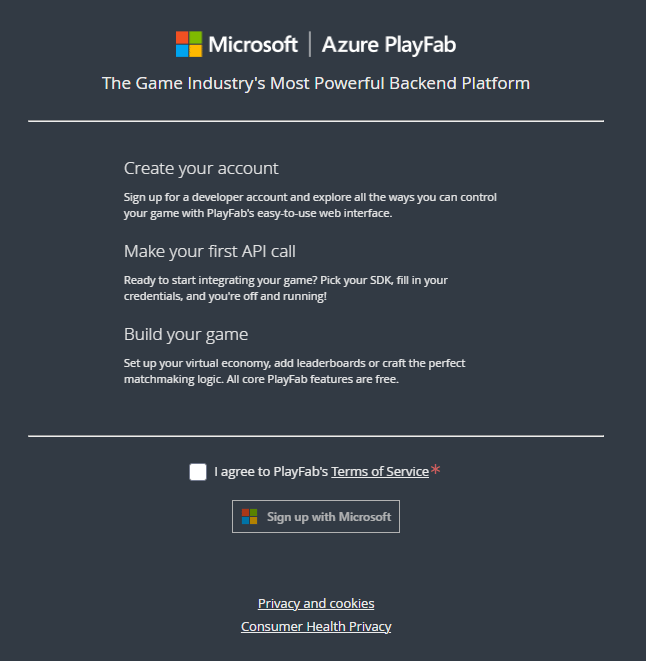 Once you have a PlayFab account, navigate to the PlayFab home page, [https://developer.playfab.com](https://developer.playfab.com), and sign in.
Since PlayFab doesn't know the name of your game studio or the title of your game, when you create a studio, a placeholder title called **My Game** is created for you. You can edit your title's information in the **Create Title** screen at any time.
The **Title ID** is unique to your game, which we refer to as a title. You will use this value when you make PlayFab API calls (your **Title ID** will *not* be **BCFE**).
Once you have a PlayFab account, navigate to the PlayFab home page, [https://developer.playfab.com](https://developer.playfab.com), and sign in.
Since PlayFab doesn't know the name of your game studio or the title of your game, when you create a studio, a placeholder title called **My Game** is created for you. You can edit your title's information in the **Create Title** screen at any time.
The **Title ID** is unique to your game, which we refer to as a title. You will use this value when you make PlayFab API calls (your **Title ID** will *not* be **BCFE**).
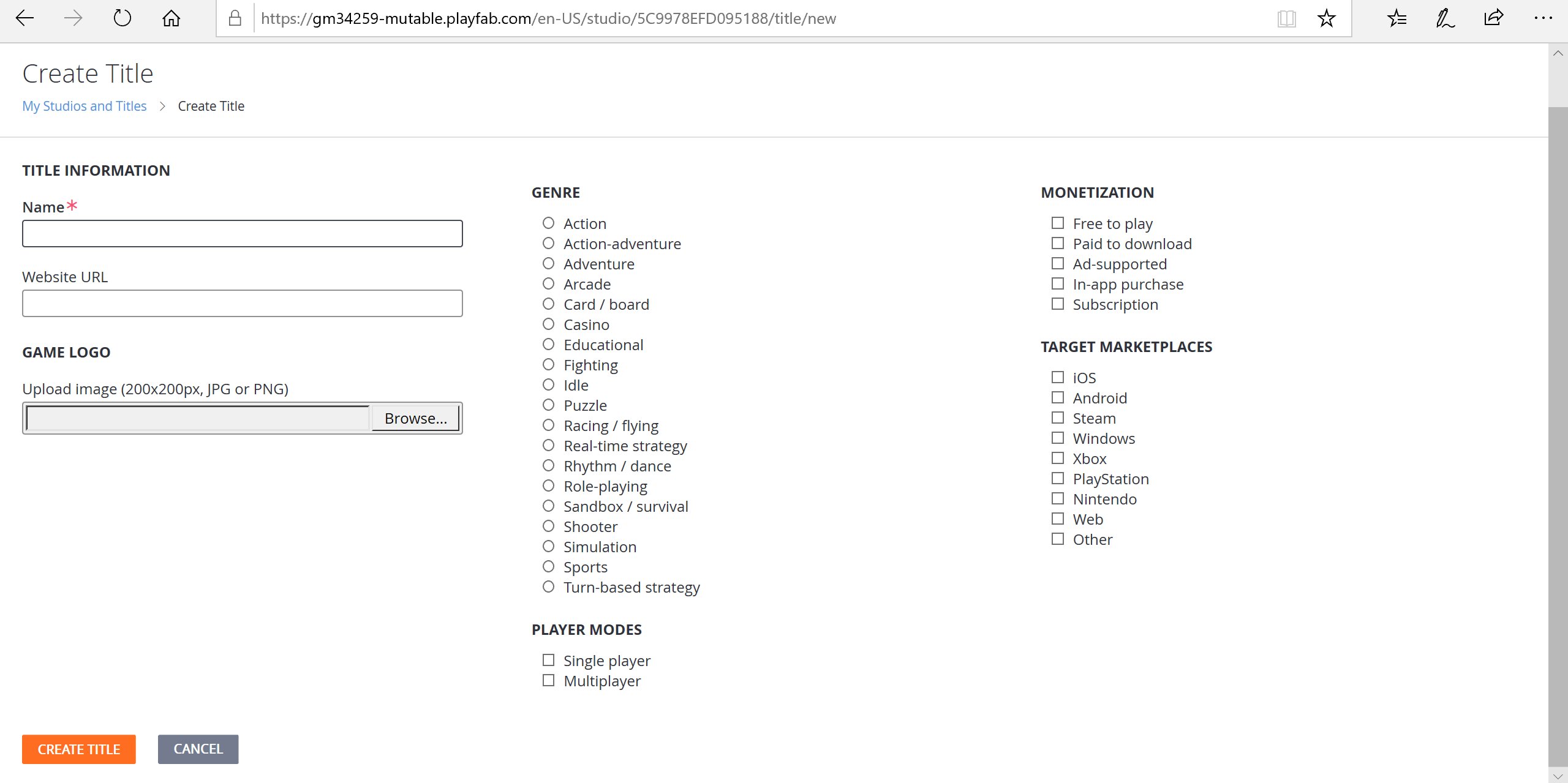 PlayFab created your first title is automatically. To create another new title, select **New title** from the Ellipsis menu.
## Open the Game Manager for your title
Before installing any SDK, select a game title to enter Game Manager. Take the time to familiarize yourself with the various sections in the Game Manager dashboard.
For a more detailed overview, visit the [Game Manager quickstart](/services/playfab/live-service-management/gamemanager/quickstart).
The PlayFab Game Manager allows you to do whatever you need to with your game title. Once you have a grasp on the aspects of the Game Manager, install the SDK so you can start using APIs. for more information on how to do install the SDK, see [SDKs overview](/services/playfab/sdks/sdk-overview).
## Related topics
- [Account linking strategies for PlayFab Game Saves](/services/playfab/player-progression/game-saves/linking.md)
- [PlayFab User Roles](/services/playfab/identity/dev-identity/permissions/playfab-user-roles.md)
- [Connecting Kusto C# SDK to Insights](/services/playfab/data-analytics/legacy/connectivity/connecting-kusto-csharp-to-insights.md)
- [Connecting Kusto Explorer to Insights](/services/playfab/data-analytics/legacy/connectivity/connecting-kusto-explorer-to-insights.md)
- [Connecting Power BI to Insights](/services/playfab/data-analytics/legacy/connectivity/connecting-power-bi-to-insights.md)
PlayFab created your first title is automatically. To create another new title, select **New title** from the Ellipsis menu.
## Open the Game Manager for your title
Before installing any SDK, select a game title to enter Game Manager. Take the time to familiarize yourself with the various sections in the Game Manager dashboard.
For a more detailed overview, visit the [Game Manager quickstart](/services/playfab/live-service-management/gamemanager/quickstart).
The PlayFab Game Manager allows you to do whatever you need to with your game title. Once you have a grasp on the aspects of the Game Manager, install the SDK so you can start using APIs. for more information on how to do install the SDK, see [SDKs overview](/services/playfab/sdks/sdk-overview).
## Related topics
- [Account linking strategies for PlayFab Game Saves](/services/playfab/player-progression/game-saves/linking.md)
- [PlayFab User Roles](/services/playfab/identity/dev-identity/permissions/playfab-user-roles.md)
- [Connecting Kusto C# SDK to Insights](/services/playfab/data-analytics/legacy/connectivity/connecting-kusto-csharp-to-insights.md)
- [Connecting Kusto Explorer to Insights](/services/playfab/data-analytics/legacy/connectivity/connecting-kusto-explorer-to-insights.md)
- [Connecting Power BI to Insights](/services/playfab/data-analytics/legacy/connectivity/connecting-power-bi-to-insights.md)