> ## Documentation Index
> Fetch the complete documentation index at: https://devdocs.xbox.com/llms.txt
> Use this file to discover all available pages before exploring further.
# Two-Factor Authentication
> Add an extra layer of security to your PlayFab Game Manager account by pairing an authenticator app on your device to enable two-factor sign-in verification.
Two-factor authentication allows you to reinforce security on your PlayFab Game Manager account by adding one more step to the authentication process.
It does so by adding a device-factor to the authentication process, which only allows you to authenticate, if you possess a certain device specifically registered for this purpose.
## Configuring two-factor authentication
Install a **Two-Factor Authentication** app to your device. You can search on your own application, or select your platform from the following list:
* [iPhone, iPad, and iPod Touch](https://itunes.apple.com/us/app/google-authenticator/id388497605?mt=8)
* [Android phone or tablet](https://play.google.com/store/apps/details?id=com.google.android.apps.authenticator2)
* [Windows phone or tablet](https://www.windowsphone.com/store/app/authenticator/e7994dbc-2336-4950-91ba-ca22d653759b)
The steps are basically similar on all the platforms. This example shows an Android-based device, and a Google Authenticator application.
Once the application is downloaded;
* Open it and follow the instructions.
* Select the **Begin** button **(1)**.
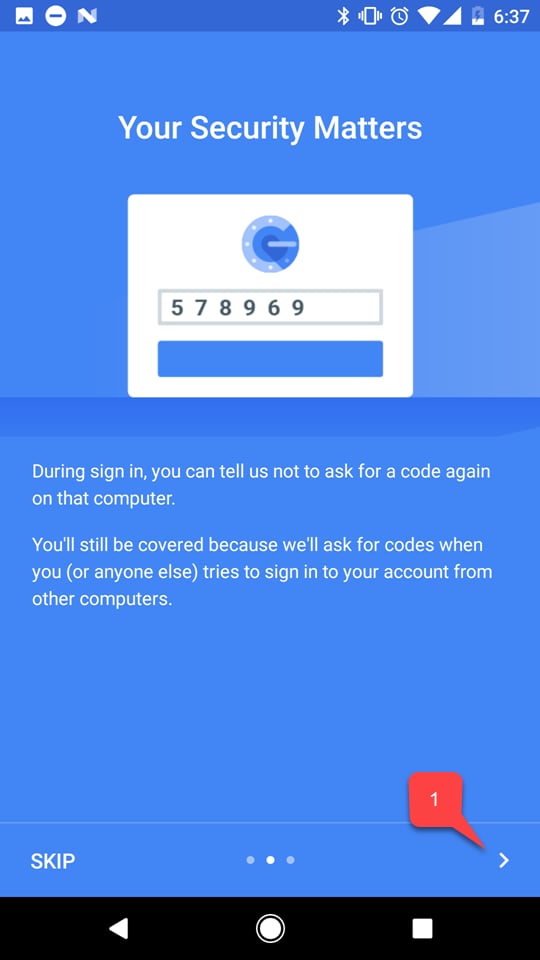
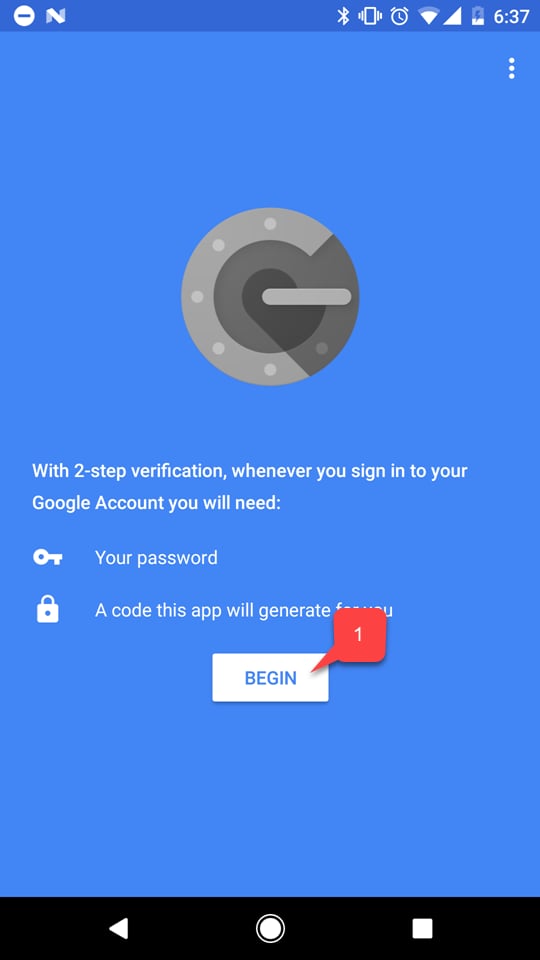 Follow through the tutorial for the app, if there is any **(1)**.
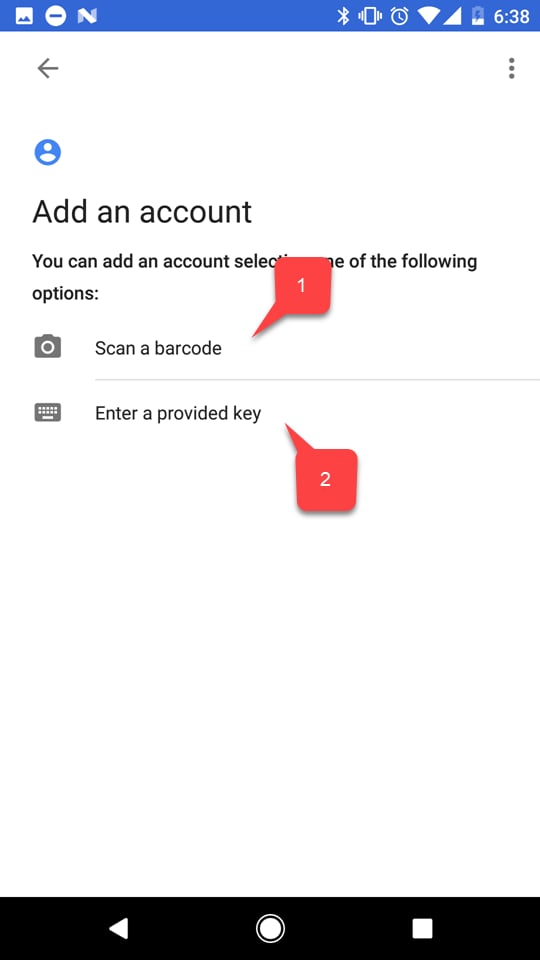
 * Then select one of two options to add your PlayFab account:
* Either scan a **bar code (1)**.
* Or type in the **key** manually **(2)**.
* Then select one of two options to add your PlayFab account:
* Either scan a **bar code (1)**.
* Or type in the **key** manually **(2)**.
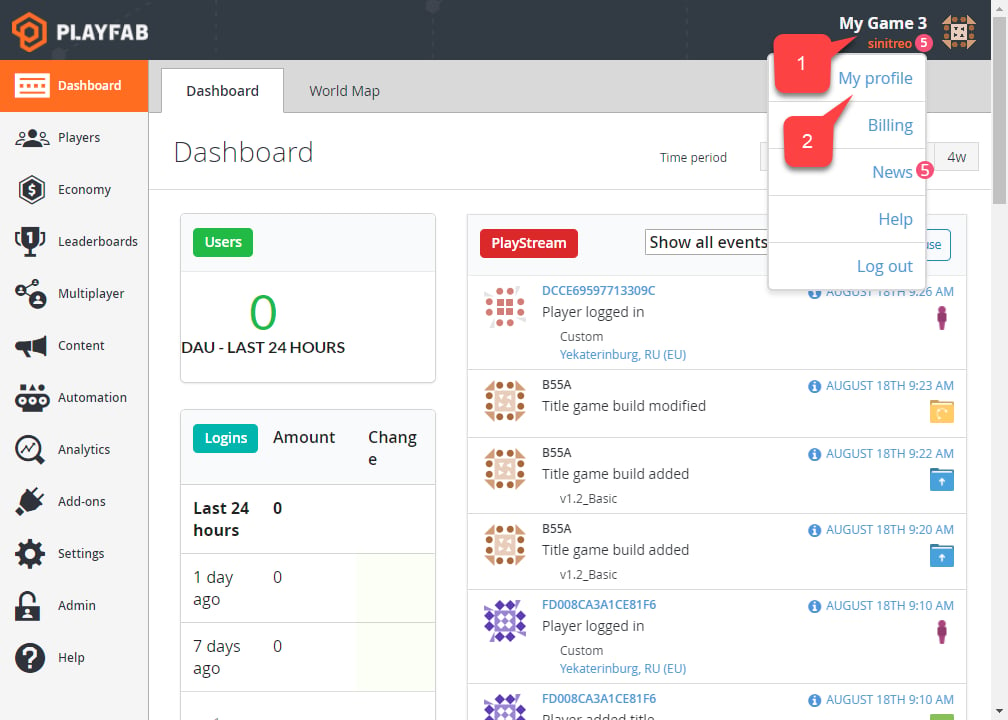
 Whichever option you choose, follow to the PlayFab website and navigate to **Game Manager**. On the **Dashboard** tab:
* Select the **Account** panel **(1)**.
* Then select **My Profile (2)**.
Whichever option you choose, follow to the PlayFab website and navigate to **Game Manager**. On the **Dashboard** tab:
* Select the **Account** panel **(1)**.
* Then select **My Profile (2)**.
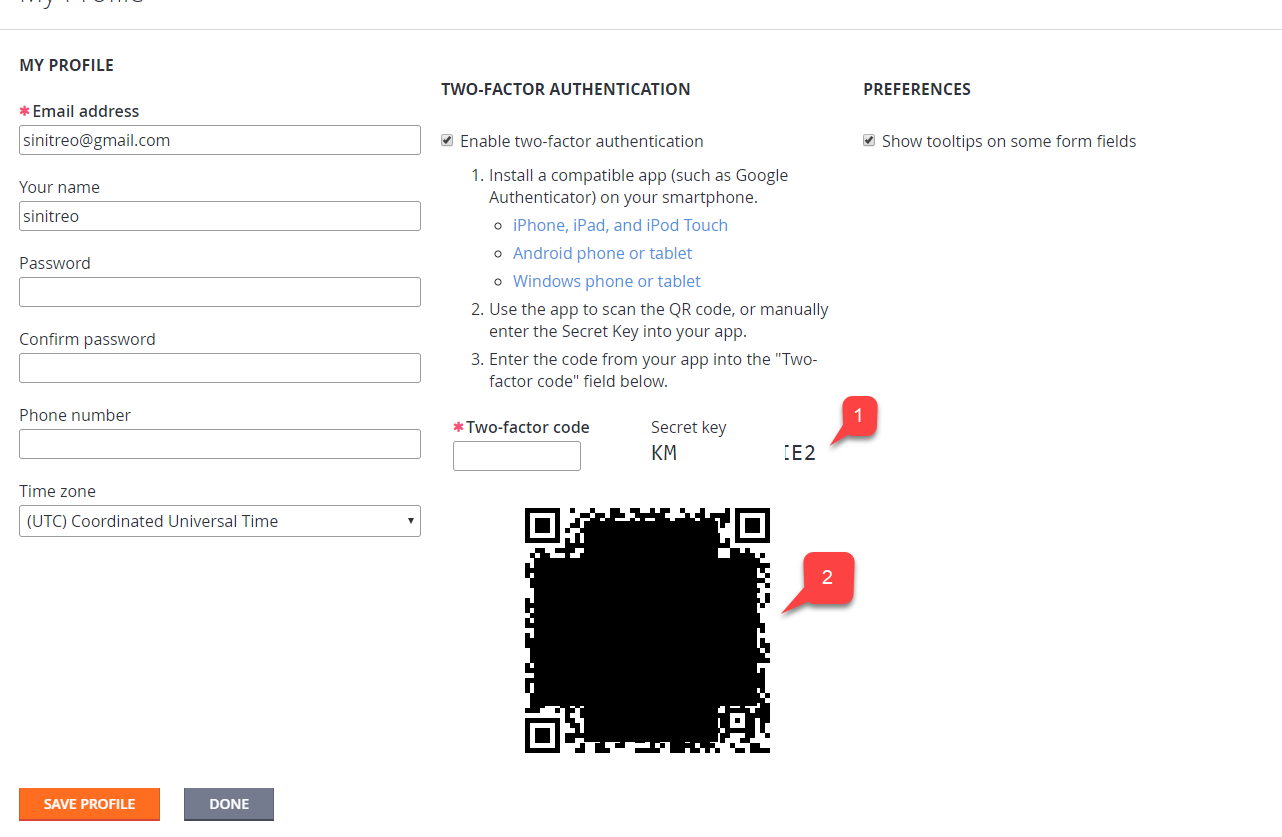
 The **Account** settings will open.
* Verify that the **Enable two-factor authentication** checkbox is checked.
* Depending on which option you have chosen, use the **code (1)** or a **bar code (2)** to add a new account using the application on your device.
The **Account** settings will open.
* Verify that the **Enable two-factor authentication** checkbox is checked.
* Depending on which option you have chosen, use the **code (1)** or a **bar code (2)** to add a new account using the application on your device.
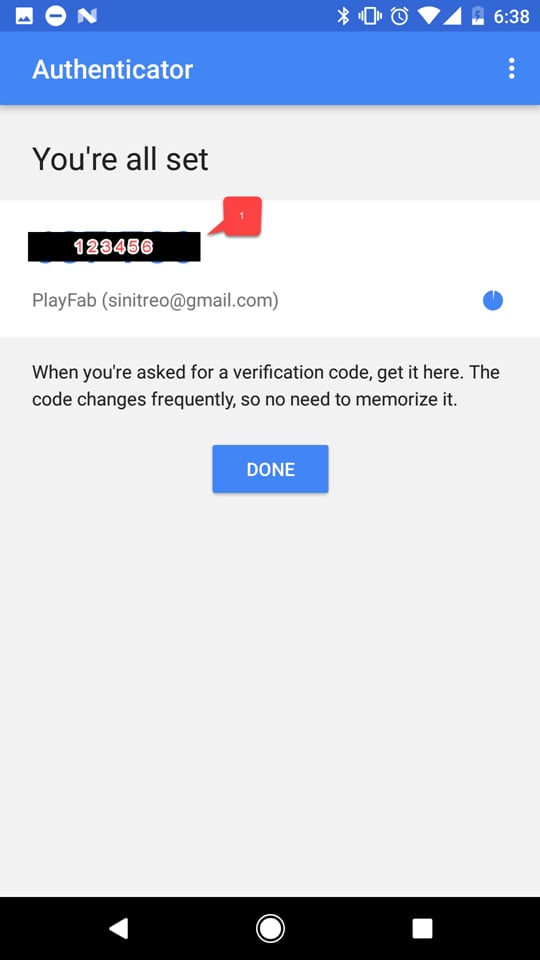
 Once this is done, you will obtain a two-factor code.
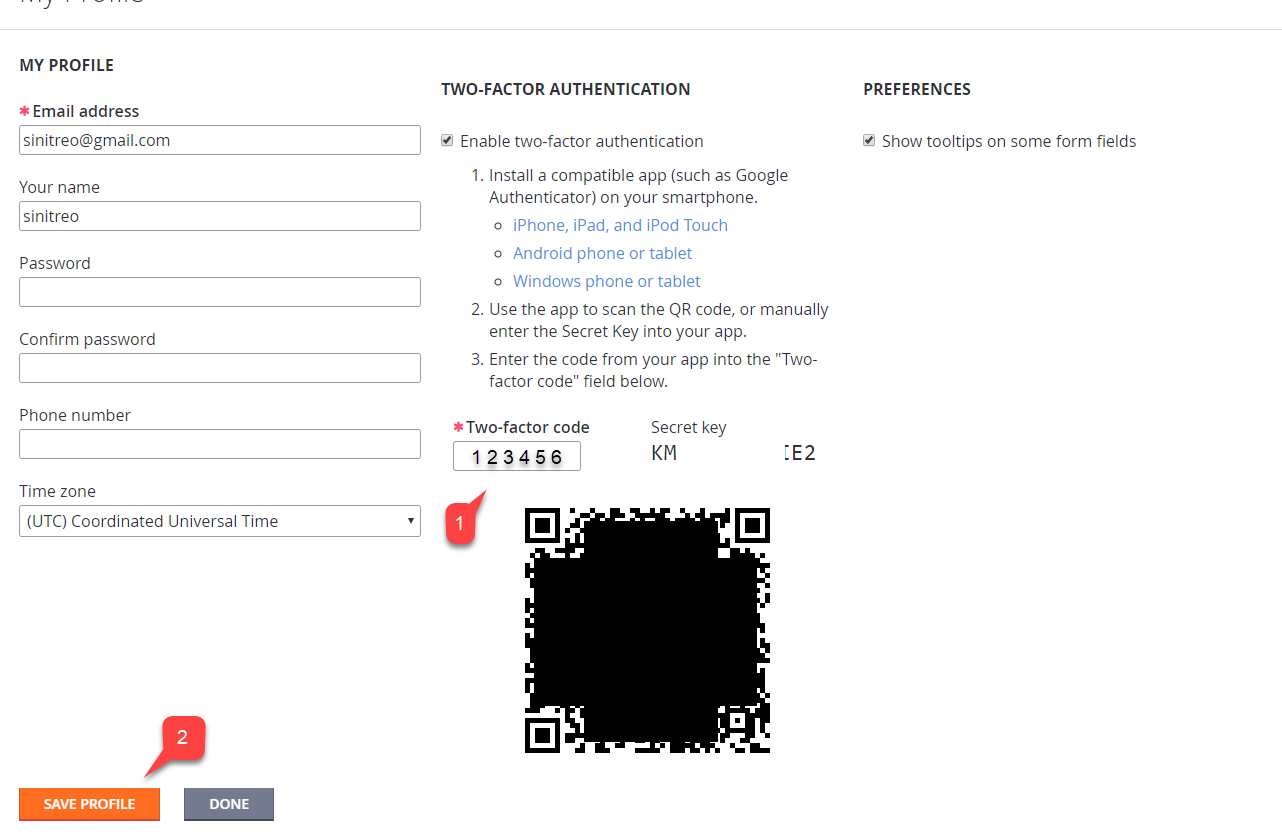
 Head back to the **Profile** settings in the PlayFab **Game Manager**:
* Enter the **code** you received **(1)**.
* Select **Save Profile** button **(2)**.
Head back to the **Profile** settings in the PlayFab **Game Manager**:
* Enter the **code** you received **(1)**.
* Select **Save Profile** button **(2)**.
 ## Testing
Log out of your PlayFab account and try to log in again. The first step of the authentication process will look normal (see example provided below).
## Testing
Log out of your PlayFab account and try to log in again. The first step of the authentication process will look normal (see example provided below).
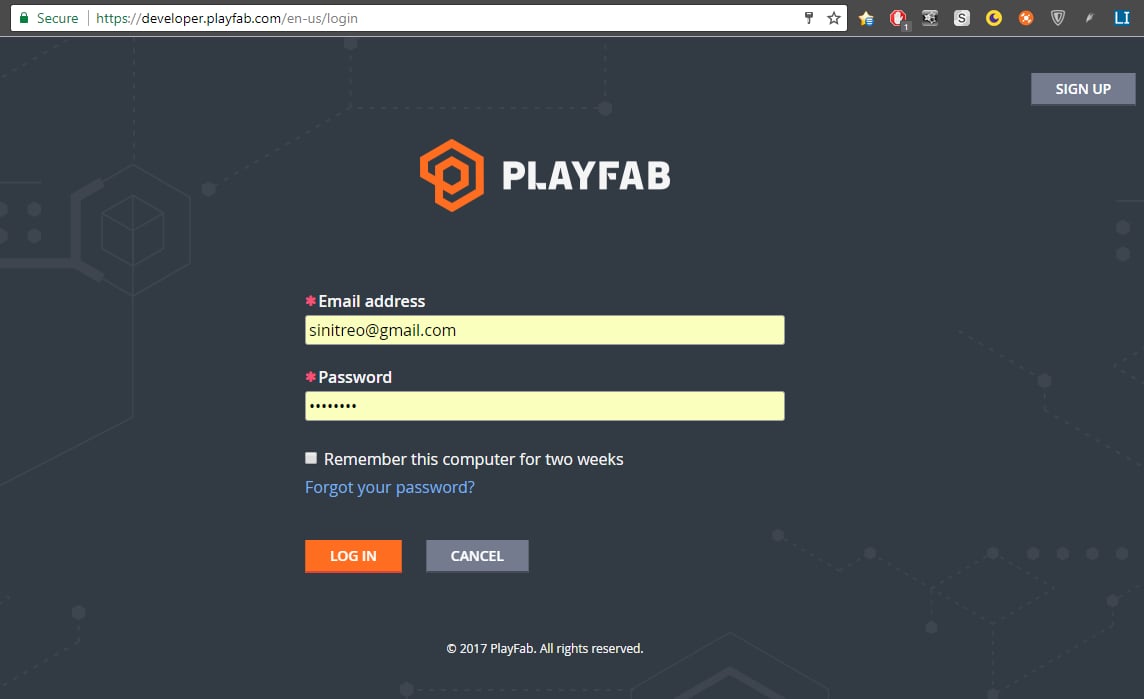 The second step will require you to use your two-factor code. The code is available at any time, and you can access it using the application you installed on your device.
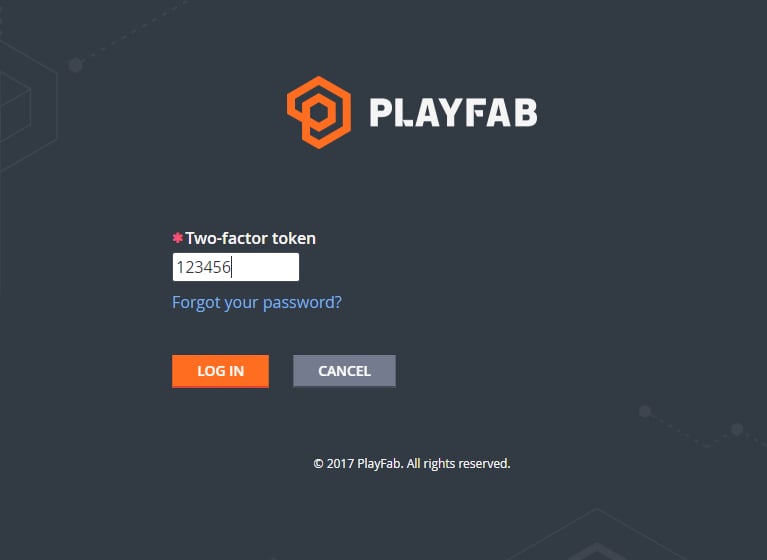 Once the correct two-factor code has been entered, you should be logged in.
This concludes setting up two-factor authentication for PlayFab.
## Related topics
- [Certification PC BVT Guide](/publishing/game-publishing/concepts/certification/certification-pc-bvt-guide.md)
- [Game Manager reference](/services/playfab/live-service-management/gamemanager/reference.md)
- [XR-013 Linking Microsoft Accounts with Publisher Accounts](/publishing/certification/xr/xr-013.md)
- [XBOX Partner Onboarding for access and publishing](/home/onboarding.md)
- [XBOX Requirement test cases for PC and mobile games](/publishing/certification/pc-policy-tests.md)
Once the correct two-factor code has been entered, you should be logged in.
This concludes setting up two-factor authentication for PlayFab.
## Related topics
- [Certification PC BVT Guide](/publishing/game-publishing/concepts/certification/certification-pc-bvt-guide.md)
- [Game Manager reference](/services/playfab/live-service-management/gamemanager/reference.md)
- [XR-013 Linking Microsoft Accounts with Publisher Accounts](/publishing/certification/xr/xr-013.md)
- [XBOX Partner Onboarding for access and publishing](/home/onboarding.md)
- [XBOX Requirement test cases for PC and mobile games](/publishing/certification/pc-policy-tests.md)