> ## Documentation Index
> Fetch the complete documentation index at: https://devdocs.xbox.com/llms.txt
> Use this file to discover all available pages before exploring further.
# Items (Legacy Economy) quickstart
> Quickstart for creating catalog items in PlayFab Legacy Economy (v1), including item properties, virtual currencies, and granting items to players.
# Items Quickstart (Legacy Economy)
Economy v1 APIs are in maintenance mode and will not be receiving any new features, only bug fixes. **The v1 APIs will be maintained for the foreseeable future.** See the [Economy v2 Overview](/services/playfab/economy-monetization/economy-v2/overview) to learn more about the next version of PlayFab Economy!
The Items quickstart gives you the building blocks of your in-game economics: virtual currency, catalogs, items, and purchases.
In this quickstart, you will:
* Set up a virtual currency for your game.
* Give virtual currency to a player.
* Add an item to your in-game catalog.
* Use PlayFab APIs to purchase an item from the catalog using virtual currency.
* Use information in the Game Manager to confirm that the purchase was successful.
## Setting up a virtual currency
PlayFab supports a robust game economy with multiple currencies and items.
To access these features and create a virtual currency:
1. Open **Game Manager** and select **Economy** on the left side bar.
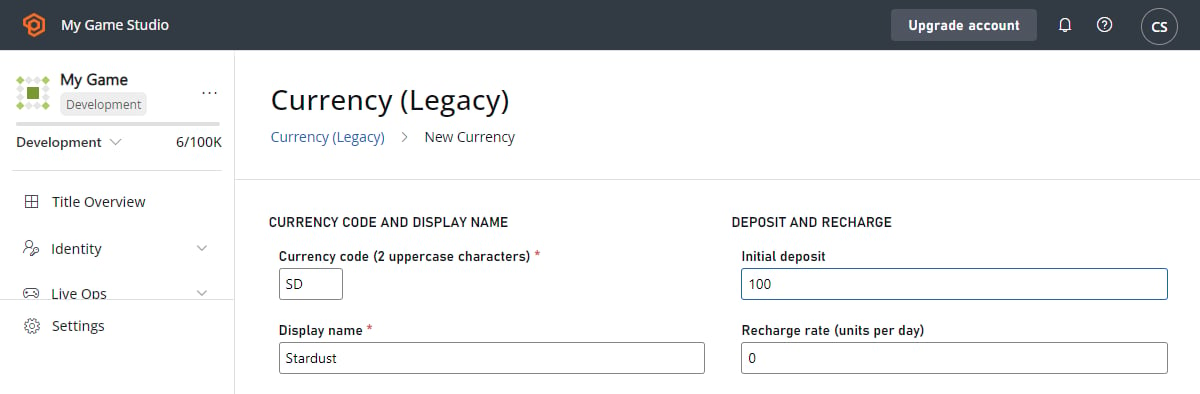
2. Select the **Currency** tab, and select **New Currency** (Opens the **New Currency** screen shown below).
3. To create your virtual currency, edit these fields:
* Set **Currency code (2 uppercase characters)** to **GD**.
* Set **Display name** to **Gold**.
4. Select **SAVE CURRENCY**.
 ## Giving virtual currency to a player
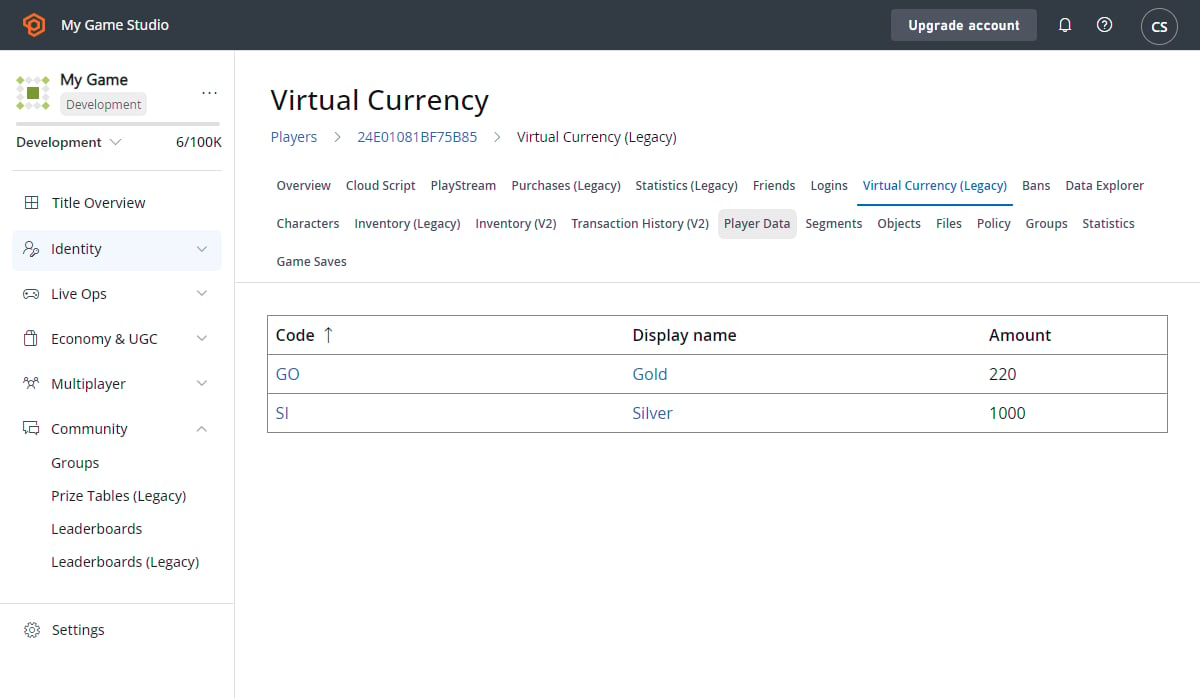
You can give players virtual currency directly. As an example, let's add money to a player using the Game Manager:
1. Select **Players** on the left side bar, then select the **ID** of a player.
2. Go to the player's **Virtual Currency** tab.
3. Choose the **GD** currency (Opens the **Modify Virtual Currency** screen shown below).
4. Change the **Amount** to **100**.
5. Select **SAVE VIRTUAL CURRENCY**.
## Giving virtual currency to a player
You can give players virtual currency directly. As an example, let's add money to a player using the Game Manager:
1. Select **Players** on the left side bar, then select the **ID** of a player.
2. Go to the player's **Virtual Currency** tab.
3. Choose the **GD** currency (Opens the **Modify Virtual Currency** screen shown below).
4. Change the **Amount** to **100**.
5. Select **SAVE VIRTUAL CURRENCY**.
 It can be dangerous to give clients the ability to call the [AddUserVirtualCurrency](xref:titleid.playfabapi.com.client.playeritemmanagement.adduservirtualcurrency) API. For information about setting restrictions on specific APIs, see [API access policy](/services/playfab/api-references/api-access-policy).
Now the player has 100 gold. What can they do with it? Buy an item!
## Adding an item to your in-game catalog
*No sense having money if you can't spend it!*
You can create catalogs (a collection of items) that correspond to the platforms on which you're releasing your game, or major version numbers - whatever you like.
We don't recommend creating multiple catalogs to differentiate types of items. You can filter items more effectively using classes, tags, and stores.
To make a catalog with an item:
1. Select **Economy** on the left side bar and select the **Catalogs** tab.
2. Select the **New Catalog** button and enter **main** as the **Catalog version**. An item with the ID of **One** is added automatically.
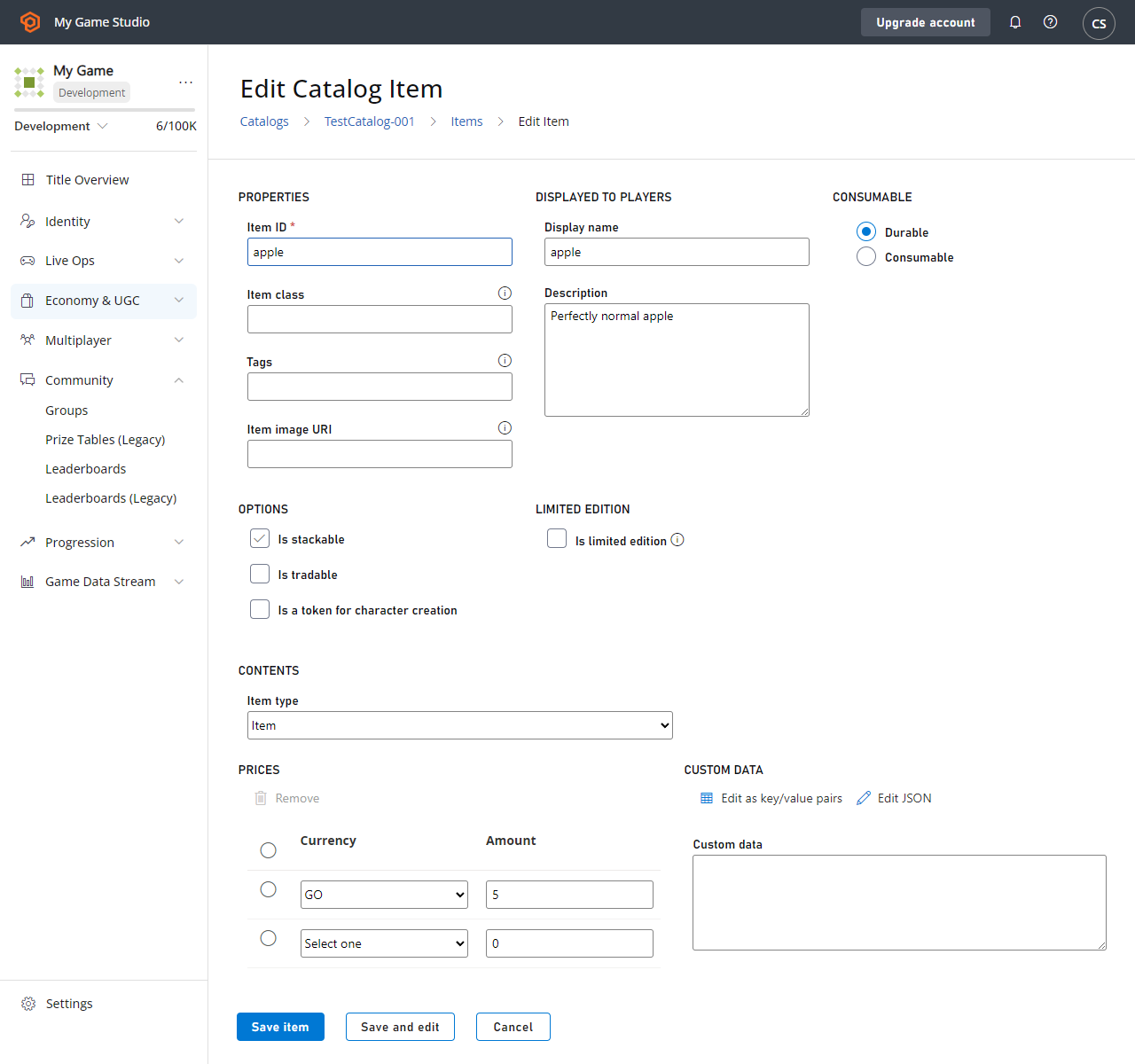
3. Select **One** (Opens the **Edit Catalog Item** screen shown below). Edit these fields:
* Set **Item ID** to **apple**.
* Set **Display name** to **apple**.
* Set **Description** to **Perfectly normal apple**.
The bottom of the form has the **PRICES** section, where you define how much an item costs in your game's virtual currency.
1. Set the apple's price in gold (**GD**) to **5**.
2. Select **SAVE ITEM**.
It can be dangerous to give clients the ability to call the [AddUserVirtualCurrency](xref:titleid.playfabapi.com.client.playeritemmanagement.adduservirtualcurrency) API. For information about setting restrictions on specific APIs, see [API access policy](/services/playfab/api-references/api-access-policy).
Now the player has 100 gold. What can they do with it? Buy an item!
## Adding an item to your in-game catalog
*No sense having money if you can't spend it!*
You can create catalogs (a collection of items) that correspond to the platforms on which you're releasing your game, or major version numbers - whatever you like.
We don't recommend creating multiple catalogs to differentiate types of items. You can filter items more effectively using classes, tags, and stores.
To make a catalog with an item:
1. Select **Economy** on the left side bar and select the **Catalogs** tab.
2. Select the **New Catalog** button and enter **main** as the **Catalog version**. An item with the ID of **One** is added automatically.
3. Select **One** (Opens the **Edit Catalog Item** screen shown below). Edit these fields:
* Set **Item ID** to **apple**.
* Set **Display name** to **apple**.
* Set **Description** to **Perfectly normal apple**.
The bottom of the form has the **PRICES** section, where you define how much an item costs in your game's virtual currency.
1. Set the apple's price in gold (**GD**) to **5**.
2. Select **SAVE ITEM**.
 ## Purchasing an item using virtual currency
Let's use the PlayFab APIs to make a purchase in your game.
1. Sign in as the player that was assigned 100 gold in virtual currency (as described in [Giving virtual currency to a player](#giving-virtual-currency-to-a-player)).
2. Call [GetCatalogItems](xref:titleid.playfabapi.com.client.title-widedatamanagement.getcatalogitems) with the following parameter in the request:
* `CatalogVersion = "main"`
3. Verify that the `Catalog` in the result contains an **apple** with a **GD** price of **5**.
4. Purchase the apple by calling [PurchaseItem](xref:titleid.playfabapi.com.client.playeritemmanagement.purchaseitem) with these parameter values in the request:
* `CatalogVersion = "main"`
* `ItemId = "apple"`
* `VirtualCurrency = "GD"`
* `Price = 5`
5. Finally, call [GetUserInventory](xref:titleid.playfabapi.com.client.playeritemmanagement.getuserinventory) and take a look at the result of that method. In the array of items in the player's inventory, you should see an apple!
## Confirming that the purchase was successful
To confirm the purchase in Game Manager:
1. Select **Players** from the left side bar to open the **Players** tab.
2. Select the **ID** of the player that purchased the item.
To confirm:
* Open the **PlayStream** tab. You should see a [Player virtual currency item purchased](/services/playfab/api-references/events/Player/player-vc-item-purchased) event.
* Open the **Inventory** tab. The inventory should now contain an apple. You can also use features on the **Inventory** tab to revoke the item, or grant the player *more* apples.
* Open the **Virtual Currency** tab. The player should only have 95 gold left.
## Related topics
- [Economy (Legacy) quickstart](/services/playfab/economy-monetization/economy/quickstart.md)
- [Stores (Economy Legacy) Quickstart](/services/playfab/economy-monetization/economy/stores/quickstart.md)
- [Items (Legacy Economy)](/services/playfab/economy-monetization/economy/items/index.md)
- [Stores and sales in Economy (Legacy)](/services/playfab/economy-monetization/economy/tutorials/stores-and-sales.md)
- [Trading quickstart](/services/playfab/economy-monetization/economy/trading/trading-quickstart.md)
## Purchasing an item using virtual currency
Let's use the PlayFab APIs to make a purchase in your game.
1. Sign in as the player that was assigned 100 gold in virtual currency (as described in [Giving virtual currency to a player](#giving-virtual-currency-to-a-player)).
2. Call [GetCatalogItems](xref:titleid.playfabapi.com.client.title-widedatamanagement.getcatalogitems) with the following parameter in the request:
* `CatalogVersion = "main"`
3. Verify that the `Catalog` in the result contains an **apple** with a **GD** price of **5**.
4. Purchase the apple by calling [PurchaseItem](xref:titleid.playfabapi.com.client.playeritemmanagement.purchaseitem) with these parameter values in the request:
* `CatalogVersion = "main"`
* `ItemId = "apple"`
* `VirtualCurrency = "GD"`
* `Price = 5`
5. Finally, call [GetUserInventory](xref:titleid.playfabapi.com.client.playeritemmanagement.getuserinventory) and take a look at the result of that method. In the array of items in the player's inventory, you should see an apple!
## Confirming that the purchase was successful
To confirm the purchase in Game Manager:
1. Select **Players** from the left side bar to open the **Players** tab.
2. Select the **ID** of the player that purchased the item.
To confirm:
* Open the **PlayStream** tab. You should see a [Player virtual currency item purchased](/services/playfab/api-references/events/Player/player-vc-item-purchased) event.
* Open the **Inventory** tab. The inventory should now contain an apple. You can also use features on the **Inventory** tab to revoke the item, or grant the player *more* apples.
* Open the **Virtual Currency** tab. The player should only have 95 gold left.
## Related topics
- [Economy (Legacy) quickstart](/services/playfab/economy-monetization/economy/quickstart.md)
- [Stores (Economy Legacy) Quickstart](/services/playfab/economy-monetization/economy/stores/quickstart.md)
- [Items (Legacy Economy)](/services/playfab/economy-monetization/economy/items/index.md)
- [Stores and sales in Economy (Legacy)](/services/playfab/economy-monetization/economy/tutorials/stores-and-sales.md)
- [Trading quickstart](/services/playfab/economy-monetization/economy/trading/trading-quickstart.md)