> ## Documentation Index
> Fetch the complete documentation index at: https://devdocs.xbox.com/llms.txt
> Use this file to discover all available pages before exploring further.
# S3 Event Archiving
> Set up PlayFab legacy event archiving to an Amazon S3 bucket from scratch, covering bucket creation, credentials, and enabling event flow export.
We recommend using [Azure Data Explorer (ADX) Connections](/services/playfab/data-analytics/export-data/data-connection-adx) to manage your performance and cost.
PlayFab allows you to archive the entire event flow using the
Amazon S3 bucket. This tutorial shows you the steps required to configure event archiving from scratch.
## Configuring Amazon S3 bucket
Once you create an Amazon account:
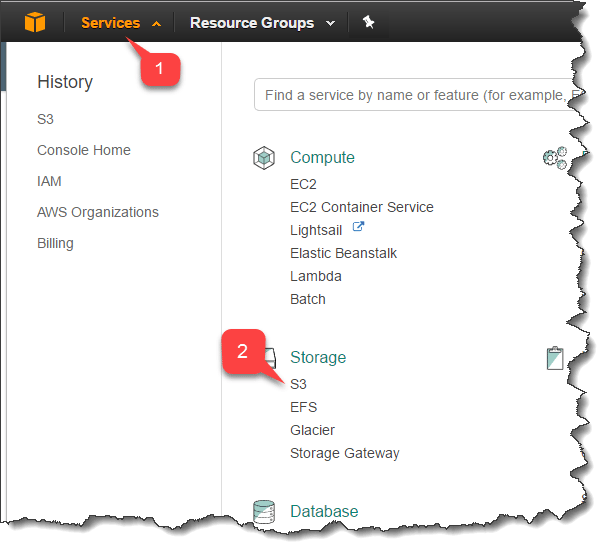
* Navigate to **Services (1)**.
* Select **S3 (2)**.
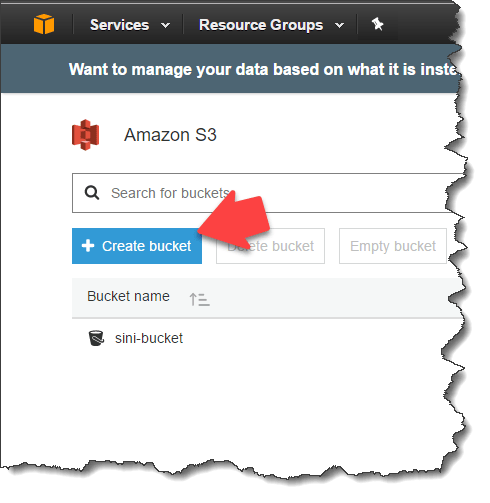
 * On the **S3** page, you'll have an overview of all your buckets.
* Use the **Create bucket** button to create a new bucket.
* On the **S3** page, you'll have an overview of all your buckets.
* Use the **Create bucket** button to create a new bucket.
 \
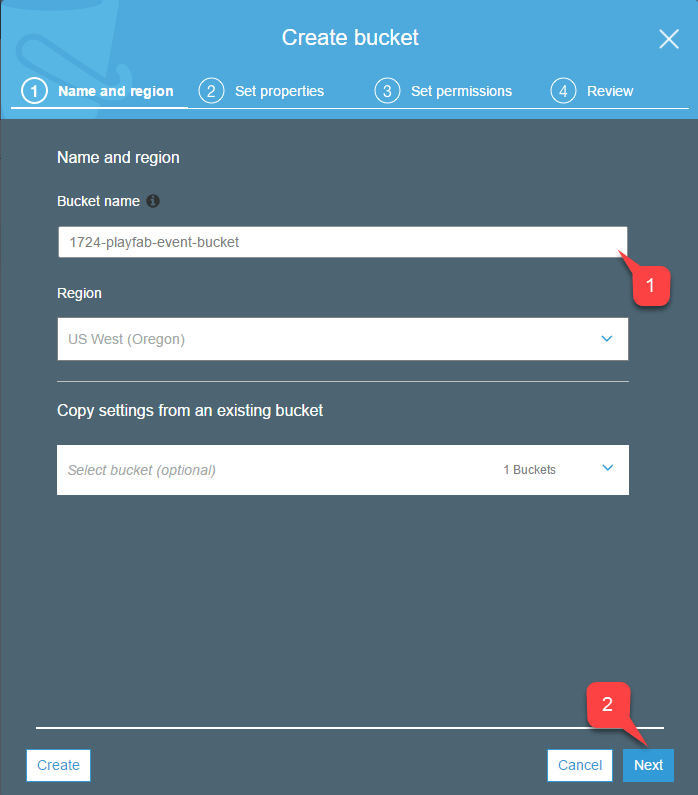
To create your new S3 bucket, you must go through a four-step wizard:
* You must assign a unique, DNS-compliant **Bucket name** for your bucket. Make sure to have that name available somewhere for copying and pasting. We'll need it when we configure PlayFab event archiving.
* When you're done, select the **Next** button.
\
To create your new S3 bucket, you must go through a four-step wizard:
* You must assign a unique, DNS-compliant **Bucket name** for your bucket. Make sure to have that name available somewhere for copying and pasting. We'll need it when we configure PlayFab event archiving.
* When you're done, select the **Next** button.
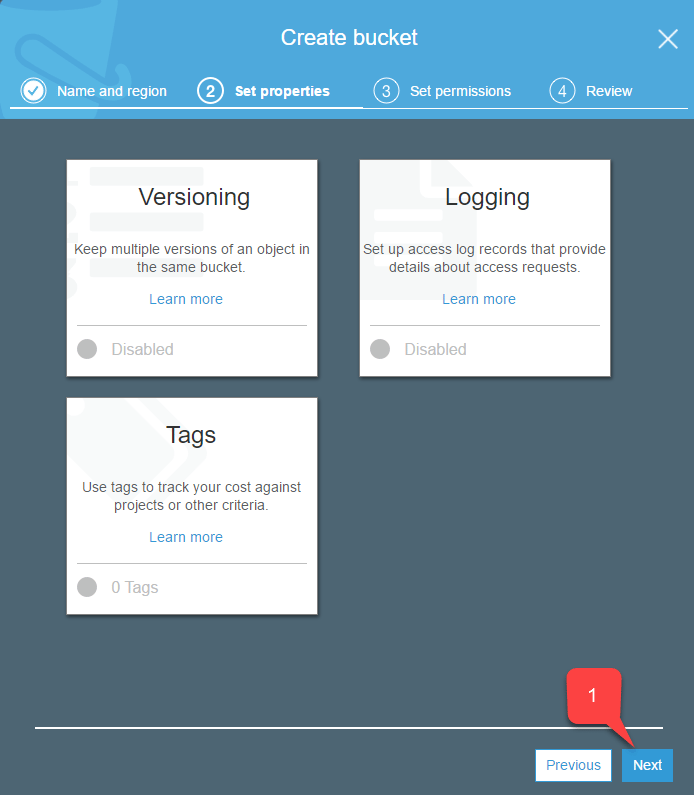
 * This step offers you the option of adding **Versioning**, **Logging**, and **Tags** for your **Bucket**.
* Select the **Next** button when you're done **(1)**.
* This step offers you the option of adding **Versioning**, **Logging**, and **Tags** for your **Bucket**.
* Select the **Next** button when you're done **(1)**.
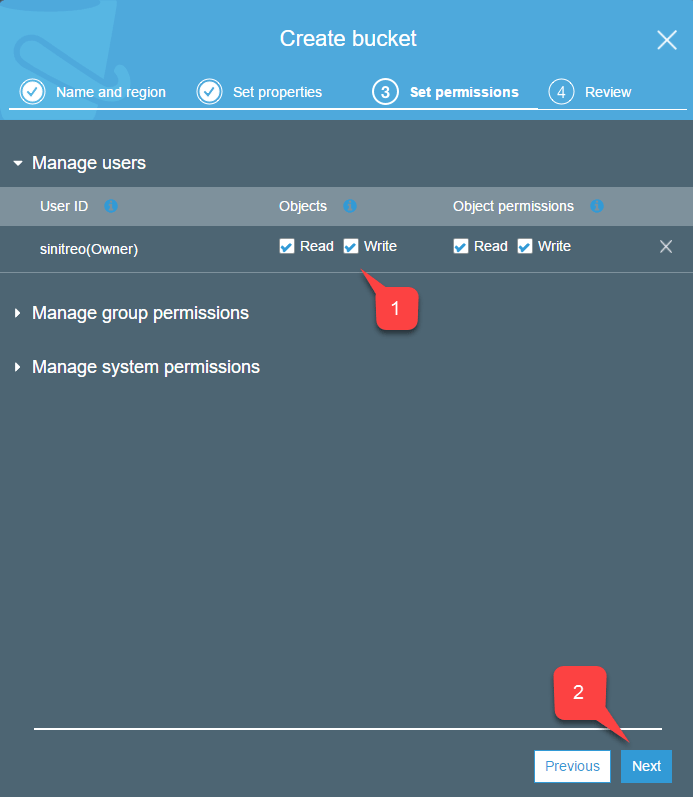
 * During this step, make sure that you have **Read/Write** access **(1)** for objects.
* Select the **Next** button **(2)** when you're done.
* During this step, make sure that you have **Read/Write** access **(1)** for objects.
* Select the **Next** button **(2)** when you're done.
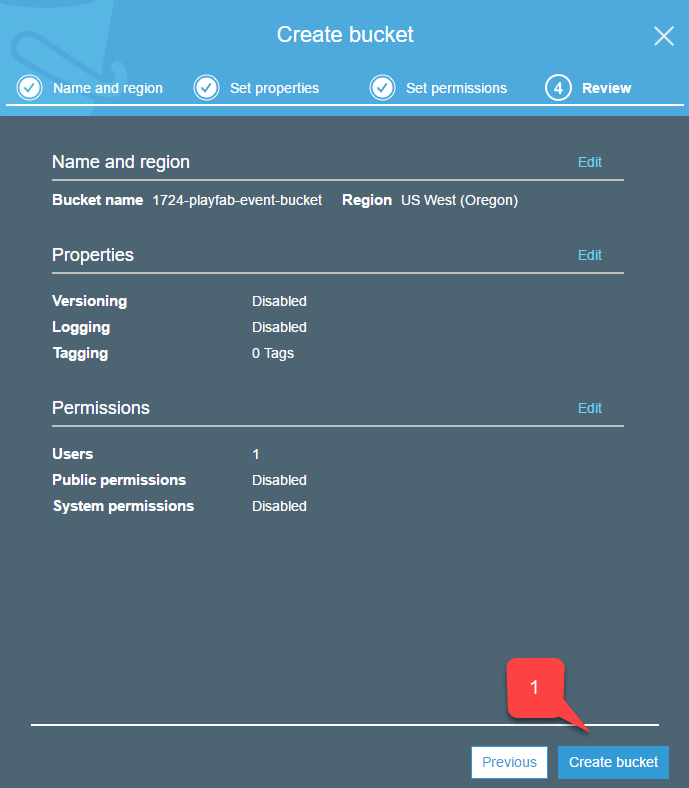
 In this last step, double-check your settings and select the **Create bucket** button **(1)**.
 ## Configuring Amazon access
In order to archive events, you'll need to give PlayFab access to the bucket on your behalf.
This is done with an access key.
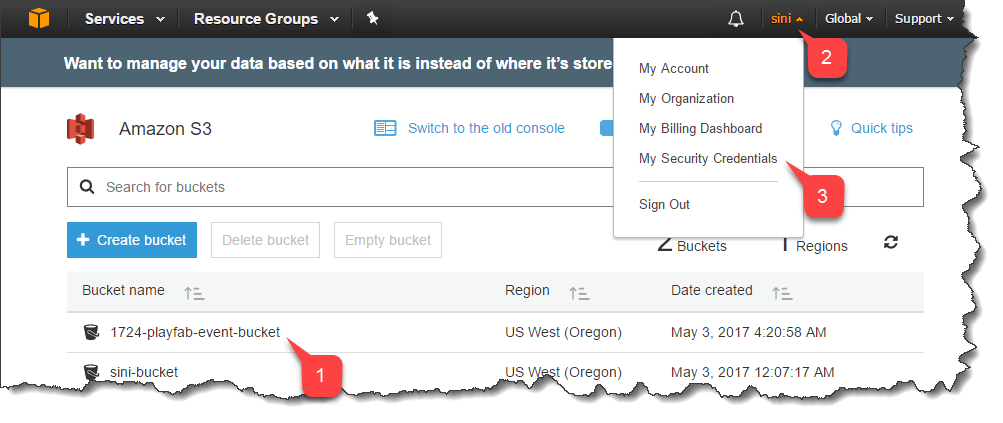
* Double-check that you have your newly created bucket in the list of S3 services **(1)**.
* Select your account **Name** in the top right corner **(2)**.
* Then select **My Security Credentials (3)**.
## Configuring Amazon access
In order to archive events, you'll need to give PlayFab access to the bucket on your behalf.
This is done with an access key.
* Double-check that you have your newly created bucket in the list of S3 services **(1)**.
* Select your account **Name** in the top right corner **(2)**.
* Then select **My Security Credentials (3)**.
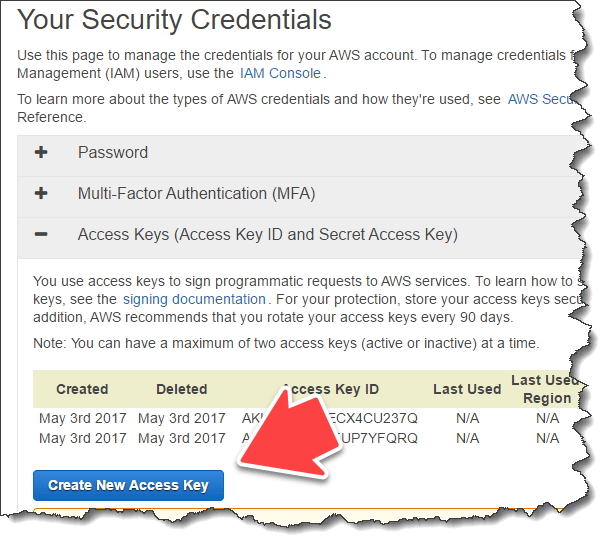
 * Locate the **Access Key** list.
* Select the **Create New Access Key** button.
* Locate the **Access Key** list.
* Select the **Create New Access Key** button.
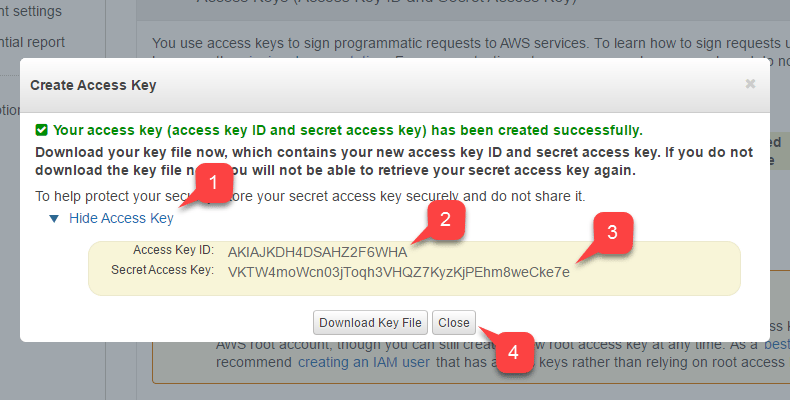
 * Expand the **Access Key** data **(1)**.
* Save the **Access Key ID (2)** and **Secret Access Key (3)**.
* Make sure they're available for copy/paste. We'll need them when we configure **PlayFab Event** archiving.
* Select the **Close** button **(4)**.
* Expand the **Access Key** data **(1)**.
* Save the **Access Key ID (2)** and **Secret Access Key (3)**.
* Make sure they're available for copy/paste. We'll need them when we configure **PlayFab Event** archiving.
* Select the **Close** button **(4)**.
 ## Configuring PlayFab event archiving
When your Amazon S3 bucket is ready, it's time to set up the PlayFab side of things.
We need to pass the access key data and bucket name to PlayFab to enable event archiving.
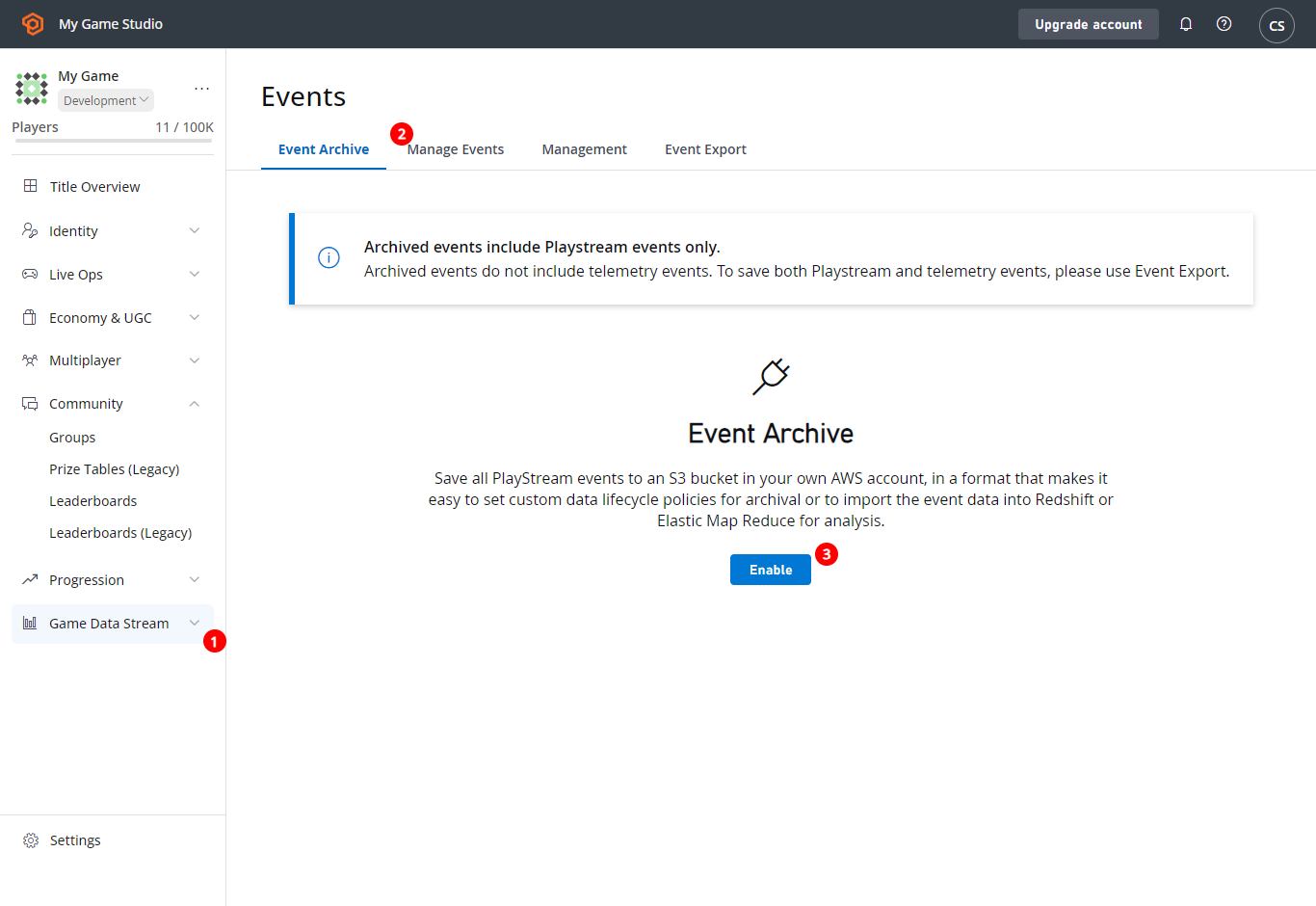
To access the PlayFab **Event Archive**:
1. Select **Analytics** in the menu on the left.
2. Then select the **Event Archive** tab.
3. Finally, select the **Update Settings** button, as shown below.
## Configuring PlayFab event archiving
When your Amazon S3 bucket is ready, it's time to set up the PlayFab side of things.
We need to pass the access key data and bucket name to PlayFab to enable event archiving.
To access the PlayFab **Event Archive**:
1. Select **Analytics** in the menu on the left.
2. Then select the **Event Archive** tab.
3. Finally, select the **Update Settings** button, as shown below.
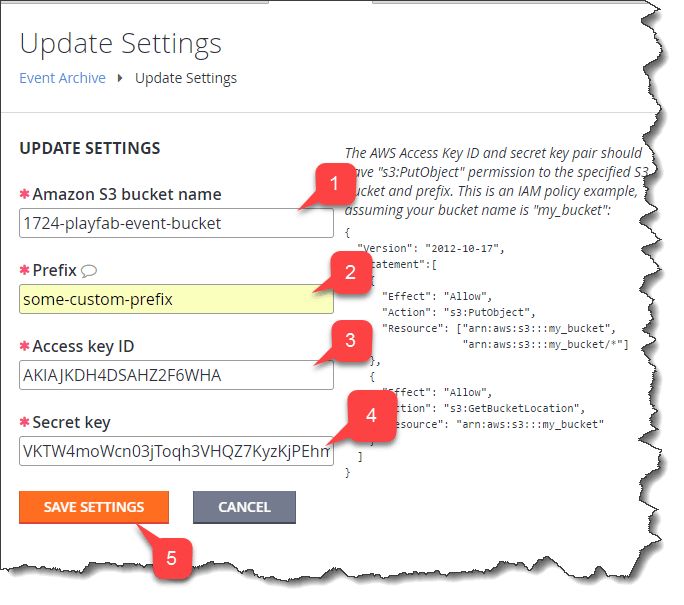
 The **Update Settings** page offers you the following settings:
1. The **Amazon S3 bucket name** (use the one you created while configuring the **Amazon S3 Bucket**).
2. **Prefix** is the *root folder* under which PlayFab stores all the relevant data.
3. **Access key ID** (use the one you obtained while configuring access to the Amazon account).
4. **Secret key** (use the one you obtained while configuring access to the Amazon account).
5. Select the **Save Settings** button when everything is in place.
The **Update Settings** page offers you the following settings:
1. The **Amazon S3 bucket name** (use the one you created while configuring the **Amazon S3 Bucket**).
2. **Prefix** is the *root folder* under which PlayFab stores all the relevant data.
3. **Access key ID** (use the one you obtained while configuring access to the Amazon account).
4. **Secret key** (use the one you obtained while configuring access to the Amazon account).
5. Select the **Save Settings** button when everything is in place.
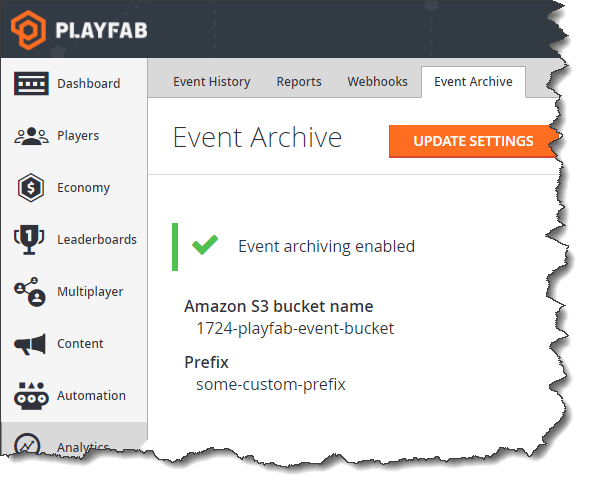
 PlayFab should present you with a nice page, indicating that event archiving is enabled.
 Make sure to post some events and then check your bucket on the Amazon portal.
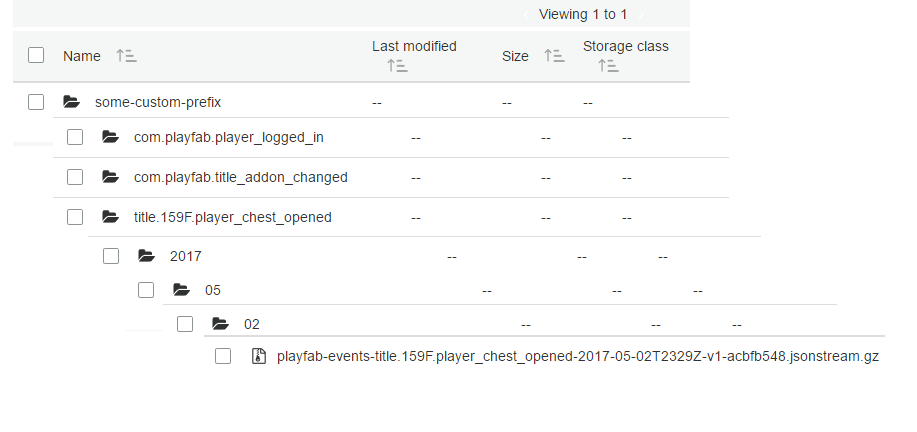
After a short period of time, you should see that new compressed JSON streams are appearing, nicely broken out by title, event name, year, month and day.
Make sure to post some events and then check your bucket on the Amazon portal.
After a short period of time, you should see that new compressed JSON streams are appearing, nicely broken out by title, event name, year, month and day.
 ## Related topics
- [Set up an Amazon S3 bucket](/services/playfab/data-analytics/legacy/configure-s3-bucket.md)
- [PlayFab data and analytics documentation](/services/playfab/data-analytics/index.md)
- [What is PlayFab?](/services/playfab/get-started/what-is-playfab.md)
- [Archiving and retrieving multiplayer server logs](/services/playfab/multiplayer/servers/archiving-and-retrieving-multiplayer-server-logs.md)
- [Data Connections - Overview](/services/playfab/data-analytics/export-data/data-connection-overview.md)
## Related topics
- [Set up an Amazon S3 bucket](/services/playfab/data-analytics/legacy/configure-s3-bucket.md)
- [PlayFab data and analytics documentation](/services/playfab/data-analytics/index.md)
- [What is PlayFab?](/services/playfab/get-started/what-is-playfab.md)
- [Archiving and retrieving multiplayer server logs](/services/playfab/multiplayer/servers/archiving-and-retrieving-multiplayer-server-logs.md)
- [Data Connections - Overview](/services/playfab/data-analytics/export-data/data-connection-overview.md)