> ## Documentation Index
> Fetch the complete documentation index at: https://devdocs.xbox.com/llms.txt
> Use this file to discover all available pages before exploring further.
# Connecting Power BI to Insights
> Connect Power BI Desktop to legacy PlayFab Insights with Microsoft Entra ID authentication and build visualizations, dashboards, and reports on your game data.
# Tutorial: Connecting Power BI to Insights
This guide helps you get started using Power BI along with Insights. After connecting, you can use Power BI to create visualizations of your game data and more. To learn more about other tools you can connect Insights with, see [Connecting external tools to Insights](/services/playfab/data-analytics/legacy/connectivity).
PlayFab Insights Management was retired on 3/31/2026. We recommend using [Azure Data Explorer (ADX) Connections](/services/playfab/data-analytics/export-data/data-connection-adx) to manage your performance and cost going forward. If your title is still using **Insights**, continue to see this article for implementation details. For more information, see [PlayFab Digest: March feature updates](https://developer.microsoft.com/en-us/games/articles/2026/04/playfab-digest-march-feature-updates/).
## Prerequisites
### PlayFab account authenticated with AAD
You need a PlayFab account or user for which the authentication provider is set to Microsoft. The Microsoft authentication provider uses Azure Active Directory (AAD) for authentication which is required to use the Azure services. See [Azure Active Directory Authentication for Game Manager](/services/playfab/identity/dev-identity/authentication/aad-authentication) for instructions on creating an AAD-authenticated account or user.
To verify that the account, or user, is set to use the Microsoft authentication provider:
* Navigate to [developer.playfab.com](https://developer.playfab.com).
* Select **Sign in with Microsoft** to access your PlayFab account.
If you can sign in, then the account is set to use the Microsoft authentication provider.
### Game Manager permissions for Insights
You need to assign your account a [user role](/services/playfab/identity/dev-identity/permissions/playfab-user-roles) with the following Game Manager permissions enabled:
* Admin status.
* Access to the Explorer tab and associated data.
* Read and write access to Analytics data.
You can either create a new user role or add these permissions to an existing role.
### Other prerequisites
* [Power BI Desktop](https://powerbi.microsoft.com/desktop/)
Power BI Desktop is required. This scenario is not supported in the Power BI Web Portal.
## Connect with Power BI
On your local machine, open Power BI.
1. In the **Power BI Desktop** window, select **Get Data** > **Azure Data Explorer (Kusto)**.
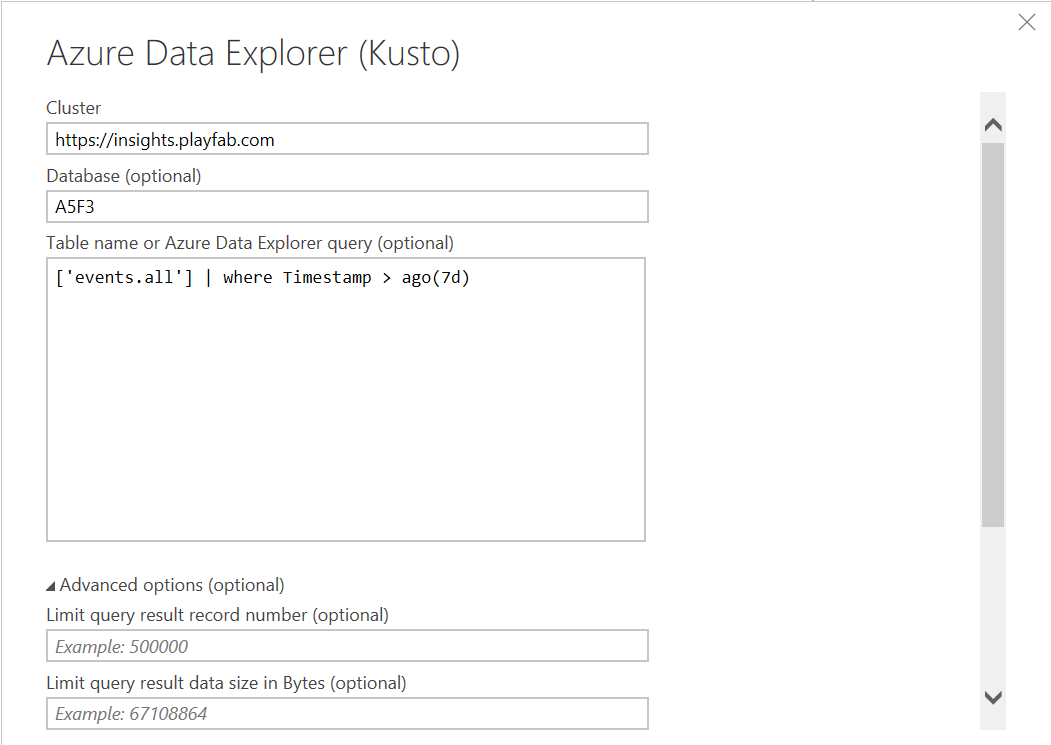
2. In the **Azure Data Explorer (Kusto)** dialog box take the following steps:
* Under **Cluster** enter the PlayFab API endpoint, which is `https://insights.playfab.com`.
* Under **Database** enter your title ID in all uppercase, as Database names are case sensitive.
* Scroll down, and under **Data Connectivity mode** select **DirectQuery**. Optionally, enter a table or query. You can set limits for max records or max size. If your query exceeds these limits, it returns a `PartialQueryFailure` error and a message stating that you exceeded the limits. The following example specifies a query on the table `events.all` that returns events occurring in the last seven days.
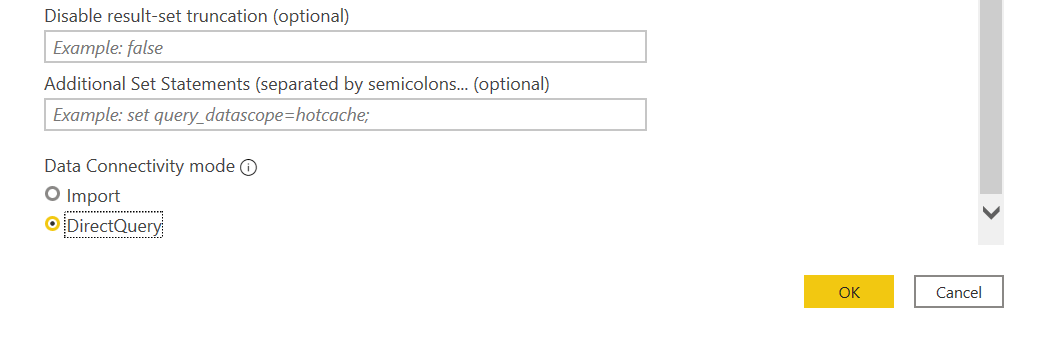 3. Select **OK**. You can now execute queries and commands on the database.
## Additional resources
* [Power BI documentation](https://learn.microsoft.com/en-us/power-bi/)
* To learn about other tools to connect to Insights, see [Connecting external tools to Insights](/services/playfab/data-analytics/legacy/connectivity)
## Related topics
- [Connecting external tools with Insights](/services/playfab/data-analytics/legacy/connectivity/index.md)
- [Insights](/services/playfab/data-analytics/legacy/insights/overview.md)
- [Connecting Grafana to Insights](/services/playfab/data-analytics/legacy/connectivity/connecting-grafana-to-insights.md)
- [Connecting Python to Insights](/services/playfab/data-analytics/legacy/connectivity/connecting-python-to-insights.md)
- [Connecting Kusto C# SDK to Insights](/services/playfab/data-analytics/legacy/connectivity/connecting-kusto-csharp-to-insights.md)
3. Select **OK**. You can now execute queries and commands on the database.
## Additional resources
* [Power BI documentation](https://learn.microsoft.com/en-us/power-bi/)
* To learn about other tools to connect to Insights, see [Connecting external tools to Insights](/services/playfab/data-analytics/legacy/connectivity)
## Related topics
- [Connecting external tools with Insights](/services/playfab/data-analytics/legacy/connectivity/index.md)
- [Insights](/services/playfab/data-analytics/legacy/insights/overview.md)
- [Connecting Grafana to Insights](/services/playfab/data-analytics/legacy/connectivity/connecting-grafana-to-insights.md)
- [Connecting Python to Insights](/services/playfab/data-analytics/legacy/connectivity/connecting-python-to-insights.md)
- [Connecting Kusto C# SDK to Insights](/services/playfab/data-analytics/legacy/connectivity/connecting-kusto-csharp-to-insights.md)