> ## Documentation Index
> Fetch the complete documentation index at: https://devdocs.xbox.com/llms.txt
> Use this file to discover all available pages before exploring further.
# Connecting Azure Data Explorer to Insights
> Connect Azure Data Explorer (ADX) to legacy PlayFab Insights using Microsoft Entra ID authentication so you can query game telemetry with Kusto Query Language.
# Tutorial: Connecting Azure Data Explorer to Insights
This guide helps you get started using Azure Data Explorer (ADX) along with Insights. After connecting, you can use Azure Data Explorer to query your game data and discover relevant insights. To learn more about other tools you can connect Insights with, see [Connecting external tools to Insights](/services/playfab/data-analytics/legacy/connectivity).
PlayFab Insights Management was retired on 3/31/2026. We recommend using [Azure Data Explorer (ADX) Connections](/services/playfab/data-analytics/export-data/data-connection-adx) to manage your performance and cost going forward. If your title is still using **Insights**, continue to see this article for implementation details. For more information, see [PlayFab Digest: March feature updates](https://developer.microsoft.com/en-us/games/articles/2026/04/playfab-digest-march-feature-updates/).
## Prerequisites
### PlayFab account authenticated with AAD
You need a PlayFab account or user for which the authentication provider is set to Microsoft. The Microsoft authentication provider uses Azure Active Directory (AAD) for authentication which is required to use the Azure services. See [Azure Active Directory Authentication for Game Manager](/services/playfab/identity/dev-identity/authentication/aad-authentication) for instructions on creating an AAD-authenticated account or user.
To verify that the account, or user, is set to use the Microsoft authentication provider:
* Navigate to [developer.playfab.com](https://developer.playfab.com).
* Select **Sign in with Microsoft** to access your PlayFab account.
If you can sign in, then the account is set to use the Microsoft authentication provider.
### Other prerequisites
Insights only supports the V1 query response schema. You can update the response schema in Azure Data Explorer using the steps below.
Navigate to [Azure Data Explorer](https://dataexplorer.azure.com/).
1. Select the gear icon next to your user account name in the upper right-hand corner.
2. Select the **Connection** setting section.
* Set **Server parser** to **V1** from the dropdown options. 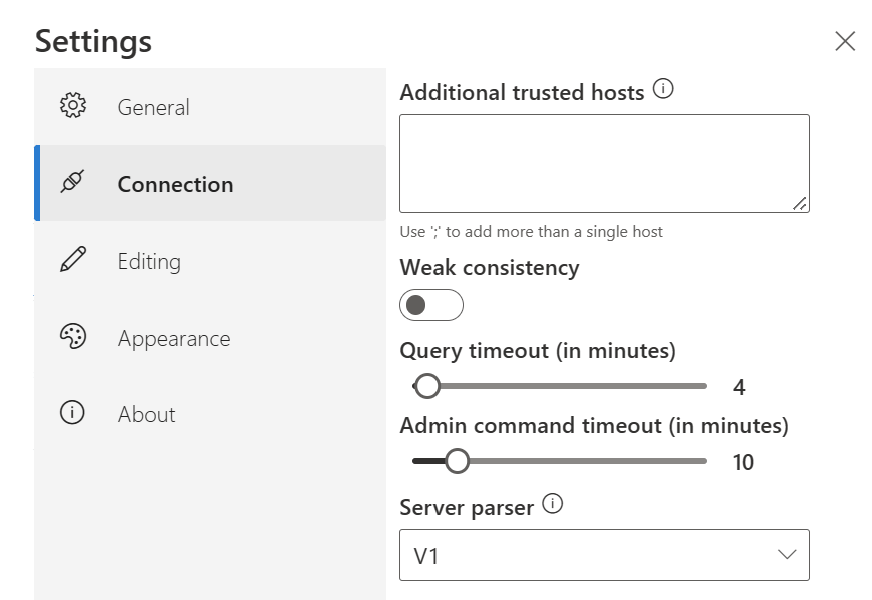 ### Game Manager permissions for Insights
You need to assign your account a [user role](/services/playfab/identity/dev-identity/permissions/playfab-user-roles) with the following Game Manager permissions enabled:
* Admin status.
* Access to the Explorer tab and associated data.
* Read and write access to Analytics data.
You can either create a new user role or add these permissions to an existing role.
## Connect with Azure Data Explorer (ADX)
To connect with Azure Data Explorer:
1. Open [Azure Data Explorer](https://dataexplorer.azure.com/). Select **Add Cluster**.
### Game Manager permissions for Insights
You need to assign your account a [user role](/services/playfab/identity/dev-identity/permissions/playfab-user-roles) with the following Game Manager permissions enabled:
* Admin status.
* Access to the Explorer tab and associated data.
* Read and write access to Analytics data.
You can either create a new user role or add these permissions to an existing role.
## Connect with Azure Data Explorer (ADX)
To connect with Azure Data Explorer:
1. Open [Azure Data Explorer](https://dataexplorer.azure.com/). Select **Add Cluster**. 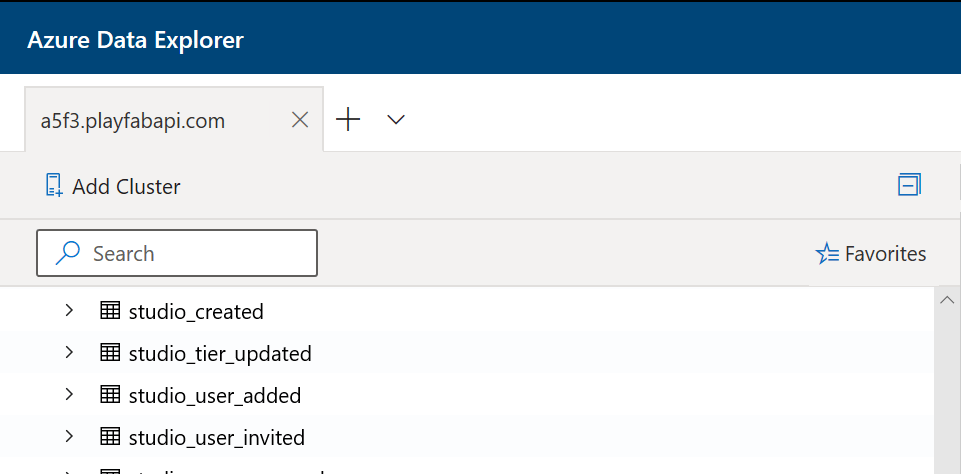 2. Enter the PlayFab API endpoint, which is `https://insights.playfab.com`.
3. Select **Add**. Now you can execute queries or commands on the database.
## Additional resources
* [Azure Data Explorer documentation](https://learn.microsoft.com/en-us/azure/data-explorer/)
* To learn about other tools to connect to Insights, see [Connecting external tools to Insights](/services/playfab/data-analytics/legacy/connectivity)
## Related topics
- [Connecting external tools with Insights](/services/playfab/data-analytics/legacy/connectivity/index.md)
- [Connecting Kusto Explorer to Insights](/services/playfab/data-analytics/legacy/connectivity/connecting-kusto-explorer-to-insights.md)
- [Connecting Azure Data Factory (ADF) to Insights](/services/playfab/data-analytics/legacy/connectivity/connecting-azure-data-factory-to-insights.md)
- [Connecting to Azure Data Explorer](/services/playfab/data-analytics/export-data/data-connection-adx.md)
- [Data Connections - Overview](/services/playfab/data-analytics/export-data/data-connection-overview.md)
2. Enter the PlayFab API endpoint, which is `https://insights.playfab.com`.
3. Select **Add**. Now you can execute queries or commands on the database.
## Additional resources
* [Azure Data Explorer documentation](https://learn.microsoft.com/en-us/azure/data-explorer/)
* To learn about other tools to connect to Insights, see [Connecting external tools to Insights](/services/playfab/data-analytics/legacy/connectivity)
## Related topics
- [Connecting external tools with Insights](/services/playfab/data-analytics/legacy/connectivity/index.md)
- [Connecting Kusto Explorer to Insights](/services/playfab/data-analytics/legacy/connectivity/connecting-kusto-explorer-to-insights.md)
- [Connecting Azure Data Factory (ADF) to Insights](/services/playfab/data-analytics/legacy/connectivity/connecting-azure-data-factory-to-insights.md)
- [Connecting to Azure Data Explorer](/services/playfab/data-analytics/export-data/data-connection-adx.md)
- [Data Connections - Overview](/services/playfab/data-analytics/export-data/data-connection-overview.md)