> ## Documentation Index
> Fetch the complete documentation index at: https://devdocs.xbox.com/llms.txt
> Use this file to discover all available pages before exploring further.
# Set up an Amazon S3 bucket
> Step-by-step guide to creating and configuring an Amazon S3 bucket, including permissions and access keys, ready for PlayFab event archiving.
This article describes how to set up an Amazon S3 bucket so that you can archive your PlayFab events to it.
## Setting up Amazon S3 bucket
Once you create an Amazon account:
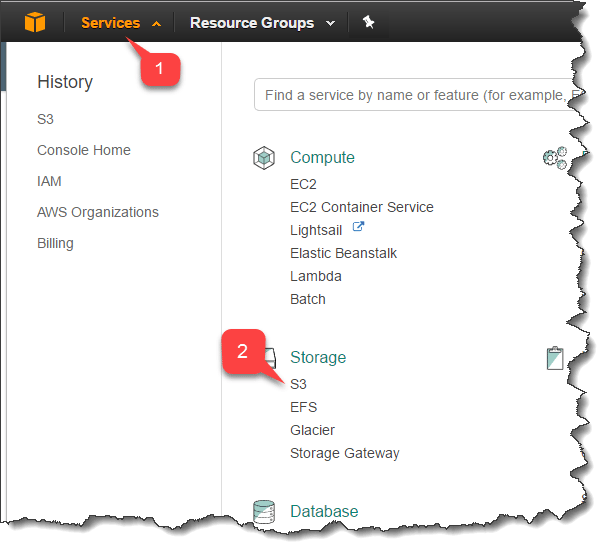
1. Navigate to **Services**.
2. Select **S3**.
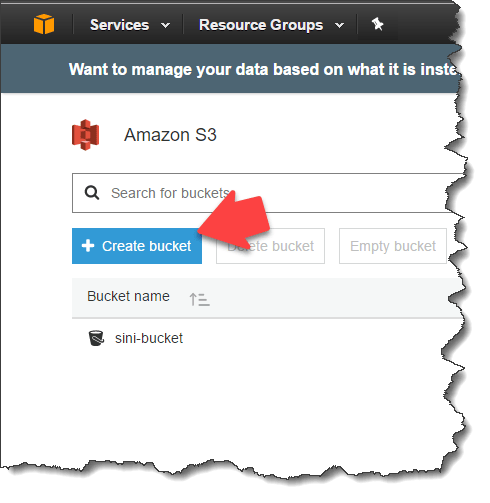
 * The **S3** page contains an overview of all your buckets.
* Select the **Create bucket** button to create a new bucket.
* The **S3** page contains an overview of all your buckets.
* Select the **Create bucket** button to create a new bucket.
 \
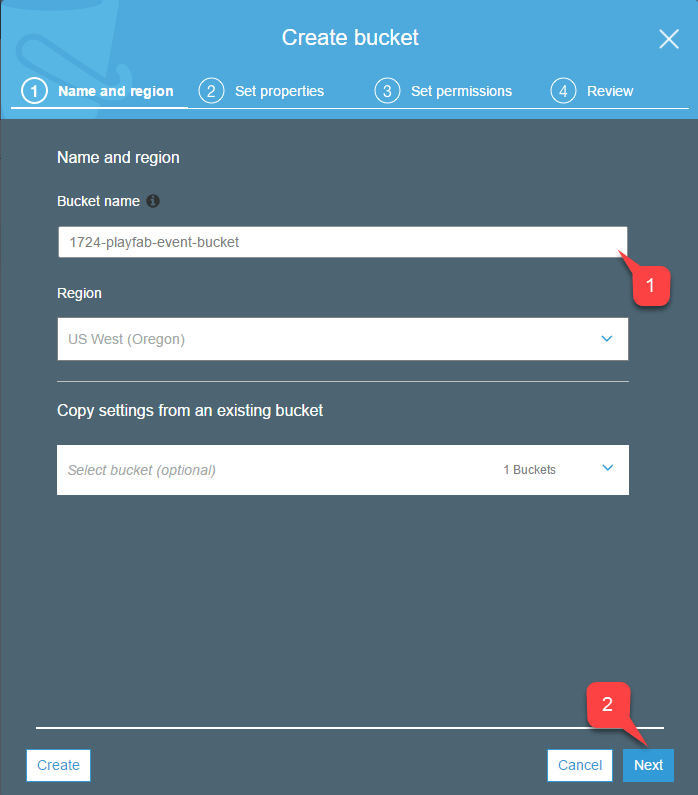
To create your new S3 bucket, you must go through a four-step wizard:
1. Assign a unique, DNS-compliant **Bucket name** for your bucket. Remember this name, you'll need it when configuring your PlayFab event archiving.
2. When you're done, select the **Next** button.
\
To create your new S3 bucket, you must go through a four-step wizard:
1. Assign a unique, DNS-compliant **Bucket name** for your bucket. Remember this name, you'll need it when configuring your PlayFab event archiving.
2. When you're done, select the **Next** button.
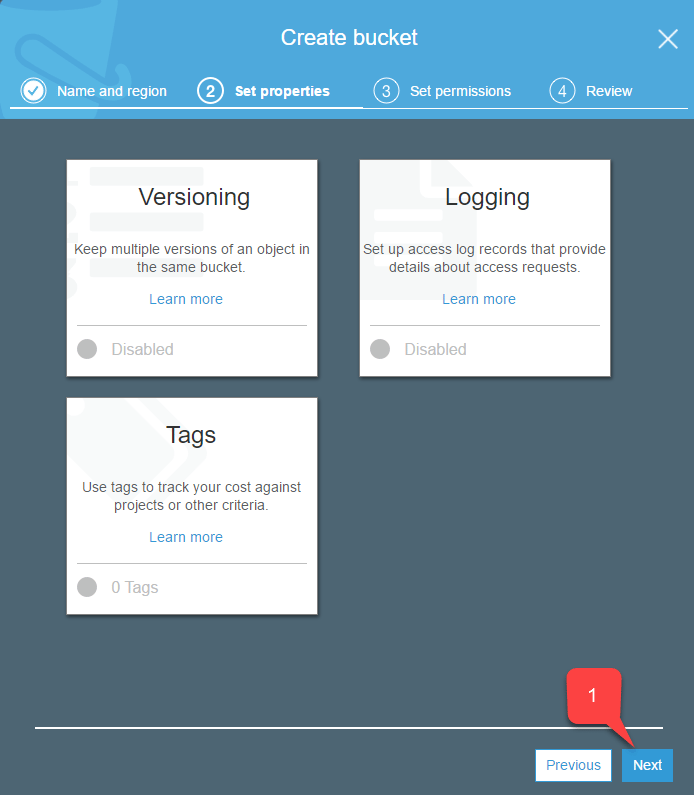
 You'll be offered the option of adding **Versioning**, **Logging**, and **Tags** for your **Bucket**.
1. Select the **Next** button when you're done.
You'll be offered the option of adding **Versioning**, **Logging**, and **Tags** for your **Bucket**.
1. Select the **Next** button when you're done.
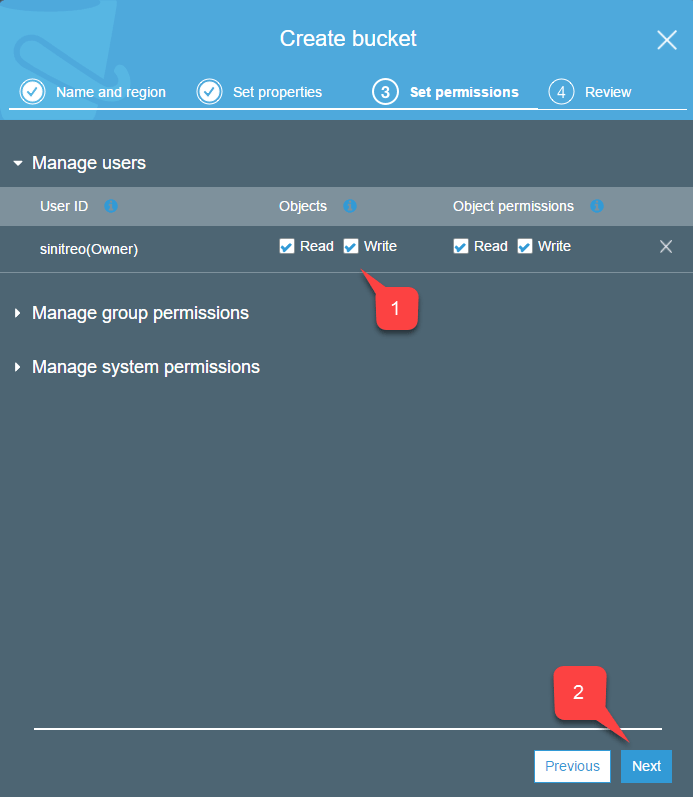
 1. During the step shown below, make sure that you check the **Read/Write** boxes for access to objects.
2. Select the **Next** button when you're done, as shown below.
1. During the step shown below, make sure that you check the **Read/Write** boxes for access to objects.
2. Select the **Next** button when you're done, as shown below.
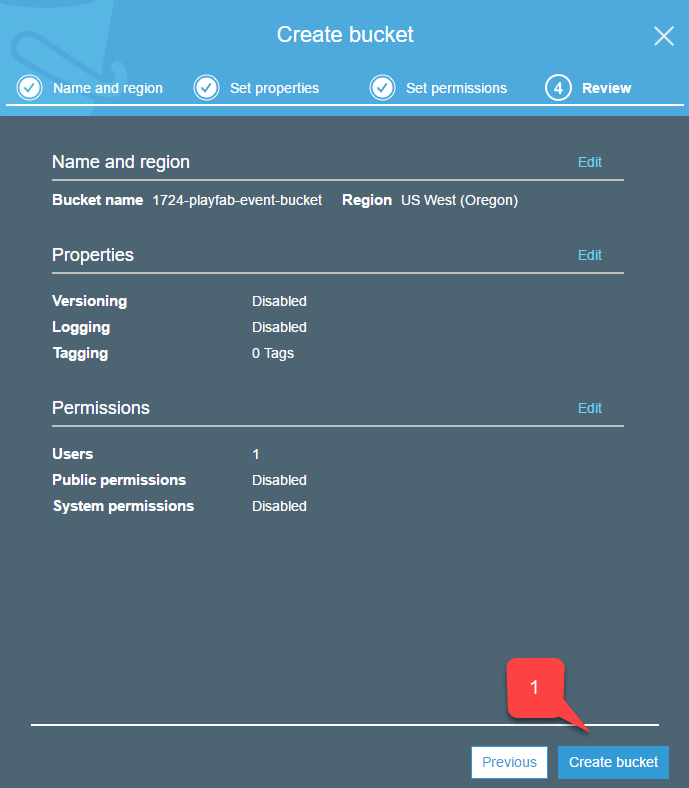
 1. In this last step, double-check your settings, and select the **Create bucket** button, as shown below.
 ## Configuring Amazon access
In order to archive events, you will need to give PlayFab access to the bucket on your behalf. This is done with an Access Key.
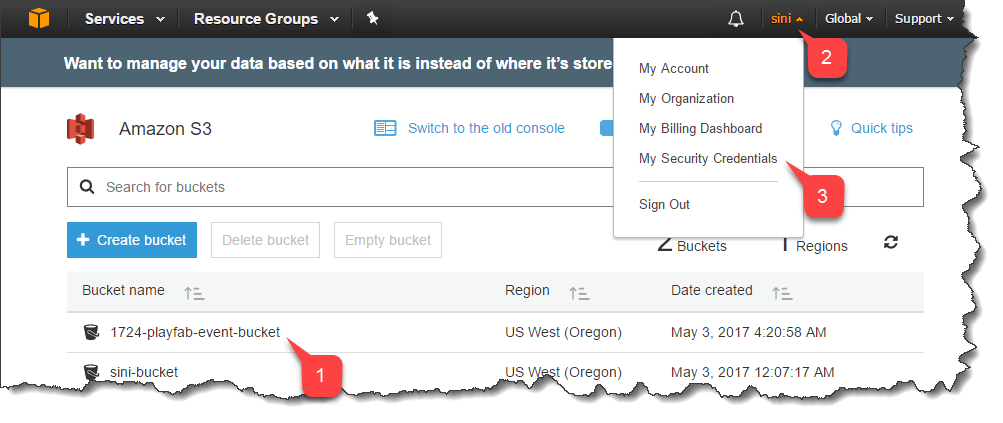
1. Double-check that you have your newly created bucket in the list of **S3** services.
2. Select your account **Name** in the top right corner.
3. Then select **My Security Credentials**, as shown in the drop-down menu below.
## Configuring Amazon access
In order to archive events, you will need to give PlayFab access to the bucket on your behalf. This is done with an Access Key.
1. Double-check that you have your newly created bucket in the list of **S3** services.
2. Select your account **Name** in the top right corner.
3. Then select **My Security Credentials**, as shown in the drop-down menu below.
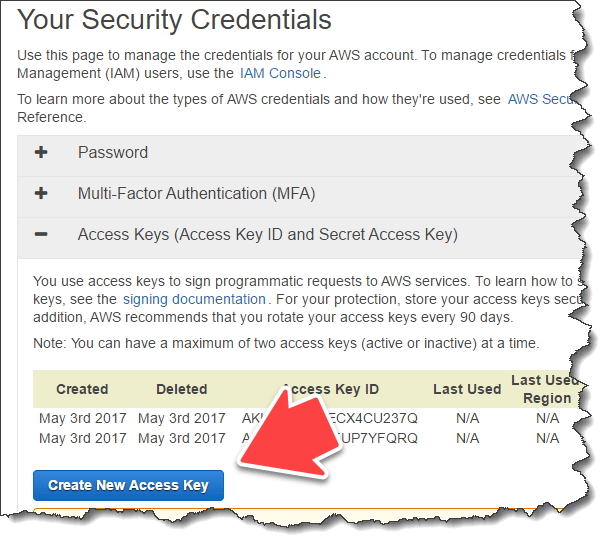
 * Locate the **Access Key** list.
* Select the **Create New Access Key** button.
* Locate the **Access Key** list.
* Select the **Create New Access Key** button.
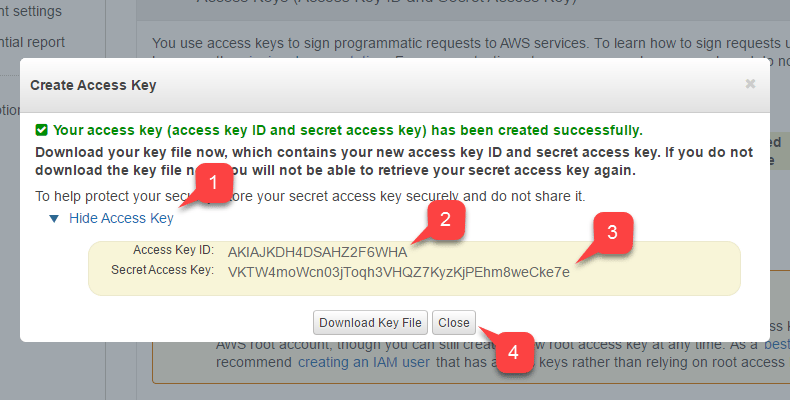
 1. Expand the **Access Key** data.
2. Save the **Access Key ID**.
3. Save the **Secret Access Key**. You'll need both keys when configuring your PlayFab Event archiving.
4. Select the **Close** button.
1. Expand the **Access Key** data.
2. Save the **Access Key ID**.
3. Save the **Secret Access Key**. You'll need both keys when configuring your PlayFab Event archiving.
4. Select the **Close** button.
 ## Related topics
- [S3 Event Archiving](/services/playfab/data-analytics/legacy/s3-event-archiving.md)
- [Data Connections quickstart](/services/playfab/data-analytics/export-data/data-connection-quickstart.md)
- [Data Connections - Overview](/services/playfab/data-analytics/export-data/data-connection-overview.md)
- [What is PlayFab?](/services/playfab/get-started/what-is-playfab.md)
- [Artifact](/services/playfab/api-references/events/data-types/artifact.md)
## Related topics
- [S3 Event Archiving](/services/playfab/data-analytics/legacy/s3-event-archiving.md)
- [Data Connections quickstart](/services/playfab/data-analytics/export-data/data-connection-quickstart.md)
- [Data Connections - Overview](/services/playfab/data-analytics/export-data/data-connection-overview.md)
- [What is PlayFab?](/services/playfab/get-started/what-is-playfab.md)
- [Artifact](/services/playfab/api-references/events/data-types/artifact.md)