> ## Documentation Index
> Fetch the complete documentation index at: https://devdocs.xbox.com/llms.txt
> Use this file to discover all available pages before exploring further.
# Segments as a dimension quickstart
> Manage segments as a Trends dashboard dimension through Game Manager or the GetAllAnalyticsSegments, AddAnalyticsSegment, and RemoveAnalyticsSegment APIs.
There are two ways to manage segments as a dimension.
## Segment Dimensions via API
You can now use these three new APIs:
* **GetAllAnalyticsSegments**: Returns a list of segment IDs that have been selected for the Segment dimension.
* **AddAnalyticsSegment**: Adds a segment to the list of segments used by the Segment dimension.
* **RemoveAnalyticsSegment**: Removes a segment from the list of segments used by the Segment dimension.
## Segment Dimensions via Game Manager
The Trends page now includes a segment dropdown filter and the option to manage segments.
From the Game Manager screen:
* Navigate to your **Title**.
* Select **Dashboards** from the menu on the left.
* Go to the **Trends** tab.
* Select **Manage segments**, this opens the **Analytics Segments Settings** window.
* Select the **Segments** to be included in the segment filter on the trends page.
* Save your selection.
The screenshot below is an example of the **Analytics Segments Settings** window described above.
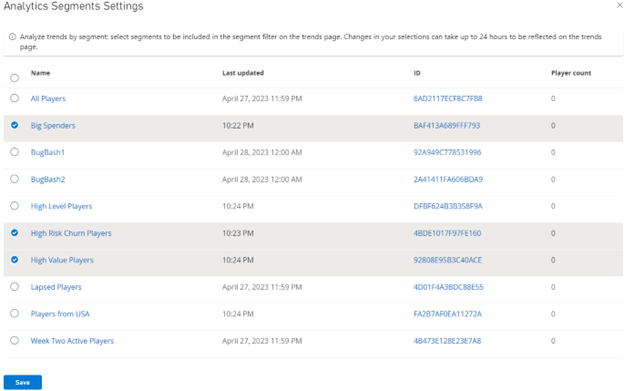 Once you have configured the segments as dimensions, after closing the **Analytics Segments Settings window**, you will now be able to select those segments on the **Segment** filter in the **Trends** page.
Changes in your selections of segments can take up to 24 hours to be reflected on the trends page.
On the **Trends** page:
* Select the **Segment** dropdown.
* Select which segment you would like to filter.
## See also
[Segmentation overview](/services/playfab/live-service-management/game-configuration/segmentation/segmentation-overview)
## Related topics
- [Segments as a dimension](/services/playfab/data-analytics/learn-data/trends/segments-dimension-overview.md)
- [PlayFab data and analytics documentation](/services/playfab/data-analytics/index.md)
- [Experiments Quickstart](/services/playfab/live-service-management/game-configuration/experiments/quickstart.md)
- [Quickstart](/services/playfab/economy-monetization/economy-v2/quickstart.md)
- [Stores (Economy Legacy) Quickstart](/services/playfab/economy-monetization/economy/stores/quickstart.md)
Once you have configured the segments as dimensions, after closing the **Analytics Segments Settings window**, you will now be able to select those segments on the **Segment** filter in the **Trends** page.
Changes in your selections of segments can take up to 24 hours to be reflected on the trends page.
On the **Trends** page:
* Select the **Segment** dropdown.
* Select which segment you would like to filter.
## See also
[Segmentation overview](/services/playfab/live-service-management/game-configuration/segmentation/segmentation-overview)
## Related topics
- [Segments as a dimension](/services/playfab/data-analytics/learn-data/trends/segments-dimension-overview.md)
- [PlayFab data and analytics documentation](/services/playfab/data-analytics/index.md)
- [Experiments Quickstart](/services/playfab/live-service-management/game-configuration/experiments/quickstart.md)
- [Quickstart](/services/playfab/economy-monetization/economy-v2/quickstart.md)
- [Stores (Economy Legacy) Quickstart](/services/playfab/economy-monetization/economy/stores/quickstart.md)