> ## Documentation Index
> Fetch the complete documentation index at: https://devdocs.xbox.com/llms.txt
> Use this file to discover all available pages before exploring further.
# Connecting to Azure Data Explorer
> Configure a PlayFab Data Connection to Azure Data Explorer for near real-time ingestion of PlayStream and telemetry events into your ADX cluster and database.
# Configuring your data connection to Azure Data Explorer (ADX)
Data Connections now allows you to export to Azure Data Explorer for near-real time ingestion and distribution of your data. After you configure a data connection with your ADX cluster information, PlayFab exports your data into the ADX cluster specified.
Don't have a ADX cluster yet? See [Create a free Azure Data Explorer cluster](https://learn.microsoft.com/en-us/azure/data-explorer/start-for-free-web-ui).
## Create an Azure Data Explorer Data Connection in PlayFab
### Step 1: Navigate to the data connections tab
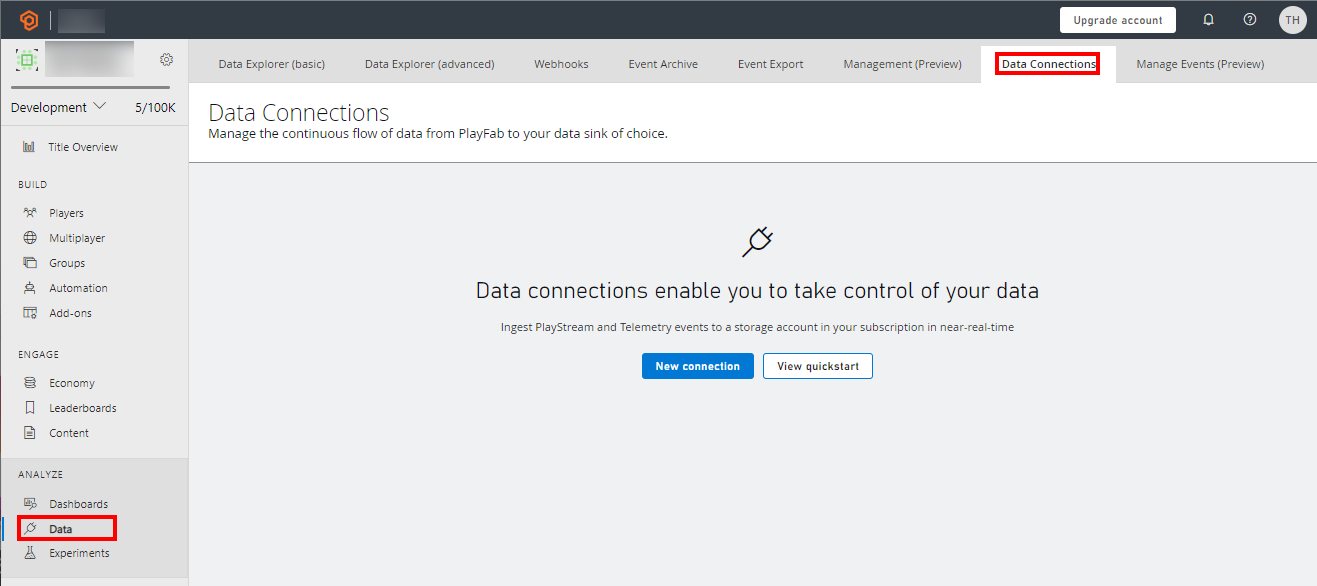 * Sign in to PlayFab and navigate to your title.
* Select the “Data” section in the left-hand menu
* Select the “Data Connections” tab
### Step 2: Configure a new Data Connection
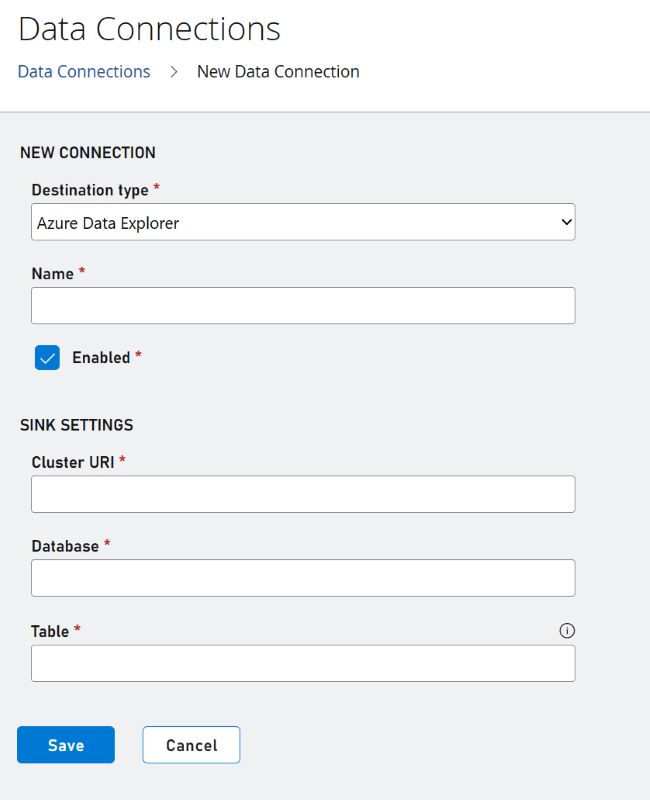
* Select the “New Connection” button.
* Choose the “Destination Type” to be “Azure Data Explorer”
* Populate the fields using the following values
| Value | Details |
| :---------- | :-------------------------------------------------------------------------------------------------------------------------------------------------- |
| Name | The friendly name of your data connection. This name allows you to find the data connection later to edit it. Put a descriptive name here. |
| Cluster URI | The Azure Data Explorer cluster URI. This field information is available in your Azure Data Explorer cluster details. |
| Database | The database name. The PlayFab ingestion service creates a table in this database and ingests the data to that table. |
| Table | The name of the table in the database that PlayFab ingests the data into. If the table doesn't exist, then the ingestion service creates the table. |
* Sign in to PlayFab and navigate to your title.
* Select the “Data” section in the left-hand menu
* Select the “Data Connections” tab
### Step 2: Configure a new Data Connection
* Select the “New Connection” button.
* Choose the “Destination Type” to be “Azure Data Explorer”
* Populate the fields using the following values
| Value | Details |
| :---------- | :-------------------------------------------------------------------------------------------------------------------------------------------------- |
| Name | The friendly name of your data connection. This name allows you to find the data connection later to edit it. Put a descriptive name here. |
| Cluster URI | The Azure Data Explorer cluster URI. This field information is available in your Azure Data Explorer cluster details. |
| Database | The database name. The PlayFab ingestion service creates a table in this database and ingests the data to that table. |
| Table | The name of the table in the database that PlayFab ingests the data into. If the table doesn't exist, then the ingestion service creates the table. |
 We recommend using a table name that does not exist. If you use an existing table and the schema is not what PlayFab is expecting, then the schema will be modified.
### Step 3: Run commands
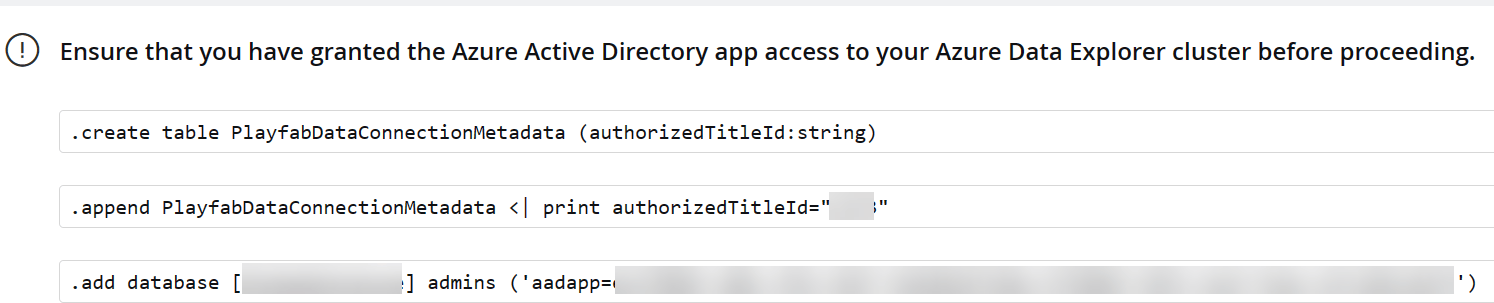
* Run the following commands in order as they appear in the onboarding flow individually in your ADX clusters
We recommend using a table name that does not exist. If you use an existing table and the schema is not what PlayFab is expecting, then the schema will be modified.
### Step 3: Run commands
* Run the following commands in order as they appear in the onboarding flow individually in your ADX clusters
 ## Related topics
- [Connecting Azure Data Explorer to Insights](/services/playfab/data-analytics/legacy/connectivity/connecting-azure-data-explorer-to-insights.md)
- [Connecting external tools with Insights](/services/playfab/data-analytics/legacy/connectivity/index.md)
- [Connecting Azure Data Factory (ADF) to Insights](/services/playfab/data-analytics/legacy/connectivity/connecting-azure-data-factory-to-insights.md)
- [Data Connections - Overview](/services/playfab/data-analytics/export-data/data-connection-overview.md)
- [Event Partitioning overview (Preview)](/services/playfab/data-analytics/export-data/event-partitioning-overview.md)
## Related topics
- [Connecting Azure Data Explorer to Insights](/services/playfab/data-analytics/legacy/connectivity/connecting-azure-data-explorer-to-insights.md)
- [Connecting external tools with Insights](/services/playfab/data-analytics/legacy/connectivity/index.md)
- [Connecting Azure Data Factory (ADF) to Insights](/services/playfab/data-analytics/legacy/connectivity/connecting-azure-data-factory-to-insights.md)
- [Data Connections - Overview](/services/playfab/data-analytics/export-data/data-connection-overview.md)
- [Event Partitioning overview (Preview)](/services/playfab/data-analytics/export-data/event-partitioning-overview.md)