> ## Documentation Index
> Fetch the complete documentation index at: https://devdocs.xbox.com/llms.txt
> Use this file to discover all available pages before exploring further.
# Webhooks
> Overview of the PlayFab Webhooks panel in Game Manager, including how to access it and configure a webhook endpoint to forward event data to your server.
We recommend using [Automation Rules](/services/playfab/data-analytics/acting-data/action-rules-quickstart) instead of Webhooks, as Automation Rules supports V2 actions and provides the same functionality as Webhooks.
In complex systems, you may want to provide additional event handling on your custom server. To achieve this, PlayFab offers Webhooks.
Whenever a new event is emitted, it can be forwarded to your server by making a POST request to your custom web endpoint. The event data is then passed as the JSON body of the request.
Entity PlayStream Events will not support forwarding with Webhooks.
## Accessing Webhooks
To access the **Webhooks** panel in the PlayFab **Game Manager** screen:
1. Select **Data** in the sidebar menu.
2. Then choose the **Webhooks** tab.
## Overview of the Webhooks panel
The image shown below provides an overview of the **Webhooks** panel.
1. The **New Webhook** button allows you to create and configure a new Webhook.
2. The **Webhook Name** area can be used to access and configure the Webhook.
3. The **Status** area shows whether a Webhook is currently **enabled**.
4. The **Failing Since** area shows when a Webhook endpoint stopped returning **OK** responses.
5. When one or more Webhooks are selected, you can use the **Delete** button to permanently remove them.
 ## Configuring a Webhook
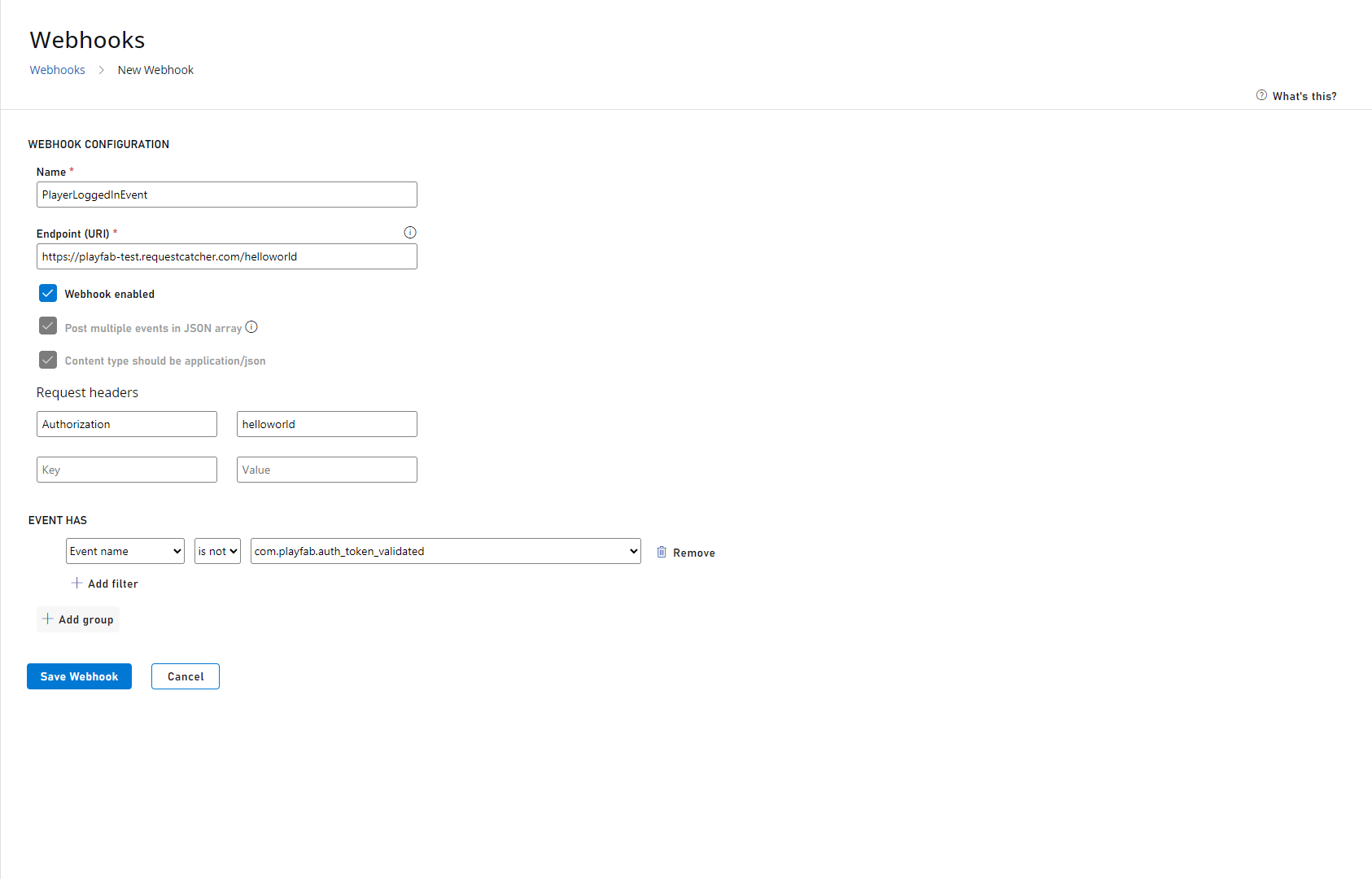
The image shown below describes the options for configuring a Webhook.
1. Use the **Name** field to create a Webhook name that will uniquely identify the Webhook.
2. Set up the **Endpoint URI**. This **URI** will be hit when the **Event** occurs.
3. You may set the **Webhook** as **Enabled** - **true** or **false**. This allows you to temporarily suspend a Webhook without completely removing (deleting) it from the system.
4. You may set the option to **Post multiple events in JSON array** if you want to have multiple events posted to your service in an array. If you select this option your service must be able to handle both multiple and single events.
5. You can add up to three request headers and the value of those headers. This allows you to post headers in a secure way to services such as Azure Event Hubs, Azure Functions, Google Functions and Amazon Lambda.
The request header keys can be up to 64 characters and the values can be up to 256 characters for each header.
1. Set up the **Filters** to only process the **Events** you need. You can filter by **Event Name**, **Event Source**, and **PlayerID**.
You can have several **Filters** per **Group**, but each **Filter** setting must be matched for the event to fall into the **Filter Group**.
1. You may define several **Filter Groups** to include different filters. **Events** must fall into at least *one* group to be passed to the Webhook.
## Configuring a Webhook
The image shown below describes the options for configuring a Webhook.
1. Use the **Name** field to create a Webhook name that will uniquely identify the Webhook.
2. Set up the **Endpoint URI**. This **URI** will be hit when the **Event** occurs.
3. You may set the **Webhook** as **Enabled** - **true** or **false**. This allows you to temporarily suspend a Webhook without completely removing (deleting) it from the system.
4. You may set the option to **Post multiple events in JSON array** if you want to have multiple events posted to your service in an array. If you select this option your service must be able to handle both multiple and single events.
5. You can add up to three request headers and the value of those headers. This allows you to post headers in a secure way to services such as Azure Event Hubs, Azure Functions, Google Functions and Amazon Lambda.
The request header keys can be up to 64 characters and the values can be up to 256 characters for each header.
1. Set up the **Filters** to only process the **Events** you need. You can filter by **Event Name**, **Event Source**, and **PlayerID**.
You can have several **Filters** per **Group**, but each **Filter** setting must be matched for the event to fall into the **Filter Group**.
1. You may define several **Filter Groups** to include different filters. **Events** must fall into at least *one* group to be passed to the Webhook.
 ## Related topics
- [Making Webhook calls from CloudScript](/services/playfab/live-service-management/service-gateway/automation/cloudscript/making-webhook-calls-from-cloudscript.md)
- [Photon Quickstart](/services/playfab/live-service-management/service-gateway/add-ons/photon/quickstart.md)
- [Real-time Analytics Core Concepts](/services/playfab/data-analytics/ingest-data/real-time-analytics-core-concepts.md)
- [Game Manager reference](/services/playfab/live-service-management/gamemanager/reference.md)
- [PlayFab data and analytics documentation](/services/playfab/data-analytics/index.md)
## Related topics
- [Making Webhook calls from CloudScript](/services/playfab/live-service-management/service-gateway/automation/cloudscript/making-webhook-calls-from-cloudscript.md)
- [Photon Quickstart](/services/playfab/live-service-management/service-gateway/add-ons/photon/quickstart.md)
- [Real-time Analytics Core Concepts](/services/playfab/data-analytics/ingest-data/real-time-analytics-core-concepts.md)
- [Game Manager reference](/services/playfab/live-service-management/gamemanager/reference.md)
- [PlayFab data and analytics documentation](/services/playfab/data-analytics/index.md)