> ## Documentation Index
> Fetch the complete documentation index at: https://devdocs.xbox.com/llms.txt
> Use this file to discover all available pages before exploring further.
# Scheduled tasks quickstart
> Create a recurring PlayFab scheduled task in Game Manager that invokes CloudScript with a cron expression to adjust title data on a fixed cadence.
This quickstart shows you how to create a task that runs on a schedule. There are many game operation routines that can be automated using a scheduled task, such as:
* Modifying prices in a store according to the time of the day.
* Updating title data to reflect changes for a current event.
* Injecting virtual currencies into the game economy daily, etc.
In the example used in this quickstart, we'll show you how to modify a game variable called **rareDropRate** in the title data at 12:00 UTC, and only on weekend days.
## Step 1 - Prepare the CloudScript
In the **Game Manager**:
* Select **Automation** in the menu to the left.
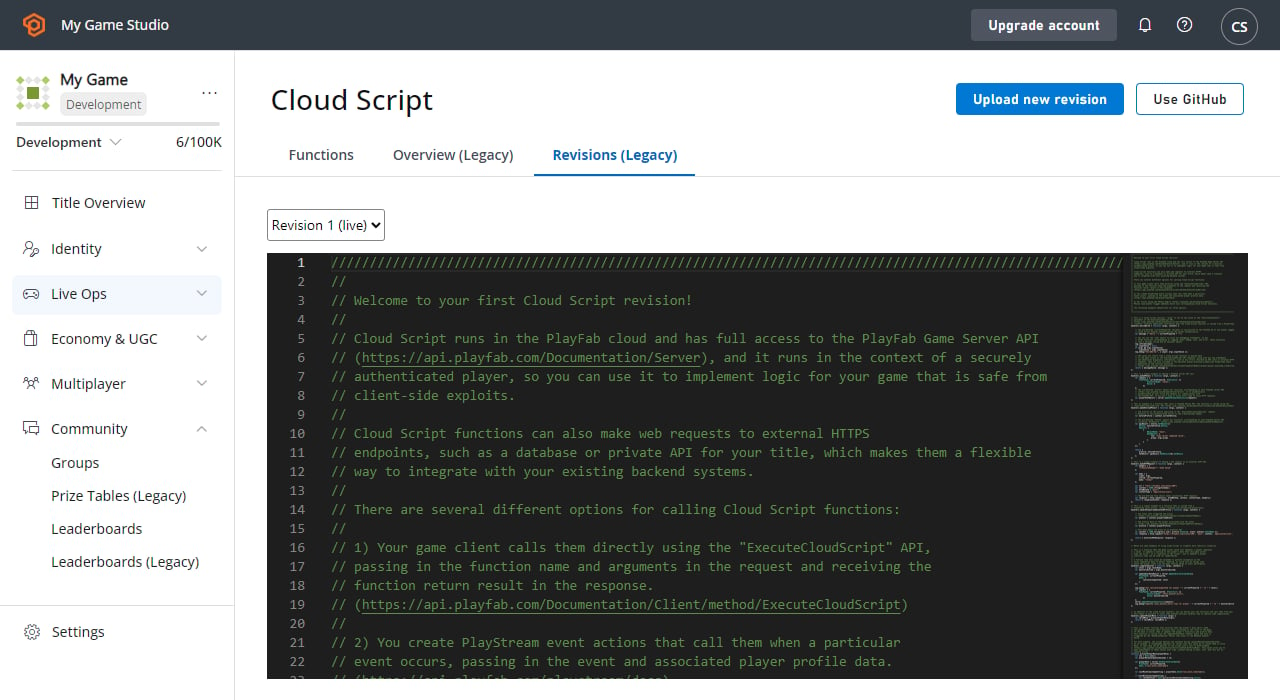
* On the **CloudScript Revisions** tab add a new CloudScript function called `adjustRareDropRate` with a simple call to the `SetTitleData` API as shown in the code snippet and image below.
For the sharp-eyed, don't worry - there's a bug in there on purpose. Make sure you deploy the new revision, so that it is live in your game.
You can learn more about using CloudScript in our [CloudScript quickstart](/services/playfab/live-service-management/service-gateway/automation/cloudscript/quickstart) , and in documentation for the method [ExecuteCloudScript](xref:titleid.playfabapi.com.client.server-sidecloudscript.executecloudscript).
```javascript theme={null}
handlers.adjustRareDropRate = function(args) {
// Tutorial demo CloudScript
serverAPI.SetTitleData({
"Key": "rareDropRate",
"Value": args.dropRate
});
}
```
 ## Step 2 - Create a scheduled task
Now select **Servers** from the menu to the left.
* Go to the **Scheduled Tasks** tab.
* Select **New Scheduled Task** on the upper-right corner of your screen.
* This will bring up the **Create Task** view.
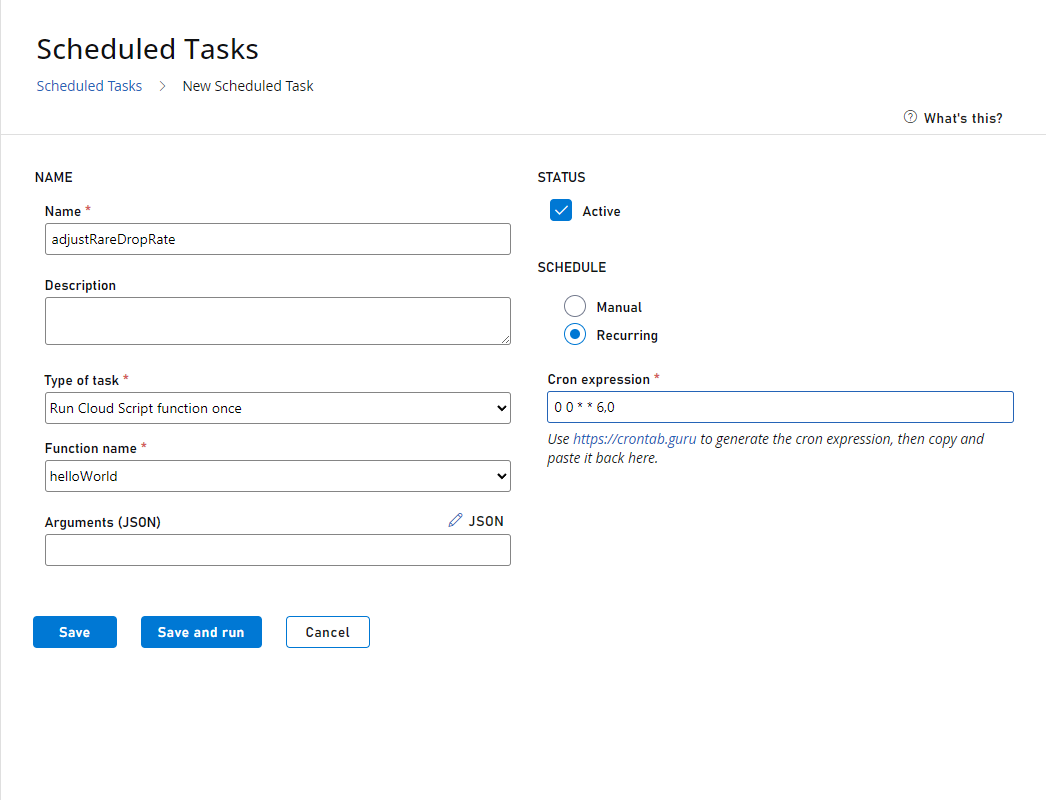
* In the **Type of task** field, choose **Run a CloudScript function**.
* Below that, you'll be able to pick a function from the currently deployed revision of CloudScript, and specify arguments to pass in.
* Choose the **adjustRareDropRate Handler** that you wrote in the previous step.
To set the schedule for this task:
* Select **On a schedule (UTC)** under the **SCHEDULE** header.
* A simple schedule builder lets you choose when the **Task** should run (every hour, day, week, etc).
* For this example, we would like an advanced schedule, where we can specify which days of the week to run the task.
* So select **CRON EXPRESSION**.
The highly customizable Cron Expression allows you to build a very complex schedule, though it's important to note that we currently *only* allow schedules whose occurrences happen on 5-minute marks of the hour.
For example, you may specify a task to run on the 5th, 10th, 25th, or 50th minute of the hour, but you may *not* specify a task to run on the 3rd, 11th, or 46th minute of the hour.
If you'd like to learn more about Cron Expression, [crontab.guru](https://crontab.guru/) provides rich information and an interactive expression builder.
In this case, we want the task to run at 12:00 UTC on Saturdays and Sundays, which would be **00 12 \* \* 0,6** (zero minutes past twelve o'clock, every Sunday and Saturday).
Finally, make sure you save the new task before moving on to the next step.
## Step 2 - Create a scheduled task
Now select **Servers** from the menu to the left.
* Go to the **Scheduled Tasks** tab.
* Select **New Scheduled Task** on the upper-right corner of your screen.
* This will bring up the **Create Task** view.
* In the **Type of task** field, choose **Run a CloudScript function**.
* Below that, you'll be able to pick a function from the currently deployed revision of CloudScript, and specify arguments to pass in.
* Choose the **adjustRareDropRate Handler** that you wrote in the previous step.
To set the schedule for this task:
* Select **On a schedule (UTC)** under the **SCHEDULE** header.
* A simple schedule builder lets you choose when the **Task** should run (every hour, day, week, etc).
* For this example, we would like an advanced schedule, where we can specify which days of the week to run the task.
* So select **CRON EXPRESSION**.
The highly customizable Cron Expression allows you to build a very complex schedule, though it's important to note that we currently *only* allow schedules whose occurrences happen on 5-minute marks of the hour.
For example, you may specify a task to run on the 5th, 10th, 25th, or 50th minute of the hour, but you may *not* specify a task to run on the 3rd, 11th, or 46th minute of the hour.
If you'd like to learn more about Cron Expression, [crontab.guru](https://crontab.guru/) provides rich information and an interactive expression builder.
In this case, we want the task to run at 12:00 UTC on Saturdays and Sundays, which would be **00 12 \* \* 0,6** (zero minutes past twelve o'clock, every Sunday and Saturday).
Finally, make sure you save the new task before moving on to the next step.
 ## Step 3 - Test the task
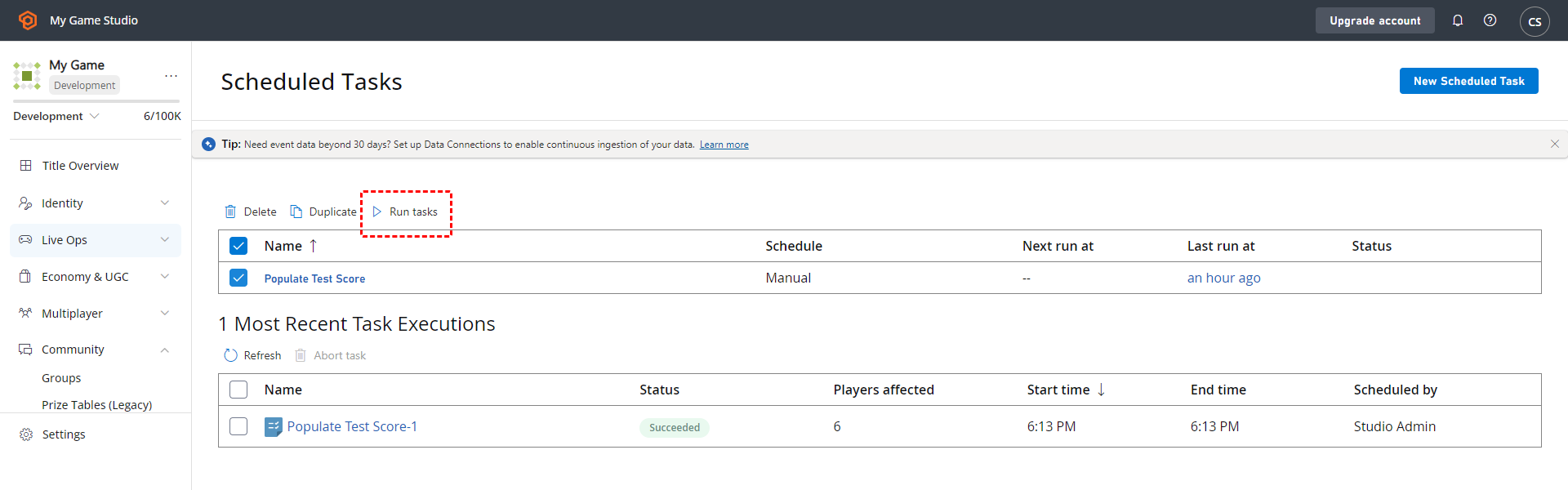
On the **Tasks** view (**Servers** -> **Tasks**), we can see that the next run of the newly created task is on the following *Saturday* - as expected.
So, if it's currently *Tuesday*, then the next scheduled runtime would be *4 days away*. To test the task *now*, select the **Adjust rare drop rate** task and choose **RUN TASKS**.
## Step 3 - Test the task
On the **Tasks** view (**Servers** -> **Tasks**), we can see that the next run of the newly created task is on the following *Saturday* - as expected.
So, if it's currently *Tuesday*, then the next scheduled runtime would be *4 days away*. To test the task *now*, select the **Adjust rare drop rate** task and choose **RUN TASKS**.
 ## Step 4 - Check the results of the test run
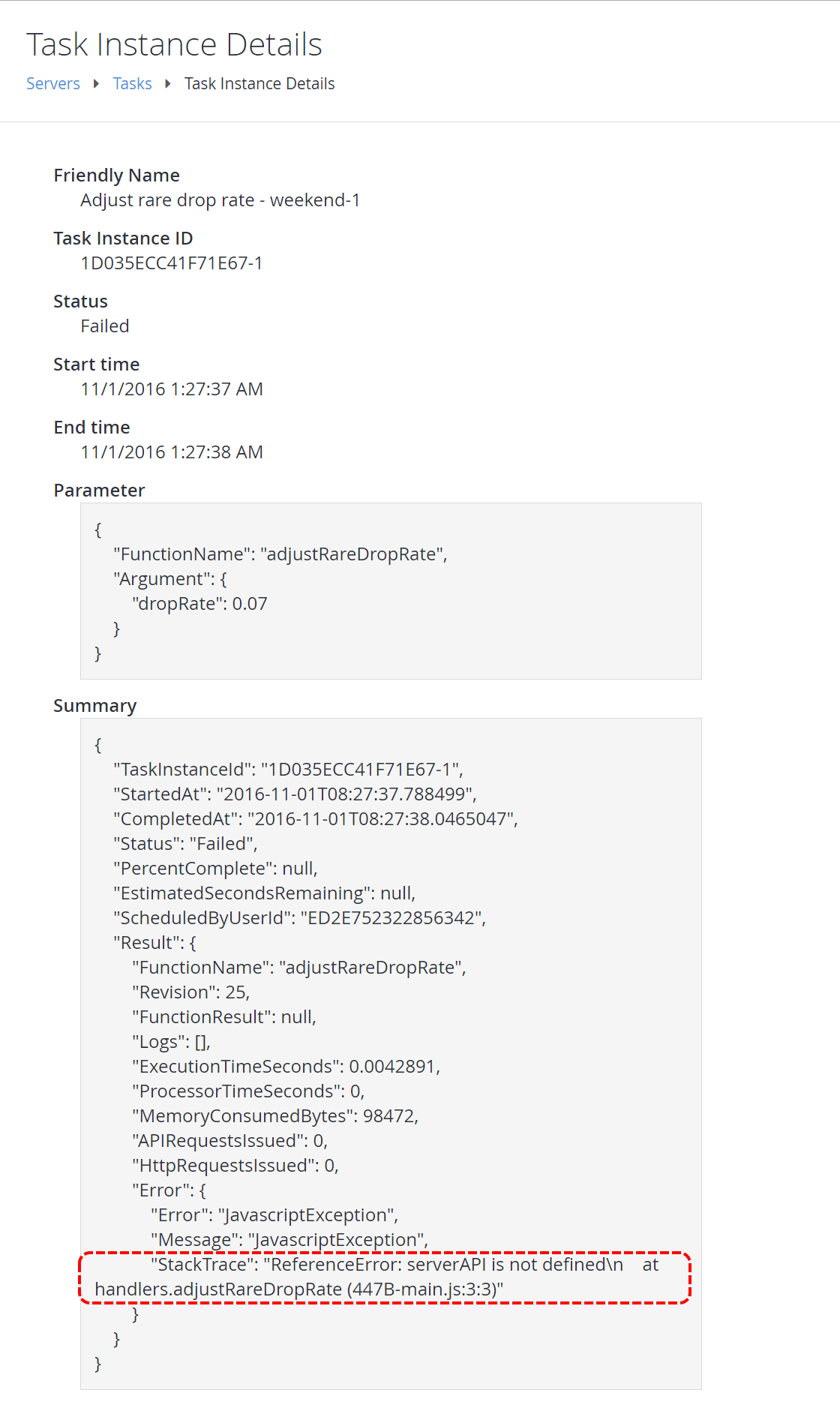
Unfortunately, the task run has failed. Select the task instance to see what went wrong.
## Step 4 - Check the results of the test run
Unfortunately, the task run has failed. Select the task instance to see what went wrong.
 The **Task Instance Details** view provides diagnostic information on why the task failed.
In this case, it's pointing out that the call to **serverAPI.SetTitleData** is incorrect. It should *really* be **server.SetTitleData** (for an explanation, see the **Intermediate: Calling the Server APIs** section of the [Writing Custom CloudScript](/services/playfab/live-service-management/service-gateway/automation/cloudscript/writing-custom-cloudscript#intermediate-calling-the-server-apis) tutorial).
There is other important information on the **Task Instance Details** view as well - such as the start and end times, the function that was called, any arguments passed in, the full CloudScript execution result, and more.
The **Task Instance Details** view provides diagnostic information on why the task failed.
In this case, it's pointing out that the call to **serverAPI.SetTitleData** is incorrect. It should *really* be **server.SetTitleData** (for an explanation, see the **Intermediate: Calling the Server APIs** section of the [Writing Custom CloudScript](/services/playfab/live-service-management/service-gateway/automation/cloudscript/writing-custom-cloudscript#intermediate-calling-the-server-apis) tutorial).
There is other important information on the **Task Instance Details** view as well - such as the start and end times, the function that was called, any arguments passed in, the full CloudScript execution result, and more.
 ## Step 5 - Test again (successfully)
Go ahead and fix the error we found in Step 4. The correct code snippet is shown below.
```javascript theme={null}
handlers.adjustRareDropRate = function(args) {
// Tutorial demo CloudScript
server.SetTitleData({
"Key": "rareDropRate",
"Value": args.dropRate
});
}
```
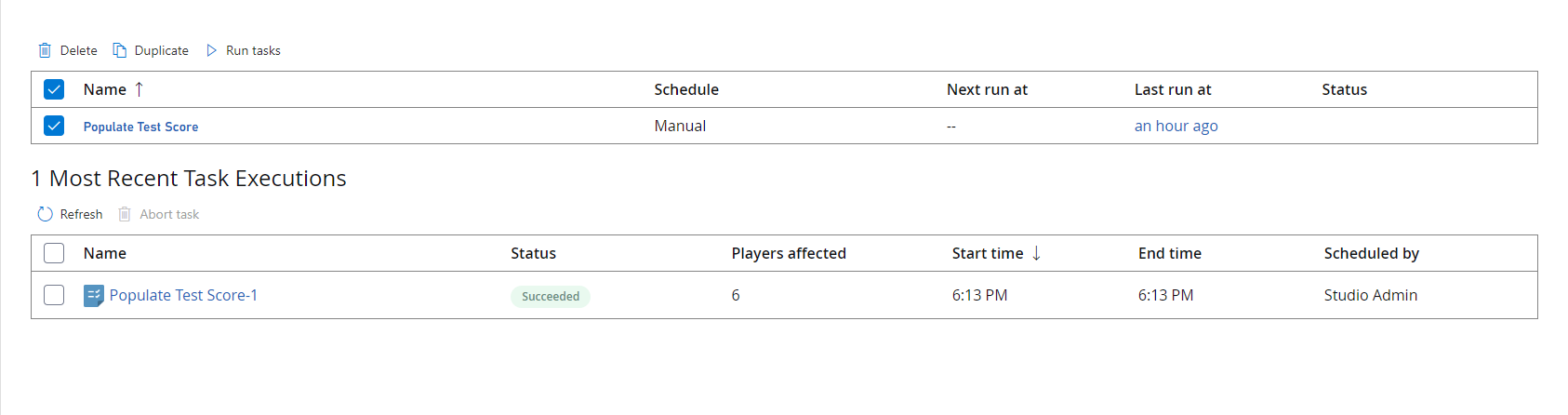
And now, repeating Step 3, your final test run is successful.
## Step 5 - Test again (successfully)
Go ahead and fix the error we found in Step 4. The correct code snippet is shown below.
```javascript theme={null}
handlers.adjustRareDropRate = function(args) {
// Tutorial demo CloudScript
server.SetTitleData({
"Key": "rareDropRate",
"Value": args.dropRate
});
}
```
And now, repeating Step 3, your final test run is successful.
 To confirm success:
* Select **Content** in the menu to the left.
* Go to the **Title Data** tab.
* Verify that the **Title Data** entry was actually set.
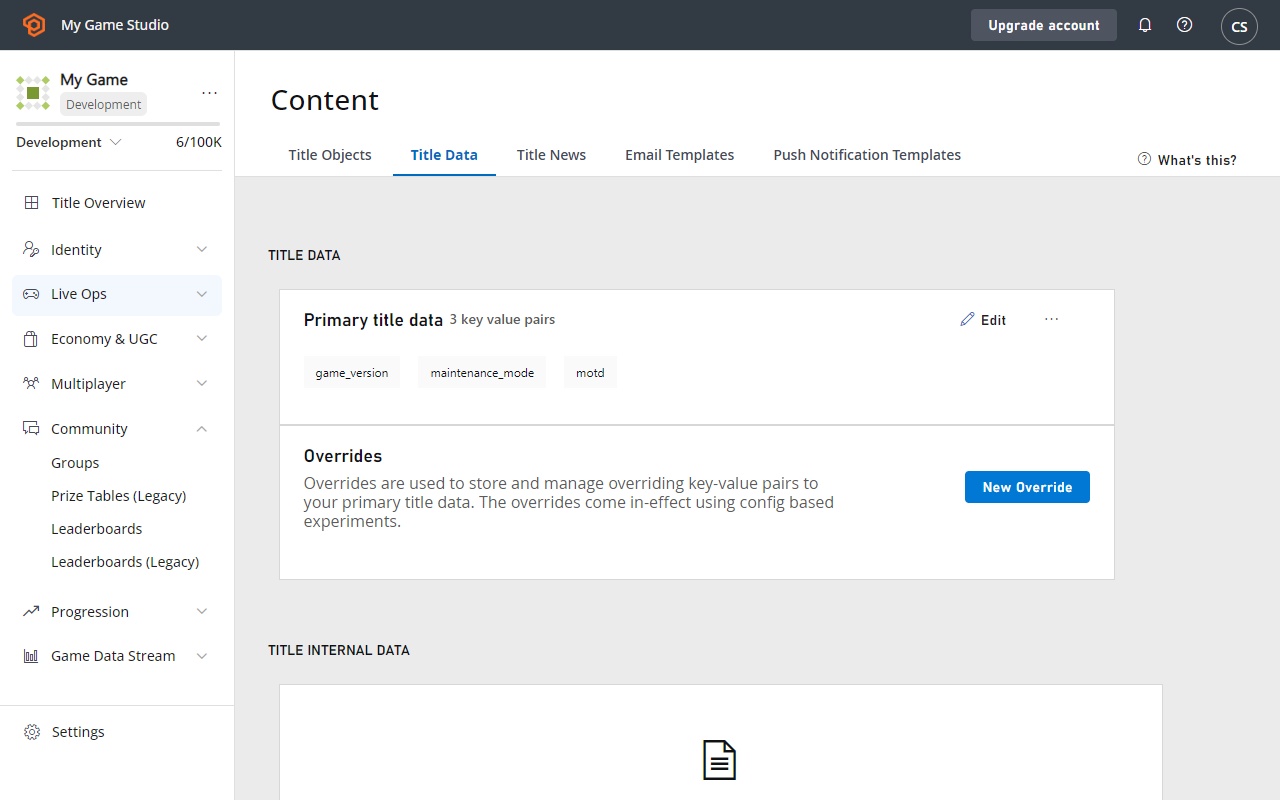
To confirm success:
* Select **Content** in the menu to the left.
* Go to the **Title Data** tab.
* Verify that the **Title Data** entry was actually set.
 ## Related topics
- [Scheduled tasks](/services/playfab/data-analytics/acting-data/scheduled-tasks/index.md)
- [PlayFab data and analytics documentation](/services/playfab/data-analytics/index.md)
- [PlayFab CloudScript using Azure Functions Context Models](/services/playfab/live-service-management/service-gateway/automation/cloudscript-af/CloudScript-af-context.md)
- [Advanced Segmentation with Player Custom Properties](/services/playfab/live-service-management/game-configuration/segmentation/advanced-segmentation.md)
- [PlayFab CloudScript using Azure Functions Quickstart Guide](/services/playfab/live-service-management/service-gateway/automation/cloudscript-af/quickstart.md)
## Related topics
- [Scheduled tasks](/services/playfab/data-analytics/acting-data/scheduled-tasks/index.md)
- [PlayFab data and analytics documentation](/services/playfab/data-analytics/index.md)
- [PlayFab CloudScript using Azure Functions Context Models](/services/playfab/live-service-management/service-gateway/automation/cloudscript-af/CloudScript-af-context.md)
- [Advanced Segmentation with Player Custom Properties](/services/playfab/live-service-management/game-configuration/segmentation/advanced-segmentation.md)
- [PlayFab CloudScript using Azure Functions Quickstart Guide](/services/playfab/live-service-management/service-gateway/automation/cloudscript-af/quickstart.md)