> ## Documentation Index
> Fetch the complete documentation index at: https://devdocs.xbox.com/llms.txt
> Use this file to discover all available pages before exploring further.
# Using the Profile for Advanced Leaderboards
> Configure PlayFab PlayerProfileViewConstraints to fetch richer player profile data such as avatar URLs and display names in leaderboard and ranking results.
With PlayFab, you usually construct leaderboards using the following API methods:
* [**GetFriendLeaderboard**](xref:titleid.playfabapi.com.client.playerdatamanagement.getfriendleaderboard)
* [**GetFriendLeaderboardAroundPlayer**](xref:titleid.playfabapi.com.client.playerdatamanagement.getfriendleaderboardaroundplayer)
* [**GetLeaderboard**](xref:titleid.playfabapi.com.client.playerdatamanagement.getleaderboard)
* [**GetLeaderboardAroundPlayer**](xref:titleid.playfabapi.com.client.playerdatamanagement.getleaderboardaroundplayer)
The result is a list of [**PlayerLeaderboardEntry**](xref:titleid.playfabapi.com.client.playerdatamanagement.getleaderboard#playerleaderboardentry) objects that contain only basic information about the player, and their relation to the current leaderboard.
However, PlayFab also allows you to use [**PlayerProfileViewConstraints**](xref:titleid.playfabapi.com.server.accountmanagement.getplayerprofile#playerprofileviewconstraints), to gain additional information about each player.
This example assumes you already have some leaderboard data to play with. Please refer to our [Accessing Archived Tournament Results](/services/playfab/community/leaderboards/tournaments-leaderboards/accessing-archived-tournament-results) tutorial, for a method to generate some test data.
## Configuring player profile view constraints
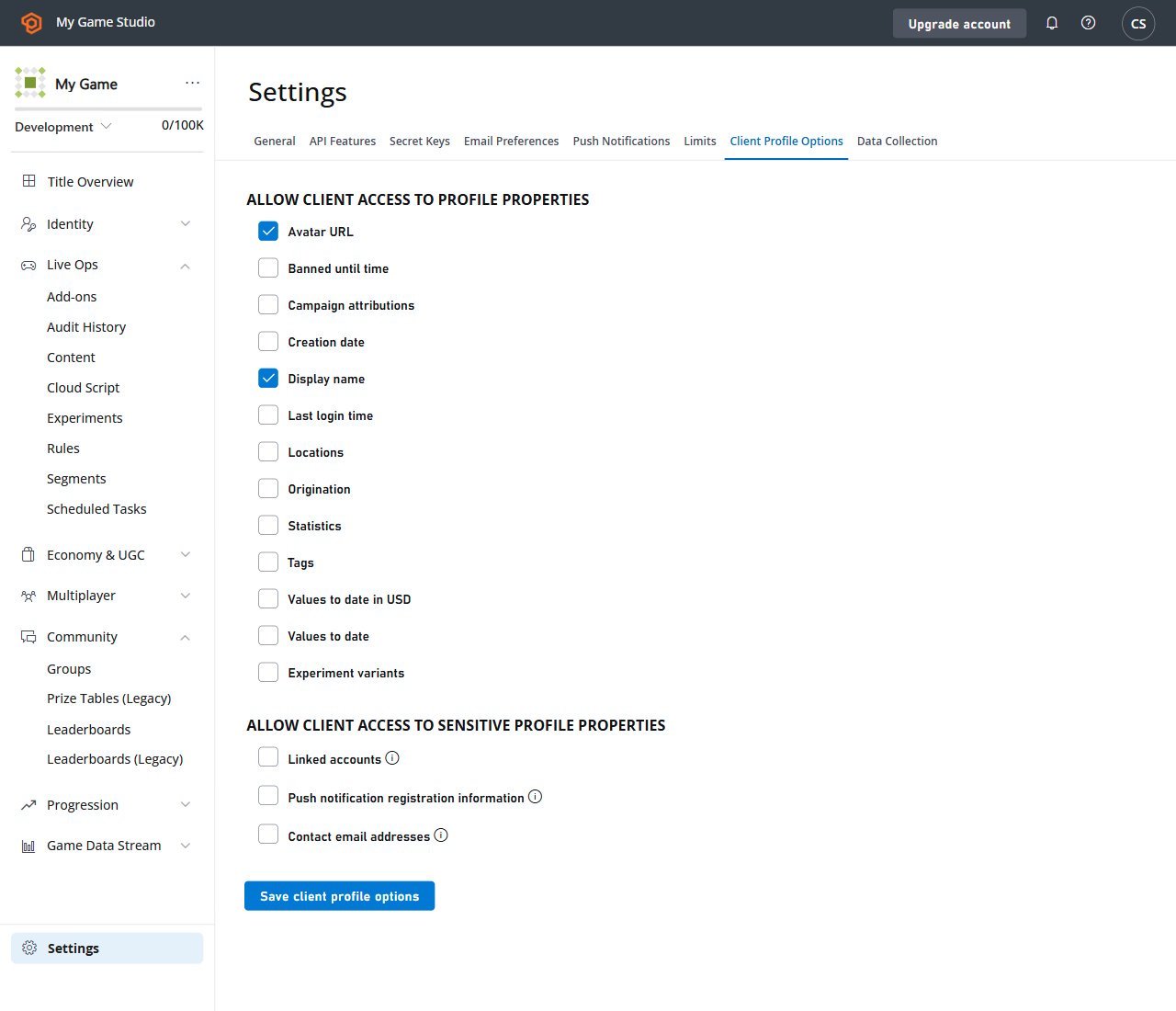
By default, the Client API may only fetch the display name from another player profile. In this example, we will allow *all* players to access additional information about *other* players in the leaderboard.
Navigate to your title Game Manager:
1. Select the **Settings** icon in the menu to the left.
2. Select **Title settings**
3. Then select the **Client Profile Options** tab.
4. Verify that the **DisplayName** is selected.
5. Make sure that the **Avatar URL** is selected.
6. Submit your changes by selecting the **Save Client Profile Options** button.
 ## Testing
The previous step allows client code to use `DisplayName` and `AvatarUrl` profile constraints.
The following sample shows how to fetch and print a leaderboard using any mentioned Profile data. Please refer to the code comments for further information.
```csharp theme={null}
private static async Task DoReadLeaderboard()
{
// Get Leaderboard Request
var result = await PlayFabClientAPI.GetLeaderboardAsync(new GetLeaderboardRequest()
{
// Specify your statistic name here
StatisticName = "TestScore",
// Override Player Profile View Constraints and fetch player DisplayName and AvatarUrl
ProfileConstraints = new PlayerProfileViewConstraints()
{
ShowDisplayName = true,
ShowAvatarUrl = true
}
});
// Start printing the leaderboard
Console.WriteLine("=== LEADERBOARD ===");
if (result.Error != null)
{
// Handle error if any
Console.WriteLine(result.Error.GenerateErrorReport());
}
else
{
// Traverse the leaderboard list
foreach (var entry in result.Result.Leaderboard)
{
// Print regular leaderboard entry information
Console.WriteLine($"{entry.Position + 1} {entry.PlayFabId} {entry.StatValue}");
// Additionally print display name and avatar url that comes from player profile
Console.WriteLine($" {entry.Profile.DisplayName} | {entry.Profile.AvatarUrl}");
}
}
}
```
The individual Profile fields are *only* available if the client explicitly asks for them using Profile Constraints. Also be aware that if certain profile constraint are *not* allowed in the Game Manager - and your client requests them - the API call will fail with a corresponding error. The result will look similar to the example provided below.
## Testing
The previous step allows client code to use `DisplayName` and `AvatarUrl` profile constraints.
The following sample shows how to fetch and print a leaderboard using any mentioned Profile data. Please refer to the code comments for further information.
```csharp theme={null}
private static async Task DoReadLeaderboard()
{
// Get Leaderboard Request
var result = await PlayFabClientAPI.GetLeaderboardAsync(new GetLeaderboardRequest()
{
// Specify your statistic name here
StatisticName = "TestScore",
// Override Player Profile View Constraints and fetch player DisplayName and AvatarUrl
ProfileConstraints = new PlayerProfileViewConstraints()
{
ShowDisplayName = true,
ShowAvatarUrl = true
}
});
// Start printing the leaderboard
Console.WriteLine("=== LEADERBOARD ===");
if (result.Error != null)
{
// Handle error if any
Console.WriteLine(result.Error.GenerateErrorReport());
}
else
{
// Traverse the leaderboard list
foreach (var entry in result.Result.Leaderboard)
{
// Print regular leaderboard entry information
Console.WriteLine($"{entry.Position + 1} {entry.PlayFabId} {entry.StatValue}");
// Additionally print display name and avatar url that comes from player profile
Console.WriteLine($" {entry.Profile.DisplayName} | {entry.Profile.AvatarUrl}");
}
}
}
```
The individual Profile fields are *only* available if the client explicitly asks for them using Profile Constraints. Also be aware that if certain profile constraint are *not* allowed in the Game Manager - and your client requests them - the API call will fail with a corresponding error. The result will look similar to the example provided below.
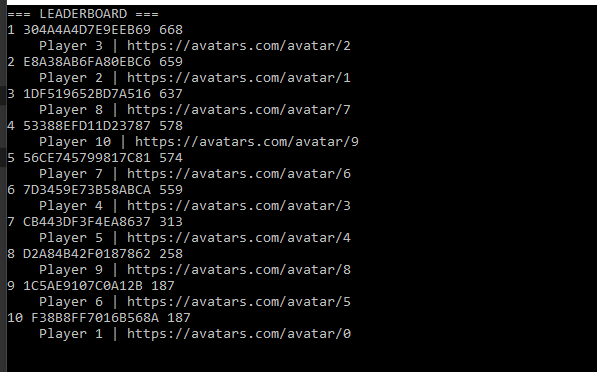 Using this technique, you can fetch a handful of Profile information, including other statistic values.
## Related topics
- [Using player statistics](/services/playfab/community/leaderboards/tournaments-leaderboards/using-player-statistics.md)
- [Using Prize Tables](/services/playfab/community/leaderboards/tournaments-leaderboards/using-prize-tables.md)
- [XR-112 Establishing a user and controller on activation](/publishing/certification/xr/xr-112.md)
- [Group Leaderboards](/services/playfab/community/leaderboards/group-leaderboards.md)
- [Leaderboards](/build/steam-porting-guide/features/steam-leaderboards.md)
Using this technique, you can fetch a handful of Profile information, including other statistic values.
## Related topics
- [Using player statistics](/services/playfab/community/leaderboards/tournaments-leaderboards/using-player-statistics.md)
- [Using Prize Tables](/services/playfab/community/leaderboards/tournaments-leaderboards/using-prize-tables.md)
- [XR-112 Establishing a user and controller on activation](/publishing/certification/xr/xr-112.md)
- [Group Leaderboards](/services/playfab/community/leaderboards/group-leaderboards.md)
- [Leaderboards](/build/steam-porting-guide/features/steam-leaderboards.md)