> ## Documentation Index
> Fetch the complete documentation index at: https://devdocs.xbox.com/llms.txt
> Use this file to discover all available pages before exploring further.
# Accessing Archived Tournament results
> Access archived PlayFab tournament leaderboard snapshots after a manual or scheduled reset, and retrieve the previous version's player rankings and stats.
This tutorial illustrates how you can access archived leaderboard states.
Each leaderboard can be reset manually or automatically - meaning statistic values will be removed for all the players, leading to a *clear* state, and the leaderboard version will be implemented.
Before that happens, however, PlayFab creates a snapshot of all the leaderboard statistic values for each player. This allows you to access this *archived* version of the leaderboard.
All titles allow you to access the most recently archived version of a leaderboard, and this gives you the current and most previous versions. For example, if your current leaderboard version is **3**, you may access only version **3** and archived version **2**.
## Initial setup
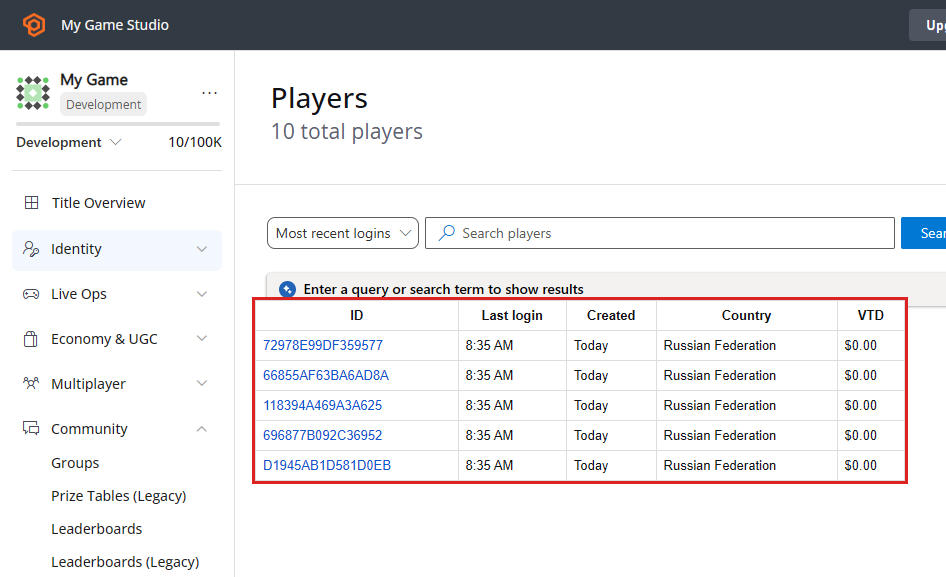
Before using this guide, please make sure that you have some players already registered for the title. The following screenshot shows 5 players artificially registered using the [LoginWithCustomID](xref:titleid.playfabapi.com.client.authentication.loginwithcustomid) API call.
 ## Defining and simulating a leaderboard
In this step, we will create a leaderboard for our test purposes. Then we will simulate the leaderboard iteration process by populating and resetting the leaderboard several times.
Open Game Manager:
1. Navigate to the **Leaderboards** section.
2. Select the **New Leaderboard** button, as shown below.
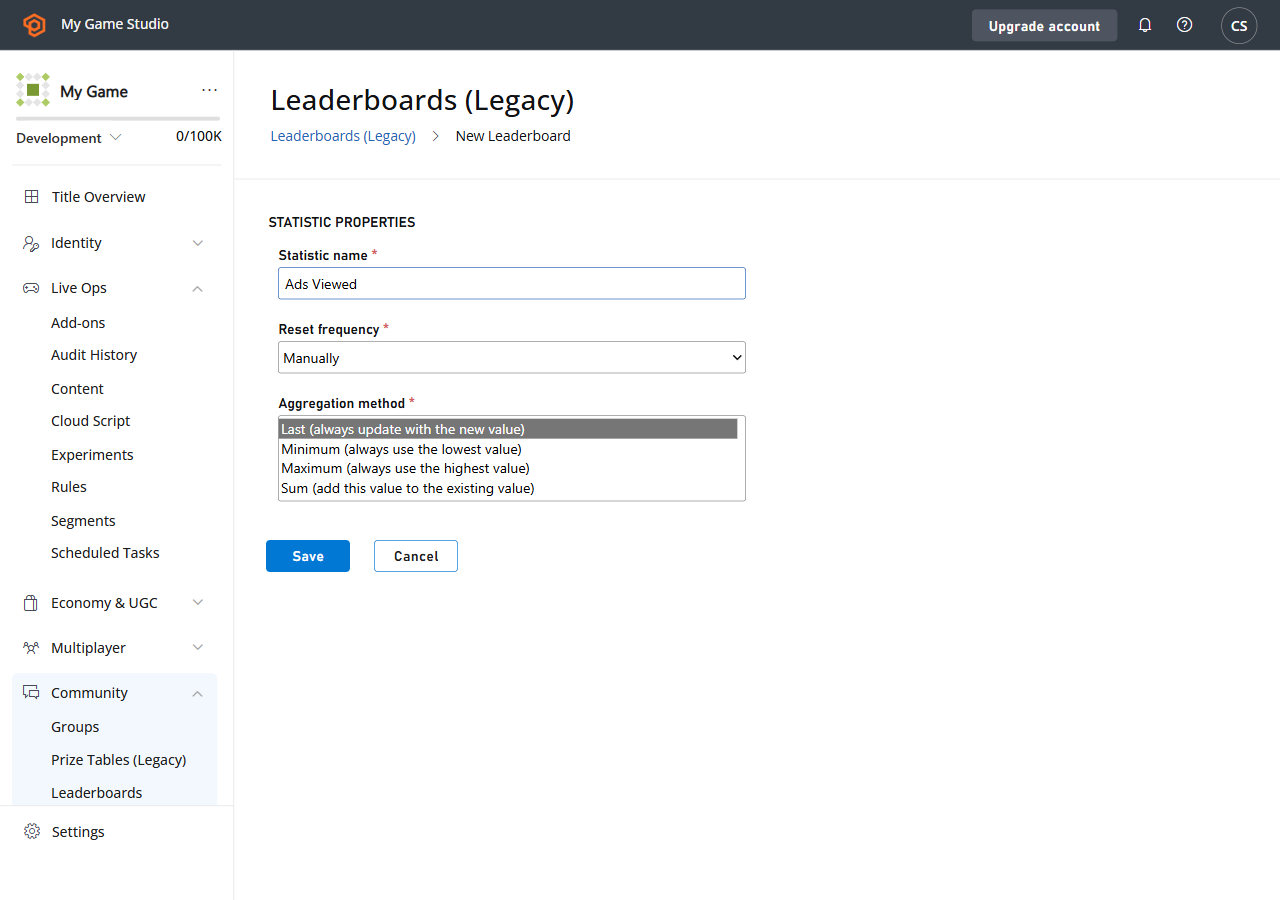
To configure the new leaderboard:
1. Set the **Statistic** name to **TestScore**.
2. Keep the **Reset Frequency** as **Manually**.
3. Leave the default **Aggregation** method.
4. Submit by selecting **Save Leaderboard**.
## Defining and simulating a leaderboard
In this step, we will create a leaderboard for our test purposes. Then we will simulate the leaderboard iteration process by populating and resetting the leaderboard several times.
Open Game Manager:
1. Navigate to the **Leaderboards** section.
2. Select the **New Leaderboard** button, as shown below.
To configure the new leaderboard:
1. Set the **Statistic** name to **TestScore**.
2. Keep the **Reset Frequency** as **Manually**.
3. Leave the default **Aggregation** method.
4. Submit by selecting **Save Leaderboard**.
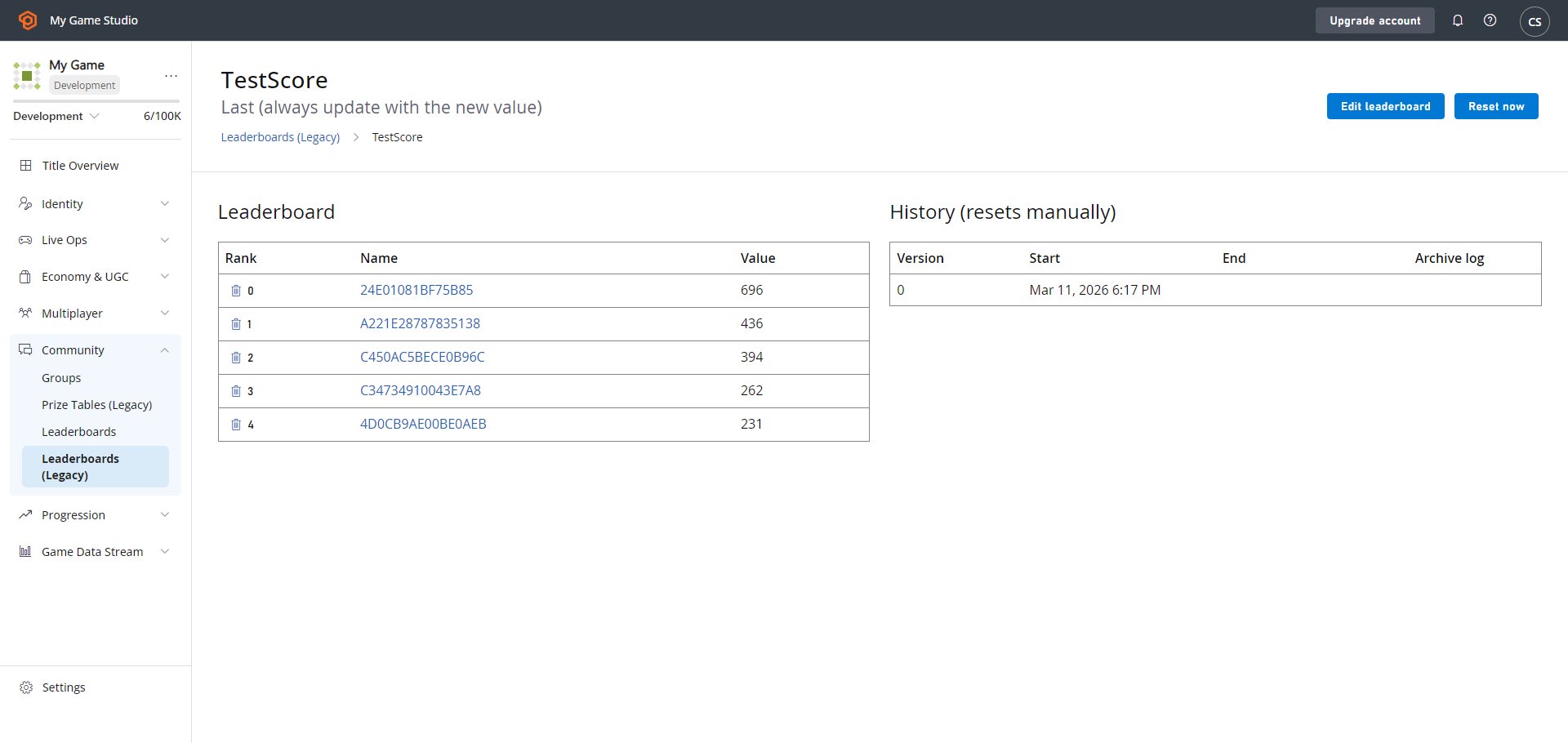
 You will end up on the new **Leaderboards** page which will render blank data (see below).
 ## Begin test section
The following section is an example of how to populate test data for the purpose of this example. Your *real* game will populate this data in a more natural way.
Our next step is simulating some data for our leaderboard. The quickest way to do this is to create a CloudScript handler, which will set random statistics for a given player. We will invoke this handler for every player over the All Players segment.
As a result, each player will get a random statistic value, which is a *good enough* approximation of a real world scenario.
Let's start with defining our CloudScript (refer to the code comments for further information).
```javascript theme={null}
// Should be invoked from a task that runs over certain segment
handlers.PopulateLeaderboard = (args,ctx) => {
// When handler is executed as a task over the segment
// we can extract individual player id using the next line:
let playerId = ctx.playerProfile.PlayerId;
// Use player id and update player statistics as follows:
server.UpdatePlayerStatistics({
PlayFabId : playerId,
Statistics : [
{
"StatisticName": "TestScore",
"Value": getRandomInRange(100,1000)
}
]
});
}
// Utility method to generate random number
let getRandomInRange = (min, max) => {
return Math.round(Math.random() * (max - min) + min);
}
```
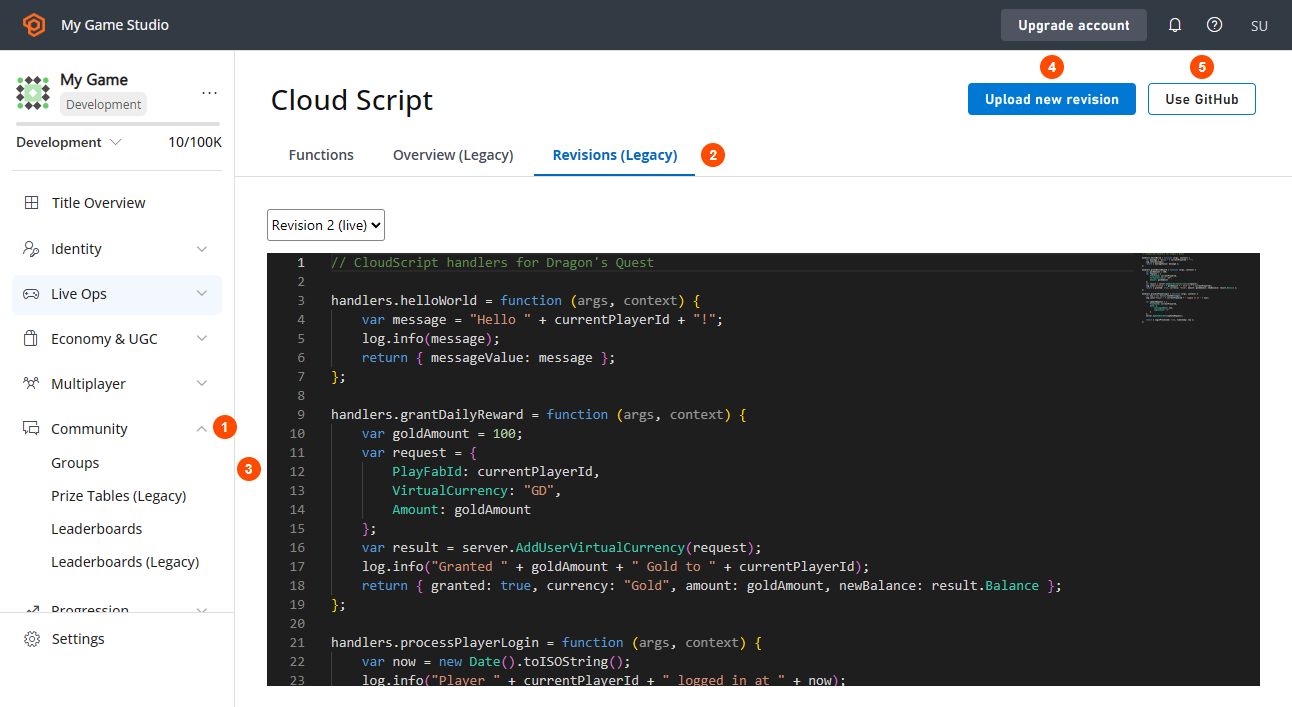
Let's upload the CloudScript. Using Game Manager:
1. Navigate to the **Automation** tab.
2. Then navigate to the **CloudScript** sub-tab.
3. Insert the **CloudScript** code.
4. Select **Save as Revision**.
5. Finally, **Deploy Revision**.
## Begin test section
The following section is an example of how to populate test data for the purpose of this example. Your *real* game will populate this data in a more natural way.
Our next step is simulating some data for our leaderboard. The quickest way to do this is to create a CloudScript handler, which will set random statistics for a given player. We will invoke this handler for every player over the All Players segment.
As a result, each player will get a random statistic value, which is a *good enough* approximation of a real world scenario.
Let's start with defining our CloudScript (refer to the code comments for further information).
```javascript theme={null}
// Should be invoked from a task that runs over certain segment
handlers.PopulateLeaderboard = (args,ctx) => {
// When handler is executed as a task over the segment
// we can extract individual player id using the next line:
let playerId = ctx.playerProfile.PlayerId;
// Use player id and update player statistics as follows:
server.UpdatePlayerStatistics({
PlayFabId : playerId,
Statistics : [
{
"StatisticName": "TestScore",
"Value": getRandomInRange(100,1000)
}
]
});
}
// Utility method to generate random number
let getRandomInRange = (min, max) => {
return Math.round(Math.random() * (max - min) + min);
}
```
Let's upload the CloudScript. Using Game Manager:
1. Navigate to the **Automation** tab.
2. Then navigate to the **CloudScript** sub-tab.
3. Insert the **CloudScript** code.
4. Select **Save as Revision**.
5. Finally, **Deploy Revision**.
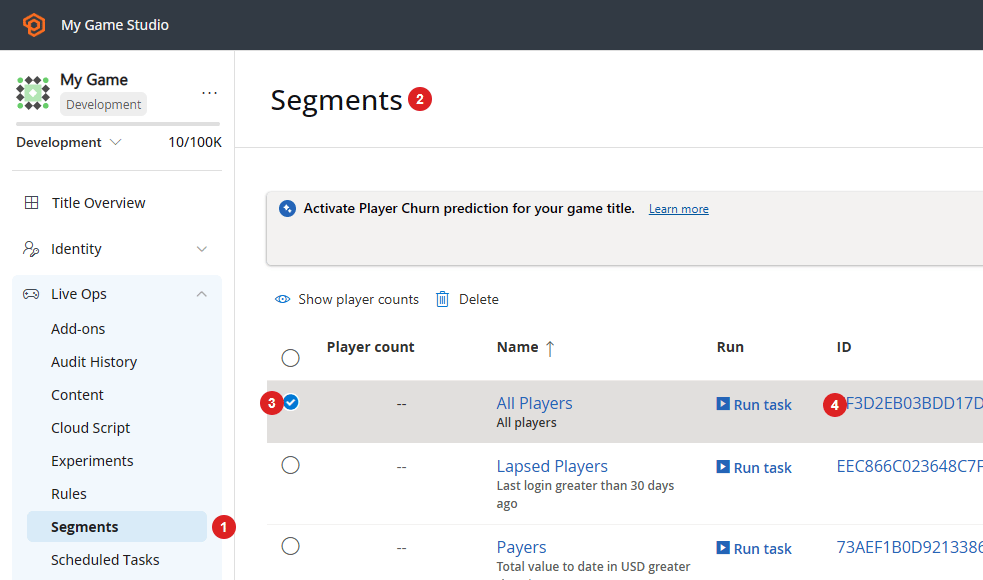
 Next, we need to define a task to execute our CloudScript over a specific segment:
1. Navigate to the **Players** tab.
2. Then, navigate to the **Segments** sub-tab.
By default, **PlayFab** generates an **All Players** segment for you. This segment is specifically useful when you need all players registered in your title (which is exactly our case).
3. Select the **All Players Segment**.
4. Finally, select **Run Task...**.
If you have no All Players segment in the list, please, refer to our [Player Segmentation](/services/playfab/live-service-management/game-configuration/segmentation/segmentation-quickstart) quickstart to create one.
Next, we need to define a task to execute our CloudScript over a specific segment:
1. Navigate to the **Players** tab.
2. Then, navigate to the **Segments** sub-tab.
By default, **PlayFab** generates an **All Players** segment for you. This segment is specifically useful when you need all players registered in your title (which is exactly our case).
3. Select the **All Players Segment**.
4. Finally, select **Run Task...**.
If you have no All Players segment in the list, please, refer to our [Player Segmentation](/services/playfab/live-service-management/game-configuration/segmentation/segmentation-quickstart) quickstart to create one.
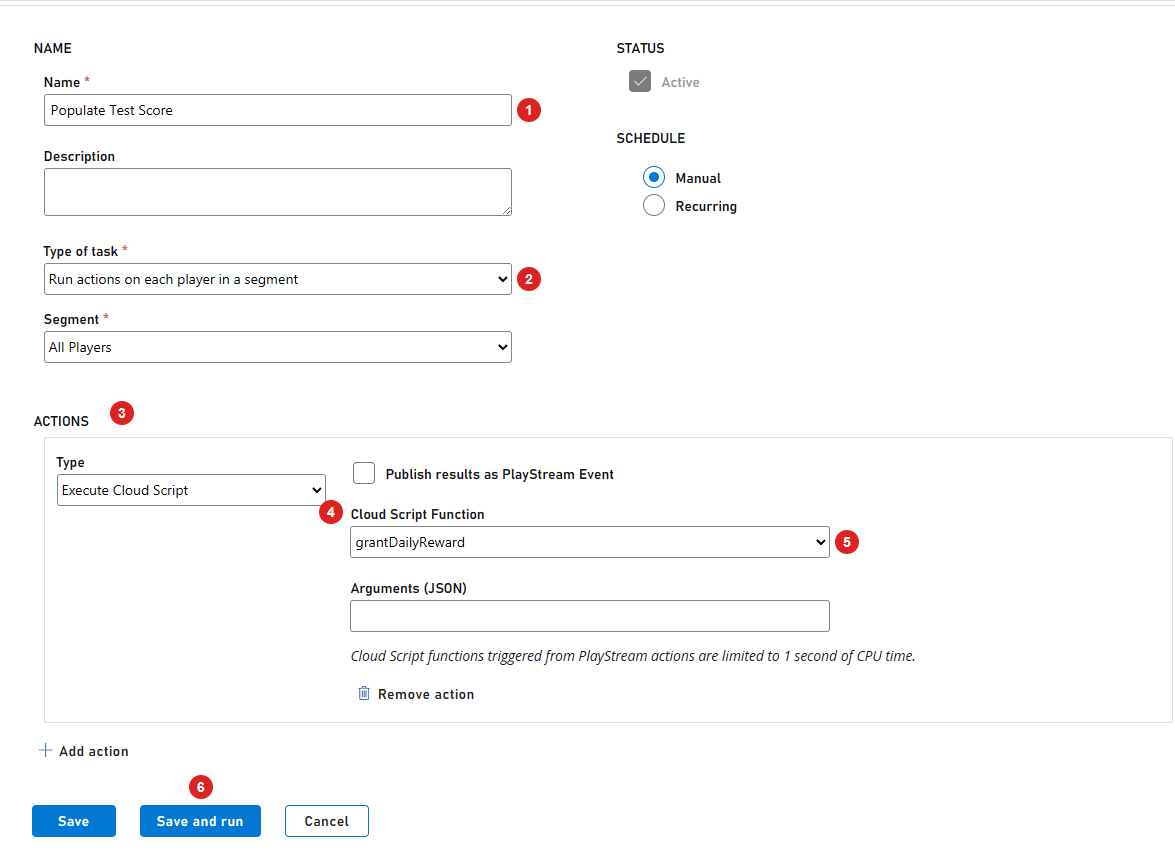
 To configure the task:
1. Set up the **Name**.
2. Make sure the type of task is set to **Run actions on each Player in a Segment**.
* In addition, verify that **All Players** is selected under **Segment**.
3. Add a new **Action**.
4. Select **Execute CloudScript** under **Type**.
5. Then select the **PopulateLeaderboard** handler under **CloudScript Function**.
6. Finally, select the **Save and Run** button.
To configure the task:
1. Set up the **Name**.
2. Make sure the type of task is set to **Run actions on each Player in a Segment**.
* In addition, verify that **All Players** is selected under **Segment**.
3. Add a new **Action**.
4. Select **Execute CloudScript** under **Type**.
5. Then select the **PopulateLeaderboard** handler under **CloudScript Function**.
6. Finally, select the **Save and Run** button.
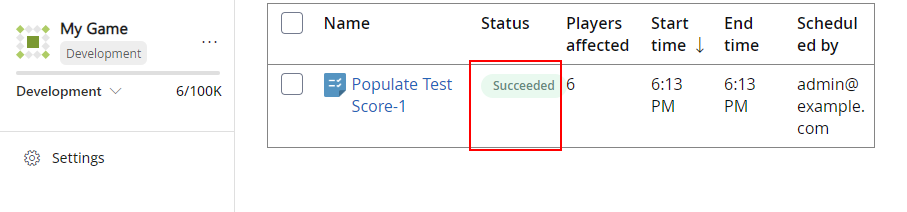
 * Make sure the execution result is **Successful**.
 ## End of Test Section
### Populate Test data
1. Navigate to the **Leaderboards** tab again.
2. Select our **Leaderboard**.
## End of Test Section
### Populate Test data
1. Navigate to the **Leaderboards** tab again.
2. Select our **Leaderboard**.
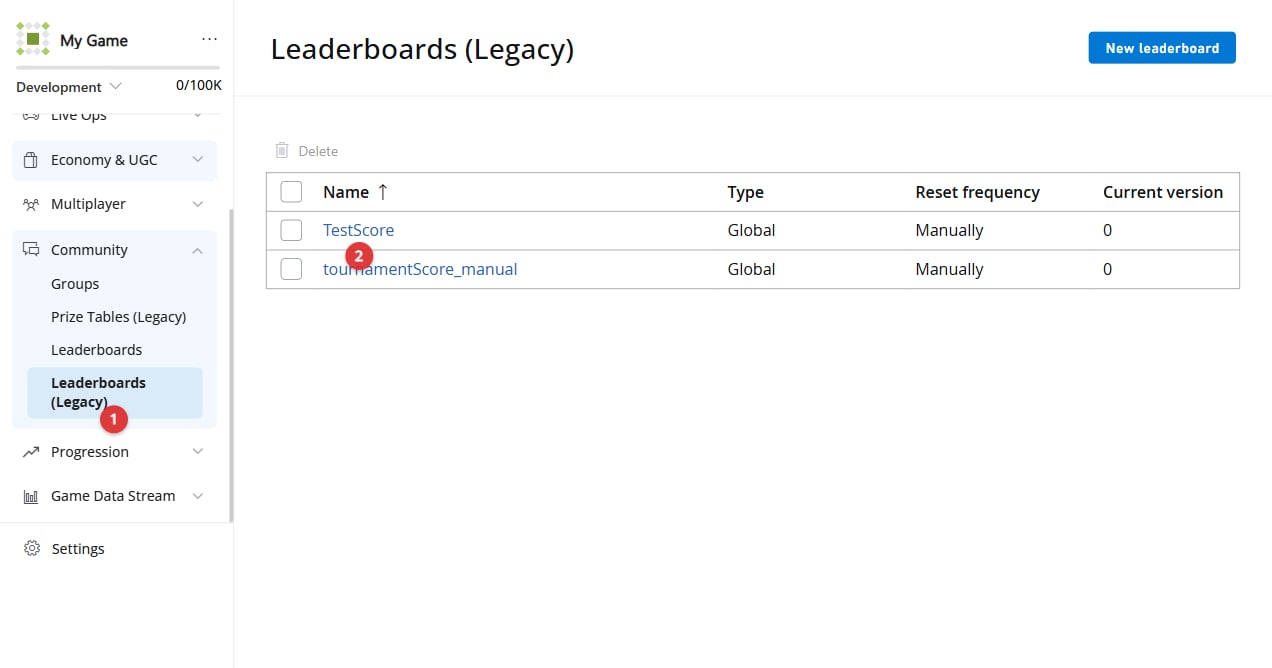 1. You will see that your **Leaderboard** was populated with random values.
2. Reset the **Leaderboard**.
1. You will see that your **Leaderboard** was populated with random values.
2. Reset the **Leaderboard**.
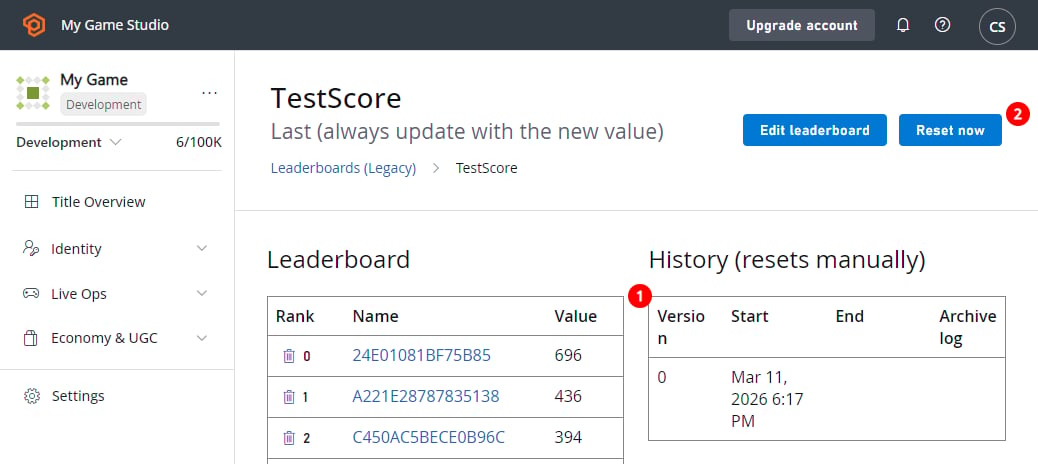 This will create a snapshot of all the data we currently have, and then it will *nullify* statistic values on every player and increment the version.
* Once your leaderboard is reset, run the CloudScript task again.
* Repeat this 2-3 times, then reset and repopulate.
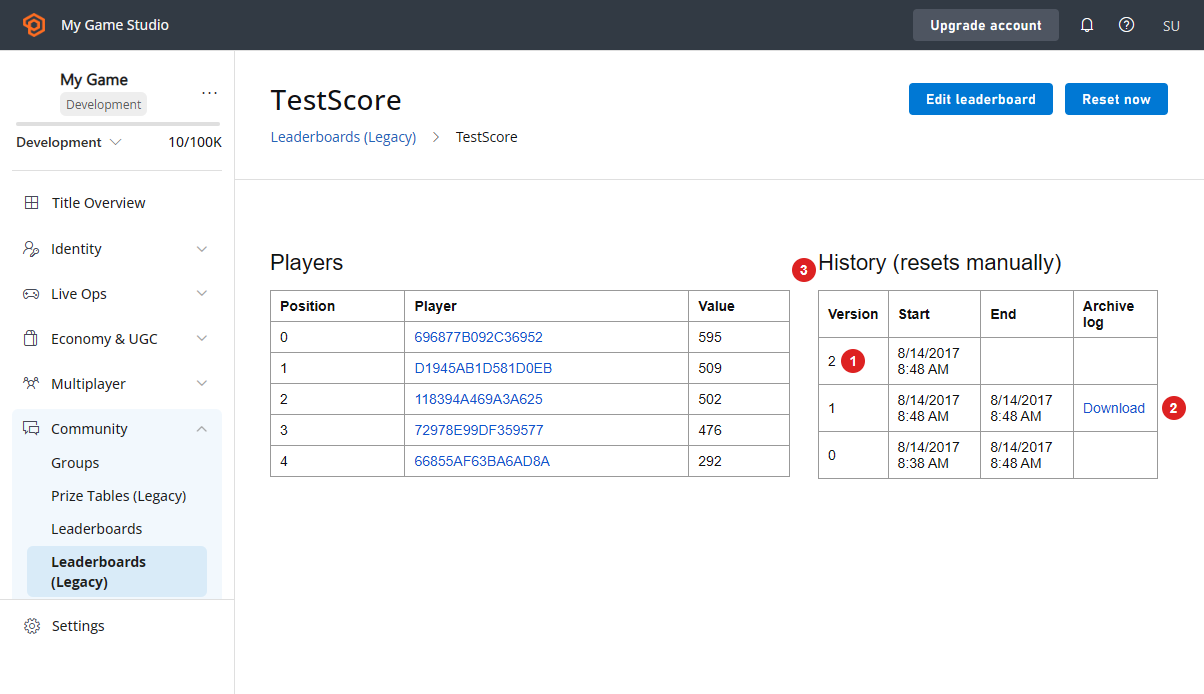
You will end up with several **Leaderboard** versions **(1)**:
* **Current version data** will be displayed in the table to the left **(3)**.
* **Archived data** will be available for previous versions **(2)**.
* Only the latest version will be available. This applies to all titles.
This will create a snapshot of all the data we currently have, and then it will *nullify* statistic values on every player and increment the version.
* Once your leaderboard is reset, run the CloudScript task again.
* Repeat this 2-3 times, then reset and repopulate.
You will end up with several **Leaderboard** versions **(1)**:
* **Current version data** will be displayed in the table to the left **(3)**.
* **Archived data** will be available for previous versions **(2)**.
* Only the latest version will be available. This applies to all titles.
 ### Accessing archived data using Game Manager
You can access archived results directly from the **Leaderboard** page:
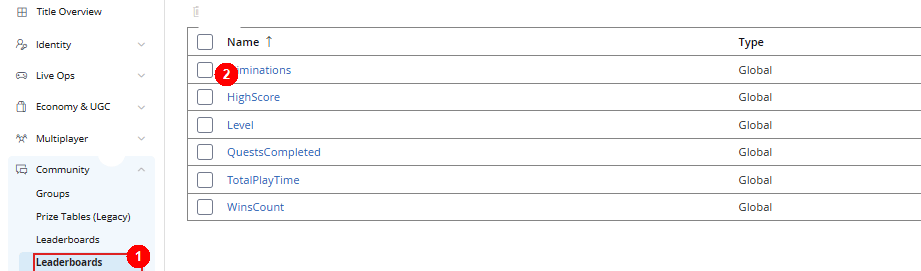
1. Navigate to the **Leaderboards** tab.
2. Select the **Leaderboard** you need.
### Accessing archived data using Game Manager
You can access archived results directly from the **Leaderboard** page:
1. Navigate to the **Leaderboards** tab.
2. Select the **Leaderboard** you need.
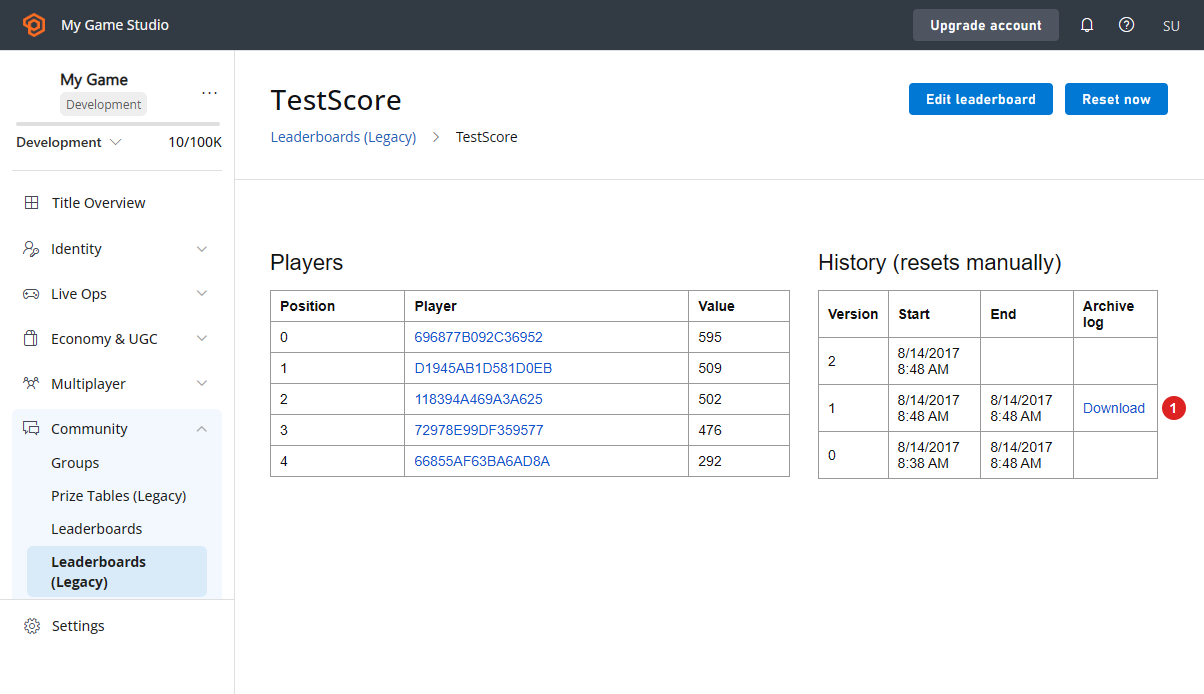
 1. If your **Leaderboard** contains archived revisions, you will be able to download **JSON** data using the download link shown in the screenshot below.
 ### Accessing archived data using API
The following code allows you to pull the latest (current) version of the leaderboard.
```csharp theme={null}
PlayFabClientAPI.GetLeaderboard(new GetLeaderboardRequest()
{
StatisticName = "TestScore",
}, result =>
{
Debug.Log("Leaderboard version: "+result.Version);
foreach (var entry in result.Leaderboard)
{
Debug.Log(entry.PlayFabId+" "+entry.StatValue);
}
}, FailureCallback);
```
The result will look like the example provided below.
### Accessing archived data using API
The following code allows you to pull the latest (current) version of the leaderboard.
```csharp theme={null}
PlayFabClientAPI.GetLeaderboard(new GetLeaderboardRequest()
{
StatisticName = "TestScore",
}, result =>
{
Debug.Log("Leaderboard version: "+result.Version);
foreach (var entry in result.Leaderboard)
{
Debug.Log(entry.PlayFabId+" "+entry.StatValue);
}
}, FailureCallback);
```
The result will look like the example provided below.
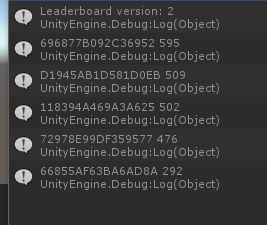 Alternatively, you may specify a version of the leaderboard you want to load.
```csharp theme={null}
PlayFabClientAPI.GetLeaderboard(new GetLeaderboardRequest()
{
StatisticName = "TestScore",
Version = 1
}, result =>
{
Debug.Log("Leaderboard version: "+result.Version);
foreach (var entry in result.Leaderboard)
{
Debug.Log(entry.PlayFabId+" "+entry.StatValue);
}
}, FailureCallback);
```
The result will look like the example provided below.
Alternatively, you may specify a version of the leaderboard you want to load.
```csharp theme={null}
PlayFabClientAPI.GetLeaderboard(new GetLeaderboardRequest()
{
StatisticName = "TestScore",
Version = 1
}, result =>
{
Debug.Log("Leaderboard version: "+result.Version);
foreach (var entry in result.Leaderboard)
{
Debug.Log(entry.PlayFabId+" "+entry.StatValue);
}
}, FailureCallback);
```
The result will look like the example provided below.
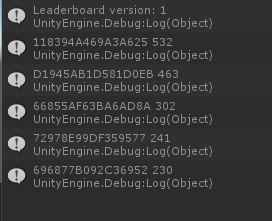 All titles allow you to access the *latest* archived version of the leaderboard. Trying to pull an older version will result in an error (see below).
 The same rules apply for all the Leaderboard requests.
* [GetLeaderboard](xref:titleid.playfabapi.com.client.playerdatamanagement.getleaderboard)
* [GetLeaderboardAroundPlayer](xref:titleid.playfabapi.com.client.playerdatamanagement.getleaderboardaroundplayer)
* [GetFriendLeaderboardAroundPlayer](xref:titleid.playfabapi.com.client.playerdatamanagement.getfriendleaderboardaroundplayer)
* [GetFriendLeaderboard](xref:titleid.playfabapi.com.client.playerdatamanagement.getfriendleaderboard)
Please refer to documentation for the [GetLeaderboardResult](xref:titleid.playfabapi.com.client.playerdatamanagement.getleaderboard#getleaderboardresult) object, to learn about useful properties you may get with the leaderboard data.
## Related topics
- [Using the Profile for Advanced Leaderboards](/services/playfab/community/leaderboards/tournaments-leaderboards/using-the-profile-for-advanced-leaderboards.md)
- [Push Notifications quickstart](/services/playfab/live-service-management/game-configuration/title-communications/push-notifications/quickstart.md)
- [Using resettable statistics and leaderboards](/services/playfab/community/leaderboards/tournaments-leaderboards/using-resettable-statistics-and-leaderboards.md)
- [Using player statistics](/services/playfab/community/leaderboards/tournaments-leaderboards/using-player-statistics.md)
- [Tournaments & Leaderboards](/services/playfab/community/leaderboards/tournaments-leaderboards/index.md)
The same rules apply for all the Leaderboard requests.
* [GetLeaderboard](xref:titleid.playfabapi.com.client.playerdatamanagement.getleaderboard)
* [GetLeaderboardAroundPlayer](xref:titleid.playfabapi.com.client.playerdatamanagement.getleaderboardaroundplayer)
* [GetFriendLeaderboardAroundPlayer](xref:titleid.playfabapi.com.client.playerdatamanagement.getfriendleaderboardaroundplayer)
* [GetFriendLeaderboard](xref:titleid.playfabapi.com.client.playerdatamanagement.getfriendleaderboard)
Please refer to documentation for the [GetLeaderboardResult](xref:titleid.playfabapi.com.client.playerdatamanagement.getleaderboard#getleaderboardresult) object, to learn about useful properties you may get with the leaderboard data.
## Related topics
- [Using the Profile for Advanced Leaderboards](/services/playfab/community/leaderboards/tournaments-leaderboards/using-the-profile-for-advanced-leaderboards.md)
- [Push Notifications quickstart](/services/playfab/live-service-management/game-configuration/title-communications/push-notifications/quickstart.md)
- [Using resettable statistics and leaderboards](/services/playfab/community/leaderboards/tournaments-leaderboards/using-resettable-statistics-and-leaderboards.md)
- [Using player statistics](/services/playfab/community/leaderboards/tournaments-leaderboards/using-player-statistics.md)
- [Tournaments & Leaderboards](/services/playfab/community/leaderboards/tournaments-leaderboards/index.md)