> ## Documentation Index
> Fetch the complete documentation index at: https://devdocs.xbox.com/llms.txt
> Use this file to discover all available pages before exploring further.
# Authenticating your service with the Microsoft Store APIs
> Describes how to get and use either delegated authentication X-tokens or User Store IDs to authenticate with Microsoft Store Services.
This article describes how to authenticate service-to-service calls to the Microsoft Store APIs by using either delegated X-tokens or User Store IDs:
* [User Store IDs and Microsoft Entra ID](#authenticating-with-microsoft-entra-id-and-user-store-ids): Ties authentication and results to the user account signed in to the Microsoft Store app.
* [Delegated Authentication X-tokens](#authenticating-with-delegated-authentication-x-tokens): Ties authentication and results to the XBOX services account of the user who's currently playing the game.
Use User Store ID authentication for new XBOX and PC titles. X-tokens are scoped to the active player account and aren't supported on some services (including Recurrence and Purchase). On PC, purchasing and playing accounts can differ. For details, see [Handling mismatched store account scenarios on PC](/publishing/xstore-commerce/xstore-mismatched-accounts).
For cross-platform and long-running service flows, use User Store IDs because they can be renewed without an active client interaction. By comparison, X-token flows require a refreshed client connection after the maximum lifetime.
The following sections summarize required configuration and resources for each authentication type.
## Authenticating with Microsoft Entra ID and User Store IDs
All Microsoft Store service APIs support authentication through Microsoft Entra ID and User Store IDs. To use this authentication, you (or your organization) must have a Microsoft Entra ID tenant and register an application ID under it. To register an application, your account needs the Global administrator role under your tenant. If you already use Microsoft Office 365 or other business services from Microsoft, you already have a Microsoft Entra ID tenant that you can manage in your Azure portal.
For guidance about getting the needed User Store IDs for this authentication type, see [Requesting a User Store ID for service-to-service authentication](/publishing/xstore-commerce/xstore-requesting-userstoreid).
On PC, entitlements are associated with the user who signed in to the Microsoft Store app, instead of the user who's currently playing a title. Because the accounts can be different, PC titles are encouraged to review the information in [Handling mismatched store account scenarios on PC](/publishing/xstore-commerce/xstore-mismatched-accounts).
When you call the Microsoft Store APIs with the Microsoft Entra auth flow, a Microsoft Entra access token is used in the `Authorization` header of your request as follows.
```bash theme={null}
Authorization: Bearer
```
If you're working in a sandbox, include the following claim in the JSON request body. Without it, results default to RETAIL.
Example:
```json theme={null}
"sbx": "XDKS.1"
```
**Developer-managed consumable limitation:** While User Store ID and Entra ID authentication works for most Microsoft Store API calls in sandbox environments, the [Consume API](/reference/microsoft-store-apis/xstore-v8-consume) doesn't support this authentication method for developer-managed consumables in development sandboxes. For consuming developer-managed consumables in sandboxes, use [delegated authentication XSTS tokens](#authenticating-with-delegated-authentication-x-tokens) instead.
You must also include the beneficiary values shown in the following table, including the User Store ID from the client.
| Parameter | Type | Description | Required |
| ---------------------- | -------- | ---------------------------------------------------------------------------------------------------------------------------------------------------------------------------------------------------------------------------- | -------- |
| `identityType` | `string` | Specify the string value `b2b`. | Yes |
| `identityValue` | `string` | The [User Store ID key](/publishing/xstore-commerce/xstore-requesting-userstoreid#step-4-create-a-user-store-id-key) that represents the identity of the user for whom you want to report a consumable product as fulfilled. | Yes |
| `localTicketReference` | `string` | The requested identifier for the returned response. Use the same value as the *userId* [claim](/publishing/xstore-commerce/xstore-requesting-userstoreid#claims-in-a-user-store-id-key) in the User Store ID key. | Yes |
Example:
```json theme={null}
"beneficiaries": [
{
"identitytype" : "b2b",
"identityValue" : "eyJ0eXAiOiJ...",
"localTicketReference" : "testReference"
}
],
```
For more information about how to get, manage, and use User Store ID authentication, see the following resources.
* [Microsoft.StoreServices (GitHub)](https://github.com/microsoft/Microsoft-Store-Services): Library and source for authenticating and calling Microsoft Store services from your back-end.
* [Microsoft.StoreServices Sample (GitHub)](https://github.com/microsoft/Microsoft-Store-Services-Sample): Service sample that demonstrates authentication, commerce integration, and refund reconciliation patterns.
* [Requesting a User Store ID for service-to-service authentication](/publishing/xstore-commerce/xstore-requesting-userstoreid)
* [Renewing a User Store ID key](/publishing/xstore-commerce/xstore-renew-userstoreid)
* [Manage product entitlements from a service](https://learn.microsoft.com/windows/uwp/monetize/view-and-grant-products-from-a-service)
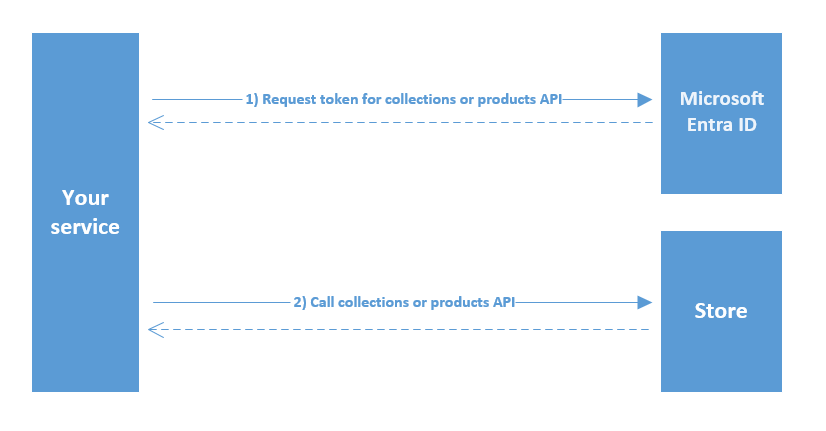
### Diagram of calling a Microsoft Store API
The following diagram describes the process of calling a Microsoft Store API by using the User Store ID from your service.
 ### Extra configuration required to view and manage products with a User Store ID and Microsoft Entra ID Auth
To use Microsoft Entra ID and User Store IDs, add your Microsoft Entra application's Client ID to your game's **Product collections and purchases** settings in Partner Center. You can configure up to two Client IDs to access the product and its add-ons through the Collections and Purchase services. The most common symptom for when your products aren't properly linked to your Microsoft Entra application client ID is that the calls to Collections succeed, but there are no items in the results.
#### Configure your products to be visible to your service through Microsoft Entra ID and User Store IDs
1. From the Partner Center page of your game, select **Product collections and purchases** from the left panel.
2. Enter the Microsoft Entra application's client ID that you're using to authenticate your service.
3. Select the **Save** button.
4. Republish the game product and all add-ons under the product to the Microsoft Store in your sandbox or developer environment.
After the publishing process completes, you should see proper items being returned from the service calls.
## Authenticating with delegated authentication X-tokens
Use a delegated authentication X-token to authenticate service-to-service calls by adding the `Authorization` header to the request in the following format.
```JSON theme={null}
Authorization: XBL3.0 x=;
```
The target relying party for the X-token must be [https://licensing.xboxlive.com](https://licensing.xboxlive.com), the same as the legacy XBOX Inventory service. If you set up your previous services to call XBOX Inventory, you can reuse the same token with this endpoint. You also need a signature header that matches the signature policy of the specified endpoint.
For more information about how to get, manage, and use a delegated authentication X-token and signature, see the following resources.
* [Game Service Sample](https://aka.ms/gdkdl): A comprehensive web service sample that demonstrates validation and handling of X-tokens from the client, server-to-server authentication, commerce services, and more. Download the latest version from the [GDK download site](https://aka.ms/gdkdl). Download the latest release of All Samples. Game Service Samples is under samples\Live\GameService in the downloaded .zip file.
* [Xfest 2019 - XSTS Auth and Server to Server made Easy](https://forums.xboxlive.com/articles/96129/xfest-online-2019-archive.html): Overview and explanation of X-tokens and how the Game Service Sample can help begin your own effort for service-to-service authentication. To download the presentation information, select **GDK Track Downloads** on the archive site.
* **XBOX services authentication and service-to-service calls**: More detailed documentation on authentication, X-tokens, and the required steps and calls to make service-to-service calls to XBOX services.
### Extra configuration required to view and manage products with delegated authentication X-tokens
X-tokens are tied to a Business Partner ID within Partner Center, so you must link products to that same Business Partner ID. In practice, the products must be under a Product Group whose Dev Studio ID matches the Business Partner ID used by your Relying Party.
The most common symptom for when your products aren't properly linked to the correct Business Partner ID is that calls to Collections succeed but return no items in the results. For more information, see the forum post [B2B call to Collections LicensePreview service returns empty results (Partner Center configured game)](https://forums.xboxlive.com/questions/78683/b2b-call-to-collections-licensepreview-service-ret.html).
#### To configure your products and web services in Partner Center
1. Create a Business Partner Certificate by using the **Generate Certificate** link of the web service. (Select **Developer Settings** > **XBOX Live** > **Web Services**.) Choose the link in the row of the web service that your relying party is tied to.
2. Go to the Business Partner management UI (Select **Developer Settings** > **XBOX Live** > **Business Partner**) and copy the Business Partner ID that matches the one from the web service you used in step 1. (Example Business Partner ID: 12345678-9012-3456-7890-123456789012)
3. From the **Partner Center Overview** page of your products, select **Create a new** and then select **Product group**.
4. Assign this product group to a Dev Studio, or select **Create a new developer studio** if you don't have one yet.
5. Ensure the selected Dev Studio's ID matches the Business Partner ID from step 2. Copy the Business Partner ID into **Dev Studio ID (optional)** if it's blank. If this field already has a value in use, create a new Dev Studio instead of overwriting it to avoid breaking existing service-to-service product mappings.
6. After the Dev Studio is configured with the matching ID of the Business Partner, return to your created Product Group. Add your game and all the products into the **Included in this product group** list.
7. Select **Save** to finish creating the product group.
8. Go to your game's XBOX Settings UI and ensure the linked Business Partner is the same one used from step 2.
9. Republish all the items in the product group to Microsoft Store in your sandbox or developer environment.
After the publishing process completes, you'll see proper items being returned from the service calls.
## See also
[Microsoft Store Service APIs](/reference/microsoft-store-apis/index)
[Requesting a User Store ID for service-to-service authentication](/publishing/xstore-commerce/xstore-requesting-userstoreid)
[Renewing a User Store ID key](/publishing/xstore-commerce/xstore-renew-userstoreid)
## Related topics
- [Microsoft Store v8 Collections b2bLicensePreview API](/reference/microsoft-store-apis/xstore-v8-query-for-products.md)
- [Request a User Store ID for service-to-service auth](/publishing/xstore-commerce/xstore-requesting-userstoreid.md)
- [collections.mp.microsoft.com/v9.0/collections/publisherQuery](/reference/microsoft-store-apis/xstore-v9-query-for-products.md)
- [collections.mp.microsoft.com/v8.0/collections/consume](/reference/microsoft-store-apis/xstore-v8-consume.md)
- [purchase.mp.microsoft.com/v8.0/b2b/orders/query](/reference/microsoft-store-apis/xstore-v8-clawbackv1.md)
### Extra configuration required to view and manage products with a User Store ID and Microsoft Entra ID Auth
To use Microsoft Entra ID and User Store IDs, add your Microsoft Entra application's Client ID to your game's **Product collections and purchases** settings in Partner Center. You can configure up to two Client IDs to access the product and its add-ons through the Collections and Purchase services. The most common symptom for when your products aren't properly linked to your Microsoft Entra application client ID is that the calls to Collections succeed, but there are no items in the results.
#### Configure your products to be visible to your service through Microsoft Entra ID and User Store IDs
1. From the Partner Center page of your game, select **Product collections and purchases** from the left panel.
2. Enter the Microsoft Entra application's client ID that you're using to authenticate your service.
3. Select the **Save** button.
4. Republish the game product and all add-ons under the product to the Microsoft Store in your sandbox or developer environment.
After the publishing process completes, you should see proper items being returned from the service calls.
## Authenticating with delegated authentication X-tokens
Use a delegated authentication X-token to authenticate service-to-service calls by adding the `Authorization` header to the request in the following format.
```JSON theme={null}
Authorization: XBL3.0 x=;
```
The target relying party for the X-token must be [https://licensing.xboxlive.com](https://licensing.xboxlive.com), the same as the legacy XBOX Inventory service. If you set up your previous services to call XBOX Inventory, you can reuse the same token with this endpoint. You also need a signature header that matches the signature policy of the specified endpoint.
For more information about how to get, manage, and use a delegated authentication X-token and signature, see the following resources.
* [Game Service Sample](https://aka.ms/gdkdl): A comprehensive web service sample that demonstrates validation and handling of X-tokens from the client, server-to-server authentication, commerce services, and more. Download the latest version from the [GDK download site](https://aka.ms/gdkdl). Download the latest release of All Samples. Game Service Samples is under samples\Live\GameService in the downloaded .zip file.
* [Xfest 2019 - XSTS Auth and Server to Server made Easy](https://forums.xboxlive.com/articles/96129/xfest-online-2019-archive.html): Overview and explanation of X-tokens and how the Game Service Sample can help begin your own effort for service-to-service authentication. To download the presentation information, select **GDK Track Downloads** on the archive site.
* **XBOX services authentication and service-to-service calls**: More detailed documentation on authentication, X-tokens, and the required steps and calls to make service-to-service calls to XBOX services.
### Extra configuration required to view and manage products with delegated authentication X-tokens
X-tokens are tied to a Business Partner ID within Partner Center, so you must link products to that same Business Partner ID. In practice, the products must be under a Product Group whose Dev Studio ID matches the Business Partner ID used by your Relying Party.
The most common symptom for when your products aren't properly linked to the correct Business Partner ID is that calls to Collections succeed but return no items in the results. For more information, see the forum post [B2B call to Collections LicensePreview service returns empty results (Partner Center configured game)](https://forums.xboxlive.com/questions/78683/b2b-call-to-collections-licensepreview-service-ret.html).
#### To configure your products and web services in Partner Center
1. Create a Business Partner Certificate by using the **Generate Certificate** link of the web service. (Select **Developer Settings** > **XBOX Live** > **Web Services**.) Choose the link in the row of the web service that your relying party is tied to.
2. Go to the Business Partner management UI (Select **Developer Settings** > **XBOX Live** > **Business Partner**) and copy the Business Partner ID that matches the one from the web service you used in step 1. (Example Business Partner ID: 12345678-9012-3456-7890-123456789012)
3. From the **Partner Center Overview** page of your products, select **Create a new** and then select **Product group**.
4. Assign this product group to a Dev Studio, or select **Create a new developer studio** if you don't have one yet.
5. Ensure the selected Dev Studio's ID matches the Business Partner ID from step 2. Copy the Business Partner ID into **Dev Studio ID (optional)** if it's blank. If this field already has a value in use, create a new Dev Studio instead of overwriting it to avoid breaking existing service-to-service product mappings.
6. After the Dev Studio is configured with the matching ID of the Business Partner, return to your created Product Group. Add your game and all the products into the **Included in this product group** list.
7. Select **Save** to finish creating the product group.
8. Go to your game's XBOX Settings UI and ensure the linked Business Partner is the same one used from step 2.
9. Republish all the items in the product group to Microsoft Store in your sandbox or developer environment.
After the publishing process completes, you'll see proper items being returned from the service calls.
## See also
[Microsoft Store Service APIs](/reference/microsoft-store-apis/index)
[Requesting a User Store ID for service-to-service authentication](/publishing/xstore-commerce/xstore-requesting-userstoreid)
[Renewing a User Store ID key](/publishing/xstore-commerce/xstore-renew-userstoreid)
## Related topics
- [Microsoft Store v8 Collections b2bLicensePreview API](/reference/microsoft-store-apis/xstore-v8-query-for-products.md)
- [Request a User Store ID for service-to-service auth](/publishing/xstore-commerce/xstore-requesting-userstoreid.md)
- [collections.mp.microsoft.com/v9.0/collections/publisherQuery](/reference/microsoft-store-apis/xstore-v9-query-for-products.md)
- [collections.mp.microsoft.com/v8.0/collections/consume](/reference/microsoft-store-apis/xstore-v8-consume.md)
- [purchase.mp.microsoft.com/v8.0/b2b/orders/query](/reference/microsoft-store-apis/xstore-v8-clawbackv1.md)