> ## Documentation Index
> Fetch the complete documentation index at: https://devdocs.xbox.com/llms.txt
> Use this file to discover all available pages before exploring further.
# Configurar a autenticação do PlayFab usando Kongregate e Unity
> Tutorial passo a passo para adicionar a autenticação do Kongregate a um título do PlayFab no Unity com WebGL, abordando o upload do aplicativo do Kongregate e o código de entrada do jogador.
Este tutorial mostra a configuração mínima necessária para autenticar seus jogadores no PlayFab usando Kongregate e Unity.
## Requisitos
* Uma conta registrada no [Kongregate](https://www.kongregate.com/).
* Familiaridade com o [Guia do Desenvolvedor do Kongregate](https://www.kongregate.com/developer_center/docs/en/kongregate-api).
* Um título do PlayFab registrado.
* Um projeto do Unity com o PlayFab configurado para seu título.
* Suporte ao Unity WebGL instalado.
* Familiaridade com os [conceitos básicos e práticas recomendadas de login](/pt-BR/services/playfab/identity/player-identity/login/login-basics-best-practices).
## Configurar um aplicativo do Kongregate
O Kongregate exige que você faça upload de uma versão de prévia do aplicativo antes de obter acesso às informações necessárias do aplicativo. Nosso primeiro passo é preparar um arquivo **index.html** com o conteúdo mostrado abaixo.
```html theme={null}
Placeholder
```
Navegue até o [site do Kongregate](https://www.kongregate.com/).
1. Selecione a guia **Games**.
2. Em seguida, selecione o botão **Upload your game**.
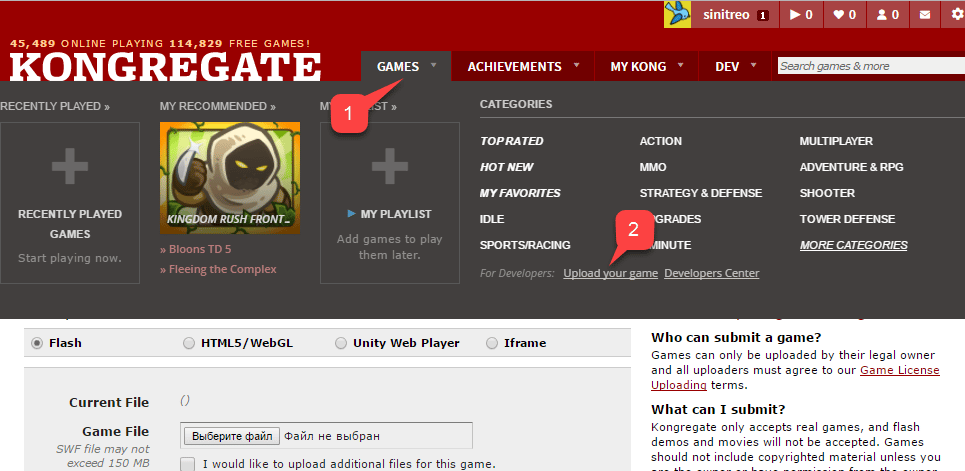 Uma página para configurar um novo aplicativo será aberta.
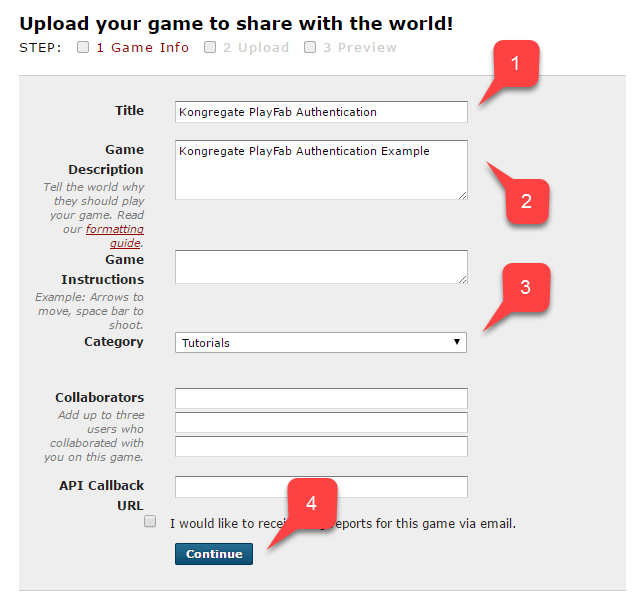
1. Insira o **Application Name**.
2. Insira uma **Game Description**.
3. Em seguida, selecione uma **Category**.
4. Envie o novo aplicativo selecionando o botão **Continue**.
Uma página para configurar um novo aplicativo será aberta.
1. Insira o **Application Name**.
2. Insira uma **Game Description**.
3. Em seguida, selecione uma **Category**.
4. Envie o novo aplicativo selecionando o botão **Continue**.
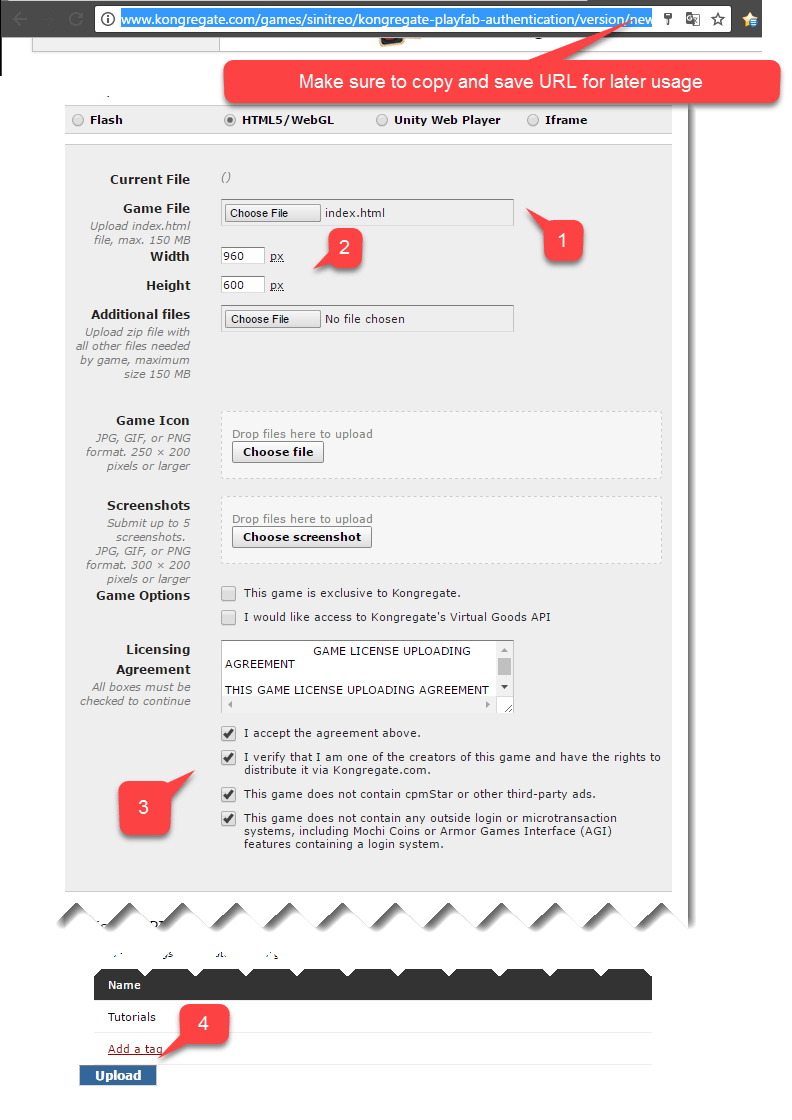
 Você será transferido para a página **Application Upload**.
Primeiro, *e mais importante*, salve a URL da sua **barra de endereços** em um local seguro e de fácil acesso. *Isso economizará muito tempo ao restaurar o acesso ao aplicativo depois de fechar a página*.
1. Depois disso, selecione o arquivo **index.html** preparado como seu **Game File**.
2. Em seguida, configure o tamanho da tela.
3. Aceite todas as licenças necessárias.
4. Por fim, faça upload do aplicativo selecionando o botão **Upload**.
Você será transferido para a página **Application Upload**.
Primeiro, *e mais importante*, salve a URL da sua **barra de endereços** em um local seguro e de fácil acesso. *Isso economizará muito tempo ao restaurar o acesso ao aplicativo depois de fechar a página*.
1. Depois disso, selecione o arquivo **index.html** preparado como seu **Game File**.
2. Em seguida, configure o tamanho da tela.
3. Aceite todas as licenças necessárias.
4. Por fim, faça upload do aplicativo selecionando o botão **Upload**.
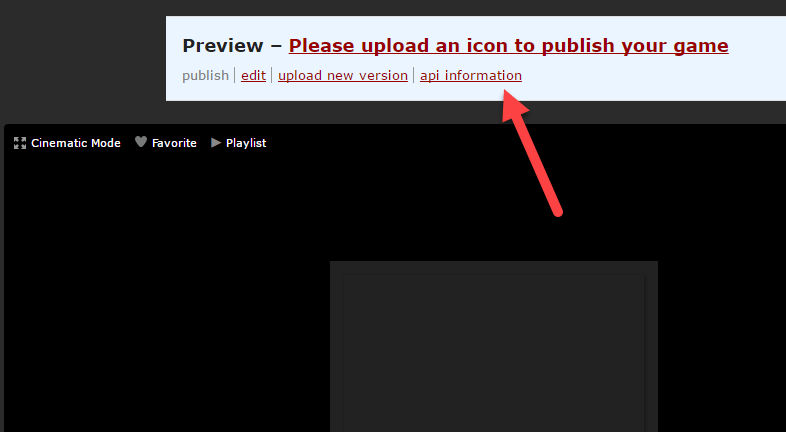
 Quando a prévia abrir, ignore o conteúdo e abra o link **api information**.
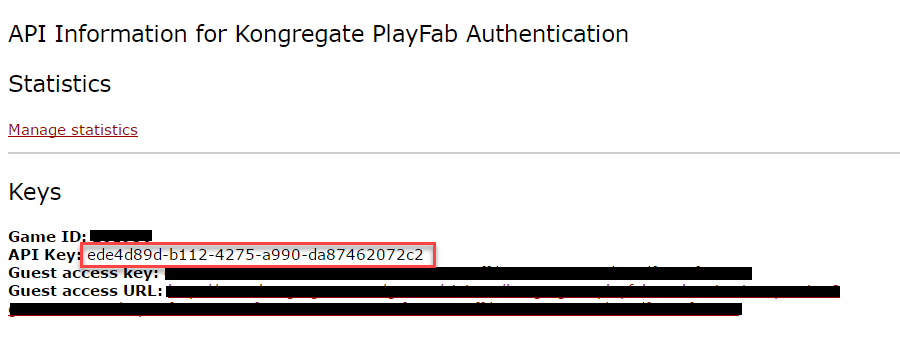
 Quando a página **API Information** abrir, localize a **API Key** e guarde-a em um local seguro e de fácil acesso para uso posterior.
 ## Configurar o título do PlayFab
No Game Manager do seu título do PlayFab:
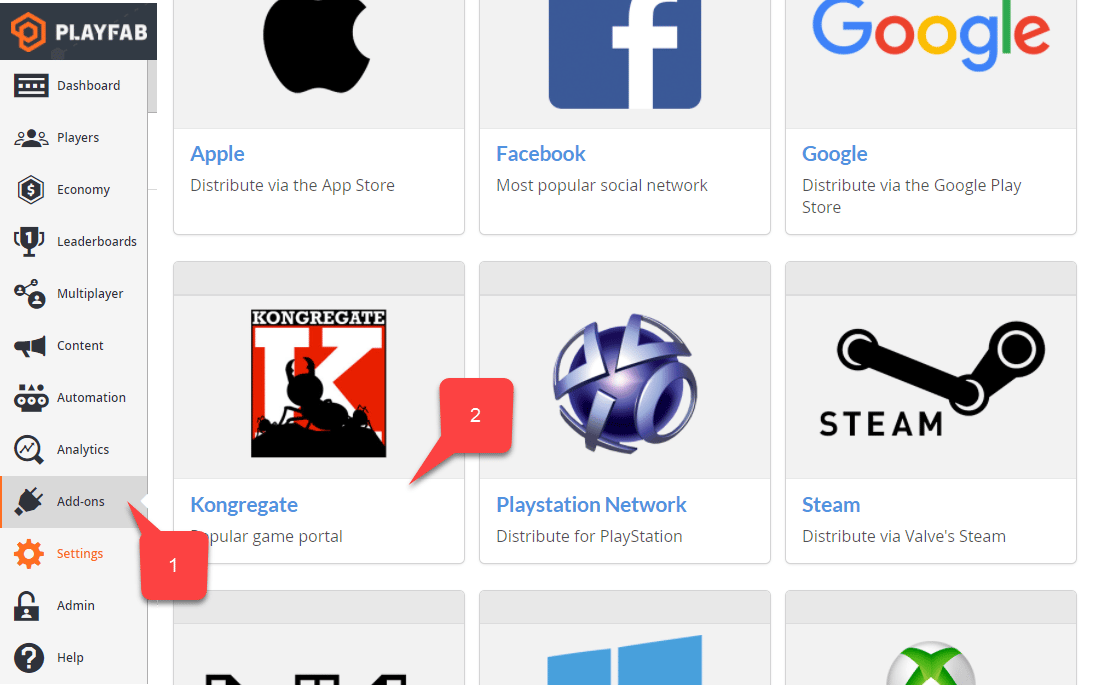
1. Selecione **Add-ons** no menu à esquerda.
2. Localize e selecione o ícone do **Kongregate**.
## Configurar o título do PlayFab
No Game Manager do seu título do PlayFab:
1. Selecione **Add-ons** no menu à esquerda.
2. Localize e selecione o ícone do **Kongregate**.
 Uma nova página será aberta, permitindo configurar a integração com o **Kongregate**:
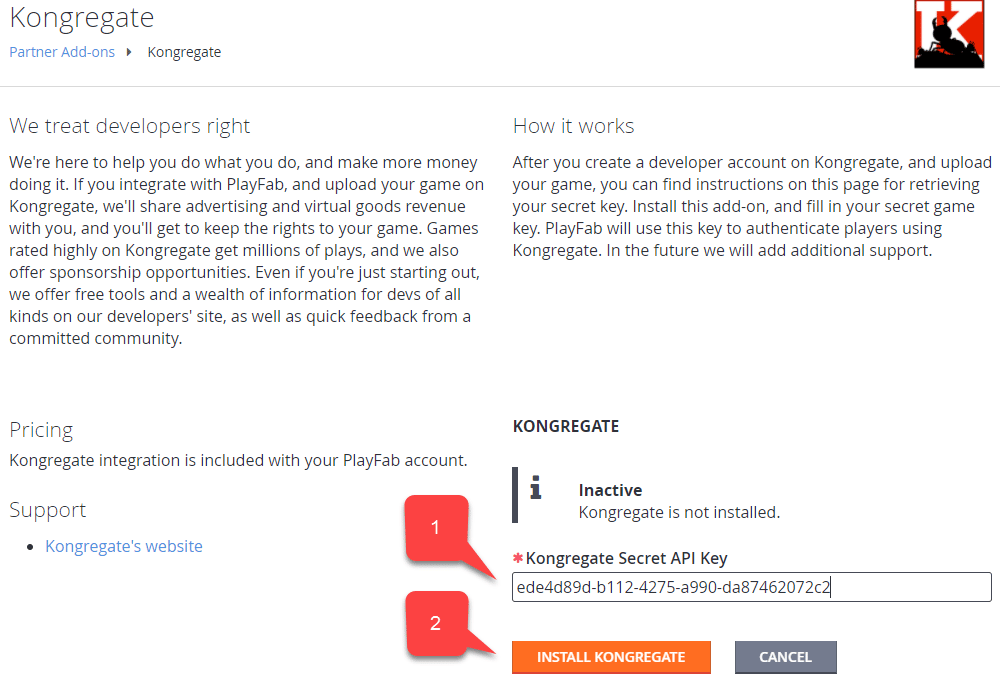
1. Insira a **API Key** obtida na seção anterior.
2. Selecione o botão **Install Kongregate**.
Uma nova página será aberta, permitindo configurar a integração com o **Kongregate**:
1. Insira a **API Key** obtida na seção anterior.
2. Selecione o botão **Install Kongregate**.
 Nesse ponto, se você não receber uma mensagem de erro, a integração do título do PlayFab com seu aplicativo do Kongregate estará configurada corretamente.
## Configurar um projeto do Unity
Use esta lista de verificação de configuração do Unity:
* \[OPCIONAL] Instale as [PlayFab Editor Extensions](https://aka.ms/playfabunityextension).
* Configure seu `TitleId` no Scriptable Object `PlayFabSharedSettings`.
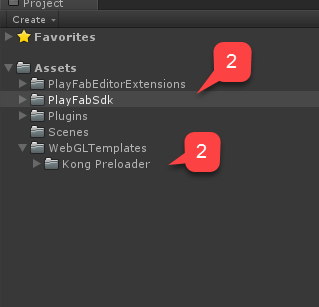
* Para o Unity 5.6+, baixe o [Kongregate Preloader WebGL Template](https://github.com/kongregate/webgl-preloader) e coloque-o dentro da pasta `Assets/WebGLTemplates` **(2)**.
* Para o Unity \< 5.6, baixe o [Kongregate Preloader WebGL Template 5.5 and below](https://github.com/kongregate/webgl-preloader/tree/unity-5.5-and-below) e coloque-o dentro da pasta `Assets/WebGLTemplates` **(2)**.
Nesse ponto, se você não receber uma mensagem de erro, a integração do título do PlayFab com seu aplicativo do Kongregate estará configurada corretamente.
## Configurar um projeto do Unity
Use esta lista de verificação de configuração do Unity:
* \[OPCIONAL] Instale as [PlayFab Editor Extensions](https://aka.ms/playfabunityextension).
* Configure seu `TitleId` no Scriptable Object `PlayFabSharedSettings`.
* Para o Unity 5.6+, baixe o [Kongregate Preloader WebGL Template](https://github.com/kongregate/webgl-preloader) e coloque-o dentro da pasta `Assets/WebGLTemplates` **(2)**.
* Para o Unity \< 5.6, baixe o [Kongregate Preloader WebGL Template 5.5 and below](https://github.com/kongregate/webgl-preloader/tree/unity-5.5-and-below) e coloque-o dentro da pasta `Assets/WebGLTemplates` **(2)**.
 Agora vamos criar sua cena de trabalho.
1. Para fins de teste, use um canvas com dimensionamento de tela e alguns rótulos de texto.
Precisaremos de apenas *um* rótulo de texto para exibir mensagens de depuração.
2. Crie um **GameObject** vazio e renomeie-o para **Kongregate**.
Agora vamos criar sua cena de trabalho.
1. Para fins de teste, use um canvas com dimensionamento de tela e alguns rótulos de texto.
Precisaremos de apenas *um* rótulo de texto para exibir mensagens de depuração.
2. Crie um **GameObject** vazio e renomeie-o para **Kongregate**.
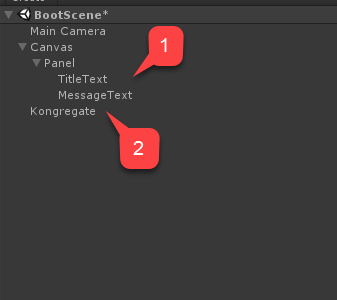 Este `GameObject` conterá um componente `KongregateHandler` com um rótulo de texto conectado para mensagens de depuração.
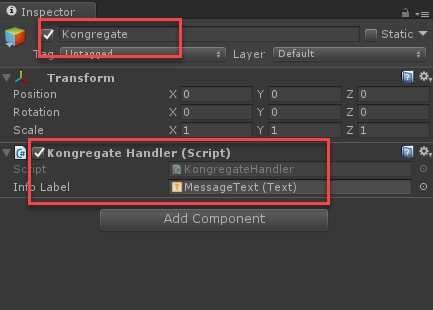 O código do componente `KongregateHandler` é fornecido abaixo.
```csharp theme={null}
// We are specifically interested in importing PlayFab related namespaces
using PlayFab;
using PlayFab.ClientModels;
using UnityEngine;
using UnityEngine.UI;
public class KongregateHandler : MonoBehaviour
{
// Standard unity callback, executed once for the script to start
public void Start()
{
// Utility: show feedback
SetMessage("Loading kongregate api...");
/*
* Important: execute Javascript in the external context to initialize
* Kongregate API, Unity Support and set up callback GameObject and Method.
* In this case, callback is set to a GameObject called Kongregate and a
* method called OnKongregateAPILoaded, which we define later in this class.
* Once Kongregate API is initialized, Unity will locate this object by name
* ("Kongregate") and execute a method "OnKongregateAPILoaded" passing in user
* info string as an argument.
*/
Application.ExternalEval(
"if(typeof(kongregateUnitySupport) != 'undefined'){" +
" kongregateUnitySupport.initAPI('Kongregate', 'OnKongregateAPILoaded');" +
"} else {" +
" console.error('No unity support!');" +
"};"
);
}
/*
* Executed once Kongregate API is ready. This method is invoked by KongregateAPI
* and receives a structured text with multiple pieces of data you must parse manually.
* The userInfo string parameter has the following structure: 'user_identifier|user_name|auth_token'
*/
public void OnKongregateAPILoaded(string userInfo)
{
SetMessage("Received user info! Logging though playfab...");
// We split userInfo string using '|' character to acquire auth token and Kongregate ID.
var userInfoArray = userInfo.Split('|');
var authTicket = userInfoArray[2];
var kongregateId = userInfoArray[0];
LogToBrowser("Auth Token: " + authTicket);
LogToBrowser("Kongregate Id: " + kongregateId);
/*
* We then execute PlayFab API call called LoginWithKongregate.
* LoginWithKongregate requires KongregateID and AuthTicket.
* We also pass CreateAccount flag, to automatically create player account.
*/
PlayFabClientAPI.LoginWithKongregate(new LoginWithKongregateRequest
{
KongregateId = kongregateId,
AuthTicket = authTicket,
CreateAccount = true
}, OnLoggedIn, OnFailed);
}
/*
* The rest of the code serves as a utility to process results, log debug statements
* and display them using Text message label.
*/
private void OnLoggedIn(LoginResult obj)
{
SetMessage("Logged in through PlayFab!");
}
private void OnFailed(PlayFabError error)
{
SetMessage("Failed to login in with PlayFab: " + error.GenerateErrorReport());
}
private void SetMessage(string message)
{
InfoLabel.text = message;
}
private void LogToBrowser(string message)
{
Application.ExternalEval(string.Format("console.log('{0}')", message));
}
public Text InfoLabel;
}
```
## Teste
A única forma de realmente testar a integração é fazendo upload do seu protótipo no Kongregate.
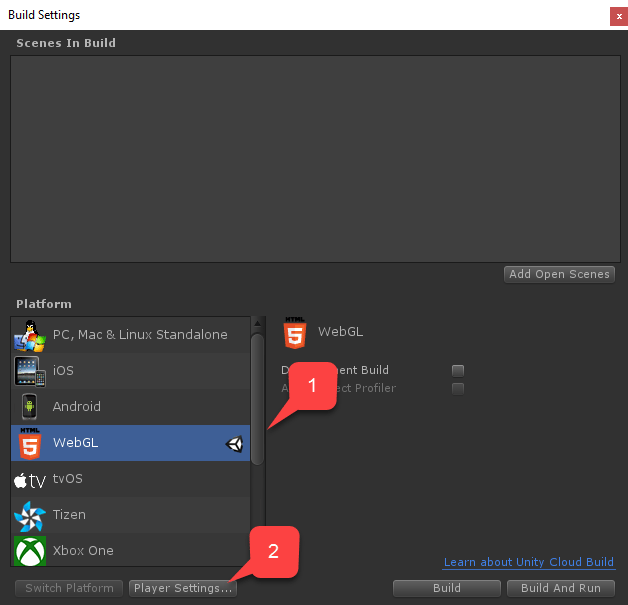
1. Abra a janela **Build** e verifique se **WebGL** está selecionado no menu.
2. Em seguida, abra o **Player Settings** selecionando o botão.
O código do componente `KongregateHandler` é fornecido abaixo.
```csharp theme={null}
// We are specifically interested in importing PlayFab related namespaces
using PlayFab;
using PlayFab.ClientModels;
using UnityEngine;
using UnityEngine.UI;
public class KongregateHandler : MonoBehaviour
{
// Standard unity callback, executed once for the script to start
public void Start()
{
// Utility: show feedback
SetMessage("Loading kongregate api...");
/*
* Important: execute Javascript in the external context to initialize
* Kongregate API, Unity Support and set up callback GameObject and Method.
* In this case, callback is set to a GameObject called Kongregate and a
* method called OnKongregateAPILoaded, which we define later in this class.
* Once Kongregate API is initialized, Unity will locate this object by name
* ("Kongregate") and execute a method "OnKongregateAPILoaded" passing in user
* info string as an argument.
*/
Application.ExternalEval(
"if(typeof(kongregateUnitySupport) != 'undefined'){" +
" kongregateUnitySupport.initAPI('Kongregate', 'OnKongregateAPILoaded');" +
"} else {" +
" console.error('No unity support!');" +
"};"
);
}
/*
* Executed once Kongregate API is ready. This method is invoked by KongregateAPI
* and receives a structured text with multiple pieces of data you must parse manually.
* The userInfo string parameter has the following structure: 'user_identifier|user_name|auth_token'
*/
public void OnKongregateAPILoaded(string userInfo)
{
SetMessage("Received user info! Logging though playfab...");
// We split userInfo string using '|' character to acquire auth token and Kongregate ID.
var userInfoArray = userInfo.Split('|');
var authTicket = userInfoArray[2];
var kongregateId = userInfoArray[0];
LogToBrowser("Auth Token: " + authTicket);
LogToBrowser("Kongregate Id: " + kongregateId);
/*
* We then execute PlayFab API call called LoginWithKongregate.
* LoginWithKongregate requires KongregateID and AuthTicket.
* We also pass CreateAccount flag, to automatically create player account.
*/
PlayFabClientAPI.LoginWithKongregate(new LoginWithKongregateRequest
{
KongregateId = kongregateId,
AuthTicket = authTicket,
CreateAccount = true
}, OnLoggedIn, OnFailed);
}
/*
* The rest of the code serves as a utility to process results, log debug statements
* and display them using Text message label.
*/
private void OnLoggedIn(LoginResult obj)
{
SetMessage("Logged in through PlayFab!");
}
private void OnFailed(PlayFabError error)
{
SetMessage("Failed to login in with PlayFab: " + error.GenerateErrorReport());
}
private void SetMessage(string message)
{
InfoLabel.text = message;
}
private void LogToBrowser(string message)
{
Application.ExternalEval(string.Format("console.log('{0}')", message));
}
public Text InfoLabel;
}
```
## Teste
A única forma de realmente testar a integração é fazendo upload do seu protótipo no Kongregate.
1. Abra a janela **Build** e verifique se **WebGL** está selecionado no menu.
2. Em seguida, abra o **Player Settings** selecionando o botão.
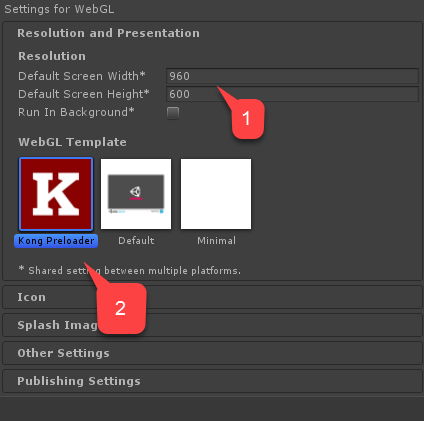
 Dentro da tela **Player Settings**, localize **Settings for WebGL**:
1. Verifique se o tamanho está configurado corretamente.
2. Em seguida, selecione o **Kongregate Preloader Template**.
Dentro da tela **Player Settings**, localize **Settings for WebGL**:
1. Verifique se o tamanho está configurado corretamente.
2. Em seguida, selecione o **Kongregate Preloader Template**.
 Compile o aplicativo e abra a pasta **Build**.
* Você terá um **index.html** e vários outros arquivos (dependendo da versão do Unity).
* Pegue todos os arquivos, exceto o **index.html**, e coloque-os dentro de um arquivo zip, conforme mostrado no exemplo abaixo.
Compile o aplicativo e abra a pasta **Build**.
* Você terá um **index.html** e vários outros arquivos (dependendo da versão do Unity).
* Pegue todos os arquivos, exceto o **index.html**, e coloque-os dentro de um arquivo zip, conforme mostrado no exemplo abaixo.
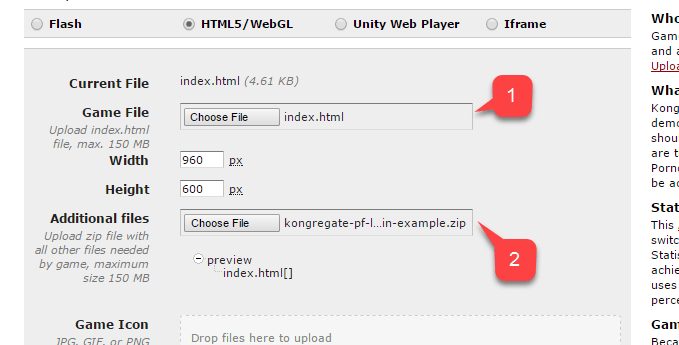
 Use a URL que você salvou anteriormente para acessar sua página **Application Upload**.
1. Selecione **index.html** como seu **Game File**.
2. Em seguida, selecione o arquivo zip como **Additional files**.
* Aceite as licenças e faça o upload.
Use a URL que você salvou anteriormente para acessar sua página **Application Upload**.
1. Selecione **index.html** como seu **Game File**.
2. Em seguida, selecione o arquivo zip como **Additional files**.
* Aceite as licenças e faça o upload.
 Quando a prévia abrir, você deverá ver seu jogo em execução enquanto a mensagem muda.
Ao final, a mensagem deverá indicar o login bem-sucedido por meio do PlayFab.
Nesse ponto, você integrou com êxito o PlayFab e o Kongregate.
## Related topics
- [Autenticação específica da plataforma](/pt-BR/services/playfab/identity/player-identity/platform-specific-authentication/index.md)
- [Configurar a autenticação do PlayFab usando Kongregate e HTML5](/pt-BR/services/playfab/identity/player-identity/platform-specific-authentication/kongregate-html5.md)
- [Configurar a autenticação do PlayFab usando Facebook e Unity](/pt-BR/services/playfab/identity/player-identity/platform-specific-authentication/facebook-unity.md)
- [Configurar a autenticação do PlayFab usando Steam e Unity](/pt-BR/services/playfab/identity/player-identity/platform-specific-authentication/steam-unity.md)
- [Configurar a autenticação do PlayFab usando Google e HTML5](/pt-BR/services/playfab/identity/player-identity/platform-specific-authentication/google-html5.md)
Quando a prévia abrir, você deverá ver seu jogo em execução enquanto a mensagem muda.
Ao final, a mensagem deverá indicar o login bem-sucedido por meio do PlayFab.
Nesse ponto, você integrou com êxito o PlayFab e o Kongregate.
## Related topics
- [Autenticação específica da plataforma](/pt-BR/services/playfab/identity/player-identity/platform-specific-authentication/index.md)
- [Configurar a autenticação do PlayFab usando Kongregate e HTML5](/pt-BR/services/playfab/identity/player-identity/platform-specific-authentication/kongregate-html5.md)
- [Configurar a autenticação do PlayFab usando Facebook e Unity](/pt-BR/services/playfab/identity/player-identity/platform-specific-authentication/facebook-unity.md)
- [Configurar a autenticação do PlayFab usando Steam e Unity](/pt-BR/services/playfab/identity/player-identity/platform-specific-authentication/steam-unity.md)
- [Configurar a autenticação do PlayFab usando Google e HTML5](/pt-BR/services/playfab/identity/player-identity/platform-specific-authentication/google-html5.md)