> ## Documentation Index
> Fetch the complete documentation index at: https://devdocs.xbox.com/llms.txt
> Use this file to discover all available pages before exploring further.

# Configurar a autenticação do PlayFab usando Facebook e HTML5

> Tutorial passo a passo para adicionar o login do Facebook a um título do PlayFab com HTML5 e JavaScript, abordando o registro do aplicativo do Facebook e a autenticação de jogadores.

Este tutorial foi criado para orientar você na autenticação do PlayFab usando Facebook e HTML5/JavaScript.

## Requisitos

* Uma [conta do Facebook](https://www.facebook.com/) para testes.
* Um título do [PlayFab](https://developer.playfab.com/) registrado.
* Familiaridade com os [conceitos básicos e práticas recomendadas de entrada](/pt-BR/services/playfab/identity/player-identity/login/login-basics-best-practices).
* Um servidor mínimo, com um nome de domínio válido para servir um arquivo HTML estático.

<Note>
  Se não tiver certeza de que atende aos requisitos necessários para esta atividade, consulte o tutorial [Executar um servidor HTTP para testes](/pt-BR/services/playfab/identity/player-identity/platform-specific-authentication/running-an-http-server-for-testing).
</Note>

## Servidor e domínio

Como parte dos requisitos para configurar a autenticação do PlayFab, você deve ter um servidor com um domínio válido. Se ainda não tiver um domínio registrado e um servidor Web remoto, siga nosso tutorial [Executar um servidor HTTP para testes](/pt-BR/services/playfab/identity/player-identity/platform-specific-authentication/running-an-http-server-for-testing) para executar um servidor Web local com um nome de domínio válido.

Ao longo deste guia, presumiremos que seu domínio é `['http://playfab.example'](http://playfab.example)`.

## Registrar um aplicativo do Facebook

Comece navegando até o [Portal do Desenvolvedor do Facebook](https://developers.facebook.com/).

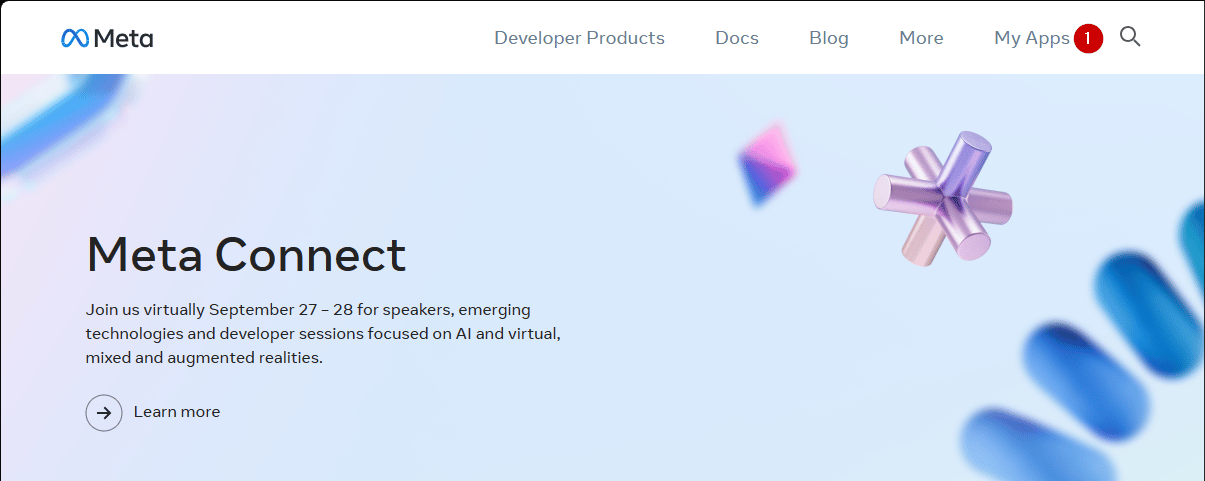
1. Selecione o botão **My Apps**.

<img src="https://mintcdn.com/microsoft-4404708b/mLCHf0iQv3VidfBe/images/playfab/identity/player-identity/platform-specific-authentication/tutorials/facebook-html5/my-apps.png?fit=max&auto=format&n=mLCHf0iQv3VidfBe&q=85&s=c533fd072cd7b47233fd2c7eb8c431a6" alt="Facebook: adicionar um novo aplicativo" width="1205" height="481" data-path="images/playfab/identity/player-identity/platform-specific-authentication/tutorials/facebook-html5/my-apps.png" />

1. Selecione **Create App** para criar um novo aplicativo.
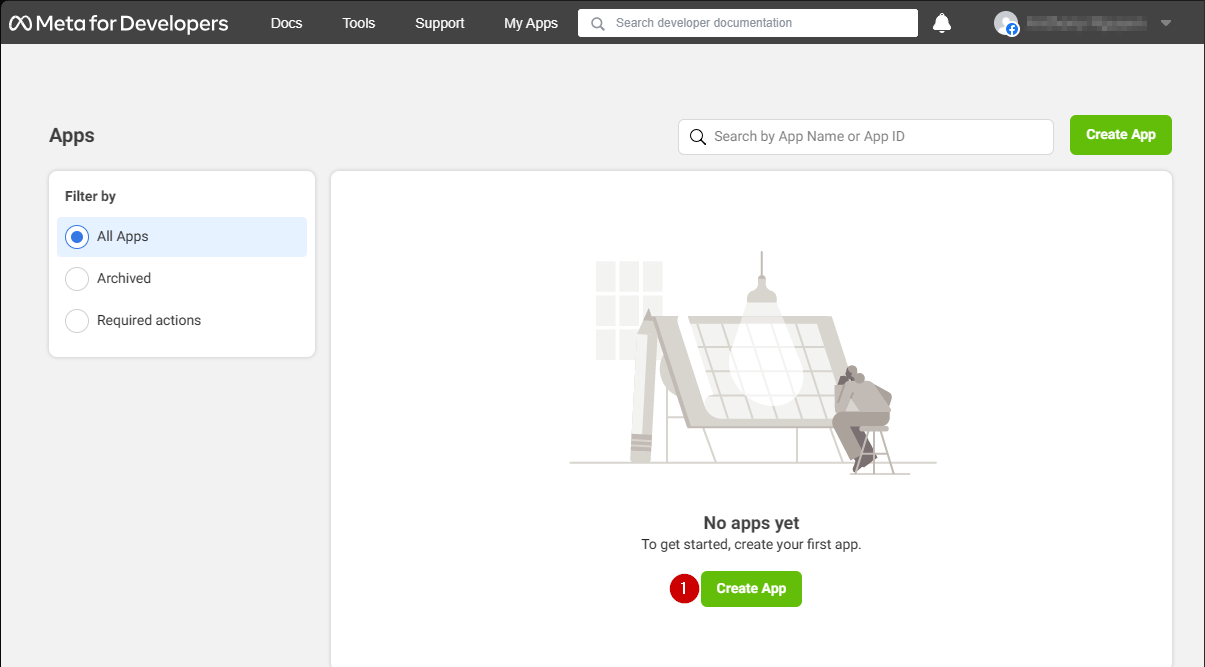
<img src="https://mintcdn.com/microsoft-4404708b/mLCHf0iQv3VidfBe/images/playfab/identity/player-identity/platform-specific-authentication/tutorials/facebook-html5/facebook-add-a-new-app.png?fit=max&auto=format&n=mLCHf0iQv3VidfBe&q=85&s=ab8793987c97a532fa9e970436afe2a3" alt="Facebook: criar um novo aplicativo" width="1205" height="667" data-path="images/playfab/identity/player-identity/platform-specific-authentication/tutorials/facebook-html5/facebook-add-a-new-app.png" />

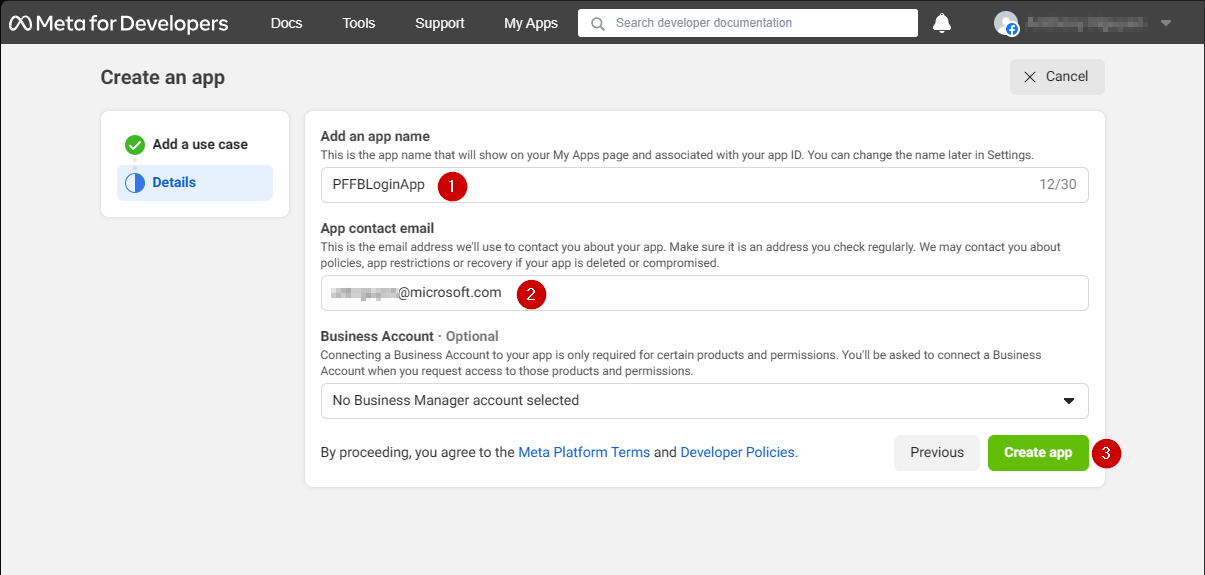
Uma nova janela pop-up de **Application** é aberta.

1. Insira um nome para seu **Application** no campo em **Add an app name**.
2. Insira um endereço de email de contato no campo em **App contact email**.
3. Selecione o botão **Create app** para salvar.
<Note>
  Certifique-se de criar seu próprio nome de aplicativo exclusivo e email, conforme mostrado no exemplo fornecido abaixo.
</Note>

<img src="https://mintcdn.com/microsoft-4404708b/mLCHf0iQv3VidfBe/images/playfab/identity/player-identity/platform-specific-authentication/tutorials/facebook-html5/facebook-new-app-id.png?fit=max&auto=format&n=mLCHf0iQv3VidfBe&q=85&s=43a15fe0906efcfb030b98c375ef610f" alt="Facebook: nova ID do aplicativo" width="1205" height="575" data-path="images/playfab/identity/player-identity/platform-specific-authentication/tutorials/facebook-html5/facebook-new-app-id.png" />

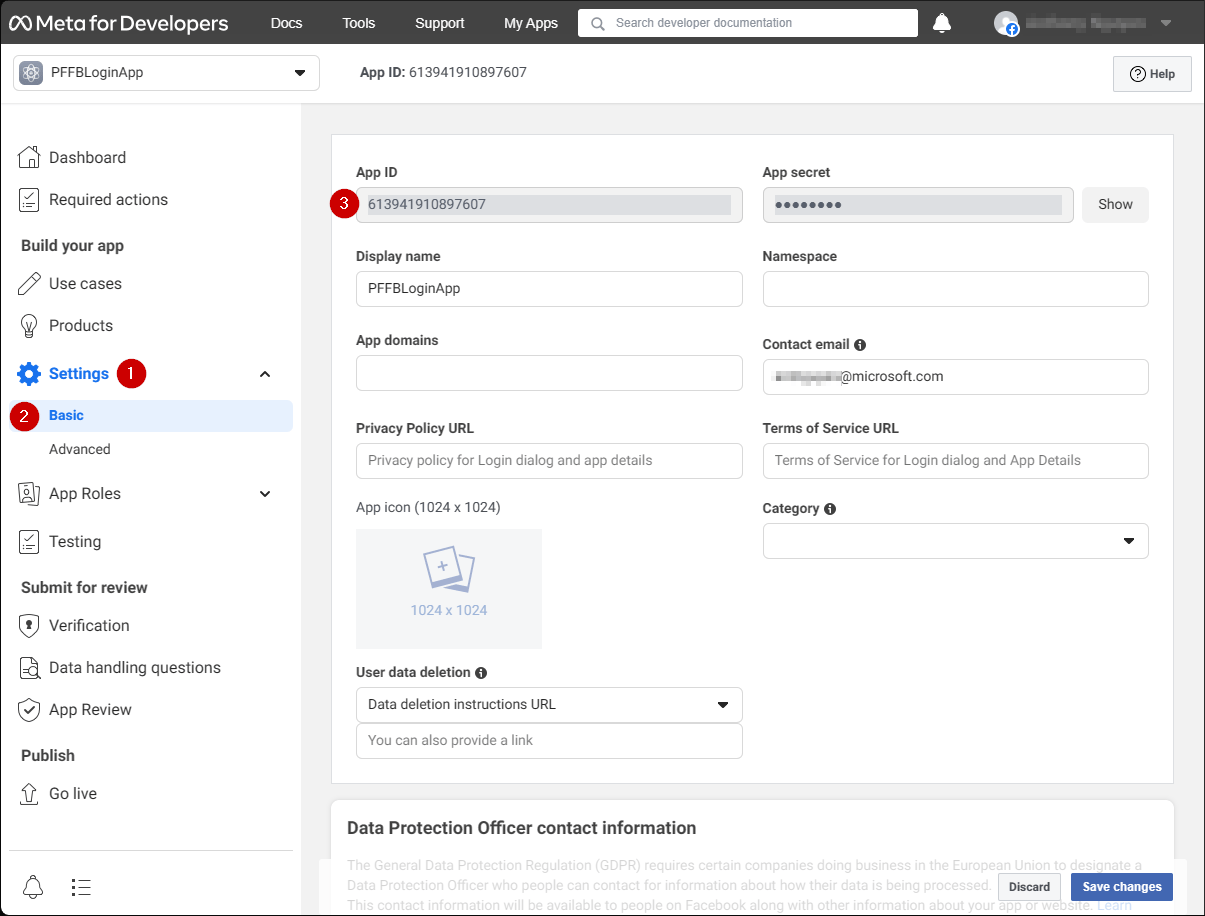
1. Navegue até a guia **Settings**.
2. Selecione a subguia **Basic**.
3. Localize seu **App ID**.
<Note>
  Copie seu **App ID** para um local seguro; ele será usado mais tarde para configurar o **Facebook SDK**.
</Note>

<img src="https://mintcdn.com/microsoft-4404708b/mLCHf0iQv3VidfBe/images/playfab/identity/player-identity/platform-specific-authentication/tutorials/facebook-html5/facebook-save-app-id.png?fit=max&auto=format&n=mLCHf0iQv3VidfBe&q=85&s=724d5c403c24e3077b1fe09f59791f46" alt="Facebook: salvar a ID do aplicativo" width="1205" height="916" data-path="images/playfab/identity/player-identity/platform-specific-authentication/tutorials/facebook-html5/facebook-save-app-id.png" />

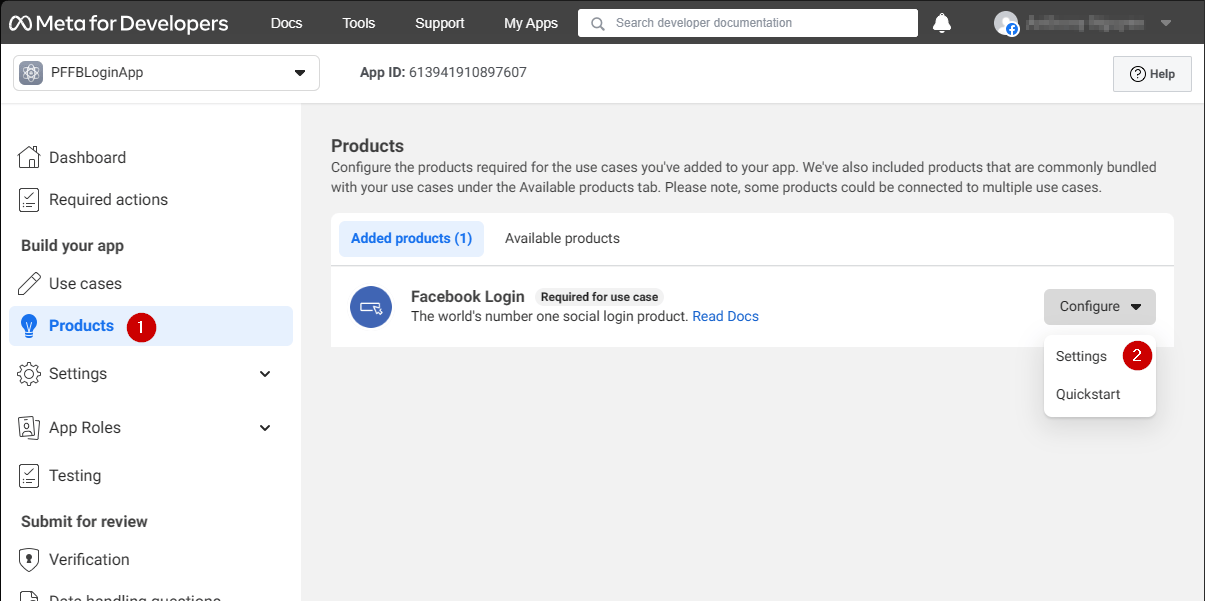
1. Vá até o menu à esquerda da tela e selecione o item **Products**.
2. Localize **Configure** na área **Facebook Login** e selecione **Settings** no menu suspenso.
<img src="https://mintcdn.com/microsoft-4404708b/mLCHf0iQv3VidfBe/images/playfab/identity/player-identity/platform-specific-authentication/tutorials/facebook-html5/login-get-started.png?fit=max&auto=format&n=mLCHf0iQv3VidfBe&q=85&s=bd346c82af2a1914bd8dfca79653f5c6" alt="Facebook Login: introdução" width="1205" height="601" data-path="images/playfab/identity/player-identity/platform-specific-authentication/tutorials/facebook-html5/login-get-started.png" />

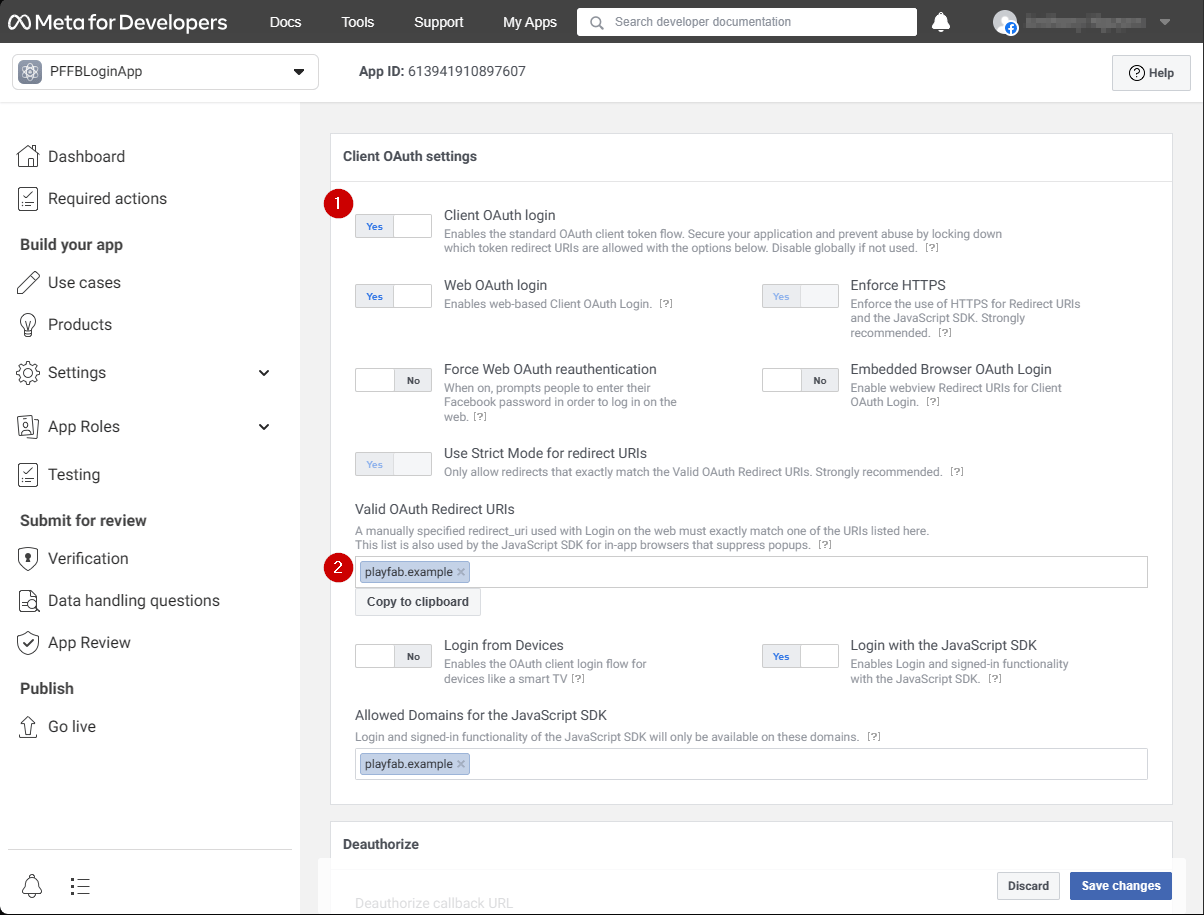
A página deve ser aberta exibindo o exemplo mostrado abaixo.

1. Verifique se **Client OAuth** e **Web OAuth** estão ativados (marcados como **Yes**).
2. Defina **Valid OAuth redirect URIs** como o **URI** da sua própria página de autenticação.
<Note>
  No seu caso, será `playfab.example`.
</Note>

<img src="https://mintcdn.com/microsoft-4404708b/mLCHf0iQv3VidfBe/images/playfab/identity/player-identity/platform-specific-authentication/tutorials/facebook-html5/login-product-settings.png?fit=max&auto=format&n=mLCHf0iQv3VidfBe&q=85&s=493c1ca8600489493ca47ced5c579204" alt="Configurações do produto Facebook Login" width="1204" height="915" data-path="images/playfab/identity/player-identity/platform-specific-authentication/tutorials/facebook-html5/login-product-settings.png" />

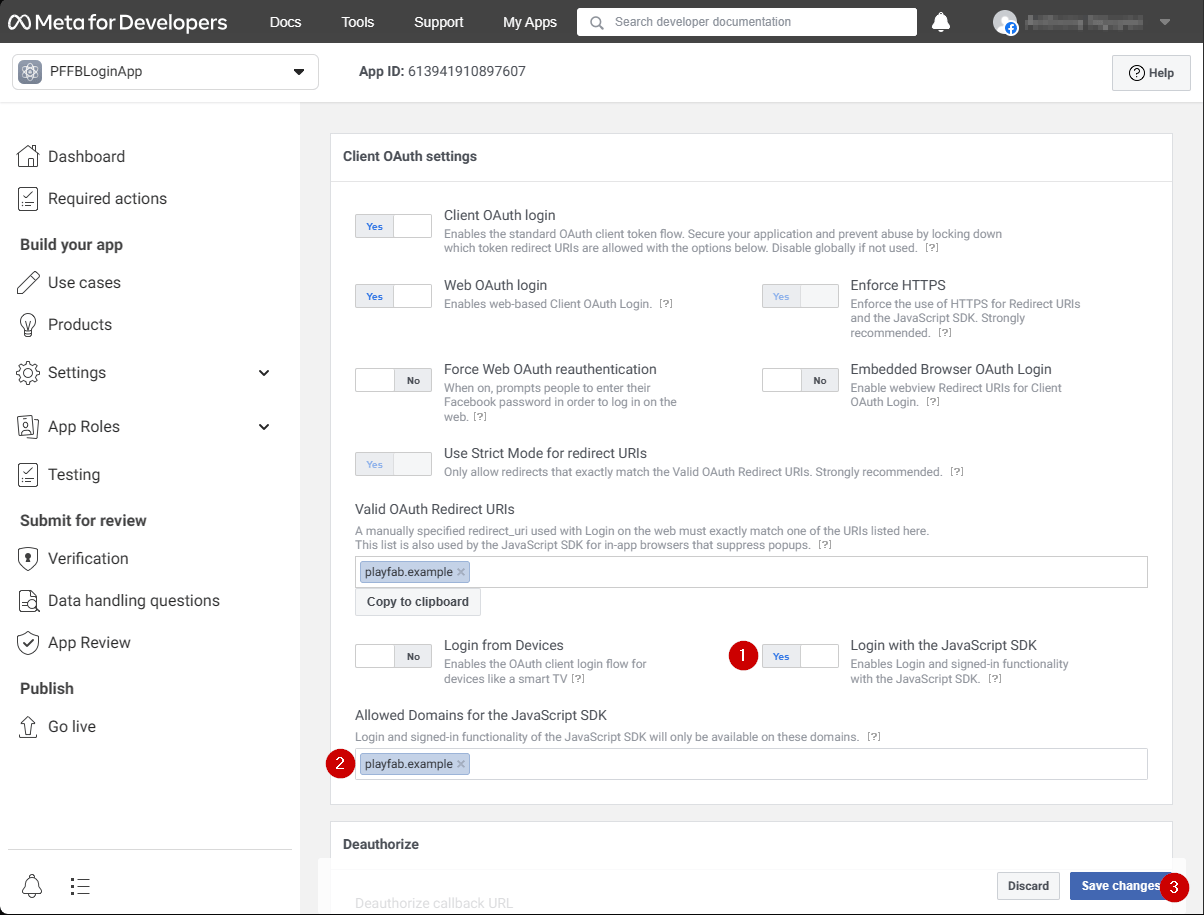
Na tela **Client OAuth Settings**:

1. Verifique se **Login with the JavaScript SDK** está ativado (marcado como **Yes**)
2. Defina **Valid OAuth redirect URIs** como o **URI** da sua própria página de autenticação.
<Note>
  No seu caso, será `playfab.example`.
</Note>

3. Selecione **Save Changes** para confirmar.

<img src="https://mintcdn.com/microsoft-4404708b/mLCHf0iQv3VidfBe/images/playfab/identity/player-identity/platform-specific-authentication/tutorials/facebook-html5/set-oauth-redirect.png?fit=max&auto=format&n=mLCHf0iQv3VidfBe&q=85&s=1d900349086b3efc854d19e7e394bbfa" alt="Facebook: definir o URI de redirecionamento OAuth" width="1204" height="915" data-path="images/playfab/identity/player-identity/platform-specific-authentication/tutorials/facebook-html5/set-oauth-redirect.png" />

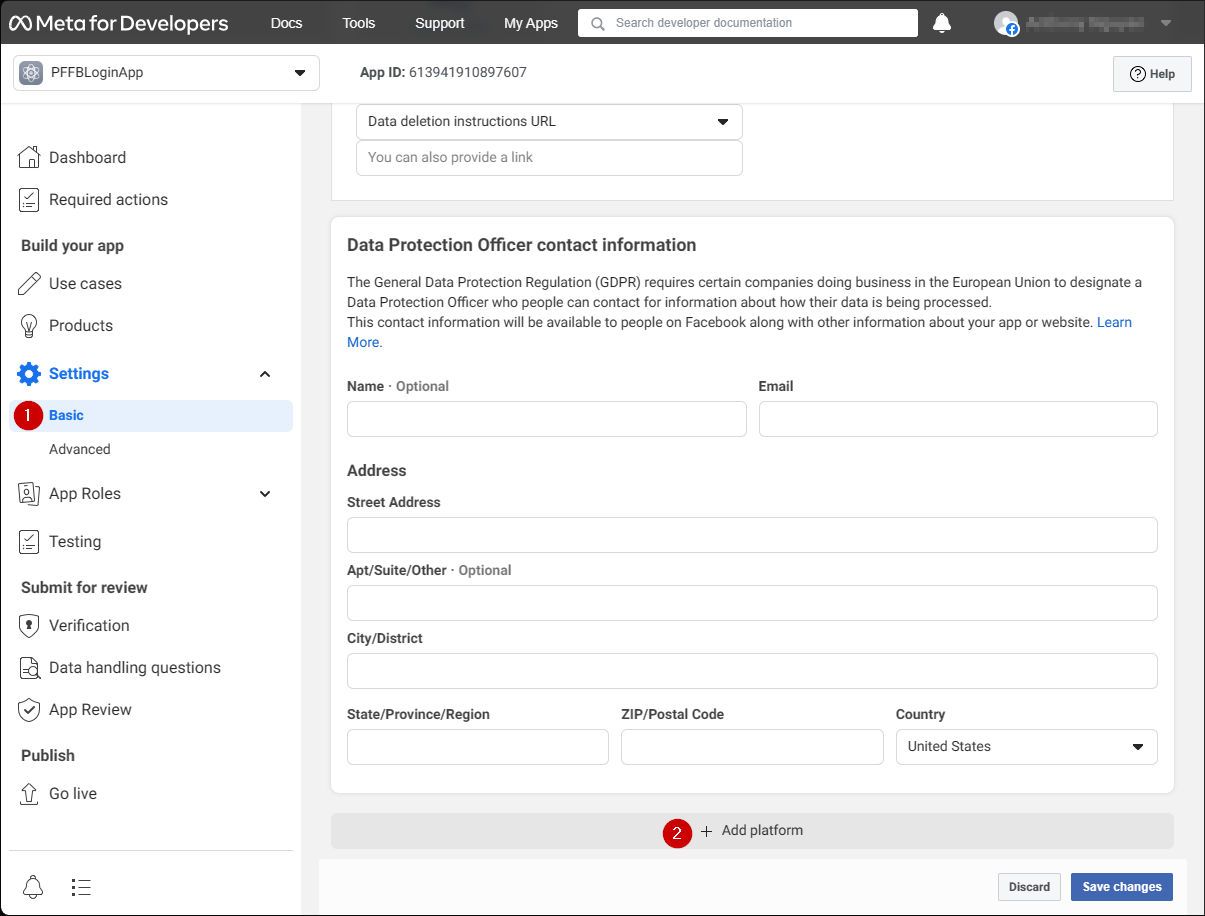
Na página **Application Manager**:

* Abra **Settings/Basic (1)** no menu.
* Selecione o botão **Add Platform (2)**.
<img src="https://mintcdn.com/microsoft-4404708b/mLCHf0iQv3VidfBe/images/playfab/identity/player-identity/platform-specific-authentication/tutorials/facebook-html5/add-platform.png?fit=max&auto=format&n=mLCHf0iQv3VidfBe&q=85&s=d715322d7bdb36fdb0cca082e6394fd7" alt="Facebook Application Manager: Add Platform" width="1205" height="916" data-path="images/playfab/identity/player-identity/platform-specific-authentication/tutorials/facebook-html5/add-platform.png" />

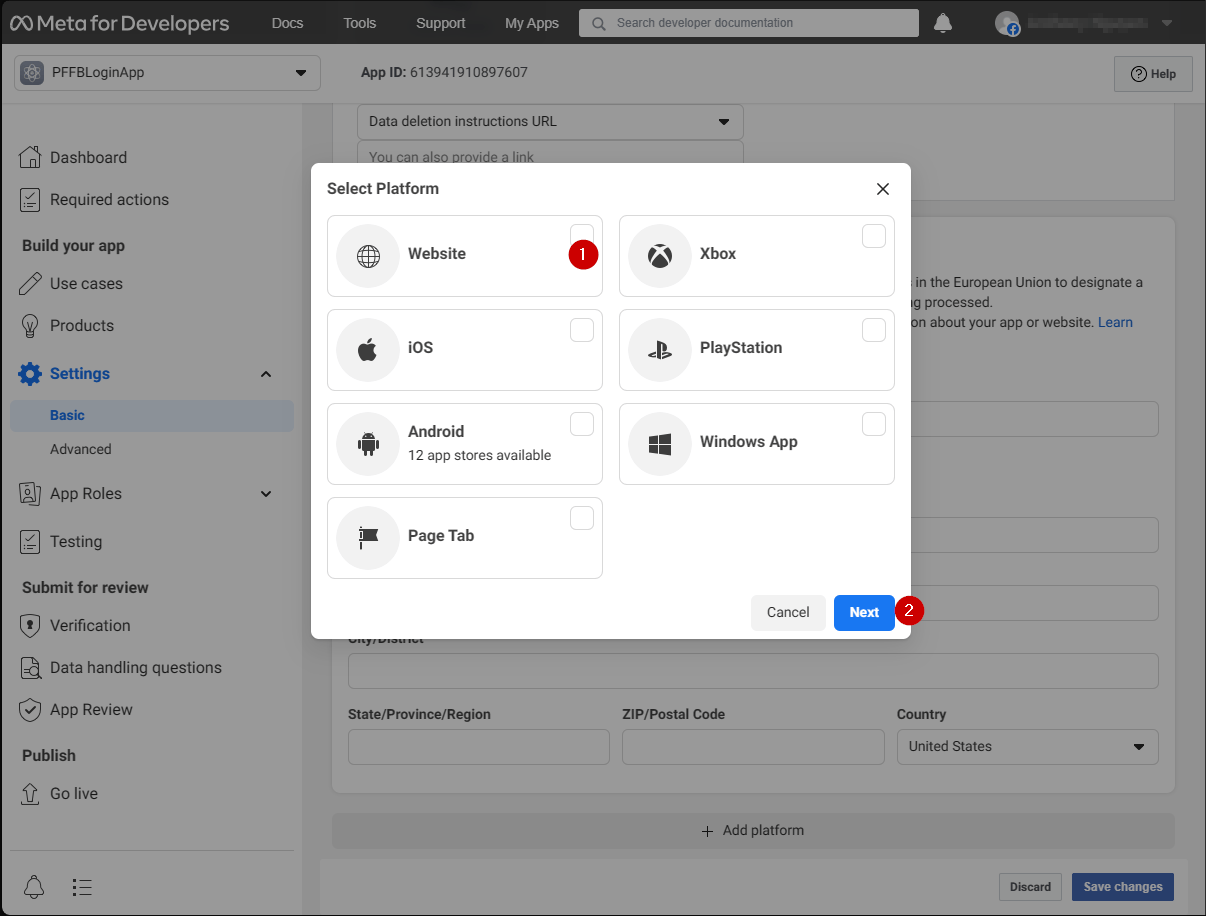
Uma janela pop-up é exibida na tela:

1. Selecione o **ícone Website**.
2. Em seguida, selecione **Next**.
<img src="https://mintcdn.com/microsoft-4404708b/mLCHf0iQv3VidfBe/images/playfab/identity/player-identity/platform-specific-authentication/tutorials/facebook-html5/website-options.png?fit=max&auto=format&n=mLCHf0iQv3VidfBe&q=85&s=96645e531316bffa3730f606c1b799ce" alt="Opções de site em Select Platform do Facebook" width="1206" height="916" data-path="images/playfab/identity/player-identity/platform-specific-authentication/tutorials/facebook-html5/website-options.png" />

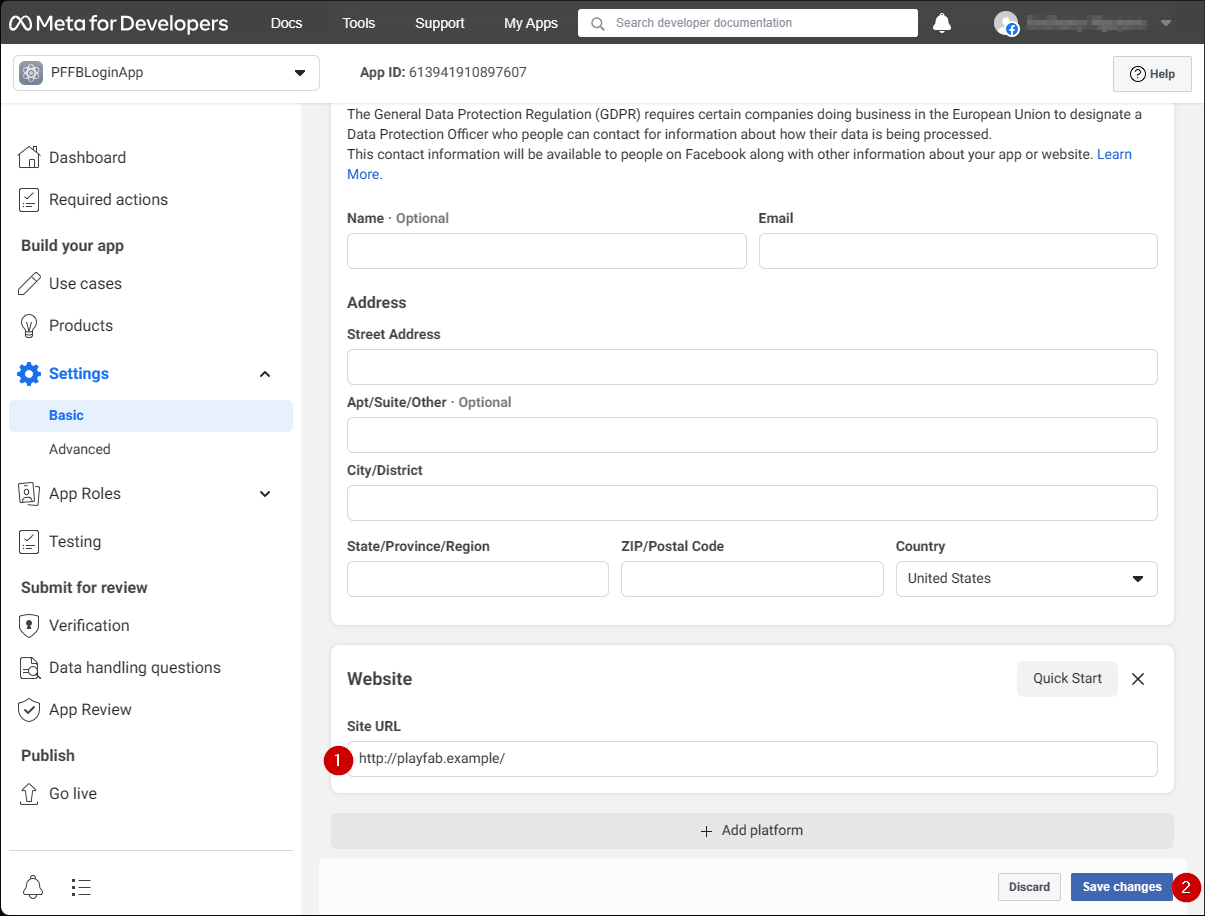
O painel de configuração **Website** deve aparecer agora.

1. No campo **Site URL**, insira a **URL** da sua página de autenticação (no seu caso, `playfab.example`).
2. Selecione **Save changes** para confirmar.
<img src="https://mintcdn.com/microsoft-4404708b/mLCHf0iQv3VidfBe/images/playfab/identity/player-identity/platform-specific-authentication/tutorials/facebook-html5/website-configuration.png?fit=max&auto=format&n=mLCHf0iQv3VidfBe&q=85&s=ef19a6ad2bf003e8e58802abeea329c5" alt="Painel de configuração de site do Facebook" width="1205" height="916" data-path="images/playfab/identity/player-identity/platform-specific-authentication/tutorials/facebook-html5/website-configuration.png" />

## Testes

Use o arquivo HTML a seguir para testar a autenticação do PlayFab usando o Facebook.

<Note>
  Certifique-se de substituir **YOUR-APPLICATION-ID** e **YOUR-PLAYFAB-TITLE** pelos seus próprios valores.
</Note>

```html theme={null}
<!DOCTYPE html>
<html>
<head>
   <script>
        // This function will be called when Facebook SDK is loaded
        window.fbAsyncInit = function() {

            // Make sure to use your own App ID for the configuration
            FB.init({
                appId      : 'YOUR-APPLICATION-ID',
                xfbml      : true,
                version    : 'v2.9'
            });

            // Record PageView event for analytics
            FB.AppEvents.logPageView();
        };

        // Facebook SDK loader. Creates a script entry to load the SDK
        (function(d, s, id){
            var js, fjs = d.getElementsByTagName(s)[0];
            if (d.getElementById(id)) {return;}
            js = d.createElement(s); js.id = id;
            js.src = "//connect.facebook.net/en_US/sdk.js";
            fjs.parentNode.insertBefore(js, fjs);
        }(document, 'script', 'facebook-jssdk'));
    </script>
    <script src="https://download.playfab.com/PlayFabClientApi.js"></script>
</head>
<body>
    <p>Facebook Auth Example</p>
    <button onclick="loginWithFacebook()">Log In with Facebook</button>
    <script>
        // This method is invoked when you press the button
        function loginWithFacebook() {
            logLine("Logging in via Facebook...");

            // Standard practice: make call to FB.login.
            // This will show Facebook popup window. To prevent browsers from locking it,
            // always make sure to call it from Button click event
            FB.login(function(response){
                if(!response.authResponse){
                    logLine("Problem authenticating via Facebook!");
                } else {
                    loginWithPlayfab(response.authResponse.accessToken);
                }
            });
        }

        function loginWithPlayfab(accessToken){

            logLine("Logging in via PlayFab...");

            // When given accessToken, make call to LoginWithFacebook API Call
            // Make sure to use your own PlayFab Title ID
            PlayFabClientSDK.LoginWithFacebook({
                AccessToken: accessToken,
                TitleId: "YOUR-PLAYFAB-TITLE",
                CreateAccount: true
            }, onPlayFabResponse);
        }

        // Handles response from playfab.
        function onPlayFabResponse(response, error) {
            if (response)
                logLine("Response: " + JSON.stringify(response));
            if (error)
                logLine("Error: " + JSON.stringify(error));
        }

        function logLine(message) {
            var textnode = document.createTextNode(message);
            document.body.appendChild(textnode);
            var br = document.createElement("br");
            document.body.appendChild(br);
        }
    </script>
</body>
</html>
```

Solicite o arquivo a seguir do seu servidor usando o domínio que você configurou durante a configuração do **Facebook Application** (`playfab.example` no nosso caso).

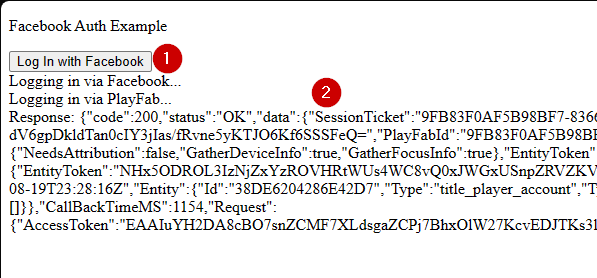
1. Quando a página **Facebook Auth Example** abrir, selecione o botão **Log In with Facebook**.
2. Siga as instruções do Facebook na janela pop-up.

Observe a saída.
<img src="https://mintcdn.com/microsoft-4404708b/mLCHf0iQv3VidfBe/images/playfab/identity/player-identity/platform-specific-authentication/tutorials/facebook-html5/facebook-auth-example.png?fit=max&auto=format&n=mLCHf0iQv3VidfBe&q=85&s=e6f77a4ce2fae3bfd5dfcc97acd2e88b" alt="Exemplo de autenticação do Facebook" width="597" height="278" data-path="images/playfab/identity/player-identity/platform-specific-authentication/tutorials/facebook-html5/facebook-auth-example.png" />

Você obterá um tíquete de sessão do PlayFab. Neste ponto, você configurou com êxito a autenticação do PlayFab e do Facebook usando HTML5 e JavaScript.


## Related topics

- [Autenticação específica da plataforma](/pt-BR/services/playfab/identity/player-identity/platform-specific-authentication/index.md)
- [Configurar a autenticação do PlayFab usando Google e HTML5](/pt-BR/services/playfab/identity/player-identity/platform-specific-authentication/google-html5.md)
- [Configurar a autenticação do PlayFab usando Kongregate e HTML5](/pt-BR/services/playfab/identity/player-identity/platform-specific-authentication/kongregate-html5.md)
- [Configurar a autenticação do PlayFab usando Twitch e HTML5](/pt-BR/services/playfab/identity/player-identity/platform-specific-authentication/twitch-html5.md)
- [Configurar a entrada com Battle.net para o PlayFab](/pt-BR/services/playfab/identity/player-identity/platform-specific-authentication/battlenet-login.md)
