> ## Documentation Index
> Fetch the complete documentation index at: https://devdocs.xbox.com/llms.txt
> Use this file to discover all available pages before exploring further.
# Visual Studio에서 원격 Windows 디바이스의 PC 프로젝트 디버깅하기
> 배포 및 디버깅을 위한 GDK 마켓플레이스 확장을 사용하여 원격 Windows 컴퓨터에서 실행 중인 PC 게임 빌드에 Visual Studio 2022 디버거를 연결합니다.
XBOX PC Toolbox 앱은 미리 보기 상태입니다. Windows의 [Microsoft Store](https://aka.ms/toolboxinstaller)에서 다운로드하세요.
[XBOX PC Remote Tools](https://learn.microsoft.com/gaming/gdk/docs/gdk-dev/pc-dev/overviews/remote-gamedev-tools)는 원격 Windows 디바이스에서 실행 중인 게임에 Visual Studio 2022 디버거를 연결하는 기능을 포함합니다. 개발 PC와 원격 Windows 디바이스 간의 모든 디버깅 트래픽은 암호화됩니다. 디버거 연결 기능은 공개 Visual Studio 마켓플레이스에서 제공되는 [Visual Studio 2022 확장](https://marketplace.visualstudio.com/items?itemName=XboxGDK.Microsoft-Xbox-PC-Remote-Debugger)을 통해 제공됩니다.
디버깅 전에 개발 PC와 원격 Windows 디바이스는 [빠른 시작 가이드](https://learn.microsoft.com/gaming/gdk/docs/gdk-dev/pc-dev/tutorials/get-started-with-remote-devices/remote-win-gamedev-quickstart)에 설명된 단계를 사용하여 프로비저닝되고 페어링되어야 합니다.
페어링 및 프로비저닝 후 [Visual Studio 확장 관리자](https://learn.microsoft.com/visualstudio/ide/finding-and-using-visual-studio-extensions?view=visualstudio)를 사용하여 XBOX PC Remote Debugger 확장을 다운로드하세요.
페어링 및 프로비저닝 후 [Visual Studio 확장 관리자](https://aka.ms/XboxPCRemoteDebugger)를 사용하여 XBOX PC Remote Debugger 확장을 다운로드하세요.
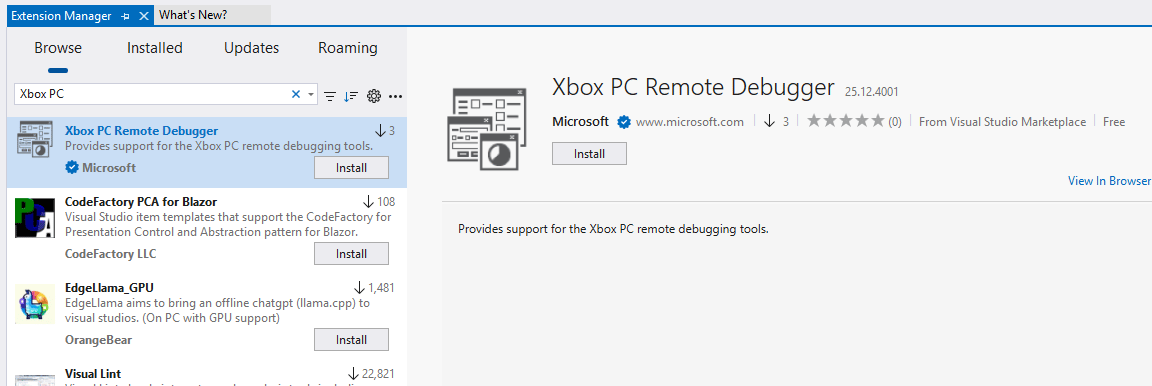 ## 게임 프로젝트에서 F5 배포 및 디버그 활성화
Visual Studio용 XBOX PC Remote Debugger 확장은 원격 Windows 디바이스에서 C++ 프로젝트를 배포하고 디버깅하기 위한 완전한 "F5" 통합을 지원합니다. F5를 누르면 프로젝트를 빌드하고, 선택적으로 원격 디바이스에 배포한 후, 게임을 일시 중단된 상태로 실행하고, XBOX PC Remote Debugger를 연결한 다음 디버그 상태에서 게임을 재개합니다.
[XBOX PC Remote Debugger Visual Studio 확장](https://marketplace.visualstudio.com/items?itemName=XboxGDK.Microsoft-Xbox-PC-Remote-Debugger)을 설치한 후, F5 원격 배포 및 디버깅을 사용하기 전에 다음을 확인하세요.
1. 개발 PC와 원격 Windows 디바이스는 [빠른 시작 가이드](https://learn.microsoft.com/gaming/gdk/docs/gdk-dev/pc-dev/tutorials/get-started-with-remote-devices/remote-win-gamedev-quickstart)에 설명된 단계를 사용하여 프로비저닝되고 페어링되어야 합니다.
2. Microsoft Visual Studio Debug Monitor (`MSVSMON.EXE`)가 원격 디바이스에 설치되어 있어야 합니다. `MSVSMON.EXE`는 [XBOX PC Toolbox 애플리케이션](/tools/tools-pc/xboxpctoolbox/xboxpctoolbox)에 의해 자동으로 설치됩니다. 또는 원격 디바이스의 관리자 프롬프트에서 WinGet을 사용하여 설치할 수도 있습니다.
```
winget install Microsoft.VisualStudio.2022.OnecoreMsvsmon
```
3. [`wdEndpoint.exe`](/tools/tools-pc/commandlinetools/gr-wdEndpoint)가 원격 디바이스에서 실행 중이어야 합니다. `wdEndpoint.exe`는 [XBOX PC Toolbox 애플리케이션](/tools/tools-pc/xboxpctoolbox/xboxpctoolbox)에 의해 자동으로 설치되고 시작됩니다. 또는 원격 디바이스의 명령 프롬프트에서 Winget을 사용하여 설치할 수도 있습니다.
```
winget install Microsoft.Gaming.RemoteIterationEndpoint
```
WinGet을 통해 설치한 후 `wdEndpoint.exe`를 수동으로 시작하세요.
### MSBuild 프로젝트에 F5 원격 디버그 지원 추가
MSBuild를 사용하는 프로젝트에서 F5 통합을 활성화하려면 `.vcxproj` 파일에 다음 XML을 추가하세요. 마지막 `` 요소 뒤와 소스 파일 `` 섹션 앞에 배치하세요.
```xml theme={null}
```
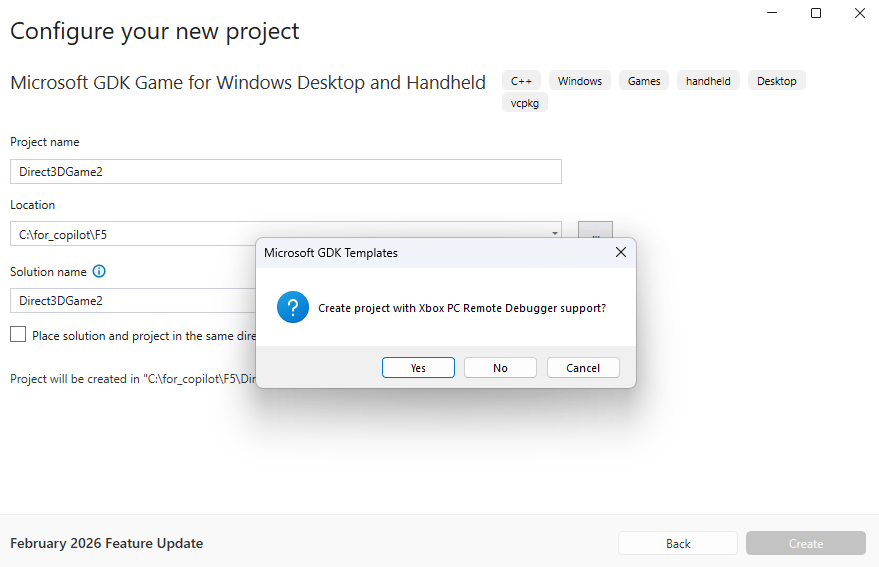
최신 버전의 [Microsoft GDK 템플릿](https://aka.ms/gdktemplates)은 새 프로젝트를 만들 때 이 통합을 포함할지 여부를 묻습니다.
## 게임 프로젝트에서 F5 배포 및 디버그 활성화
Visual Studio용 XBOX PC Remote Debugger 확장은 원격 Windows 디바이스에서 C++ 프로젝트를 배포하고 디버깅하기 위한 완전한 "F5" 통합을 지원합니다. F5를 누르면 프로젝트를 빌드하고, 선택적으로 원격 디바이스에 배포한 후, 게임을 일시 중단된 상태로 실행하고, XBOX PC Remote Debugger를 연결한 다음 디버그 상태에서 게임을 재개합니다.
[XBOX PC Remote Debugger Visual Studio 확장](https://marketplace.visualstudio.com/items?itemName=XboxGDK.Microsoft-Xbox-PC-Remote-Debugger)을 설치한 후, F5 원격 배포 및 디버깅을 사용하기 전에 다음을 확인하세요.
1. 개발 PC와 원격 Windows 디바이스는 [빠른 시작 가이드](https://learn.microsoft.com/gaming/gdk/docs/gdk-dev/pc-dev/tutorials/get-started-with-remote-devices/remote-win-gamedev-quickstart)에 설명된 단계를 사용하여 프로비저닝되고 페어링되어야 합니다.
2. Microsoft Visual Studio Debug Monitor (`MSVSMON.EXE`)가 원격 디바이스에 설치되어 있어야 합니다. `MSVSMON.EXE`는 [XBOX PC Toolbox 애플리케이션](/tools/tools-pc/xboxpctoolbox/xboxpctoolbox)에 의해 자동으로 설치됩니다. 또는 원격 디바이스의 관리자 프롬프트에서 WinGet을 사용하여 설치할 수도 있습니다.
```
winget install Microsoft.VisualStudio.2022.OnecoreMsvsmon
```
3. [`wdEndpoint.exe`](/tools/tools-pc/commandlinetools/gr-wdEndpoint)가 원격 디바이스에서 실행 중이어야 합니다. `wdEndpoint.exe`는 [XBOX PC Toolbox 애플리케이션](/tools/tools-pc/xboxpctoolbox/xboxpctoolbox)에 의해 자동으로 설치되고 시작됩니다. 또는 원격 디바이스의 명령 프롬프트에서 Winget을 사용하여 설치할 수도 있습니다.
```
winget install Microsoft.Gaming.RemoteIterationEndpoint
```
WinGet을 통해 설치한 후 `wdEndpoint.exe`를 수동으로 시작하세요.
### MSBuild 프로젝트에 F5 원격 디버그 지원 추가
MSBuild를 사용하는 프로젝트에서 F5 통합을 활성화하려면 `.vcxproj` 파일에 다음 XML을 추가하세요. 마지막 `` 요소 뒤와 소스 파일 `` 섹션 앞에 배치하세요.
```xml theme={null}
```
최신 버전의 [Microsoft GDK 템플릿](https://aka.ms/gdktemplates)은 새 프로젝트를 만들 때 이 통합을 포함할지 여부를 묻습니다.
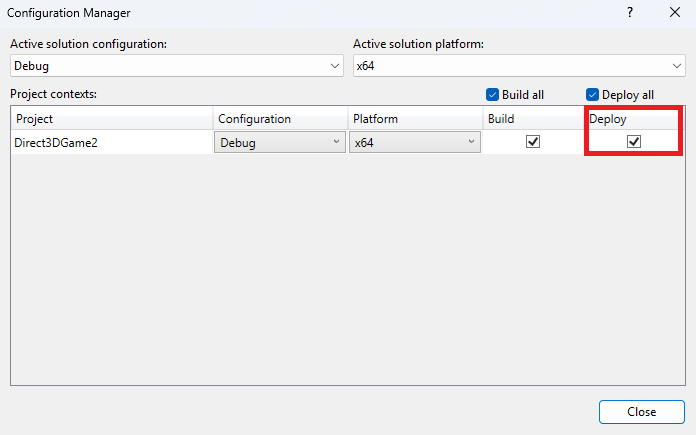
 배포를 활성화하려면 **프로젝트 > 속성 > 구성 관리자**로 이동하고 원하는 구성에 대해 **배포** 옵션을 선택하세요.
 **F5**를 누르기 전에 디버깅 툴바 또는 프로젝트 속성 페이지를 사용하여 디버거를 **XBOX PC Remote Debugger**로 설정하세요. 배포 및 디버깅을 구성하기 위해 몇 가지 속성을 사용할 수 있습니다.
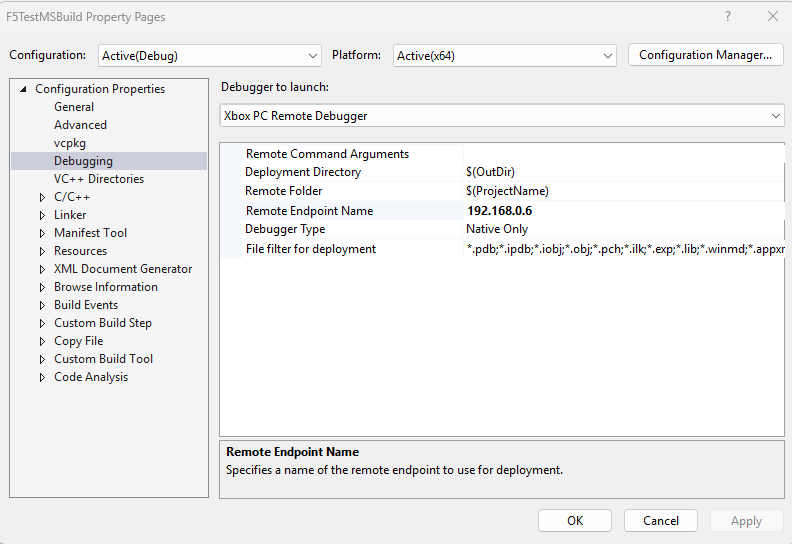 * `Remote Command Arguments`. 게임에 전달할 명령 인수 목록입니다.
* `Deployment Directory`. 원격 Windows 디바이스에 배포할 개발 PC의 디렉터리입니다. 기본값은 `$(Outdir)`입니다.
* `Remote Folder`. 원격 Windows 디바이스에 게임이 배포되는 폴더입니다. 이 폴더는 *Common Root*를 기준으로 합니다. *Common Root*에 대한 자세한 내용은 [`wdEndpoint.exe`](/tools/tools-pc/commandlinetools/gr-wdEndpoint) 항목을 참조하세요.
* `Remote EndPoint Name`. 기본 원격 디바이스는 표준 Windows 원격 디버깅과 마찬가지로 개발자 머신 자체입니다. `wdEndpoint.exe`가 실행 중인 디바이스 이름으로 `Remote EndPoint Name`을 업데이트하세요.
* `File filter for deployment`. 배포에서 제외해야 하는 파일 집합을 지정하는 데 사용됩니다. 예를 들어 `.pdb` 파일을 배포에서 제외하는 것이 일반적인 관행입니다. 제외할 파일 패턴 목록을 세미콜론으로 구분하여 제공하세요. 예: `*.pdb;*.ipdb;*.iobj;*.obj;*.pch;*`.
**구성**에 대해 **배포** 확인란이 선택되고 **XBOX PC Remote Debugger**가 디버거 유형으로 선택되며 속성이 채워지면, **F5**를 누르면 게임이 빌드되고 원격 Windows 디바이스에 배포되며 디버거 아래에서 시작됩니다.
Visual Studio가 게임의 기호를 찾을 수 있도록 기호 경로를 구성해야 할 수 있습니다. **도구** 메뉴에서 액세스할 수 있는 **옵션** 대화 상자의 **디버깅** 설정을 사용하여 그렇게 할 수 있습니다.
#### F5 원격 디버거 프로젝트별 기본값
XBOX PC Remote Debugger 설정 기본값은 `XboxPCcppDebugger.props` 파일에 의해 설정되며, Visual Studio 프로젝트 속성 대화 상자에서 설정한 내용은 로컬 머신에서 '사용자별'로 저장됩니다.
모든 사용자가 자신의 머신에서 설정할 필요 없이 vcxproj가 다른 기본값을 제공하도록 하려면 다음과 같이 MSBuild에 추가하세요.
```xml theme={null}
MyGameTitle
```
### Visual C++ 런타임 (CRT) 배포
프로그램이 원격 머신에서 실행되기 위해서는 Visual C++ 런타임 파일이 필요합니다. 소매용 CRT의 경우 원격 머신에 Visual C++ REDIST 패키지를 설치하여 이를 수행할 수 있습니다. 디버그 CRT의 경우 이러한 파일은 타이틀과 함께 배포되어야 합니다.
MSBuild에서 이에 대한 간단한 해결책은 프로젝트의 Global 섹션에 속성을 추가하는 것입니다.
```xml theme={null}
true
```
이렇게 하면 Visual C++ CRT가 `OutDir`로 복사됩니다. `UseDebugLibraries`가 true로 설정된 경우 Debug 버전을 사용하며, 그렇지 않으면 Retail 버전을 사용합니다.
### CMake 프로젝트에 F5 원격 디버그 지원 추가
CMake 프로젝트와 같은 폴더 열기 프로젝트의 경우 F5 원격 디버깅 지원은 `.vcxproj` 파일이 아닌 `launch.vs.json`에서 구성됩니다.
1. XBOX PC Remote Debugger 지원을 설치하고 원격 Windows 디바이스가 프로비저닝되어 `wdEndpoint.exe`가 실행 중인지 확인하세요.
2. Visual Studio에서 CMake 프로젝트 폴더를 엽니다.
3. **솔루션 탐색기**에서 **CMakeLists.txt**를 마우스 오른쪽 버튼으로 클릭하고 \*\*디버그 구성 추가...\*\*를 선택합니다.
4. **XBOX PC Remote Debugger Folder**를 선택합니다.
* `Remote Command Arguments`. 게임에 전달할 명령 인수 목록입니다.
* `Deployment Directory`. 원격 Windows 디바이스에 배포할 개발 PC의 디렉터리입니다. 기본값은 `$(Outdir)`입니다.
* `Remote Folder`. 원격 Windows 디바이스에 게임이 배포되는 폴더입니다. 이 폴더는 *Common Root*를 기준으로 합니다. *Common Root*에 대한 자세한 내용은 [`wdEndpoint.exe`](/tools/tools-pc/commandlinetools/gr-wdEndpoint) 항목을 참조하세요.
* `Remote EndPoint Name`. 기본 원격 디바이스는 표준 Windows 원격 디버깅과 마찬가지로 개발자 머신 자체입니다. `wdEndpoint.exe`가 실행 중인 디바이스 이름으로 `Remote EndPoint Name`을 업데이트하세요.
* `File filter for deployment`. 배포에서 제외해야 하는 파일 집합을 지정하는 데 사용됩니다. 예를 들어 `.pdb` 파일을 배포에서 제외하는 것이 일반적인 관행입니다. 제외할 파일 패턴 목록을 세미콜론으로 구분하여 제공하세요. 예: `*.pdb;*.ipdb;*.iobj;*.obj;*.pch;*`.
**구성**에 대해 **배포** 확인란이 선택되고 **XBOX PC Remote Debugger**가 디버거 유형으로 선택되며 속성이 채워지면, **F5**를 누르면 게임이 빌드되고 원격 Windows 디바이스에 배포되며 디버거 아래에서 시작됩니다.
Visual Studio가 게임의 기호를 찾을 수 있도록 기호 경로를 구성해야 할 수 있습니다. **도구** 메뉴에서 액세스할 수 있는 **옵션** 대화 상자의 **디버깅** 설정을 사용하여 그렇게 할 수 있습니다.
#### F5 원격 디버거 프로젝트별 기본값
XBOX PC Remote Debugger 설정 기본값은 `XboxPCcppDebugger.props` 파일에 의해 설정되며, Visual Studio 프로젝트 속성 대화 상자에서 설정한 내용은 로컬 머신에서 '사용자별'로 저장됩니다.
모든 사용자가 자신의 머신에서 설정할 필요 없이 vcxproj가 다른 기본값을 제공하도록 하려면 다음과 같이 MSBuild에 추가하세요.
```xml theme={null}
MyGameTitle
```
### Visual C++ 런타임 (CRT) 배포
프로그램이 원격 머신에서 실행되기 위해서는 Visual C++ 런타임 파일이 필요합니다. 소매용 CRT의 경우 원격 머신에 Visual C++ REDIST 패키지를 설치하여 이를 수행할 수 있습니다. 디버그 CRT의 경우 이러한 파일은 타이틀과 함께 배포되어야 합니다.
MSBuild에서 이에 대한 간단한 해결책은 프로젝트의 Global 섹션에 속성을 추가하는 것입니다.
```xml theme={null}
true
```
이렇게 하면 Visual C++ CRT가 `OutDir`로 복사됩니다. `UseDebugLibraries`가 true로 설정된 경우 Debug 버전을 사용하며, 그렇지 않으면 Retail 버전을 사용합니다.
### CMake 프로젝트에 F5 원격 디버그 지원 추가
CMake 프로젝트와 같은 폴더 열기 프로젝트의 경우 F5 원격 디버깅 지원은 `.vcxproj` 파일이 아닌 `launch.vs.json`에서 구성됩니다.
1. XBOX PC Remote Debugger 지원을 설치하고 원격 Windows 디바이스가 프로비저닝되어 `wdEndpoint.exe`가 실행 중인지 확인하세요.
2. Visual Studio에서 CMake 프로젝트 폴더를 엽니다.
3. **솔루션 탐색기**에서 **CMakeLists.txt**를 마우스 오른쪽 버튼으로 클릭하고 \*\*디버그 구성 추가...\*\*를 선택합니다.
4. **XBOX PC Remote Debugger Folder**를 선택합니다.
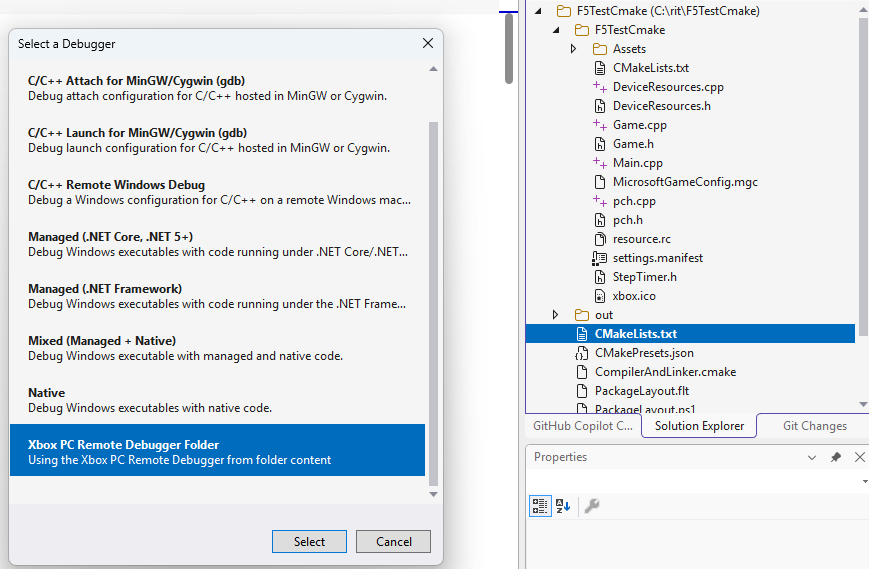 Visual Studio가 `Xbox PC Remote Debugger` 시작 구성으로 `.vs\launch.vs.json` 파일을 만듭니다.
일반적인 구성은 다음과 같습니다.
```json theme={null}
{
"version": "0.2.1",
"defaults": {},
"configurations": [
{
"type": "default",
"name": "MyGame.exe",
"project": "CMakeLists.txt",
"projectTarget": "MyGame.exe",
"deployDirectory": "${workspaceRoot}\\out\\build\\x64-Release\\bin",
"deployExcludeFilter": "*.pdb;*.ipdb;*.iobj;*.obj;*.pch;*.ilk;*.exp;*.lib;*.winmd;*.appxrecipe;*.log;*.tlog;*unsuccessfulbuild;*.lastbuildstate;*.copycomplete",
"remoteGameshareFolder": "MyGame",
"remoteMachineName": "MyROGAlly",
"targetName": "MyGame.exe",
"args": [],
"deployType": "GamingXboxPCRemoteDeploy"
}
]
}
```
5. 생성된 구성을 다음 속성 값으로 업데이트합니다.
* `deployDirectory`. 배포할 파일이 있는 로컬 출력 폴더입니다.
* `remoteGameshareFolder`. 원격 디바이스에서 만들거나 사용할 폴더입니다.
* `remoteMachineName`. `wdEndpoint.exe`가 실행 중인 원격 디바이스의 이름입니다.
* `targetName`. 배포 후 실행할 게임 실행 파일입니다.
6. 필요에 따라 다음 속성을 선택적으로 업데이트합니다.
* `deployExcludeFilter`. 배포에서 제외할 파일 패턴의 세미콜론으로 구분된 목록입니다.
* `args`. 게임 시작 시 게임에 전달할 명령줄 인수입니다.
* `disableDeploy`. 배포를 건너뛰고 디버거로 실행하거나 연결만 하려는 경우 이를 설정합니다.
7. 로컬에서 게임을 빌드한 다음 디버거 툴바에서 **CMakeLists.txt**를 선택하고 **F5**를 눌러 게임을 원격 디바이스에 배포하고 디버거 아래에서 시작합니다.
Visual Studio가 `Xbox PC Remote Debugger` 시작 구성으로 `.vs\launch.vs.json` 파일을 만듭니다.
일반적인 구성은 다음과 같습니다.
```json theme={null}
{
"version": "0.2.1",
"defaults": {},
"configurations": [
{
"type": "default",
"name": "MyGame.exe",
"project": "CMakeLists.txt",
"projectTarget": "MyGame.exe",
"deployDirectory": "${workspaceRoot}\\out\\build\\x64-Release\\bin",
"deployExcludeFilter": "*.pdb;*.ipdb;*.iobj;*.obj;*.pch;*.ilk;*.exp;*.lib;*.winmd;*.appxrecipe;*.log;*.tlog;*unsuccessfulbuild;*.lastbuildstate;*.copycomplete",
"remoteGameshareFolder": "MyGame",
"remoteMachineName": "MyROGAlly",
"targetName": "MyGame.exe",
"args": [],
"deployType": "GamingXboxPCRemoteDeploy"
}
]
}
```
5. 생성된 구성을 다음 속성 값으로 업데이트합니다.
* `deployDirectory`. 배포할 파일이 있는 로컬 출력 폴더입니다.
* `remoteGameshareFolder`. 원격 디바이스에서 만들거나 사용할 폴더입니다.
* `remoteMachineName`. `wdEndpoint.exe`가 실행 중인 원격 디바이스의 이름입니다.
* `targetName`. 배포 후 실행할 게임 실행 파일입니다.
6. 필요에 따라 다음 속성을 선택적으로 업데이트합니다.
* `deployExcludeFilter`. 배포에서 제외할 파일 패턴의 세미콜론으로 구분된 목록입니다.
* `args`. 게임 시작 시 게임에 전달할 명령줄 인수입니다.
* `disableDeploy`. 배포를 건너뛰고 디버거로 실행하거나 연결만 하려는 경우 이를 설정합니다.
7. 로컬에서 게임을 빌드한 다음 디버거 툴바에서 **CMakeLists.txt**를 선택하고 **F5**를 눌러 게임을 원격 디바이스에 배포하고 디버거 아래에서 시작합니다.
 ## 원격 Windows 디바이스에서 실행 중인 게임에 Visual Studio 디버거 연결
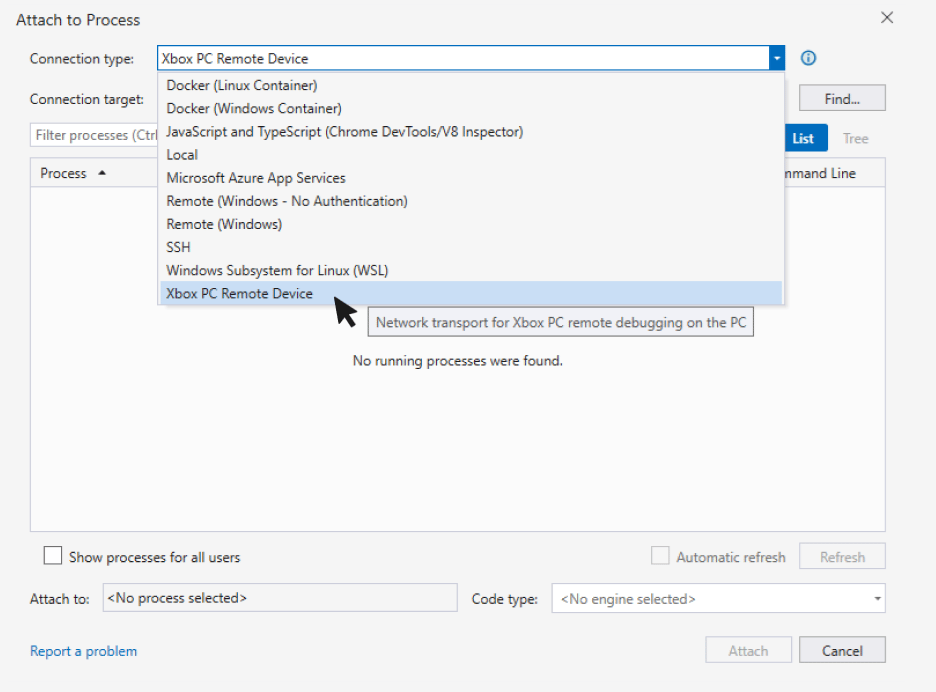
원격 디바이스에서 이미 실행 중인 게임에 디버거를 연결하려면 Visual Studio의 **디버그** 메뉴에서 \*\*프로세스에 연결...\*\*을 선택하세요. **연결 유형** 드롭다운에서 **XBOX PC Remote Device**를 선택하고 **연결 대상** 텍스트 상자에 원격 디바이스의 IP 주소나 호스트 이름을 입력하세요. 원격 디바이스에서 실행 중인 프로세스 목록이 표시됩니다. 디버깅할 게임을 선택하고 **연결** 버튼을 선택하세요.
## 원격 Windows 디바이스에서 실행 중인 게임에 Visual Studio 디버거 연결
원격 디바이스에서 이미 실행 중인 게임에 디버거를 연결하려면 Visual Studio의 **디버그** 메뉴에서 \*\*프로세스에 연결...\*\*을 선택하세요. **연결 유형** 드롭다운에서 **XBOX PC Remote Device**를 선택하고 **연결 대상** 텍스트 상자에 원격 디바이스의 IP 주소나 호스트 이름을 입력하세요. 원격 디바이스에서 실행 중인 프로세스 목록이 표시됩니다. 디버깅할 게임을 선택하고 **연결** 버튼을 선택하세요.
 ## 함께 보기
[XBOX PC Remote Tools](https://learn.microsoft.com/gaming/gdk/docs/gdk-dev/pc-dev/overviews/remote-gamedev-tools)
## Related topics
- [Visual Studio (목차)](/ko/tools/tools-pc/visualstudio/gr-visualstudio-toc.md)
- [Visual Studio](/ko/tools/tools-pc/visualstudio/index.md)
- [Visual Studio를 사용한 PC 프로젝트 디버깅](/ko/tools/tools-pc/visualstudio/gr-vs-debugging-with-visualstudio.md)
- [Visual Studio를 사용한 XBOX 프로젝트 디버깅](/ko/tools/tools-console/visualstudio/debugging-with-visualstudio.md)
- [GSDK 프로젝트 테스트 및 디버깅](/ko/services/playfab/multiplayer/servers/server-sdks/unreal-gsdk/third-person-mp-example-project-local-deployment-and-debugging.md)
## 함께 보기
[XBOX PC Remote Tools](https://learn.microsoft.com/gaming/gdk/docs/gdk-dev/pc-dev/overviews/remote-gamedev-tools)
## Related topics
- [Visual Studio (목차)](/ko/tools/tools-pc/visualstudio/gr-visualstudio-toc.md)
- [Visual Studio](/ko/tools/tools-pc/visualstudio/index.md)
- [Visual Studio를 사용한 PC 프로젝트 디버깅](/ko/tools/tools-pc/visualstudio/gr-vs-debugging-with-visualstudio.md)
- [Visual Studio를 사용한 XBOX 프로젝트 디버깅](/ko/tools/tools-console/visualstudio/debugging-with-visualstudio.md)
- [GSDK 프로젝트 테스트 및 디버깅](/ko/services/playfab/multiplayer/servers/server-sdks/unreal-gsdk/third-person-mp-example-project-local-deployment-and-debugging.md)