> ## Documentation Index
> Fetch the complete documentation index at: https://devdocs.xbox.com/llms.txt
> Use this file to discover all available pages before exploring further.
# Visual Studio 2019 지원 노트
> Visual Studio 2019 지원 노트
이 항목은 Visual Studio 2019에 대한 Microsoft Game Development Kit (GDK) 지원을 설명합니다. Visual Studio 2019 [버전 16.11](https://learn.microsoft.com/visualstudio/releases/2019/servicing-vs2019)은 Microsoft Game Development Kit (GDK) 개발에 지원됩니다.
Visual Studio 2019 버전 16.0 - 16.10은 2022년 10월부터 지원이 중단되었습니다.
## Visual Studio 2019 설치
Visual Studio 2019를 설치할 때, 다음 스크린샷과 같이 설정 중에 **C++를 사용한 게임 개발** 워크로드를 선택해야 합니다.
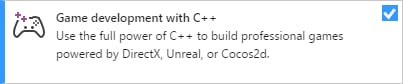 Windows PC 게임 개발에 필요한 핵심 C++ 도구 외에도, C++를 사용한 게임 개발에는 Microsoft Game Development Kit (GDK)로 Windows PC 게임을 빌드하는 데 필요한 Windows 10 SDK 버전이 포함되어 있습니다.
필수는 아니지만, C++를 사용한 데스크톱 개발 워크로드를 설치하면 유용하게 사용할 수 있는 추가 도구와 샘플이 제공됩니다.
필요에 따라 추가 선택적 워크로드 또는 구성 요소를 설치할 수 있습니다.
* Unity를 사용하는 게임을 빌드하는 경우 **Unity를 사용한 게임 개발** 워크로드를 설치하세요.
* MVSC 빌드 도구의 **v142** 버전은 C++를 사용한 게임 개발 워크로드와 함께 설치됩니다. 필요한 경우 Visual Studio 2017에 포함된 MSVC 도구(**v141**)를 사용하여 Visual Studio 2019 통합 개발 환경(IDE)을 사용할 수 있습니다. 새 도구 집합으로 업그레이드하지 않고 최신 IDE를 사용하면 새 컴파일러와 함께 작동하도록 소스 코드를 업데이트할 필요 없이 새 IDE 기능을 활용할 수 있습니다.
> Visual Studio 2019 IDE에서 Visual Studio 2017 도구 집합을 사용하려면 다음 스크린샷과 같이 **C++를 사용한 데스크톱 개발** 워크로드 아래에서 **MSVC v141 - VS 2017 C++ x64/x86 build tools (v14.16)** 구성 요소를 설치하세요. Visual Studio 2017 도구 집합은 2024년 10월 릴리스부터 더 이상 지원되지 않습니다.
* 원격 PC에서 게임을 디버깅하려면 Visual Studio Remote Tools 설치 지침에 대한 [Visual Studio에서 C++ 프로젝트 원격 디버깅](https://learn.microsoft.com/visualstudio/debugger/remote-debugging-cpp)을 참조하세요.
## 기존 Visual Studio 2017 프로젝트를 Visual Studio 2019로 마이그레이션
대부분의 경우 Visual Studio와 함께 제공되는 업그레이드 마법사가 다른 변경 없이 프로젝트를 Visual Studio 2019로 마이그레이션할 수 있습니다. Visual Studio 2019에서 Visual Studio 2017 프로젝트를 열면 업그레이드를 안내하는 다음 솔루션 작업 검토 대화 상자가 표시됩니다. 프로젝트를 업그레이드하려면 **확인**을 선택하세요.
Windows PC 게임 개발에 필요한 핵심 C++ 도구 외에도, C++를 사용한 게임 개발에는 Microsoft Game Development Kit (GDK)로 Windows PC 게임을 빌드하는 데 필요한 Windows 10 SDK 버전이 포함되어 있습니다.
필수는 아니지만, C++를 사용한 데스크톱 개발 워크로드를 설치하면 유용하게 사용할 수 있는 추가 도구와 샘플이 제공됩니다.
필요에 따라 추가 선택적 워크로드 또는 구성 요소를 설치할 수 있습니다.
* Unity를 사용하는 게임을 빌드하는 경우 **Unity를 사용한 게임 개발** 워크로드를 설치하세요.
* MVSC 빌드 도구의 **v142** 버전은 C++를 사용한 게임 개발 워크로드와 함께 설치됩니다. 필요한 경우 Visual Studio 2017에 포함된 MSVC 도구(**v141**)를 사용하여 Visual Studio 2019 통합 개발 환경(IDE)을 사용할 수 있습니다. 새 도구 집합으로 업그레이드하지 않고 최신 IDE를 사용하면 새 컴파일러와 함께 작동하도록 소스 코드를 업데이트할 필요 없이 새 IDE 기능을 활용할 수 있습니다.
> Visual Studio 2019 IDE에서 Visual Studio 2017 도구 집합을 사용하려면 다음 스크린샷과 같이 **C++를 사용한 데스크톱 개발** 워크로드 아래에서 **MSVC v141 - VS 2017 C++ x64/x86 build tools (v14.16)** 구성 요소를 설치하세요. Visual Studio 2017 도구 집합은 2024년 10월 릴리스부터 더 이상 지원되지 않습니다.
* 원격 PC에서 게임을 디버깅하려면 Visual Studio Remote Tools 설치 지침에 대한 [Visual Studio에서 C++ 프로젝트 원격 디버깅](https://learn.microsoft.com/visualstudio/debugger/remote-debugging-cpp)을 참조하세요.
## 기존 Visual Studio 2017 프로젝트를 Visual Studio 2019로 마이그레이션
대부분의 경우 Visual Studio와 함께 제공되는 업그레이드 마법사가 다른 변경 없이 프로젝트를 Visual Studio 2019로 마이그레이션할 수 있습니다. Visual Studio 2019에서 Visual Studio 2017 프로젝트를 열면 업그레이드를 안내하는 다음 솔루션 작업 검토 대화 상자가 표시됩니다. 프로젝트를 업그레이드하려면 **확인**을 선택하세요.
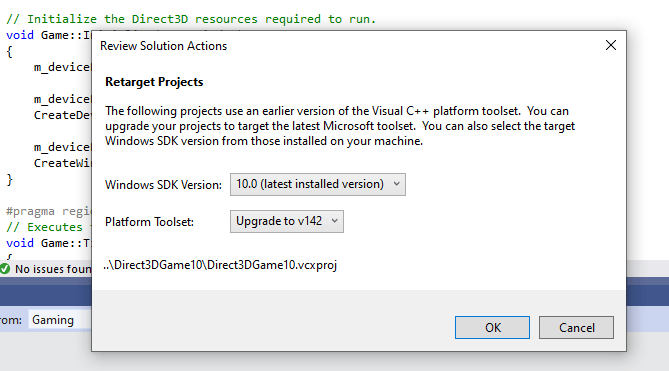 빌드 도구를 업그레이드하지 않고도 Visual Studio 2019 IDE를 사용할 수 있습니다. 이렇게 하려면 **솔루션 작업 검토** 대화 상자에서 **취소**를 선택하세요.
### 프로젝트를 Visual Studio 2019로 수동 업그레이드
프로젝트 파일(.vcxproj)을 직접 편집하여 프로젝트를 업그레이드하려면 다음 변경 사항을 적용해야 합니다.
1. `Globals` 속성 그룹에 `WindowsTargetPlatformVersion`을 추가합니다. 값을 10.0으로 설정합니다. 다음은 예제입니다.
```xml theme={null}
10.0
...
```
1. 모든 `PlatformToolset` 인스턴스를 v141에서 v142로 변경합니다. 다음은 예제입니다.
```xml theme={null}
v141
...
v142
```
1. 프로젝트를 다시 빌드합니다.
### clang/LLVM for Windows (ClangCl) 프로젝트 지원
Visual Studio 2019는 clang/LLVM for Windows 개발도 지원합니다. 이를 위해서는 개별 구성 요소인 **C++ Clang-cl for Windows** 및 \*\*C++ Clang-cl for v142 build tools (x64/x86)\*\*를 설치해야 합니다.
자세한 내용은 [Microsoft Game Development Kit (GDK)](/tools/tools-pc/visualstudio/gr-vs-clang) Clang 항목과 [Microsoft Docs](https://learn.microsoft.com/cpp/build/clang-support-msbuild)를 참조하세요.
## 알려진 문제
* DirectXMath \*IsNan 함수는 `/fp:fast`로 빌드할 때 Visual Studio 2019에서 실패할 수 있습니다. 해결 방법은 DirectXMath 3.14 이상과 함께 Visual Studio 2019 (16.3 이상)를 사용하는 것입니다. 그렇지 않은 경우, 해당 함수 사용 주위에 `#pragma float_control` 문을 배치하여 문제를 회피할 수 있습니다.
* 미리 컴파일된 헤더 사용은 clang/LLVM for Windows v11 이전에서 여러 문제가 있습니다. PCH 및 C++ 템플릿 사용에 따라 성공적으로 빌드하려면 `-fno-pch-instantiate-templates`를 추가해야 할 수 있습니다.
* [Microsoft Update를 통해 제공되는 .NET Core 업데이트](https://devblogs.microsoft.com/dotnet/net-core-updates-coming-to-microsoft-update/)는 Microsoft Game Development Kit (GDK) 설치를 차단할 수 있습니다. 이 문제를 해결하려면 Visual Studio 인스턴스를 업데이트하거나 Visual Studio Installer를 통해 Microsoft.NET.Core.Component.SDK.2.1 구성 요소를 제거한 다음 Microsoft Game Development Kit (GDK)를 다시 (제거)설치하세요.
## 버그 신고
**Visual C++ 컴파일러**에 대한 버그 신고는 가능하면 Visual Studio의 \_문제 보고...\_를 통해 신고해야 합니다. [Microsoft Docs](https://learn.microsoft.com/visualstudio/ide/how-to-report-a-problem-with-visual-studio)와 [개발자 커뮤니티](https://aka.ms/feedback/report?space=62) 웹사이트를 참조하세요. 컴파일러에 대한 좋은 버그 보고서를 작성하는 방법에 대한 자세한 내용은 [이 페이지](https://aka.ms/compilerbug)를 반드시 읽어보세요.
문제 재현에 추가 NDA 정보가 필요한 경우 "Microsoft only"로 표시된 공개 신고 문제에 댓글을 추가할 수 있습니다.
**clang/LLVM for Windows 컴파일러**에 대한 버그 신고는 [https://bugs.llvm.org/](https://bugs.llvm.org/) 를 사용하세요.
**Microsoft Standard C++ Library**(즉, STL)에 대한 버그 신고는 [https://github.com/microsoft/STL/issues](https://github.com/microsoft/STL/issues) 를 사용하세요.
## 함께 보기
[PC 게임 개발을 위한 Visual Studio](/tools/tools-pc/visualstudio/gr-visualstudio-toc)
## Related topics
- [Visual Studio (목차)](/ko/tools/tools-pc/visualstudio/gr-visualstudio-toc.md)
- [Visual Studio 2022 지원 노트](/ko/tools/tools-pc/visualstudio/gr-vs-2022-support-notes.md)
- [Visual Studio 2019 GDK 지원 정보](/ko/tools/tools-console/visualstudio/vs-2019-support-notes.md)
- [Visual Studio 2026 GDK 지원 정보](/ko/tools/tools-console/visualstudio/vs-2026-support-notes.md)
- [Visual Studio 2022 GDK 지원 정보](/ko/tools/tools-console/visualstudio/vs-2022-support-notes.md)
빌드 도구를 업그레이드하지 않고도 Visual Studio 2019 IDE를 사용할 수 있습니다. 이렇게 하려면 **솔루션 작업 검토** 대화 상자에서 **취소**를 선택하세요.
### 프로젝트를 Visual Studio 2019로 수동 업그레이드
프로젝트 파일(.vcxproj)을 직접 편집하여 프로젝트를 업그레이드하려면 다음 변경 사항을 적용해야 합니다.
1. `Globals` 속성 그룹에 `WindowsTargetPlatformVersion`을 추가합니다. 값을 10.0으로 설정합니다. 다음은 예제입니다.
```xml theme={null}
10.0
...
```
1. 모든 `PlatformToolset` 인스턴스를 v141에서 v142로 변경합니다. 다음은 예제입니다.
```xml theme={null}
v141
...
v142
```
1. 프로젝트를 다시 빌드합니다.
### clang/LLVM for Windows (ClangCl) 프로젝트 지원
Visual Studio 2019는 clang/LLVM for Windows 개발도 지원합니다. 이를 위해서는 개별 구성 요소인 **C++ Clang-cl for Windows** 및 \*\*C++ Clang-cl for v142 build tools (x64/x86)\*\*를 설치해야 합니다.
자세한 내용은 [Microsoft Game Development Kit (GDK)](/tools/tools-pc/visualstudio/gr-vs-clang) Clang 항목과 [Microsoft Docs](https://learn.microsoft.com/cpp/build/clang-support-msbuild)를 참조하세요.
## 알려진 문제
* DirectXMath \*IsNan 함수는 `/fp:fast`로 빌드할 때 Visual Studio 2019에서 실패할 수 있습니다. 해결 방법은 DirectXMath 3.14 이상과 함께 Visual Studio 2019 (16.3 이상)를 사용하는 것입니다. 그렇지 않은 경우, 해당 함수 사용 주위에 `#pragma float_control` 문을 배치하여 문제를 회피할 수 있습니다.
* 미리 컴파일된 헤더 사용은 clang/LLVM for Windows v11 이전에서 여러 문제가 있습니다. PCH 및 C++ 템플릿 사용에 따라 성공적으로 빌드하려면 `-fno-pch-instantiate-templates`를 추가해야 할 수 있습니다.
* [Microsoft Update를 통해 제공되는 .NET Core 업데이트](https://devblogs.microsoft.com/dotnet/net-core-updates-coming-to-microsoft-update/)는 Microsoft Game Development Kit (GDK) 설치를 차단할 수 있습니다. 이 문제를 해결하려면 Visual Studio 인스턴스를 업데이트하거나 Visual Studio Installer를 통해 Microsoft.NET.Core.Component.SDK.2.1 구성 요소를 제거한 다음 Microsoft Game Development Kit (GDK)를 다시 (제거)설치하세요.
## 버그 신고
**Visual C++ 컴파일러**에 대한 버그 신고는 가능하면 Visual Studio의 \_문제 보고...\_를 통해 신고해야 합니다. [Microsoft Docs](https://learn.microsoft.com/visualstudio/ide/how-to-report-a-problem-with-visual-studio)와 [개발자 커뮤니티](https://aka.ms/feedback/report?space=62) 웹사이트를 참조하세요. 컴파일러에 대한 좋은 버그 보고서를 작성하는 방법에 대한 자세한 내용은 [이 페이지](https://aka.ms/compilerbug)를 반드시 읽어보세요.
문제 재현에 추가 NDA 정보가 필요한 경우 "Microsoft only"로 표시된 공개 신고 문제에 댓글을 추가할 수 있습니다.
**clang/LLVM for Windows 컴파일러**에 대한 버그 신고는 [https://bugs.llvm.org/](https://bugs.llvm.org/) 를 사용하세요.
**Microsoft Standard C++ Library**(즉, STL)에 대한 버그 신고는 [https://github.com/microsoft/STL/issues](https://github.com/microsoft/STL/issues) 를 사용하세요.
## 함께 보기
[PC 게임 개발을 위한 Visual Studio](/tools/tools-pc/visualstudio/gr-visualstudio-toc)
## Related topics
- [Visual Studio (목차)](/ko/tools/tools-pc/visualstudio/gr-visualstudio-toc.md)
- [Visual Studio 2022 지원 노트](/ko/tools/tools-pc/visualstudio/gr-vs-2022-support-notes.md)
- [Visual Studio 2019 GDK 지원 정보](/ko/tools/tools-console/visualstudio/vs-2019-support-notes.md)
- [Visual Studio 2026 GDK 지원 정보](/ko/tools/tools-console/visualstudio/vs-2026-support-notes.md)
- [Visual Studio 2022 GDK 지원 정보](/ko/tools/tools-console/visualstudio/vs-2022-support-notes.md)