> ## Documentation Index
> Fetch the complete documentation index at: https://devdocs.xbox.com/llms.txt
> Use this file to discover all available pages before exploring further.
# 오버레이 폴더 관리
> 오버레이 폴더 관리
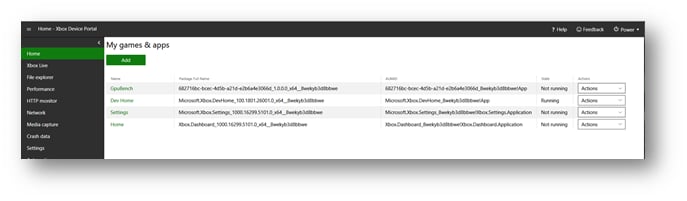
XBOX Device Portal Home 페이지의 My Games & apps 창은 다음 스크린샷과 같이 콘솔에 설치된 게임과 앱을 보여줍니다. 이 창을 사용하여 게임에 대한 오버레이 폴더를 구성합니다.
 게임의 오버레이 폴더를 구성하려면 다음 단계를 사용하세요.
1. **My games & apps** 창에서 게임의 이름을 선택합니다. 게임의 **View Details** 대화 상자가 표시됩니다.
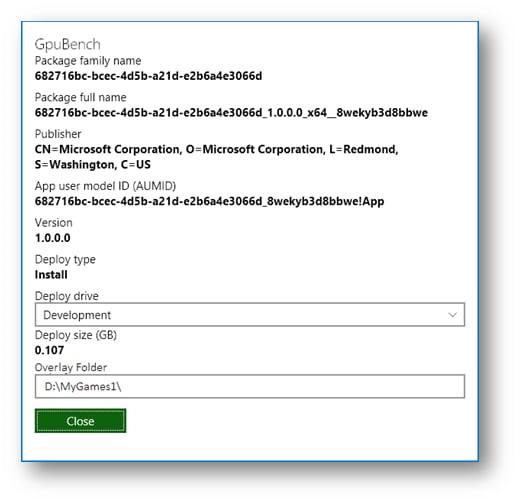
2. 다음 스크린샷과 같이 **Overlay Folder** 상자에 게임에 사용할 오버레이 폴더 경로를 입력합니다.
게임의 오버레이 폴더를 구성하려면 다음 단계를 사용하세요.
1. **My games & apps** 창에서 게임의 이름을 선택합니다. 게임의 **View Details** 대화 상자가 표시됩니다.
2. 다음 스크린샷과 같이 **Overlay Folder** 상자에 게임에 사용할 오버레이 폴더 경로를 입력합니다.
 1. **Close**를 선택합니다.
## Related topics
- [오버레이 폴더 관리](/ko/tools/tools-console/devhome/devhome-overlay-folders.md)
- [홈 페이지 (Dev Home)](/ko/tools/tools-console/devhome/devhome-home.md)
- [Home 페이지](/ko/tools/tools-console/wdp/windows-device-portal-on-xbox-home.md)
- [XBOX 개발 키트의 Developer Home (DevHome)](/ko/tools/tools-console/devhome/index.md)
- [초대 보내기](/ko/services/xbox-services/multiplayer/invites/how-to/live-invites-send.md)
1. **Close**를 선택합니다.
## Related topics
- [오버레이 폴더 관리](/ko/tools/tools-console/devhome/devhome-overlay-folders.md)
- [홈 페이지 (Dev Home)](/ko/tools/tools-console/devhome/devhome-home.md)
- [Home 페이지](/ko/tools/tools-console/wdp/windows-device-portal-on-xbox-home.md)
- [XBOX 개발 키트의 Developer Home (DevHome)](/ko/tools/tools-console/devhome/index.md)
- [초대 보내기](/ko/services/xbox-services/multiplayer/invites/how-to/live-invites-send.md)