> ## Documentation Index
> Fetch the complete documentation index at: https://devdocs.xbox.com/llms.txt
> Use this file to discover all available pages before exploring further.
# 사용자 지정 CloudScript 작성
> Unity 클라이언트, PlayStream 규칙 및 예약된 작업에서 호출할 수 있는 사용자 지정 PlayFab CloudScript JavaScript 함수를 helloWorld 예제와 함께 작성합니다.
CloudScript는 PlayFab의 가장 다재다능한 기능 중 하나입니다. 클라이언트 코드가 구현할 수 있는 모든 종류의 사용자 지정 서버 측 기능의 실행을 요청할 수 있게 하며, 사실상 *무엇이든* 함께 사용할 수 있습니다. 클라이언트 또는 서버 코드에서의 명시적 실행 요청 외에도, CloudScript는 PlayStream 이벤트에 대한 응답으로(규칙(*rule*) 만들기) 또는 예약된 작업의 일부로 실행될 수 있습니다.
[Azure Functions를 사용하는 CloudScript](/services/playfab/live-service-management/service-gateway/automation/cloudscript-af/quickstart)는 더 많은 언어 지원과 더 나은 디버깅 워크플로로 기존 CloudScript의 장점을 개선합니다.
이 자습서에서는 CloudScript 코드 작성 방법을 다룹니다. CloudScript 파일을 타이틀에 업로드하는 방법에 대한 도움말은 [CloudScript 빠른 시작](/services/playfab/live-service-management/service-gateway/automation/cloudscript/quickstart)을 참조하세요.
이 자습서는 Unity 코드 샘플을 보여주지만, CloudScript는 모든 SDK에서 유사하게 작동합니다.
이 자습서의 사전 요구 사항:
* [PlayFab **Unity SDK**로 설정된 **Unity** 환경](/services/playfab/sdks/unity3d/quickstart)
* `PlayFabSharedSettings` 객체에 타이틀 ID가 설정되어 있어야 합니다.
* 프로젝트가 사용자를 성공적으로 로그인할 수 있어야 합니다.
## 시작하기: helloWorld
`helloWorld` 예제는 Game Manager에서 수정 없이 새 타이틀에서 작동합니다. 새 타이틀의 기본 CloudScript 파일에는 `helloWorld`라는 핸들러가 포함되어 있습니다. 이는 몇 가지 기본 기능인 입력 매개 변수, 로깅, currentPlayerId 및 반환 매개 변수를 활용합니다.
다음 샘플은 기본 `helloWorld` 함수 코드(주석 제외)를 보여줍니다.
```javascript theme={null}
// CloudScript (JavaScript)
handlers.helloWorld = function (args, context) {
var message = "Hello " + currentPlayerId + "!";
log.info(message);
var inputValue = null;
if (args && args.hasOwnProperty("inputValue"))
inputValue = args.inputValue;
log.debug("helloWorld:", { input: inputValue });
return { messageValue: message };
}
```
### 코드 해체
handler 객체는 PlayFab CloudScript 환경에서 미리 정의되어 있습니다. 이 객체에 CloudScript 함수를 추가해야 합니다.
* `helloWorld`는 handler 객체에서 정의되었기 때문에 타이틀 및 SDK에서 사용할 수 있는 함수입니다.
* `args`는 호출자로부터 오는 임의의 객체입니다. JSON에서 파싱되며, 어떤 형식이든 모든 데이터를 포함할 수 있습니다.
다음 섹션의 **FunctionParameter**를 참조하세요.
이 객체는 제로 트러스트(zero trust)로 취급해야 합니다. 해킹된 클라이언트나 악의적인 사용자는 여기에 *어떤* 형식으로든 *어떤* 정보든 제공할 수 있습니다.
* `Context`는 고급 매개 변수입니다. 이 예제에서는 *null*입니다. 이 매개 변수는 서버에서 제어되며 안전합니다.
* `currentPlayerId`는 이 호출을 요청하는 플레이어의 PlayFabId로 설정된 전역 변수입니다. 이 매개 변수는 서버에서 제어되며 안전합니다. **참고:** ExecuteEntityCloudScript API를 사용할 때 엔티티 체인에 MasterPlayerID가 없으면 이 매개 변수는 null입니다.
* `log.info`: `log`는 전역 객체입니다. 주로 CloudScript 디버깅에 사용됩니다. `log` 객체는 `info`, `debug`, `error` 메서드를 노출합니다. 이 자습서 뒷부분에 자세한 내용이 있습니다.
* `return`: 반환하는 객체는 JSON으로 직렬화되어 호출자에게 반환됩니다. 원하는 데이터가 포함된 JSON으로 직렬화 가능한 객체를 반환할 수 있습니다.
CloudScript가 클라이언트에 비밀 데이터를 반환한다면 그 책임은 사용자에게 있습니다. 해킹된 클라이언트나 악의적인 사용자는 정상적인 게임 플레이에서 사용자에게 표시하지 않더라도 반환된 데이터를 검사할 수 *있습니다*.
## Unity 게임 클라이언트에서 CloudScript 함수 실행
클라이언트 내에서 CloudScript 함수를 호출하는 것은 간단합니다. 먼저 `ExecuteCloudScriptRequest`를 만들고 `ActionId` 속성을 실행할 CloudScript 함수 이름(이 경우에는 `helloWorld`)으로 설정한 다음, 우리 API를 통해 PlayFab에 객체를 보냅니다.
handlers JavaScript 객체에 연결된 CloudScript 메서드만 호출할 수 있습니다.
CloudScript 메서드를 실행하려면 클라이언트에 다음 코드 줄이 필요합니다.
```csharp theme={null}
// Build the request object and access the API
private static void StartCloudHelloWorld()
{
PlayFabClientAPI.ExecuteCloudScript(new ExecuteCloudScriptRequest()
{
FunctionName = "helloWorld", // Arbitrary function name (must exist in your uploaded cloud.js file)
FunctionParameter = new { inputValue = "YOUR NAME" }, // The parameter provided to your function
GeneratePlayStreamEvent = true, // Optional - Shows this event in PlayStream
}, OnCloudHelloWorld, OnErrorShared);
}
// OnCloudHelloWorld defined in the next code block
```
### 코드 해체
[ExecuteCloudScriptRequest](xref:titleid.playfabapi.com.client.server-sidecloudscript.executecloudscript#executecloudscriptrequest)는 [PlayFabClientAPI.ExecuteCloudScript](xref:titleid.playfabapi.com.client.server-sidecloudscript.executecloudscript)에 대한 모든 호출의 요청 유형입니다.
* `ExecuteCloudScriptRequest.FunctionName`은 문자열입니다. 값은 CloudScript에 정의된 함수 이름과 일치해야 합니다. 이 경우 `helloWorld`입니다.
* `ExecuteCloudScriptRequest.FunctionParameter`는 JSON으로 직렬화될 수 있는 모든 객체가 될 수 있습니다. 이는 `helloWorld` 함수의 첫 번째 args 매개 변수가 됩니다(이전 섹션의 args 참조).
* `ExecuteCloudScriptRequest.GeneratePlayStreamEvent`는 선택 사항입니다. true이면 PlayStream에 이벤트가 게시되며, Game Manager에서 볼 수 있거나 다른 PlayStream 트리거에 활용할 수 있습니다.
언어에 따라, `ExecuteCloudScript` 줄의 마지막 부분은 PlayFab CloudScript 서버에 대한 요청을 만드는 것과 언어에 특정한 *Result* 및 *Error* 처리 부분을 포함합니다.
예를 들어, Unity, JavaScript 또는 AS3에서는 오류 및 결과 처리가 콜백 함수를 사용하여 제공됩니다.
다음은 오류 처리 메서드의 예입니다.
```csharp theme={null}
private static void OnCloudHelloWorld(ExecuteCloudScriptResult result) {
// CloudScript returns arbitrary results, so you have to evaluate them one step and one parameter at a time
Debug.Log(JsonWrapper.SerializeObject(result.FunctionResult));
JsonObject jsonResult = (JsonObject)result.FunctionResult;
object messageValue;
jsonResult.TryGetValue("messageValue", out messageValue); // note how "messageValue" directly corresponds to the JSON values set in CloudScript
Debug.Log((string)messageValue);
}
private static void OnErrorShared(PlayFabError error)
{
Debug.Log(error.GenerateErrorReport());
}
```
## 중급 개요: 전역 및 고급 인수
CloudScript는 V8로 컴파일되어 PlayFab 서버에서 호스팅되는 JavaScript 함수 집합입니다. [PlayFab API 참조 문서](/services/playfab/api-references)에 나열된 모든 서버 API에 접근할 수 있으며, *로거*, CloudScript 요청을 하는 플레이어의 PlayFab ID, 그리고 요청과 함께 포함된 모든 정보에 접근할 수 있고, 이는 모두 미리 설정된 객체 형태로 제공됩니다.
CloudScript 함수 자체는 전역 handlers 객체의 속성입니다. 다음 테이블은 이러한 미리 정의된 변수의 전체 목록을 보여줍니다.
| 이름 | 사용 |
| :------------------ | :-------------------------------------------------------------------------------------------------------------------------------------------------------------------------------------------------------------------------- |
| **server** | [PlayFab API 참조 문서](/services/playfab/api-references)에 나열된 모든 서버 측 API 호출에 액세스할 수 있습니다. 다음과 같이 (동기적으로) 호출할 수 있습니다: `var result = server.AuthenticateUserTicket(request);` |
| **http** | 다음과 같이 동기 HTTP 요청을 수행합니다: `http.request(url, method, content, contentType, headers, logRequestAndResponse)`. `headers` 객체는 다양한 헤더와 해당 값에 해당하는 속성을 포함합니다. `logRequestAndResponse`는 타이틀이 요청의 오류를 응답의 일부로 로깅할지 여부를 결정하는 부울입니다. |
| **log** | 로그 명령문을 만들어 응답에 추가합니다. 로그에는 세 가지 수준이 있습니다: `log.info()`, `log.debug()`, `log.error()`. 세 수준 모두 메시지 문자열과 로그에 포함할 추가 데이터를 담은 선택적 객체를 사용합니다. 예: `log.info('hello!', { time: new Date() });` |
| **currentPlayerId** | CloudScript 호출을 트리거한 플레이어의 PlayFab ID입니다. |
| **handlers** | 타이틀의 모든 CloudScript 함수를 포함하는 전역 객체입니다. 이 객체를 통해 함수를 추가하거나 호출할 수 있습니다. 예: `handlers.pop = function() {};`, `handlers.pop();`. |
| **script** | `Revision`과 `titleId`를 포함하는 전역 객체입니다. `Revision`은 현재 실행 중인 CloudScript의 **리비전 번호**를 나타내고, `titleId`는 현재 타이틀의 ID를 나타냅니다. |
또한, 모든 핸들러 함수에는 두 개의 매개 변수가 전달되며, 아래에 자세히 설명되어 있습니다.
| 이름 | 사용 |
| :---------- | :------------------------------------------------------------------------------------------------------------------------------------------------------------------------------------------------------------------------------------------------------------------------------------------------------------ |
| **args** | 핸들러 함수의 첫 번째 매개 변수입니다. `ExecuteCloudscript` 요청의 `FunctionParameter` 필드의 객체 표현입니다. |
| **context** | 핸들러 함수의 두 번째 매개 변수입니다. PlayStream 이벤트 액션에 의해 트리거될 때 요청에 대한 추가 정보로, 액션을 트리거한 [이벤트의 데이터](/services/playfab/api-references/events)(context.playStreamEvent) 및 이와 관련된 플레이어에 대한 [프로필 데이터](xref:titleid.playfabapi.com.client.accountmanagement.getplayerprofile#playerprofilemodel)(context.playerProfile)가 포함됩니다. |
CloudScript 함수는 `ExecuteCloudScript` API 또는 미리 설정된 PlayStream 이벤트 액션을 통해 호출할 수 있습니다.
`ExecuteCloudScript`에 대한 응답의 전체 세부 정보는 [ExecuteCloudScriptResult](xref:titleid.playfabapi.com.client.server-sidecloudscript.executecloudscript#executecloudscriptresult)에서 찾을 수 있습니다.
## 중급: FunctionParameter 및 args
이전 섹션에서, `request.FunctionParameter`를 채우고 해당 정보를 `args` 매개 변수에서 보는 방법을 설명했습니다. [CloudScript 빠른 시작](/services/playfab/live-service-management/service-gateway/automation/cloudscript/quickstart)은 새 CloudScript를 업로드하는 방법을 보여줍니다.
두 가지를 종합하여, 클라이언트에서 CloudScript로 인수를 전달하는 방법의 또 다른 예제를 제공할 수 있습니다. 이전 예제를 가져와 아래와 같이 CloudScript 코드와 클라이언트 코드를 수정하세요.
```javascript theme={null}
handlers.helloWorld = function (args) {
// ALWAYS validate args parameter passed in from clients (Better than we do here)
var message = "Hello " + args.name + "!"; // Utilize the name parameter sent from client
log.info(message);
return { messageValue: message };
}
```
```csharp theme={null}
// Build the request object and access the API
private static void StartCloudHelloWorld()
{
PlayFabClientAPI.ExecuteCloudScript(new ExecuteCloudScriptRequest()
{
FunctionName = "helloWorld", // Arbitrary function name (must exist in your uploaded cloud.js file)
FunctionParameter = new { name = "YOUR NAME" }, // The parameter provided to your function
GeneratePlayStreamEvent = true, // Optional - Shows this event in PlayStream
}, OnCloudHelloWorld, OnErrorShared);
}
private static void OnCloudHelloWorld(ExecuteCloudScriptResult result) {
// CloudScript returns arbitrary results, so you have to evaluate them one step and one parameter at a time
Debug.Log(JsonWrapper.SerializeObject(result.FunctionResult));
JsonObject jsonResult = (JsonObject)result.FunctionResult;
object messageValue;
jsonResult.TryGetValue("messageValue", out messageValue); // note how "messageValue" directly corresponds to the JSON values set in CloudScript
Debug.Log((string)messageValue);
}
private static void OnErrorShared(PlayFabError error)
{
Debug.Log(error.GenerateErrorReport());
}
```
이러한 변경을 한 후, 이제 CloudScript와 클라이언트 간에 데이터를 쉽게 주고받을 수 있습니다.
클라이언트에서 오는 모든 데이터는 해킹과 악용에 취약하다는 점을 지적하는 것이 중요합니다.
백엔드를 업데이트하기 *전에* 항상 입력 매개 변수의 유효성을 검사해야 합니다. 입력 매개 변수를 검증하는 프로세스는 타이틀마다 다를 것이지만, 가장 기본적인 유효성 검사는 입력이 허용 가능한 범위 및 기간 내에 있는지 확인하는 것입니다.
## 중급: 서버 API 호출
앞서 언급했듯이, CloudScript 메서드 내에서 서버 API 호출의 전체 세트에 액세스할 수 있습니다. 이를 통해 클라우드 코드가 전용 서버 역할을 할 수 있습니다.
일반적인 서버 작업:
* 플레이어 통계 및 데이터 업데이트.
* 아이템 및 통화 지급.
* 게임 데이터의 임의 생성.
* 안전한 전투 결과 계산 등...
필요한 매개 변수 및 객체 구조는 [PlayFab API 참조 문서](/services/playfab/api-references)에 나열된 Server API를 참조하세요.
다음 예제는 잠재적인 CloudScript 핸들러 내부의 것입니다.
```javascript theme={null}
// CloudScript (JavaScript)
//See: JSON.parse, JSON.stringify, parseInt and other built-in javascript helper functions for manipulating data
var currentState; // here we are calculating the current player's game state
// here we are fetching the "SaveState" key from PlayFab,
var playerData = server.GetUserReadOnlyData({"PlayFabId" : currentPlayerId, "Keys" : ["SaveState"]});
var previousState = {}; //if we return a matching key-value pair, then we can proceed otherwise we will need to create a new record.
if(playerData.Data.hasOwnProperty("SaveState"))
{
previousState = playerData.Data["SaveState"];
}
var writeToServer = {};
writeToServer["SaveState"] = previousState + currentState; // pseudo Code showing that the previous state is updated to the current state
var result = server.UpdateUserReadOnlyData({"PlayFabId" : currentPlayerId, "Data" : writeToServer, "Permission":"Public" });
if(result)
{
log.info(result);
}
else
{
log.error(result);
}
```
## 고급: PlayStream 이벤트 액션
CloudScript 함수는 PlayStream 이벤트에 대한 응답으로 실행되도록 구성할 수 있습니다.
1. 브라우저에서:
* **PlayFab Game Manager**를 방문합니다.
* **Title**을 찾습니다.
* 사이드바의 **Build** 아래에서 **Automation** 탭으로 이동합니다.
* **Rules** 탭으로 이동합니다.
페이지는 아래 예제와 같이 표시됩니다.
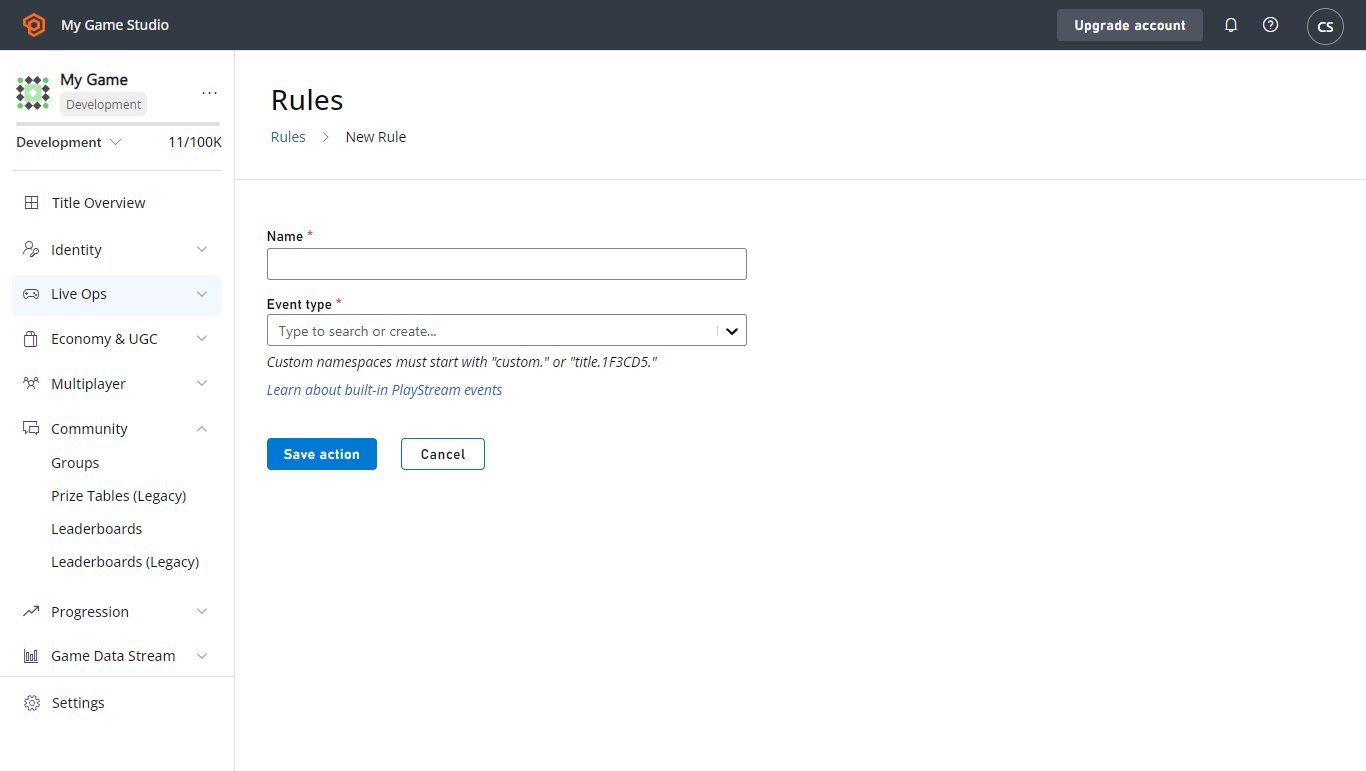
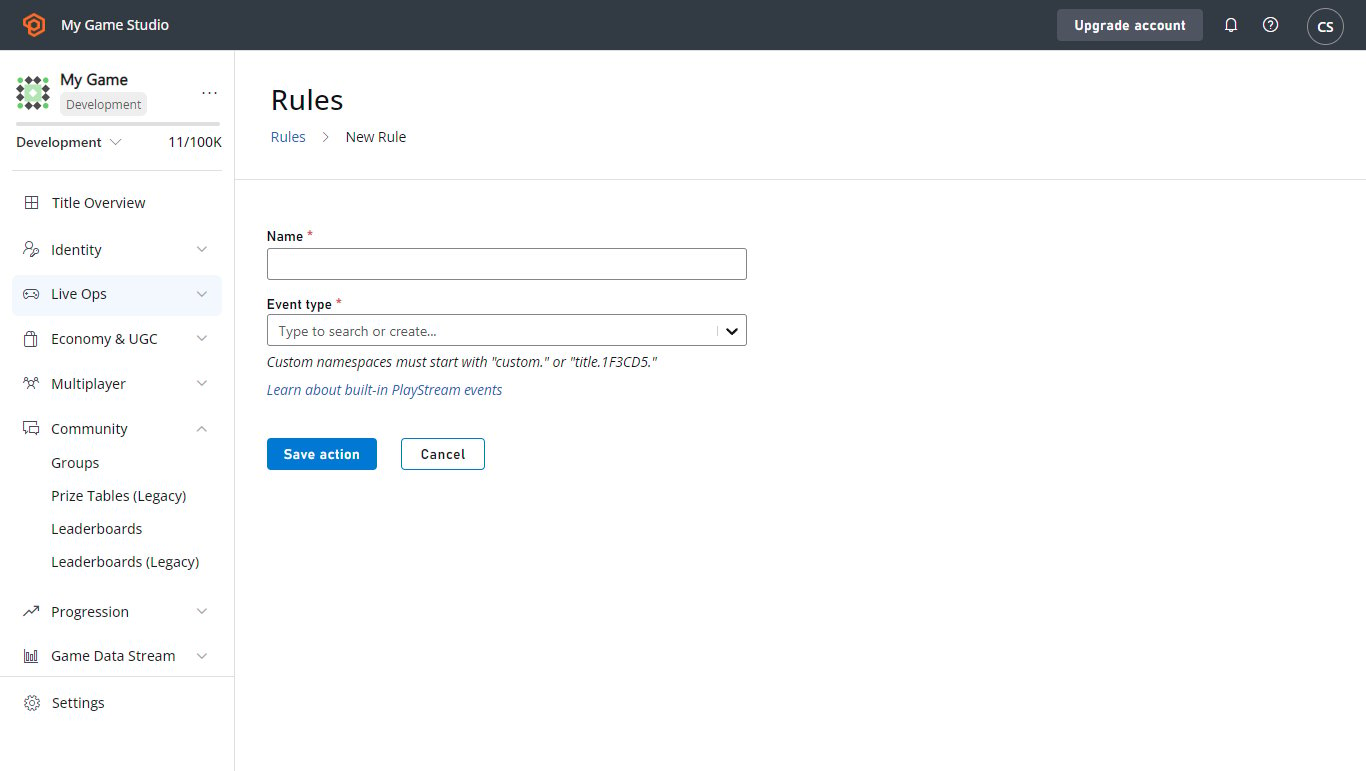 2. **New Rule** 버튼을 사용하여 새 규칙을 만듭니다.
* 새 **Rule**에 이름을 지정합니다.
* 조건 또는 액션의 트리거로 사용될 **Event type**을 선택합니다.
* **Rule**이 CloudScript 함수를 트리거하도록 하려면 해당 섹션의 버튼으로 **Action**을 추가합니다.
* 그런 다음 **Type** 드롭다운 메뉴에서 옵션을 선택합니다.
* **Cloud Script Function** 드롭다운 메뉴에서 **helloWorld** 함수를 선택합니다.
* **Save action** 버튼을 선택합니다.
2. **New Rule** 버튼을 사용하여 새 규칙을 만듭니다.
* 새 **Rule**에 이름을 지정합니다.
* 조건 또는 액션의 트리거로 사용될 **Event type**을 선택합니다.
* **Rule**이 CloudScript 함수를 트리거하도록 하려면 해당 섹션의 버튼으로 **Action**을 추가합니다.
* 그런 다음 **Type** 드롭다운 메뉴에서 옵션을 선택합니다.
* **Cloud Script Function** 드롭다운 메뉴에서 **helloWorld** 함수를 선택합니다.
* **Save action** 버튼을 선택합니다.
 3. 이제 이 **Rule**은 선택한 유형의 모든 이벤트에서 트리거되도록 설정되었습니다. 이를 테스트하려면:
* **Publish results as PlayStream Event** 상자를 체크합니다.
* **Action**을 저장합니다.
* 그런 다음 이벤트를 트리거합니다.
* **PlayStream Monitor**에서 CloudScript 실행에 해당하는 새 이벤트가 표시되어 적절한 정보를 포함해야 합니다.
* 디버거에서 PlayStream 이벤트를 확인하는 방법에 대한 자세한 내용은 다음 섹션 [고급: CloudScript 디버깅](#advanced-debugging-cloudscript)을 참조하세요.
이벤트 액션은 CloudScript 함수를 호출할 때 라이브 리비전만 사용할 수 있습니다. 드롭다운에서 **helloWorld** 함수를 찾을 수 없다면 이것이 가장 가능성 있는 이유입니다.
## 고급: CloudScript 디버깅
[Azure Functions를 사용하는 CloudScript](/services/playfab/live-service-management/service-gateway/automation/cloudscript-af)에서는 디버깅이 훨씬 쉽습니다. [Azure Functions를 사용하는 CloudScript에 로컬 디버깅 사용](/services/playfab/live-service-management/service-gateway/automation/cloudscript-af/local-debugging-for-cloudscript-using-azure-functions)에서 자세히 알아보세요.
### 로깅
코드 디버깅을 위한 가장 중요한 도구 중 하나는 *로깅*입니다. CloudScript는 이 기능을 수행하기 위한 유틸리티를 제공합니다.
이는 `log` 객체의 형태를 취하며, `Info`, `Debug`, `Error` 메서드를 사용하여 원하는 모든 메시지를 기록할 수 있습니다.
또한 HTTP 객체는 `logRequestAndResponse` 매개 변수를 설정하여 요청 중에 발생하는 모든 오류를 기록합니다. 이러한 로그를 설정하는 것은 간단하지만, 접근하는 데는 *약간의* 요령이 필요합니다.
다음은 4가지 유형의 로그를 모두 사용하는 CloudScript 함수의 예입니다.
```javascript theme={null}
handlers.logTest = function(args, context) {
log.info("This is a log statement!");
log.debug("This is a debug statement.");
log.error("This is... an error statement?");
// the last parameter indicates we want logging on errors
http.request('https://httpbin.org/status/404', 'post', '', 'text/plain', null, true);
};
```
이 예제를 실행하려면, 진행하기 전에 라이브 리비전에 이 함수를 추가하세요.
`logTest` 함수는 아래와 같이 `ExecuteCloudScript`를 사용하여 호출할 수 있습니다.
```csharp theme={null}
// Invoke this on start of your application
void Login() {
PlayFabClientAPI.LoginWithCustomID(new LoginWithCustomIDRequest {
CreateAccount = true,
CustomId = "Starter"
}, result => RunLogTest(), null);
}
void RunLogTest() {
PlayFabClientAPI.ExecuteCloudScript(new ExecuteCloudScriptRequest {
FunctionName = "logTest",
// duplicates the response of the request to PlayStream
GeneratePlayStreamEvent = true
}, null, null);
}
// Logs evaluated in next code block
```
`GeneratePlayStreamEvent`를 설정하면 CloudScript 함수 호출이 응답 내용을 포함하는 PlayStream 이벤트를 생성합니다. PlayStream 이벤트의 내용을 찾으려면:
* 타이틀의 **Game Manager** 홈 페이지 또는 **PlayStream** 탭으로 이동합니다.
* **PlayStream 디버거**는 들어오는 이벤트를 표시합니다.
* 이벤트가 도착하면, 아래와 같이 이벤트의 오른쪽 상단 모서리에 있는 작은 파란색 **Info** 아이콘을 선택합니다.
3. 이제 이 **Rule**은 선택한 유형의 모든 이벤트에서 트리거되도록 설정되었습니다. 이를 테스트하려면:
* **Publish results as PlayStream Event** 상자를 체크합니다.
* **Action**을 저장합니다.
* 그런 다음 이벤트를 트리거합니다.
* **PlayStream Monitor**에서 CloudScript 실행에 해당하는 새 이벤트가 표시되어 적절한 정보를 포함해야 합니다.
* 디버거에서 PlayStream 이벤트를 확인하는 방법에 대한 자세한 내용은 다음 섹션 [고급: CloudScript 디버깅](#advanced-debugging-cloudscript)을 참조하세요.
이벤트 액션은 CloudScript 함수를 호출할 때 라이브 리비전만 사용할 수 있습니다. 드롭다운에서 **helloWorld** 함수를 찾을 수 없다면 이것이 가장 가능성 있는 이유입니다.
## 고급: CloudScript 디버깅
[Azure Functions를 사용하는 CloudScript](/services/playfab/live-service-management/service-gateway/automation/cloudscript-af)에서는 디버깅이 훨씬 쉽습니다. [Azure Functions를 사용하는 CloudScript에 로컬 디버깅 사용](/services/playfab/live-service-management/service-gateway/automation/cloudscript-af/local-debugging-for-cloudscript-using-azure-functions)에서 자세히 알아보세요.
### 로깅
코드 디버깅을 위한 가장 중요한 도구 중 하나는 *로깅*입니다. CloudScript는 이 기능을 수행하기 위한 유틸리티를 제공합니다.
이는 `log` 객체의 형태를 취하며, `Info`, `Debug`, `Error` 메서드를 사용하여 원하는 모든 메시지를 기록할 수 있습니다.
또한 HTTP 객체는 `logRequestAndResponse` 매개 변수를 설정하여 요청 중에 발생하는 모든 오류를 기록합니다. 이러한 로그를 설정하는 것은 간단하지만, 접근하는 데는 *약간의* 요령이 필요합니다.
다음은 4가지 유형의 로그를 모두 사용하는 CloudScript 함수의 예입니다.
```javascript theme={null}
handlers.logTest = function(args, context) {
log.info("This is a log statement!");
log.debug("This is a debug statement.");
log.error("This is... an error statement?");
// the last parameter indicates we want logging on errors
http.request('https://httpbin.org/status/404', 'post', '', 'text/plain', null, true);
};
```
이 예제를 실행하려면, 진행하기 전에 라이브 리비전에 이 함수를 추가하세요.
`logTest` 함수는 아래와 같이 `ExecuteCloudScript`를 사용하여 호출할 수 있습니다.
```csharp theme={null}
// Invoke this on start of your application
void Login() {
PlayFabClientAPI.LoginWithCustomID(new LoginWithCustomIDRequest {
CreateAccount = true,
CustomId = "Starter"
}, result => RunLogTest(), null);
}
void RunLogTest() {
PlayFabClientAPI.ExecuteCloudScript(new ExecuteCloudScriptRequest {
FunctionName = "logTest",
// duplicates the response of the request to PlayStream
GeneratePlayStreamEvent = true
}, null, null);
}
// Logs evaluated in next code block
```
`GeneratePlayStreamEvent`를 설정하면 CloudScript 함수 호출이 응답 내용을 포함하는 PlayStream 이벤트를 생성합니다. PlayStream 이벤트의 내용을 찾으려면:
* 타이틀의 **Game Manager** 홈 페이지 또는 **PlayStream** 탭으로 이동합니다.
* **PlayStream 디버거**는 들어오는 이벤트를 표시합니다.
* 이벤트가 도착하면, 아래와 같이 이벤트의 오른쪽 상단 모서리에 있는 작은 파란색 **Info** 아이콘을 선택합니다.
 이를 선택하면 이벤트의 원시 JSON이 표시되며, 각 이벤트에 대한 자세한 내용은 [여기](/services/playfab/api-references/events)에 나와 있습니다. 이 JSON의 예는 다음 예제에서 확인할 수 있습니다.
* 씬에 `LogScript` MonoBehavior를 추가하면, 게임 실행 시 PlayStream에서 다음이 생성됩니다.
이를 선택하면 이벤트의 원시 JSON이 표시되며, 각 이벤트에 대한 자세한 내용은 [여기](/services/playfab/api-references/events)에 나와 있습니다. 이 JSON의 예는 다음 예제에서 확인할 수 있습니다.
* 씬에 `LogScript` MonoBehavior를 추가하면, 게임 실행 시 PlayStream에서 다음이 생성됩니다.
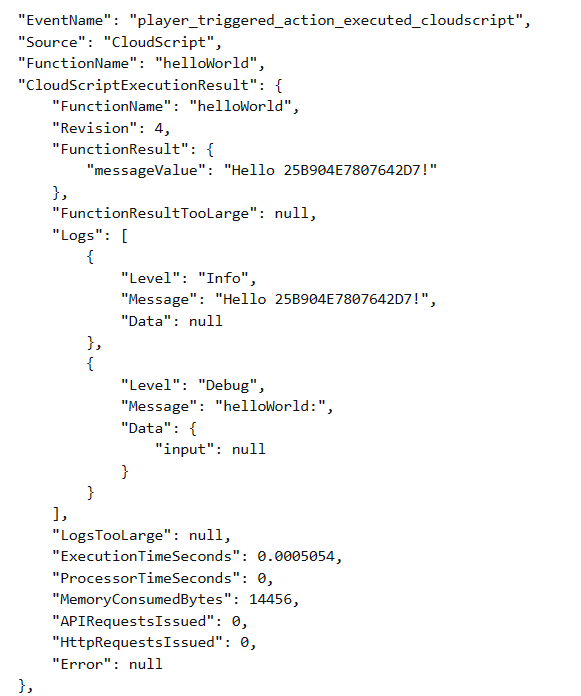 `ExecuteCloudScript` 호출의 결과에는 `Logs`라는 필드가 포함되며, 이는 CloudScript 함수에 의해 생성된 로그 객체 목록입니다.
세 개의 로그 호출뿐만 아니라 잘못된 HTTP 요청에서의 로그도 볼 수 있습니다. 로그 호출과 달리 HTTP 요청 로그는 `Data` 필드도 활용합니다.
이 필드는 로그 명령문과 관련된 모든 정보로 채워질 수 있는 JavaScript 객체입니다. log에 대한 호출도 아래와 같이 두 번째 매개 변수를 사용하여 이 필드를 활용할 수 있습니다.
```javascript theme={null}
handlers.logTest = function(args, context) {
log.info("This is a log statement!", { what: "Here on business." });
log.debug("This is a debug statement.", { who: "I am a doctor, sir" });
log.error("This is... an error statement?", { why: "I'm here to fix the plumbing. Probably.", errCode: 123 });
};
```
이러한 호출은 모두 두 번째 매개 변수로 결과의 `Data` 필드를 채웁니다.
로그가 결과에 포함되므로, 클라이언트 측 코드는 로그 명령문에 응답할 수 있습니다. `logTest` 함수의 오류는 강제된 것이지만, 클라이언트 코드는 이에 응답하도록 조정될 수 있습니다.
```csharp theme={null}
void RunLogTest()
{
PlayFabClientAPI.ExecuteCloudScript(
new ExecuteCloudScriptRequest
{
FunctionName = "logTest",
// handy for logs because the response will be duplicated on PlayStream
GeneratePlayStreamEvent = true
},
result =>
{
var error123Present = false;
foreach (var log in result.Logs)
{
if (log.Level != "Error") continue;
var errData = (JsonObject) log.Data;
object errCode;
var errCodePresent = errData.TryGetValue("errCode", out errCode);
if (errCodePresent && (ulong) errCode == 123) error123Present = true;
}
if (error123Present)
Debug.Log("There was a bad, bad error!");
else
Debug.Log("Nice weather we're having.");
}, null);
}
```
이 코드가 실행되면 출력은 오류의 존재를 나타내야 합니다. 현실적인 오류 응답은 UI에 오류를 표시하거나 로그 파일에 값을 저장하는 것일 수 있습니다.
## 고급: 오류
개발 중에 CloudScript 오류는 종종 수동으로 트리거되지 않을 것입니다 - `log.error`의 경우처럼.
다행히도, [ExecuteCloudScript](xref:titleid.playfabapi.com.client.server-sidecloudscript.executecloudscript)에 대한 응답에는 [ScriptExecutionError](xref:titleid.playfabapi.com.client.server-sidecloudscript.executecloudscript#scriptexecutionerror) 필드를 포함하는 [ExecuteCloudScriptResult](xref:titleid.playfabapi.com.client.server-sidecloudscript.executecloudscript#executecloudscriptresult)가 포함됩니다. 로깅 섹션의 마지막 예제를 응용하면 아래와 같이 사용할 수 있습니다.
```csharp theme={null}
void RunLogTest() {
PlayFabClientAPI.ExecuteCloudScript(new ExecuteCloudScriptRequest {
FunctionName = "logTest",
// handy for logs because the response will be duplicated on PlayStream
GeneratePlayStreamEvent = true
}, result => {
if(result.Error != null) {
Debug.Log(string.Format("There was error in the CloudScript function {0}:\n Error Code: {1}\n Message: {2}"
, result.FunctionName, result.Error.Error, result.Error.Message));
}
},
null);
}
```
일부 오류가 발생한 경우, 이 코드는 오류를 로그에 표시합니다.
## Related topics
- [CloudScript 빠른 시작](/ko/services/playfab/live-service-management/service-gateway/automation/cloudscript/quickstart.md)
- [PlayFab 라이브 서비스 관리 문서](/ko/services/playfab/live-service-management/index.md)
- [Azure Functions를 사용하는 PlayFab CloudScript 빠른 시작 가이드](/ko/services/playfab/live-service-management/service-gateway/automation/cloudscript-af/quickstart.md)
- [Winter Starfall PlayFab 데모 게임 개요](/ko/services/playfab/demo-game/overview.md)
- [PlayFab CloudScript using Azure Functions](/ko/services/playfab/live-service-management/service-gateway/automation/cloudscript-af/index.md)
`ExecuteCloudScript` 호출의 결과에는 `Logs`라는 필드가 포함되며, 이는 CloudScript 함수에 의해 생성된 로그 객체 목록입니다.
세 개의 로그 호출뿐만 아니라 잘못된 HTTP 요청에서의 로그도 볼 수 있습니다. 로그 호출과 달리 HTTP 요청 로그는 `Data` 필드도 활용합니다.
이 필드는 로그 명령문과 관련된 모든 정보로 채워질 수 있는 JavaScript 객체입니다. log에 대한 호출도 아래와 같이 두 번째 매개 변수를 사용하여 이 필드를 활용할 수 있습니다.
```javascript theme={null}
handlers.logTest = function(args, context) {
log.info("This is a log statement!", { what: "Here on business." });
log.debug("This is a debug statement.", { who: "I am a doctor, sir" });
log.error("This is... an error statement?", { why: "I'm here to fix the plumbing. Probably.", errCode: 123 });
};
```
이러한 호출은 모두 두 번째 매개 변수로 결과의 `Data` 필드를 채웁니다.
로그가 결과에 포함되므로, 클라이언트 측 코드는 로그 명령문에 응답할 수 있습니다. `logTest` 함수의 오류는 강제된 것이지만, 클라이언트 코드는 이에 응답하도록 조정될 수 있습니다.
```csharp theme={null}
void RunLogTest()
{
PlayFabClientAPI.ExecuteCloudScript(
new ExecuteCloudScriptRequest
{
FunctionName = "logTest",
// handy for logs because the response will be duplicated on PlayStream
GeneratePlayStreamEvent = true
},
result =>
{
var error123Present = false;
foreach (var log in result.Logs)
{
if (log.Level != "Error") continue;
var errData = (JsonObject) log.Data;
object errCode;
var errCodePresent = errData.TryGetValue("errCode", out errCode);
if (errCodePresent && (ulong) errCode == 123) error123Present = true;
}
if (error123Present)
Debug.Log("There was a bad, bad error!");
else
Debug.Log("Nice weather we're having.");
}, null);
}
```
이 코드가 실행되면 출력은 오류의 존재를 나타내야 합니다. 현실적인 오류 응답은 UI에 오류를 표시하거나 로그 파일에 값을 저장하는 것일 수 있습니다.
## 고급: 오류
개발 중에 CloudScript 오류는 종종 수동으로 트리거되지 않을 것입니다 - `log.error`의 경우처럼.
다행히도, [ExecuteCloudScript](xref:titleid.playfabapi.com.client.server-sidecloudscript.executecloudscript)에 대한 응답에는 [ScriptExecutionError](xref:titleid.playfabapi.com.client.server-sidecloudscript.executecloudscript#scriptexecutionerror) 필드를 포함하는 [ExecuteCloudScriptResult](xref:titleid.playfabapi.com.client.server-sidecloudscript.executecloudscript#executecloudscriptresult)가 포함됩니다. 로깅 섹션의 마지막 예제를 응용하면 아래와 같이 사용할 수 있습니다.
```csharp theme={null}
void RunLogTest() {
PlayFabClientAPI.ExecuteCloudScript(new ExecuteCloudScriptRequest {
FunctionName = "logTest",
// handy for logs because the response will be duplicated on PlayStream
GeneratePlayStreamEvent = true
}, result => {
if(result.Error != null) {
Debug.Log(string.Format("There was error in the CloudScript function {0}:\n Error Code: {1}\n Message: {2}"
, result.FunctionName, result.Error.Error, result.Error.Message));
}
},
null);
}
```
일부 오류가 발생한 경우, 이 코드는 오류를 로그에 표시합니다.
## Related topics
- [CloudScript 빠른 시작](/ko/services/playfab/live-service-management/service-gateway/automation/cloudscript/quickstart.md)
- [PlayFab 라이브 서비스 관리 문서](/ko/services/playfab/live-service-management/index.md)
- [Azure Functions를 사용하는 PlayFab CloudScript 빠른 시작 가이드](/ko/services/playfab/live-service-management/service-gateway/automation/cloudscript-af/quickstart.md)
- [Winter Starfall PlayFab 데모 게임 개요](/ko/services/playfab/demo-game/overview.md)
- [PlayFab CloudScript using Azure Functions](/ko/services/playfab/live-service-management/service-gateway/automation/cloudscript-af/index.md)