> ## Documentation Index
> Fetch the complete documentation index at: https://devdocs.xbox.com/llms.txt
> Use this file to discover all available pages before exploring further.
# 기본 언어 설정
> PlayFab 타이틀의 기본 언어와 플레이어별 선호 언어를 구성하여 지역화된 문자열, 이메일 및 뉴스를 올바른 언어로 플레이어에게 전달합니다.
PlayFab은 게임 개발자를 대신하여 지역화된 문자열을 저장하는 기능을 새롭게 지원합니다. 또한, 플레이어가 선호하는 언어로 올바른 문자열을 제공하는 데 필요한 로직도 추가되고 있습니다.
이를 위해 두 가지 새로운 언어 설정을 활용합니다. 하나는 타이틀과 연결되어 있고, 다른 하나는 각 플레이어의 엔티티 프로필에 저장됩니다.
1. **타이틀 기본 언어(Title default language)**: 타이틀에서 기본적으로 지원하는 언어를 나타냅니다. 이 값이 설정되면, 최소한 지역화된 문자열을 사용하는 기능에 대해 타이틀이 이 언어를 지원해야 합니다.
2. **플레이어 언어(Player language)**: 플레이어의 선호 언어를 나타냅니다. 이는 타이틀별로 설정할 수 있습니다.
PlayFab 로직은 이 두 설정을 사용하여 지역화된 문자열을 해당 언어를 선호하는 플레이어에 맞춥니다. 언어 선호도가 설정되지 않은 플레이어는 타이틀에 지정된 기본 언어로 문자열을 받습니다.
타이틀이 지원하지 *않는* 언어를 선호하는 플레이어 *또한* 타이틀의 기본 언어를 기반으로 문자열을 받습니다.
이 자습서에서는 타이틀의 기본 언어와 플레이어의 선호 언어를 설정하는 방법을 안내합니다.
## 요구 사항
이 자습서에서는 PlayFab 사용에 대한 다음과 같은 실무 지식이 있다고 가정합니다.
* 플레이어를 만드는 방법에 대한 기본 지식. 선호 언어 로직을 호출하기 전에 플레이어가 사용자 이름과 비밀번호를 가지고 *이미 존재*해야 하기 때문에 필요합니다.
* [Game Manager 빠른 시작](/services/playfab/live-service-management/gamemanager/quickstart)을 읽었을 것. Game Manager가 익숙하지 않다면, 여기가 언어 정보를 볼 수 있는 곳입니다.
* 플레이어 프로필을 다루는 방법에 대한 지식. 선호 언어가 플레이어 프로필에 추가되었는지 확인해야 하기 때문입니다.
* [플레이어 프로필 가져오기](/services/playfab/player-progression/player-data/getting-player-profiles) 자습서에서 플레이어 프로필을 가져오는 방법에 대해 잠시 살펴보세요.
## 섹션 1 – 플레이어의 선호 언어
플레이어의 선호 언어를 설정하기 전에, 이를 어떻게 수집할지 결정합니다. 몇 가지 옵션이 있습니다.
* 직접 묻기: 게임 메뉴에 옵션을 추가합니다.
* 언어 추정: 제공되는 플랫폼 API(예: Android의 경우 `Locale.getDefault.getLanguage()`)를 호출하여 플레이어의 장치 언어를 사용합니다.
많은 언어가 존재하며, 타이틀에서 이를 모두 지원하지 *않을 수도* 있습니다. 필수는 아니지만, 타이틀의 미래를 대비하고 플레이어의 실제 선호도를 저장하는 것을 권장합니다. 나중에 해당 언어에 대한 지원을 추가하면, PlayFab의 로직이 자동으로 새 문자열(기본값 대신)을 제공하기 시작합니다.
### 1단계 – 언어 설정
PlayFab에서는 지원할 특정 언어 목록에서 선택할 수 있습니다. `GetLanguageList()` 메서드를 호출하여 언어 코드를 확인할 수 있습니다.
`SetProfileLanguage` API를 사용할 때, 언어 문자열은 ISO 639-1 형식(예: "en", "es" 또는 "ja")으로 지정해야 합니다. 현재 코드 "zh"는 지원되지 않습니다.
먼저, 플레이어가 타이틀에서 콘텐츠를 받고자 하는 선호 언어를 포함하도록 플레이어의 프로필을 업데이트합니다.
### C# 코드 예제
```csharp theme={null}
void SetProfileLanguage(string language, int? profileExpectedVersion, EntityKey entity)
{
var request = new SetProfileLanguageRequest
{
Language = language,
ExpectedVersion = profileExpectedVersion,
Entity = entity
};
PlayFabProfilesAPI.SetProfileLanguage(request, res =>
{
Debug.Log("The language on the entity's profile has been updated.");
}, FailureCallback);
}
void FailureCallback(PlayFabError error)
{
Debug.LogWarning("Something went wrong with your API call. Here's some debug information:");
Debug.LogError(error.GenerateErrorReport());
}
```
### 2단계 – 언어가 업데이트되었는지 확인
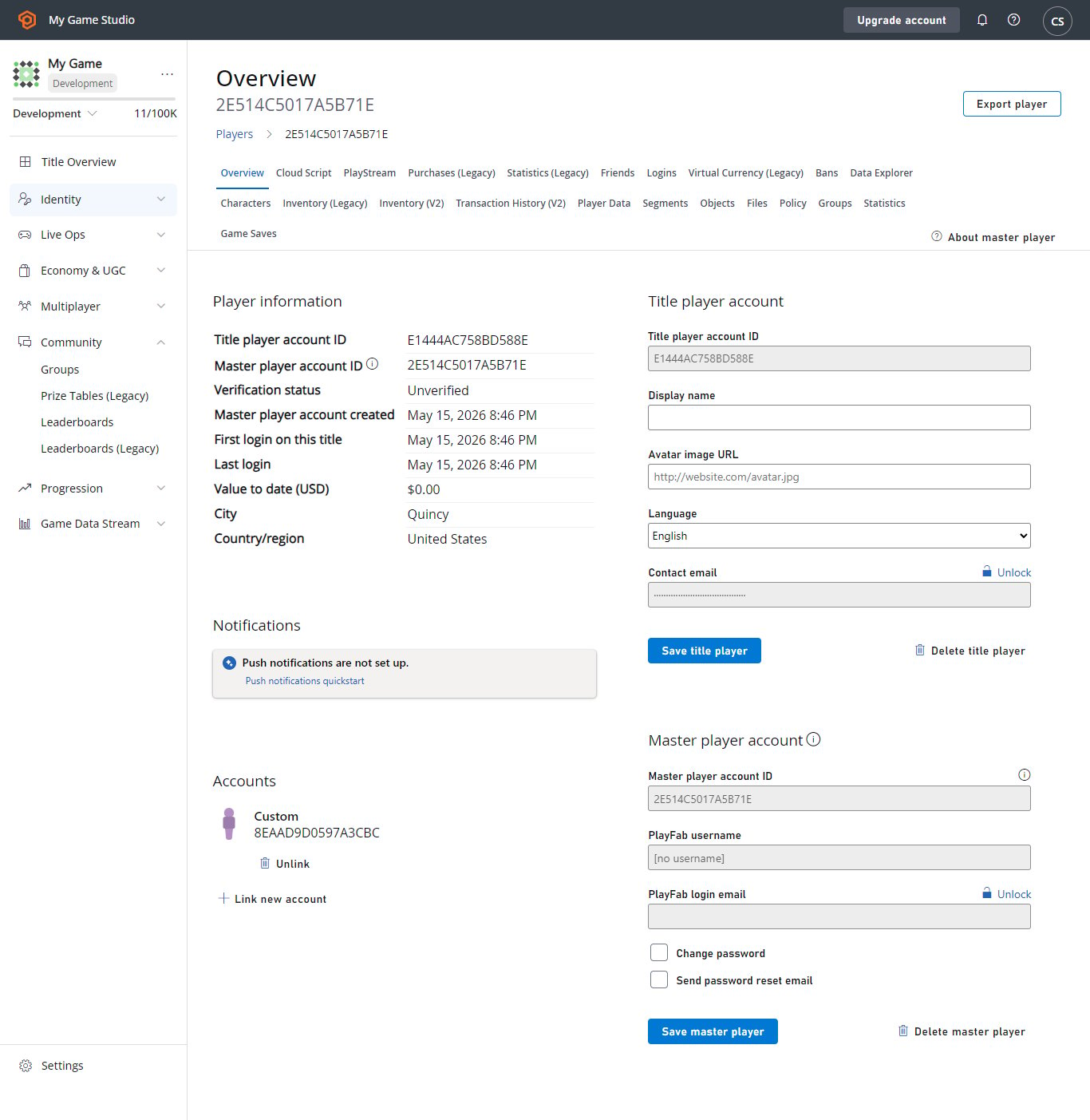
플레이어의 개요로 이동합니다. Game Manager에서 **Player** > **Overview**로 이동합니다. 연락처 정보 섹션이 선호 언어로 업데이트되었는지 확인합니다.
언어는 다음 이미지에 표시된 **Language** 드롭다운 메뉴로도 업데이트할 수 있습니다.
 다음으로, 플레이어의 **PlayStream**으로 이동하면 **Entity language updated** 이벤트가 표시됩니다.
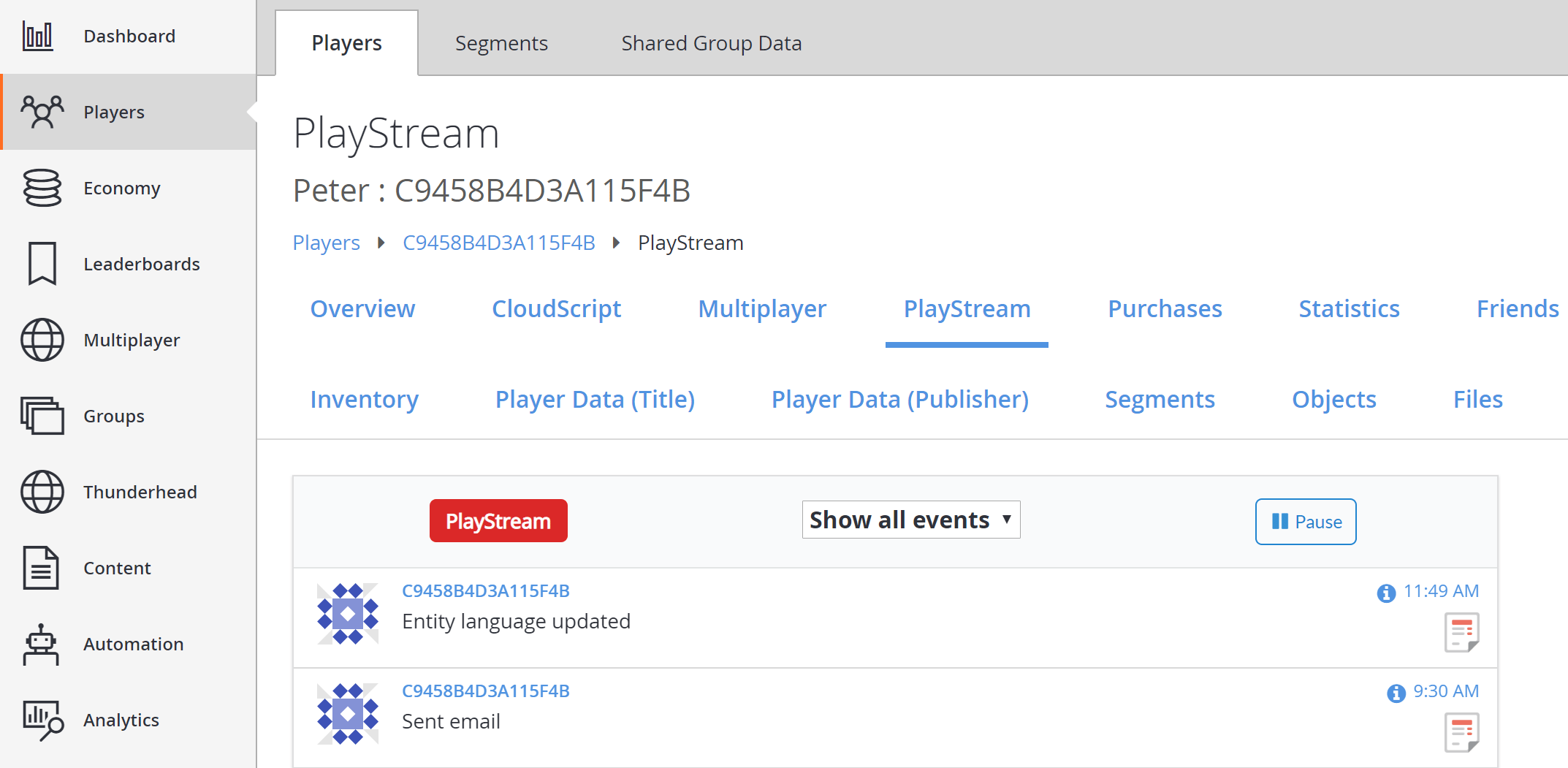 이벤트의 정보 아이콘을 선택하면 아래 예제와 유사한 JSON이 표시됩니다.
```json theme={null}
{
"EventName": "entity_language_updated",
"Source": "PlayFab",
"Language": "en",
"EntityChain": "title_player_account!4CDA57A14A596E70//C9458B4D3A115F4B/36163DA3783B0C8A/",
"EntityLineage": {
"NamespaceId": "4CDA57A14A596E70",
"TitleId": "YourTitleId",
"MasterPlayerAccountId": "C9458B4D3A115F4B",
"TitlePlayerAccountId": "36163DA3783B0C8A",
"CharacterId": null,
"GroupId": null
},
"EventNamespace": "com.playfab",
"EventId": "f643e22a2a76462aaeaa3469afa31434",
"EntityType": "title_player_account",
"EntityId": "36163DA3783B0C8A",
"SourceType": "BackEnd",
"Timestamp": "2018-08-24T18:49:47.8755292Z",
"History": null,
"CustomTags": null,
"Reserved": null
}
```
## 섹션 2 – 타이틀 기본 언어 설정
다음으로, 타이틀의 기본 언어를 설정합니다. 이제 모든 지역화 기능은 콘텐츠의 각 번역 버전에 언어를 연결합니다.
타이틀에는 기본 언어가 필요합니다. 이렇게 하면 플레이어의 선호 언어가 설정되지 않았거나 지원되지 않는 경우에도 플레이어가 콘텐츠의 기본 버전을 받을 수 있습니다.
시작하려면, 아래와 같이 왼쪽 메뉴에서 **Settings**를 선택합니다.
이벤트의 정보 아이콘을 선택하면 아래 예제와 유사한 JSON이 표시됩니다.
```json theme={null}
{
"EventName": "entity_language_updated",
"Source": "PlayFab",
"Language": "en",
"EntityChain": "title_player_account!4CDA57A14A596E70//C9458B4D3A115F4B/36163DA3783B0C8A/",
"EntityLineage": {
"NamespaceId": "4CDA57A14A596E70",
"TitleId": "YourTitleId",
"MasterPlayerAccountId": "C9458B4D3A115F4B",
"TitlePlayerAccountId": "36163DA3783B0C8A",
"CharacterId": null,
"GroupId": null
},
"EventNamespace": "com.playfab",
"EventId": "f643e22a2a76462aaeaa3469afa31434",
"EntityType": "title_player_account",
"EntityId": "36163DA3783B0C8A",
"SourceType": "BackEnd",
"Timestamp": "2018-08-24T18:49:47.8755292Z",
"History": null,
"CustomTags": null,
"Reserved": null
}
```
## 섹션 2 – 타이틀 기본 언어 설정
다음으로, 타이틀의 기본 언어를 설정합니다. 이제 모든 지역화 기능은 콘텐츠의 각 번역 버전에 언어를 연결합니다.
타이틀에는 기본 언어가 필요합니다. 이렇게 하면 플레이어의 선호 언어가 설정되지 않았거나 지원되지 않는 경우에도 플레이어가 콘텐츠의 기본 버전을 받을 수 있습니다.
시작하려면, 아래와 같이 왼쪽 메뉴에서 **Settings**를 선택합니다.
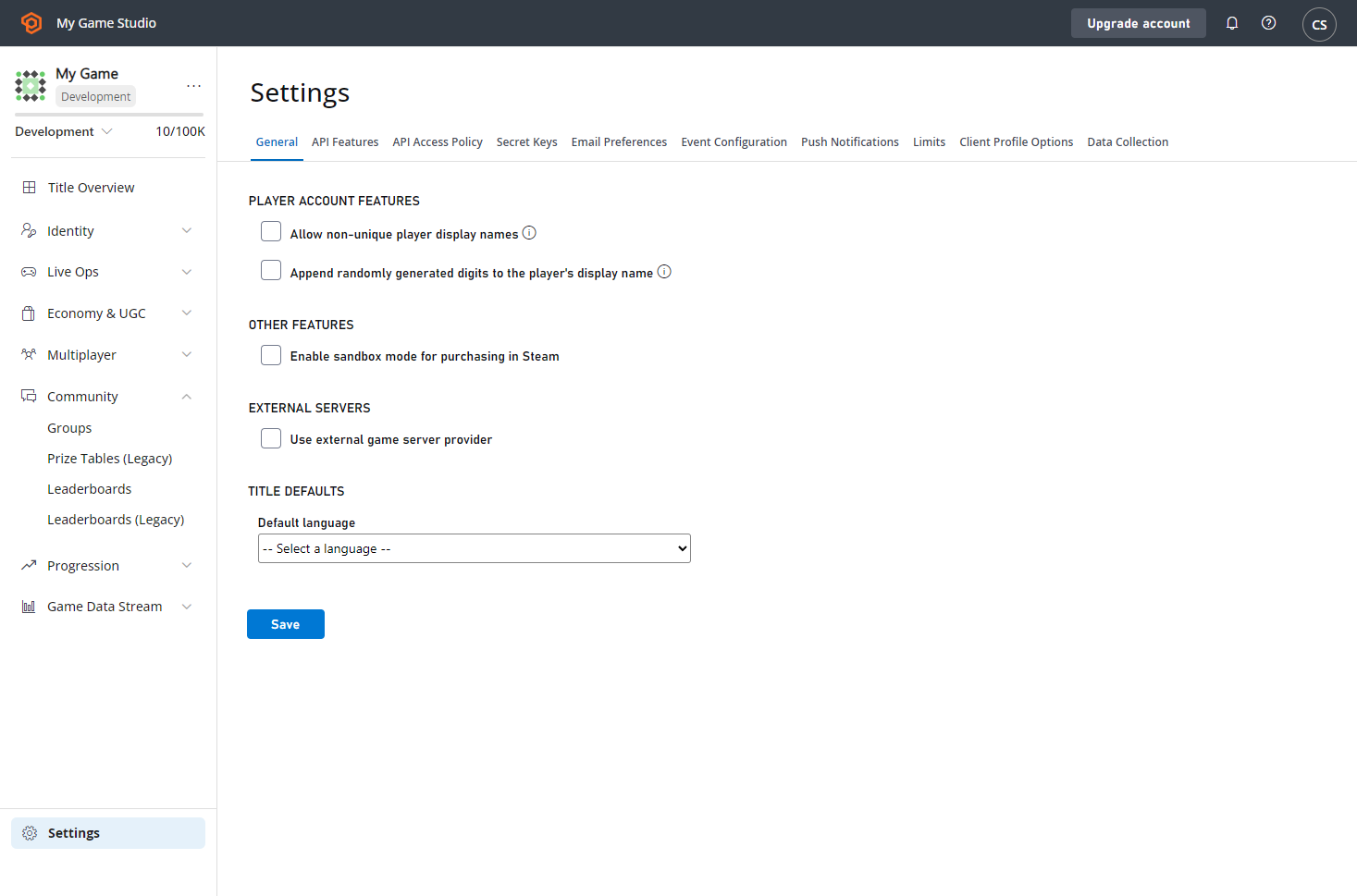 **General** 탭의 새로운 **TITLE DEFAULTS** 헤더 아래에서 **Default language** 드롭다운을 찾습니다. 지역화 추가 기능을 사용하려면 먼저 기본 언어를 설정해야 합니다.
작업을 마쳤으면 **SAVE** 버튼을 선택합니다. 업데이트가 성공하면 메시지 알림이 나타납니다.
대시보드로 돌아오면, 아래와 같이 **PlayStream** 이벤트 목록에 **Title API settings changed** 이벤트가 표시됩니다.
**General** 탭의 새로운 **TITLE DEFAULTS** 헤더 아래에서 **Default language** 드롭다운을 찾습니다. 지역화 추가 기능을 사용하려면 먼저 기본 언어를 설정해야 합니다.
작업을 마쳤으면 **SAVE** 버튼을 선택합니다. 업데이트가 성공하면 메시지 알림이 나타납니다.
대시보드로 돌아오면, 아래와 같이 **PlayStream** 이벤트 목록에 **Title API settings changed** 이벤트가 표시됩니다.
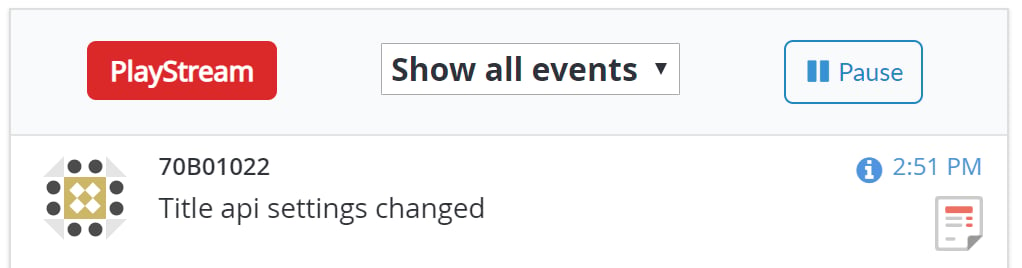 이벤트의 정보 아이콘을 선택하면 아래 예제와 유사한 JSON이 표시됩니다.
```json theme={null}
{
"EventName": "title_api_settings_changed",
"PreviousSettingsValues": {
"DefaultLanguage": null
},
"SettingsValues": {
"DefaultLanguage": "en"
},
"UserId": "EAF83D52E282C291",
"DeveloperId": null,
"EventNamespace": "com.playfab",
"EntityType": "title",
"Source": "PlayFab",
"EventId": "108849a5e1424051b42256bc75b2e34b",
"EntityId": "YourTitleId",
"SourceType": "BackEnd",
"Timestamp": "2018-08-24T21:51:02.2215614Z",
"History": null,
"CustomTags": null,
"Reserved": null
}
```
## 섹션 3 – 타이틀 기본 언어 업데이트
타이틀의 기본값을 설정하는 것은, 선호 언어가 설정되지 *않았거나*, 지원하지 않는 언어를 선택한 플레이어에게 커뮤니케이션을 보낼 때 해당 언어를 사용하도록 PlayFab에 지시한다는 점을 기억하는 것이 중요합니다.
타이틀의 기본값은 *대체(fallback)* 언어로 사용되므로, PlayFab은 모든 커뮤니케이션이 기본 언어를 지원할 것으로 예상합니다.
타이틀 기본값은 *언제든* 변경할 수 있지만, PlayFab은 현재의 커뮤니케이션 템플릿이 변경하려는 언어를 지원해야 함을 요구합니다.
타이틀의 기본 언어를 업데이트하면, 인터페이스에 이제 **Edit** 링크가 표시됩니다.
이벤트의 정보 아이콘을 선택하면 아래 예제와 유사한 JSON이 표시됩니다.
```json theme={null}
{
"EventName": "title_api_settings_changed",
"PreviousSettingsValues": {
"DefaultLanguage": null
},
"SettingsValues": {
"DefaultLanguage": "en"
},
"UserId": "EAF83D52E282C291",
"DeveloperId": null,
"EventNamespace": "com.playfab",
"EntityType": "title",
"Source": "PlayFab",
"EventId": "108849a5e1424051b42256bc75b2e34b",
"EntityId": "YourTitleId",
"SourceType": "BackEnd",
"Timestamp": "2018-08-24T21:51:02.2215614Z",
"History": null,
"CustomTags": null,
"Reserved": null
}
```
## 섹션 3 – 타이틀 기본 언어 업데이트
타이틀의 기본값을 설정하는 것은, 선호 언어가 설정되지 *않았거나*, 지원하지 않는 언어를 선택한 플레이어에게 커뮤니케이션을 보낼 때 해당 언어를 사용하도록 PlayFab에 지시한다는 점을 기억하는 것이 중요합니다.
타이틀의 기본값은 *대체(fallback)* 언어로 사용되므로, PlayFab은 모든 커뮤니케이션이 기본 언어를 지원할 것으로 예상합니다.
타이틀 기본값은 *언제든* 변경할 수 있지만, PlayFab은 현재의 커뮤니케이션 템플릿이 변경하려는 언어를 지원해야 함을 요구합니다.
타이틀의 기본 언어를 업데이트하면, 인터페이스에 이제 **Edit** 링크가 표시됩니다.
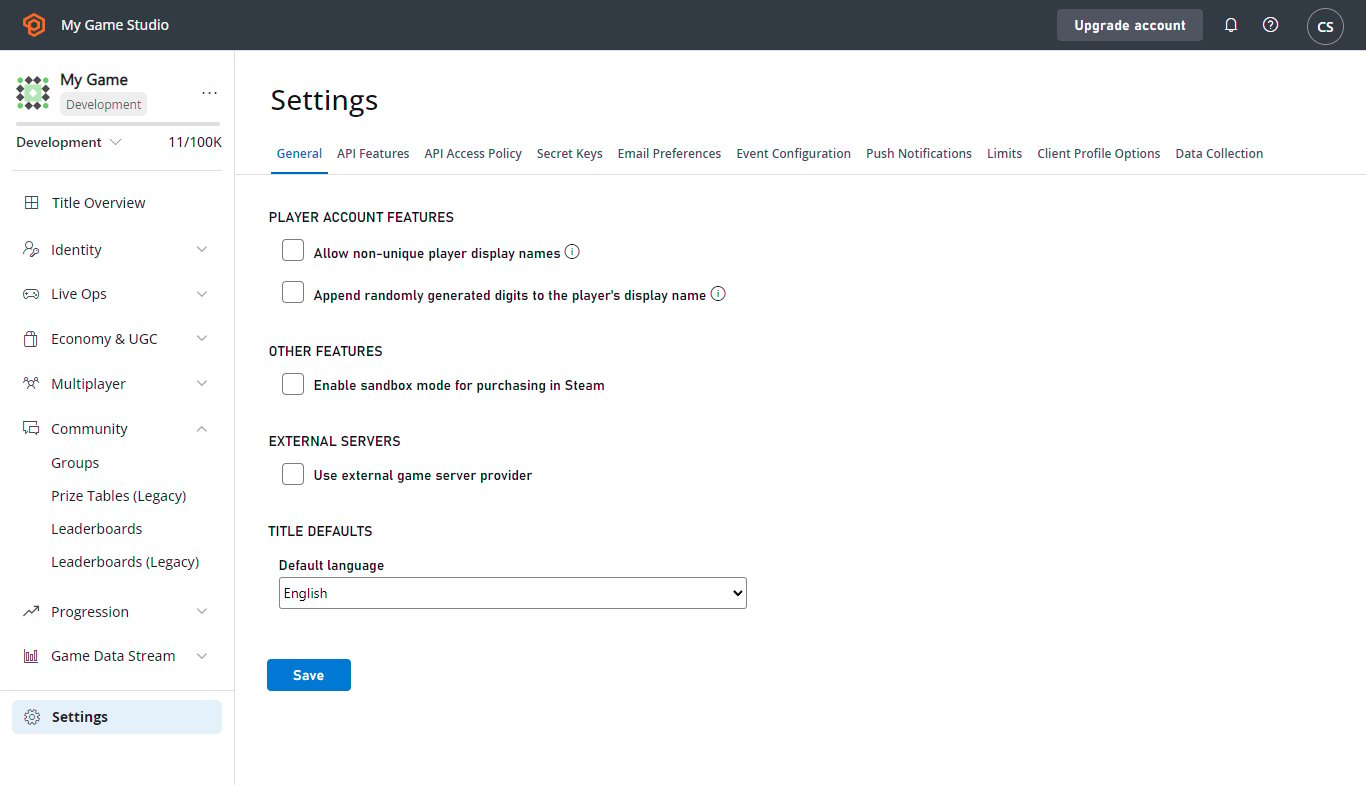 이 링크를 따라가면 이전과 동일한 드롭다운이 표시됩니다. 다만, 이메일 템플릿에서 완전히 지원되지 않는 기본 언어를 저장하려고 하면, 아래와 같은 하나 이상의 오류 메시지가 표시됩니다.
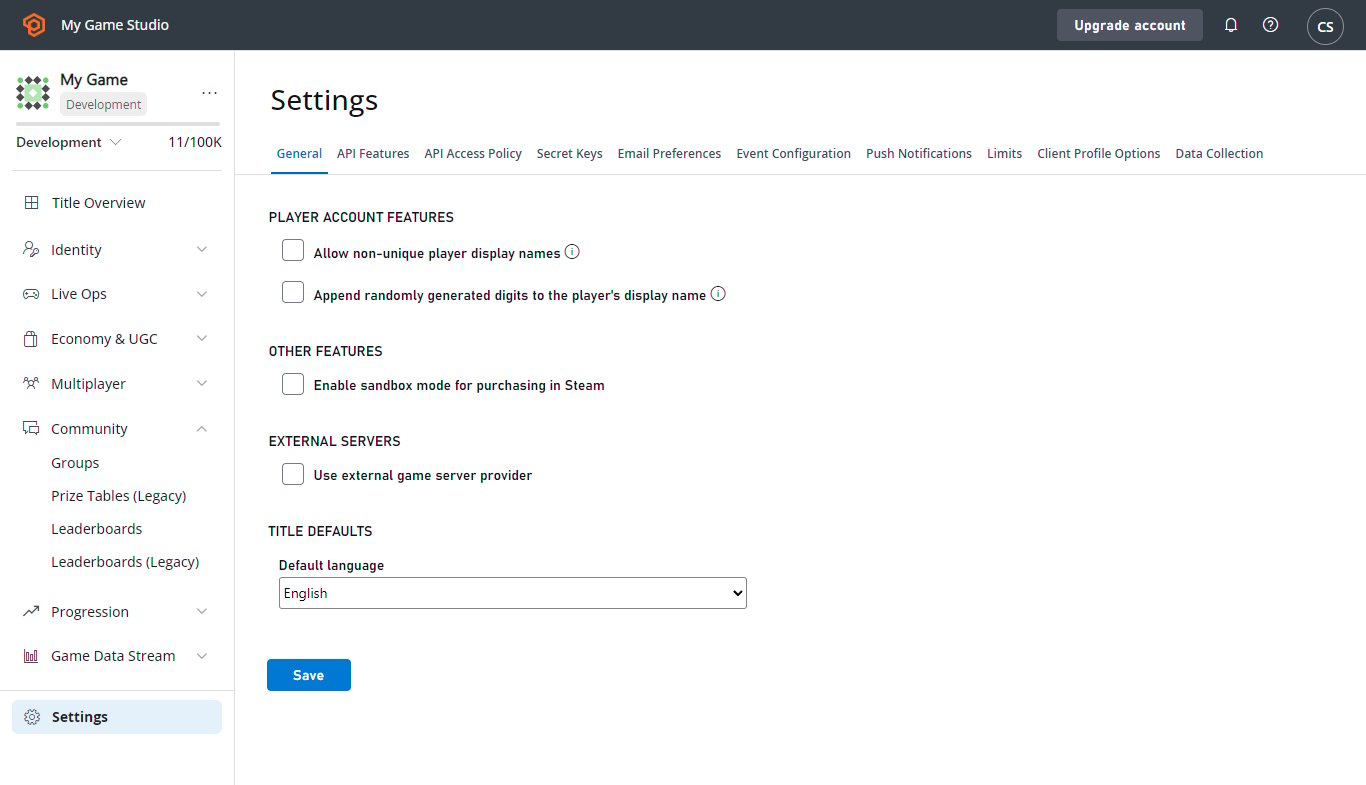 오류가 있는 경우, 제공된 링크를 따라 콘텐츠를 업데이트하여 누락된 언어를 지원할 수 있습니다. 모든 오류가 해결되면 기본 언어 변경이 수락됩니다.
## 결론
이 자습서에서는 타이틀의 기본 언어와 플레이어의 선호 언어를 설정하고 업데이트하는 방법을 살펴보았습니다.
이 자습서에 대한 질문이나 피드백이 있는 경우, [포럼](https://community.playfab.com/questions/ask.html)이나 Slack 채널을 통해 문의해 주세요.
## Related topics
- [지역화된 이메일 템플릿](/ko/services/playfab/live-service-management/game-configuration/title-communications/emails/localized-email-templates.md)
- [푸시 알림 템플릿](/ko/services/playfab/live-service-management/game-configuration/title-communications/push-notifications/push-notification-templates.md)
- [Title News quickstart](/ko/services/playfab/live-service-management/game-configuration/title-communications/news/quickstart.md)
- [가격 조정 기본 설정](/ko/publishing/game-publishing/concepts/availability/managed-creators/price-adjustment-preference.md)
- [게임의 기본 사용자 설정](/ko/build/core-features/common/user/users-establishing-default-user.md)
오류가 있는 경우, 제공된 링크를 따라 콘텐츠를 업데이트하여 누락된 언어를 지원할 수 있습니다. 모든 오류가 해결되면 기본 언어 변경이 수락됩니다.
## 결론
이 자습서에서는 타이틀의 기본 언어와 플레이어의 선호 언어를 설정하고 업데이트하는 방법을 살펴보았습니다.
이 자습서에 대한 질문이나 피드백이 있는 경우, [포럼](https://community.playfab.com/questions/ask.html)이나 Slack 채널을 통해 문의해 주세요.
## Related topics
- [지역화된 이메일 템플릿](/ko/services/playfab/live-service-management/game-configuration/title-communications/emails/localized-email-templates.md)
- [푸시 알림 템플릿](/ko/services/playfab/live-service-management/game-configuration/title-communications/push-notifications/push-notification-templates.md)
- [Title News quickstart](/ko/services/playfab/live-service-management/game-configuration/title-communications/news/quickstart.md)
- [가격 조정 기본 설정](/ko/publishing/game-publishing/concepts/availability/managed-creators/price-adjustment-preference.md)
- [게임의 기본 사용자 설정](/ko/build/core-features/common/user/users-establishing-default-user.md)