> ## Documentation Index
> Fetch the complete documentation index at: https://devdocs.xbox.com/llms.txt
> Use this file to discover all available pages before exploring further.
# 추가 기능으로 SMTP 서버 설정
> 호스트, 포트, 자격 증명을 사용하여 PlayFab 게임 관리자에서 SMTP 추가 기능을 설치 및 구성하여 플레이어에게 사용자 지정 계정 및 마케팅 이메일을 보냅니다.
이 자습서에서는 PlayFab을 통해 사용자 지정 이메일 전송을 지원하는 SMTP 추가 기능을 설정하는 방법을 안내합니다.
## 요구 사항
타이틀의 SMTP 서버는 추가 기능을 사용하여 설정되므로 게임 관리자가 필요합니다. 게임 관리자에 익숙하지 않은 경우 [게임 관리자 빠른 시작](/services/playfab/live-service-management/gamemanager/quickstart)을 읽어보세요.
## 추가 기능 페이지로 이동하여 SMTP 설치
**게임 관리자**에서:
1. **Add-ons**로 이동합니다.
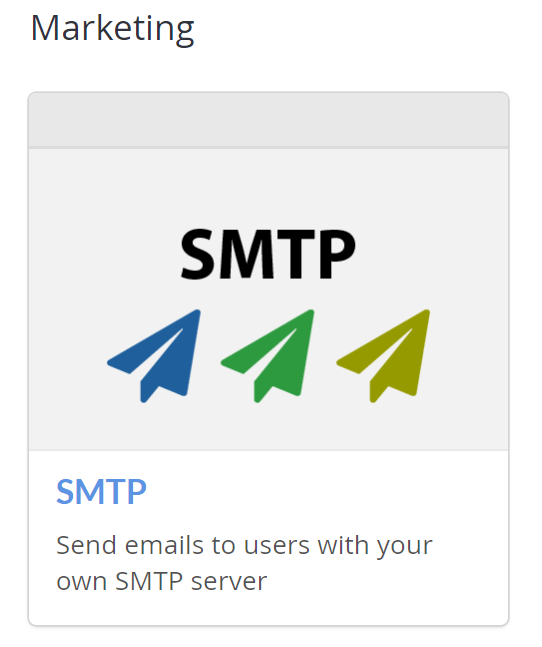
2. **Marketing** 섹션에서 **SMTP** 추가 기능을 선택합니다. 그러면 **추가 기능** 페이지로 리디렉션됩니다.
 3. **INSTALL SMTP** 버튼을 선택합니다.
## SMTP 구성
**Host name**, **Port number**, **Username**, **Password** 필드가 있는 양식이 나타나야 합니다.
3. **INSTALL SMTP** 버튼을 선택합니다.
## SMTP 구성
**Host name**, **Port number**, **Username**, **Password** 필드가 있는 양식이 나타나야 합니다.
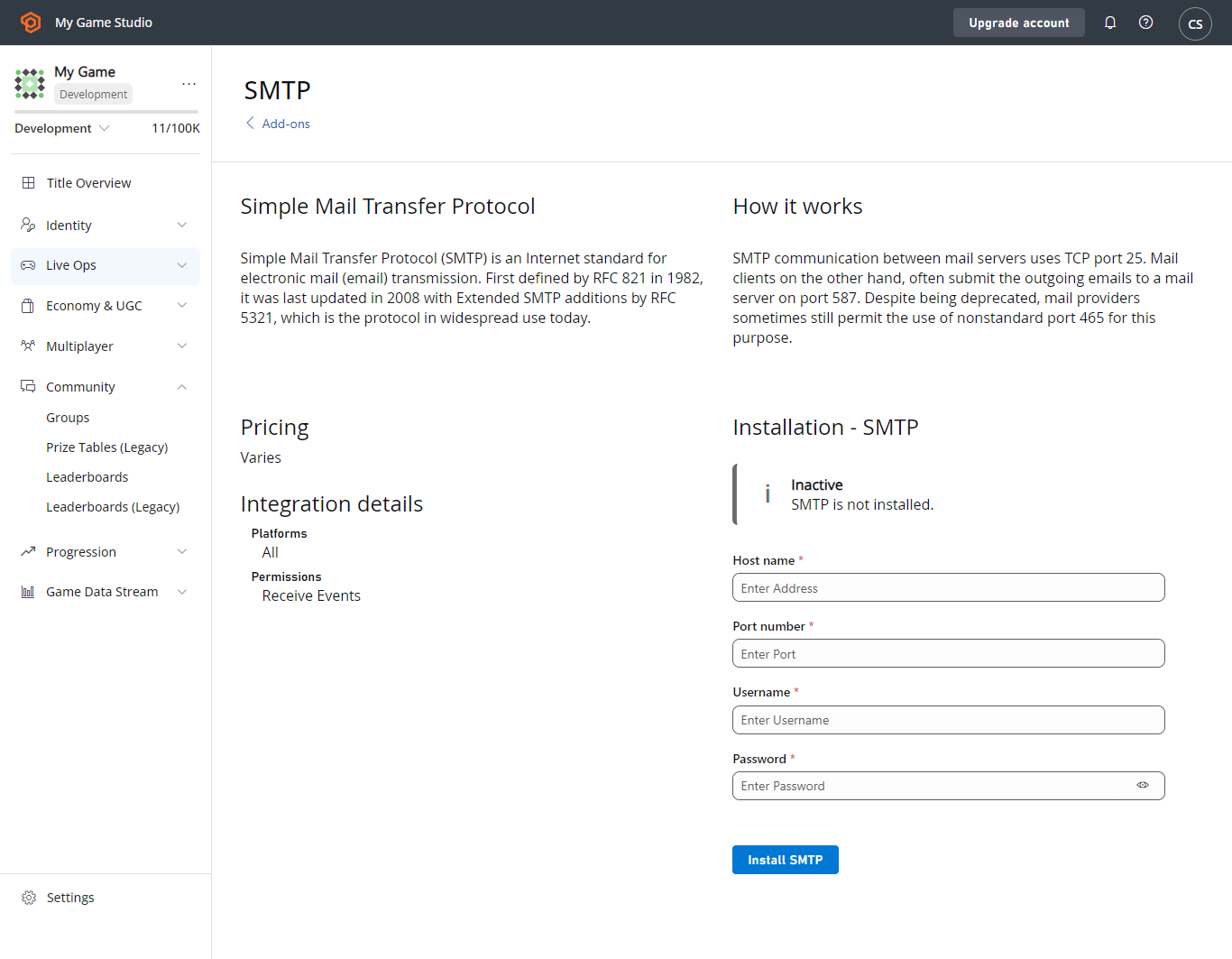 * SMTP 서버에 대한 **Host name**, **Port number**, **Username**, **Password**로 양식을 채웁니다.
* **SAVE SETTINGS** 버튼을 선택하면 추가 기능이 설치됩니다.
SMTP 서버에 **SSL/TLS**가 필요한 경우 **포트 587**을 사용하세요.
## 테스트
이 기능을 테스트하려면 Gmail 계정이 있는 경우 Gmail SMTP 서버를 사용할 수 있습니다. Gmail을 사용하려면 다음과 같이 필드를 채웁니다:
* Host name: **smtp.gmail.com**
* Port number: **587**
* Username: (**Gmail 주소** - 예: "[support@playfab.com](mailto:support@playfab.com)")
* Password: (**암호**)
2단계 인증을 사용하도록 설정한 경우 앱 암호를 만들어야 합니다. 자세한 내용은 [앱 암호를 사용하여 로그인](https://support.google.com/accounts/answer/185833?hl=en)을 참조하세요.
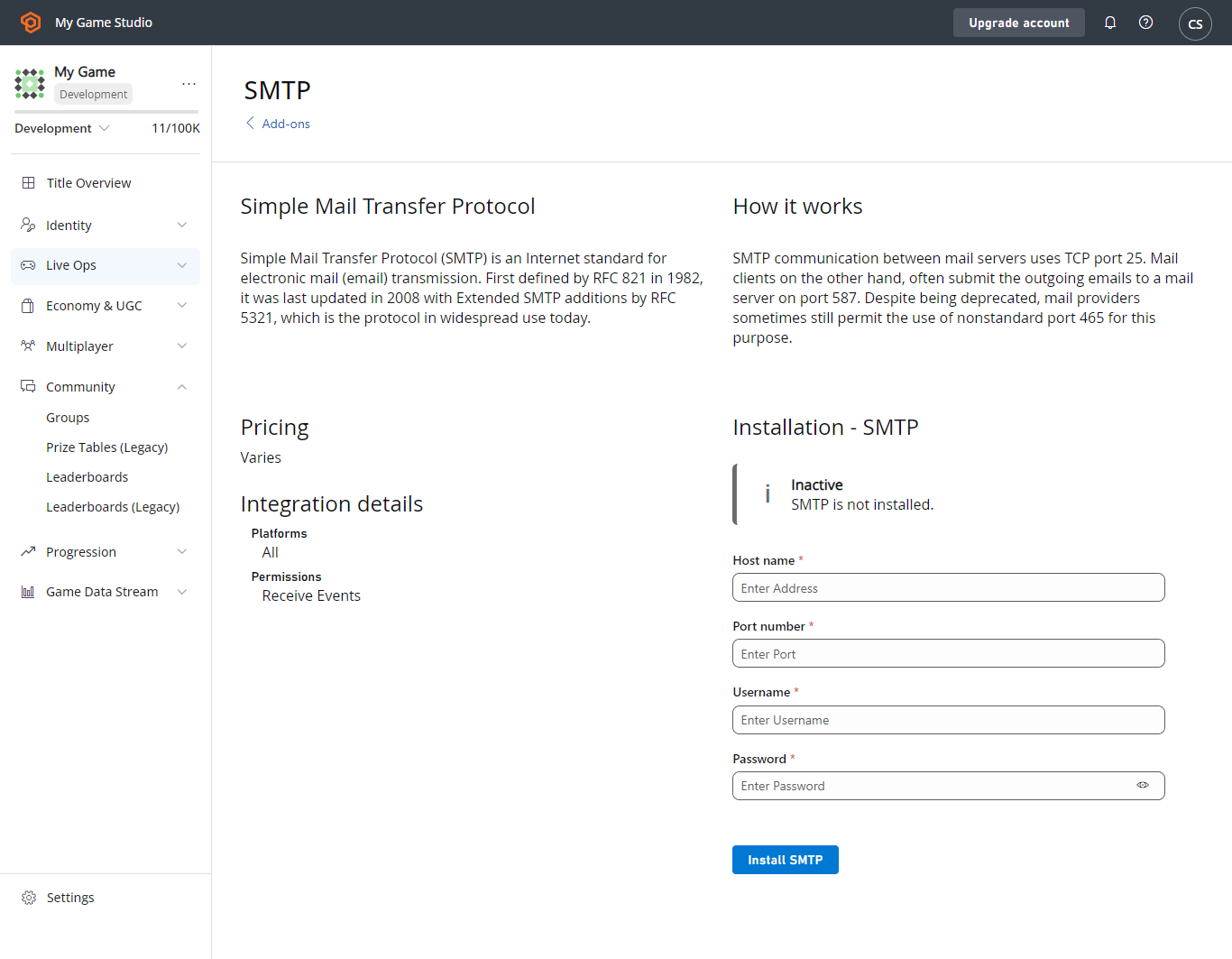
SMTP 추가 기능이 이제 설치되었으며, 초록색 체크와 성공을 나타내는 메시지가 표시됩니다.
* SMTP 서버에 대한 **Host name**, **Port number**, **Username**, **Password**로 양식을 채웁니다.
* **SAVE SETTINGS** 버튼을 선택하면 추가 기능이 설치됩니다.
SMTP 서버에 **SSL/TLS**가 필요한 경우 **포트 587**을 사용하세요.
## 테스트
이 기능을 테스트하려면 Gmail 계정이 있는 경우 Gmail SMTP 서버를 사용할 수 있습니다. Gmail을 사용하려면 다음과 같이 필드를 채웁니다:
* Host name: **smtp.gmail.com**
* Port number: **587**
* Username: (**Gmail 주소** - 예: "[support@playfab.com](mailto:support@playfab.com)")
* Password: (**암호**)
2단계 인증을 사용하도록 설정한 경우 앱 암호를 만들어야 합니다. 자세한 내용은 [앱 암호를 사용하여 로그인](https://support.google.com/accounts/answer/185833?hl=en)을 참조하세요.
SMTP 추가 기능이 이제 설치되었으며, 초록색 체크와 성공을 나타내는 메시지가 표시됩니다.
 ## Related topics
- [이메일 메시지 빠른 시작](/ko/services/playfab/live-service-management/game-configuration/title-communications/emails/quickstart.md)
- [게임의 durable 추가 기능 구성](/ko/publishing/game-publishing/tutorial-xbox-managed/how-to-configure-a-durable.md)
- [GSDK 프로젝트 설정](/ko/services/playfab/multiplayer/servers/server-sdks/unreal-gsdk/third-person-mp-example-gsdk-project-setup.md)
- [제품 관계 관리](/ko/publishing/game-publishing/concepts/relationship-management.md)
- [XAG 120: 커뮤니케이션 경험](/ko/build/game-principles/accessibility/xag-deep-dives/xag-120-communication-experiences.md)
## Related topics
- [이메일 메시지 빠른 시작](/ko/services/playfab/live-service-management/game-configuration/title-communications/emails/quickstart.md)
- [게임의 durable 추가 기능 구성](/ko/publishing/game-publishing/tutorial-xbox-managed/how-to-configure-a-durable.md)
- [GSDK 프로젝트 설정](/ko/services/playfab/multiplayer/servers/server-sdks/unreal-gsdk/third-person-mp-example-gsdk-project-setup.md)
- [제품 관계 관리](/ko/publishing/game-publishing/concepts/relationship-management.md)
- [XAG 120: 커뮤니케이션 경험](/ko/build/game-principles/accessibility/xag-deep-dives/xag-120-communication-experiences.md)