> ## Documentation Index
> Fetch the complete documentation index at: https://devdocs.xbox.com/llms.txt
> Use this file to discover all available pages before exploring further.
# XBOX Live 타이틀 연결
> Partner Center 제품 ID를 타이틀 ID에 연결하여 LoginWithXbox 및 관련 API에 대해 PlayFab에서 범위가 지정된 XBOX Live 토큰 검증을 구성하세요.
# PlayFab에서 XBOX Live 타이틀 연결 설정하기
Partner Center 제품 ID를 PlayFab 타이틀 ID에 연결하여 범위가 지정된 토큰 검증을 구성하는 방법을 알아봅니다.
## 개요
이 튜토리얼에서는 PlayFab API가 XBOX Live 토큰 매개변수를 사용할 때 어떤 XBOX Live 타이틀 토큰을 수락할지 지정하여 토큰 검증을 구성하는 방법을 배웁니다. 이를 통해 통합 동작을 더 정밀하게 제어하고 범위가 지정된 토큰 수락을 활성화할 수 있습니다. 대상 API에는 `Client/loginwithxbox`, `Client/LinkXboxAccount`, `Client/UnlinkXboxAccount`, `Client/ConsumeXboxEntitlement`, `Client/GetFriendLeaderboard`, `Client/GetFriendLeaderboardAroundCurrentUser`, `Client/GetFriendLeaderboardAroundPlayer`, `Client/ConsumeMicrosoftStoreEntitlements`, `Server/loginwithxbox`, `Server/LinkXboxAccount`, `Server/UnlinkXboxAccount`, `Server/GetFriendLeaderboard`, `Server/GetFriendsList`, `Server/GetFriendLeaderboardForEntity`, `Lobby/GetFriendLobbies`, `Server/GetFriendLeaderboardAroundPlayer`, `Inventory/RedeemMicrosoftStoreInventoryItems`, `Inventory/Redeem`가 포함됩니다.
## 요구 사항
* 등록된 [PlayFab](https://developer.playfab.com/) 타이틀.
* XBOX Live가 활성화된 타이틀이 있는 [Partner Center](https://partner.microsoft.com/) 계정.
## Partner Center 제품 ID와 XBOX Live 타이틀 ID
먼저 Partner Center 타이틀의 제품 페이지로 이동합니다.
1. Partner Center 대시보드에서 [Apps and Games](https://partner.microsoft.com/dashboard/apps-and-games/overview)로 이동합니다.
2. PlayFab과 연결하려는 XBOX Live 지원 Partner Center 타이틀을 찾아 선택합니다.
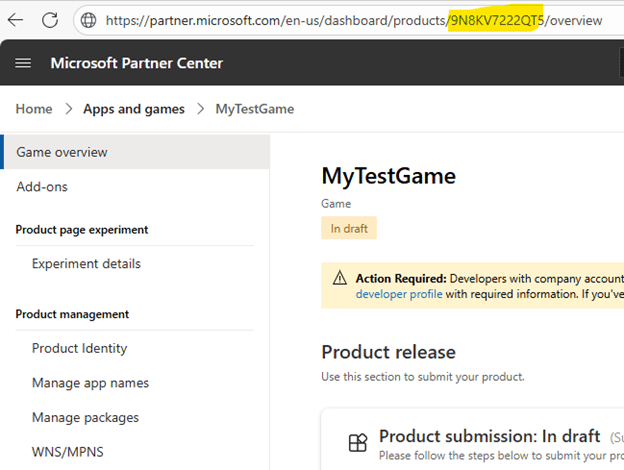
3. 게임 URL에서 제품 ID를 찾아 복사합니다.
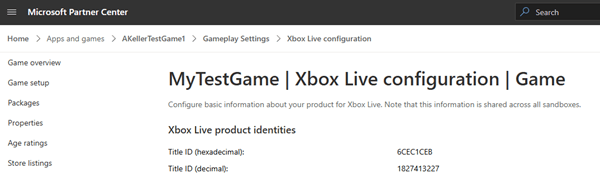
 4. 다음으로 XBOX Live 타이틀 ID를 찾아 복사합니다. **XBOX services > XBOX Settings**로 이동하여 **Title ID (decimal)** 값을 복사합니다.
 ## XBOX Live 애드온 설치
타이틀의 [PlayFab 게임 관리자](https://developer.playfab.com/) 페이지로 이동합니다.
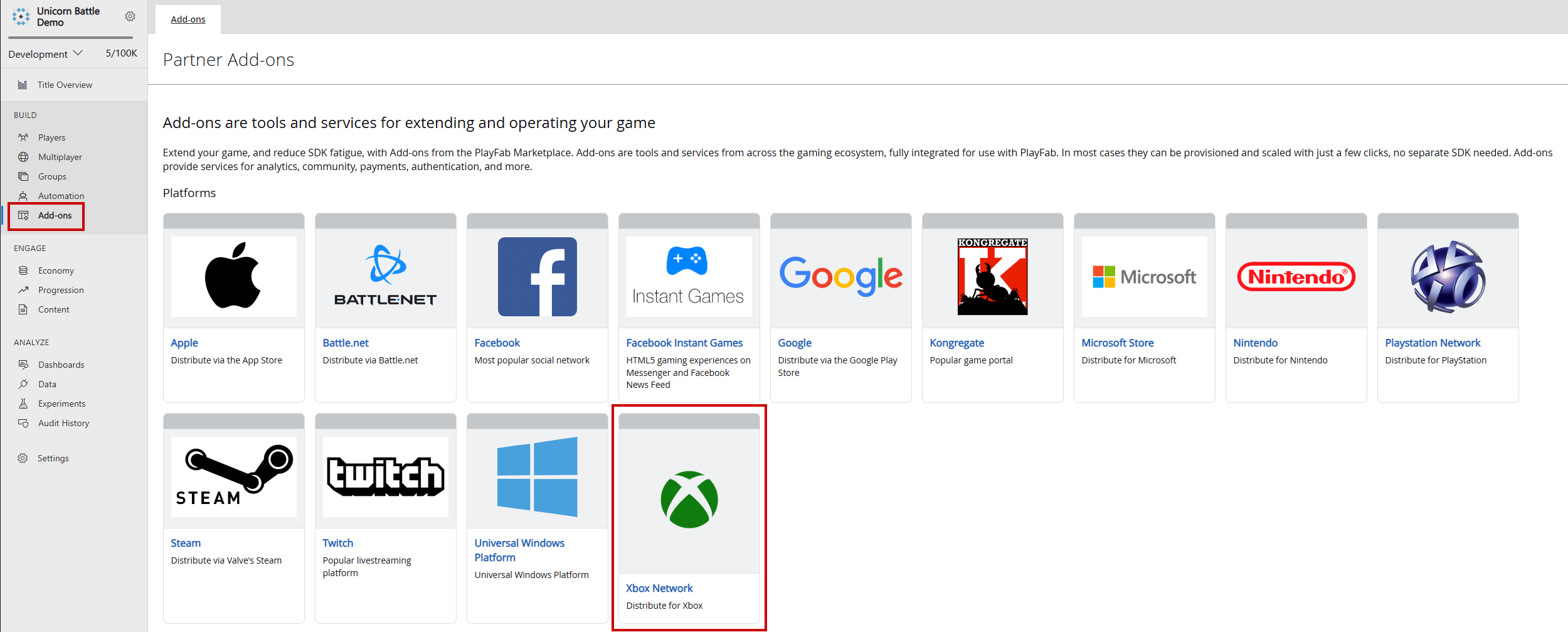
1. 메뉴에서 \*\*애드온(Add-ons)\*\*으로 이동합니다.
2. **XBOX Live** 애드온 아이콘/링크를 찾아 선택합니다.
## XBOX Live 애드온 설치
타이틀의 [PlayFab 게임 관리자](https://developer.playfab.com/) 페이지로 이동합니다.
1. 메뉴에서 \*\*애드온(Add-ons)\*\*으로 이동합니다.
2. **XBOX Live** 애드온 아이콘/링크를 찾아 선택합니다.
 3. **판매자 ID(Seller ID)** 드롭다운을 사용하여 Partner Center에서 올바른 판매자 ID를 선택합니다. 올바른 판매자 ID가 표시되지 않는 경우 \*\*다른 partner center 계정으로 로그인(Sign in with a different partner center account)\*\*을 선택하고 올바른 사용자로 로그인합니다.
4. **제품 ID(Product ID)** 드롭다운을 사용하여 PlayFab 타이틀에 연결할 Partner Center 제품 ID를 찾습니다. XBOX Live 타이틀 ID가 Partner Center의 예상되는 XBOX Live 타이틀 ID와 일치하는지 확인합니다.
3. **판매자 ID(Seller ID)** 드롭다운을 사용하여 Partner Center에서 올바른 판매자 ID를 선택합니다. 올바른 판매자 ID가 표시되지 않는 경우 \*\*다른 partner center 계정으로 로그인(Sign in with a different partner center account)\*\*을 선택하고 올바른 사용자로 로그인합니다.
4. **제품 ID(Product ID)** 드롭다운을 사용하여 PlayFab 타이틀에 연결할 Partner Center 제품 ID를 찾습니다. XBOX Live 타이틀 ID가 Partner Center의 예상되는 XBOX Live 타이틀 ID와 일치하는지 확인합니다.
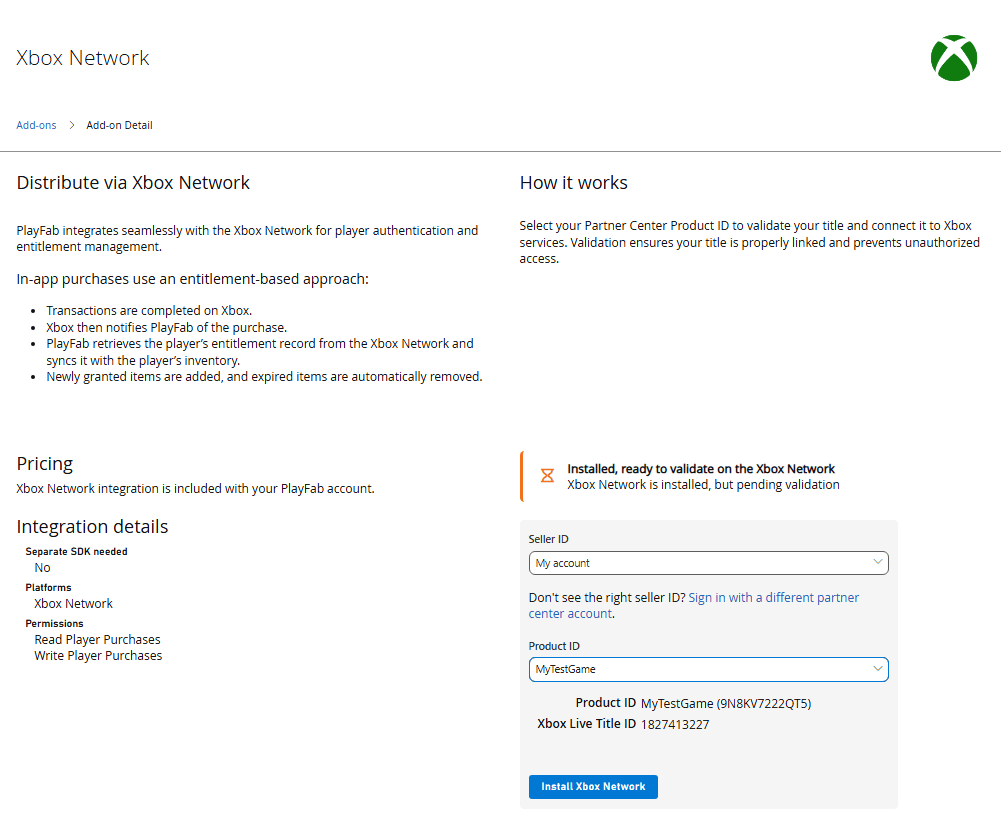 5. \*\*XBOX 네트워크 설치(Install XBOX Network)\*\*를 선택하여 설정을 저장하고 API 호출을 선택된 XBOX Live 타이틀 ID로 제한합니다.
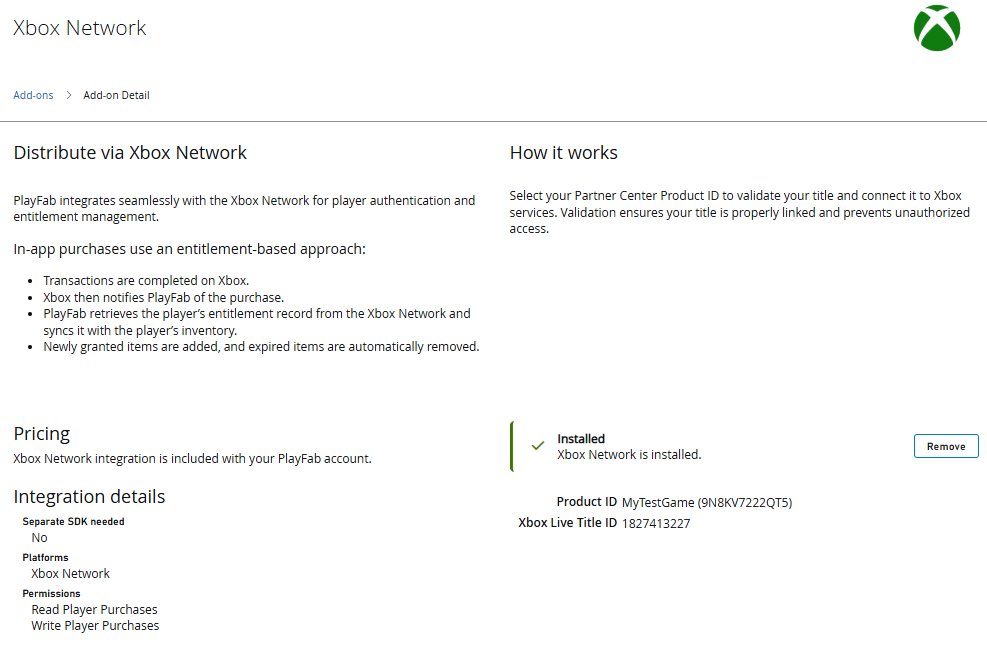 이러한 단계를 따르면 지정된 Partner Center 타이틀의 토큰만 수락되도록 PlayFab 내에서 범위가 지정된 XBOX Live 토큰 검증을 안심하고 구성할 수 있습니다. 이 설정은 크로스 플랫폼 인증을 간소화하고 타이틀별 보안을 강화하며 개발자가 XBOX 지원 서비스 전반에서 원활하고 신뢰할 수 있는 플레이어 경험을 제공할 수 있도록 지원합니다.
## 추가 정보
* [PlayFab 인증 개요](/services/playfab/identity/player-identity/authentication)
* [로그인 기본 사항 및 모범 사례](/services/playfab/identity/player-identity/login/login-basics-best-practices)
## Related topics
- [플랫폼별 인증](/ko/services/playfab/identity/player-identity/platform-specific-authentication/index.md)
- [PlayFab Identity 문서](/ko/services/playfab/identity/index.md)
- [XBOX services 타이틀을 위한 PlayFab 통합](/ko/services/xbox-services/playfab-integration.md)
- [Beta 및 XBOX Game Preview 타이틀 인증](/ko/publishing/certification/cert-beta-game-preview.md)
- [타이틀 서비스에 대한 XBOX 서비스 인증](/ko/services/xbox-services/fundamentals/s2s-auth-calls/service-authentication/live-title-service-authentication.md)
이러한 단계를 따르면 지정된 Partner Center 타이틀의 토큰만 수락되도록 PlayFab 내에서 범위가 지정된 XBOX Live 토큰 검증을 안심하고 구성할 수 있습니다. 이 설정은 크로스 플랫폼 인증을 간소화하고 타이틀별 보안을 강화하며 개발자가 XBOX 지원 서비스 전반에서 원활하고 신뢰할 수 있는 플레이어 경험을 제공할 수 있도록 지원합니다.
## 추가 정보
* [PlayFab 인증 개요](/services/playfab/identity/player-identity/authentication)
* [로그인 기본 사항 및 모범 사례](/services/playfab/identity/player-identity/login/login-basics-best-practices)
## Related topics
- [플랫폼별 인증](/ko/services/playfab/identity/player-identity/platform-specific-authentication/index.md)
- [PlayFab Identity 문서](/ko/services/playfab/identity/index.md)
- [XBOX services 타이틀을 위한 PlayFab 통합](/ko/services/xbox-services/playfab-integration.md)
- [Beta 및 XBOX Game Preview 타이틀 인증](/ko/publishing/certification/cert-beta-game-preview.md)
- [타이틀 서비스에 대한 XBOX 서비스 인증](/ko/services/xbox-services/fundamentals/s2s-auth-calls/service-authentication/live-title-service-authentication.md)