> ## Documentation Index
> Fetch the complete documentation index at: https://devdocs.xbox.com/llms.txt
> Use this file to discover all available pages before exploring further.
# Unity에서 Google 로그인에서 Google Play Games로 마이그레이션하기
> 연결 및 검증을 포함하여 Unity 플레이어를 Google 계정 로그인에서 LoginWithGooglePlayGamesServices로 전환하는 상세한 마이그레이션 단계입니다.
# LoginWithGooglePlayGamesServices API 마이그레이션 절차
Google이 개발자에게 이 인증 방식으로 마이그레이션하도록 권장하고 있으므로, 마이그레이션은 LoginWithGooglePlayGamesServices로 전환하는 것으로 구성됩니다. 플레이어를 마이그레이션한 후에는 LoginWithGoogleAccount API에 대한 종속성이 없어지며 개발자는 최신 플러그인 버전으로 업그레이드할 수 있습니다.
자세한 내용은 [Google 공식 문서](https://developers.google.com/games/services/android/signin#migrate_to_play_games_services_sign_in_v2)를 참조하세요.
## 상위 수준 단계
1. "Play Games Plugin for Unity"의 올바른 버전을 선택합니다.
2. Play Games Platform을 초기화하고 사용자를 인증합니다.
3. LoginWithGoogleAccount를 사용하여 PlayFab에 로그인합니다.
4. Google Play Games 프로필을 PlayFab 플레이어 계정과 연결합니다.
5. 사용자가 LoginWithGooglePlayGamesServices API를 사용하여 로그인할 수 있는지 확인합니다.
6. (선택 사항) PlayFab 플레이어 계정에서 Google 계정 프로필을 연결 해제합니다.
## 마이그레이션 단계
### "Play Games Plugin for Unity"의 올바른 버전 선택
Google이 더 이상 추가 스코프 요청을 허용하지 않기 때문에 최신 버전의 플러그인은 마이그레이션에 작동하지 않으며, PlayFab의 LoginWithGoogleAccount API가 더 이상 작동하지 않습니다.
이 마이그레이션 단계는 "Play Games Plugin for Unity" 버전 0.10.14를 사용하여 테스트하고 문서화되었으며, 여기에서 찾을 수 있습니다: [playgameservices/play-games-plugin-for-unity at v10.14 (github.com)](https://github.com/playgameservices/play-games-plugin-for-unity/tree/v10.14).
플러그인 설치 및 구성 단계는 플러그인의 [README](https://github.com/playgameservices/play-games-plugin-for-unity/blob/v10.14/README.md)를 참조하세요.
### Play Games Platform 초기화 및 플레이어 인증
[README의 Configuration & Initialization Play Games Services 섹션](https://github.com/playgameservices/play-games-plugin-for-unity/blob/v10.14/README.md#configuration--initialization-play-game-services)을 참조하고 PlayGamesClientConfiguration의 일부로 "profile" 스코프를 요청하세요.
```csharp theme={null}
PlayGamesClientConfiguration config = new PlayGamesClientConfiguration.Builder()
.AddOauthScope("profile")
.RequestServerAuthCode(false)
.Build();
PlayGamesPlatform.InitializeInstance(config);
// recommended for debugging:
PlayGamesPlatform.DebugLogEnabled = true;
// Activate the Google Play Games platform
PlayGamesPlatform.Activate();
// authenticate user:
PlayGamesPlatform.Instance.Authenticate(SignInInteractivity.CanPromptOnce, (SignInStatus result) => {
if (result == SignInStatus.Success)
{
Debug.Log("Authentication Succeeded.");
}
else
{
Debug.Log("Authentication Failed. SignInStatus: " + result);
}
});
```
### LoginWithGoogleAccount를 사용하여 PlayFab에 로그인
[LoginWithGoogleAccount](https://learn.microsoft.com/en-us/rest/api/playfab/client/authentication/login-with-google-account?view=playfab-rest) 인증 API를 사용하여 기존 플레이어의 계정에 로그인합니다. 성공적으로 로그인하려면 GetServerAuthCode 메서드를 통해 요청할 수 있는 Server Auth Token을 제공해야 합니다.
```csharp theme={null}
public void PlayFabLoginWithGoogleAccount()
{
var serverAuthCode = PlayGamesPlatform.Instance.GetServerAuthCode();
var request = new LoginWithGoogleAccountRequest
{
ServerAuthCode = serverAuthCode,
TitleId = PlayFabSettings.TitleId
};
PlayFabClientAPI.LoginWithGoogleAccount(request, OnLoginWithGoogleAccountSuccess, OnLoginWithGoogleAccountFailure);
}
private void OnLoginWithGoogleAccountSuccess(LoginResult result)
{
Debug.Log("PlayFab LoginWithGoogleAccount Success.");
}
private void OnLoginWithGoogleAccountFailure(PlayFabError error)
{
Debug.Log("PlayFab LoginWithGoogleAccount Failure: " + error.GenerateErrorReport());
}
```
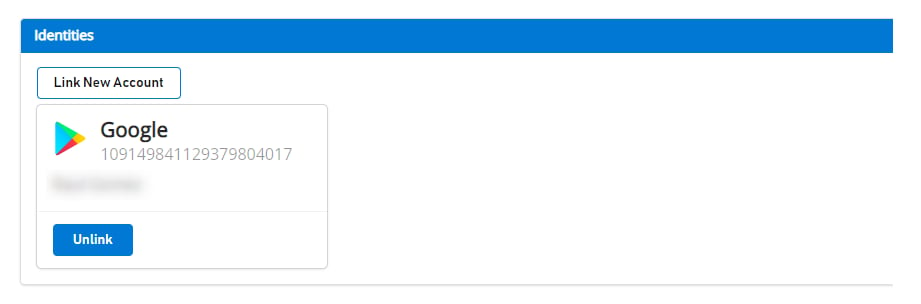
마이그레이션을 수행하기 전에 Google 계정에 연결된 사용자는 [Game Manager](https://developer.playfab.com)에서 다음과 같이 표시됩니다.
 ### 플레이어의 Google Play Games 프로필을 PlayFab 플레이어 계정과 연결
이 단계에서는 이전에 Google 계정에만 연결되어 있던 기존 플레이어의 PlayFab 계정에 플레이어의 Google Play Games 계정을 연결합니다.
```csharp theme={null}
public void LinkGooglePlayGamesAccount()
{
PlayGamesPlatform.Instance.GetAnotherServerAuthCode(true, (serverAuthCode) => {
var linkRequest = new LinkGooglePlayGamesServicesAccountRequest
{
ServerAuthCode = serverAuthCode
};
PlayFabClientAPI.LinkGooglePlayGamesServicesAccount(linkRequest, OnLinkGooglePlayGamesServicesAccountSuccess, OnLinkGooglePlayGamesServicesAccountFailure);
});
}
private void OnLinkGooglePlayGamesServicesAccountSuccess(LinkGooglePlayGamesServicesAccountResult result)
{
Debug.Log("PlayFab LinkGooglePlayGamesServicesAccount Success");
}
private void OnLinkGooglePlayGamesServicesAccountFailure(PlayFabError error)
{
Debug.Log("PlayFab LinkGooglePlayGamesServicesAccount Failure: " + error.GenerateErrorReport());
}
```
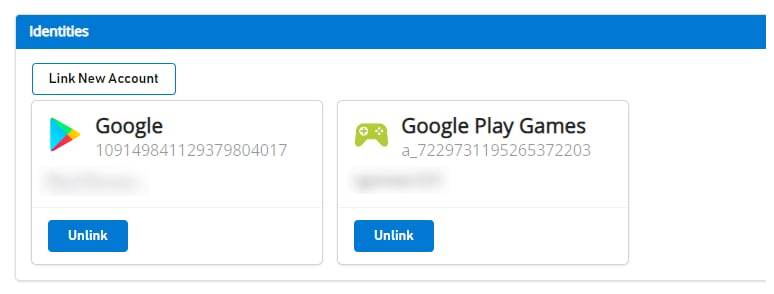
이 단계 이후 플레이어는 PlayFab 쪽에서 두 계정 프로필이 모두 연결되어야 하며, 이제부터 [LoginWithGooglePlayGamesServices](https://learn.microsoft.com/en-us/rest/api/playfab/client/authentication/login-with-google-play-games-services?view=playfab-rest) 인증 API 사용을 시작할 수 있어야 합니다.
[Game Manager](https://developer.playfab.com)로 이동하면 다음과 같이 플레이어에게 두 계정이 모두 연결된 것을 볼 수 있습니다.
### 플레이어의 Google Play Games 프로필을 PlayFab 플레이어 계정과 연결
이 단계에서는 이전에 Google 계정에만 연결되어 있던 기존 플레이어의 PlayFab 계정에 플레이어의 Google Play Games 계정을 연결합니다.
```csharp theme={null}
public void LinkGooglePlayGamesAccount()
{
PlayGamesPlatform.Instance.GetAnotherServerAuthCode(true, (serverAuthCode) => {
var linkRequest = new LinkGooglePlayGamesServicesAccountRequest
{
ServerAuthCode = serverAuthCode
};
PlayFabClientAPI.LinkGooglePlayGamesServicesAccount(linkRequest, OnLinkGooglePlayGamesServicesAccountSuccess, OnLinkGooglePlayGamesServicesAccountFailure);
});
}
private void OnLinkGooglePlayGamesServicesAccountSuccess(LinkGooglePlayGamesServicesAccountResult result)
{
Debug.Log("PlayFab LinkGooglePlayGamesServicesAccount Success");
}
private void OnLinkGooglePlayGamesServicesAccountFailure(PlayFabError error)
{
Debug.Log("PlayFab LinkGooglePlayGamesServicesAccount Failure: " + error.GenerateErrorReport());
}
```
이 단계 이후 플레이어는 PlayFab 쪽에서 두 계정 프로필이 모두 연결되어야 하며, 이제부터 [LoginWithGooglePlayGamesServices](https://learn.microsoft.com/en-us/rest/api/playfab/client/authentication/login-with-google-play-games-services?view=playfab-rest) 인증 API 사용을 시작할 수 있어야 합니다.
[Game Manager](https://developer.playfab.com)로 이동하면 다음과 같이 플레이어에게 두 계정이 모두 연결된 것을 볼 수 있습니다.
 ### 플레이어가 LoginWithGooglePlayGamesServices API를 사용하여 로그인할 수 있는지 확인
```csharp theme={null}
public void PFLoginWithGooglePlayGames()
{
PlayGamesPlatform.Instance.GetAnotherServerAuthCode(true, (serverAuthCode) => {
var request = new LoginWithGooglePlayGamesServicesRequest
{
ServerAuthCode = serverAuthCode,
CreateAccount = false,
TitleId = PlayFabSettings.TitleId
};
PlayFabClientAPI.LoginWithGooglePlayGamesServices(request, OnLoginWithGooglePlayGamesServicesSuccess, OnLoginWithGooglePlayGamesServicesFailure);
});
}
private void OnLoginWithGooglePlayGamesServicesSuccess(LoginResult result)
{
Debug.Log("PlayFab LoginWithGooglePlayGamesServices Success.");
}
private void OnLoginWithGooglePlayGamesServicesFailure(PlayFabError error)
{
Debug.Log("PlayFab LoginWithGooglePlayGamesServices Failure: " + error.GenerateErrorReport());
}
```
### (선택 사항) PlayFab 플레이어 계정에서 Google 계정 프로필 연결 해제
이 단계는 선택 사항입니다. 그러나 Google Play Games Services 프로필이 플레이어 계정에 연결되고 PlayFab에 성공적으로 로그인할 수 있음을 이미 확인했다면, [UnlinkGoogleAccount](https://learn.microsoft.com/en-us/rest/api/playfab/client/account-management/unlink-google-account?view=playfab-rest) API를 사용하여 플레이어 프로필에 연결된 이전 Google 계정 프로필을 연결 해제하고 [LoginWithGooglePlayGamesServices](https://learn.microsoft.com/en-us/rest/api/playfab/client/authentication/login-with-google-play-games-services?view=playfab-rest) API만 사용하도록 이동하는 것이 좋습니다.
```csharp theme={null}
public void UnlinkGoogleAccountFromPlayer()
{
PlayFabClientAPI.UnlinkGoogleAccount(new UnlinkGoogleAccountRequest(), OnUnlinkGoogleAccountSuccess, OnUnlinkGoogleAccountFailure);
}
private void OnUnlinkGoogleAccountSuccess(UnlinkGoogleAccountResult result)
{
Debug.Log("PlayFab UnlinkGoogleAccount Success.");
}
private void OnUnlinkGoogleAccountFailure(PlayFabError error)
{
Debug.Log("PlayFab UnlinkGoogleAccount Failure: " + error.GenerateErrorReport());
}
```
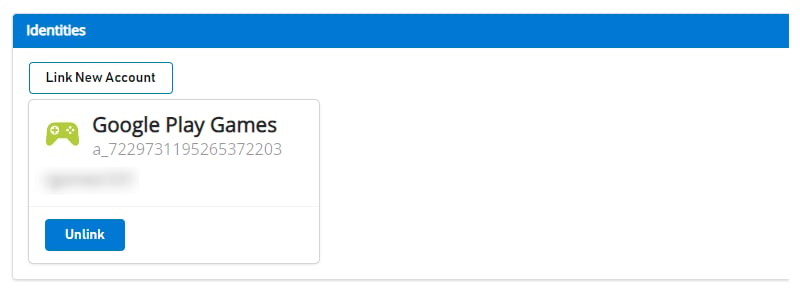
연결 해제 후 [Game Manager](https://developer.playfab.com)에서 플레이어에 대해 Google Play Games Identity만 볼 수 있어야 합니다.
### 플레이어가 LoginWithGooglePlayGamesServices API를 사용하여 로그인할 수 있는지 확인
```csharp theme={null}
public void PFLoginWithGooglePlayGames()
{
PlayGamesPlatform.Instance.GetAnotherServerAuthCode(true, (serverAuthCode) => {
var request = new LoginWithGooglePlayGamesServicesRequest
{
ServerAuthCode = serverAuthCode,
CreateAccount = false,
TitleId = PlayFabSettings.TitleId
};
PlayFabClientAPI.LoginWithGooglePlayGamesServices(request, OnLoginWithGooglePlayGamesServicesSuccess, OnLoginWithGooglePlayGamesServicesFailure);
});
}
private void OnLoginWithGooglePlayGamesServicesSuccess(LoginResult result)
{
Debug.Log("PlayFab LoginWithGooglePlayGamesServices Success.");
}
private void OnLoginWithGooglePlayGamesServicesFailure(PlayFabError error)
{
Debug.Log("PlayFab LoginWithGooglePlayGamesServices Failure: " + error.GenerateErrorReport());
}
```
### (선택 사항) PlayFab 플레이어 계정에서 Google 계정 프로필 연결 해제
이 단계는 선택 사항입니다. 그러나 Google Play Games Services 프로필이 플레이어 계정에 연결되고 PlayFab에 성공적으로 로그인할 수 있음을 이미 확인했다면, [UnlinkGoogleAccount](https://learn.microsoft.com/en-us/rest/api/playfab/client/account-management/unlink-google-account?view=playfab-rest) API를 사용하여 플레이어 프로필에 연결된 이전 Google 계정 프로필을 연결 해제하고 [LoginWithGooglePlayGamesServices](https://learn.microsoft.com/en-us/rest/api/playfab/client/authentication/login-with-google-play-games-services?view=playfab-rest) API만 사용하도록 이동하는 것이 좋습니다.
```csharp theme={null}
public void UnlinkGoogleAccountFromPlayer()
{
PlayFabClientAPI.UnlinkGoogleAccount(new UnlinkGoogleAccountRequest(), OnUnlinkGoogleAccountSuccess, OnUnlinkGoogleAccountFailure);
}
private void OnUnlinkGoogleAccountSuccess(UnlinkGoogleAccountResult result)
{
Debug.Log("PlayFab UnlinkGoogleAccount Success.");
}
private void OnUnlinkGoogleAccountFailure(PlayFabError error)
{
Debug.Log("PlayFab UnlinkGoogleAccount Failure: " + error.GenerateErrorReport());
}
```
연결 해제 후 [Game Manager](https://developer.playfab.com)에서 플레이어에 대해 Google Play Games Identity만 볼 수 있어야 합니다.
 ## Related topics
- [Unity 게임을 Google Play Games 로그인으로 마이그레이션하기](/ko/services/playfab/identity/player-identity/platform-specific-authentication/google-play-games-sign-in-migration.md)
- [Google 로그인에서 Play Games 로그인으로 마이그레이션 폴백](/ko/services/playfab/identity/player-identity/platform-specific-authentication/google-play-games-sign-in-migration-fallback.md)
- [Game Manager에 로그인](/ko/services/playfab/live-service-management/gamemanager/game-manager-login.md)
- [PlayFab 독립 실행형 SDK v1에서 Unified SDK v2로 마이그레이션](/ko/services/playfab/sdks/unified-sdk/migrating-from-v1.md)
- [XBOX One 소프트웨어 개발 키트 마이그레이션 가이드](/ko/build/console-features/networking/xdk-migration/xdk-migration-toc.md)
## Related topics
- [Unity 게임을 Google Play Games 로그인으로 마이그레이션하기](/ko/services/playfab/identity/player-identity/platform-specific-authentication/google-play-games-sign-in-migration.md)
- [Google 로그인에서 Play Games 로그인으로 마이그레이션 폴백](/ko/services/playfab/identity/player-identity/platform-specific-authentication/google-play-games-sign-in-migration-fallback.md)
- [Game Manager에 로그인](/ko/services/playfab/live-service-management/gamemanager/game-manager-login.md)
- [PlayFab 독립 실행형 SDK v1에서 Unified SDK v2로 마이그레이션](/ko/services/playfab/sdks/unified-sdk/migrating-from-v1.md)
- [XBOX One 소프트웨어 개발 키트 마이그레이션 가이드](/ko/build/console-features/networking/xdk-migration/xdk-migration-toc.md)