> ## Documentation Index
> Fetch the complete documentation index at: https://devdocs.xbox.com/llms.txt
> Use this file to discover all available pages before exploring further.
# Economy(레거시)에서의 드롭 테이블
> 카탈로그에서 무작위 루트와 플레이어 보상을 부여하기 위해 Game Manager를 사용해 PlayFab 레거시 Economy에서 가중 및 순차 드롭 테이블을 만듭니다.
# 드롭 테이블(레거시 Economy)
Economy v1 API는 유지 관리 모드에 있으며 새 기능은 제공되지 않고 버그 수정만 이루어집니다. **v1 API는 예측 가능한 미래 동안 유지됩니다.** 다음 버전의 PlayFab Economy에 대해 자세히 알아보려면 [Economy v2 개요](/services/playfab/economy-monetization/economy-v2/overview)를 참조하세요!
이 튜토리얼은 PlayFab Game Manager를 사용해 드롭 테이블을 만드는 단계를 보여줍니다.
드롭 테이블을 사용하면 [인벤토리 아이템](/services/playfab/player-progression/player-data/player-inventory)을 무작위로 생성할 수 있으며, *순차* 드롭 테이블은 플레이어 보상에 어느 정도의 무작위성을 제공할 수 있습니다.
* 사용자가 이미 [카탈로그](/services/playfab/economy-monetization/economy/items/catalogs), [인벤토리](/services/playfab/player-progression/player-data/player-inventory), PlayFab [Game Manager](/services/playfab/live-service-management/gamemanager/quickstart)에 익숙하다고 가정합니다.
* 표준, 비 번들/비 컨테이너 아이템이 포함된 *기본 카탈로그*가 있어야 합니다.
* "무료" 게임 내 화폐로 사용할 *하나* 이상의 가상 화폐가 정의되어 있어야 합니다.
자체 아이템 세트를 사용할 수도 있지만, 우리의 목표는 아이템의 겹치는 분류를 만드는 것입니다.
예로 다음 아이템 표를 사용합니다.
| | Accessory | Armor | Sword |
| ------------- | :------------------ | :-------------- | :-------------- |
| **Common** | Common Accessory | Common Armor | Common Sword |
| **Uncommon** | Uncommon Accessory | Uncommon Armor | Uncommon Sword |
| **Rare** | Rare Accessory | Rare Armor | Rare Sword |
| **Legendary** | Legendary Accessory | Legendary Armor | Legendary Sword |
카탈로그에서 작업할 유사한 아이템 세트를 설정하면 드롭 테이블을 구축할 준비가 됩니다.
## 드롭 테이블 구축
Game Manager에서:
1. **Title**로 이동합니다.
2. 왼쪽 메뉴에서 **Economy**를 선택합니다.
3. **Catalogs** 탭으로 이동하여 기본 카탈로그를 선택합니다.
4. **Drop Tables**를 선택합니다.
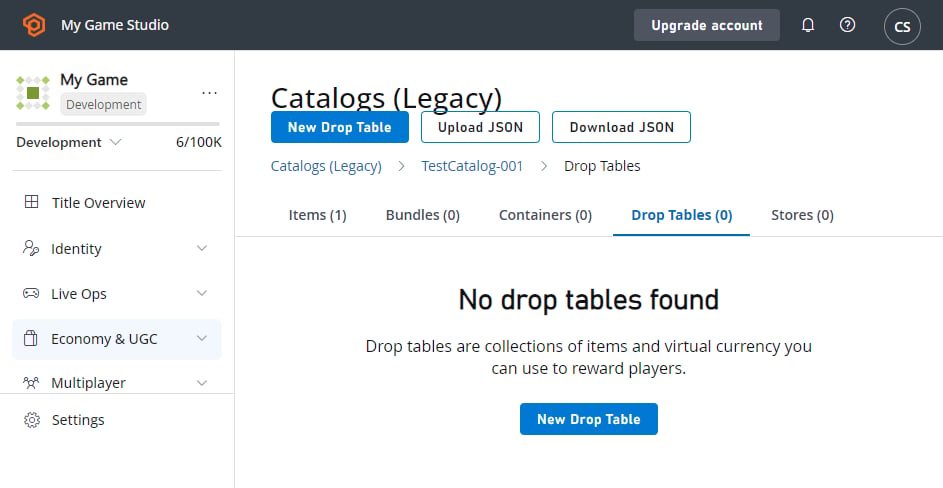
화면이 이 예와 유사해야 합니다.
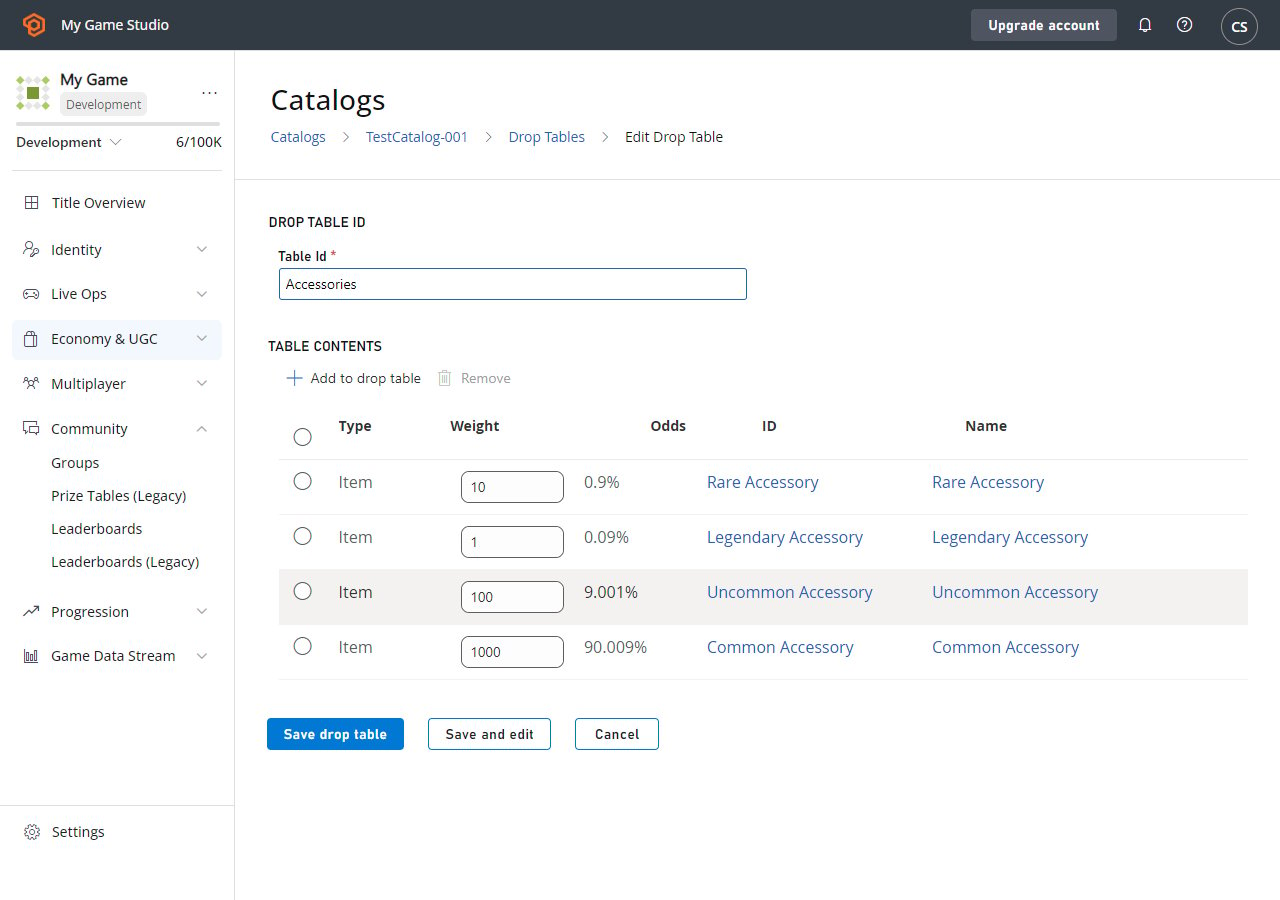
 각 아이템 설명자를 기반으로 **드롭 테이블** 구축을 시작합니다. 첫 번째 분류는 **장비 유형**이므로 **Accessories**라는 새 **드롭 테이블**을 만듭니다.
1. **New Drop Table** 버튼을 선택합니다.
2. **Table Id**를 **Accessories**로 설정합니다.
3. **ADD TO DROP TABLE**을 선택합니다. **Pick multiple items** 팝업이 나타납니다.
4. 아이템의 **ID** 옆에 있는 **Add** 버튼을 선택하여 다음 아이템을 추가합니다.
* **Common Accessory**
* **Uncommon Accessory**
* **Rare Accessory**
* **Legendary Accessory**
5. **Close** 버튼을 선택합니다.
6. 희귀도에 따라 아이템의 **Weight** 값을 조정합니다.
* **Common**: 1000
* **Uncommon**: 100
* **Rare**: 10
* **Legendary**: 1
가중치는 아이템이 서로 비교해 얼마나 자주 드롭되는지를 나타냅니다. 여기 표시된 예에서는 **레전더리** 1개당 약 **커먼 1000개**를 드롭합니다.
7. **SAVE DROP TABLE**을 선택합니다.
각 아이템 설명자를 기반으로 **드롭 테이블** 구축을 시작합니다. 첫 번째 분류는 **장비 유형**이므로 **Accessories**라는 새 **드롭 테이블**을 만듭니다.
1. **New Drop Table** 버튼을 선택합니다.
2. **Table Id**를 **Accessories**로 설정합니다.
3. **ADD TO DROP TABLE**을 선택합니다. **Pick multiple items** 팝업이 나타납니다.
4. 아이템의 **ID** 옆에 있는 **Add** 버튼을 선택하여 다음 아이템을 추가합니다.
* **Common Accessory**
* **Uncommon Accessory**
* **Rare Accessory**
* **Legendary Accessory**
5. **Close** 버튼을 선택합니다.
6. 희귀도에 따라 아이템의 **Weight** 값을 조정합니다.
* **Common**: 1000
* **Uncommon**: 100
* **Rare**: 10
* **Legendary**: 1
가중치는 아이템이 서로 비교해 얼마나 자주 드롭되는지를 나타냅니다. 여기 표시된 예에서는 **레전더리** 1개당 약 **커먼 1000개**를 드롭합니다.
7. **SAVE DROP TABLE**을 선택합니다.
 **Accessories**가 완료되면 동일한 단계에 따라 **Armors**와 **Weapons**에 대한 드롭 테이블을 만듭니다.
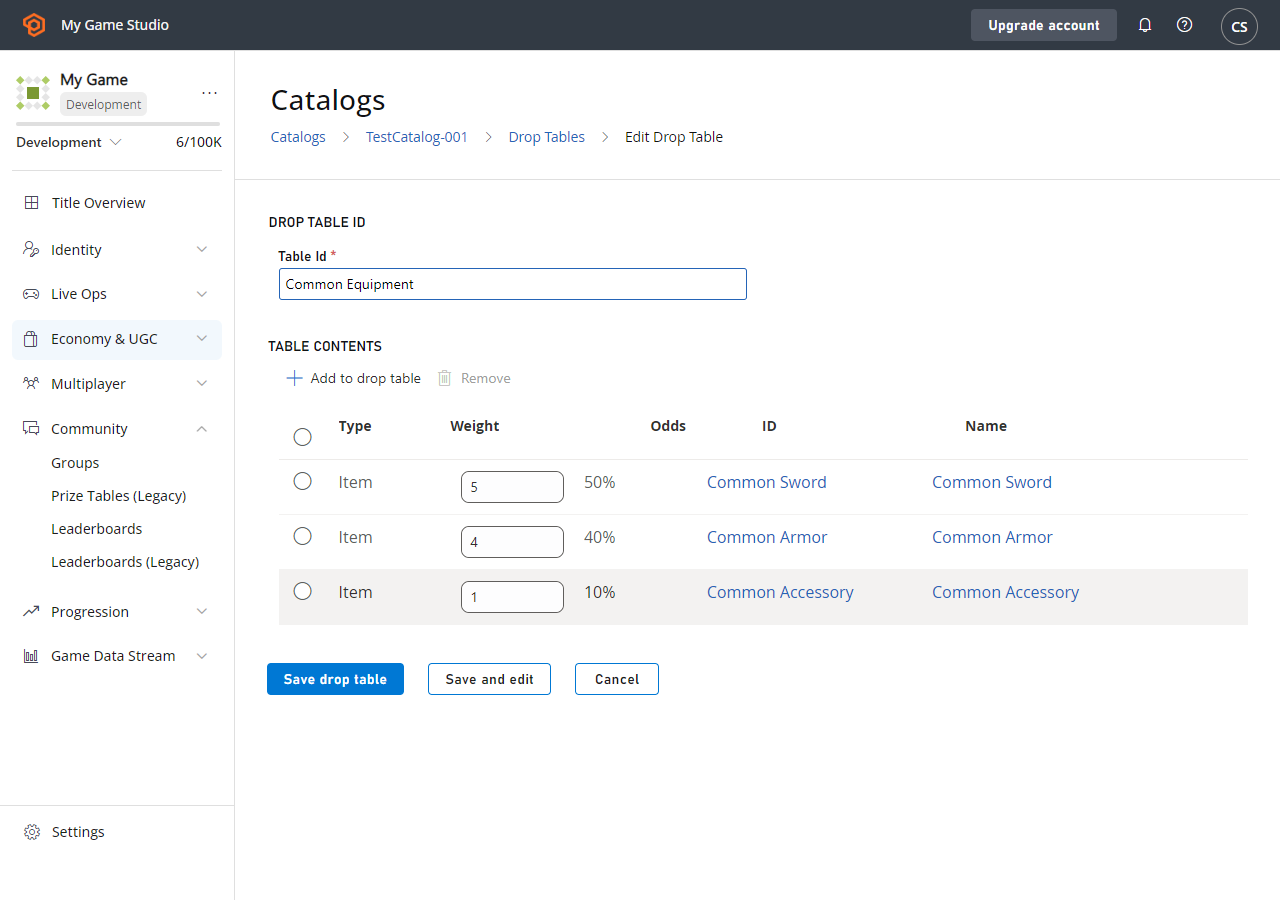
다른 분류는 희귀도별이므로 **Common Equipment**부터 시작하여 대체 테이블 세트를 만듭니다.
1. **New Drop Table** 버튼을 선택합니다.
2. **Table Id**를 **Common Equipment**로 설정합니다.
3. **ADD TO DROP TABLE**을 선택합니다. **Pick multiple items** 팝업이 나타납니다.
4. 아이템의 **ID** 옆에 있는 **Add** 버튼을 선택하여 다음 아이템을 추가합니다.
* **Common Accessory**
* **Common Armor**
* **Common Sword**
5. **Close** 버튼을 선택합니다.
6. **Common Equipment** 옵션이 해당 슬롯에 얼마나 있을지에 따라 아이템의 **Weight** 값을 조정합니다.
* **Common Accessory**: 1
* **Common Armor**: 4
* **Common Sword**: 5
7. **SAVE DROP TABLE**을 선택합니다.
**Accessories**가 완료되면 동일한 단계에 따라 **Armors**와 **Weapons**에 대한 드롭 테이블을 만듭니다.
다른 분류는 희귀도별이므로 **Common Equipment**부터 시작하여 대체 테이블 세트를 만듭니다.
1. **New Drop Table** 버튼을 선택합니다.
2. **Table Id**를 **Common Equipment**로 설정합니다.
3. **ADD TO DROP TABLE**을 선택합니다. **Pick multiple items** 팝업이 나타납니다.
4. 아이템의 **ID** 옆에 있는 **Add** 버튼을 선택하여 다음 아이템을 추가합니다.
* **Common Accessory**
* **Common Armor**
* **Common Sword**
5. **Close** 버튼을 선택합니다.
6. **Common Equipment** 옵션이 해당 슬롯에 얼마나 있을지에 따라 아이템의 **Weight** 값을 조정합니다.
* **Common Accessory**: 1
* **Common Armor**: 4
* **Common Sword**: 5
7. **SAVE DROP TABLE**을 선택합니다.
 ### 드롭 테이블 사용
다음 두 가지 PlayFab Server API 메서드를 사용해 프로그래밍 방식으로 드롭 테이블에 액세스할 수 있습니다.
1. [GetRandomResultTables](xref:titleid.playfabapi.com.server.playeritemmanagement.getrandomresulttables)
2. [EvaluateRandomResultTable](xref:titleid.playfabapi.com.server.playeritemmanagement.evaluaterandomresulttable)
[GetRandomResultTables](xref:titleid.playfabapi.com.server.playeritemmanagement.getrandomresulttables)를 사용해 Game Manager에 입력한 원시 드롭 테이블 데이터를 읽을 수 있습니다.
\*\*`GetRandomResultTables`\*\*는 무작위 값을 롤하거나 결과를 수여하지 *않습니다*. API를 사용하면 데이터를 읽고 원하는 대로 정보를 파싱할 수 있습니다.
### 옵션 1
```csharp theme={null}
public void ReadDropTableData() {
PlayFabServerAPI.GetRandomResultTables(new GetRandomResultTablesRequest() {
TableIDs = new List { "Accessories", "Common Equipment" }
}, result => {
Debug.Log("Completed getting drop tables");
}, error => {
Debug.LogError(error.GenerateErrorReport());
});
}
```
결과 핸들러는 [GetRandomResultTablesResult](xref:titleid.playfabapi.com.server.playeritemmanagement.getrandomresulttables#getrandomresulttablesresult) 형식으로 만든 드롭 테이블의 구조 정보를 받습니다.
또는 [EvaluateRandomResultTable](xref:titleid.playfabapi.com.server.playeritemmanagement.evaluaterandomresulttable) API를 사용해 PlayFab이 여러분을 *대신해* 테이블을 평가하고 단일 아이템 결과를 제공하도록 할 수 있습니다. 이렇게 하면 제공된 가중치에 따라 롤된 단일 아이템을 생성하는 데 사용할 수 있는 `itemId`가 반환됩니다.
그런 다음 두 번째 호출을 통해 아이템을 만들고 플레이어에게 부여할 수 있습니다.
### 옵션 2
```csharp theme={null}
public void Grant(string playFabId, string tableId) {
// First, roll a random number and evaluate the drop table
PlayFabServerAPI.EvaluateRandomResultTable(new EvaluateRandomResultTableRequest()
{
TableId = tableId
}, result => OnRandomResultTableResponse(result, playFabId), OnError);
}
public void OnRandomResultTableResponse(EvaluateRandomResultTableResult tableResult, string playFabId) {
// Second, take the result and grant it to the player
PlayFabServerAPI.GrantItemsToUser(new GrantItemsToUserRequest {
PlayFabId = playFabId,
ItemIds = new List { tableResult.ResultItemId }
}, result =>
{
// Handle Result
}, OnError);
}
public void OnError(PlayFabError error) {
Debug.LogError(error.GenerateErrorReport());
}
```
요약:
**옵션 1** - 데이터를 한 번 로드하고 캐시한 다음 자체 게임 서버에서 *직접* 롤을 수행할 수 있습니다. 이 옵션은 PlayFab에 대한 호출 수가 적어 대기 시간이 낮으며 게임별 로직에 따라 롤을 사용자 지정할 수 있습니다.
**옵션 2** - PlayFab이 더 많은 작업을 수행하도록 허용하지만 여러 API 호출은 *더 높은* 대기 시간을 의미한다는 점을 기억하세요.
### 고급 드롭 테이블 사용법(루트 상자 설정)
드롭 테이블은 번들 및 컨테이너에서 링크될 수 있습니다. 번들은 단일 구매로 무작위 아이템 스택을 제공하는 가상 화폐 스토어에 좋은 옵션입니다.
예를 들어, 특정 드롭 규칙이 있는 **11개 아이템 번들**이 있다고 가정해 보겠습니다. 이 경우 레전더리 아이템 1개를 보장한다는 것이 고객에게 판매 포인트입니다. 또한 플레이어가 *너무* 운이 좋아서 **레전더리 11개**를 받지 않도록 *제한*합니다.
### 새 드롭 테이블
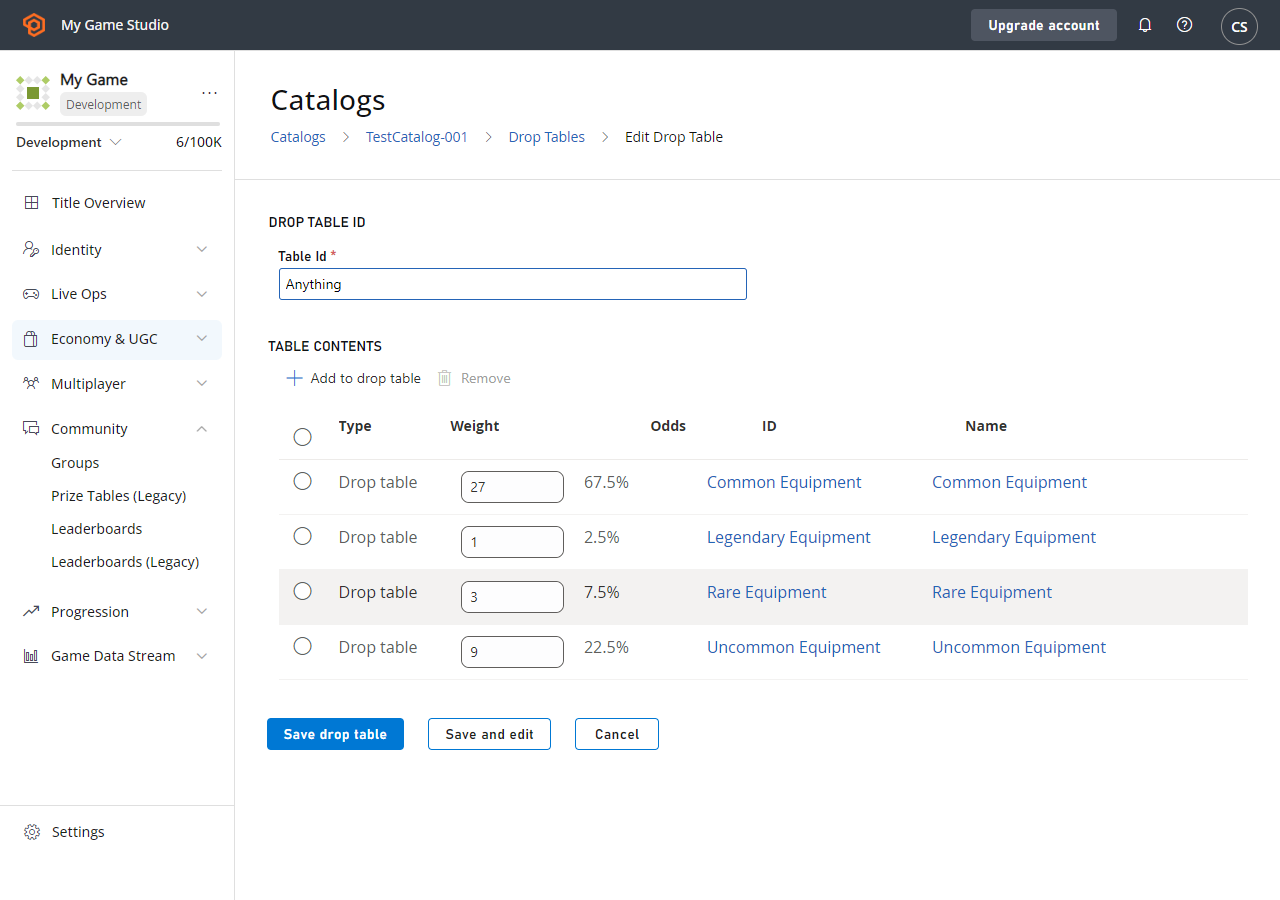
말 그대로 *무엇이든* 드롭할 수 있는 드롭 테이블을 만들어 보겠습니다. 실제로 **Anything**이라고 부르겠습니다.
이 드롭 테이블을 만들 때 *다른* 드롭 테이블을 옵션으로 제공하고(**Pick multiple items** 팝업에서 **Drop Tables** 탭을 선택하여 다른 드롭 테이블 추가) 적절한 가중치를 할당합니다.
### 드롭 테이블 사용
다음 두 가지 PlayFab Server API 메서드를 사용해 프로그래밍 방식으로 드롭 테이블에 액세스할 수 있습니다.
1. [GetRandomResultTables](xref:titleid.playfabapi.com.server.playeritemmanagement.getrandomresulttables)
2. [EvaluateRandomResultTable](xref:titleid.playfabapi.com.server.playeritemmanagement.evaluaterandomresulttable)
[GetRandomResultTables](xref:titleid.playfabapi.com.server.playeritemmanagement.getrandomresulttables)를 사용해 Game Manager에 입력한 원시 드롭 테이블 데이터를 읽을 수 있습니다.
\*\*`GetRandomResultTables`\*\*는 무작위 값을 롤하거나 결과를 수여하지 *않습니다*. API를 사용하면 데이터를 읽고 원하는 대로 정보를 파싱할 수 있습니다.
### 옵션 1
```csharp theme={null}
public void ReadDropTableData() {
PlayFabServerAPI.GetRandomResultTables(new GetRandomResultTablesRequest() {
TableIDs = new List { "Accessories", "Common Equipment" }
}, result => {
Debug.Log("Completed getting drop tables");
}, error => {
Debug.LogError(error.GenerateErrorReport());
});
}
```
결과 핸들러는 [GetRandomResultTablesResult](xref:titleid.playfabapi.com.server.playeritemmanagement.getrandomresulttables#getrandomresulttablesresult) 형식으로 만든 드롭 테이블의 구조 정보를 받습니다.
또는 [EvaluateRandomResultTable](xref:titleid.playfabapi.com.server.playeritemmanagement.evaluaterandomresulttable) API를 사용해 PlayFab이 여러분을 *대신해* 테이블을 평가하고 단일 아이템 결과를 제공하도록 할 수 있습니다. 이렇게 하면 제공된 가중치에 따라 롤된 단일 아이템을 생성하는 데 사용할 수 있는 `itemId`가 반환됩니다.
그런 다음 두 번째 호출을 통해 아이템을 만들고 플레이어에게 부여할 수 있습니다.
### 옵션 2
```csharp theme={null}
public void Grant(string playFabId, string tableId) {
// First, roll a random number and evaluate the drop table
PlayFabServerAPI.EvaluateRandomResultTable(new EvaluateRandomResultTableRequest()
{
TableId = tableId
}, result => OnRandomResultTableResponse(result, playFabId), OnError);
}
public void OnRandomResultTableResponse(EvaluateRandomResultTableResult tableResult, string playFabId) {
// Second, take the result and grant it to the player
PlayFabServerAPI.GrantItemsToUser(new GrantItemsToUserRequest {
PlayFabId = playFabId,
ItemIds = new List { tableResult.ResultItemId }
}, result =>
{
// Handle Result
}, OnError);
}
public void OnError(PlayFabError error) {
Debug.LogError(error.GenerateErrorReport());
}
```
요약:
**옵션 1** - 데이터를 한 번 로드하고 캐시한 다음 자체 게임 서버에서 *직접* 롤을 수행할 수 있습니다. 이 옵션은 PlayFab에 대한 호출 수가 적어 대기 시간이 낮으며 게임별 로직에 따라 롤을 사용자 지정할 수 있습니다.
**옵션 2** - PlayFab이 더 많은 작업을 수행하도록 허용하지만 여러 API 호출은 *더 높은* 대기 시간을 의미한다는 점을 기억하세요.
### 고급 드롭 테이블 사용법(루트 상자 설정)
드롭 테이블은 번들 및 컨테이너에서 링크될 수 있습니다. 번들은 단일 구매로 무작위 아이템 스택을 제공하는 가상 화폐 스토어에 좋은 옵션입니다.
예를 들어, 특정 드롭 규칙이 있는 **11개 아이템 번들**이 있다고 가정해 보겠습니다. 이 경우 레전더리 아이템 1개를 보장한다는 것이 고객에게 판매 포인트입니다. 또한 플레이어가 *너무* 운이 좋아서 **레전더리 11개**를 받지 않도록 *제한*합니다.
### 새 드롭 테이블
말 그대로 *무엇이든* 드롭할 수 있는 드롭 테이블을 만들어 보겠습니다. 실제로 **Anything**이라고 부르겠습니다.
이 드롭 테이블을 만들 때 *다른* 드롭 테이블을 옵션으로 제공하고(**Pick multiple items** 팝업에서 **Drop Tables** 탭을 선택하여 다른 드롭 테이블 추가) 적절한 가중치를 할당합니다.
 ## 번들 추가
이제 드롭 테이블은 완료되었으며 **번들**을 추가합니다.
1. 왼쪽 메뉴에서 **Economy**를 선택합니다.
2. **Catalogs** 탭으로 이동하여 기본 카탈로그를 선택합니다.
3. **Bundles**를 선택하고 **New Bundle**을 선택합니다.
4. **Item Id**를 **11-Item Drop**으로 설정하고 **Consumable**을 선택한 다음 **By time** **15 Seconds**를 선택합니다.
5. **ADD TO BUNDLE**을 선택합니다.
6. **Pick multiple items** 팝업에서 **Drop tables** 탭을 선택합니다.
7. **ID** 옆에 있는 **Add** 버튼을 선택하여 드롭 테이블을 추가합니다.
8. **Quantity** 필드를 아래 이미지에 표시된 값으로 설정합니다.
9. **SAVE BUNDLE**을 선택합니다.
## 번들 추가
이제 드롭 테이블은 완료되었으며 **번들**을 추가합니다.
1. 왼쪽 메뉴에서 **Economy**를 선택합니다.
2. **Catalogs** 탭으로 이동하여 기본 카탈로그를 선택합니다.
3. **Bundles**를 선택하고 **New Bundle**을 선택합니다.
4. **Item Id**를 **11-Item Drop**으로 설정하고 **Consumable**을 선택한 다음 **By time** **15 Seconds**를 선택합니다.
5. **ADD TO BUNDLE**을 선택합니다.
6. **Pick multiple items** 팝업에서 **Drop tables** 탭을 선택합니다.
7. **ID** 옆에 있는 **Add** 버튼을 선택하여 드롭 테이블을 추가합니다.
8. **Quantity** 필드를 아래 이미지에 표시된 값으로 설정합니다.
9. **SAVE BUNDLE**을 선택합니다.
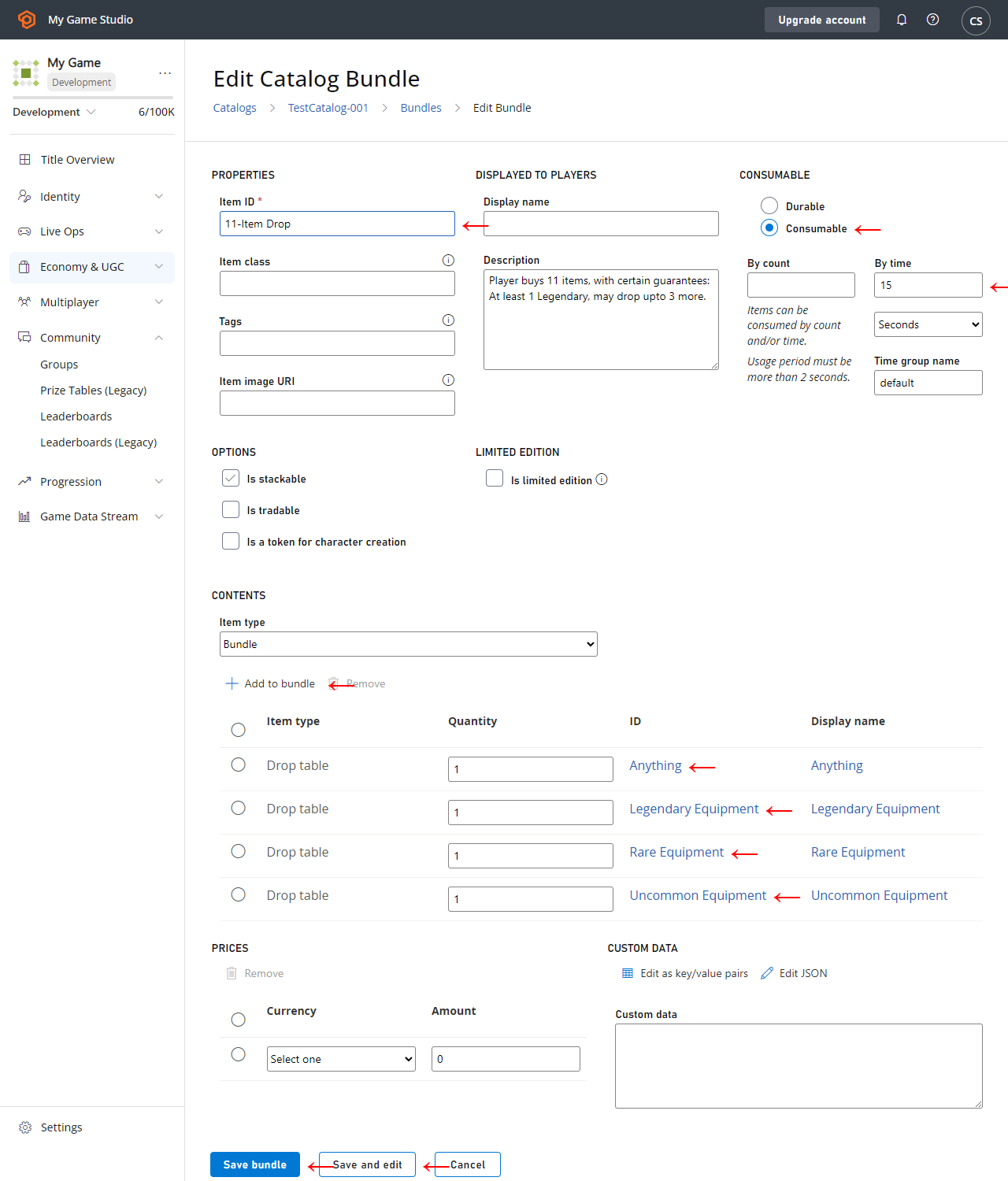 이 예에서 만든 **번들**은 다음의 여러 기능을 사용합니다.
* *모든* 종류의 모든 아이템에는 **Item ID**가 있어야 합니다.
* **번들**은 자체 아이템으로 간주되며, 그 콘텐츠는 부여될 때와 동일한 시점에 전달됩니다. 이러한 이유로 **번들** 자체를 소모품으로 만들고 전달 후 15초에 만료되도록 합니다.
* **11개 아이템**이 전달되도록 다양한 수량으로 서로 다른 **드롭 테이블**을 추가하지만, 다른 아이템은 다른 테이블에서 롤됩니다.
* 먼저, **레전더리 아이템 1개**를 최소한 보장하므로 첫 번째 슬롯은 **Legendary Equipment**에서 롤됩니다.
* 다음 3개 슬롯은 **Anything**에서 롤되며, 더 많은 **레전더리**를 롤하거나 덜 원하는 커먼 장비를 롤할 수 있습니다. 이 세 아이템은 크게 다를 수 있으므로 이러한 롤은 *좋은* 롤과 *나쁜* 롤을 정의합니다.
* 마지막으로, 나머지 슬롯을 보장된 **Rare** 및 **Uncommon** 아이템으로 채워 **11개 아이템** 롤이 *너무* 좋거나 나쁘지 않도록 보장합니다.
## 결론
드롭 테이블은 잠재적 아이템 및 가중치 목록에서 무작위로 단일 아이템을 생성합니다. 번들과 컨테이너는 드롭 테이블을 사용해 플레이어에게 하나 이상의 아이템을 전달하는 가장 간단한 방법 중 하나가 될 수 있습니다.
다음 Server API 메서드 중 하나를 사용해 [CloudScript](/services/playfab/live-service-management/service-gateway/automation/cloudscript/writing-custom-cloudscript)에서 수동으로 드롭 테이블을 사용할 수 있습니다.
1. [GetRandomResultTables](xref:titleid.playfabapi.com.server.playeritemmanagement.getrandomresulttables)
2. [EvaluateRandomResultTable](xref:titleid.playfabapi.com.server.playeritemmanagement.evaluaterandomresulttable)
## Related topics
- [Economy(레거시)에서의 스토어 및 세일](/ko/services/playfab/economy-monetization/economy/tutorials/stores-and-sales.md)
- [Economy(레거시)에서의 쿠폰 및 프로모션](/ko/services/playfab/economy-monetization/economy/tutorials/coupons-and-promotions.md)
- [Economy(레거시)에서의 시간 제한 소모품](/ko/services/playfab/economy-monetization/economy/tutorials/timed-consumables.md)
- [Economy(레거시)에서의 스토어 세분화 모범 사례](/ko/services/playfab/economy-monetization/economy/tutorials/best-practices-for-store-segmentation.md)
- [Economy(레거시)에서의 플레이어 세그먼트용 사용자 지정 스토어](/ko/services/playfab/economy-monetization/economy/tutorials/custom-stores-for-player-segments.md)
이 예에서 만든 **번들**은 다음의 여러 기능을 사용합니다.
* *모든* 종류의 모든 아이템에는 **Item ID**가 있어야 합니다.
* **번들**은 자체 아이템으로 간주되며, 그 콘텐츠는 부여될 때와 동일한 시점에 전달됩니다. 이러한 이유로 **번들** 자체를 소모품으로 만들고 전달 후 15초에 만료되도록 합니다.
* **11개 아이템**이 전달되도록 다양한 수량으로 서로 다른 **드롭 테이블**을 추가하지만, 다른 아이템은 다른 테이블에서 롤됩니다.
* 먼저, **레전더리 아이템 1개**를 최소한 보장하므로 첫 번째 슬롯은 **Legendary Equipment**에서 롤됩니다.
* 다음 3개 슬롯은 **Anything**에서 롤되며, 더 많은 **레전더리**를 롤하거나 덜 원하는 커먼 장비를 롤할 수 있습니다. 이 세 아이템은 크게 다를 수 있으므로 이러한 롤은 *좋은* 롤과 *나쁜* 롤을 정의합니다.
* 마지막으로, 나머지 슬롯을 보장된 **Rare** 및 **Uncommon** 아이템으로 채워 **11개 아이템** 롤이 *너무* 좋거나 나쁘지 않도록 보장합니다.
## 결론
드롭 테이블은 잠재적 아이템 및 가중치 목록에서 무작위로 단일 아이템을 생성합니다. 번들과 컨테이너는 드롭 테이블을 사용해 플레이어에게 하나 이상의 아이템을 전달하는 가장 간단한 방법 중 하나가 될 수 있습니다.
다음 Server API 메서드 중 하나를 사용해 [CloudScript](/services/playfab/live-service-management/service-gateway/automation/cloudscript/writing-custom-cloudscript)에서 수동으로 드롭 테이블을 사용할 수 있습니다.
1. [GetRandomResultTables](xref:titleid.playfabapi.com.server.playeritemmanagement.getrandomresulttables)
2. [EvaluateRandomResultTable](xref:titleid.playfabapi.com.server.playeritemmanagement.evaluaterandomresulttable)
## Related topics
- [Economy(레거시)에서의 스토어 및 세일](/ko/services/playfab/economy-monetization/economy/tutorials/stores-and-sales.md)
- [Economy(레거시)에서의 쿠폰 및 프로모션](/ko/services/playfab/economy-monetization/economy/tutorials/coupons-and-promotions.md)
- [Economy(레거시)에서의 시간 제한 소모품](/ko/services/playfab/economy-monetization/economy/tutorials/timed-consumables.md)
- [Economy(레거시)에서의 스토어 세분화 모범 사례](/ko/services/playfab/economy-monetization/economy/tutorials/best-practices-for-store-segmentation.md)
- [Economy(레거시)에서의 플레이어 세그먼트용 사용자 지정 스토어](/ko/services/playfab/economy-monetization/economy/tutorials/custom-stores-for-player-segments.md)