> ## Documentation Index
> Fetch the complete documentation index at: https://devdocs.xbox.com/llms.txt
> Use this file to discover all available pages before exploring further.
# Accessing Archived Tournament results
> Access archived PlayFab tournament leaderboard snapshots after a manual or scheduled reset, and retrieve the previous version's player rankings and stats.
이 튜토리얼에서는 보관된 리더보드 상태에 액세스하는 방법을 설명합니다.
각 리더보드는 수동 또는 자동으로 재설정할 수 있으며, 이 경우 모든 플레이어의 통계 값이 제거되어 *비어 있는* 상태가 되고 리더보드 버전이 증가합니다.
그러나 그 이전에 PlayFab은 각 플레이어의 모든 리더보드 통계 값의 스냅샷을 만듭니다. 이를 통해 리더보드의 *보관된* 버전에 액세스할 수 있습니다.
모든 타이틀은 리더보드의 가장 최근에 보관된 버전에 액세스할 수 있으므로, 현재 버전과 가장 최근 이전 버전을 얻을 수 있습니다. 예를 들어 현재 리더보드 버전이 **3**이라면 버전 **3**과 보관된 버전 **2**에만 액세스할 수 있습니다.
## 초기 설정
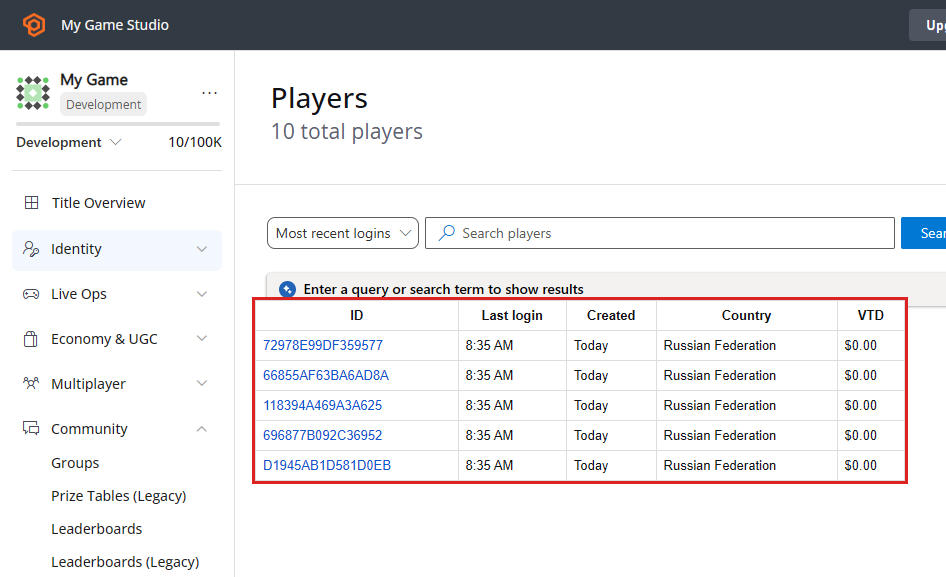
이 가이드를 사용하기 전에 타이틀에 이미 일부 플레이어가 등록되어 있는지 확인하세요. 다음 스크린샷은 [LoginWithCustomID](xref:titleid.playfabapi.com.client.authentication.loginwithcustomid) API 호출을 사용하여 인위적으로 등록된 5명의 플레이어를 보여줍니다.
 ## 리더보드 정의 및 시뮬레이션
이 단계에서는 테스트 목적으로 리더보드를 만듭니다. 그런 다음 리더보드를 여러 번 채우고 재설정하여 리더보드 반복 프로세스를 시뮬레이션합니다.
Game Manager 열기:
1. **Leaderboards** 섹션으로 이동합니다.
2. 아래와 같이 **New Leaderboard** 버튼을 선택합니다.
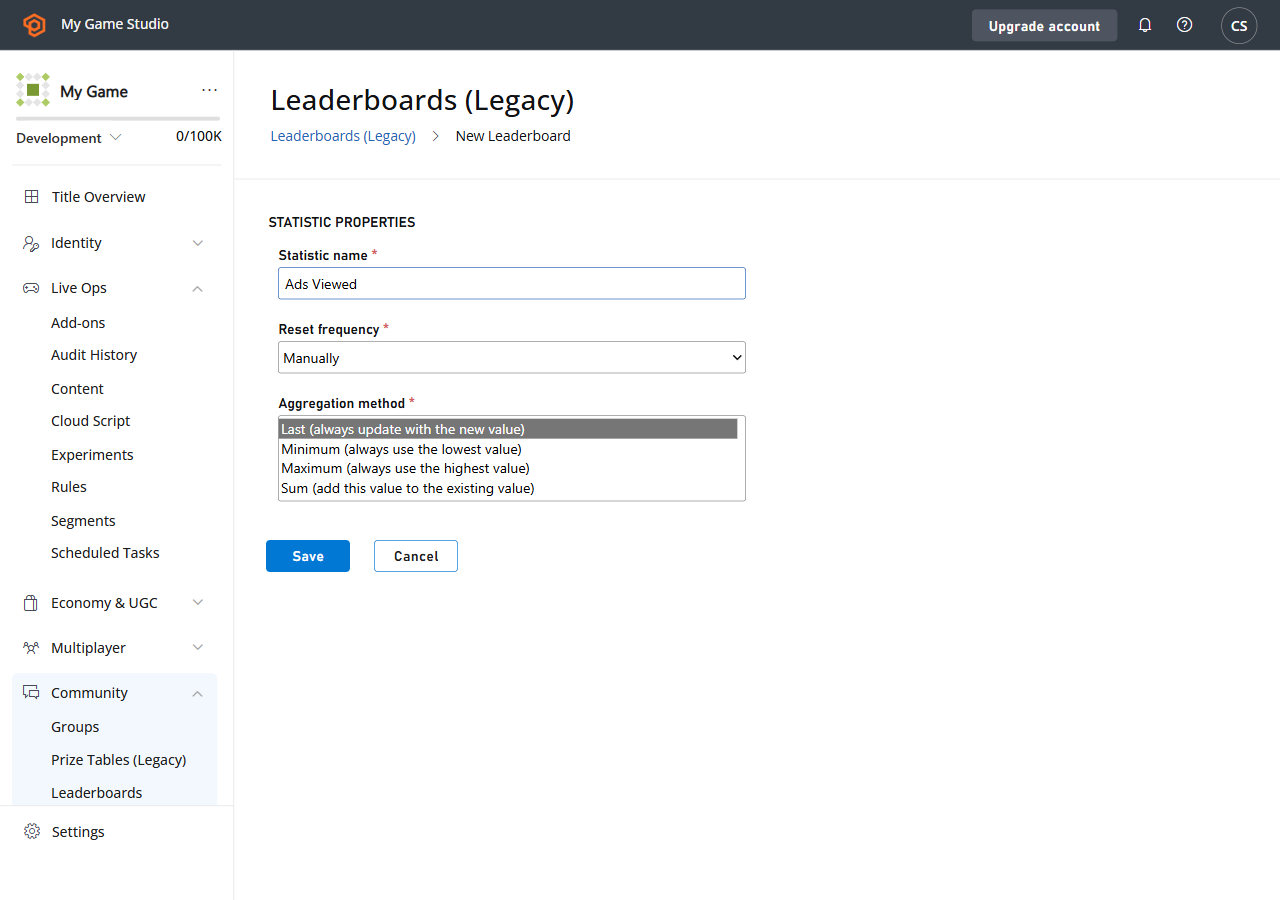
새 리더보드를 구성하려면:
1. **Statistic** 이름을 **TestScore**로 설정합니다.
2. **Reset Frequency**를 **Manually** 상태로 유지합니다.
3. 기본 **Aggregation** 방식을 그대로 둡니다.
4. **Save Leaderboard**를 선택하여 제출합니다.
## 리더보드 정의 및 시뮬레이션
이 단계에서는 테스트 목적으로 리더보드를 만듭니다. 그런 다음 리더보드를 여러 번 채우고 재설정하여 리더보드 반복 프로세스를 시뮬레이션합니다.
Game Manager 열기:
1. **Leaderboards** 섹션으로 이동합니다.
2. 아래와 같이 **New Leaderboard** 버튼을 선택합니다.
새 리더보드를 구성하려면:
1. **Statistic** 이름을 **TestScore**로 설정합니다.
2. **Reset Frequency**를 **Manually** 상태로 유지합니다.
3. 기본 **Aggregation** 방식을 그대로 둡니다.
4. **Save Leaderboard**를 선택하여 제출합니다.
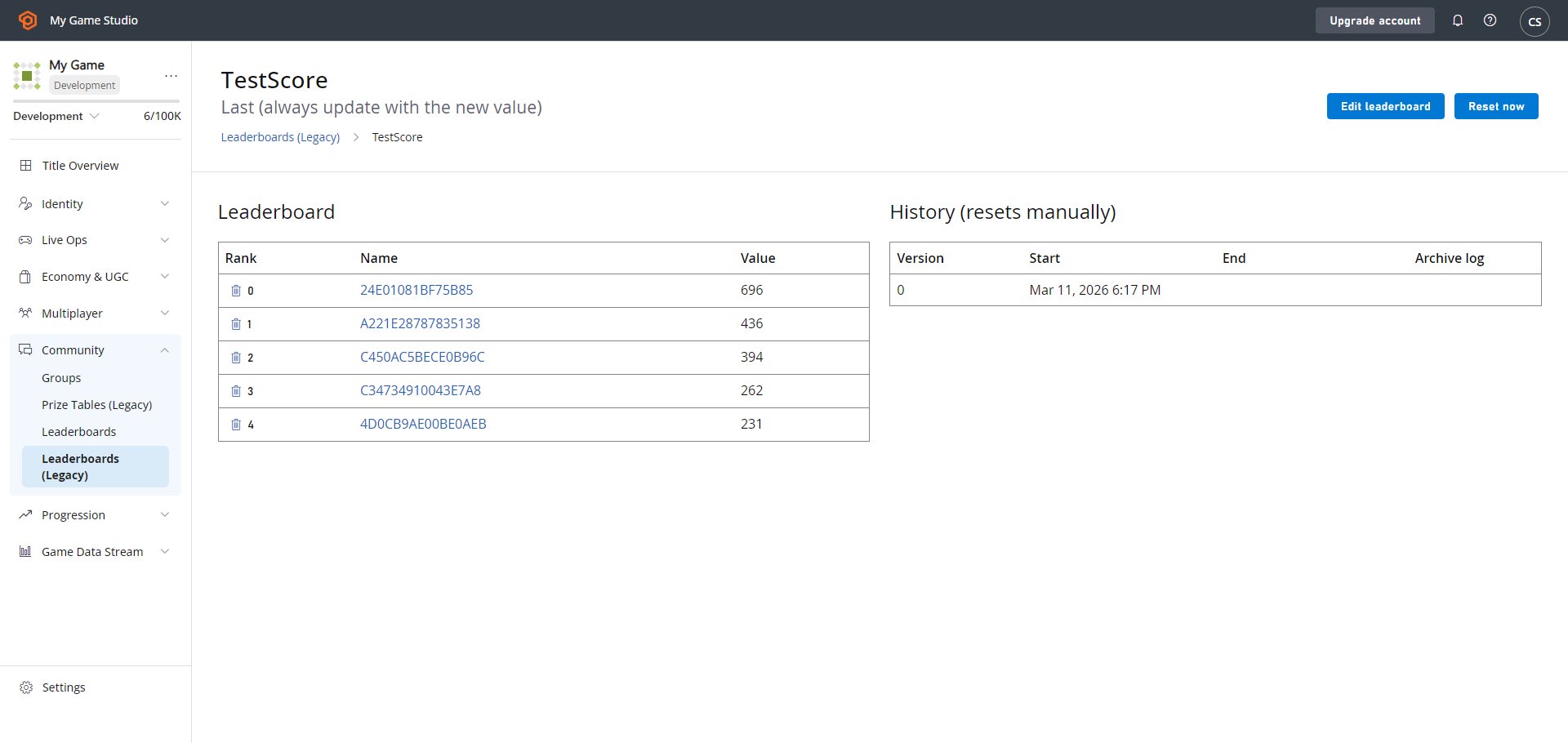
 그러면 데이터가 비어 있는 새 **Leaderboards** 페이지로 이동합니다(아래 참조).
 ## 테스트 섹션 시작
다음 섹션은 이 예시 목적으로 테스트 데이터를 채우는 방법의 예시입니다. *실제* 게임은 더 자연스러운 방식으로 이 데이터를 채우게 됩니다.
다음 단계는 리더보드에 일부 데이터를 시뮬레이션하는 것입니다. 이를 수행하는 가장 빠른 방법은 특정 플레이어에게 무작위 통계를 설정하는 CloudScript 핸들러를 만드는 것입니다. All Players 세그먼트에 있는 모든 플레이어에 대해 이 핸들러를 호출할 것입니다.
결과적으로 각 플레이어는 실제 시나리오에 *충분히 가까운* 근사치로서 무작위 통계 값을 얻게 됩니다.
CloudScript를 정의하는 것부터 시작하겠습니다(자세한 내용은 코드 주석을 참조하세요).
```javascript theme={null}
// Should be invoked from a task that runs over certain segment
handlers.PopulateLeaderboard = (args,ctx) => {
// When handler is executed as a task over the segment
// we can extract individual player id using the next line:
let playerId = ctx.playerProfile.PlayerId;
// Use player id and update player statistics as follows:
server.UpdatePlayerStatistics({
PlayFabId : playerId,
Statistics : [
{
"StatisticName": "TestScore",
"Value": getRandomInRange(100,1000)
}
]
});
}
// Utility method to generate random number
let getRandomInRange = (min, max) => {
return Math.round(Math.random() * (max - min) + min);
}
```
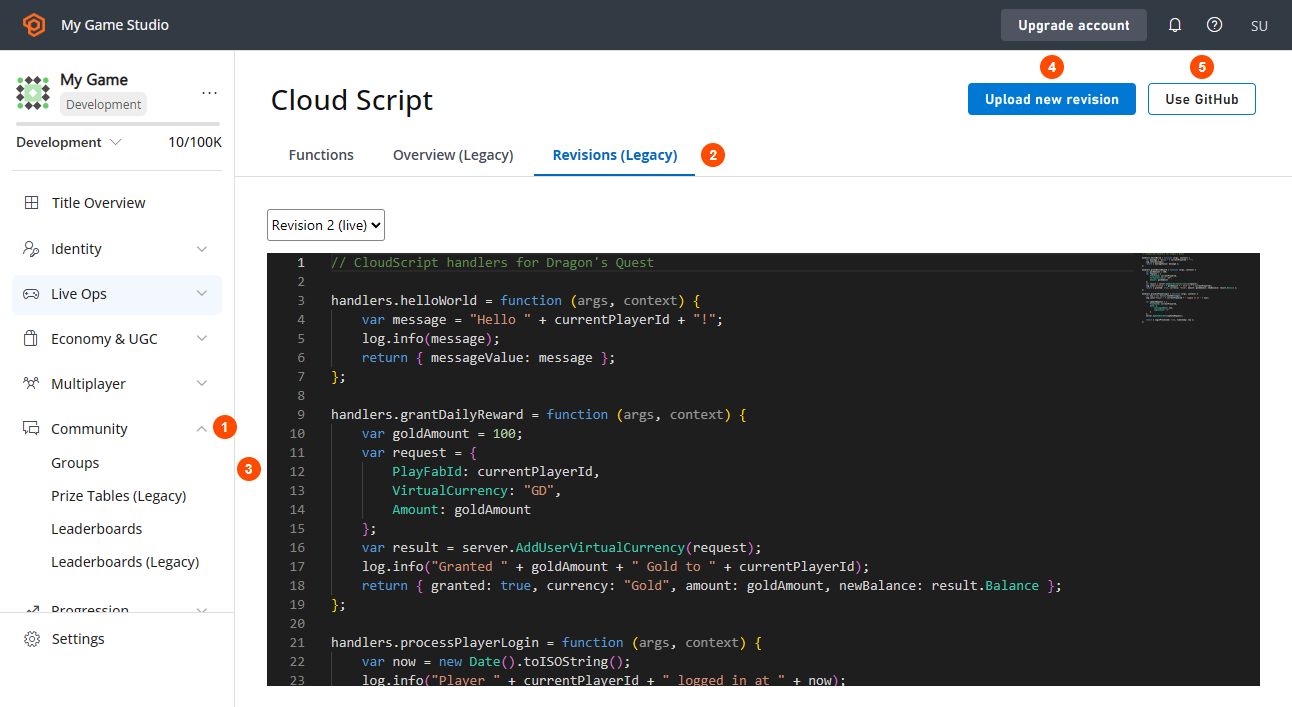
CloudScript를 업로드해 봅시다. Game Manager 사용:
1. **Automation** 탭으로 이동합니다.
2. 그런 다음 **CloudScript** 하위 탭으로 이동합니다.
3. **CloudScript** 코드를 삽입합니다.
4. **Save as Revision**을 선택합니다.
5. 마지막으로 **Deploy Revision**을 선택합니다.
## 테스트 섹션 시작
다음 섹션은 이 예시 목적으로 테스트 데이터를 채우는 방법의 예시입니다. *실제* 게임은 더 자연스러운 방식으로 이 데이터를 채우게 됩니다.
다음 단계는 리더보드에 일부 데이터를 시뮬레이션하는 것입니다. 이를 수행하는 가장 빠른 방법은 특정 플레이어에게 무작위 통계를 설정하는 CloudScript 핸들러를 만드는 것입니다. All Players 세그먼트에 있는 모든 플레이어에 대해 이 핸들러를 호출할 것입니다.
결과적으로 각 플레이어는 실제 시나리오에 *충분히 가까운* 근사치로서 무작위 통계 값을 얻게 됩니다.
CloudScript를 정의하는 것부터 시작하겠습니다(자세한 내용은 코드 주석을 참조하세요).
```javascript theme={null}
// Should be invoked from a task that runs over certain segment
handlers.PopulateLeaderboard = (args,ctx) => {
// When handler is executed as a task over the segment
// we can extract individual player id using the next line:
let playerId = ctx.playerProfile.PlayerId;
// Use player id and update player statistics as follows:
server.UpdatePlayerStatistics({
PlayFabId : playerId,
Statistics : [
{
"StatisticName": "TestScore",
"Value": getRandomInRange(100,1000)
}
]
});
}
// Utility method to generate random number
let getRandomInRange = (min, max) => {
return Math.round(Math.random() * (max - min) + min);
}
```
CloudScript를 업로드해 봅시다. Game Manager 사용:
1. **Automation** 탭으로 이동합니다.
2. 그런 다음 **CloudScript** 하위 탭으로 이동합니다.
3. **CloudScript** 코드를 삽입합니다.
4. **Save as Revision**을 선택합니다.
5. 마지막으로 **Deploy Revision**을 선택합니다.
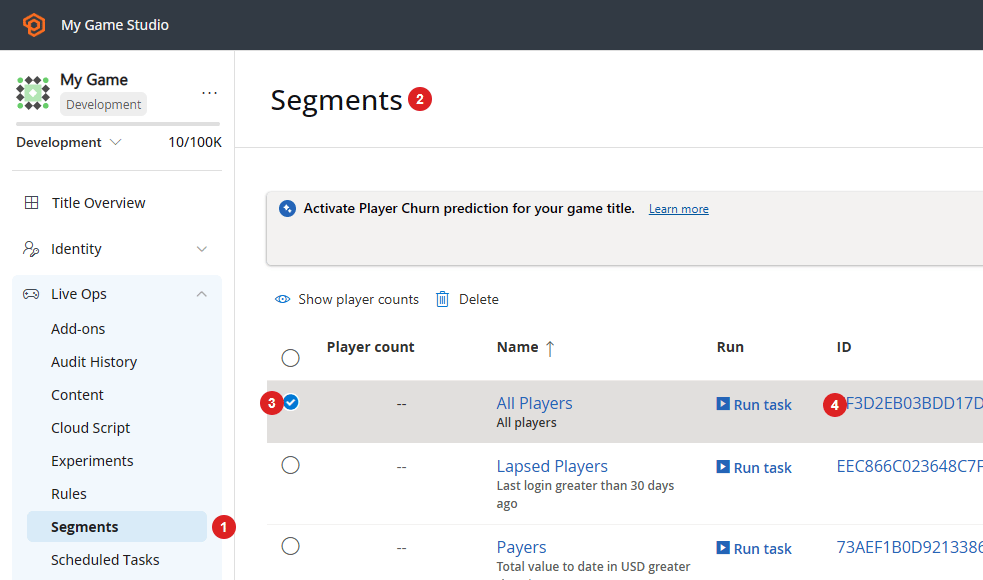
 다음으로, 특정 세그먼트에 대해 CloudScript를 실행할 작업을 정의해야 합니다.
1. **Players** 탭으로 이동합니다.
2. 그런 다음 **Segments** 하위 탭으로 이동합니다.
기본적으로 **PlayFab**은 **All Players** 세그먼트를 생성합니다. 이 세그먼트는 타이틀에 등록된 모든 플레이어가 필요할 때 특히 유용합니다(정확히 우리 경우에 해당).
3. **All Players Segment**를 선택합니다.
4. 마지막으로 \*\*Run Task...\*\*를 선택합니다.
목록에 All Players 세그먼트가 없다면, [플레이어 세분화](/services/playfab/live-service-management/game-configuration/segmentation/segmentation-quickstart) 빠른 시작을 참조하여 만드세요.
다음으로, 특정 세그먼트에 대해 CloudScript를 실행할 작업을 정의해야 합니다.
1. **Players** 탭으로 이동합니다.
2. 그런 다음 **Segments** 하위 탭으로 이동합니다.
기본적으로 **PlayFab**은 **All Players** 세그먼트를 생성합니다. 이 세그먼트는 타이틀에 등록된 모든 플레이어가 필요할 때 특히 유용합니다(정확히 우리 경우에 해당).
3. **All Players Segment**를 선택합니다.
4. 마지막으로 \*\*Run Task...\*\*를 선택합니다.
목록에 All Players 세그먼트가 없다면, [플레이어 세분화](/services/playfab/live-service-management/game-configuration/segmentation/segmentation-quickstart) 빠른 시작을 참조하여 만드세요.
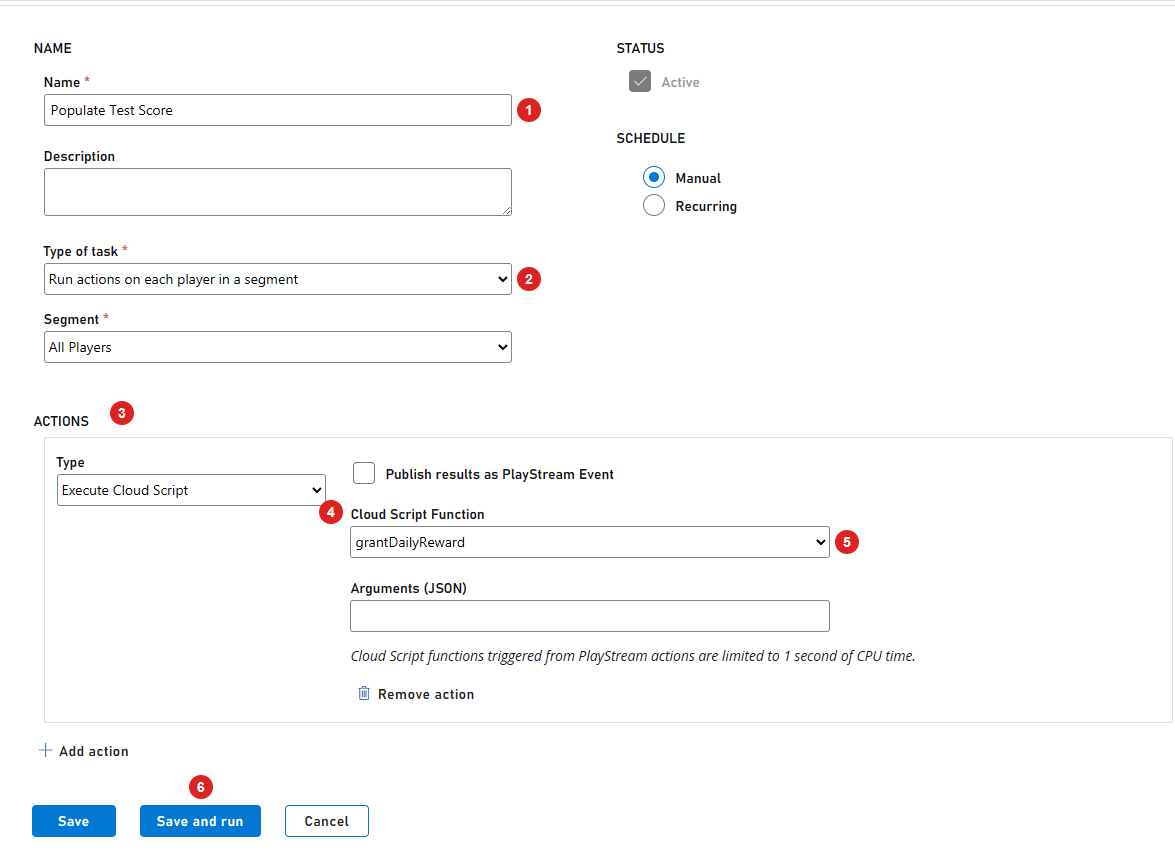
 작업 구성:
1. **Name**을 설정합니다.
2. 작업 유형이 **Run actions on each Player in a Segment**로 설정되어 있는지 확인합니다.
* 또한 **Segment**에서 **All Players**가 선택되어 있는지 확인합니다.
3. 새 **Action**을 추가합니다.
4. **Type**에서 **Execute CloudScript**를 선택합니다.
5. 그런 다음 **CloudScript Function**에서 **PopulateLeaderboard** 핸들러를 선택합니다.
6. 마지막으로 **Save and Run** 버튼을 선택합니다.
작업 구성:
1. **Name**을 설정합니다.
2. 작업 유형이 **Run actions on each Player in a Segment**로 설정되어 있는지 확인합니다.
* 또한 **Segment**에서 **All Players**가 선택되어 있는지 확인합니다.
3. 새 **Action**을 추가합니다.
4. **Type**에서 **Execute CloudScript**를 선택합니다.
5. 그런 다음 **CloudScript Function**에서 **PopulateLeaderboard** 핸들러를 선택합니다.
6. 마지막으로 **Save and Run** 버튼을 선택합니다.
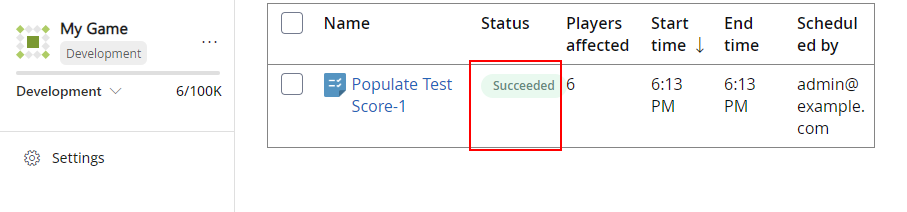
 * 실행 결과가 **Successful**인지 확인합니다.
 ## 테스트 섹션 종료
### 테스트 데이터 채우기
1. 다시 **Leaderboards** 탭으로 이동합니다.
2. 우리의 **Leaderboard**를 선택합니다.
## 테스트 섹션 종료
### 테스트 데이터 채우기
1. 다시 **Leaderboards** 탭으로 이동합니다.
2. 우리의 **Leaderboard**를 선택합니다.
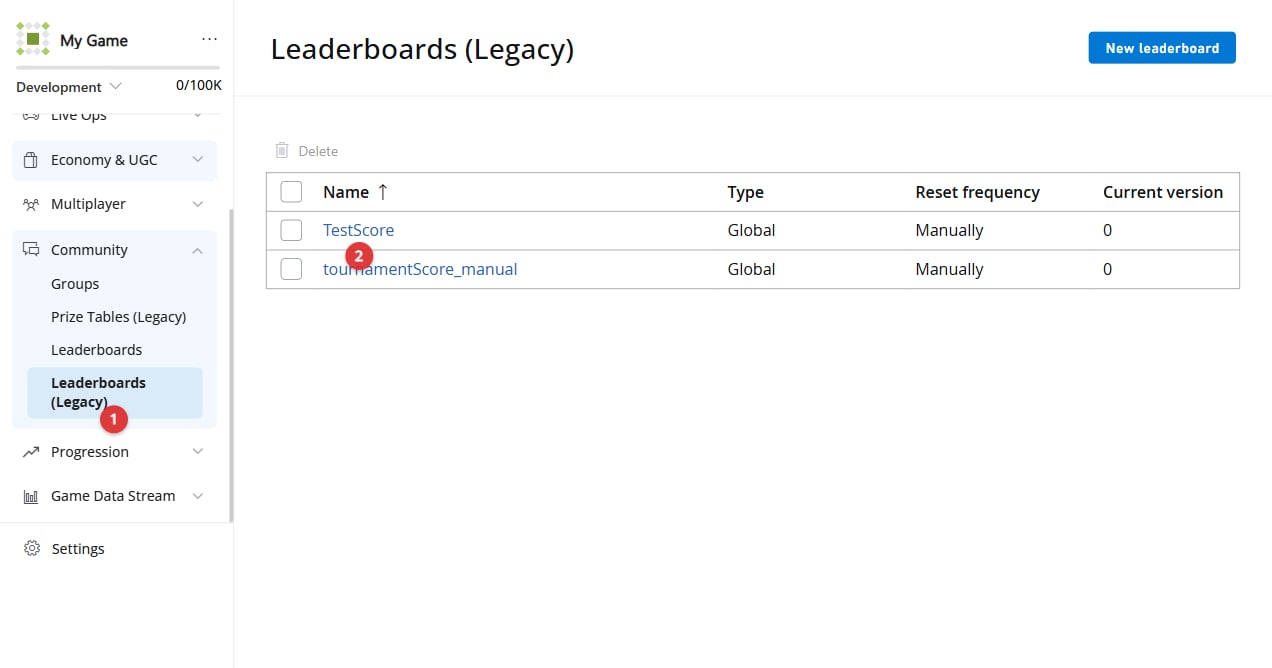 1. **Leaderboard**가 무작위 값으로 채워진 것을 확인할 수 있습니다.
2. **Leaderboard**를 재설정합니다.
1. **Leaderboard**가 무작위 값으로 채워진 것을 확인할 수 있습니다.
2. **Leaderboard**를 재설정합니다.
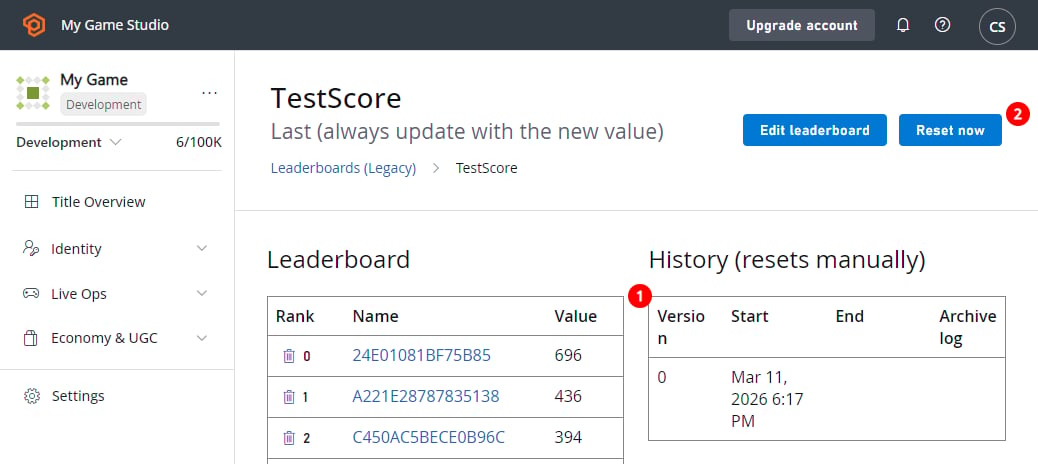 이렇게 하면 현재 가지고 있는 모든 데이터의 스냅샷이 만들어진 다음, 모든 플레이어의 통계 값이 *nullify*되고 버전이 증가합니다.
* 리더보드가 재설정되면 CloudScript 작업을 다시 실행합니다.
* 이를 2-3회 반복한 다음, 재설정하고 다시 채웁니다.
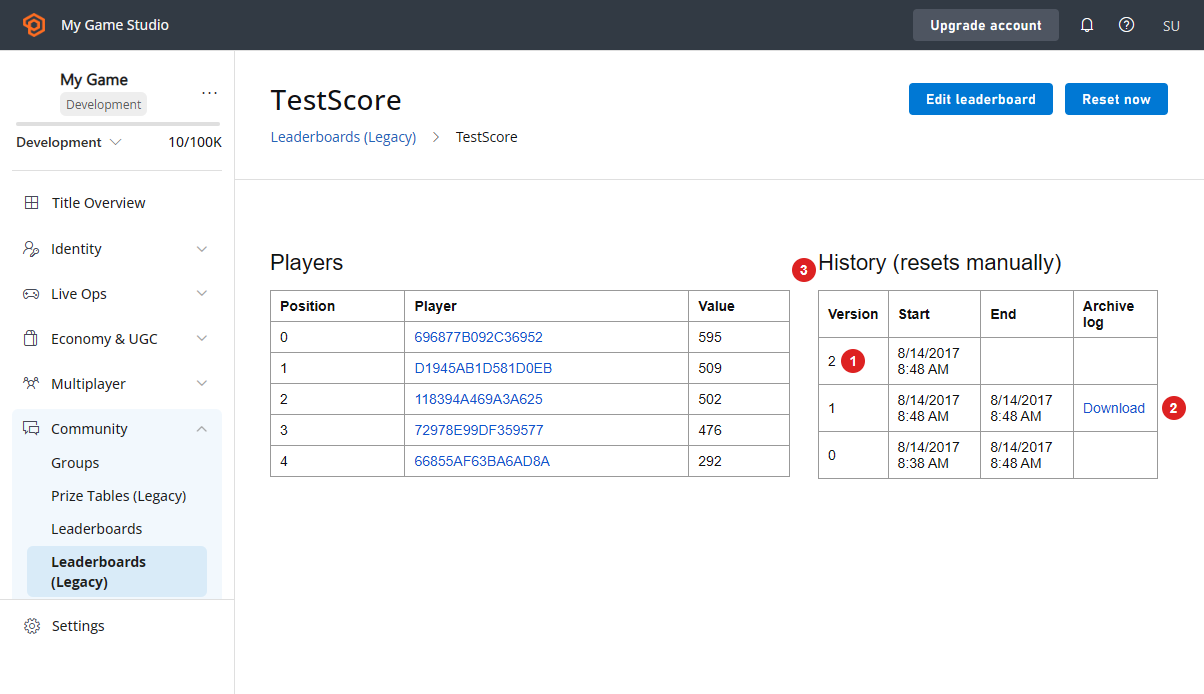
여러 개의 **Leaderboard** 버전 \*\*(1)\*\*을 얻게 됩니다.
* **현재 버전 데이터**는 왼쪽의 표에 표시됩니다 **(3)**.
* **보관된 데이터**는 이전 버전에 대해 사용 가능합니다 **(2)**.
* 최신 버전만 사용할 수 있습니다. 이는 모든 타이틀에 적용됩니다.
이렇게 하면 현재 가지고 있는 모든 데이터의 스냅샷이 만들어진 다음, 모든 플레이어의 통계 값이 *nullify*되고 버전이 증가합니다.
* 리더보드가 재설정되면 CloudScript 작업을 다시 실행합니다.
* 이를 2-3회 반복한 다음, 재설정하고 다시 채웁니다.
여러 개의 **Leaderboard** 버전 \*\*(1)\*\*을 얻게 됩니다.
* **현재 버전 데이터**는 왼쪽의 표에 표시됩니다 **(3)**.
* **보관된 데이터**는 이전 버전에 대해 사용 가능합니다 **(2)**.
* 최신 버전만 사용할 수 있습니다. 이는 모든 타이틀에 적용됩니다.
 ### Game Manager를 사용해 보관된 데이터에 액세스
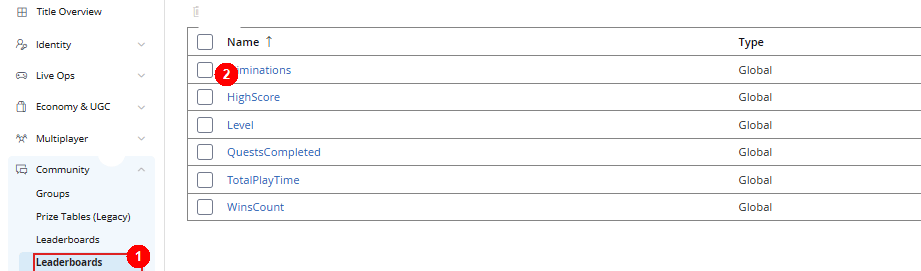
**Leaderboard** 페이지에서 직접 보관된 결과에 액세스할 수 있습니다.
1. **Leaderboards** 탭으로 이동합니다.
2. 필요한 **Leaderboard**를 선택합니다.
### Game Manager를 사용해 보관된 데이터에 액세스
**Leaderboard** 페이지에서 직접 보관된 결과에 액세스할 수 있습니다.
1. **Leaderboards** 탭으로 이동합니다.
2. 필요한 **Leaderboard**를 선택합니다.
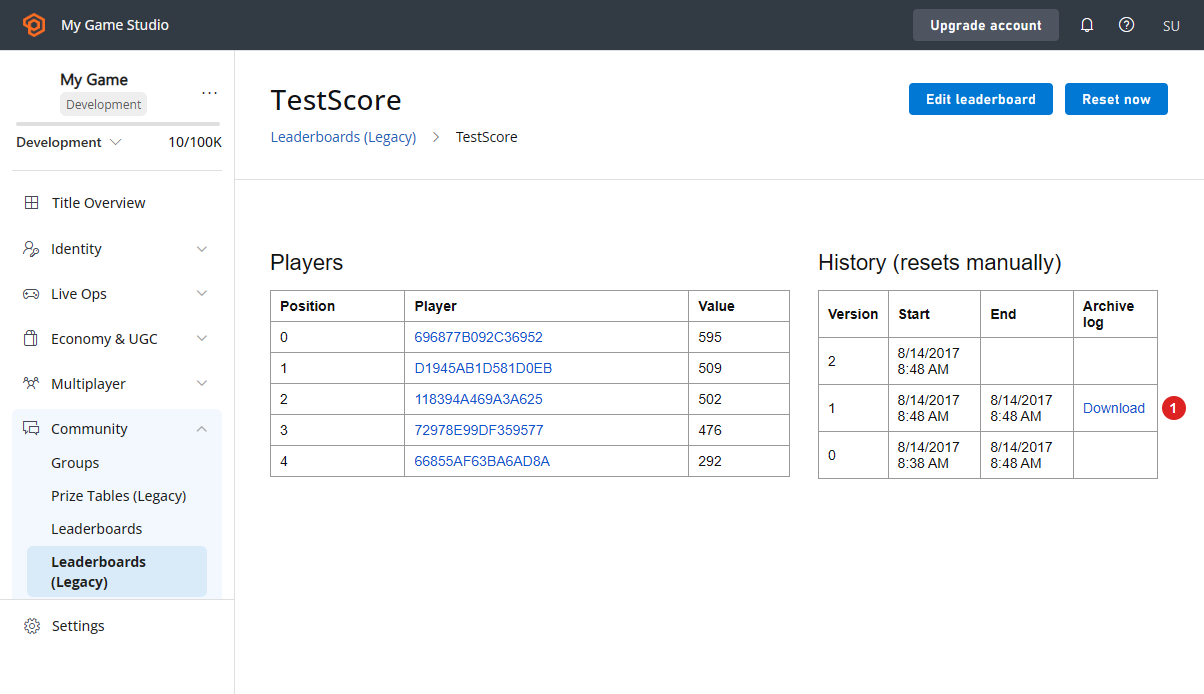
 1. **Leaderboard**에 보관된 리비전이 포함되어 있다면 아래 스크린샷에 표시된 다운로드 링크를 사용하여 **JSON** 데이터를 다운로드할 수 있습니다.
 ### API를 사용해 보관된 데이터에 액세스
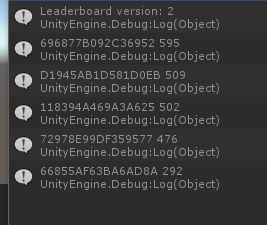
다음 코드로 리더보드의 최신(현재) 버전을 가져올 수 있습니다.
```csharp theme={null}
PlayFabClientAPI.GetLeaderboard(new GetLeaderboardRequest()
{
StatisticName = "TestScore",
}, result =>
{
Debug.Log("Leaderboard version: "+result.Version);
foreach (var entry in result.Leaderboard)
{
Debug.Log(entry.PlayFabId+" "+entry.StatValue);
}
}, FailureCallback);
```
결과는 아래 예시와 같이 나타납니다.
### API를 사용해 보관된 데이터에 액세스
다음 코드로 리더보드의 최신(현재) 버전을 가져올 수 있습니다.
```csharp theme={null}
PlayFabClientAPI.GetLeaderboard(new GetLeaderboardRequest()
{
StatisticName = "TestScore",
}, result =>
{
Debug.Log("Leaderboard version: "+result.Version);
foreach (var entry in result.Leaderboard)
{
Debug.Log(entry.PlayFabId+" "+entry.StatValue);
}
}, FailureCallback);
```
결과는 아래 예시와 같이 나타납니다.
 또는 로드하려는 리더보드의 버전을 지정할 수도 있습니다.
```csharp theme={null}
PlayFabClientAPI.GetLeaderboard(new GetLeaderboardRequest()
{
StatisticName = "TestScore",
Version = 1
}, result =>
{
Debug.Log("Leaderboard version: "+result.Version);
foreach (var entry in result.Leaderboard)
{
Debug.Log(entry.PlayFabId+" "+entry.StatValue);
}
}, FailureCallback);
```
결과는 아래 예시와 같이 나타납니다.
또는 로드하려는 리더보드의 버전을 지정할 수도 있습니다.
```csharp theme={null}
PlayFabClientAPI.GetLeaderboard(new GetLeaderboardRequest()
{
StatisticName = "TestScore",
Version = 1
}, result =>
{
Debug.Log("Leaderboard version: "+result.Version);
foreach (var entry in result.Leaderboard)
{
Debug.Log(entry.PlayFabId+" "+entry.StatValue);
}
}, FailureCallback);
```
결과는 아래 예시와 같이 나타납니다.
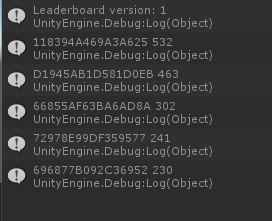 모든 타이틀은 리더보드의 *가장 최근* 보관된 버전에 액세스할 수 있습니다. 더 오래된 버전을 가져오려고 하면 오류가 발생합니다(아래 참조).
 동일한 규칙이 모든 리더보드 요청에 적용됩니다.
* [GetLeaderboard](xref:titleid.playfabapi.com.client.playerdatamanagement.getleaderboard)
* [GetLeaderboardAroundPlayer](xref:titleid.playfabapi.com.client.playerdatamanagement.getleaderboardaroundplayer)
* [GetFriendLeaderboardAroundPlayer](xref:titleid.playfabapi.com.client.playerdatamanagement.getfriendleaderboardaroundplayer)
* [GetFriendLeaderboard](xref:titleid.playfabapi.com.client.playerdatamanagement.getfriendleaderboard)
리더보드 데이터와 함께 얻을 수 있는 유용한 속성에 대해 알아보려면 [GetLeaderboardResult](xref:titleid.playfabapi.com.client.playerdatamanagement.getleaderboard#getleaderboardresult) 개체 설명서를 참조하세요.
## Related topics
- [Using resettable statistics and leaderboards](/ko/services/playfab/community/leaderboards/tournaments-leaderboards/using-resettable-statistics-and-leaderboards.md)
- [XblTournamentGameResult](/ko/reference/live/xsapi-c/multiplayer_c/enums/xbltournamentgameresult.md)
- [XblTournamentTeamResult](/ko/reference/live/xsapi-c/multiplayer_c/structs/xbltournamentteamresult.md)
- [XblTournamentGameResultWithRank](/ko/reference/live/xsapi-c/multiplayer_c/structs/xbltournamentgameresultwithrank.md)
- [XblTournamentGameResultSource](/ko/reference/live/xsapi-c/multiplayer_c/enums/xbltournamentgameresultsource.md)
동일한 규칙이 모든 리더보드 요청에 적용됩니다.
* [GetLeaderboard](xref:titleid.playfabapi.com.client.playerdatamanagement.getleaderboard)
* [GetLeaderboardAroundPlayer](xref:titleid.playfabapi.com.client.playerdatamanagement.getleaderboardaroundplayer)
* [GetFriendLeaderboardAroundPlayer](xref:titleid.playfabapi.com.client.playerdatamanagement.getfriendleaderboardaroundplayer)
* [GetFriendLeaderboard](xref:titleid.playfabapi.com.client.playerdatamanagement.getfriendleaderboard)
리더보드 데이터와 함께 얻을 수 있는 유용한 속성에 대해 알아보려면 [GetLeaderboardResult](xref:titleid.playfabapi.com.client.playerdatamanagement.getleaderboard#getleaderboardresult) 개체 설명서를 참조하세요.
## Related topics
- [Using resettable statistics and leaderboards](/ko/services/playfab/community/leaderboards/tournaments-leaderboards/using-resettable-statistics-and-leaderboards.md)
- [XblTournamentGameResult](/ko/reference/live/xsapi-c/multiplayer_c/enums/xbltournamentgameresult.md)
- [XblTournamentTeamResult](/ko/reference/live/xsapi-c/multiplayer_c/structs/xbltournamentteamresult.md)
- [XblTournamentGameResultWithRank](/ko/reference/live/xsapi-c/multiplayer_c/structs/xbltournamentgameresultwithrank.md)
- [XblTournamentGameResultSource](/ko/reference/live/xsapi-c/multiplayer_c/enums/xbltournamentgameresultsource.md)