> ## Documentation Index
> Fetch the complete documentation index at: https://devdocs.xbox.com/llms.txt
> Use this file to discover all available pages before exploring further.
# Quickstart on leaderboards
> Quickstart for PlayFab Leaderboards: create your first leaderboard in Game Manager and configure the C# SDK with your TitleId and developer secret key.
# 리더보드 빠른 시작
이 가이드에서는 리더보드 서비스에 대한 개발 환경을 설정하는 방법을 살펴봅니다. 또한 [Game Manager](https://developer.playfab.com) 웹사이트에서 빠르게 리더보드를 만드는 방법도 배웁니다.
## 필수 구성 요소
PlayFab Leaderboards 서비스를 사용하려면 PlayFab 계정이 필요합니다. 계정 생성 방법은 [Authentication](/services/playfab/identity/player-identity/authentication)을 참조하세요.
## 리더보드 만들기
왼쪽 메뉴에서 Progression을 선택합니다.
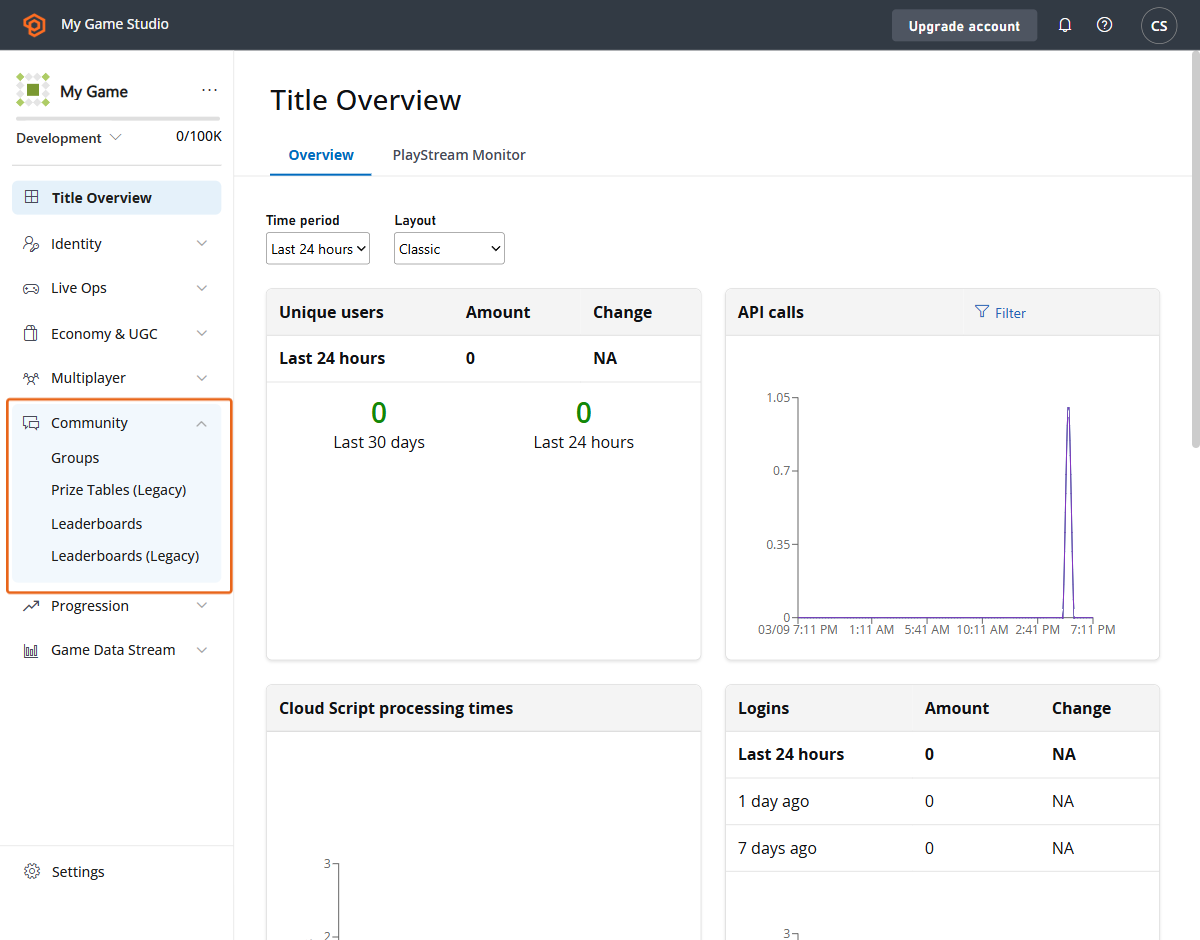 이제 상단 메뉴에서 Leaderboards 탭을 선택합니다.
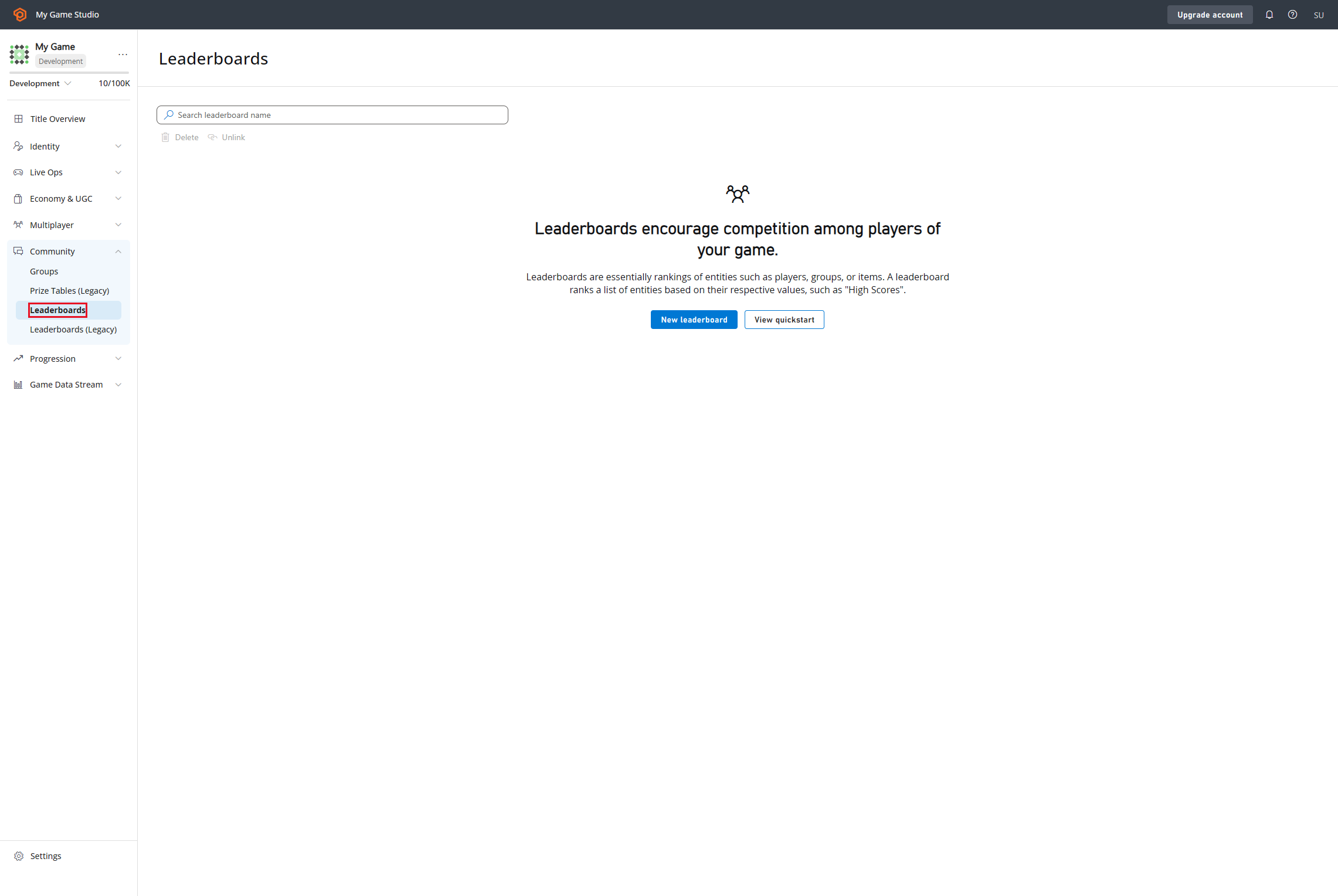 그런 다음 “New Leaderboard” 버튼으로 이동하여 리더보드 정의를 만듭니다.
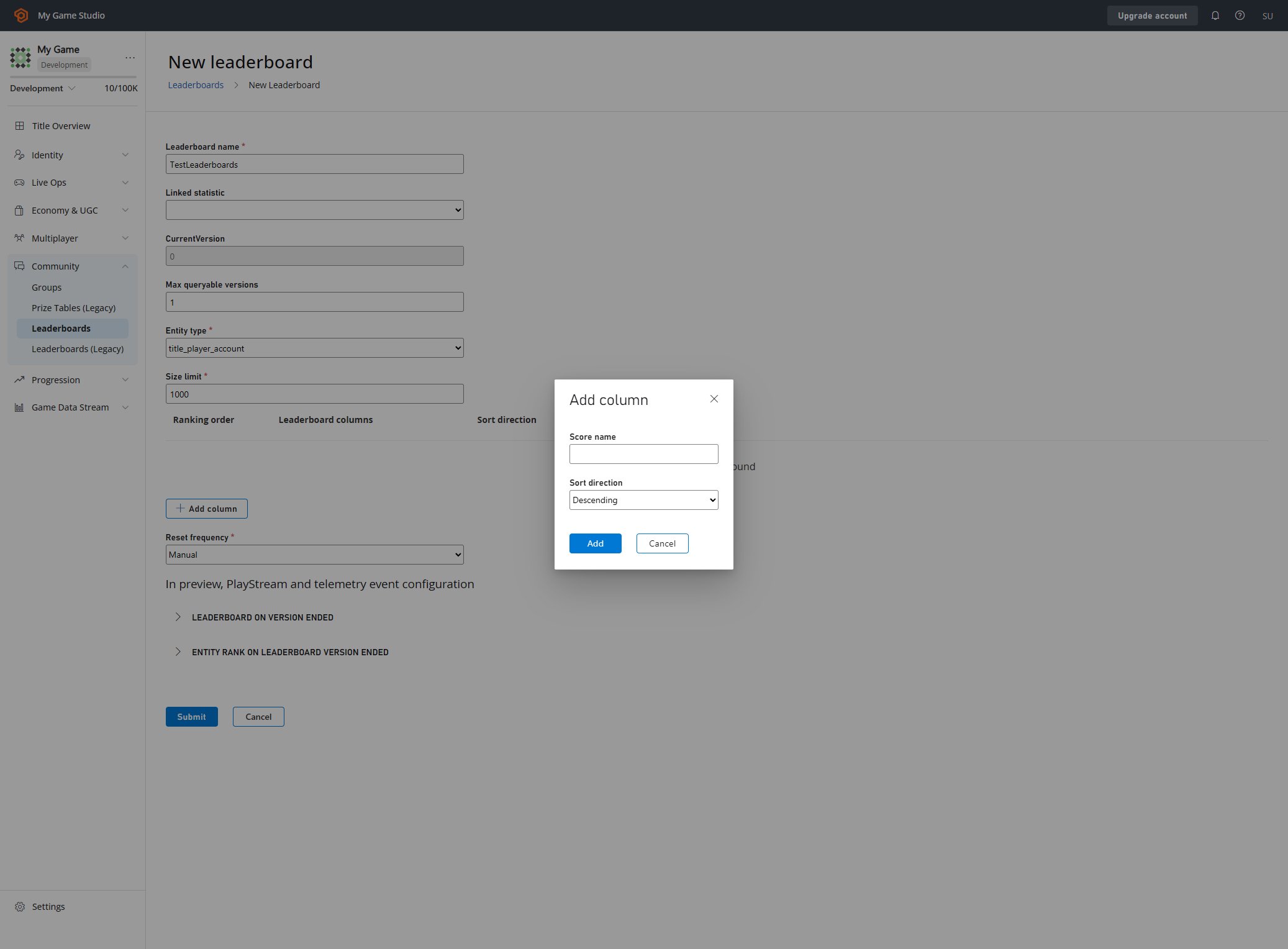 여기서 리더보드의 모든 측면을 구성할 수 있습니다. 사용 가능한 매개 변수와 리더보드를 만드는 방법에 대해 자세히 알아보려면 다음을 참조하세요.
* [기본 리더보드 만들기](/services/playfab/community/leaderboards/create-basic-leaderboard).
* [API 참조](/services/playfab/community/leaderboards/api-reference)
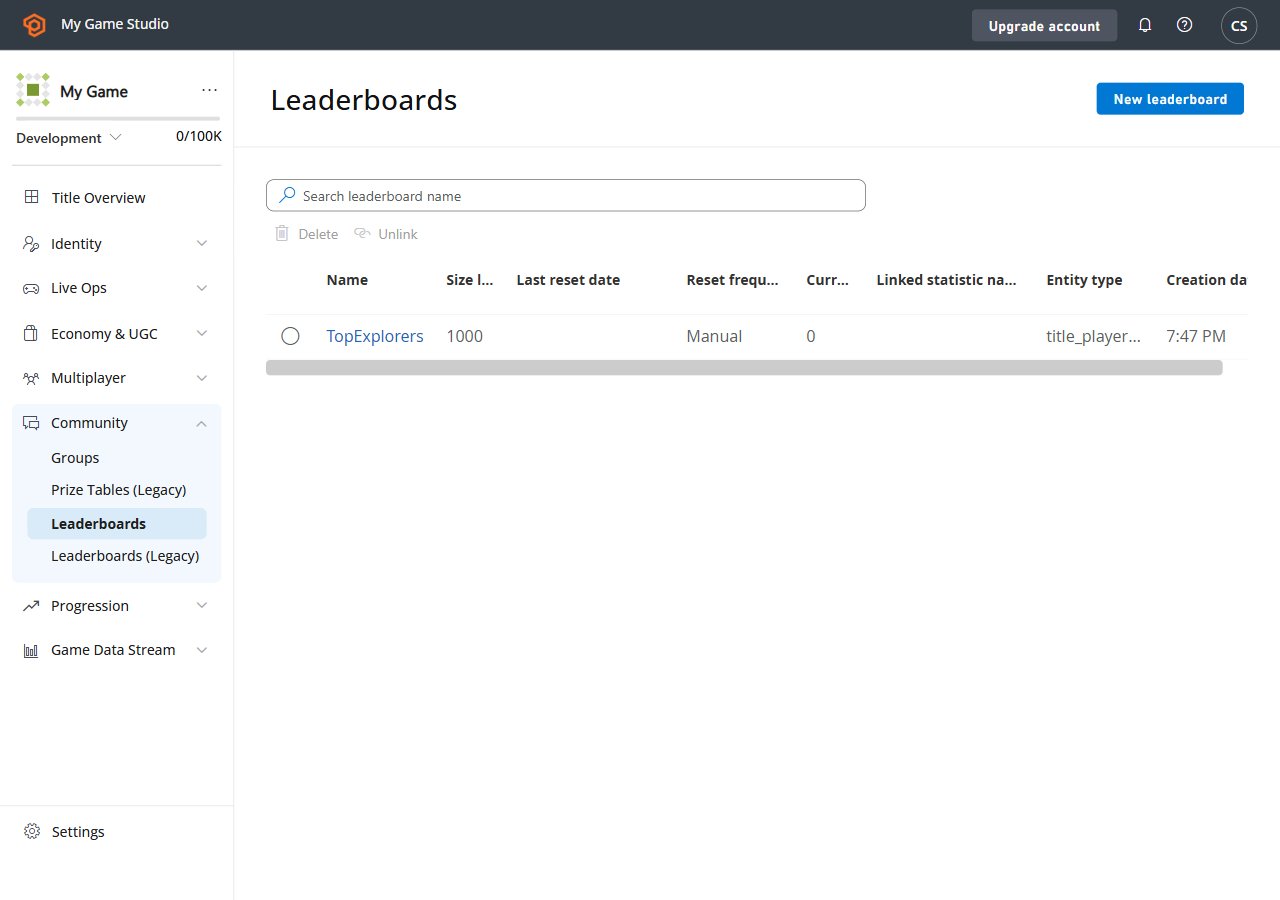
최종 결과는 다음과 같아야 합니다.
여기서 리더보드의 모든 측면을 구성할 수 있습니다. 사용 가능한 매개 변수와 리더보드를 만드는 방법에 대해 자세히 알아보려면 다음을 참조하세요.
* [기본 리더보드 만들기](/services/playfab/community/leaderboards/create-basic-leaderboard).
* [API 참조](/services/playfab/community/leaderboards/api-reference)
최종 결과는 다음과 같아야 합니다.
 ## 환경 설정
여기서는 C# SDK를 사용할 개발자 환경을 설정하는 방법을 배우지만, 여기서 소개하는 개념은 다른 SDK나 일반 HTTP 요청에도 적용할 수 있습니다.
## TitleId 및 DeveloperSecretKey 설정
Title Entity로 인증할 때 DeveloperSecretKey가 필요합니다.
```C# theme={null}
PlayFabSettings.staticSettings.TitleId = ""; // Change this value to your own titleId from PlayFab Game Manager
PlayFabSettings.staticSettings.DeveloperSecretKey = ""; // Change this to your title's secret key from Game Manager
```
## 타이틀 만들기 및 비밀 키 가져오기
* [https://developer.playfab.com/에](https://developer.playfab.com/에) 로그인합니다.
* 타이틀을 만듭니다.
* 설정의 API Features 섹션에서 Title ID를 확인합니다.
* 비밀 키 생성:
* 타이틀 뷰 왼쪽 상단의 타이틀 이름 옆의 톱니바퀴 아이콘 클릭
* Title Settings
* Secret Keys
* New secret key
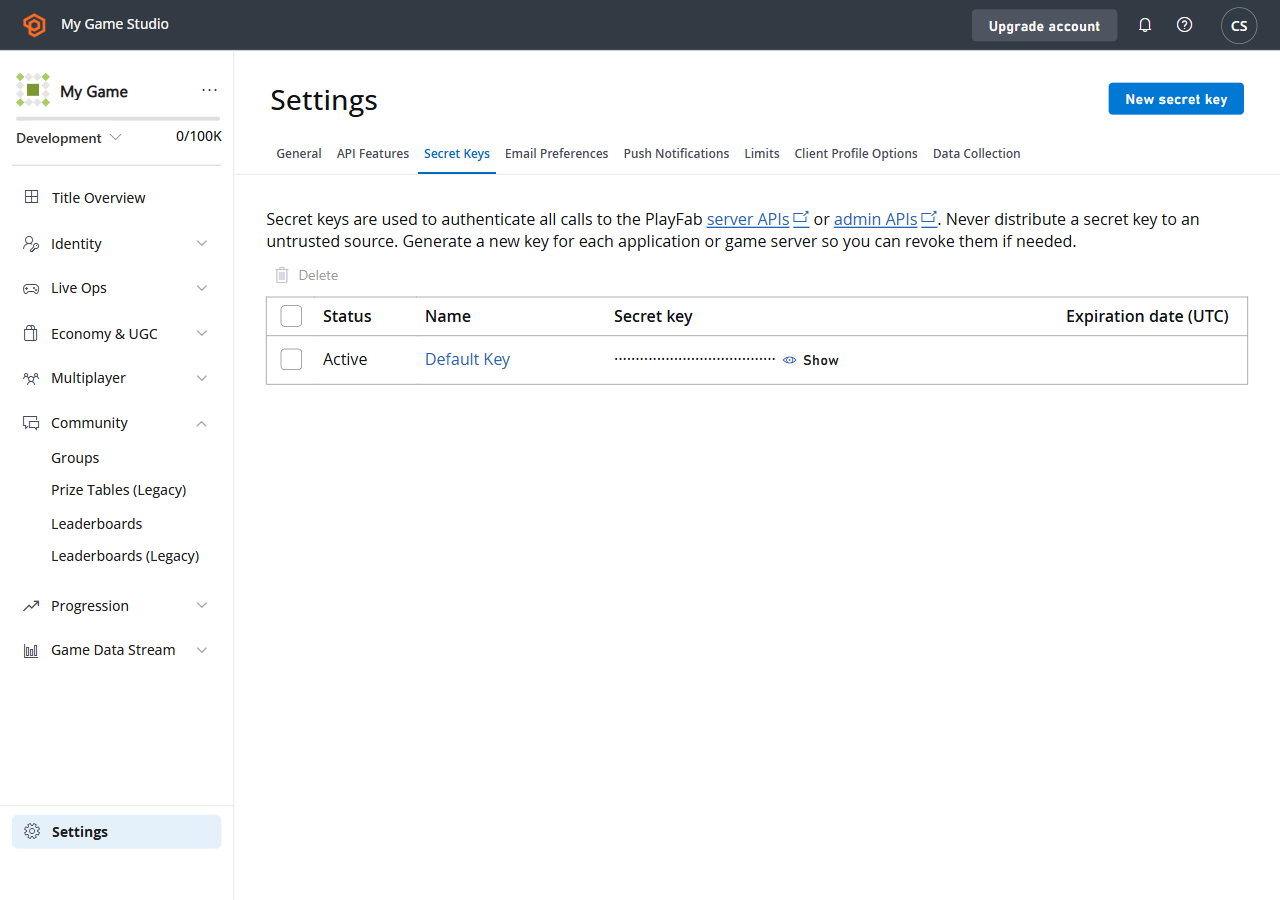
Game Manager 내에서 Secret Key 섹션을 찾았을 때의 UI는 다음과 같습니다.
## 환경 설정
여기서는 C# SDK를 사용할 개발자 환경을 설정하는 방법을 배우지만, 여기서 소개하는 개념은 다른 SDK나 일반 HTTP 요청에도 적용할 수 있습니다.
## TitleId 및 DeveloperSecretKey 설정
Title Entity로 인증할 때 DeveloperSecretKey가 필요합니다.
```C# theme={null}
PlayFabSettings.staticSettings.TitleId = ""; // Change this value to your own titleId from PlayFab Game Manager
PlayFabSettings.staticSettings.DeveloperSecretKey = ""; // Change this to your title's secret key from Game Manager
```
## 타이틀 만들기 및 비밀 키 가져오기
* [https://developer.playfab.com/에](https://developer.playfab.com/에) 로그인합니다.
* 타이틀을 만듭니다.
* 설정의 API Features 섹션에서 Title ID를 확인합니다.
* 비밀 키 생성:
* 타이틀 뷰 왼쪽 상단의 타이틀 이름 옆의 톱니바퀴 아이콘 클릭
* Title Settings
* Secret Keys
* New secret key
Game Manager 내에서 Secret Key 섹션을 찾았을 때의 UI는 다음과 같습니다.
 ## Title로 로그인
쓰기 작업의 경우 게임 서버에서 TitleEntity를 사용하는 것이 좋습니다. 이 방법은 이후 모든 요청에 걸쳐 사용될 `AuthenticationContext`를 반환합니다.
```C# theme={null}
public static async Task LoginAsTitleEntity()
{
GetEntityTokenRequest request = new GetEntityTokenRequest()
{
Entity = new PlayFab.AuthenticationModels.EntityKey()
{
Id = PlayFabSettings.staticSettings.TitleId,
Type = "title",
},
};
PlayFabResult entityTokenResult = await PlayFabAuthenticationAPI.GetEntityTokenAsync(request);
PlayFabAuthenticationContext authContext = new PlayFabAuthenticationContext
{
EntityToken = entityTokenResult.Result.EntityToken
};
return authContext;
}
```
## Player로 로그인(Player 생성)
이 메서드는 식별자를 기반으로 플레이어를 만들고 `title_player_account` 유형의 엔티티를 반환합니다. 자세한 내용은 [엔티티 빠른 시작](/services/playfab/live-service-management/game-configuration/entities/quickstart)을 참조하세요.
```C# theme={null}
private static async Task LoginAsPlayer(string customId = "GettingStartedGuide")
{
LoginWithCustomIDRequest request = new LoginWithCustomIDRequest { CustomId = customId, CreateAccount = true };
PlayFabResult loginResult = await PlayFabClientAPI.LoginWithCustomIDAsync(request);
return loginResult.Result.AuthenticationContext;
}
```
## 엔티티의 display name 속성 설정
“Get Leaderboards APIs” 응답에 `DisplayName` 속성을 포함시키려면, 만든 각 엔티티에 대해 다음 코드를 실행하여 엔티티를 게임의 사용자 지정 표시 이름에 매핑해야 합니다.
```C# theme={null}
private static async Task UpdateEntityDisplayName(PlayFabAuthenticationContext context, string customId)
{
SetDisplayNameRequest request = new SetDisplayNameRequest()
{
AuthenticationContext = context,
DisplayName = customId,
Entity = new PlayFab.ProfilesModels.EntityKey()
{
Id = context.EntityId,
Type = context.EntityType,
},
};
PlayFabResult updateNameResult = await PlayFabProfilesAPI.SetDisplayNameAsync(request);
}
```
## 함께 보기
* [기본 리더보드 만들기](/services/playfab/community/leaderboards/create-basic-leaderboard).
* [리더보드 더 활용하기](/services/playfab/community/leaderboards/doing-more-with-leaderboards).
* [제한 사항](/services/playfab/community/leaderboards/limits-leaderboards).
* [할당량](/services/playfab/community/leaderboards/quota-leaderboards).
* [시즌 리더보드](/services/playfab/community/leaderboards/seasonal-leaderboards).
* [그룹 리더보드](/services/playfab/community/leaderboards/group-leaderboards).
* [수동 계층](/services/playfab/community/leaderboards/manual-tiers).
* [통계로 플레이어 순위 매기기](/services/playfab/community/leaderboards/leaderboards-linked-to-stats).
* [리더보드에 상황 데이터 추가](/services/playfab/community/leaderboards/metadata-leaderboards).
* [API 참조](/services/playfab/community/leaderboards/api-reference).
* [Leaderboard meters](/services/playfab/pricing/meters/leaderboard-meters).
* [리더보드와 CloudScript](/services/playfab/community/leaderboards/leaderboards-cloudscript).
* [PlayStream과 함께 사용하는 리더보드](/services/playfab/community/leaderboards/leaderboards-with-playstream-and-telemetry)
## Related topics
- [PlayFab 리더보드 개요](/ko/services/playfab/community/leaderboards/index.md)
- [Create basic leaderboard](/ko/services/playfab/community/leaderboards/create-basic-leaderboard.md)
- [Tournaments & Leaderboards quickstart](/ko/services/playfab/community/leaderboards/tournaments-leaderboards/quickstart.md)
- [Leaderboards with PlayStream and Telemetry](/ko/services/playfab/community/leaderboards/leaderboards-with-playstream-and-telemetry.md)
- [Actions & Rules quickstart](/ko/services/playfab/data-analytics/acting-data/action-rules-quickstart.md)
## Title로 로그인
쓰기 작업의 경우 게임 서버에서 TitleEntity를 사용하는 것이 좋습니다. 이 방법은 이후 모든 요청에 걸쳐 사용될 `AuthenticationContext`를 반환합니다.
```C# theme={null}
public static async Task LoginAsTitleEntity()
{
GetEntityTokenRequest request = new GetEntityTokenRequest()
{
Entity = new PlayFab.AuthenticationModels.EntityKey()
{
Id = PlayFabSettings.staticSettings.TitleId,
Type = "title",
},
};
PlayFabResult entityTokenResult = await PlayFabAuthenticationAPI.GetEntityTokenAsync(request);
PlayFabAuthenticationContext authContext = new PlayFabAuthenticationContext
{
EntityToken = entityTokenResult.Result.EntityToken
};
return authContext;
}
```
## Player로 로그인(Player 생성)
이 메서드는 식별자를 기반으로 플레이어를 만들고 `title_player_account` 유형의 엔티티를 반환합니다. 자세한 내용은 [엔티티 빠른 시작](/services/playfab/live-service-management/game-configuration/entities/quickstart)을 참조하세요.
```C# theme={null}
private static async Task LoginAsPlayer(string customId = "GettingStartedGuide")
{
LoginWithCustomIDRequest request = new LoginWithCustomIDRequest { CustomId = customId, CreateAccount = true };
PlayFabResult loginResult = await PlayFabClientAPI.LoginWithCustomIDAsync(request);
return loginResult.Result.AuthenticationContext;
}
```
## 엔티티의 display name 속성 설정
“Get Leaderboards APIs” 응답에 `DisplayName` 속성을 포함시키려면, 만든 각 엔티티에 대해 다음 코드를 실행하여 엔티티를 게임의 사용자 지정 표시 이름에 매핑해야 합니다.
```C# theme={null}
private static async Task UpdateEntityDisplayName(PlayFabAuthenticationContext context, string customId)
{
SetDisplayNameRequest request = new SetDisplayNameRequest()
{
AuthenticationContext = context,
DisplayName = customId,
Entity = new PlayFab.ProfilesModels.EntityKey()
{
Id = context.EntityId,
Type = context.EntityType,
},
};
PlayFabResult updateNameResult = await PlayFabProfilesAPI.SetDisplayNameAsync(request);
}
```
## 함께 보기
* [기본 리더보드 만들기](/services/playfab/community/leaderboards/create-basic-leaderboard).
* [리더보드 더 활용하기](/services/playfab/community/leaderboards/doing-more-with-leaderboards).
* [제한 사항](/services/playfab/community/leaderboards/limits-leaderboards).
* [할당량](/services/playfab/community/leaderboards/quota-leaderboards).
* [시즌 리더보드](/services/playfab/community/leaderboards/seasonal-leaderboards).
* [그룹 리더보드](/services/playfab/community/leaderboards/group-leaderboards).
* [수동 계층](/services/playfab/community/leaderboards/manual-tiers).
* [통계로 플레이어 순위 매기기](/services/playfab/community/leaderboards/leaderboards-linked-to-stats).
* [리더보드에 상황 데이터 추가](/services/playfab/community/leaderboards/metadata-leaderboards).
* [API 참조](/services/playfab/community/leaderboards/api-reference).
* [Leaderboard meters](/services/playfab/pricing/meters/leaderboard-meters).
* [리더보드와 CloudScript](/services/playfab/community/leaderboards/leaderboards-cloudscript).
* [PlayStream과 함께 사용하는 리더보드](/services/playfab/community/leaderboards/leaderboards-with-playstream-and-telemetry)
## Related topics
- [PlayFab 리더보드 개요](/ko/services/playfab/community/leaderboards/index.md)
- [Create basic leaderboard](/ko/services/playfab/community/leaderboards/create-basic-leaderboard.md)
- [Tournaments & Leaderboards quickstart](/ko/services/playfab/community/leaderboards/tournaments-leaderboards/quickstart.md)
- [Leaderboards with PlayStream and Telemetry](/ko/services/playfab/community/leaderboards/leaderboards-with-playstream-and-telemetry.md)
- [Actions & Rules quickstart](/ko/services/playfab/data-analytics/acting-data/action-rules-quickstart.md)