> ## Documentation Index
> Fetch the complete documentation index at: https://devdocs.xbox.com/llms.txt
> Use this file to discover all available pages before exploring further.
# 게임에 트라이얼 구현
> GDK 타이틀에서 사용 가능한 Microsoft Store의 트라이얼 옵션 — Partner Center에서 사용 제한 무료 트라이얼 구성 및 게임 내 트라이얼 확인 구현.
게임에 대해 여러 가지 유형의 무료 트라이얼을 구성할 수 있습니다.
* *시간 제한 무료 트라이얼* - 일정한 *달력* 시간이 지나면 만료되는 트라이얼입니다(예: 사용 시간에 관계없이 사용자가 트라이얼을 다운로드한 지 7일 후).
* *사용 시간 제한 무료 트라이얼* - 사용자가 일정한 *게임 실행 시간* 동안 게임을 실행할 수 있도록 하고, 그 이후에 계속 사용하려면 게임을 구매해야 합니다.
* *큐레이션된 트라이얼* - 만료 또는 게임 실행 시간 제한은 없지만 게임이 플레이 가능한 부분을 제한할 수 있습니다. 데모와 유사하지만 전체 게임을 다운로드해야 합니다.
시간 및 사용 기반 트라이얼은 사용자당 타이틀당 한 번만 제공되며 다른 트라이얼 제공과 혼합해서는 안 됩니다. 만료되거나 소진된 트라이얼 사용 권한은 사용자 계정에 남아 있으며 동일 게임에 대한 다른 트라이얼 제공 획득을 방지합니다. 트라이얼 유형은 고객이 트라이얼을 획득한 후에는 변경되거나 재설정될 수 없습니다.
일부 트라이얼은 무료이지만 특정 구독을 소유한 사용자로 제한됩니다.
이 문서는 그러한 트라이얼에도 적용됩니다.
**Free Play Days** 제공의 일부로 실행되는 게임은 실제 트라이얼로 실행되지 않지만 임시 전체 라이선스에 의해서만 실행될 수 있습니다.
트라이얼 구성 및 관련 구조는 적용되지 않습니다.
## Partner Center에서 사용 시간 제한 트라이얼 구성
이 기능은 적절한 권한이 있고 게임이 [제한적 라이선싱](/publishing/xstore-commerce/xstore-open-restrictive-licensing)을 사용하는 경우에만 액세스할 수 있습니다.
자세한 내용은 Microsoft 계정 관리자에게 문의하세요.
게임 코드를 변경하지 않고 Partner Center에서 사용 시간 제한 무료 트라이얼을 구성할 수 있습니다. 그러나 다음 시나리오에서는 코드를 추가해야 합니다.
* 스토어에서 트라이얼을 획득한 사용자로만 트라이얼 액세스 제한.
* 플레이 세션 간 게임 상태를 저장하고 구매 후 사용자의 트라이얼 진행 상황을 정식 게임으로 이월.
1. **Submission overview** 페이지에서 **Pricing and availability** 페이지로 이동합니다.
2. **Free trial** 아래에서 드롭다운 메뉴를 열고 **Usage-limited**를 선택합니다.
3. 나타나는 두 번째 드롭다운 메뉴에서 사용자가 앱을 사용할 수 있는 최대 시간을 선택합니다.
4. **Save**를 선택합니다.
Microsoft Store에 게임을 게시한 후 게임의 제품 페이지에서 트라이얼 정보를 볼 수 있습니다.
## 트라이얼을 획득한 사용자만 액세스하도록 제한
경우에 따라 트라이얼 소유자만 게임을 실행하도록 하려는 경우가 있습니다. 이 제한은 다른 사람이 다른 계정의 트라이얼 시간을 줄이는 것을 원하지 않을 때 사용 시간 제한 트라이얼에 중요합니다. [XStoreGameLicense](/reference/system/xstore/xstore_members)`.isTrialOwnedByThisUser` 속성을 확인해 이 기능을 구현할 수 있습니다. `false`이면 현재 플레이어가 진행하지 못하도록 차단하고 사용자에게 자체 트라이얼 라이선스를 얻도록 알리세요.
활성 트라이얼 라이선스를 소유한 사용자는 트라이얼 게임이 실행될 때 메시지에 표시됩니다.
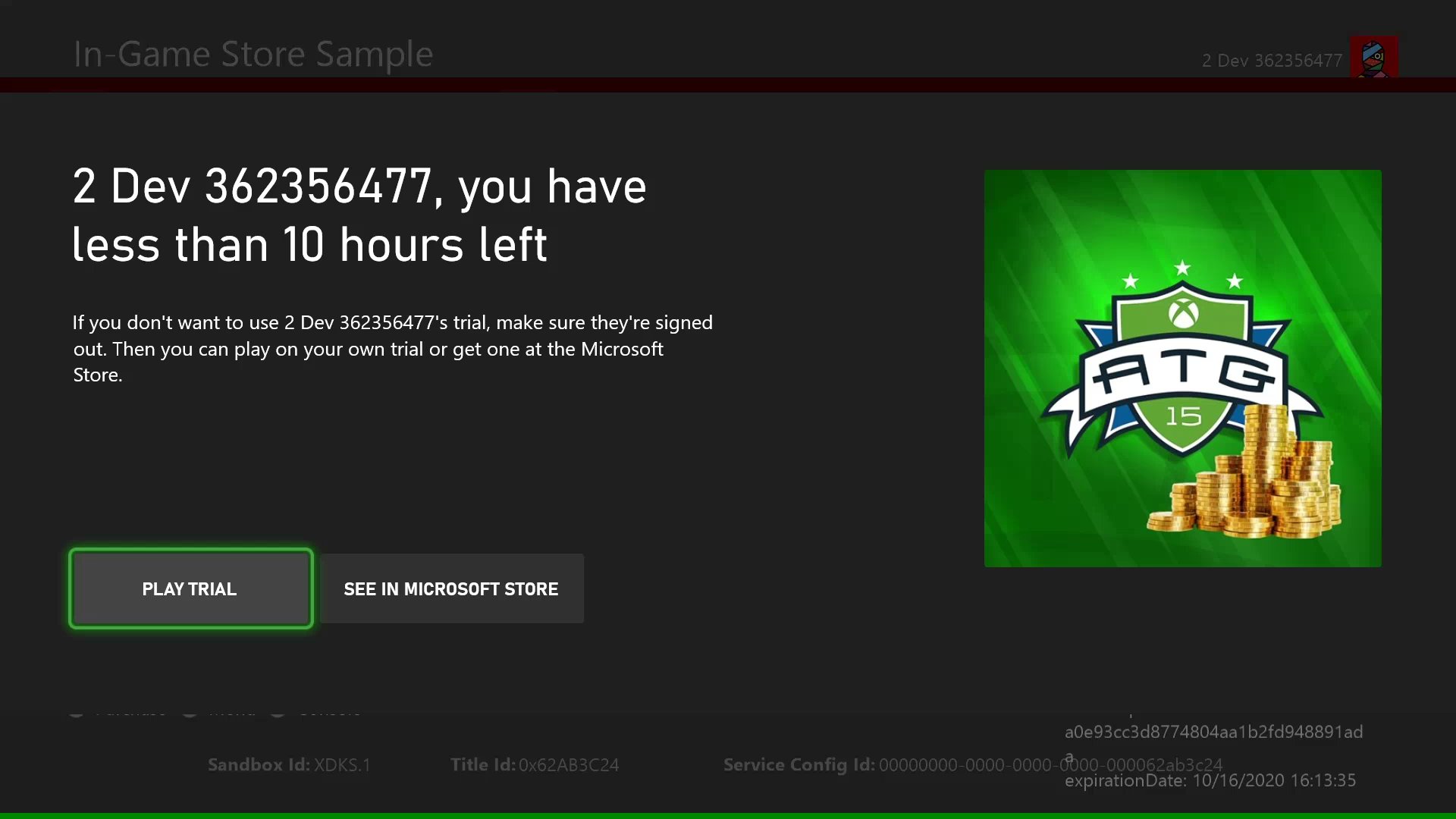 다음 코드 예제는 `isTrialOwnedByThisUser`를 확인하는 방법을 보여줍니다.
```cpp theme={null}
void CALLBACK GameLicenseTrialCheck(XAsyncBlock* asyncBlock)
{
XStoreGameLicense result{};
HRESULT hr = XStoreQueryGameLicenseResult(
asyncBlock,
&result);
// Is this a trial?
if (result.isActive && result.isTrial)
{
// Is this trial owned by this user?
if (!result.isTrialOwnedByThisUser)
{
// The user can't use another user's trial time. Show an error message.
}
}
}
void QueryGameLicense(XStoreContextHandle storeContextHandle, XTaskQueueHandle taskQueueHandle)
{
auto async = new XAsyncBlock{};
asyncBlock->queue = m_asyncQueue;
asyncBlock->callback = GameLicenseTrialCheck;
HRESULT hr = XStoreQueryGameLicenseAsync(
storeContextHandle,
async);
}
```
## 원래 트라이얼 사용자의 게임 상태 저장
싱글 플레이어 캠페인이나 세션 간 진행 상황을 추적하는 다른 게임 모드가 있는 XBOX 서비스 지원 게임은 게임 상태를 저장하기 위해 connected storage를 사용합니다. 그러나 제한된 트라이얼에서 PC 사용자는 여러 Microsoft 계정을 만들고(동일한 XBOX 계정을 사용해) 진행 상황을 저장하면서 시간 제한을 넘어 계속 플레이할 수 있습니다. 이 시나리오에 대한 자세한 내용은 [PC에서 스토어 계정 불일치 시나리오 처리](/publishing/xstore-commerce/xstore-mismatched-accounts)를 참고하세요.
이 허점은 게임 진행 상황이 저장될 때 [XStoreGameLicense](/reference/system/xstore/xstore_members)`.trialUniqueId` 값을 저장하여 방지할 수 있습니다. 나중에 사용자가 트라이얼을 다시 시작할 때 `trialUniqueId` 값이 첫 번째 실행의 값과 일치하는지 확인할 수 있습니다.
이 코드는 게임이 `trialUniqueId`를 게임 저장의 일부로 저장하고, 이 값을 반환하는 `GetSavedTrialUniqueId` 함수를 가지고 있다고 가정합니다.
```cpp theme={null}
void CALLBACK GameLicenseTrialCheck(XAsyncBlock* asyncBlock)
{
XStoreGameLicense result{};
HRESULT hr = XStoreQueryGameLicenseResult(
asyncBlock,
&result);
// Is this a trial?
if (result.isActive && result.isTrial)
{
// Is this trial owned by this user?
if (!result.isTrialOwnedByThisUser)
{
// The user can't use another user's trial time. Show an error message.
}
else
{
// Read the trialUniqueId that was saved with the game on the first run.
char trialUniqueId = GetSavedTrialUniqueId();
if (trialUniqueId != result.trialUniqueId)
{
// Because the IDs don't match, start the game from the beginning.
}
}
}
}
```
## 개발 중 트라이얼 테스트
트라이얼 라이선스로 게임을 테스트하려면 먼저 게임을 Partner Center에서 트라이얼 라이선스로 구성해야 합니다.
### XBOX
로컬 빌드의 경우 실제 라이선스가 필요합니다. Loose 및 패키지 빌드의 경우 MicrosoftGameConfig에 content ID 및 EKBID 재정의를 적용해야 합니다. 자세한 내용은 [라이선스 테스트 활성화](/publishing/xstore-commerce/xstore-licensing-setup)를 참고하세요.
여기서는 트라이얼 빌드의 실제 EKBID를 사용해야 합니다. EKBID를 얻으려면 트라이얼 라이선스가 있는 계정으로 Microsoft Store에서 게임 빌드를 다운로드해야 합니다.
다음 코드 예제는 `isTrialOwnedByThisUser`를 확인하는 방법을 보여줍니다.
```cpp theme={null}
void CALLBACK GameLicenseTrialCheck(XAsyncBlock* asyncBlock)
{
XStoreGameLicense result{};
HRESULT hr = XStoreQueryGameLicenseResult(
asyncBlock,
&result);
// Is this a trial?
if (result.isActive && result.isTrial)
{
// Is this trial owned by this user?
if (!result.isTrialOwnedByThisUser)
{
// The user can't use another user's trial time. Show an error message.
}
}
}
void QueryGameLicense(XStoreContextHandle storeContextHandle, XTaskQueueHandle taskQueueHandle)
{
auto async = new XAsyncBlock{};
asyncBlock->queue = m_asyncQueue;
asyncBlock->callback = GameLicenseTrialCheck;
HRESULT hr = XStoreQueryGameLicenseAsync(
storeContextHandle,
async);
}
```
## 원래 트라이얼 사용자의 게임 상태 저장
싱글 플레이어 캠페인이나 세션 간 진행 상황을 추적하는 다른 게임 모드가 있는 XBOX 서비스 지원 게임은 게임 상태를 저장하기 위해 connected storage를 사용합니다. 그러나 제한된 트라이얼에서 PC 사용자는 여러 Microsoft 계정을 만들고(동일한 XBOX 계정을 사용해) 진행 상황을 저장하면서 시간 제한을 넘어 계속 플레이할 수 있습니다. 이 시나리오에 대한 자세한 내용은 [PC에서 스토어 계정 불일치 시나리오 처리](/publishing/xstore-commerce/xstore-mismatched-accounts)를 참고하세요.
이 허점은 게임 진행 상황이 저장될 때 [XStoreGameLicense](/reference/system/xstore/xstore_members)`.trialUniqueId` 값을 저장하여 방지할 수 있습니다. 나중에 사용자가 트라이얼을 다시 시작할 때 `trialUniqueId` 값이 첫 번째 실행의 값과 일치하는지 확인할 수 있습니다.
이 코드는 게임이 `trialUniqueId`를 게임 저장의 일부로 저장하고, 이 값을 반환하는 `GetSavedTrialUniqueId` 함수를 가지고 있다고 가정합니다.
```cpp theme={null}
void CALLBACK GameLicenseTrialCheck(XAsyncBlock* asyncBlock)
{
XStoreGameLicense result{};
HRESULT hr = XStoreQueryGameLicenseResult(
asyncBlock,
&result);
// Is this a trial?
if (result.isActive && result.isTrial)
{
// Is this trial owned by this user?
if (!result.isTrialOwnedByThisUser)
{
// The user can't use another user's trial time. Show an error message.
}
else
{
// Read the trialUniqueId that was saved with the game on the first run.
char trialUniqueId = GetSavedTrialUniqueId();
if (trialUniqueId != result.trialUniqueId)
{
// Because the IDs don't match, start the game from the beginning.
}
}
}
}
```
## 개발 중 트라이얼 테스트
트라이얼 라이선스로 게임을 테스트하려면 먼저 게임을 Partner Center에서 트라이얼 라이선스로 구성해야 합니다.
### XBOX
로컬 빌드의 경우 실제 라이선스가 필요합니다. Loose 및 패키지 빌드의 경우 MicrosoftGameConfig에 content ID 및 EKBID 재정의를 적용해야 합니다. 자세한 내용은 [라이선스 테스트 활성화](/publishing/xstore-commerce/xstore-licensing-setup)를 참고하세요.
여기서는 트라이얼 빌드의 실제 EKBID를 사용해야 합니다. EKBID를 얻으려면 트라이얼 라이선스가 있는 계정으로 Microsoft Store에서 게임 빌드를 다운로드해야 합니다.
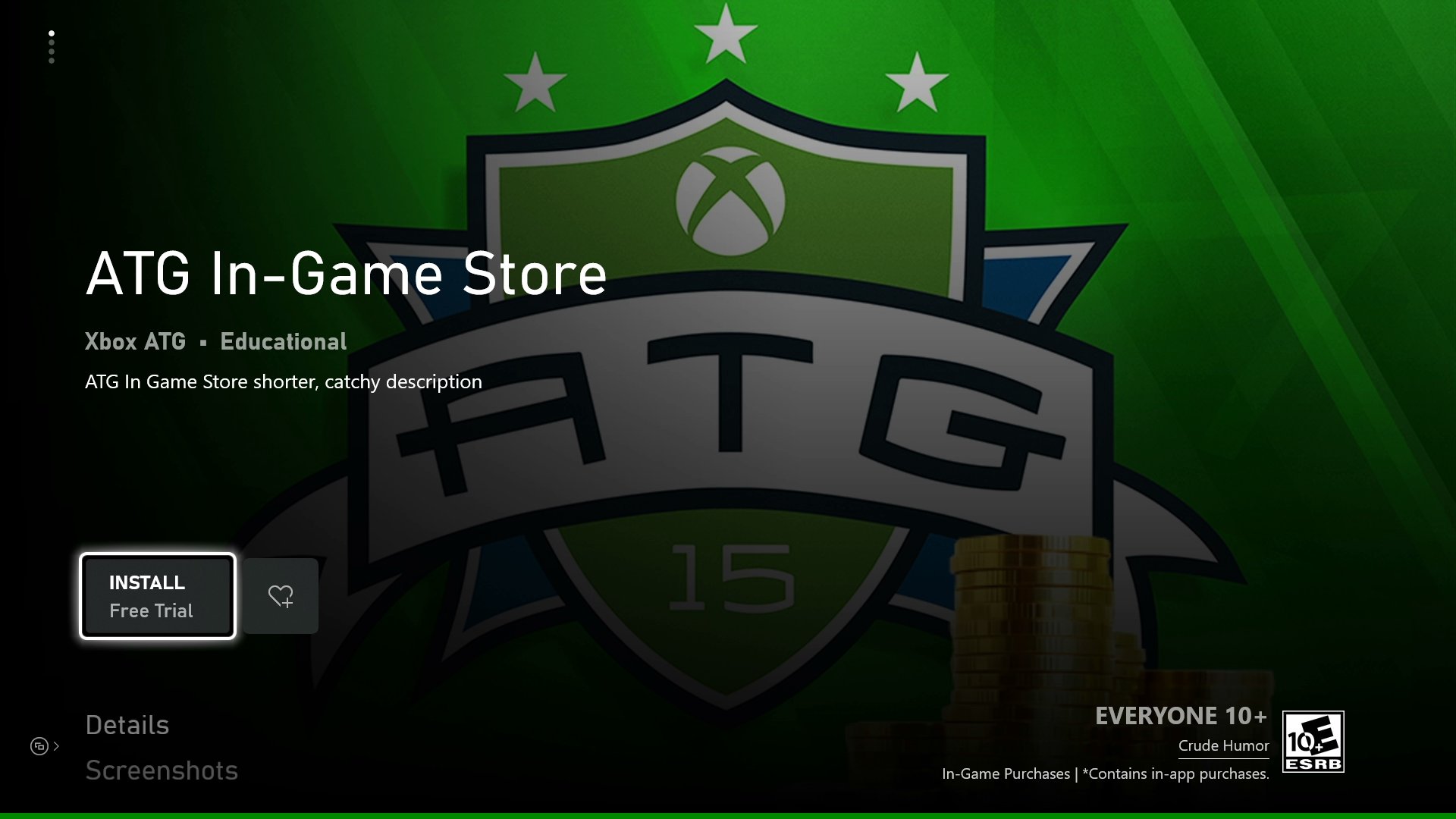 구성된 후 스토어에서 트라이얼 라이선스를 얻은 테스트 계정으로 실행하면 `XStoreGameLicense`가 정확한 트라이얼 특성을 나타냅니다. 빌드를 실행하면 트라이얼 알림 UI가 표시되어야 합니다.
### PC
정식 라이선스로 빌드를 활성화하는 방법과 동일합니다. MicrosoftGame.config에 올바른 앱 identity를 사용하고 레지스트리 위치에 적절한 content ID가 있는지 확인하면, 빌드는 트라이얼이든 그 밖의 것이든 Microsoft Store 앱에 로그인한 계정의 라이선스를 존중합니다.
## 참조 API 문서
* [XStore (API 내용)](/reference/system/xstore/xstore_members)
* 구조체
* [XStoreGameLicense](/reference/system/xstore/xstore_members)
## 참고
[커머스 개요](/publishing/xstore-commerce/xstore-commerce-overview)
[XStore 개발 및 테스트 활성화](/publishing/xstore-commerce/xstore-product-testing-setup)
[라이선스 테스트 활성화](/publishing/xstore-commerce/xstore-licensing-setup)
[XStore API 참조](/reference/system/xstore/xstore_members)
## Related topics
- [라이선싱 테스트 활성화](/ko/publishing/xstore-commerce/xstore-licensing-setup.md)
- [GDK 커머스 시스템 개요](/ko/publishing/xstore-commerce/xstore-overview.md)
- [PC의 XStore — DRM, 라이선스 토큰, 샌드박스](/ko/publishing/xstore-commerce/xstore-pc.md)
- [창 표시 모드와 title-callable UI 다이얼로그](/ko/build/gdk-and-engines/guides/window-display-modes-tcui.md)
- [XStore 커머스 개요](/ko/publishing/xstore-commerce/xstore-commerce-overview.md)
구성된 후 스토어에서 트라이얼 라이선스를 얻은 테스트 계정으로 실행하면 `XStoreGameLicense`가 정확한 트라이얼 특성을 나타냅니다. 빌드를 실행하면 트라이얼 알림 UI가 표시되어야 합니다.
### PC
정식 라이선스로 빌드를 활성화하는 방법과 동일합니다. MicrosoftGame.config에 올바른 앱 identity를 사용하고 레지스트리 위치에 적절한 content ID가 있는지 확인하면, 빌드는 트라이얼이든 그 밖의 것이든 Microsoft Store 앱에 로그인한 계정의 라이선스를 존중합니다.
## 참조 API 문서
* [XStore (API 내용)](/reference/system/xstore/xstore_members)
* 구조체
* [XStoreGameLicense](/reference/system/xstore/xstore_members)
## 참고
[커머스 개요](/publishing/xstore-commerce/xstore-commerce-overview)
[XStore 개발 및 테스트 활성화](/publishing/xstore-commerce/xstore-product-testing-setup)
[라이선스 테스트 활성화](/publishing/xstore-commerce/xstore-licensing-setup)
[XStore API 참조](/reference/system/xstore/xstore_members)
## Related topics
- [라이선싱 테스트 활성화](/ko/publishing/xstore-commerce/xstore-licensing-setup.md)
- [GDK 커머스 시스템 개요](/ko/publishing/xstore-commerce/xstore-overview.md)
- [PC의 XStore — DRM, 라이선스 토큰, 샌드박스](/ko/publishing/xstore-commerce/xstore-pc.md)
- [창 표시 모드와 title-callable UI 다이얼로그](/ko/build/gdk-and-engines/guides/window-display-modes-tcui.md)
- [XStore 커머스 개요](/ko/publishing/xstore-commerce/xstore-commerce-overview.md)