> ## Documentation Index
> Fetch the complete documentation index at: https://devdocs.xbox.com/llms.txt
> Use this file to discover all available pages before exploring further.
# 고대비 모드
> 고대비 모드
타이틀의 색 구성표에 따라 터치 레이아웃이 기본 스트림에서 실행되는 타이틀과 대비가 좋지 않아 보기 어려운 경우가 있을 수 있습니다. 이는 특히 저시력, 색맹 또는 기타 시각 장애가 있는 게이머에게 문제가 될 수 있습니다. 고대비 모드는 활성화될 때 [아이콘](/reference/system/touchadaptationkit/types/game-streaming-touch-icon)으로 스타일이 지정된 버튼에 추가 획과 버튼 백플레이트를 추가하고 대비를 높이기 위해 [시스템 색상](/reference/system/touchadaptationkit/layout/game-streaming-touch-color-palette#system-colors)을 수정하는 클라이언트 설정입니다.
예를 들어, 표준 레이아웃과 단색 밝은 배경색에서 고대비 모드가 **비활성화**된 경우:
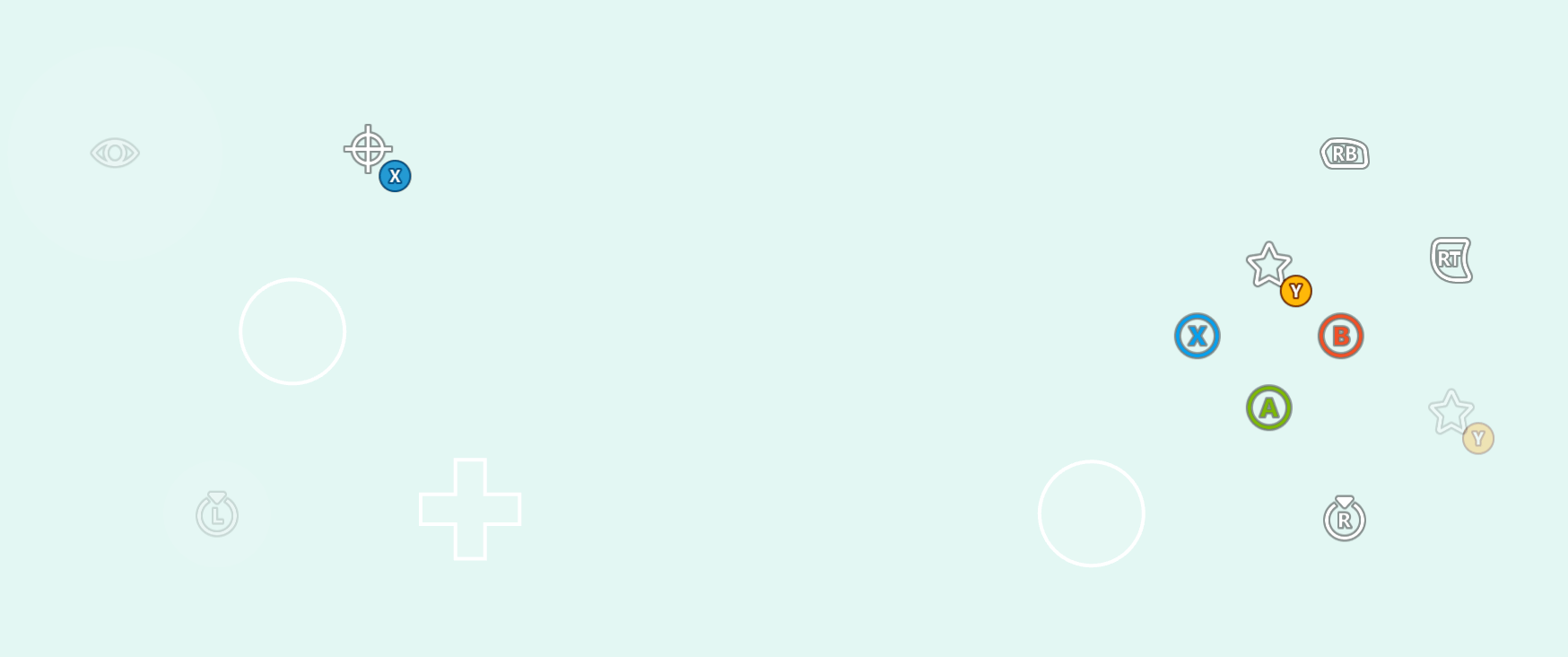 그리고 다음은 고대비 모드가 **활성화**된 동일한 설정입니다.
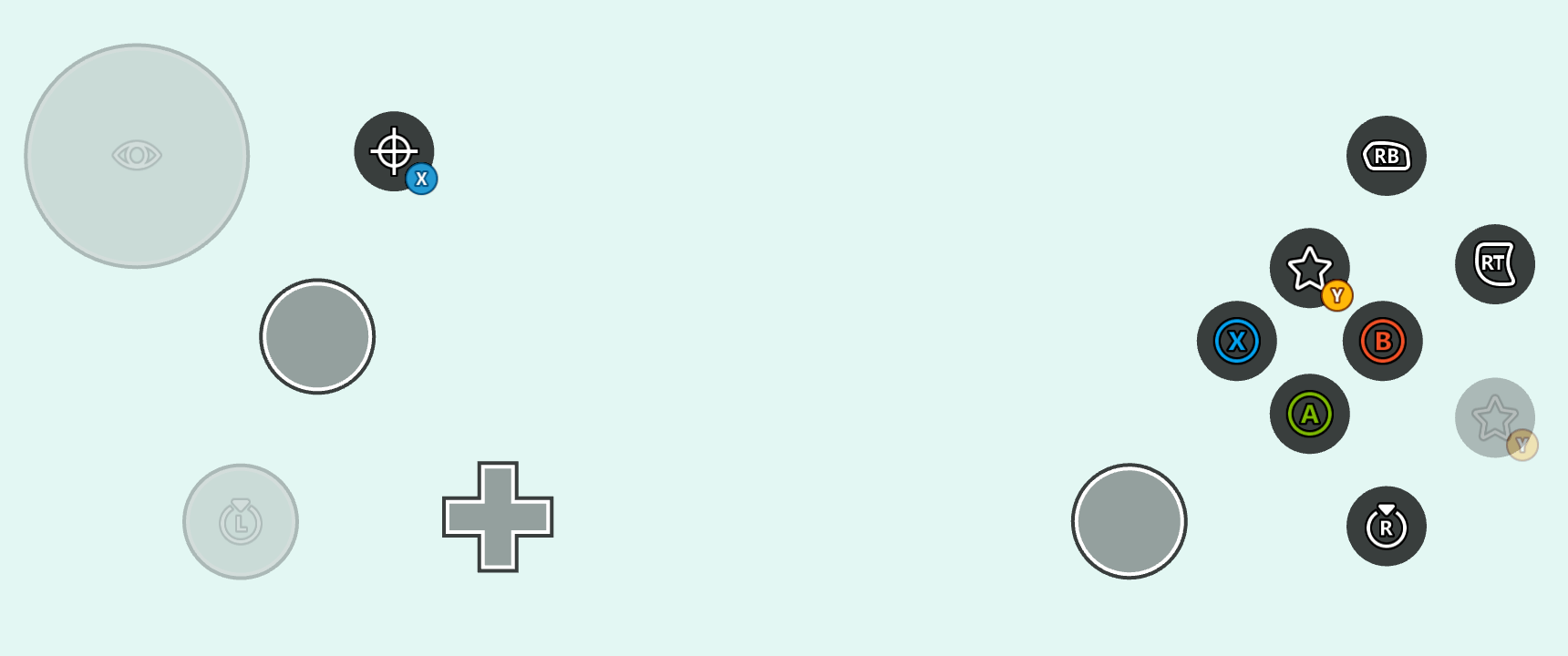 고대비 모드 스타일에 시스템 기본값을 사용할 수도 있지만, [사용자 지정 자산에 대한 고대비 모드 변형](#custom-assets-for-high-contrast-mode)을 포함하고 게임의 시각적 미학에 맞게 [시스템 색상을 재정의](#overriding-system-colors-for-high-contrast-mode)할 수도 있습니다.
## 고대비 모드용 사용자 지정 자산
터치 적응 번들에서 [사용자 지정 자산](/build/core-features/common/game-streaming/building-touch-layouts/game-streaming-tak-custom-assets)을 사용할 때는 각 표준 대비 자산에 대해 고대비 자산 변형을 포함할 수 있습니다. 이러한 고대비 자산 변형은 고대비 모드가 활성화될 때마다 렌더링됩니다. 자산은 자산 이름 뒤와 파일 확장자 앞에 `.hc` 접미사를 포함하여 고대비 변형으로 표시됩니다. 예를 들어, `myAsset.png`(왼쪽)와 그것의 고대비 변형인 `myAsset.hc.png`(오른쪽)를 살펴보세요.
고대비 모드 스타일에 시스템 기본값을 사용할 수도 있지만, [사용자 지정 자산에 대한 고대비 모드 변형](#custom-assets-for-high-contrast-mode)을 포함하고 게임의 시각적 미학에 맞게 [시스템 색상을 재정의](#overriding-system-colors-for-high-contrast-mode)할 수도 있습니다.
## 고대비 모드용 사용자 지정 자산
터치 적응 번들에서 [사용자 지정 자산](/build/core-features/common/game-streaming/building-touch-layouts/game-streaming-tak-custom-assets)을 사용할 때는 각 표준 대비 자산에 대해 고대비 자산 변형을 포함할 수 있습니다. 이러한 고대비 자산 변형은 고대비 모드가 활성화될 때마다 렌더링됩니다. 자산은 자산 이름 뒤와 파일 확장자 앞에 `.hc` 접미사를 포함하여 고대비 변형으로 표시됩니다. 예를 들어, `myAsset.png`(왼쪽)와 그것의 고대비 변형인 `myAsset.hc.png`(오른쪽)를 살펴보세요.
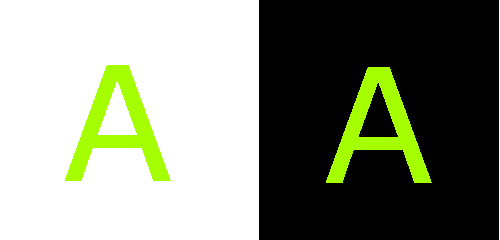 디스크에 자산을 배치할 때 표준 대비 및 고대비 자산 모두 [언어 및 자산 크기별로](/build/core-features/common/game-streaming/building-touch-layouts/game-streaming-tak-custom-assets#asset-files) 정상적으로 구성됩니다. 위의 자산에 대해 파일 구조는 다음과 같이 보일 수 있습니다.
```
assets/
└───neutral/
├───@1.0x/
│ myAsset.png
│ myAsset.hc.png
├───@1.5x/
│ myAsset.png
│ myAsset.hc.png
├───@2.0x/
│ myAsset.png
│ myAsset.hc.png
├───@3.0x/
│ myAsset.png
│ myAsset.hc.png
└───@4.0x/
myAsset.png
myAsset.hc.png
```
레이아웃 내에서 자산은 [파일 이름 확장자 없이](/build/core-features/common/game-streaming/building-touch-layouts/game-streaming-tak-custom-assets#referencing-assets-from-layouts) **그리고 `.hc` 접미사 없이** 참조됩니다. 예를 들어, 위의 자산으로 스타일이 지정된 버튼은 다음과 같이 구성될 수 있습니다.
```JSON theme={null}
{
"type": "button",
"action": "gamepadA",
"styles": {
"idle": {
"faceImage": {
"type": "asset",
"value": "myAsset"
}
}
}
}
```
이 스타일이 주어지면 터치 적응 키트는 고대비 모드가 비활성화되거나 활성화되었는지에 따라 자동으로 `myAsset.png` 또는 `myAsset.hc.png`를 각각 선택합니다. 이 스타일은 고대비 모드가 **비활성화**된 경우 다음과 같이 표시됩니다.
디스크에 자산을 배치할 때 표준 대비 및 고대비 자산 모두 [언어 및 자산 크기별로](/build/core-features/common/game-streaming/building-touch-layouts/game-streaming-tak-custom-assets#asset-files) 정상적으로 구성됩니다. 위의 자산에 대해 파일 구조는 다음과 같이 보일 수 있습니다.
```
assets/
└───neutral/
├───@1.0x/
│ myAsset.png
│ myAsset.hc.png
├───@1.5x/
│ myAsset.png
│ myAsset.hc.png
├───@2.0x/
│ myAsset.png
│ myAsset.hc.png
├───@3.0x/
│ myAsset.png
│ myAsset.hc.png
└───@4.0x/
myAsset.png
myAsset.hc.png
```
레이아웃 내에서 자산은 [파일 이름 확장자 없이](/build/core-features/common/game-streaming/building-touch-layouts/game-streaming-tak-custom-assets#referencing-assets-from-layouts) **그리고 `.hc` 접미사 없이** 참조됩니다. 예를 들어, 위의 자산으로 스타일이 지정된 버튼은 다음과 같이 구성될 수 있습니다.
```JSON theme={null}
{
"type": "button",
"action": "gamepadA",
"styles": {
"idle": {
"faceImage": {
"type": "asset",
"value": "myAsset"
}
}
}
}
```
이 스타일이 주어지면 터치 적응 키트는 고대비 모드가 비활성화되거나 활성화되었는지에 따라 자동으로 `myAsset.png` 또는 `myAsset.hc.png`를 각각 선택합니다. 이 스타일은 고대비 모드가 **비활성화**된 경우 다음과 같이 표시됩니다.
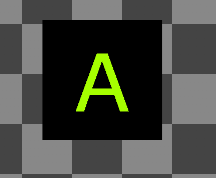
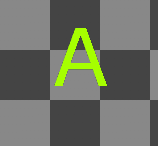 그리고 고대비 모드가 **활성화**된 경우 다음과 같습니다.
 ## 고대비 모드에서 시스템 색상 재정의
터치 레이아웃이나 [컨텍스트 파일](/build/core-features/common/game-streaming/game-streaming-touch-touch-adaptation-bundle#context) 내의 [색상 팔레트](/reference/system/touchadaptationkit/layout/game-streaming-touch-color-palette)를 사용하여 [시스템 색상](/reference/system/touchadaptationkit/layout/game-streaming-touch-color-palette#system-colors)을 재정의할 수 있습니다. 컨트롤은 스타일링할 때 시스템 색상을 암시적으로 샘플링하므로 모든 재정의는 모든 컨트롤의 전역 스타일링에 영향을 미칩니다(컨트롤이 사용자 지정 `styles` 블록 내에 자체 재정의가 있는 경우 제외).
예를 들어, 다음 레이아웃은 고대비 모드가 활성화될 때 사용자 지정 스타일링을 달성하기 위해 일부 시스템 색상을 재정의합니다.
```JSON theme={null}
{
"$schema": "https://raw.githubusercontent.com/microsoft/xbox-game-streaming-tools/main/touch-adaptation-kit/schemas/layout/v4.0/layout.json",
"styles": {
"colors": {
"highContrast": {
"system_contentPrimary": "#ff00ffff",
"system_contentSecondary": "#00ff00aa",
"system_contrastPrimary": "#ff0000aa"
}
}
},
"content": {
"left": {
"inner": [
{
"type": "joystick",
"axis": {
"input": "axisXY",
"output": "leftJoystick"
}
},
{
"type": "button",
"action": "dPadRight",
"styles": {
"default": {
"faceImage": {
"type": "icon",
"value": "map"
}
}
}
}
]
},
"right": {
"inner": [
{
"type": "button",
"action": "gamepadY"
},
{
"type": "button",
"action": "gamepadB"
},
{
"type": "button",
"action": "gamepadA"
},
{
"type": "button",
"action": "gamepadX"
}
]
}
}
}
```
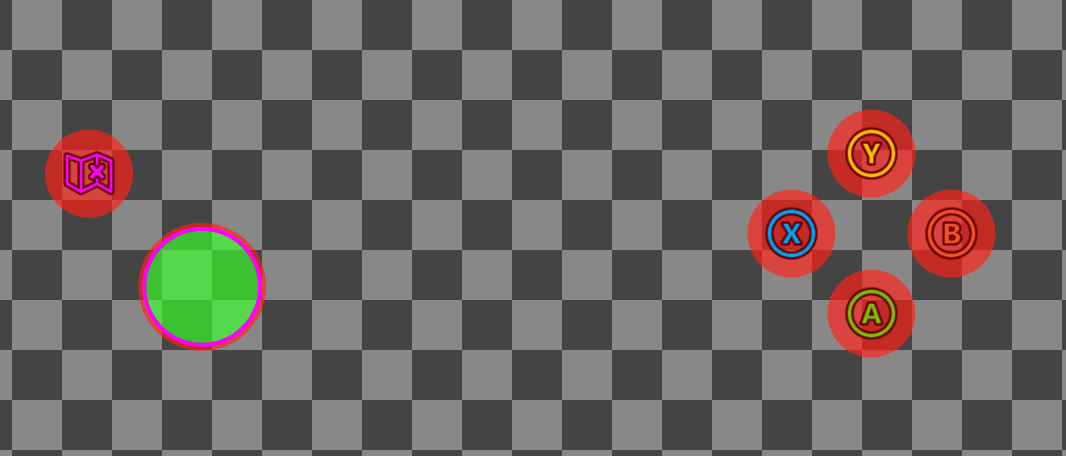
위 레이아웃에서는 고대비 모드가 활성화될 때만 적용되는 세 개의 색상 재정의가 `highContrast` 블록에 선언되어 있습니다.
1. `system_contentPrimary`는 조이스틱 중간 획과 지도 아이콘 색조에 적용되는 스타일을 재정의합니다.
2. `system_contentSecondary`는 조이스틱 채우기에 적용되는 스타일을 재정의합니다.
3. `system_contrastPrimary`는 조이스틱 외부 획과 버튼 백플레이트에 적용되는 스타일을 재정의합니다.
고대비 모드가 **비활성화**된 위 레이아웃:
## 고대비 모드에서 시스템 색상 재정의
터치 레이아웃이나 [컨텍스트 파일](/build/core-features/common/game-streaming/game-streaming-touch-touch-adaptation-bundle#context) 내의 [색상 팔레트](/reference/system/touchadaptationkit/layout/game-streaming-touch-color-palette)를 사용하여 [시스템 색상](/reference/system/touchadaptationkit/layout/game-streaming-touch-color-palette#system-colors)을 재정의할 수 있습니다. 컨트롤은 스타일링할 때 시스템 색상을 암시적으로 샘플링하므로 모든 재정의는 모든 컨트롤의 전역 스타일링에 영향을 미칩니다(컨트롤이 사용자 지정 `styles` 블록 내에 자체 재정의가 있는 경우 제외).
예를 들어, 다음 레이아웃은 고대비 모드가 활성화될 때 사용자 지정 스타일링을 달성하기 위해 일부 시스템 색상을 재정의합니다.
```JSON theme={null}
{
"$schema": "https://raw.githubusercontent.com/microsoft/xbox-game-streaming-tools/main/touch-adaptation-kit/schemas/layout/v4.0/layout.json",
"styles": {
"colors": {
"highContrast": {
"system_contentPrimary": "#ff00ffff",
"system_contentSecondary": "#00ff00aa",
"system_contrastPrimary": "#ff0000aa"
}
}
},
"content": {
"left": {
"inner": [
{
"type": "joystick",
"axis": {
"input": "axisXY",
"output": "leftJoystick"
}
},
{
"type": "button",
"action": "dPadRight",
"styles": {
"default": {
"faceImage": {
"type": "icon",
"value": "map"
}
}
}
}
]
},
"right": {
"inner": [
{
"type": "button",
"action": "gamepadY"
},
{
"type": "button",
"action": "gamepadB"
},
{
"type": "button",
"action": "gamepadA"
},
{
"type": "button",
"action": "gamepadX"
}
]
}
}
}
```
위 레이아웃에서는 고대비 모드가 활성화될 때만 적용되는 세 개의 색상 재정의가 `highContrast` 블록에 선언되어 있습니다.
1. `system_contentPrimary`는 조이스틱 중간 획과 지도 아이콘 색조에 적용되는 스타일을 재정의합니다.
2. `system_contentSecondary`는 조이스틱 채우기에 적용되는 스타일을 재정의합니다.
3. `system_contrastPrimary`는 조이스틱 외부 획과 버튼 백플레이트에 적용되는 스타일을 재정의합니다.
고대비 모드가 **비활성화**된 위 레이아웃:
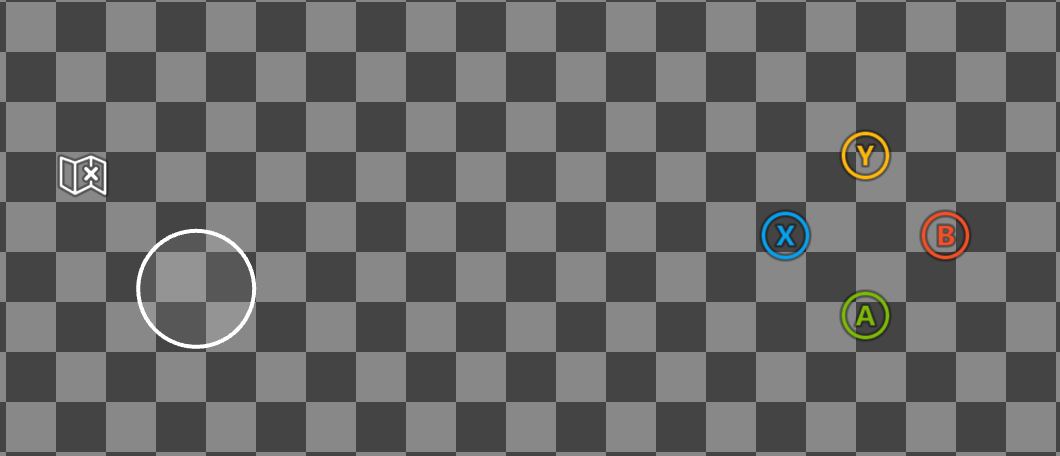 그리고 고대비 모드가 **활성화**된 경우:
 ## 고대비 모드 활성화
[웹](#web-cta), [안드로이드](#android-cta), 또는 [Windows](#windows-cta) Content Test Application(CTA) 중 어디에서든 고대비 모드를 테스트할 수 있습니다.
### 웹 CTA
[웹 CTA](/build/core-features/common/game-streaming/game-streaming-web-content-test-application)에서 다음과 같이 고대비 모드를 활성화할 수 있습니다.
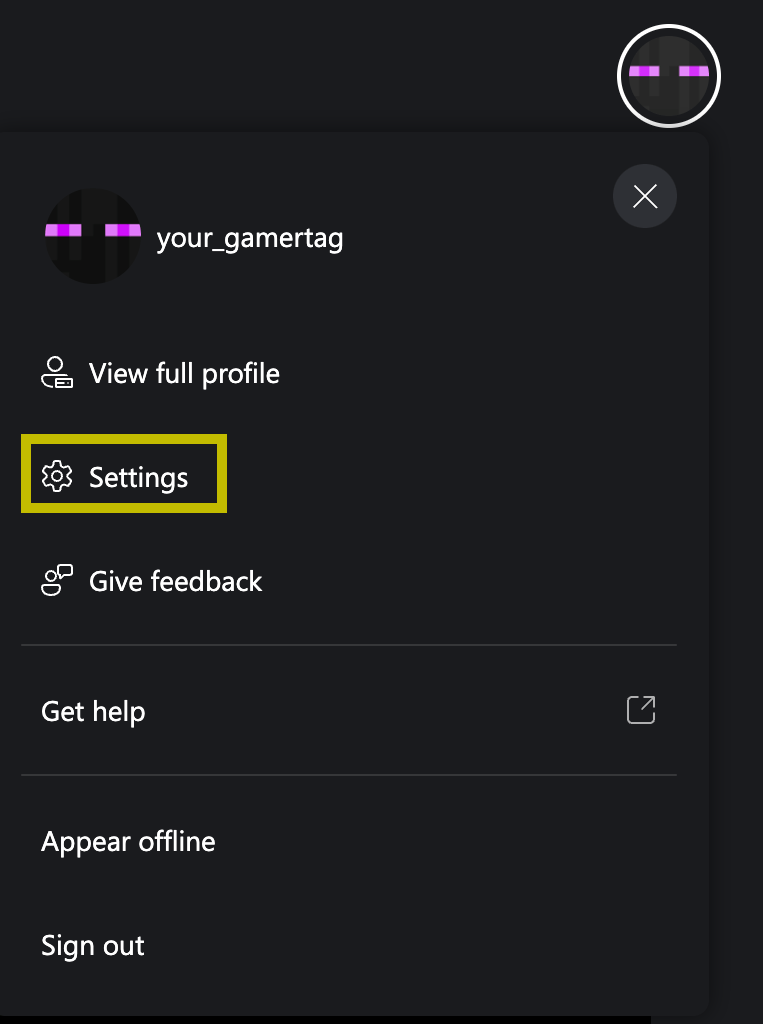
프로필을 클릭하고 "설정" 창으로 이동합니다.
## 고대비 모드 활성화
[웹](#web-cta), [안드로이드](#android-cta), 또는 [Windows](#windows-cta) Content Test Application(CTA) 중 어디에서든 고대비 모드를 테스트할 수 있습니다.
### 웹 CTA
[웹 CTA](/build/core-features/common/game-streaming/game-streaming-web-content-test-application)에서 다음과 같이 고대비 모드를 활성화할 수 있습니다.
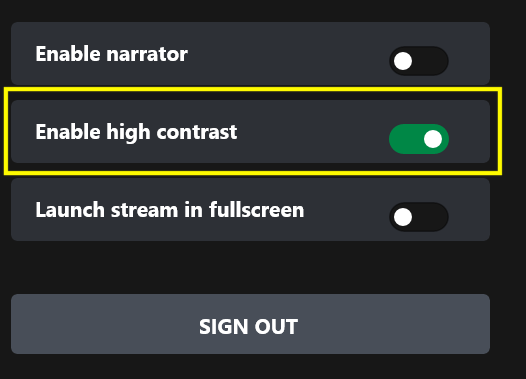
프로필을 클릭하고 "설정" 창으로 이동합니다.
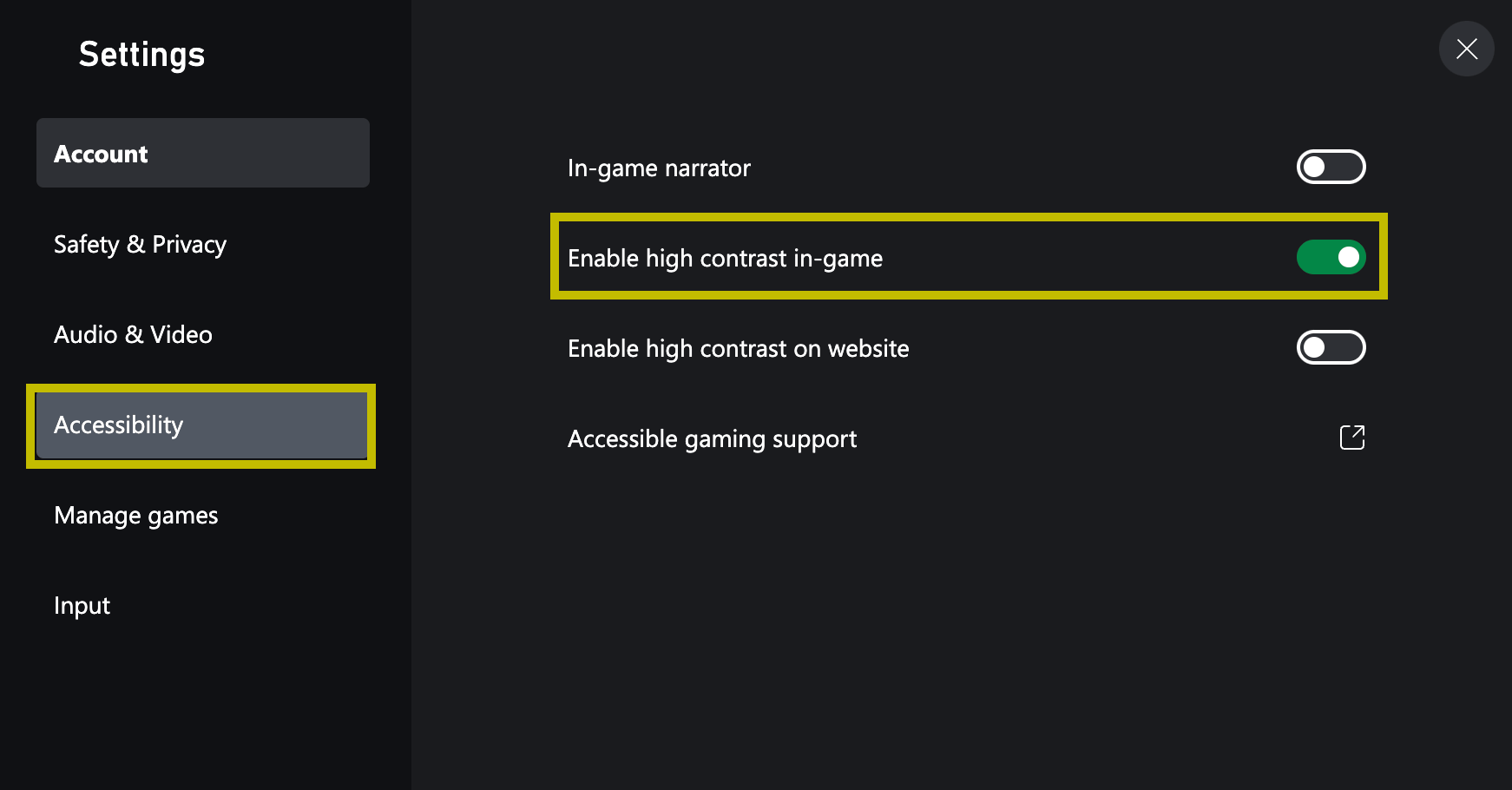
 "접근성"으로 이동하여 "게임 내 고대비 활성화"를 확인합니다.
 ### 안드로이드 CTA(사용되지 않음)
[안드로이드 CTA](/build/core-features/common/game-streaming/game-streaming-android-content-test-application)에서 다음과 같이 고대비 모드를 활성화할 수 있습니다.
프로필을 클릭합니다.
### 안드로이드 CTA(사용되지 않음)
[안드로이드 CTA](/build/core-features/common/game-streaming/game-streaming-android-content-test-application)에서 다음과 같이 고대비 모드를 활성화할 수 있습니다.
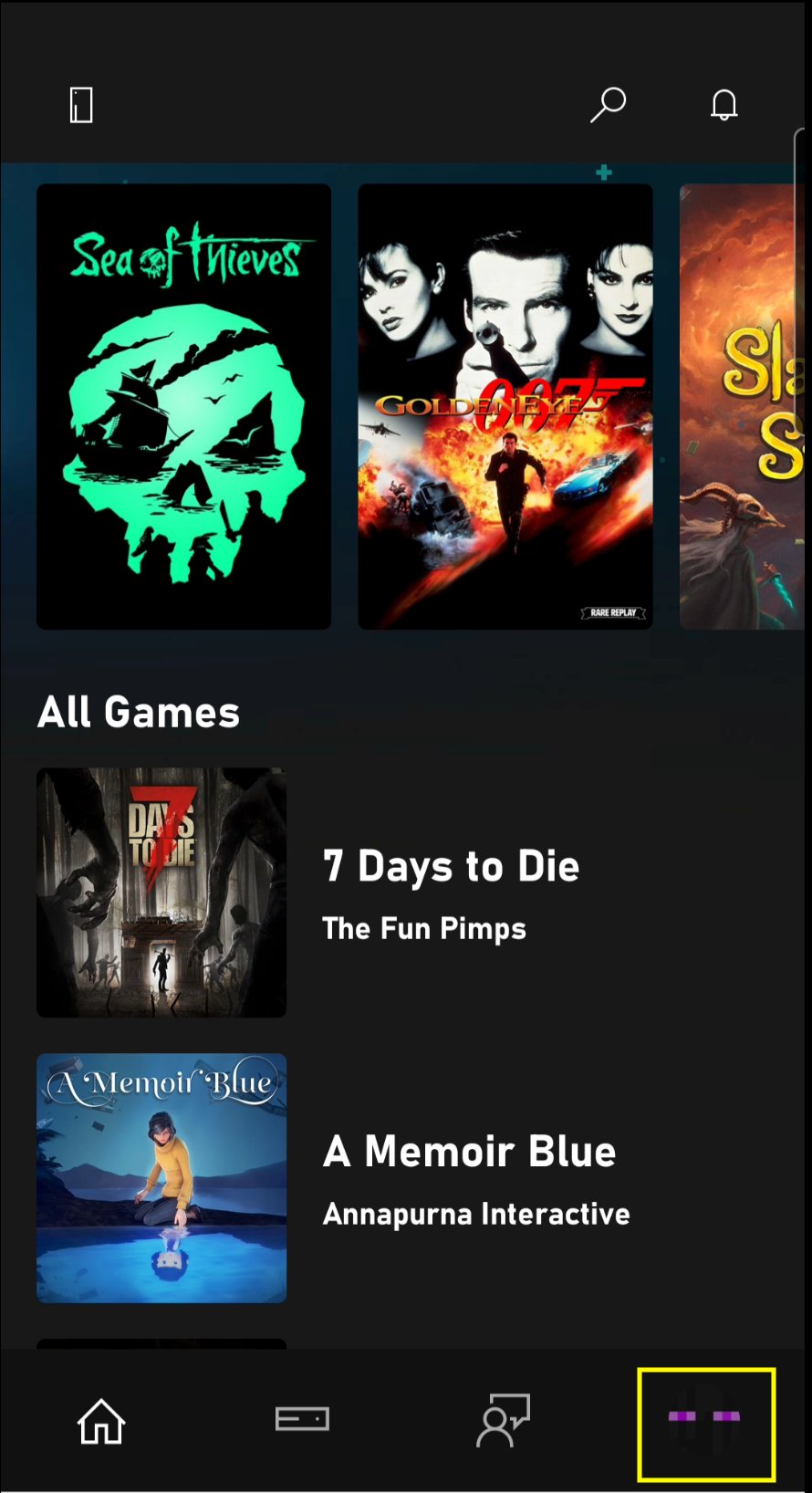
프로필을 클릭합니다.
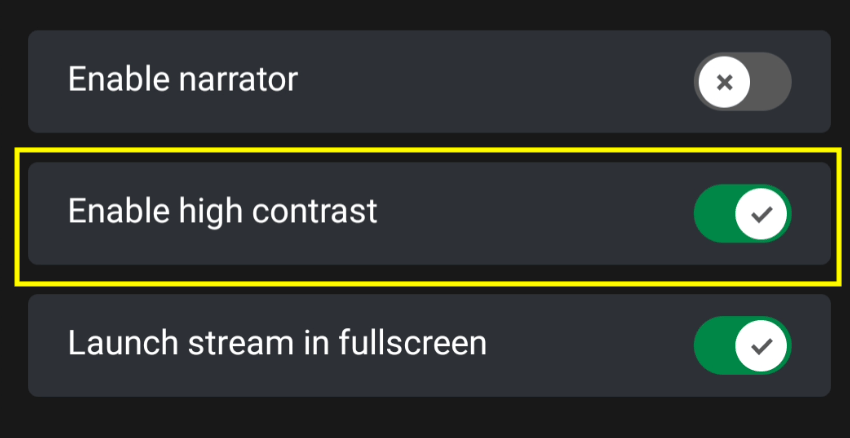
 "고대비 모드 활성화"를 확인합니다.
 ### Windows CTA(사용되지 않음)
[Windows CTA](/build/core-features/common/game-streaming/game-streaming-windows-pc-content-test-application)에서 다음과 같이 고대비 모드를 활성화할 수 있습니다.
프로필을 클릭합니다.
### Windows CTA(사용되지 않음)
[Windows CTA](/build/core-features/common/game-streaming/game-streaming-windows-pc-content-test-application)에서 다음과 같이 고대비 모드를 활성화할 수 있습니다.
프로필을 클릭합니다.
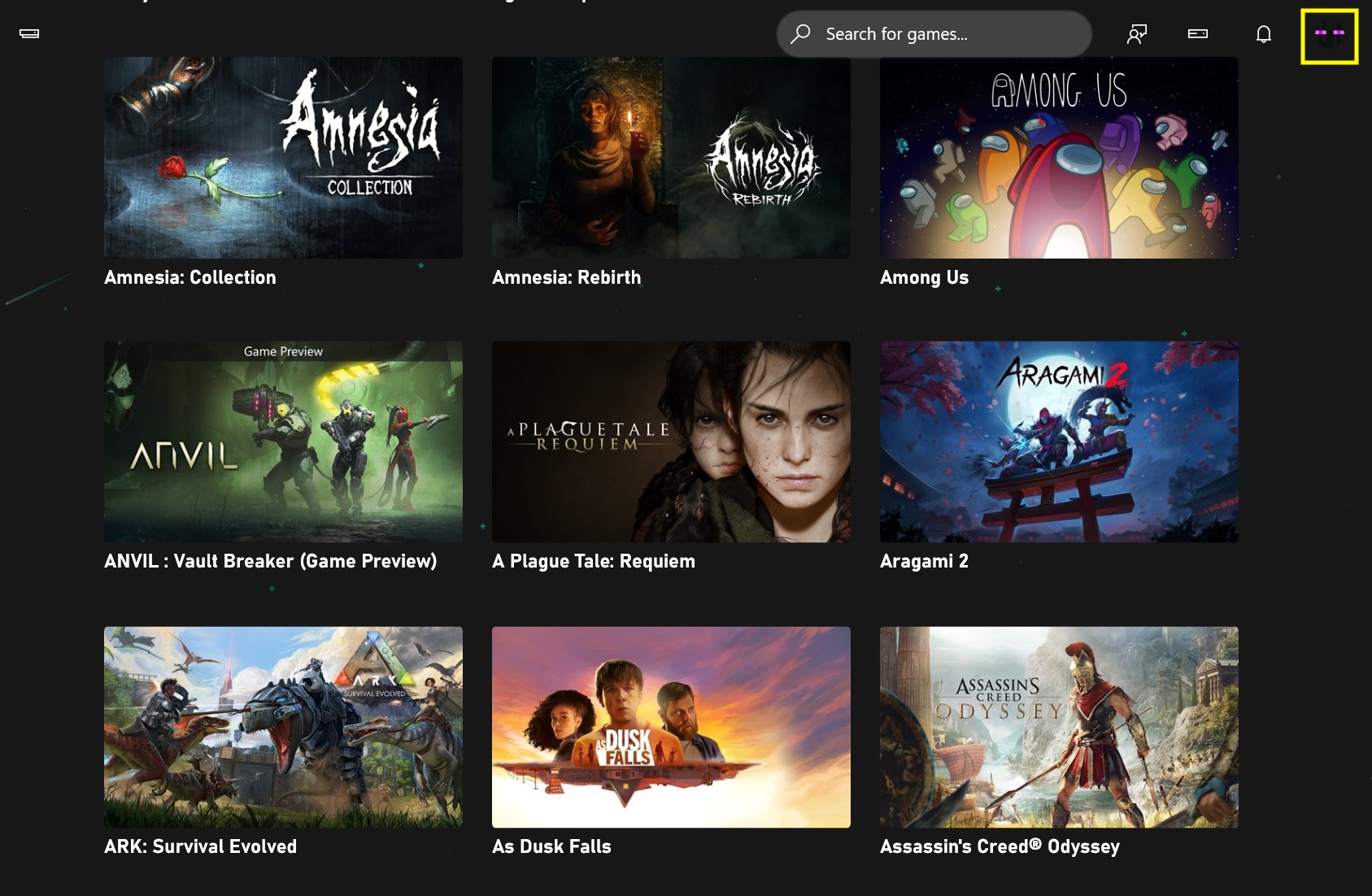 "고대비 모드 활성화"를 확인합니다.
 ## Related topics
- [XHighContrastMode](/ko/reference/system/xaccessibility/enums/xhighcontrastmode.md)
- [XAG 102: 대비](/ko/build/game-principles/accessibility/xag-deep-dives/xag-102-contrast.md)
- [XHighContrastGetMode](/ko/reference/system/xaccessibility/functions/xhighcontrastgetmode.md)
- [GDK 접근성 개요](/ko/build/game-principles/accessibility/accessibility-overview.md)
- [XBOX 게임 스트리밍용 터치 컨트롤 레이아웃 구축](/ko/build/core-features/common/game-streaming/building-touch-layouts/index.md)
## Related topics
- [XHighContrastMode](/ko/reference/system/xaccessibility/enums/xhighcontrastmode.md)
- [XAG 102: 대비](/ko/build/game-principles/accessibility/xag-deep-dives/xag-102-contrast.md)
- [XHighContrastGetMode](/ko/reference/system/xaccessibility/functions/xhighcontrastgetmode.md)
- [GDK 접근성 개요](/ko/build/game-principles/accessibility/accessibility-overview.md)
- [XBOX 게임 스트리밍용 터치 컨트롤 레이아웃 구축](/ko/build/core-features/common/game-streaming/building-touch-layouts/index.md)