> ## Documentation Index
> Fetch the complete documentation index at: https://devdocs.xbox.com/llms.txt
> Use this file to discover all available pages before exploring further.
# XBOX Device Portal の有効化
> XBOX Device Portal の有効化
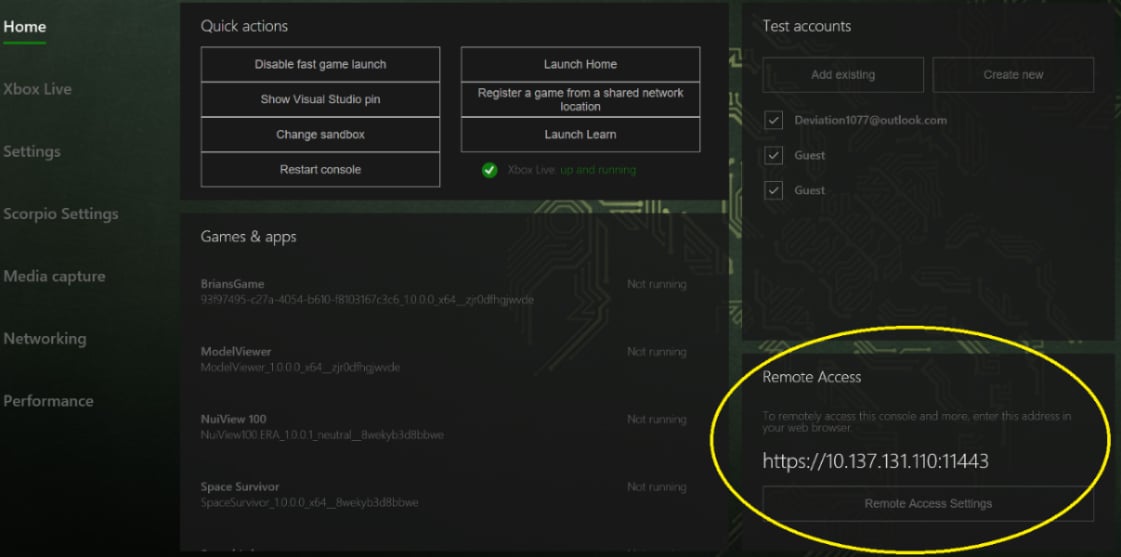
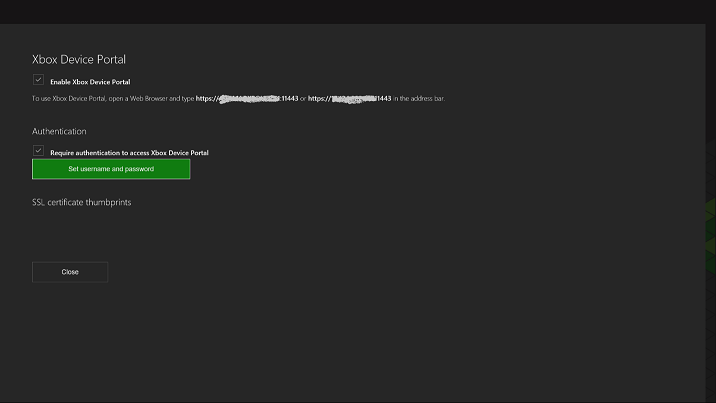
XBOX One コンソール上で XBOX Device Portal を有効化または無効化するには、次のスクリーンショットに示すように、Developer Home (Dev Home) の **\[Home]** 画面にある **\[Remote Access]** タブで **\[Remote Access Settings]** ボタンを選択します。
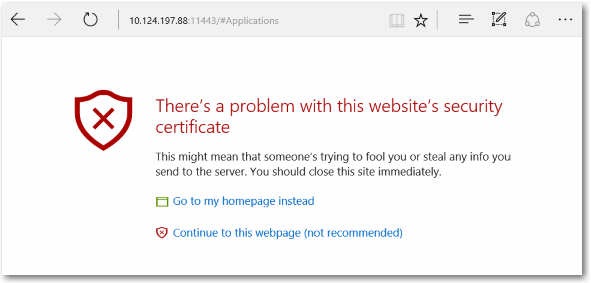
 Web ブラウザーから XBOX Device Portal に接続すると、次のスクリーンショットのような、提供された証明書に関する警告メッセージが表示されます。これは、XBOX 開発キットによって署名されたセキュリティ証明書が、既知の信頼された発行元と見なされないためです。XBOX Device Portal にアクセスするには、**\[この Web ページに進む]** を選択します。
 ## カスタム SSL 証明書の使用
XBOX Device Portal に接続する際にこの警告メッセージが表示されないようにするには、Web ブラウザーに開発キットを信頼するように設定します。これは、独自のルート証明機関 (*ルート CA*) と SSL 証明書を提供することで実現されます。ルート CA が証明書に署名して、信頼された接続を作成します。各開発キットには、ルート CA によって署名された一意の証明書が必要です。同じ開発 PC を複数の開発キットに接続するには、複数の証明書を持つ 1 つのルート CA を使用します。同じ証明書を使用して同じ開発キットに接続するには、複数の開発 PC で同じルート CA を使用します。
### XBOX Device Portal をプロビジョニングするには
1. ユーザーまたは組織にルート CA がある場合、それを使用して各開発キット用の証明書を作成します。
2. ルート CA がない場合は、自分で作成する必要があります。作成方法と、開発 PC の \[信頼されたルート証明機関] へのルート CA のインストール方法については、[カスタム SSL 証明書での Device Portal のプロビジョニング](https://learn.microsoft.com/windows/uwp/debug-test-perf/device-portal-ssl) を参照してください。
3. 開発キット用のルート CA で署名された証明書を作成します。この方法の詳細については、前述のリンクを参照してください。
4. 無人セットアップ スクリプトで **\[XBOX Device Portal カスタム証明書の追加]** アクションを使用して、XBOX Device Portal に証明書を追加します。
## Related topics
- [XBOX Device Portal (Windows Device Portal on XBOX)](/ja-jp/tools/tools-console/wdp/index.md)
- [パートナー センターでの初期構成](/ja-jp/publishing/xstore-commerce/xstore-initial-configuration.md)
- [XBOX Device Portal によるコンソール設定の管理](/ja-jp/tools/tools-console/wdp/windows-device-portal-on-xbox-settings.md)
- [XBOX Manager: コンソール設定の管理](/ja-jp/tools/tools-console/xbom/manager-tool-console-settings.md)
- [XBOX PC Remote Tools: 2026 年 5 月 (2605) リリース ノート](/ja-jp/tools/tools-pc/xbox-pc-remote-tools/release-notes/2605.md)
## カスタム SSL 証明書の使用
XBOX Device Portal に接続する際にこの警告メッセージが表示されないようにするには、Web ブラウザーに開発キットを信頼するように設定します。これは、独自のルート証明機関 (*ルート CA*) と SSL 証明書を提供することで実現されます。ルート CA が証明書に署名して、信頼された接続を作成します。各開発キットには、ルート CA によって署名された一意の証明書が必要です。同じ開発 PC を複数の開発キットに接続するには、複数の証明書を持つ 1 つのルート CA を使用します。同じ証明書を使用して同じ開発キットに接続するには、複数の開発 PC で同じルート CA を使用します。
### XBOX Device Portal をプロビジョニングするには
1. ユーザーまたは組織にルート CA がある場合、それを使用して各開発キット用の証明書を作成します。
2. ルート CA がない場合は、自分で作成する必要があります。作成方法と、開発 PC の \[信頼されたルート証明機関] へのルート CA のインストール方法については、[カスタム SSL 証明書での Device Portal のプロビジョニング](https://learn.microsoft.com/windows/uwp/debug-test-perf/device-portal-ssl) を参照してください。
3. 開発キット用のルート CA で署名された証明書を作成します。この方法の詳細については、前述のリンクを参照してください。
4. 無人セットアップ スクリプトで **\[XBOX Device Portal カスタム証明書の追加]** アクションを使用して、XBOX Device Portal に証明書を追加します。
## Related topics
- [XBOX Device Portal (Windows Device Portal on XBOX)](/ja-jp/tools/tools-console/wdp/index.md)
- [パートナー センターでの初期構成](/ja-jp/publishing/xstore-commerce/xstore-initial-configuration.md)
- [XBOX Device Portal によるコンソール設定の管理](/ja-jp/tools/tools-console/wdp/windows-device-portal-on-xbox-settings.md)
- [XBOX Manager: コンソール設定の管理](/ja-jp/tools/tools-console/xbom/manager-tool-console-settings.md)
- [XBOX PC Remote Tools: 2026 年 5 月 (2605) リリース ノート](/ja-jp/tools/tools-pc/xbox-pc-remote-tools/release-notes/2605.md)