> ## Documentation Index
> Fetch the complete documentation index at: https://devdocs.xbox.com/llms.txt
> Use this file to discover all available pages before exploring further.
# カスタム CloudScript の作成
> Unity クライアント、PlayStream ルール、スケジュール タスクから呼び出し可能なカスタム PlayFab CloudScript JavaScript 関数を helloWorld のサンプル付きで作成します。
CloudScript は PlayFab の最も汎用的な機能の 1 つです。クライアント コードは、実装可能なあらゆる種類のカスタム サーバー サイド機能の実行をリクエストでき、事実上 *何にでも* 利用できます。クライアントやサーバー コードからの明示的な実行リクエストに加えて、CloudScript は PlayStream イベントに応答して (*ルール* を作成することで) 実行したり、スケジュール タスクの一部として実行したりできます。
[Azure Functions を利用した CloudScript](/services/playfab/live-service-management/service-gateway/automation/cloudscript-af/quickstart) は、CloudScript の優れた点をより多くの対応言語と改善されたデバッグ ワークフローで発展させたものです。
このチュートリアルでは、CloudScript コードの書き方について説明します。CloudScript ファイルをタイトルにアップロードする方法については、[CloudScript クイックスタート](/services/playfab/live-service-management/service-gateway/automation/cloudscript/quickstart) を参照してください。
このチュートリアルでは Unity のコード サンプルを示していますが、CloudScript はすべての SDK で同様に動作します。
このチュートリアルの前提条件:
* [PlayFab **Unity SDK** でセットアップされた **Unity** 環境](/services/playfab/sdks/unity3d/quickstart)
* `PlayFabSharedSettings` オブジェクトにタイトル ID が設定されていること。
* プロジェクトがユーザーのログインに成功できること。
## はじめに: helloWorld
`helloWorld` のサンプルは、Game Manager で何も変更していない新しいタイトルで動作します。新しいタイトルのデフォルト CloudScript ファイルには、`helloWorld` というハンドラーが含まれています。入力パラメーター、ロギング、currentPlayerId、戻りパラメーターなどのいくつかの基本機能を使用します。
以下のサンプルは、デフォルトの `helloWorld` 関数コード (コメント抜き) を示しています。
```javascript theme={null}
// CloudScript (JavaScript)
handlers.helloWorld = function (args, context) {
var message = "Hello " + currentPlayerId + "!";
log.info(message);
var inputValue = null;
if (args && args.hasOwnProperty("inputValue"))
inputValue = args.inputValue;
log.debug("helloWorld:", { input: inputValue });
return { messageValue: message };
}
```
### コードの分解
handler オブジェクトは PlayFab CloudScript 環境で事前定義されています。CloudScript 関数はこのオブジェクトに追加する必要があります。
* `helloWorld` は handler オブジェクトに定義されているため、タイトルと SDK から利用できる関数です。
* `args` は呼び出し元から渡される任意のオブジェクトです。JSON からパースされ、任意の形式で任意のデータを含めることができます。
次のセクションの **FunctionParameter** を参照してください。
このオブジェクトはゼロトラストで扱う必要があります。ハッキングされたクライアントや悪意のあるユーザーは、*任意の* 形式で *任意の* 情報をここに提供できます。
* `Context` は上級パラメーターです。この例では *null* です。このパラメーターはサーバー制御で安全です。
* `currentPlayerId` はグローバル変数で、この呼び出しをリクエストしているプレイヤーの PlayFabId に設定されます。このパラメーターはサーバー制御で安全です。**注:** ExecuteEntityCloudScript API を使用する場合、エンティティのエンティティ チェーンに MasterPlayerID がない限り、このパラメーターは null です。
* `log.info`: `log` はグローバル オブジェクトです。主に CloudScript のデバッグに使用されます。`log` オブジェクトは、`info`、`debug`、`error` の各メソッドを公開しています。詳細はこのチュートリアルの後半にあります。
* `return`: 返すオブジェクトは JSON にシリアライズされ、呼び出し元に返されます。任意の JSON シリアライズ可能なオブジェクトを、任意のデータとともに返すことができます。
CloudScript がクライアントに秘密のデータを返す場合、その責任はあなたにあります。ハッキングされたクライアントや悪意のあるユーザーは、通常のゲームプレイでユーザーに表示しなくても返されたデータを検査できます。
## Unity ゲーム クライアントから CloudScript 関数を実行する
クライアント内から CloudScript 関数を呼び出すのは簡単です。まず `ExecuteCloudScriptRequest` を作成し、実行したい CloudScript 関数の名前 (この場合は `helloWorld`) を `ActionId` プロパティに設定して、API を介してオブジェクトを PlayFab に送信します。
handlers JavaScript オブジェクトに接続された CloudScript メソッドのみ呼び出せます。
CloudScript メソッドを実行するには、クライアントに次のコード行が必要です。
```csharp theme={null}
// Build the request object and access the API
private static void StartCloudHelloWorld()
{
PlayFabClientAPI.ExecuteCloudScript(new ExecuteCloudScriptRequest()
{
FunctionName = "helloWorld", // Arbitrary function name (must exist in your uploaded cloud.js file)
FunctionParameter = new { inputValue = "YOUR NAME" }, // The parameter provided to your function
GeneratePlayStreamEvent = true, // Optional - Shows this event in PlayStream
}, OnCloudHelloWorld, OnErrorShared);
}
// OnCloudHelloWorld defined in the next code block
```
### コードの分解
[ExecuteCloudScriptRequest](xref:titleid.playfabapi.com.client.server-sidecloudscript.executecloudscript#executecloudscriptrequest) は、[PlayFabClientAPI.ExecuteCloudScript](xref:titleid.playfabapi.com.client.server-sidecloudscript.executecloudscript) への任意の呼び出しに対するリクエストの型です。
* `ExecuteCloudScriptRequest.FunctionName` は文字列です。値は CloudScript で定義された関数の名前と一致する必要があります。この場合は `helloWorld` です。
* `ExecuteCloudScriptRequest.FunctionParameter` は JSON にシリアライズできる任意のオブジェクトです。これは `helloWorld` 関数の最初の args パラメーターになります (前のセクションの args を参照してください)。
* `ExecuteCloudScriptRequest.GeneratePlayStreamEvent` はオプションです。true の場合、イベントが PlayStream に投稿され、Game Manager で表示したり、他の PlayStream トリガーに利用したりできます。
言語に応じて、`ExecuteCloudScript` 行の最後の部分では PlayFab CloudScript サーバーへのリクエストと、言語固有の *Result* および *Error* 処理部分が関与します。
たとえば、Unity、JavaScript、または AS3 では、Error と Result の処理はコールバック関数を使用して行われます。
以下はエラー処理メソッドの例です。
```csharp theme={null}
private static void OnCloudHelloWorld(ExecuteCloudScriptResult result) {
// CloudScript returns arbitrary results, so you have to evaluate them one step and one parameter at a time
Debug.Log(JsonWrapper.SerializeObject(result.FunctionResult));
JsonObject jsonResult = (JsonObject)result.FunctionResult;
object messageValue;
jsonResult.TryGetValue("messageValue", out messageValue); // note how "messageValue" directly corresponds to the JSON values set in CloudScript
Debug.Log((string)messageValue);
}
private static void OnErrorShared(PlayFabError error)
{
Debug.Log(error.GenerateErrorReport());
}
```
## 中級の概要: グローバルおよび高度な引数
CloudScript は V8 でコンパイルされ、PlayFab のサーバー上でホストされる JavaScript 関数のセットです。[PlayFab API リファレンス ドキュメント](/services/playfab/api-references) に記載されている任意のサーバー API に加え、*ロガー*、CloudScript リクエストを行うプレイヤーの PlayFab ID、およびリクエストに含まれる情報にアクセスできます。すべて事前定義されたオブジェクトの形で提供されます。
CloudScript 関数自体はグローバル handlers オブジェクトのプロパティです。次の表は、これらの事前定義された変数の完全な一覧を示しています。
| 名前 | 用途 |
| :------------------ | :------------------------------------------------------------------------------------------------------------------------------------------------------------------------------------------------------------------------------------ |
| **server** | [PlayFab API リファレンス ドキュメント](/services/playfab/api-references) に記載されているすべてのサーバー サイド API 呼び出しにアクセスできます。次のように (同期的に) 呼び出せます: `var result = server.AuthenticateUserTicket(request);` |
| **http** | 同期 HTTP リクエストを実行します。例: `http.request(url, method, content, contentType, headers, logRequestAndResponse)`。`headers` オブジェクトには、さまざまなヘッダーとその値に対応するプロパティが含まれます。`logRequestAndResponse` は、レスポンスの一部としてリクエストのエラーをタイトルがログに記録するかどうかを決定するブール値です。 |
| **log** | ログ ステートメントを作成し、レスポンスに追加します。ログには 3 つのレベル `log.info()`、`log.debug()`、`log.error()` があります。3 つすべてのレベルは、メッセージ文字列と、ログに含める追加データを含むオプションのオブジェクトを受け取ります。例: `log.info('hello!', { time: new Date() });` |
| **currentPlayerId** | CloudScript 呼び出しをトリガーしたプレイヤーの PlayFab ID。 |
| **handlers** | タイトルのすべての CloudScript 関数を含むグローバル オブジェクト。このオブジェクトを通して関数を追加または呼び出せます。例: `handlers.pop = function() {};`、`handlers.pop();`。 |
| **script** | `Revision` と `titleId` を含むグローバル オブジェクト。`Revision` は現在実行中の CloudScript の **リビジョン番号** を表し、`titleId` は現在のタイトルの ID を表します。 |
さらに、すべてのハンドラー関数には次に示す 2 つのパラメーターが渡されます。
| 名前 | 用途 |
| :---------- | :------------------------------------------------------------------------------------------------------------------------------------------------------------------------------------------------------------------------------------------------------------------------------------------------------------------------- |
| **args** | ハンドラー関数の最初のパラメーター。`ExecuteCloudscript` リクエストの `FunctionParameter` フィールドのオブジェクト表現。 |
| **context** | ハンドラー関数の 2 番目のパラメーター。PlayStream イベント アクションによってトリガーされたときのリクエストに関する追加情報。アクションをトリガーした [イベントのデータ](/services/playfab/api-references/events) (context.playStreamEvent) と、それに関連付けられたプレイヤーの [プロファイル データ](xref:titleid.playfabapi.com.client.accountmanagement.getplayerprofile#playerprofilemodel) (context.playerProfile) が含まれます。 |
CloudScript 関数は `ExecuteCloudScript` API、または事前設定された PlayStream イベント アクションを通じて呼び出せます。
`ExecuteCloudScript` に対するレスポンスの詳細については、[ExecuteCloudScriptResult](xref:titleid.playfabapi.com.client.server-sidecloudscript.executecloudscript#executecloudscriptresult) を参照してください。
## 中級: FunctionParameter と args
前のセクションで、`request.FunctionParameter` を設定し、`args` パラメーターでその情報を表示する方法を説明しました。[CloudScript クイックスタート](/services/playfab/live-service-management/service-gateway/automation/cloudscript/quickstart) では、新しい CloudScript をアップロードする方法を示しています。
両方をまとめると、クライアントから CloudScript に引数を渡すもう 1 つの例を提供できます。前の例を取り上げ、CloudScript コードとクライアント コードを次のように変更します。
```javascript theme={null}
handlers.helloWorld = function (args) {
// ALWAYS validate args parameter passed in from clients (Better than we do here)
var message = "Hello " + args.name + "!"; // Utilize the name parameter sent from client
log.info(message);
return { messageValue: message };
}
```
```csharp theme={null}
// Build the request object and access the API
private static void StartCloudHelloWorld()
{
PlayFabClientAPI.ExecuteCloudScript(new ExecuteCloudScriptRequest()
{
FunctionName = "helloWorld", // Arbitrary function name (must exist in your uploaded cloud.js file)
FunctionParameter = new { name = "YOUR NAME" }, // The parameter provided to your function
GeneratePlayStreamEvent = true, // Optional - Shows this event in PlayStream
}, OnCloudHelloWorld, OnErrorShared);
}
private static void OnCloudHelloWorld(ExecuteCloudScriptResult result) {
// CloudScript returns arbitrary results, so you have to evaluate them one step and one parameter at a time
Debug.Log(JsonWrapper.SerializeObject(result.FunctionResult));
JsonObject jsonResult = (JsonObject)result.FunctionResult;
object messageValue;
jsonResult.TryGetValue("messageValue", out messageValue); // note how "messageValue" directly corresponds to the JSON values set in CloudScript
Debug.Log((string)messageValue);
}
private static void OnErrorShared(PlayFabError error)
{
Debug.Log(error.GenerateErrorReport());
}
```
これらの変更を加えることで、CloudScript とクライアント間でデータを簡単に送受信できるようになりました。
クライアントからのデータはハッキングや悪用の対象となる可能性があることに留意することが重要です。
バックエンドを更新する *前に* 、常に入力パラメーターを検証する必要があります。入力パラメーターを検証するプロセスはタイトルごとに異なりますが、最も基本的な検証は、入力が許容範囲や期間内にあることを確認することです。
## 中級: サーバー API の呼び出し
前述のとおり、CloudScript メソッド内では、Server API 呼び出しの完全なセットにアクセスできます。これにより、クラウド コードを専用サーバーのように動作させることができます。
一般的なサーバー タスク:
* プレイヤーの統計とデータを更新する。
* アイテムと通貨を付与する。
* ゲーム データをランダムに生成する。
* 戦闘結果を安全に計算するなど...
必要なパラメーターやオブジェクト構造については、[PlayFab API リファレンス ドキュメント](/services/playfab/api-references) に一覧されている Server API を参照してください。
以下の例は、CloudScript ハンドラー内での使用例です。
```javascript theme={null}
// CloudScript (JavaScript)
//See: JSON.parse, JSON.stringify, parseInt and other built-in javascript helper functions for manipulating data
var currentState; // here we are calculating the current player's game state
// here we are fetching the "SaveState" key from PlayFab,
var playerData = server.GetUserReadOnlyData({"PlayFabId" : currentPlayerId, "Keys" : ["SaveState"]});
var previousState = {}; //if we return a matching key-value pair, then we can proceed otherwise we will need to create a new record.
if(playerData.Data.hasOwnProperty("SaveState"))
{
previousState = playerData.Data["SaveState"];
}
var writeToServer = {};
writeToServer["SaveState"] = previousState + currentState; // pseudo Code showing that the previous state is updated to the current state
var result = server.UpdateUserReadOnlyData({"PlayFabId" : currentPlayerId, "Data" : writeToServer, "Permission":"Public" });
if(result)
{
log.info(result);
}
else
{
log.error(result);
}
```
## 上級: PlayStream イベント アクション
CloudScript 関数は、PlayStream イベントに応答して実行されるように構成できます。
1. 任意のブラウザで:
* **PlayFab Game Manager** にアクセスします。
* **タイトル** を見つけます。
* サイドバーの **Build** で **Automation** タブに移動します。
* **Rules** タブに移動します。
ページは以下のサンプルのようになります。
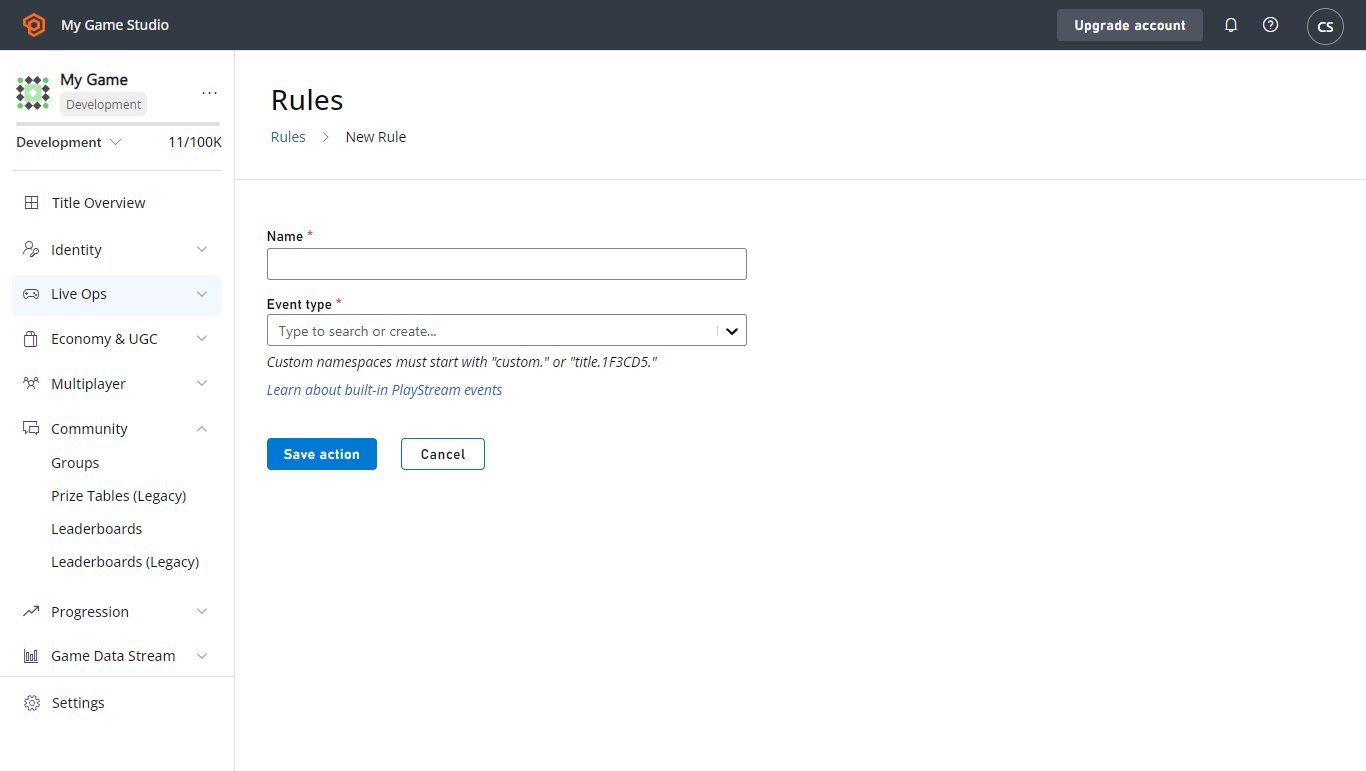
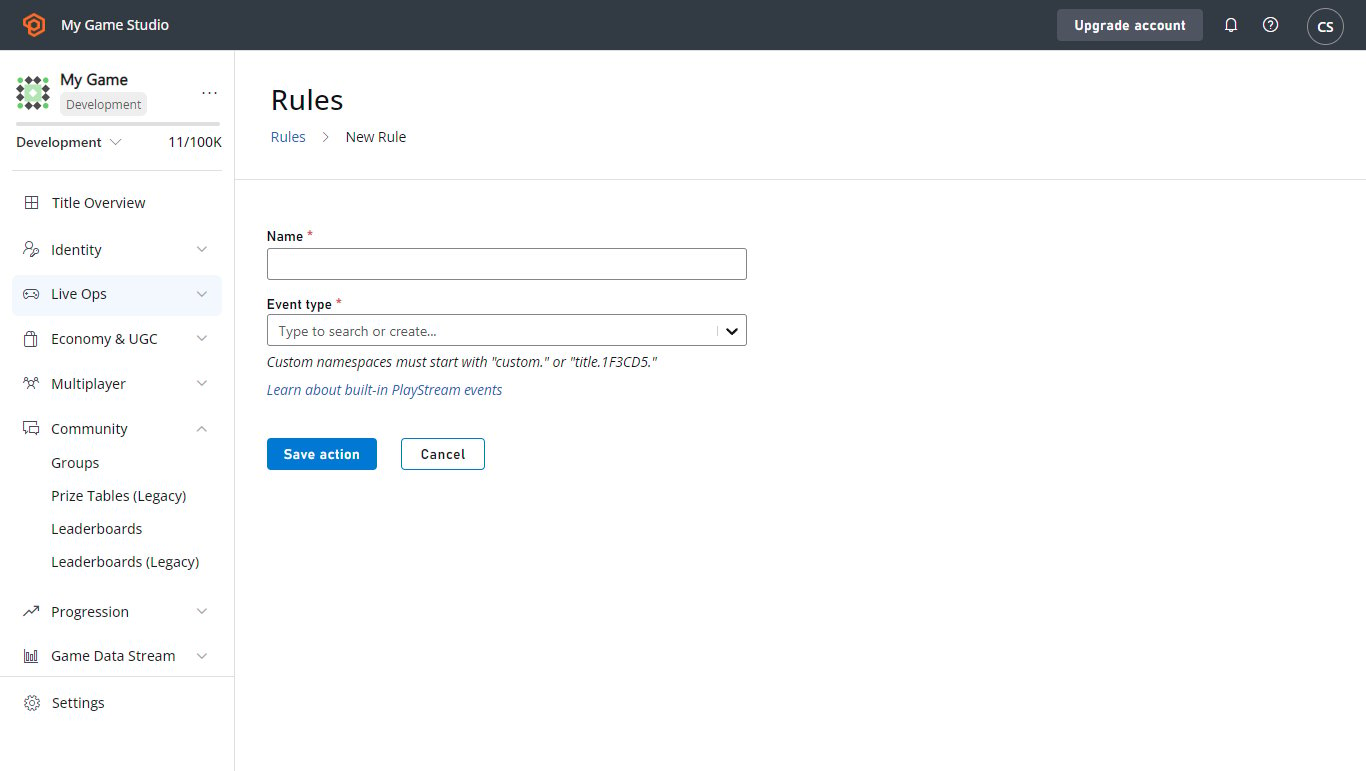 2. **New Rule** ボタンで新しいルールを作成します。
* 新しい **Rule** に名前を付けます。
* 条件やアクションのトリガーとして使用する **Event type** を選択します。
* **Rule** で CloudScript 関数をトリガーするには、そのセクションのボタンで **Action** を追加します。
* 次に **Type** ドロップダウン メニューでオプションを選択します。
* **Cloud Script Function** ドロップダウン メニューで **helloWorld** 関数を選択します。
* **Save action** ボタンを選択します。
2. **New Rule** ボタンで新しいルールを作成します。
* 新しい **Rule** に名前を付けます。
* 条件やアクションのトリガーとして使用する **Event type** を選択します。
* **Rule** で CloudScript 関数をトリガーするには、そのセクションのボタンで **Action** を追加します。
* 次に **Type** ドロップダウン メニューでオプションを選択します。
* **Cloud Script Function** ドロップダウン メニューで **helloWorld** 関数を選択します。
* **Save action** ボタンを選択します。
 3. この **Rule** は、選択した種類の任意のイベントでトリガーされるように設定されています。テストするには:
* **Publish results as PlayStream Event** ボックスをチェックします。
* **Action** を保存します。
* 次にイベントをトリガーします。
* **PlayStream Monitor** に、CloudScript の実行に対応する新しいイベントが表示され、適切な情報が含まれているはずです。
* デバッガーで PlayStream イベントを確認する方法の詳細については、次のセクション [上級: CloudScript のデバッグ](#advanced-debugging-cloudscript) を参照してください。
イベント アクションは CloudScript 関数を呼び出す際、ライブ リビジョンのみを使用できます。ドロップダウンに **helloWorld** 関数が見つからない場合、これが最も可能性の高い理由です。
## 上級: CloudScript のデバッグ
[Azure Functions を利用した CloudScript](/services/playfab/live-service-management/service-gateway/automation/cloudscript-af) を使うと、デバッグがはるかに容易になります。[Azure Functions を利用した CloudScript のローカル デバッグ](/services/playfab/live-service-management/service-gateway/automation/cloudscript-af/local-debugging-for-cloudscript-using-azure-functions) の使用方法について詳しく学んでください。
### ロギング
コードをデバッグするための最も重要なツールの 1 つが *ロギング* です。CloudScript にはその機能を実行するユーティリティが用意されています。
これは `log` オブジェクトの形で提供され、`Info`、`Debug`、`Error` の各メソッドを使って任意のメッセージをログに記録できます。
さらに、HTTP オブジェクトは `logRequestAndResponse` パラメーターを設定することで、リクエスト中に発生したエラーをログに記録します。これらのログの設定は簡単ですが、それらにアクセスするには *少しばかり* コツが必要です。
以下は、4 種類すべてのログを使用する CloudScript 関数の例です。
```javascript theme={null}
handlers.logTest = function(args, context) {
log.info("This is a log statement!");
log.debug("This is a debug statement.");
log.error("This is... an error statement?");
// the last parameter indicates we want logging on errors
http.request('https://httpbin.org/status/404', 'post', '', 'text/plain', null, true);
};
```
この例を実行するには、続行する前にこの関数をライブ リビジョンに追加します。
`logTest` 関数は次のように `ExecuteCloudScript` を使って呼び出せます。
```csharp theme={null}
// Invoke this on start of your application
void Login() {
PlayFabClientAPI.LoginWithCustomID(new LoginWithCustomIDRequest {
CreateAccount = true,
CustomId = "Starter"
}, result => RunLogTest(), null);
}
void RunLogTest() {
PlayFabClientAPI.ExecuteCloudScript(new ExecuteCloudScriptRequest {
FunctionName = "logTest",
// duplicates the response of the request to PlayStream
GeneratePlayStreamEvent = true
}, null, null);
}
// Logs evaluated in next code block
```
`GeneratePlayStreamEvent` を設定すると、CloudScript 関数の呼び出しでレスポンスの内容を含む PlayStream イベントが生成されます。PlayStream イベントの内容を確認するには:
* **タイトル** の **Game Manager** ホーム ページか **PlayStream** タブのいずれかに移動します。
* **PlayStream Debugger** に、届いたイベントが表示されます。
* 到着したら、以下に示すように、イベントの右上隅にある小さな青い **Info** アイコンを選択します。
3. この **Rule** は、選択した種類の任意のイベントでトリガーされるように設定されています。テストするには:
* **Publish results as PlayStream Event** ボックスをチェックします。
* **Action** を保存します。
* 次にイベントをトリガーします。
* **PlayStream Monitor** に、CloudScript の実行に対応する新しいイベントが表示され、適切な情報が含まれているはずです。
* デバッガーで PlayStream イベントを確認する方法の詳細については、次のセクション [上級: CloudScript のデバッグ](#advanced-debugging-cloudscript) を参照してください。
イベント アクションは CloudScript 関数を呼び出す際、ライブ リビジョンのみを使用できます。ドロップダウンに **helloWorld** 関数が見つからない場合、これが最も可能性の高い理由です。
## 上級: CloudScript のデバッグ
[Azure Functions を利用した CloudScript](/services/playfab/live-service-management/service-gateway/automation/cloudscript-af) を使うと、デバッグがはるかに容易になります。[Azure Functions を利用した CloudScript のローカル デバッグ](/services/playfab/live-service-management/service-gateway/automation/cloudscript-af/local-debugging-for-cloudscript-using-azure-functions) の使用方法について詳しく学んでください。
### ロギング
コードをデバッグするための最も重要なツールの 1 つが *ロギング* です。CloudScript にはその機能を実行するユーティリティが用意されています。
これは `log` オブジェクトの形で提供され、`Info`、`Debug`、`Error` の各メソッドを使って任意のメッセージをログに記録できます。
さらに、HTTP オブジェクトは `logRequestAndResponse` パラメーターを設定することで、リクエスト中に発生したエラーをログに記録します。これらのログの設定は簡単ですが、それらにアクセスするには *少しばかり* コツが必要です。
以下は、4 種類すべてのログを使用する CloudScript 関数の例です。
```javascript theme={null}
handlers.logTest = function(args, context) {
log.info("This is a log statement!");
log.debug("This is a debug statement.");
log.error("This is... an error statement?");
// the last parameter indicates we want logging on errors
http.request('https://httpbin.org/status/404', 'post', '', 'text/plain', null, true);
};
```
この例を実行するには、続行する前にこの関数をライブ リビジョンに追加します。
`logTest` 関数は次のように `ExecuteCloudScript` を使って呼び出せます。
```csharp theme={null}
// Invoke this on start of your application
void Login() {
PlayFabClientAPI.LoginWithCustomID(new LoginWithCustomIDRequest {
CreateAccount = true,
CustomId = "Starter"
}, result => RunLogTest(), null);
}
void RunLogTest() {
PlayFabClientAPI.ExecuteCloudScript(new ExecuteCloudScriptRequest {
FunctionName = "logTest",
// duplicates the response of the request to PlayStream
GeneratePlayStreamEvent = true
}, null, null);
}
// Logs evaluated in next code block
```
`GeneratePlayStreamEvent` を設定すると、CloudScript 関数の呼び出しでレスポンスの内容を含む PlayStream イベントが生成されます。PlayStream イベントの内容を確認するには:
* **タイトル** の **Game Manager** ホーム ページか **PlayStream** タブのいずれかに移動します。
* **PlayStream Debugger** に、届いたイベントが表示されます。
* 到着したら、以下に示すように、イベントの右上隅にある小さな青い **Info** アイコンを選択します。
 これを選択すると、イベントの生の JSON が表示されます。各イベントの詳細は [こちら](/services/playfab/api-references/events) に記載されています。この JSON の例は次のとおりです。
* シーンに `LogScript` MonoBehavior を追加すると、ゲームを実行すると PlayStream で以下のようになります。
これを選択すると、イベントの生の JSON が表示されます。各イベントの詳細は [こちら](/services/playfab/api-references/events) に記載されています。この JSON の例は次のとおりです。
* シーンに `LogScript` MonoBehavior を追加すると、ゲームを実行すると PlayStream で以下のようになります。
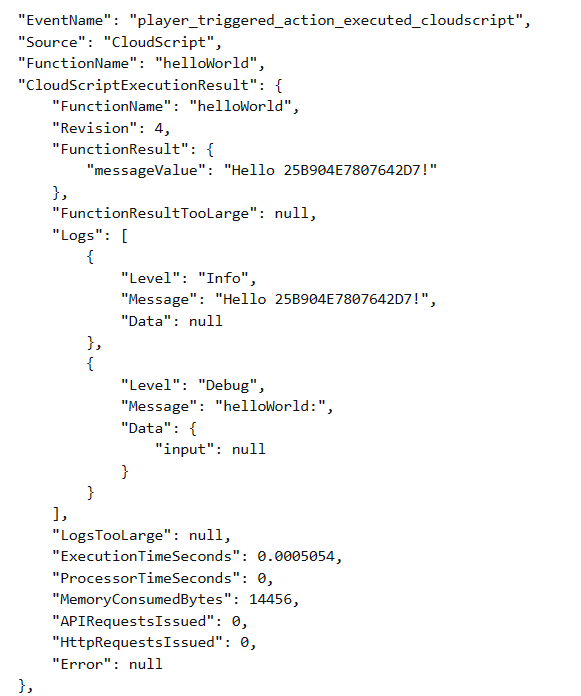 `ExecuteCloudScript` 呼び出しの結果には、CloudScript 関数によって生成されたログ オブジェクトのリストである `Logs` というフィールドが含まれます。
3 つのログ呼び出しと、無効な HTTP リクエストによるログを確認できます。HTTP リクエストのログは、ログ呼び出しとは異なり、`Data` フィールドも使用しています。
このフィールドは、ログ ステートメントに関連する任意の情報を格納できる JavaScript オブジェクトです。log の呼び出しでも、次のように 2 番目のパラメーターを使ってこのフィールドを利用できます。
```javascript theme={null}
handlers.logTest = function(args, context) {
log.info("This is a log statement!", { what: "Here on business." });
log.debug("This is a debug statement.", { who: "I am a doctor, sir" });
log.error("This is... an error statement?", { why: "I'm here to fix the plumbing. Probably.", errCode: 123 });
};
```
これらの呼び出しはすべて、結果の `Data` フィールドに 2 番目のパラメーターを設定します。
ログは結果に含まれているため、クライアント サイドのコードはログ ステートメントに応答できます。`logTest` 関数のエラーは強制されていますが、クライアント コードはそれに応答するように適応できます。
```csharp theme={null}
void RunLogTest()
{
PlayFabClientAPI.ExecuteCloudScript(
new ExecuteCloudScriptRequest
{
FunctionName = "logTest",
// handy for logs because the response will be duplicated on PlayStream
GeneratePlayStreamEvent = true
},
result =>
{
var error123Present = false;
foreach (var log in result.Logs)
{
if (log.Level != "Error") continue;
var errData = (JsonObject) log.Data;
object errCode;
var errCodePresent = errData.TryGetValue("errCode", out errCode);
if (errCodePresent && (ulong) errCode == 123) error123Present = true;
}
if (error123Present)
Debug.Log("There was a bad, bad error!");
else
Debug.Log("Nice weather we're having.");
}, null);
}
```
このコードを実行すると、出力にエラーの存在が示されるはずです。現実的なエラー応答としては、UI にエラーを表示したり、ログ ファイルに値を保存したりすることが考えられます。
## 上級: エラー
開発中、CloudScript のエラーは `log.error` の場合と同様、手動でトリガーされないことがよくあります。
幸いなことに、[ExecuteCloudScript](xref:titleid.playfabapi.com.client.server-sidecloudscript.executecloudscript) に対するレスポンスには、[ScriptExecutionError](xref:titleid.playfabapi.com.client.server-sidecloudscript.executecloudscript#scriptexecutionerror) フィールドを含む [ExecuteCloudScriptResult](xref:titleid.playfabapi.com.client.server-sidecloudscript.executecloudscript#executecloudscriptresult) が含まれます。ロギング セクションの最後の例を応用すると、次のように使用できます。
```csharp theme={null}
void RunLogTest() {
PlayFabClientAPI.ExecuteCloudScript(new ExecuteCloudScriptRequest {
FunctionName = "logTest",
// handy for logs because the response will be duplicated on PlayStream
GeneratePlayStreamEvent = true
}, result => {
if(result.Error != null) {
Debug.Log(string.Format("There was error in the CloudScript function {0}:\n Error Code: {1}\n Message: {2}"
, result.FunctionName, result.Error.Error, result.Error.Message));
}
},
null);
}
```
何らかのエラーが発生した場合、このコードはログに表示します。
## Related topics
- [CloudScript クイックスタート](/ja-jp/services/playfab/live-service-management/service-gateway/automation/cloudscript/quickstart.md)
- [プレイヤー禁止 (Ban) システム](/ja-jp/services/playfab/player-progression/player-data/player-bans.md)
- [Azure Functions を利用した PlayFab CloudScript のクイックスタート ガイド](/ja-jp/services/playfab/live-service-management/service-gateway/automation/cloudscript-af/quickstart.md)
- [プレイヤー カスタム プロパティによる高度なセグメント化](/ja-jp/services/playfab/live-service-management/game-configuration/segmentation/advanced-segmentation.md)
- [プレイヤー カスタム プロパティのクイックスタート](/ja-jp/services/playfab/live-service-management/game-configuration/segmentation/player-custom-properties-qs.md)
`ExecuteCloudScript` 呼び出しの結果には、CloudScript 関数によって生成されたログ オブジェクトのリストである `Logs` というフィールドが含まれます。
3 つのログ呼び出しと、無効な HTTP リクエストによるログを確認できます。HTTP リクエストのログは、ログ呼び出しとは異なり、`Data` フィールドも使用しています。
このフィールドは、ログ ステートメントに関連する任意の情報を格納できる JavaScript オブジェクトです。log の呼び出しでも、次のように 2 番目のパラメーターを使ってこのフィールドを利用できます。
```javascript theme={null}
handlers.logTest = function(args, context) {
log.info("This is a log statement!", { what: "Here on business." });
log.debug("This is a debug statement.", { who: "I am a doctor, sir" });
log.error("This is... an error statement?", { why: "I'm here to fix the plumbing. Probably.", errCode: 123 });
};
```
これらの呼び出しはすべて、結果の `Data` フィールドに 2 番目のパラメーターを設定します。
ログは結果に含まれているため、クライアント サイドのコードはログ ステートメントに応答できます。`logTest` 関数のエラーは強制されていますが、クライアント コードはそれに応答するように適応できます。
```csharp theme={null}
void RunLogTest()
{
PlayFabClientAPI.ExecuteCloudScript(
new ExecuteCloudScriptRequest
{
FunctionName = "logTest",
// handy for logs because the response will be duplicated on PlayStream
GeneratePlayStreamEvent = true
},
result =>
{
var error123Present = false;
foreach (var log in result.Logs)
{
if (log.Level != "Error") continue;
var errData = (JsonObject) log.Data;
object errCode;
var errCodePresent = errData.TryGetValue("errCode", out errCode);
if (errCodePresent && (ulong) errCode == 123) error123Present = true;
}
if (error123Present)
Debug.Log("There was a bad, bad error!");
else
Debug.Log("Nice weather we're having.");
}, null);
}
```
このコードを実行すると、出力にエラーの存在が示されるはずです。現実的なエラー応答としては、UI にエラーを表示したり、ログ ファイルに値を保存したりすることが考えられます。
## 上級: エラー
開発中、CloudScript のエラーは `log.error` の場合と同様、手動でトリガーされないことがよくあります。
幸いなことに、[ExecuteCloudScript](xref:titleid.playfabapi.com.client.server-sidecloudscript.executecloudscript) に対するレスポンスには、[ScriptExecutionError](xref:titleid.playfabapi.com.client.server-sidecloudscript.executecloudscript#scriptexecutionerror) フィールドを含む [ExecuteCloudScriptResult](xref:titleid.playfabapi.com.client.server-sidecloudscript.executecloudscript#executecloudscriptresult) が含まれます。ロギング セクションの最後の例を応用すると、次のように使用できます。
```csharp theme={null}
void RunLogTest() {
PlayFabClientAPI.ExecuteCloudScript(new ExecuteCloudScriptRequest {
FunctionName = "logTest",
// handy for logs because the response will be duplicated on PlayStream
GeneratePlayStreamEvent = true
}, result => {
if(result.Error != null) {
Debug.Log(string.Format("There was error in the CloudScript function {0}:\n Error Code: {1}\n Message: {2}"
, result.FunctionName, result.Error.Error, result.Error.Message));
}
},
null);
}
```
何らかのエラーが発生した場合、このコードはログに表示します。
## Related topics
- [CloudScript クイックスタート](/ja-jp/services/playfab/live-service-management/service-gateway/automation/cloudscript/quickstart.md)
- [プレイヤー禁止 (Ban) システム](/ja-jp/services/playfab/player-progression/player-data/player-bans.md)
- [Azure Functions を利用した PlayFab CloudScript のクイックスタート ガイド](/ja-jp/services/playfab/live-service-management/service-gateway/automation/cloudscript-af/quickstart.md)
- [プレイヤー カスタム プロパティによる高度なセグメント化](/ja-jp/services/playfab/live-service-management/game-configuration/segmentation/advanced-segmentation.md)
- [プレイヤー カスタム プロパティのクイックスタート](/ja-jp/services/playfab/live-service-management/game-configuration/segmentation/player-custom-properties-qs.md)