> ## Documentation Index
> Fetch the complete documentation index at: https://devdocs.xbox.com/llms.txt
> Use this file to discover all available pages before exploring further.
# アドオンによる SMTP サーバーのセットアップ
> ホスト、ポート、資格情報を使用して PlayFab Game Manager で SMTP アドオンをインストールおよび構成し、プレイヤーにカスタム アカウントとマーケティング メールを送信します。
このチュートリアルでは、PlayFab を通じてカスタム メールの送信をサポートするために、SMTP アドオンをセットアップする方法を説明します。
## 要件
タイトルの SMTP サーバーはアドオンを使用してセットアップされるため、Game Manager が必要です。使い慣れていない場合は、[Game Manager クイックスタート](/services/playfab/live-service-management/gamemanager/quickstart) をお読みください。
## アドオン ページに移動して SMTP をインストールする
**Game Manager** で:
1. **Add-ons** に移動します。
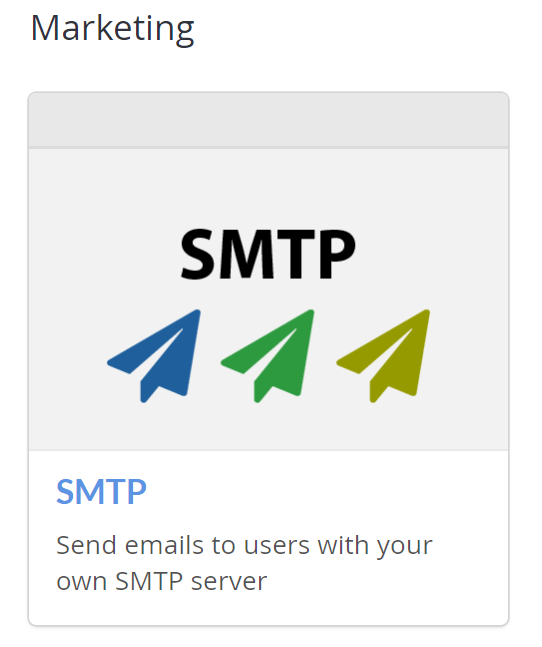
2. **Marketing** セクションの下で **SMTP** アドオンを選択します。これにより **Add-on** ページにリダイレクトされます。
 3. **INSTALL SMTP** ボタンを選択します。
## SMTP を構成する
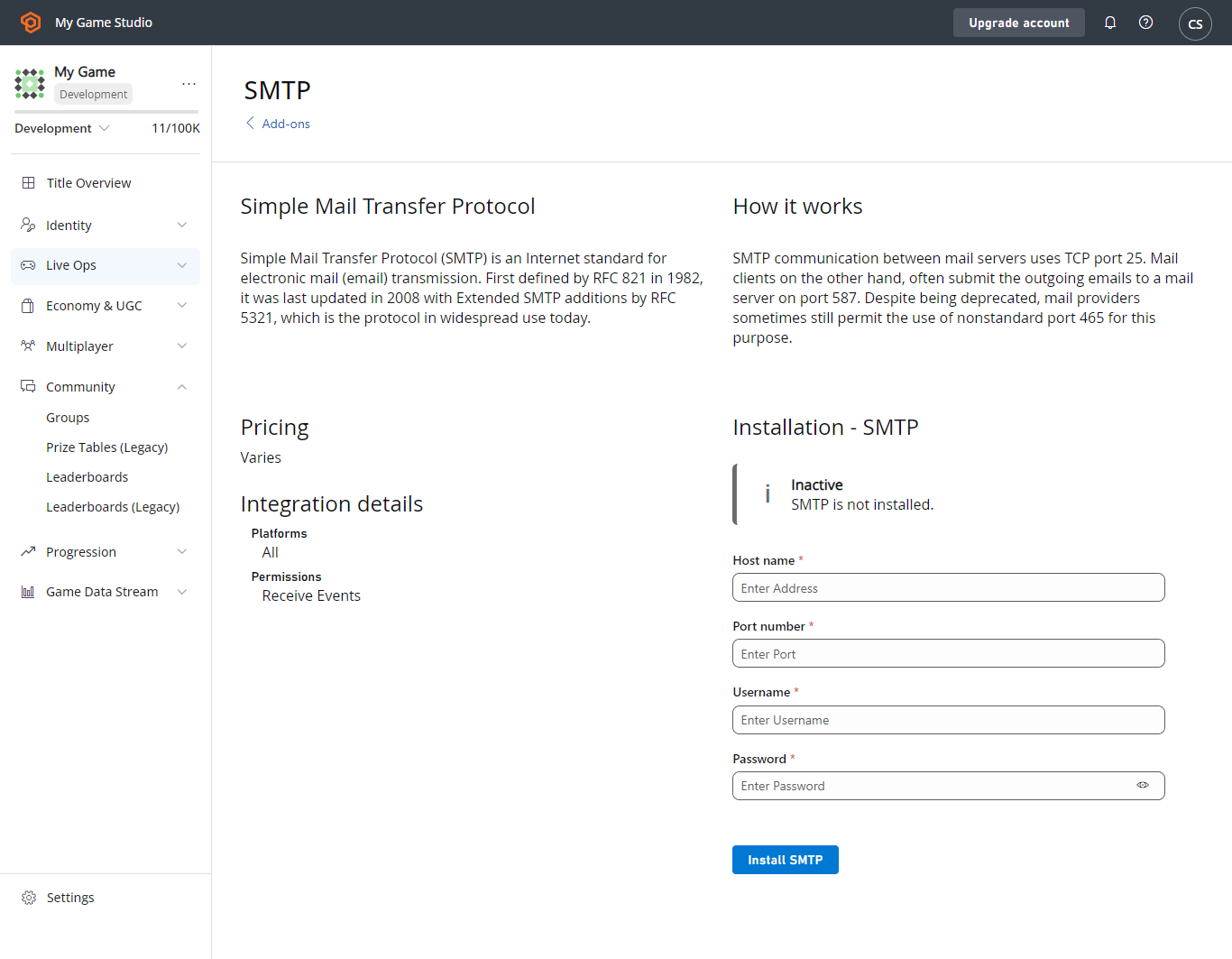
**Host name**、**Port number**、**Username**、**Password** フィールドを持つフォームが表示されます。
3. **INSTALL SMTP** ボタンを選択します。
## SMTP を構成する
**Host name**、**Port number**、**Username**、**Password** フィールドを持つフォームが表示されます。
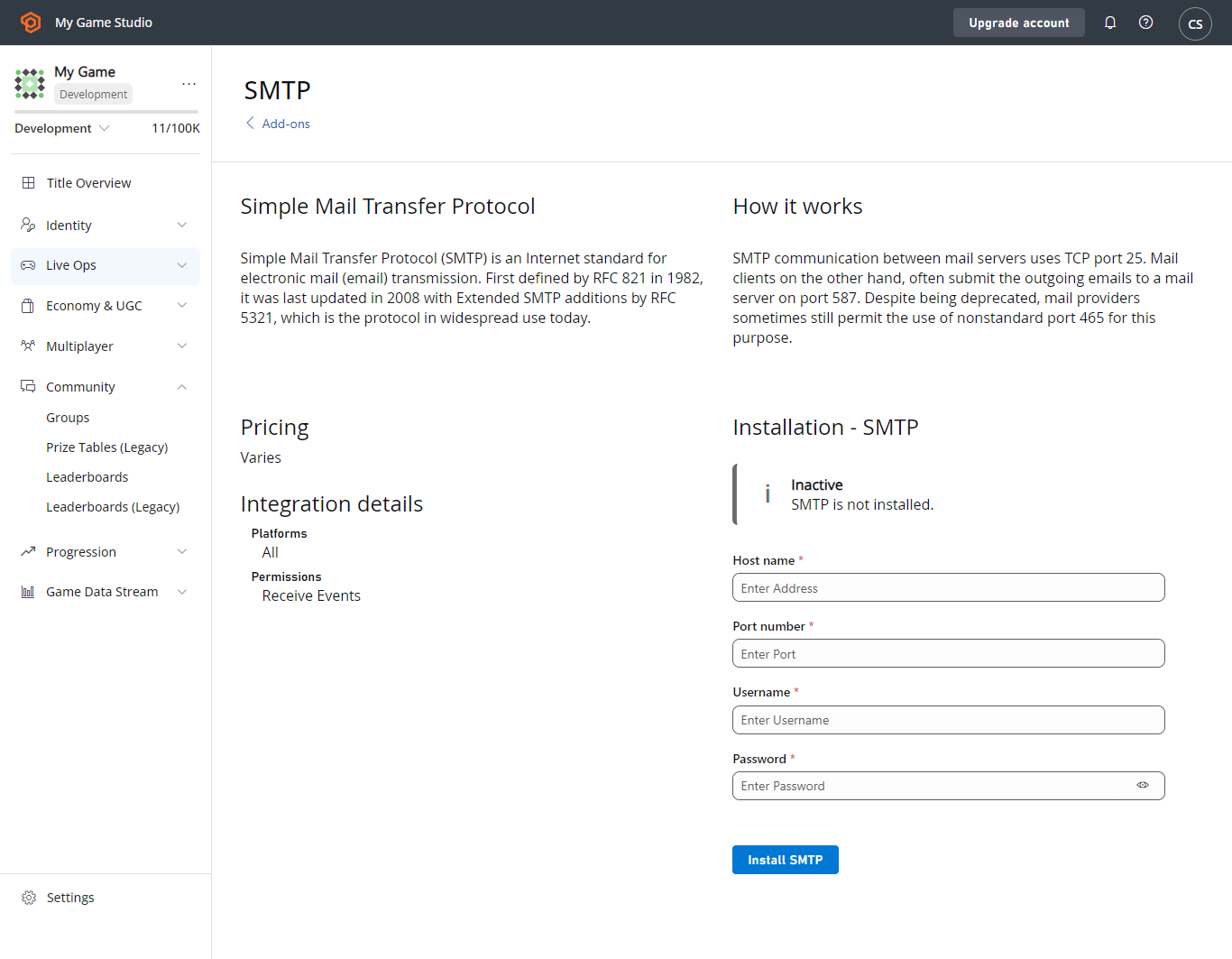 * SMTP サーバーの **Host name**、**Port number**、**Username**、**Password** をフォームに入力します。
* **SAVE SETTINGS** ボタンを選択すると、アドオンがインストールされます。
SMTP サーバーが **SSL/TLS** を必要とする場合は、**ポート 587** を使用します。
## テスト
この機能をテストするには、Gmail アカウントがあれば Gmail SMTP サーバーを使用できます。Gmail を使用するには、次のようにフィールドを入力します:
* Host name: **smtp.gmail.com**
* Port number: **587**
* Username: (**Gmail アドレス** - 例: "[support@playfab.com](mailto:support@playfab.com)")
* Password: (**パスワード**)
2 要素認証を有効にしている場合は、アプリ パスワードを作成する必要があります。詳細については、[アプリ パスワードでのサインイン](https://support.google.com/accounts/answer/185833?hl=en) を参照してください。
SMTP アドオンがインストールされ、緑のチェックと成功を示すメッセージが表示されます。
* SMTP サーバーの **Host name**、**Port number**、**Username**、**Password** をフォームに入力します。
* **SAVE SETTINGS** ボタンを選択すると、アドオンがインストールされます。
SMTP サーバーが **SSL/TLS** を必要とする場合は、**ポート 587** を使用します。
## テスト
この機能をテストするには、Gmail アカウントがあれば Gmail SMTP サーバーを使用できます。Gmail を使用するには、次のようにフィールドを入力します:
* Host name: **smtp.gmail.com**
* Port number: **587**
* Username: (**Gmail アドレス** - 例: "[support@playfab.com](mailto:support@playfab.com)")
* Password: (**パスワード**)
2 要素認証を有効にしている場合は、アプリ パスワードを作成する必要があります。詳細については、[アプリ パスワードでのサインイン](https://support.google.com/accounts/answer/185833?hl=en) を参照してください。
SMTP アドオンがインストールされ、緑のチェックと成功を示すメッセージが表示されます。
 ## Related topics
- [メール メッセージングのクイックスタート](/ja-jp/services/playfab/live-service-management/game-configuration/title-communications/emails/quickstart.md)
- [Windows Runner サンプル](/ja-jp/services/playfab/multiplayer/servers/windows-runner-sample.md)
- [Linux Unreal サーバーの MPS クラウドへのデプロイ](/ja-jp/services/playfab/multiplayer/servers/server-sdks/unreal-gsdk/setting-up-a-linux-dedicated-server-on-playfab.md)
- [GSDK プロジェクトのセットアップ](/ja-jp/services/playfab/multiplayer/servers/server-sdks/unreal-gsdk/third-person-mp-example-gsdk-project-setup.md)
- [ゲームの耐久性アドオンを構成する](/ja-jp/publishing/game-publishing/tutorial-xbox-managed/how-to-configure-a-durable.md)
## Related topics
- [メール メッセージングのクイックスタート](/ja-jp/services/playfab/live-service-management/game-configuration/title-communications/emails/quickstart.md)
- [Windows Runner サンプル](/ja-jp/services/playfab/multiplayer/servers/windows-runner-sample.md)
- [Linux Unreal サーバーの MPS クラウドへのデプロイ](/ja-jp/services/playfab/multiplayer/servers/server-sdks/unreal-gsdk/setting-up-a-linux-dedicated-server-on-playfab.md)
- [GSDK プロジェクトのセットアップ](/ja-jp/services/playfab/multiplayer/servers/server-sdks/unreal-gsdk/third-person-mp-example-gsdk-project-setup.md)
- [ゲームの耐久性アドオンを構成する](/ja-jp/publishing/game-publishing/tutorial-xbox-managed/how-to-configure-a-durable.md)