> ## Documentation Index
> Fetch the complete documentation index at: https://devdocs.xbox.com/llms.txt
> Use this file to discover all available pages before exploring further.
# XBOX Live タイトルの関連付け
> Partner Center の製品 ID を PlayFab のタイトル ID にリンクすることで、LoginWithXbox および関連 API 向けにスコープ付き XBOX Live トークン検証を設定します。
# PlayFab で XBOX Live タイトルの関連付けを設定する
Partner Center の製品 ID を PlayFab タイトル ID にリンクすることで、スコープ付きトークン検証を構成する方法を学びます。
## 概要
このチュートリアルでは、PlayFab API が XBOX Live トークン パラメーターを使用する際に受け入れる XBOX Live タイトル トークンを指定することで、トークン検証を構成する方法を学びます。これにより、統合の動作をより詳細に制御し、スコープ付きのトークン受け入れを有効にできます。これらの API には、`Client/loginwithxbox`、`Client/LinkXboxAccount`、`Client/UnlinkXboxAccount`、`Client/ConsumeXboxEntitlement`、`Client/GetFriendLeaderboard`、`Client/GetFriendLeaderboardAroundCurrentUser`、`Client/GetFriendLeaderboardAroundPlayer`、`Client/ConsumeMicrosoftStoreEntitlements`、`Server/loginwithxbox`、`Server/LinkXboxAccount`、`Server/UnlinkXboxAccount`、`Server/GetFriendLeaderboard`、`Server/GetFriendsList`、`Server/GetFriendLeaderboardForEntity`、`Lobby/GetFriendLobbies`、`Server/GetFriendLeaderboardAroundPlayer`、`Inventory/RedeemMicrosoftStoreInventoryItems`、`Inventory/Redeem` があります。
## 要件
* 登録済みの [PlayFab](https://developer.playfab.com/) タイトル。
* XBOX Live が有効なタイトルを持つ [Partner Center](https://partner.microsoft.com/) アカウント。
## Partner Center 製品 ID と XBOX Live タイトル ID
まず、Partner Center タイトルの製品ページに移動します。
1. Partner Center ダッシュボードで、[Apps and Games](https://partner.microsoft.com/dashboard/apps-and-games/overview) に移動します。
2. PlayFab に関連付けたい XBOX Live 対応 Partner Center タイトルを見つけて選択します。
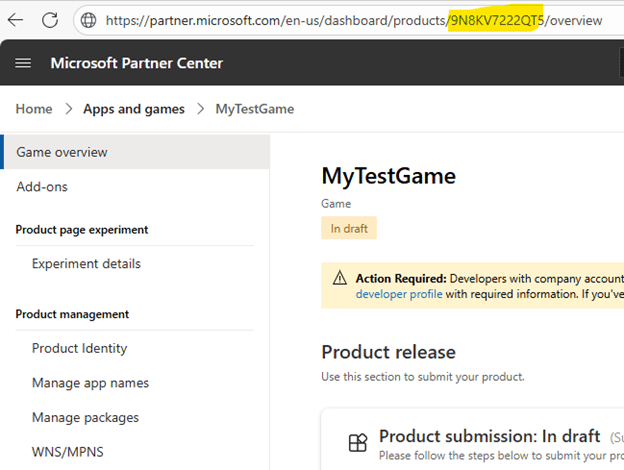
3. ゲームの URL から製品 ID を見つけてコピーします。
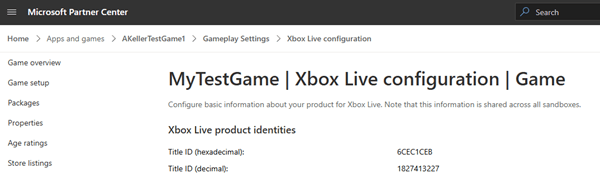
 4. 次に、XBOX Live タイトル ID を見つけてコピーします。**XBOX services > XBOX Settings** に移動し、**Title ID (decimal)** の値をコピーします。
 ## XBOX Live アドオンをインストールする
対象タイトルの [PlayFab Game Manager](https://developer.playfab.com/) ページに移動します。
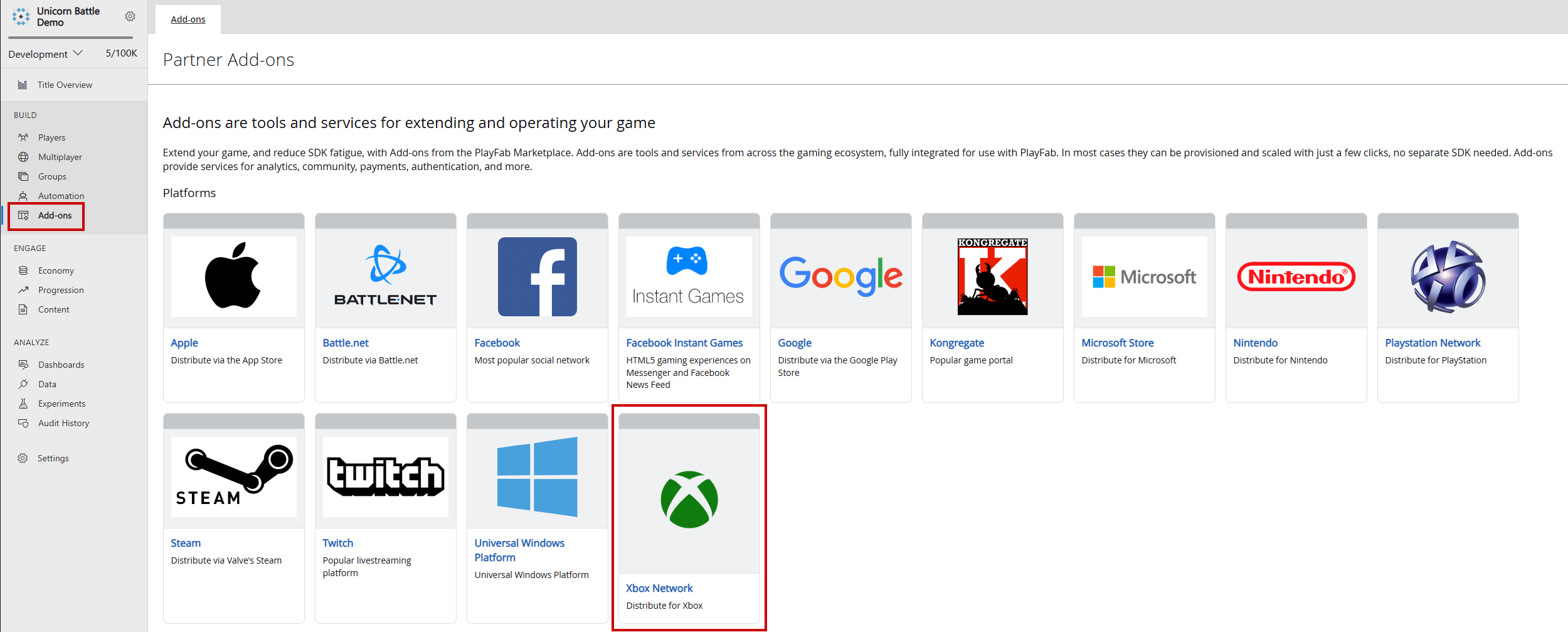
1. メニューから **Add-ons** に移動します。
2. **XBOX Live** アドオンのアイコン/リンクを見つけて選択します。
## XBOX Live アドオンをインストールする
対象タイトルの [PlayFab Game Manager](https://developer.playfab.com/) ページに移動します。
1. メニューから **Add-ons** に移動します。
2. **XBOX Live** アドオンのアイコン/リンクを見つけて選択します。
 3. **Seller ID** ドロップダウンを使用して、Partner Center から正しい Seller ID を選択します。正しい Seller ID が表示されない場合は、**Sign in with a different partner center account** を選択して、正しいユーザーでサインインします。
4. **Product ID** ドロップダウンを使用して、PlayFab タイトルにリンクする Partner Center 製品 ID を見つけます。XBOX Live タイトル ID が Partner Center の想定される XBOX Live タイトル ID と一致していることを確認します。
3. **Seller ID** ドロップダウンを使用して、Partner Center から正しい Seller ID を選択します。正しい Seller ID が表示されない場合は、**Sign in with a different partner center account** を選択して、正しいユーザーでサインインします。
4. **Product ID** ドロップダウンを使用して、PlayFab タイトルにリンクする Partner Center 製品 ID を見つけます。XBOX Live タイトル ID が Partner Center の想定される XBOX Live タイトル ID と一致していることを確認します。
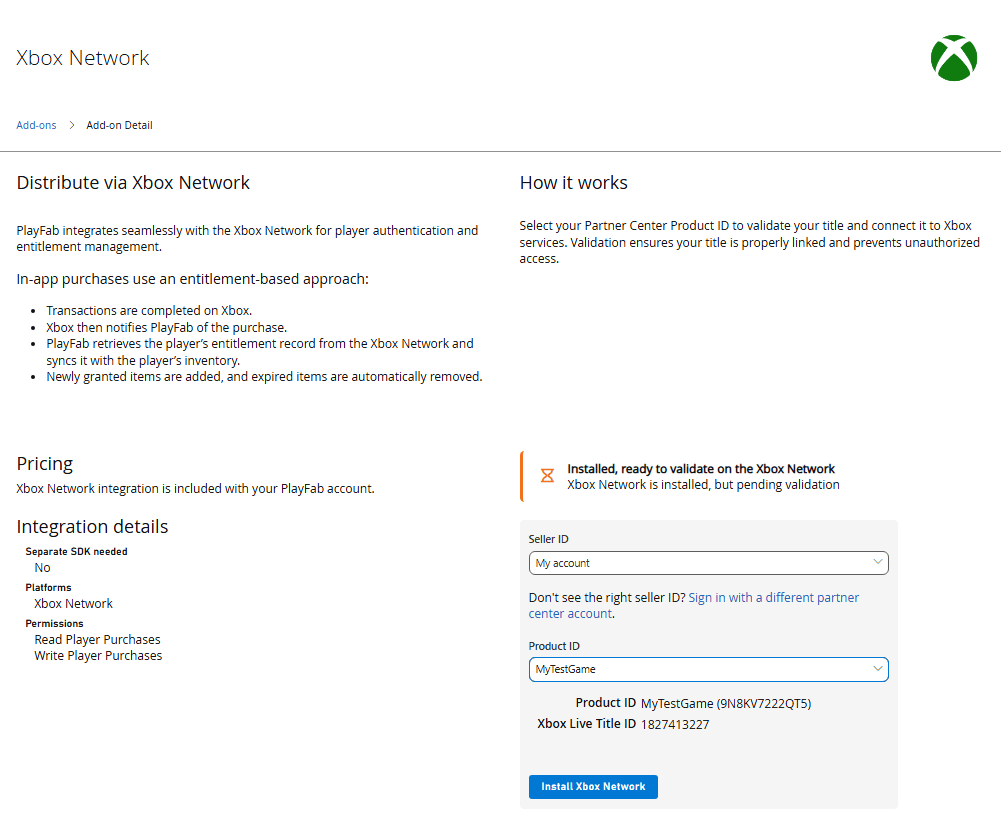 5. **Install XBOX Network** を選択して設定を保存し、API 呼び出しを選択した XBOX Live タイトル ID に制限します。
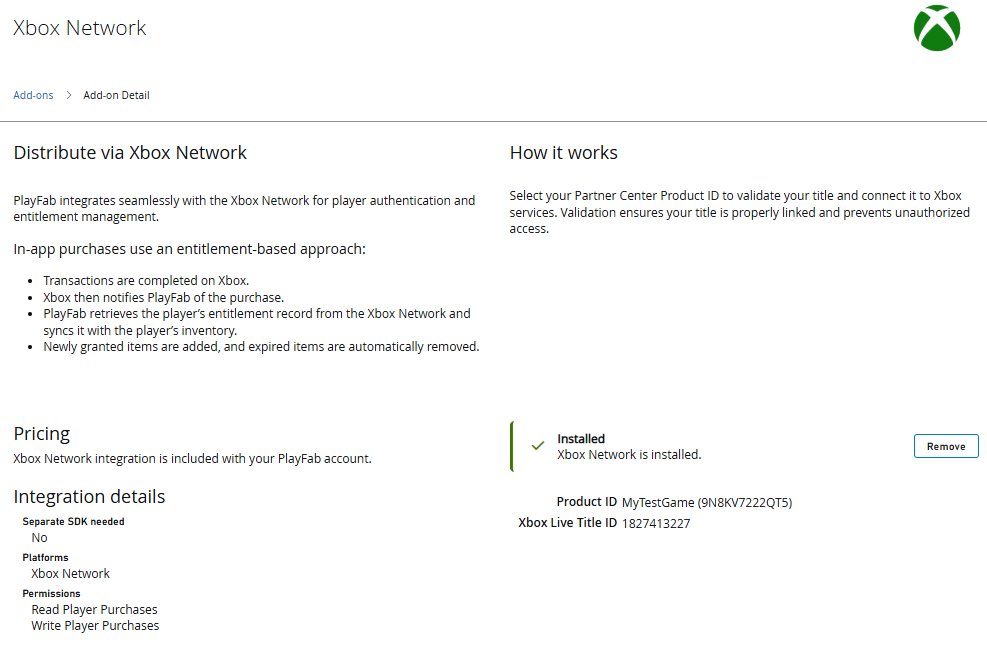 これらの手順に従うことで、PlayFab 内でスコープ付き XBOX Live トークン検証を確実に構成し、指定された Partner Center タイトルからのトークンのみが受け入れられるようにできます。この設定により、クロスプラットフォーム認証が合理化され、タイトル固有のセキュリティが強化され、開発者は XBOX 対応サービス全体でシームレスで信頼できるプレイヤー体験を提供できるようになります。
## 参考文献
* [PlayFab 認証の概要](/services/playfab/identity/player-identity/authentication)
* [ログインの基本とベスト プラクティス](/services/playfab/identity/player-identity/login/login-basics-best-practices)
これらの手順に従うことで、PlayFab 内でスコープ付き XBOX Live トークン検証を確実に構成し、指定された Partner Center タイトルからのトークンのみが受け入れられるようにできます。この設定により、クロスプラットフォーム認証が合理化され、タイトル固有のセキュリティが強化され、開発者は XBOX 対応サービス全体でシームレスで信頼できるプレイヤー体験を提供できるようになります。
## 参考文献
* [PlayFab 認証の概要](/services/playfab/identity/player-identity/authentication)
* [ログインの基本とベスト プラクティス](/services/playfab/identity/player-identity/login/login-basics-best-practices)