> ## Documentation Index
> Fetch the complete documentation index at: https://devdocs.xbox.com/llms.txt
> Use this file to discover all available pages before exploring further.
# Steam と Unity を使用した PlayFab 認証のセットアップ
> AppID セットアップとプレイヤー認証コードをカバーする、PlayFab SDK と Steamworks を使用して Unity ゲームに Steam サインインを追加する手順ガイド。
このチュートリアルでは、**SteamWorks** と Unity を通じて Steam を使用して PlayFab にログインする手順を説明します。
## 前提条件
開始する前に、次のものが必要です:
* PlayFab SDK がインポートされ、タイトル ID が構成された Unity プロジェクト。
* 次の設定を持つ Steam アプリケーション:
* AppID がすでに設定されている。AppID は [Steam Direct (旧 Greenlight)](https://partner.steamgames.com/steamdirect) プロセスを通じて取得できます。
* Steam Publisher Web API Key。パブリッシャー キーを生成するには、**Steamworks** ドキュメントの [Creating a Publisher Web API Key](https://partner.steamgames.com/doc/webapi_overview/auth#create_publisher_key) に従ってください。
* [ログインの基本とベスト プラクティス](/services/playfab/identity/player-identity/login/login-basics-best-practices) に精通していること。
## Steam 統合を使用した PlayFab タイトルのセットアップ
Steam 認証のサポートを有効にするには、PlayFab で Steam アドオンを有効にする必要があります。
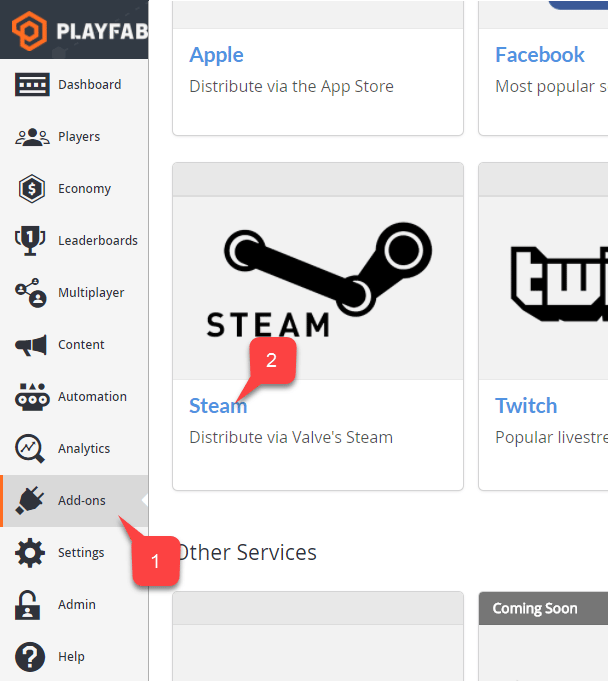
**Game Manager** ページに移動します:
1. **Add-ons** メニュー項目を選択します。
2. 使用可能な **Add-ons** の一覧で **Steam** を見つけて、タイトル リンクを選択します:
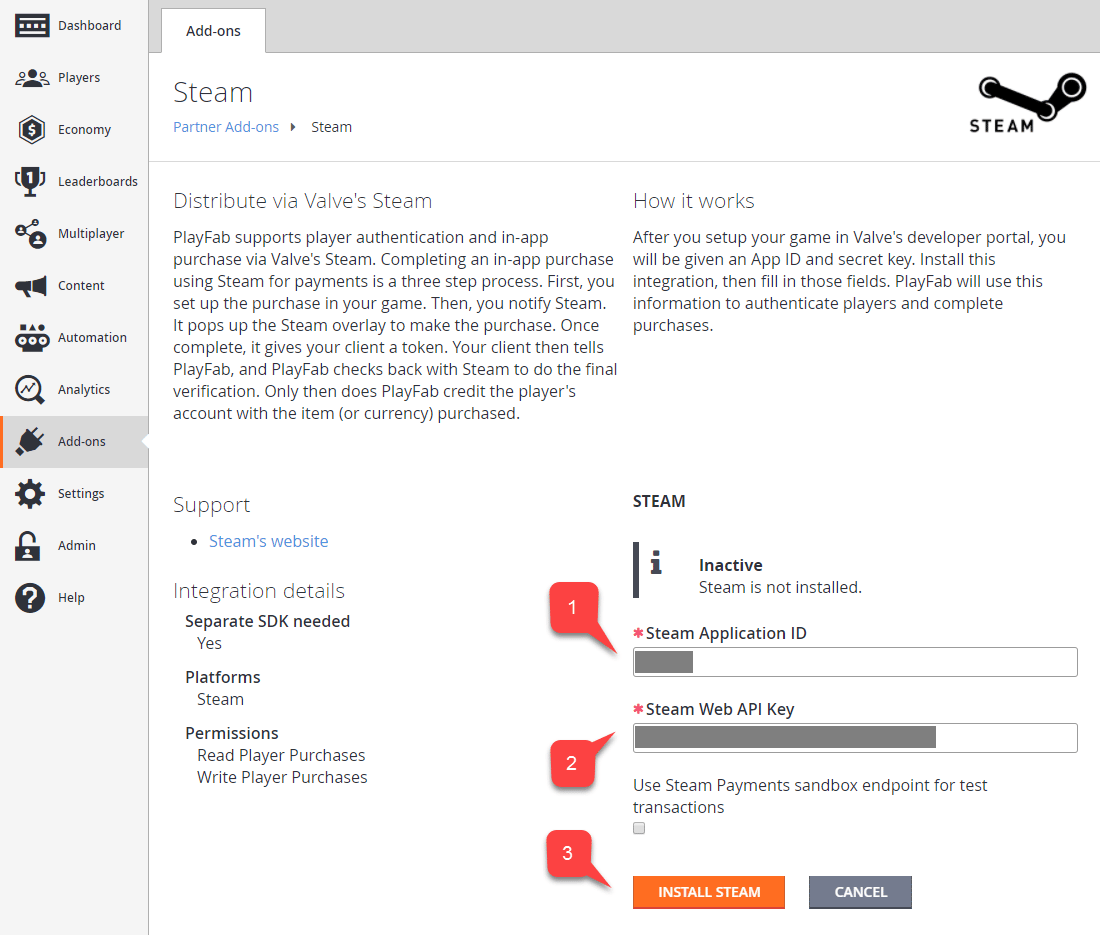
 1. **App ID** を入力します。
2. **Web API Key** を入力します。
3. 次に **Install Steam** を選択します。
1. **App ID** を入力します。
2. **Web API Key** を入力します。
3. 次に **Install Steam** を選択します。
 ## Unity プロジェクトのセットアップ
まず、[Releases ページ](https://github.com/rlabrecque/Steamworks.NET/releases) から Steamworks.NET の最新リリースをダウンロードします。
* リリースの Unity Package 版を取得し、プロジェクトにインポートします。
* パッケージをインポートしたら、Unity を閉じます。
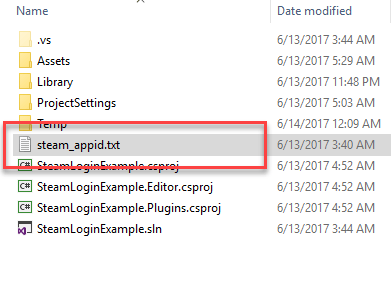
* **プロジェクト** ルート フォルダーに移動します。
* **steam\_appid.txt** ファイルを見つけます。
* ファイルを開き、**App ID** 値を独自のものに置き換えます。
## Unity プロジェクトのセットアップ
まず、[Releases ページ](https://github.com/rlabrecque/Steamworks.NET/releases) から Steamworks.NET の最新リリースをダウンロードします。
* リリースの Unity Package 版を取得し、プロジェクトにインポートします。
* パッケージをインポートしたら、Unity を閉じます。
* **プロジェクト** ルート フォルダーに移動します。
* **steam\_appid.txt** ファイルを見つけます。
* ファイルを開き、**App ID** 値を独自のものに置き換えます。
 Unity を再度開き、新しいシーンを作成します。
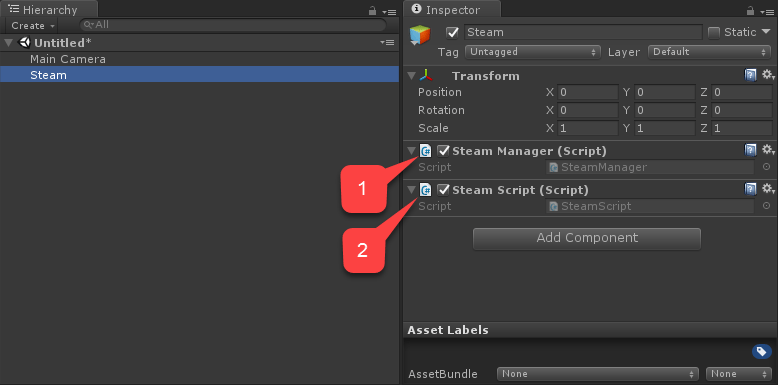
そのシーン内に、**Steam** という新しい **GameObject** を作成します:
1. **SteamManager** コンポーネントを **GameObject** に追加します。このコンポーネントは Steamworks.Net の一部です。
2. **SteamScript** コンポーネントを作成し、**GameObject** に追加します。
Unity を再度開き、新しいシーンを作成します。
そのシーン内に、**Steam** という新しい **GameObject** を作成します:
1. **SteamManager** コンポーネントを **GameObject** に追加します。このコンポーネントは Steamworks.Net の一部です。
2. **SteamScript** コンポーネントを作成し、**GameObject** に追加します。
 以下の例は、`SteamScript` コンポーネントのコードを示しています。
```csharp theme={null}
using System.Text;
using PlayFab;
using PlayFab.ClientModels;
using Steamworks;
using UnityEngine;
public class SteamScript : MonoBehaviour
{
protected Callback m_OnGetSteamAuthTicket;
// Alternatively, you can use this callback if you choose to call SteamUser.GetAuthSessionTicket(...) instead
// TicketIsServiceSpecific in the PlayFabLoginRequest should be false in this case
// protected Callback m_OnGetSteamAuthTicketAlternate;
private HAuthTicket m_hTicket;
public void Awake()
{
m_OnGetSteamAuthTicket = Callback.Create(OnGetSteamAuthTicket);
}
public void OnGUI()
{
if (GUILayout.Button("Log In") && SteamManager.Initialized)
{
GetSteamAuthTicket();
}
}
private void GetSteamAuthTicket()
{
m_hTicket = SteamUser.GetAuthTicketForWebApi("AzurePlayFab");
if (m_hTicket == HAuthTicket.Invalid)
{
Debug.Log("Failed to request steam auth ticket");
}
else
{
Debug.Log("Steam auth ticket requested");
}
}
private void OnGetSteamAuthTicket(GetTicketForWebApiResponse_t pCallback)
{
Debug.Log("Steam auth ticket callback invoked");
if (pCallback.m_eResult != EResult.k_EResultOK)
{
Debug.Log("Failed to get steam auth ticket: " + pCallback.m_eResult);
}
StringBuilder sb = new();
for (int i = 0; i < pCallback.m_cubTicket; ++i)
{
sb.AppendFormat("{0:x2}", pCallback.m_rgubTicket[i]);
}
PlayFabClientAPI.LoginWithSteam(new LoginWithSteamRequest
{
CreateAccount = true,
SteamTicket = sb.ToString(),
TicketIsServiceSpecific = true
}, OnComplete, OnFailed);
}
private void OnComplete(LoginResult obj)
{
SteamUser.CancelAuthTicket(m_hTicket);
Debug.Log("Success!");
}
private void OnFailed(PlayFabError error)
{
SteamUser.CancelAuthTicket(m_hTicket);
Debug.Log("Failed PlayFab login: " + error.GenerateErrorReport());
}
}
```
## テスト
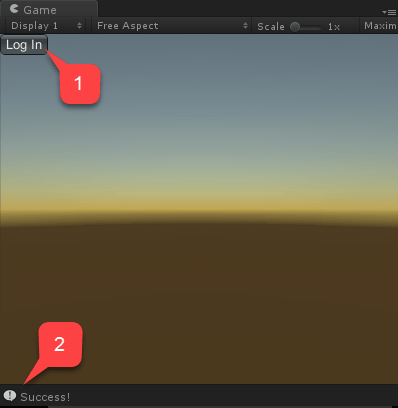
エディター内で直接テストできます:
1. シーンを実行し、**Log In** ボタンを選択します。
2. 少し待つと、認証結果として **Success!** を示すコンソール メッセージが表示されるはずです。
以下の例は、`SteamScript` コンポーネントのコードを示しています。
```csharp theme={null}
using System.Text;
using PlayFab;
using PlayFab.ClientModels;
using Steamworks;
using UnityEngine;
public class SteamScript : MonoBehaviour
{
protected Callback m_OnGetSteamAuthTicket;
// Alternatively, you can use this callback if you choose to call SteamUser.GetAuthSessionTicket(...) instead
// TicketIsServiceSpecific in the PlayFabLoginRequest should be false in this case
// protected Callback m_OnGetSteamAuthTicketAlternate;
private HAuthTicket m_hTicket;
public void Awake()
{
m_OnGetSteamAuthTicket = Callback.Create(OnGetSteamAuthTicket);
}
public void OnGUI()
{
if (GUILayout.Button("Log In") && SteamManager.Initialized)
{
GetSteamAuthTicket();
}
}
private void GetSteamAuthTicket()
{
m_hTicket = SteamUser.GetAuthTicketForWebApi("AzurePlayFab");
if (m_hTicket == HAuthTicket.Invalid)
{
Debug.Log("Failed to request steam auth ticket");
}
else
{
Debug.Log("Steam auth ticket requested");
}
}
private void OnGetSteamAuthTicket(GetTicketForWebApiResponse_t pCallback)
{
Debug.Log("Steam auth ticket callback invoked");
if (pCallback.m_eResult != EResult.k_EResultOK)
{
Debug.Log("Failed to get steam auth ticket: " + pCallback.m_eResult);
}
StringBuilder sb = new();
for (int i = 0; i < pCallback.m_cubTicket; ++i)
{
sb.AppendFormat("{0:x2}", pCallback.m_rgubTicket[i]);
}
PlayFabClientAPI.LoginWithSteam(new LoginWithSteamRequest
{
CreateAccount = true,
SteamTicket = sb.ToString(),
TicketIsServiceSpecific = true
}, OnComplete, OnFailed);
}
private void OnComplete(LoginResult obj)
{
SteamUser.CancelAuthTicket(m_hTicket);
Debug.Log("Success!");
}
private void OnFailed(PlayFabError error)
{
SteamUser.CancelAuthTicket(m_hTicket);
Debug.Log("Failed PlayFab login: " + error.GenerateErrorReport());
}
}
```
## テスト
エディター内で直接テストできます:
1. シーンを実行し、**Log In** ボタンを選択します。
2. 少し待つと、認証結果として **Success!** を示すコンソール メッセージが表示されるはずです。
 ## Related topics
- [プラットフォーム固有の認証](/ja-jp/services/playfab/identity/player-identity/platform-specific-authentication/index.md)
- [Facebook と Unity を使用した PlayFab 認証のセットアップ](/ja-jp/services/playfab/identity/player-identity/platform-specific-authentication/facebook-unity.md)
- [Kongregate と Unity を使用した PlayFab 認証のセットアップ](/ja-jp/services/playfab/identity/player-identity/platform-specific-authentication/kongregate-unity.md)
- [Google と HTML5 を使用した PlayFab 認証のセットアップ](/ja-jp/services/playfab/identity/player-identity/platform-specific-authentication/google-html5.md)
- [Kongregate と HTML5 を使用した PlayFab 認証のセットアップ](/ja-jp/services/playfab/identity/player-identity/platform-specific-authentication/kongregate-html5.md)
## Related topics
- [プラットフォーム固有の認証](/ja-jp/services/playfab/identity/player-identity/platform-specific-authentication/index.md)
- [Facebook と Unity を使用した PlayFab 認証のセットアップ](/ja-jp/services/playfab/identity/player-identity/platform-specific-authentication/facebook-unity.md)
- [Kongregate と Unity を使用した PlayFab 認証のセットアップ](/ja-jp/services/playfab/identity/player-identity/platform-specific-authentication/kongregate-unity.md)
- [Google と HTML5 を使用した PlayFab 認証のセットアップ](/ja-jp/services/playfab/identity/player-identity/platform-specific-authentication/google-html5.md)
- [Kongregate と HTML5 を使用した PlayFab 認証のセットアップ](/ja-jp/services/playfab/identity/player-identity/platform-specific-authentication/kongregate-html5.md)