> ## Documentation Index
> Fetch the complete documentation index at: https://devdocs.xbox.com/llms.txt
> Use this file to discover all available pages before exploring further.

# Kongregate と HTML5 を使用した PlayFab 認証のセットアップ

> Kongregate アプリのアップロードとプレイヤー ログインをカバーする、HTML5 と JavaScript を使用して PlayFab タイトルに Kongregate 認証を追加する手順ガイド。

このチュートリアルでは、Kongregate と HTML5/JavaScript を使用して PlayFab でプレイヤーを認証するために必要な最小限のセットアップを紹介します。

## 要件

* 登録済みの [Kongregate](https://www.kongregate.com/) アカウント。
* [Kongregate Developers Guide](https://www.kongregate.com/developer_center/docs/en/kongregate-api) に精通していること。
* 登録済みの PlayFab タイトル。
* [ログインの基本とベスト プラクティス](/services/playfab/identity/player-identity/login/login-basics-best-practices) に精通していること。

## Kongregate アプリのセットアップ

Kongregate では、必要な API 情報にアクセスする前に、アプリのプレビュー バージョンをアップロードする必要があります。

これを行うには、次の内容の `index.html` ファイルを準備する必要があります。

```html theme={null}
<!doctype html>
<html lang="en-us">
<head></head>
<body>
 <h1>Placeholder</h1>
</body>
</html>
```

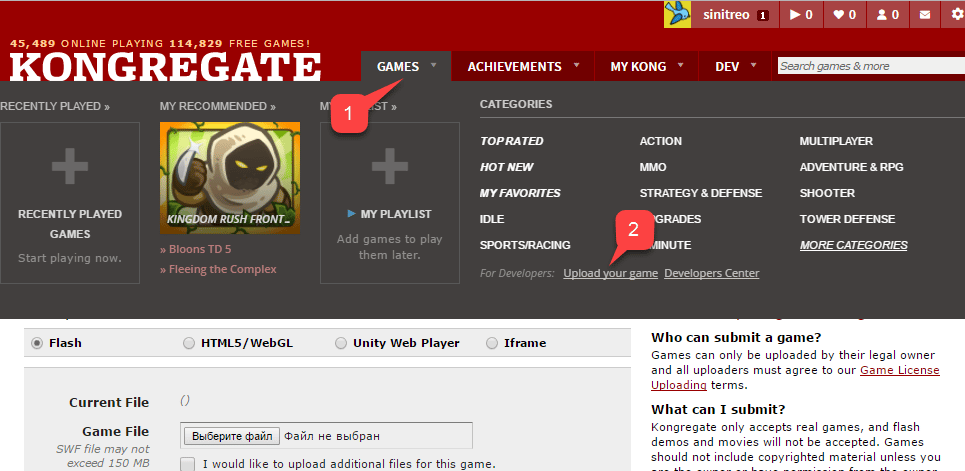
[Kongregate Web サイト](https://www.kongregate.com/) に移動します:

1. **Games** タブを選択します。
2. **Upload your game** ボタンを選択します。

<img src="https://mintcdn.com/microsoft-4404708b/mLCHf0iQv3VidfBe/images/playfab/identity/player-identity/platform-specific-authentication/tutorials/kongregate-games-tab.png?fit=max&auto=format&n=mLCHf0iQv3VidfBe&q=85&s=3af3bc93c645a3f8948701caf1f08d03" alt="Kongregate Games タブ" width="965" height="471" data-path="images/playfab/identity/player-identity/platform-specific-authentication/tutorials/kongregate-games-tab.png" />

新しいアプリケーションをセットアップするページが開きます。

1. **Title** フィールドに **アプリケーション名** を入力します。
2. 次に、指定されたフィールドに **ゲームの説明** を入力します。
3. **カテゴリ** を選択します。
4. 下の例のように、**Continue** ボタンを選択して新しいアプリを送信します。
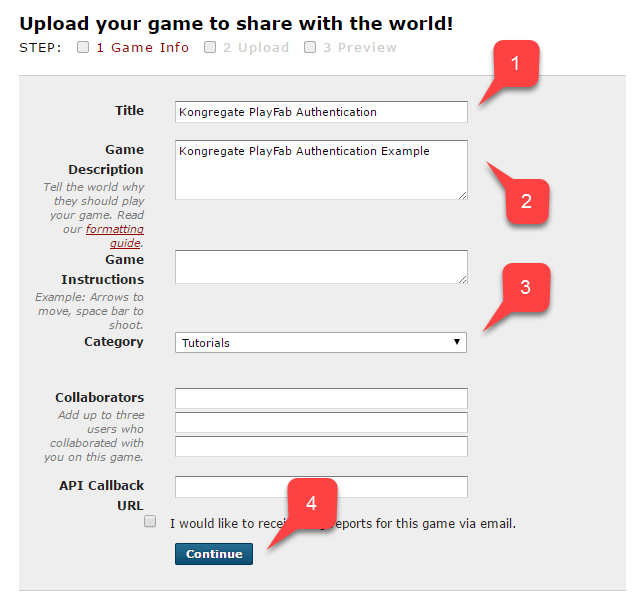
<img src="https://mintcdn.com/microsoft-4404708b/mLCHf0iQv3VidfBe/images/playfab/identity/player-identity/platform-specific-authentication/tutorials/kongregate-upload-your-game.png?fit=max&auto=format&n=mLCHf0iQv3VidfBe&q=85&s=0e66a21c81da6861bd59d2dddb82c22f" alt="Kongregate ゲームをアップロード" width="636" height="603" data-path="images/playfab/identity/player-identity/platform-specific-authentication/tutorials/kongregate-upload-your-game.png" />

**アプリケーション アップロード** ページに移動します。

重要な最初のステップとして、**Web アドレス バー** の **URL** を必ず保存してください。これにより、ページを閉じた後にアプリケーションへのアクセスを復元する時間を大幅に節約できます。

1. 完了したら、準備した **index.html** ファイルを **ゲーム ファイル** として選択します。
2. 次に、画面サイズを設定します。
3. 必要なライセンスをすべて承諾してください。
4. 下の例のように、**Upload** ボタンを選択してアプリケーションをアップロードします。
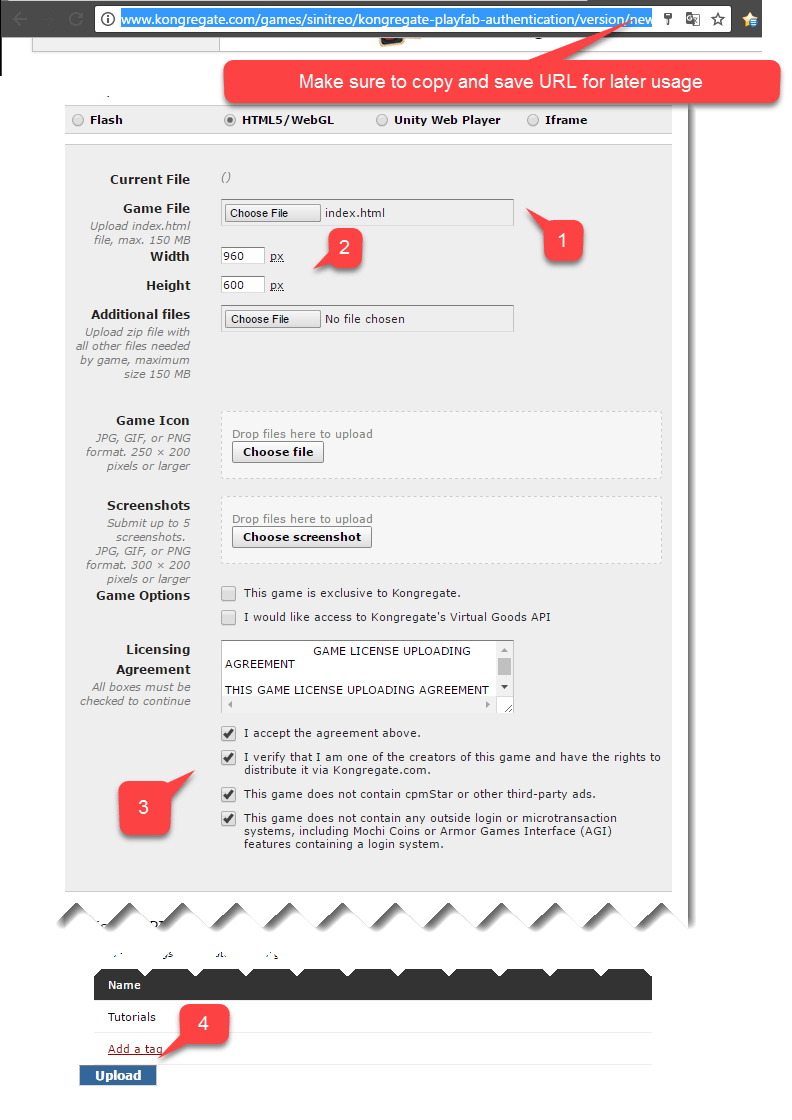
<img src="https://mintcdn.com/microsoft-4404708b/mLCHf0iQv3VidfBe/images/playfab/identity/player-identity/platform-specific-authentication/tutorials/kongregate-app-upload-page.png?fit=max&auto=format&n=mLCHf0iQv3VidfBe&q=85&s=893af9198a1deef8b7cdb6bcd4534cc9" alt="Kongregate アプリケーション アップロード ページ" width="792" height="1120" data-path="images/playfab/identity/player-identity/platform-specific-authentication/tutorials/kongregate-app-upload-page.png" />

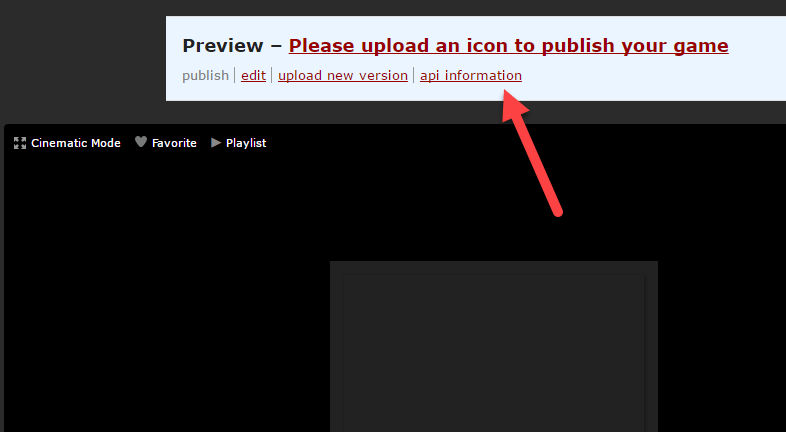
* プレビューが開いたら、内容は無視して **api information** リンクを開きます。
<img src="https://mintcdn.com/microsoft-4404708b/mLCHf0iQv3VidfBe/images/playfab/identity/player-identity/platform-specific-authentication/tutorials/kongregate-preview-api-info.png?fit=max&auto=format&n=mLCHf0iQv3VidfBe&q=85&s=b136fa2e3dd827e4b6344921b500a8be" alt="Kongregate プレビュー API 情報" width="786" height="432" data-path="images/playfab/identity/player-identity/platform-specific-authentication/tutorials/kongregate-preview-api-info.png" />

<Note>
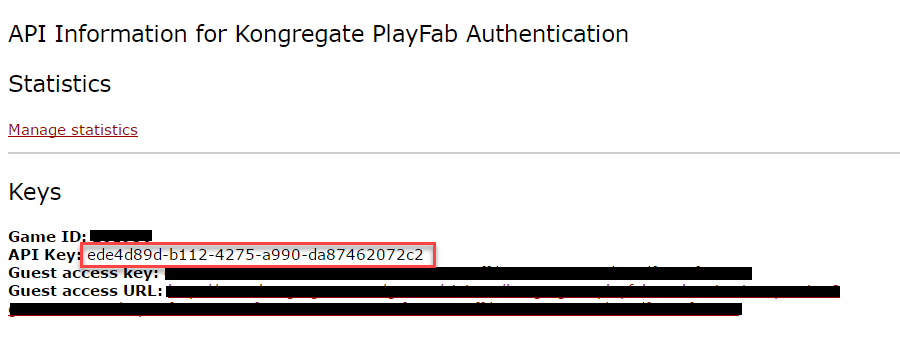
  **API 情報** ページが開いたら、**API Key** を見つけ、後で使用できるように安全で簡単にアクセスできる場所に保存してください。
</Note>

<img src="https://mintcdn.com/microsoft-4404708b/mLCHf0iQv3VidfBe/images/playfab/identity/player-identity/platform-specific-authentication/tutorials/kongregate-api-key.png?fit=max&auto=format&n=mLCHf0iQv3VidfBe&q=85&s=a99770329d85ce86613cd0a32cdf28a4" alt="Kongregate API Key" width="900" height="344" data-path="images/playfab/identity/player-identity/platform-specific-authentication/tutorials/kongregate-api-key.png" />

## PlayFab タイトルの構成

PlayFab タイトルの Game Manager で:

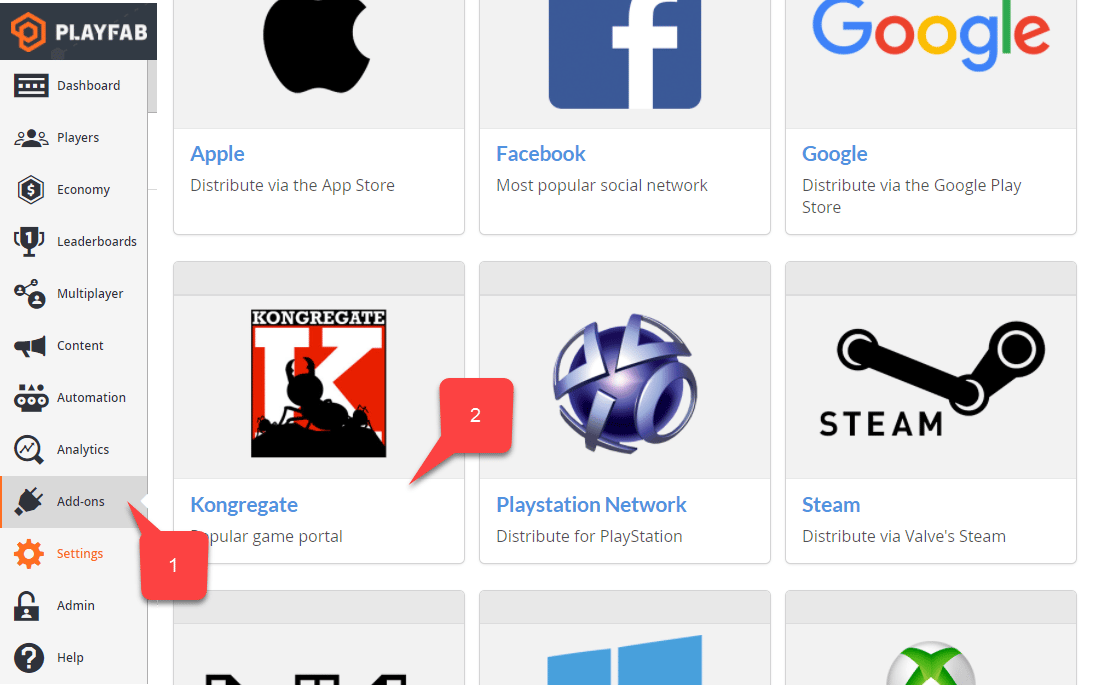
1. **Add-ons** に移動します。
2. **Kongregate** を見つけて選択します。
<img src="https://mintcdn.com/microsoft-4404708b/mLCHf0iQv3VidfBe/images/playfab/identity/player-identity/platform-specific-authentication/tutorials/playfab-select-kongregate-add-on.png?fit=max&auto=format&n=mLCHf0iQv3VidfBe&q=85&s=e25c251fc51474717d5b5a693ad1bf0c" alt="PlayFab Kongregate アドオンの選択" width="1100" height="685" data-path="images/playfab/identity/player-identity/platform-specific-authentication/tutorials/playfab-select-kongregate-add-on.png" />

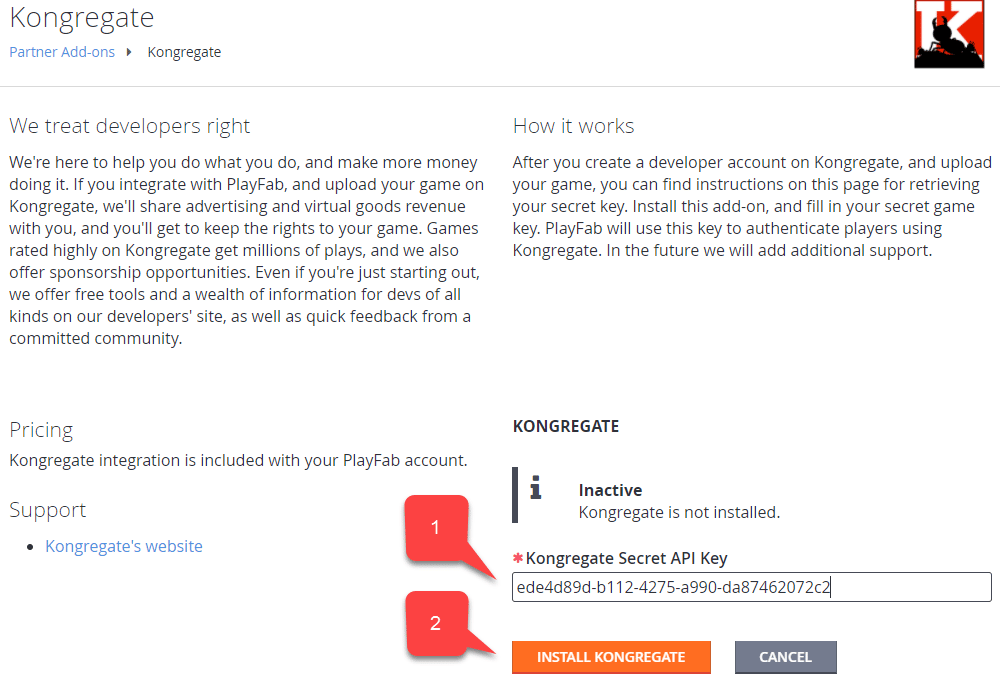
新しいページが開き、**Kongregate** 統合をセットアップできます。

1. 前のセクションで取得した **API Key** を入力します。
2. **Install Kongregate** を選択します。
<img src="https://mintcdn.com/microsoft-4404708b/mLCHf0iQv3VidfBe/images/playfab/identity/player-identity/platform-specific-authentication/tutorials/playfab-set-up-kongregate-integration.png?fit=max&auto=format&n=mLCHf0iQv3VidfBe&q=85&s=fa6dd5111bfe1bb60c6cf118622272c1" alt="PlayFab Kongregate 統合のセットアップ" width="1000" height="693" data-path="images/playfab/identity/player-identity/platform-specific-authentication/tutorials/playfab-set-up-kongregate-integration.png" />

エラー メッセージが表示されなければ、Kongregate アプリケーションとの PlayFab タイトル統合が正常に構成されています。

## コードの準備

以下のサンプル コードを使用して、ゲームの `index.html` を埋めます。

```html theme={null}
<!DOCTYPE html PUBLIC "-//W3C//DTD XHTML 1.0 Transitional//EN"
  "http://www.w3.org/TR/xhtml1/DTD/xhtml1-transitional.dtd">
<html xmlns='http://www.w3.org/1999/xhtml'>
<head>
  <title>Kongregate Javascript API example</title>
  <!-- Import PlayFab API -->
  <script src='https://download.playfab.com/PlayFabClientApi.js'></script>
  <!-- Import JQuery, required specifically by this example, does not effect either API -->
  <script src='https://ajax.googleapis.com/ajax/libs/jquery/2.2.0/jquery.min.js'></script>
  <!-- Import Kongregate API -->
  <script src='https://cdn1.kongregate.com/javascripts/kongregate_api.js'></script>
</head>

<!-- Define elements with IDs to show current state of things and a couple of buttons -->
<body style='background-color:white'>
  <span id='init'>Initializing...</span>
  <div id='content' style='display:none'>
    <div>Kongregate API Loaded!</div>
    <div id='username'></div>
    <div id='user_id'></div>
    <!-- This button will invoke Kongregate Auth Box -->
    <button id='login' style='display:none'
      onclick='kongregate.services.showRegistrationBox()'>Sign in/register</button>
    <!-- This button will invoke PlayFab authentication process -->
    <button id='login'
       onclick='loginInUsingPlayFab()'>PlayFab Login With Kongregate</button>
  </div>

  <script type='text/javascript'>

    // This function just updates UI, nothing else
    function updateFields() {
      $('#init').hide();
      $('#content').show();

      // Visualize Kongregate Auth Data
      $('#username').text('Username: ' + kongregate.services.getUsername());
      $('#user_id').text('User ID: ' + kongregate.services.getUserId());

      // If not authenticated in Kongregate, allow to use Login button
      if(kongregate.services.isGuest()) {
        $('#login').show();
      } else {
        $('#login').hide();
      }
    }

    // The function prepares and triggers PlayFab LoginWithKongregate API call
    function loginInUsingPlayFab() {
      // Setting up PlayFab title ID
      PlayFab.settings.titleId = "159F";

      // forming request
      var request = {
        TitleId: PlayFab.settings.titleId,
        AuthTicket: kongregate.services.getGameAuthToken(),
        KongregateId : kongregate.services.getUserId(),
        CreateAccount: true
      };

      console.log('logging in');
      // Invoke LoginWithKongregate API call and visualize both results (success or failure)
      PlayFabClientSDK.LoginWithKongregate(request,
      function(result){
        $('<div></div>').html('Authenticated via playfab').appendTo('#content')
        console.log("success");
      },
      function(err){
        $('<div></div>').html('Problem occurred: ' + PlayFab.GenerateErrorReport(err)).appendTo('#content')
        console.log("failure");
      });
    }

    // The entry point for Kongregate initialization
    kongregateAPI.loadAPI(function(){
      window.kongregate = kongregateAPI.getAPI();
      updateFields();
      kongregate.services.addEventListener('login', function(){
        updateFields();
      });
    });
  </script>
</body>
</html>
```

## テスト

先ほど、安全でアクセスしやすい場所に保存するようお願いした URL を覚えていますか?今すぐそれを使用して **アプリケーション アップロード** ページにアクセスします。

1. **index.html** を **ゲーム ファイル** として選択します。
2. 画面サイズを設定します。
3. 必要なライセンスをすべて承諾してください。
4. **Upload** ボタンを選択してアプリケーションをアップロードします。

<img src="https://mintcdn.com/microsoft-4404708b/mLCHf0iQv3VidfBe/images/playfab/identity/player-identity/platform-specific-authentication/tutorials/kongregate-app-upload-page.png?fit=max&auto=format&n=mLCHf0iQv3VidfBe&q=85&s=893af9198a1deef8b7cdb6bcd4534cc9" alt="Kongregate アプリケーション アップロード ページ" width="792" height="1120" data-path="images/playfab/identity/player-identity/platform-specific-authentication/tutorials/kongregate-app-upload-page.png" />

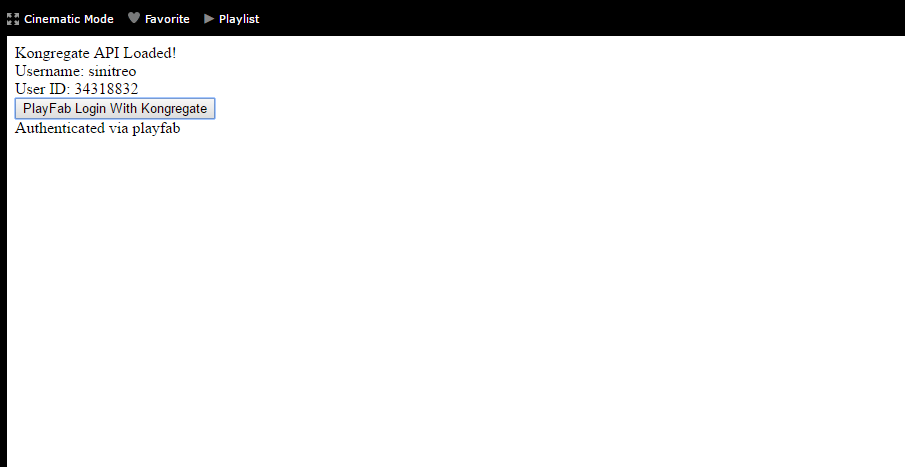
プレビューが読み込まれたら、アプリケーションが **Kongregate ユーザー ID** と **ユーザー名** を取得するまで待ちます。

* その後、**PlayFab Login With Kongregate** ボタンを選択します。
* 少し待つと、**Authenticated via PlayFab** メッセージが表示されるはずです。
* この時点で、PlayFab と Kongregate を使用してログインに成功しました!
<img src="https://mintcdn.com/microsoft-4404708b/mLCHf0iQv3VidfBe/images/playfab/identity/player-identity/platform-specific-authentication/tutorials/kongregate-html5/testing-playfab-login-with-kongregate.png?fit=max&auto=format&n=mLCHf0iQv3VidfBe&q=85&s=f0588d425c650246a5a9f8a041b3a078" alt="Kongregate を使った PlayFab ログインのテスト" width="905" height="467" data-path="images/playfab/identity/player-identity/platform-specific-authentication/tutorials/kongregate-html5/testing-playfab-login-with-kongregate.png" />