> ## Documentation Index
> Fetch the complete documentation index at: https://devdocs.xbox.com/llms.txt
> Use this file to discover all available pages before exploring further.
# Google サインインから Play Games サインインへの移行フォールバック
> Play Games Plugin for Unity プラグインをアップグレードした後もまだ Google Play Games ID を使用していないプレイヤー向けのフォールバック方法。
# Play Games Plugin for Unity v0.11.x で LoginWithGoogleAccount を使用するための修正
この記事では、Play Games Plugin for Unity をアップグレードしたバージョンで **LoginWithGoogleAccount** API を使用した際にエラーが返される場合の回避策について説明します。
このエラーは、[Play Games Plugin for Unity](https://github.com/playgameservices/play-games-plugin-for-unity) を v0.11.x 以上のバージョンにアップグレードした後、既存のプレイヤーが [LoginWithGooglePlayGamesServices を使用するように移行](/services/playfab/identity/player-identity/platform-specific-authentication/google-play-games-sign-in-migration-details#migration-steps) しなかった場合に発生します。理由は、Google が 0.11.x 以上のプラグイン バージョンで追加スコープを追加する機能を削除したためです。
ブラウザーを介してサインインする必要があるとプレイヤーのエクスペリエンスに影響する可能性があるため、この回避策はフォールバックの代替案と見なすべきです。
## 開始する前に
プラグインの最新バージョンを使用しているときに認証を修正するには、次の全体的な手順に従います。
1. Google OAuth2 API を手動で呼び出す
2. ブラウザー タブでプレイヤーの認証を実行する
3. Android ディープ リンクを使用してゲームにリダイレクト認証コードを取得する
## 推奨事項
プラグインのバージョン 0.10.x をまだ使用している間に、[ユーザーを LoginWithGooglePlayGamesServices を使用するように移行](/services/playfab/identity/player-identity/platform-specific-authentication/google-play-games-sign-in-migration-details#migration-steps) API します。バージョン 0.11.x 以降のプラグインにアップグレードした後、残りのプレイヤーに対するフォールバック メソッドとして次の手順を使用します。
## 修正手順
1. ディープ リンクを使用してゲームに Android インテントを追加します。(手順は [Unity - Manual: Deep linking on Android (unity3d.com)](https://docs.unity3d.com/2021.2/Documentation/Manual/deep-linking-android.html) から改編)
a. Project ウィンドウで、**Assets > Plugins > Android** に移動します。
b. 新しいファイルを作成し、**AndroidManifest.xml** という名前を付けます。Unity は、アプリケーションをビルドするときにこのファイルを自動的に処理します。
c. 次のマニフェスト サンプルを新しいファイルにコピーし、アプリの URI で data 要素を更新して保存します。適切な data タグの構築方法の詳細については、[この記事](https://developer.android.com/guide/topics/manifest/data-element) を参照してください。
```xml theme={null}
```
d. intent-filter タグに **autoVerify** プロパティが存在することを確認します。
2. ディープ リンクを機能させるために、Android 12 以降、Google は開発者に対して、アプリへのリダイレクトを正常に行うために、既知の場所で assetlinks.json ファイルをホストすることを義務付けています。
たとえば、リダイレクト URI が [https://mytestapp.com/path1/subpath](https://mytestapp.com/path1/subpath) の場合、有効な assetlinks.json ファイルを [https://mytestapp.com/.well-known/assetlinks.json](https://mytestapp.com/.well-known/assetlinks.json) でホストする必要があります。そうしないと、ディープ リンクは機能せず、アプリにリダイレクトされて続行できません。
assetlinks.json ファイルの作成方法の詳細については、[Android アプリ リンクの検証](https://developer.android.com/training/app-links/verify-android-applinks) を参照してください。
3. ゲームにディープ リンク処理を追加します。(手順は [Unity - Manual: Deep linking (unity3d.com)](https://docs.unity3d.com/2021.2/Documentation/Manual/deep-linking.html#using-deep-links) から改編)。
```csharp theme={null}
using GooglePlayGames;
using GooglePlayGames.BasicApi;
using PlayFab;
using PlayFab.ClientModels;
using System;
using UnityEngine;
using UnityEngine.UI;
public class ProcessDeepLinkMngr : MonoBehaviour
{
public static ProcessDeepLinkMngr Instance { get; private set; }
private void Awake()
{
if (Instance == null)
{
Instance = this;
Application.deepLinkActivated += onDeepLinkActivated;
if (!string.IsNullOrEmpty(Application.absoluteURL))
{
// Cold start and Application.absoluteURL not null so process Deep Link.
onDeepLinkActivated(Application.absoluteURL);
}
DontDestroyOnLoad(gameObject);
}
else
{
Destroy(gameObject);
}
}
private void onDeepLinkActivated(string url)
{
Debug.Log("Got Deeplink Activated: " + url);
// Decode the URL to extract auth code.
string queryParams = url.Split("?"[0])[1];
string[] keyValuePairs = queryParams.Split("&");
string authCode = string.Empty;
foreach (string s in keyValuePairs)
{
if (s.StartsWith("code"))
{
authCode = s.Split("=")[1];
break;
}
}
if (!string.IsNullOrEmpty(authCode))
{
// Call the LoginWithGoogleAccount using the auth code
Debug.Log("Authenticating to PlayFab using LoginWithGoogleAccount...");
// Make sure to unescape string
authCode = Uri.UnescapeDataString(authCode);
var request = new LoginWithGoogleAccountRequest
{
ServerAuthCode = authCode,
CreateAccount = true,
TitleId = PlayFabSettings.TitleId
};
PlayFabClientAPI.LoginWithGoogleAccount(request,
(LoginResult result) => {
Debug.Log("PlayFab LoginWithGoogleAccount Success.");
},
(PlayFabError error) => {
Debug.Log("PlayFab LoginWithGoogleAccount Failure: " + error.GenerateErrorReport());
}
);
}
else
{
Debug.Log("Error when getting Auth Code.");
}
}
}
```
4. Google OAuth2 API へのブラウザーを起動し、プレイヤーにブラウザー経由でサインインさせるためのコードを追加します。プレイヤーがブラウザーで既にログインしている場合、遷移はシームレスに行われます。そうでない場合は、資格情報を入力する必要があります。
```csharp theme={null}
private string authorizationEndpoint = "https://accounts.google.com/o/oauth2/v2/auth";
private string redirectURI = "[APPLICATION-REDIRECT-URI]";
private object clientID = "[WEB-APPLICATION-CLIENT-ID]";
private string scopes = "profile";
private void LaunchBrowserAuth()
{
string authorizationRequest = string.Format("{0}?response_type=code&scope={1}&redirect_uri={2}&client_id={3}",
authorizationEndpoint,
scopes,
Uri.EscapeDataString(redirectURI),
clientID);
Application.OpenURL(authorizationRequest);
}
```
リダイレクト URI は、手順 1 で追加した Android インテント フィルターと一致する必要があります。そのため、ユーザーが認証を完了すると、ブラウザーはそのリダイレクト URI に移動し、ブラウザーはユーザーにアプリケーションに戻るかどうかを尋ねる必要があります。
5. これで、これをテストする準備ができました。認証をトリガーすると、ブラウザーが開き、ユーザーはサインインする必要があります。ブラウザー データが削除されない限り、この手順は 1 回限りのプロセスとなります。
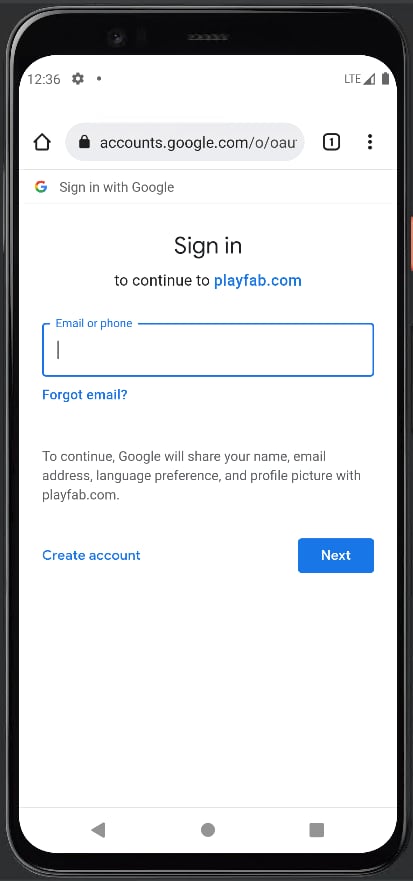 6. ユーザーが認証を完了すると、ブラウザーはリダイレクト URL をどのアプリケーションで開くか尋ねます。
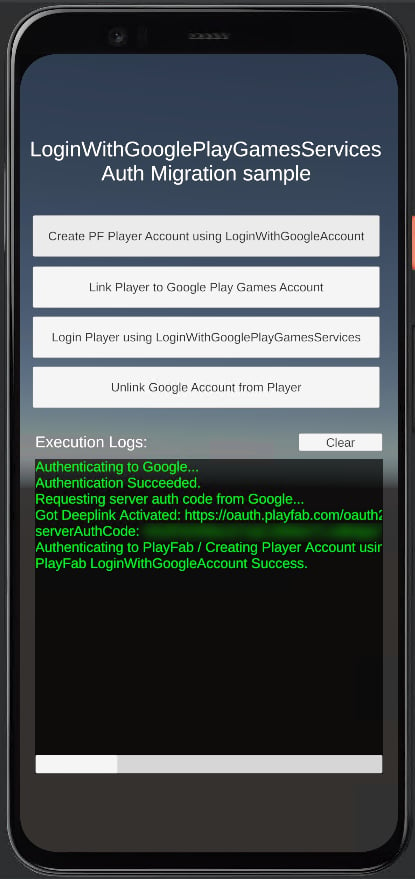
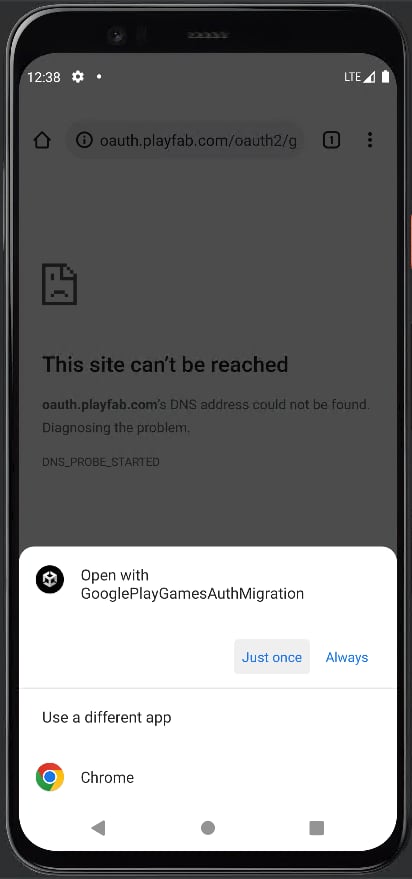 7. このアクションによりアプリケーションに戻り、リダイレクト URL のクエリ パラメーターからコードを取得して、LoginWithGoogleAccount の呼び出しに進むことができます。
 8. 最後に、[移行手順](/services/playfab/identity/player-identity/platform-specific-authentication/google-play-games-sign-in-migration-details#migration-steps) を使用して移行できなかったユーザーに対するフォールバックの代替手段として、この方法の使用をお勧めします。
***LoginWithGooglePlayGamesServices を使用するように既に移行済みのユーザーを追跡し、プラグインが提供する自動ログイン メカニズムを優先的に使用し、これは移行されていないユーザーに対する回避策として使用することを念頭に置いてください。***
## Related topics
- [Unity で Google サインインから Google Play Games に移行する](/ja-jp/services/playfab/identity/player-identity/platform-specific-authentication/google-play-games-sign-in-migration-details.md)
- [Unity ゲームを Google Play Games サインインに移行する](/ja-jp/services/playfab/identity/player-identity/platform-specific-authentication/google-play-games-sign-in-migration.md)
- [Game Manager へのサインイン](/ja-jp/services/playfab/live-service-management/gamemanager/game-manager-login.md)
- [Unity で Google Play Games サインインを使用した PlayFab 認証](/ja-jp/services/playfab/identity/player-identity/platform-specific-authentication/google-sign-in-unity.md)
- [サインインおよびサンドボックスエラーのトラブルシューティング](/ja-jp/services/xbox-services/develop/troubleshooting/live-troubleshoot-sandboxes.md)
8. 最後に、[移行手順](/services/playfab/identity/player-identity/platform-specific-authentication/google-play-games-sign-in-migration-details#migration-steps) を使用して移行できなかったユーザーに対するフォールバックの代替手段として、この方法の使用をお勧めします。
***LoginWithGooglePlayGamesServices を使用するように既に移行済みのユーザーを追跡し、プラグインが提供する自動ログイン メカニズムを優先的に使用し、これは移行されていないユーザーに対する回避策として使用することを念頭に置いてください。***
## Related topics
- [Unity で Google サインインから Google Play Games に移行する](/ja-jp/services/playfab/identity/player-identity/platform-specific-authentication/google-play-games-sign-in-migration-details.md)
- [Unity ゲームを Google Play Games サインインに移行する](/ja-jp/services/playfab/identity/player-identity/platform-specific-authentication/google-play-games-sign-in-migration.md)
- [Game Manager へのサインイン](/ja-jp/services/playfab/live-service-management/gamemanager/game-manager-login.md)
- [Unity で Google Play Games サインインを使用した PlayFab 認証](/ja-jp/services/playfab/identity/player-identity/platform-specific-authentication/google-sign-in-unity.md)
- [サインインおよびサンドボックスエラーのトラブルシューティング](/ja-jp/services/xbox-services/develop/troubleshooting/live-troubleshoot-sandboxes.md)